![ASHQ Logo Vert Flat.png]](https://support.afterschoolhq.com/hs-fs/hubfs/ASHQ%20Logo%20Vert%20Flat.png?height=40&name=ASHQ%20Logo%20Vert%20Flat.png)
When managing student registrations in AfterSchool HQ, you may sometimes need to remove a registration or withdraw a participant from an activity.
However, when a payment has been recorded against a registration or an individual class date, the system no longer allows that registration to be permanently deleted.
Instead, you can use the “Withdraw” option to update the registration status while preserving its payment and registration history.
❗Before You Begin
Before managing a registration, keep the following in mind:
- A registration with a recorded payment cannot be permanently deleted.
- The Withdraw option is available instead to preserve registration and payment history.
- A full refund does not remove the original payment record or restore the Delete option.
- Some registrations without recorded payments can still be deleted normally.
- Withdrawing a registration does not necessarily cancel an active subscription or payment plan.
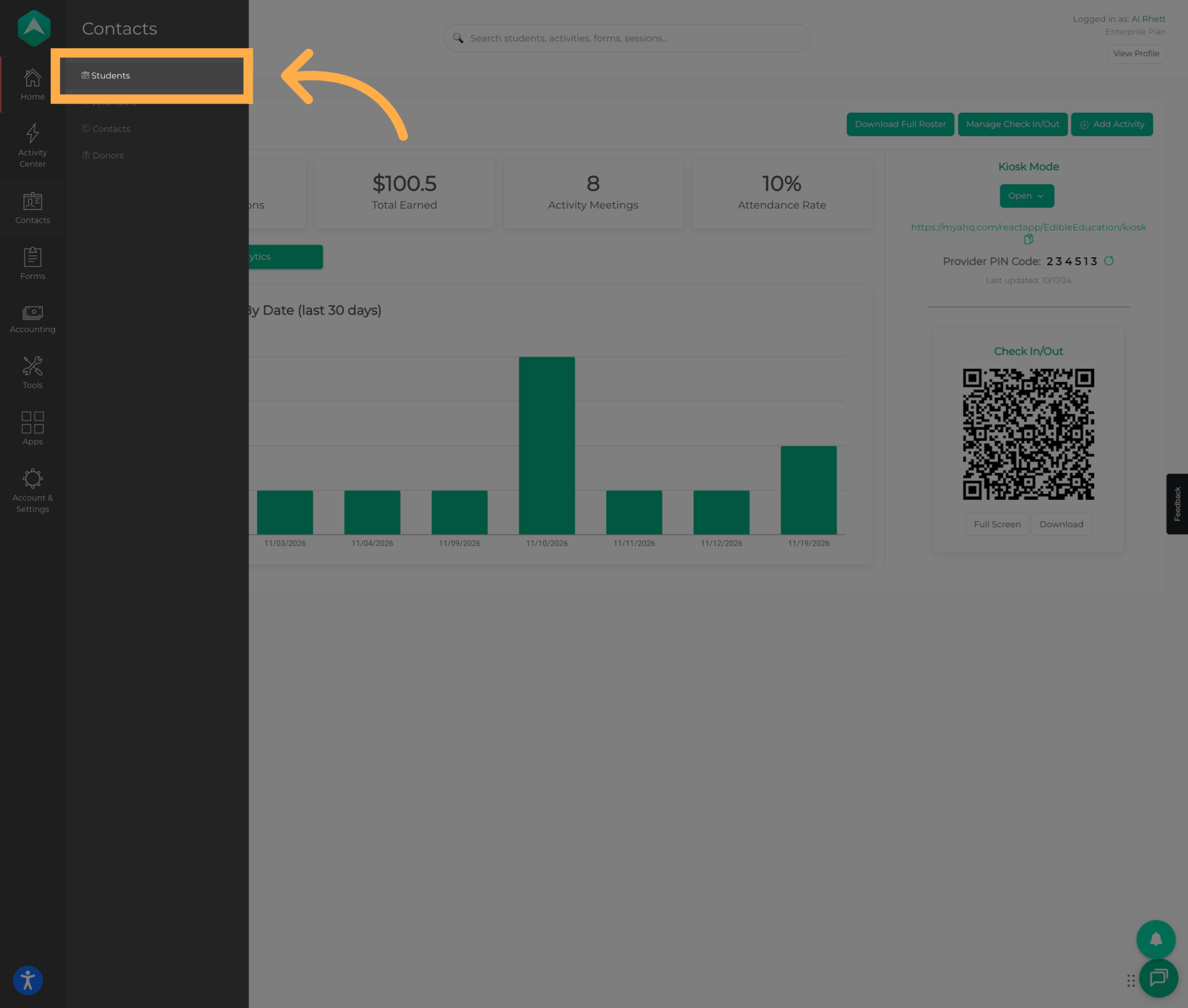
1. Navigate to the Students Section
From the left-side menu, click “Contacts”, then select “Students” to access your list of registered students.
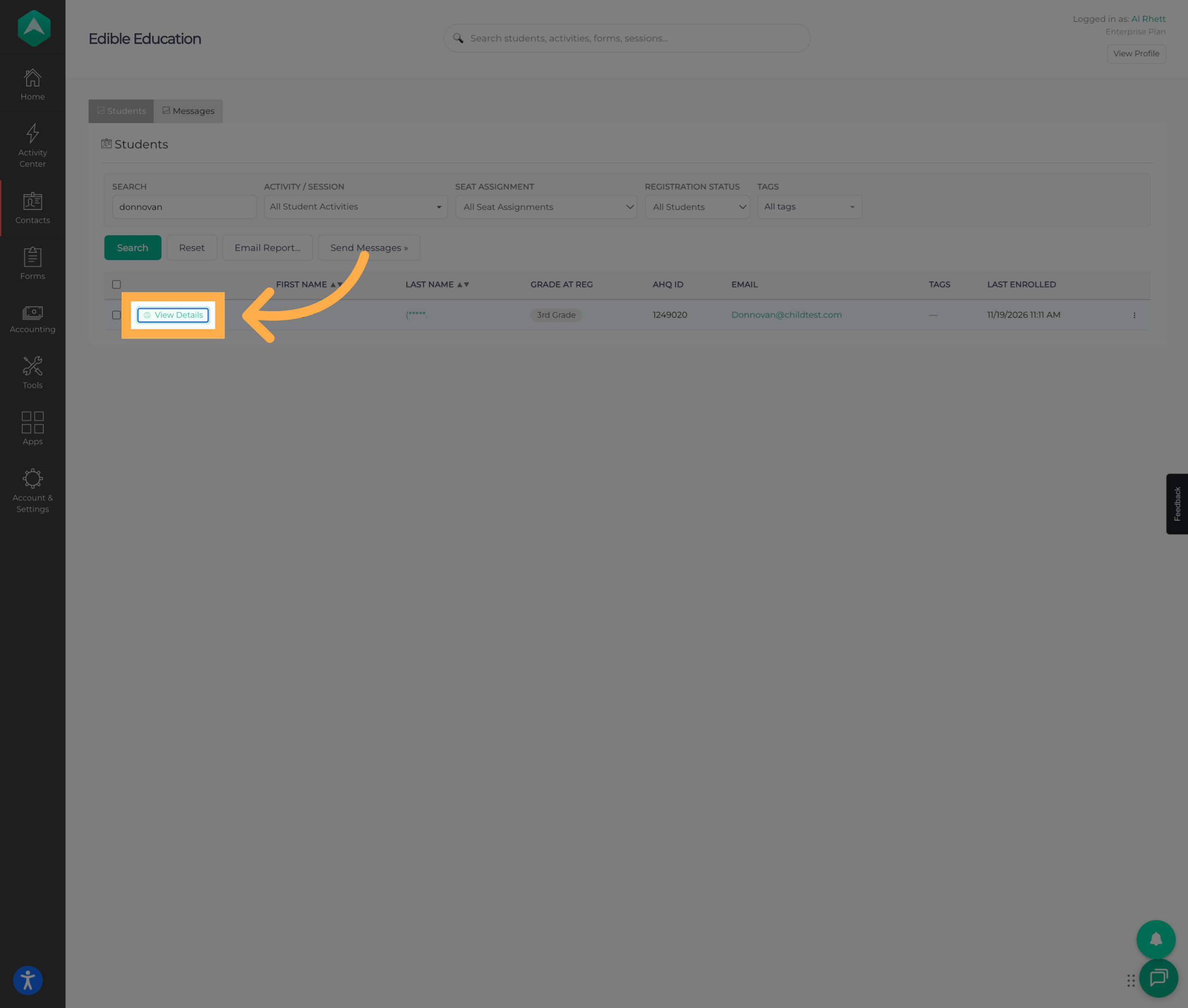
2. Open the Student Profile
Locate the student whose registration you'd like to manage, then click “View Details” to open their profile.
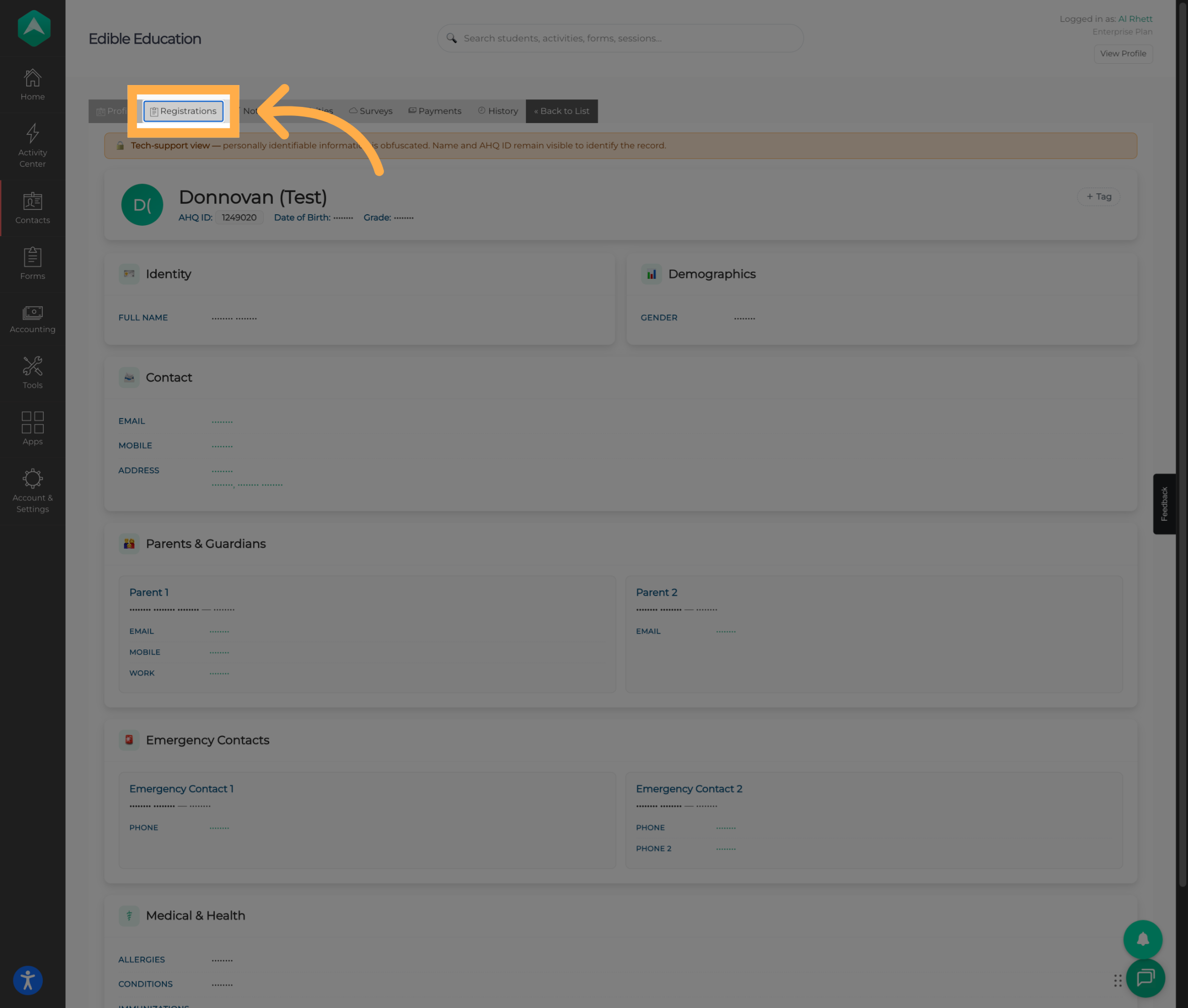
3. View the Student's Registrations
Once you're in the student's profile, select the “Registrations” tab. Here, you'll be able to review the registration records associated with that student.
💡 Tip: For per-class or individual-date activities, each class date has its own Delete option alongside the overall registration. Make sure you're managing the correct registration or date.
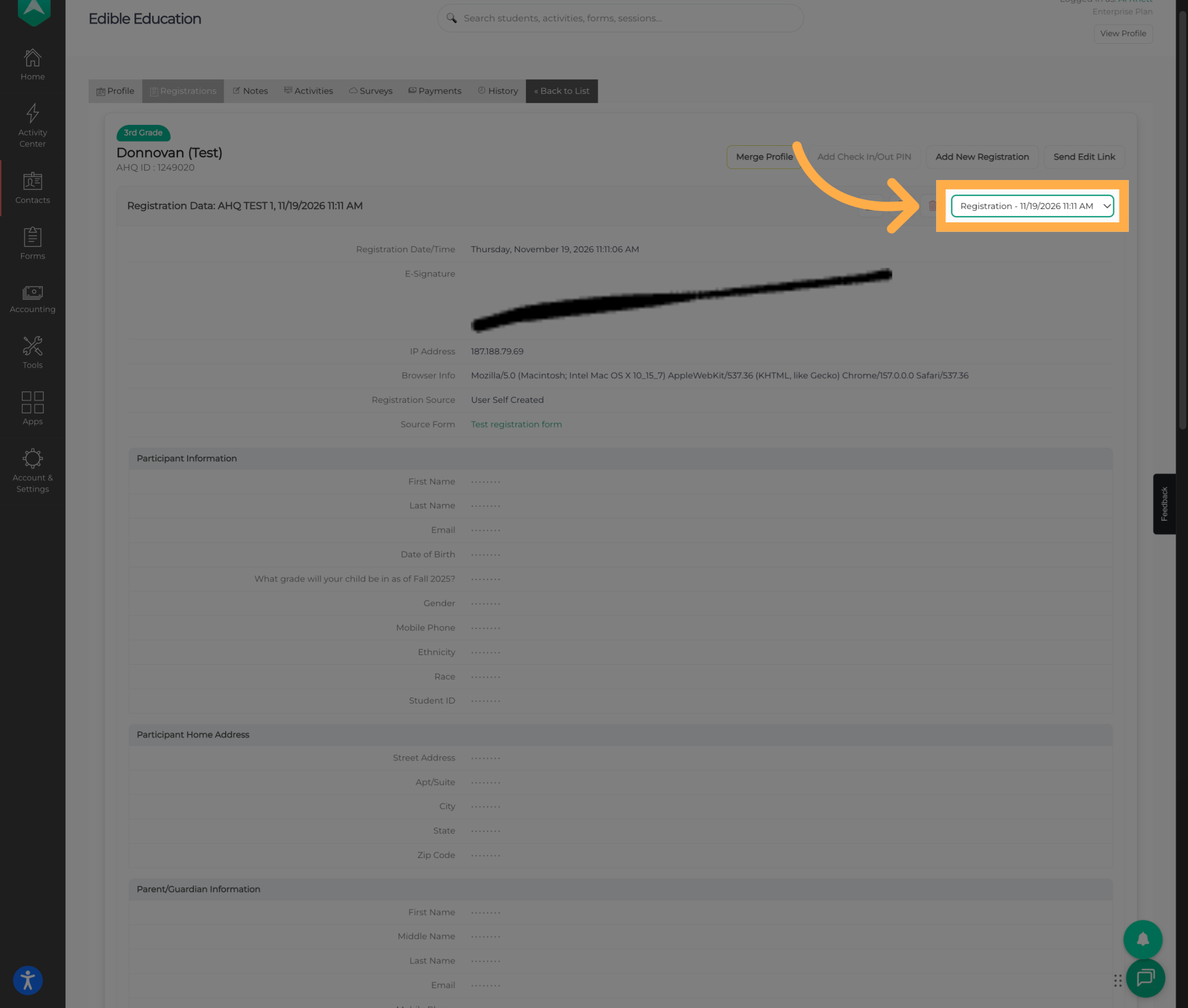
4. Select the Registration to Manage
Find the specific registration you'd like to review or manage, then select it to access its details.
From here, you can review the registration information and associated payment history before choosing an available action.
💡 Tip: Review the payment history before making changes. This will help you determine whether the registration can be deleted or needs to be withdrawn.
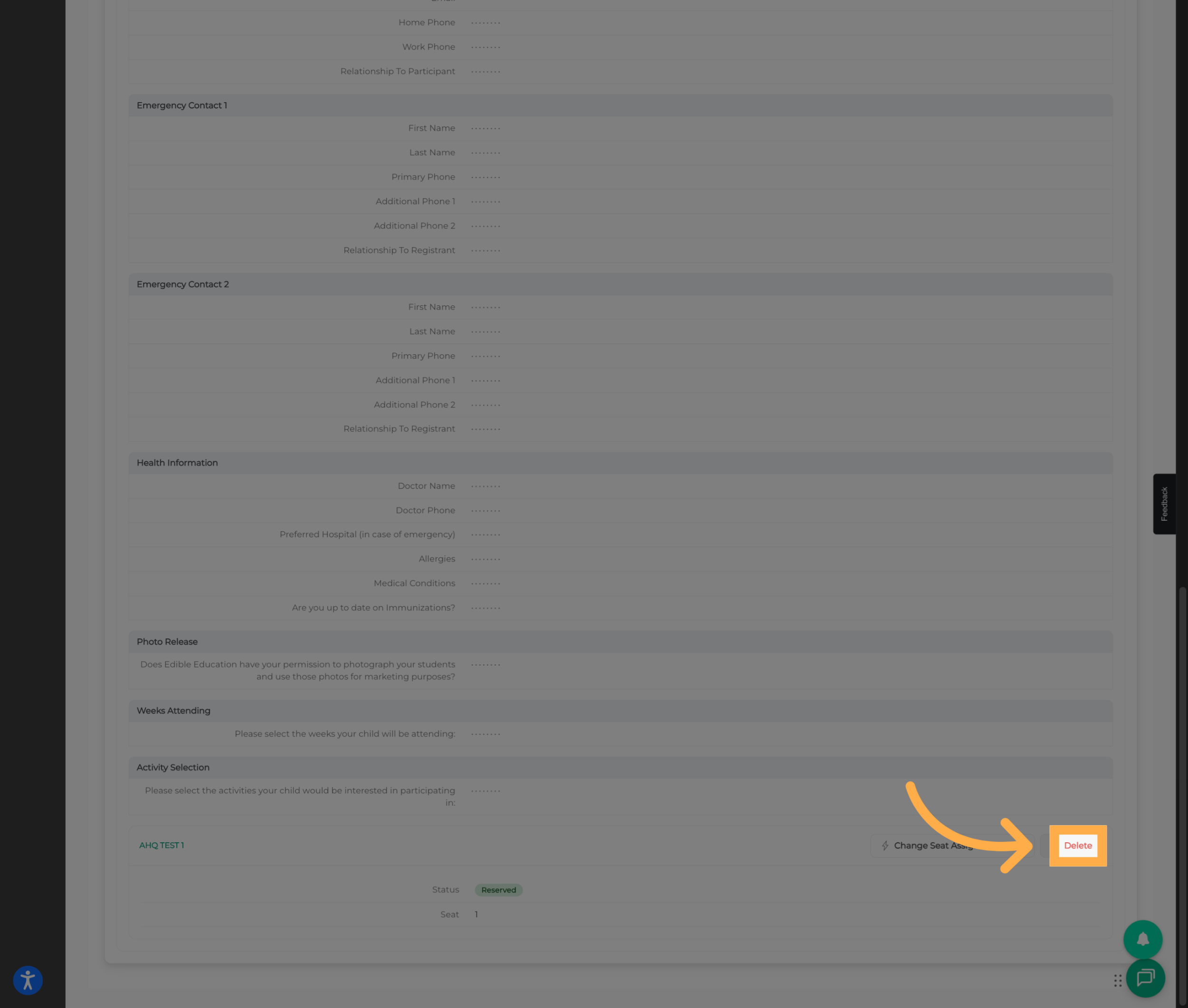
5. Attempt to Delete the Registration
If you no longer need the registration, you can attempt to delete it using the available “Delete” option.
The system will check whether any payments have been recorded against the registration or class date.
6. Understand Why Some Registrations Cannot Be Deleted
If a payment has been recorded against the registration or class date, the system will prevent permanent deletion.
This restriction helps preserve important registration, attendance, and payment history. Instead of deleting the record, you'll be prompted to use the “Withdraw” option.
A payment record can block deletion regardless of whether it came from:
- A one-time registration fee (REG fee).
- A registration payment plan.
- An active subscription.
- An auto-bill (ABB) charge.
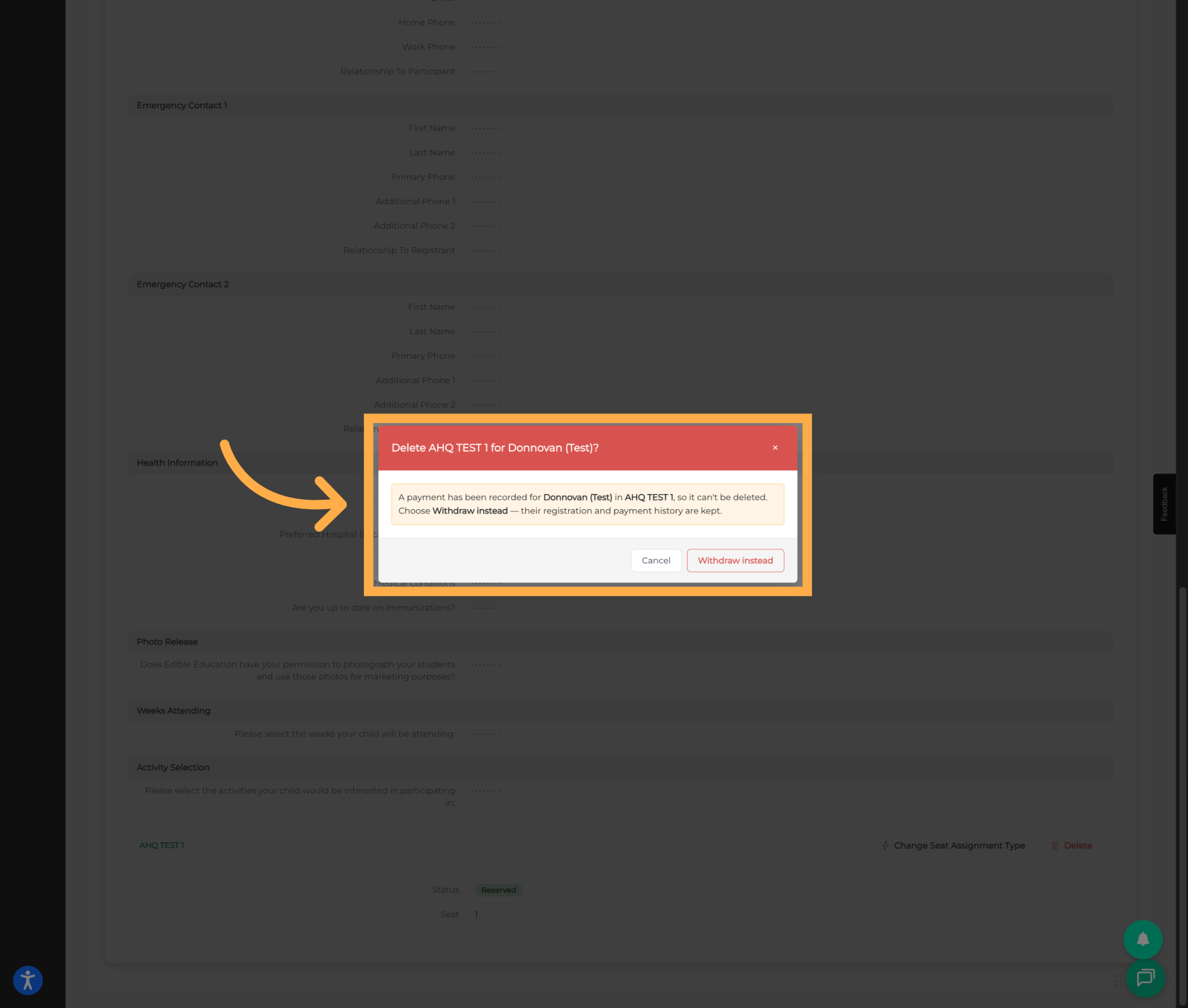
💡 Tip: Even if a payment has been fully refunded, the original payment record remains. This means the Delete option will still be unavailable, and you'll need to withdraw the registration instead.
7. Select the Withdraw Option
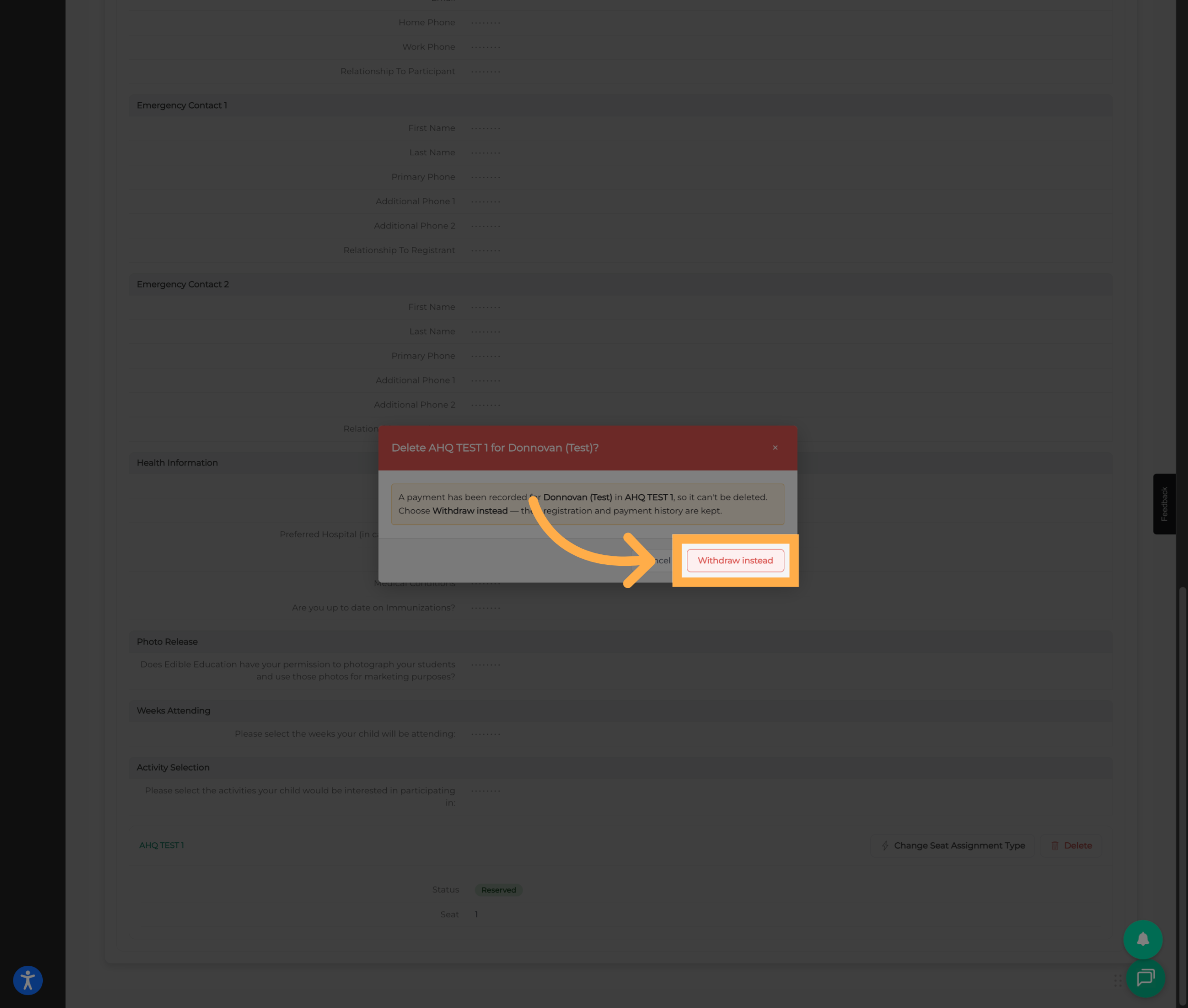
When deletion is restricted because a payment has been recorded, select “Withdraw instead” to proceed.
The status-change window will open with “Withdrawn” already selected. This allows you to update the registration status without permanently removing the record.
💡 Tip: Before saving, make sure you're withdrawing the correct participant's registration or class date.
8. Confirm the Registration Withdrawal
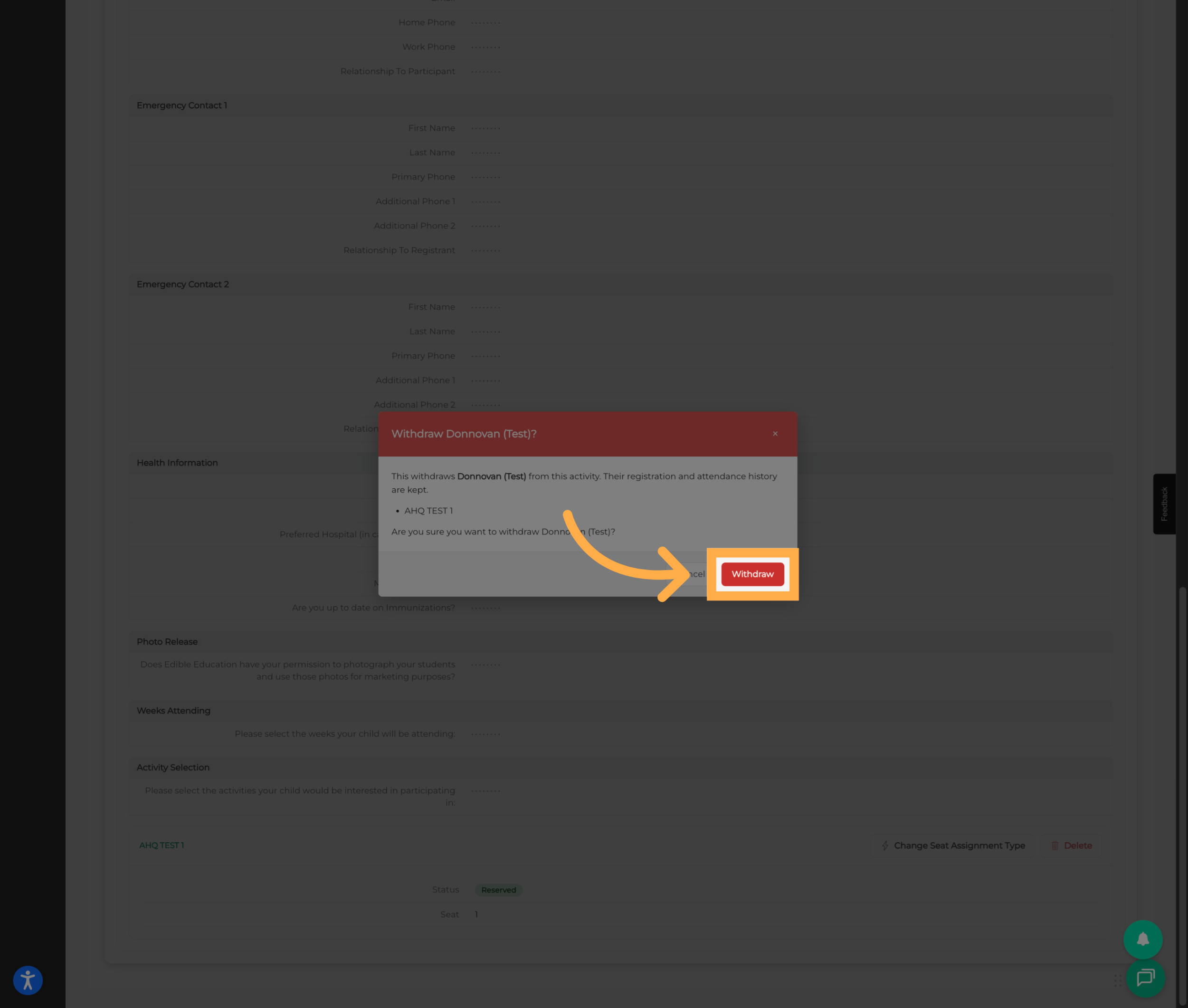
Review the selected status and confirm the withdrawal to complete the process.
Once saved, the registration status will be updated to “Withdrawn”, while the associated registration and payment history remain intact.
💡 Tip: Withdrawing a registration preserves its history. If you need to stop future subscription charges, make sure you also follow the appropriate subscription cancellation process.
Managing Per-Class and Individual-Date Registrations
For activities that use per-class or individual-date registration, the same payment restriction applies separately to each date.
❗Here's what you should know:
- Dates with recorded payments: These dates cannot be deleted. The system offers the Withdraw option for that specific date.
- Dates without recorded payments: These dates can still be deleted normally.
- Withdrawing an individual date: Only the selected date's status is changed. Other registered dates retain their own status and history.
- Analytics: Per-page analytics, including seats, revenue, and attendance counts, update to reflect the change after a date is withdrawn.
❗When Can a Registration Still Be Deleted?
The Delete option remains available when no payment has been recorded against the registration or class date.
Examples include:
- Pay Later: The participant registered but no payment has been recorded.
- Free or $0 registrations: No payment was collected.
- Drop-in registrations: These can still be deleted under the applicable conditions.
- Attendance-Based Billing (ABB): The registration can still be deleted before billing has run.
Once a registration or date has a recorded REG fee, payment plan payment, subscription payment, or ABB charge, the Delete option is replaced with Withdraw, even if the payment was later fully refunded.
Frequently Asked Questions
Q: Why can't I delete a participant's registration?
A: A payment has been recorded against the registration or class date. Once that happens, Delete is replaced with Withdraw to preserve the registration and payment history.
Q: I refunded the payment in full. Why is Delete still unavailable?
A: A full refund does not remove the original payment record. Since the payment was previously recorded, the deletion restriction remains. Use Withdraw instead.
Q: What's the difference between Delete and Withdraw?
A: Delete permanently removes the registration and its associated attendance history and cannot be undone. Withdraw changes the participant's registration status while preserving the registration and payment history. The participant can be registered again if needed.
Q: Does withdrawing a registration automatically cancel an active subscription or payment plan?
A: Not necessarily. It depends on your billing setup. For subscriptions, use the “Withdraw and Cancel Subscription Payments” flow to withdraw the participant and stop future subscription charges together.
Q: Can I still delete a participant who hasn't paid yet?
A: Yes. Registrations with no recorded payments, including Pay Later, $0 or free registrations, and eligible drop-in registrations, can still be deleted. Attendance-based billing registrations can also be deleted before billing has run.
Q: Can I withdraw just one class date without affecting the other dates?
A: Yes. For per-class or individual-date activities, withdrawing one paid date changes only that date's status. Other registered dates retain their own status and history.
Q: Will withdrawing a registration remove its payment history?
A: No. Withdrawing preserves the registration and associated payment records so they remain available for reference.
💡If you experience any issues or have further questions with “Deleting vs. Withdrawing a Participant's Registration”, don't hesitate to get in touch with our support team at support@afterschoolhq.com.