![ASHQ Logo Vert Flat.png]](https://support.afterschoolhq.com/hs-fs/hubfs/ASHQ%20Logo%20Vert%20Flat.png?height=40&name=ASHQ%20Logo%20Vert%20Flat.png)
Need quick access to reporting, analytics, imports, and other connected tools? This guide will show you how to navigate the Apps section in AfterSchool HQ and launch available applications directly from the platform.
The Apps section provides centralized access to connected tools and external applications that support reporting, imports, analytics, AI tools, and operational workflows within your organization.
Before You Begin
The Apps section in AfterSchool HQ provides quick access to connected tools and external applications that support reporting, imports, analytics, and operational workflows.
Currently available apps may include:
- AHQ Hub App
- AHQ Import App
- AI Reporting Assistant (AiRA)
- Grafana
1. Open the Apps Section
From the left-hand navigation menu, click “Apps.”
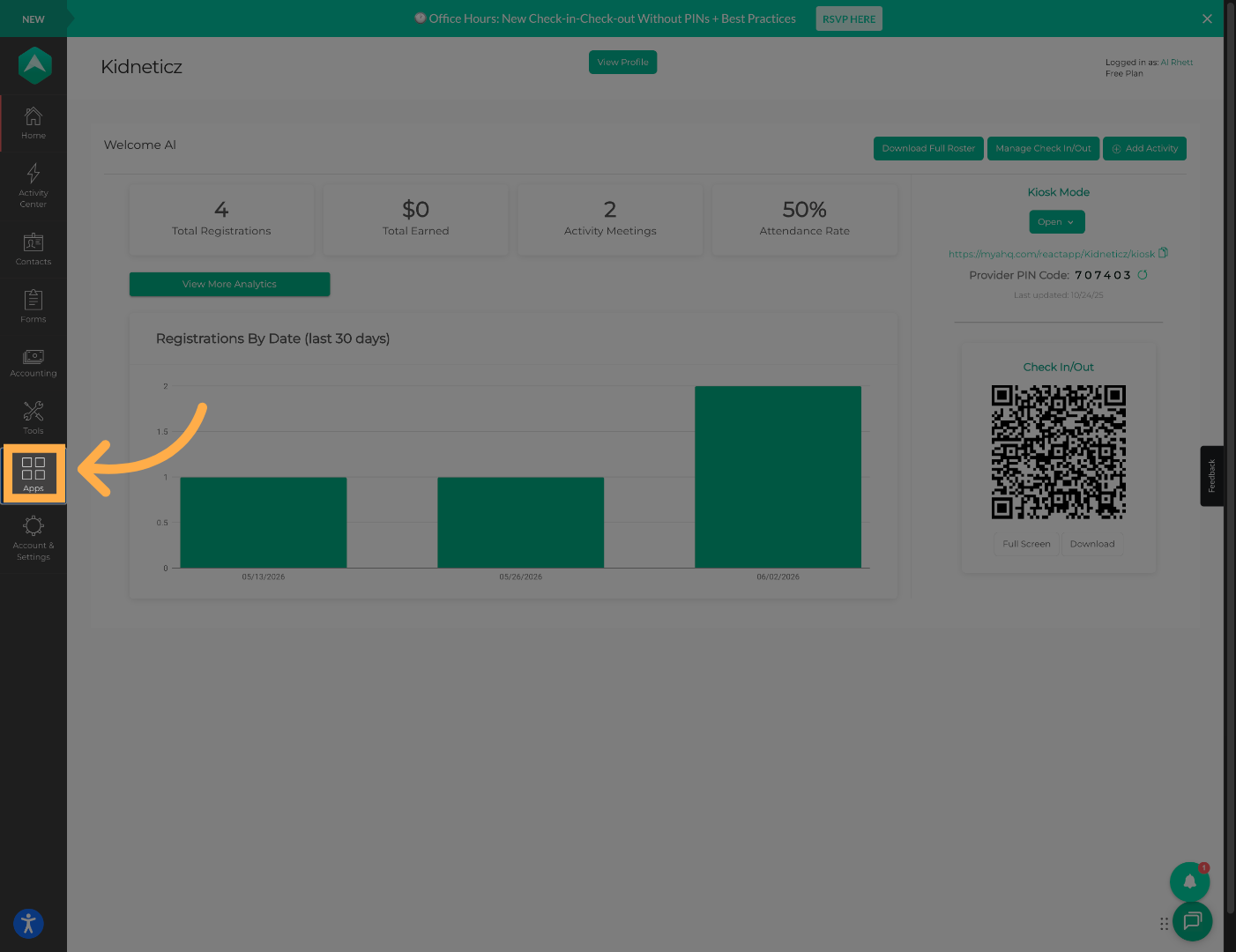
💡 Tip: The Apps section provides centralized access to connected AHQ tools and integrations.
2. View Available Applications
Once opened, you will see the list of currently available applications and tools connected to your account.
Examples may include:
- AHQ Hub App
- AHQ Import App
- AI Reporting Assistant (AIRA)
- Grafana
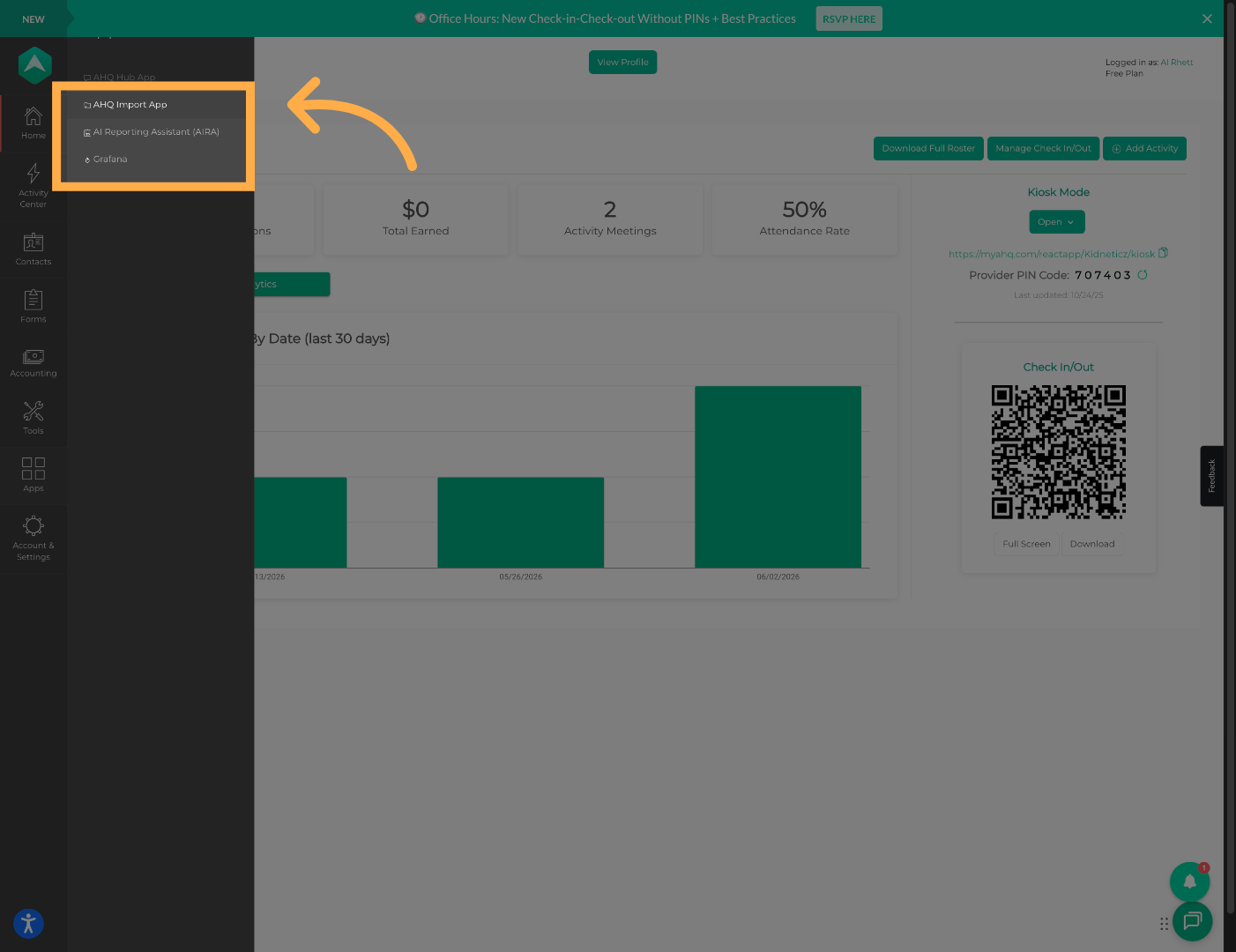
💡 Tip: Available apps may vary depending on your organization permissions and enabled features.
3. Launch an App
Click on any available app within the Apps section to launch and access the selected tool or integration.
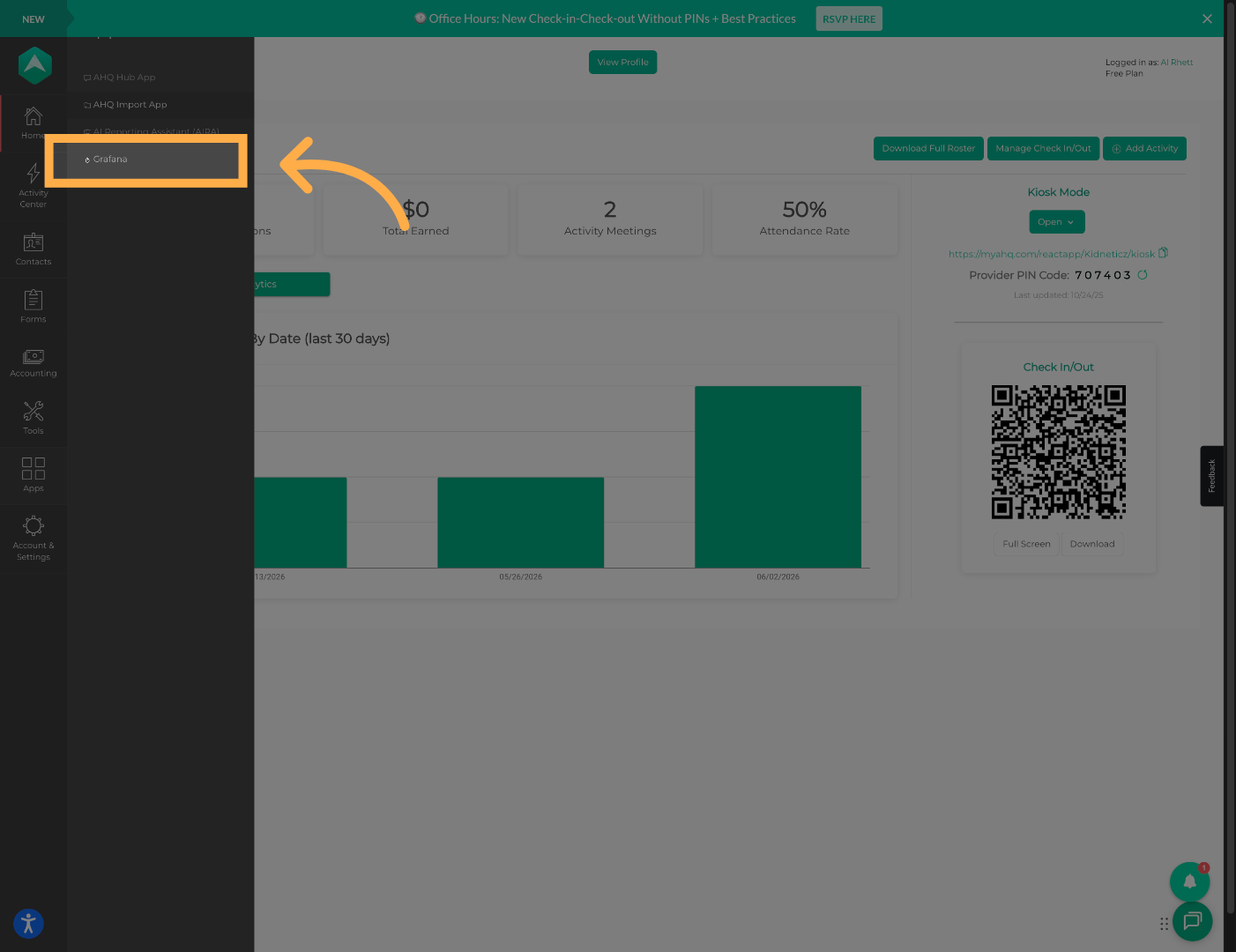
💡 Tip: Available applications may vary depending on your organization’s enabled features and user permissions.
Best Practices
⭐ Use Apps for Faster Navigation
The Apps section helps staff quickly access operational tools without leaving the AHQ ecosystem.
⭐ Verify User Permissions
If an app does not appear or cannot be accessed, your user role may not currently have permission enabled.
⭐Bookmark Frequently Used Dashboards
Consider bookmarking frequently used integrations for quicker access later.
Frequently Asked Questions
Q: What is the Apps section used for?
A: The Apps section provides access to connected tools, integrations, and reporting applications available within AfterSchool HQ.
Q: Why don’t I see certain apps?
A: Available apps depend on your organization’s enabled features and user permissions.
Q: Can all staff access these Apps?
A: Access depends on the permissions configured by your organization administrators.
💡If you experience any issues or have further questions with “How to Access Connected Apps in AfterSchool HQ”, don't hesitate to get in touch with our support team at support@afterschoolhq.com.