![ASHQ Logo Vert Flat.png]](https://support.afterschoolhq.com/hs-fs/hubfs/ASHQ%20Logo%20Vert%20Flat.png?height=40&name=ASHQ%20Logo%20Vert%20Flat.png)
Grafana provides access to reporting and data for organizations that have this feature available.
This guide walks you through accessing Grafana from the “Apps” section in AfterSchool HQ and signing in to view your organization’s available reports.
❗Before You Begin
Grafana is available to Enterprise Accounts. Access may also vary by user, as organizations can limit reporting access to specific staff members.
If your organization is an Enterprise customer but you do not see Grafana under Apps, check with your organization’s administrator or leadership team to confirm whether reporting access has been provided to your account.
💡 Tip: Not seeing Grafana under Apps does not necessarily indicate an account issue. Your organization may have limited reporting access to certain staff members.
1. Open App Manager
From your AfterSchool HQ account, select “Apps” to view the tools available to you.
If your account has access to Grafana, you’ll see the “Grafana” shortcut here. 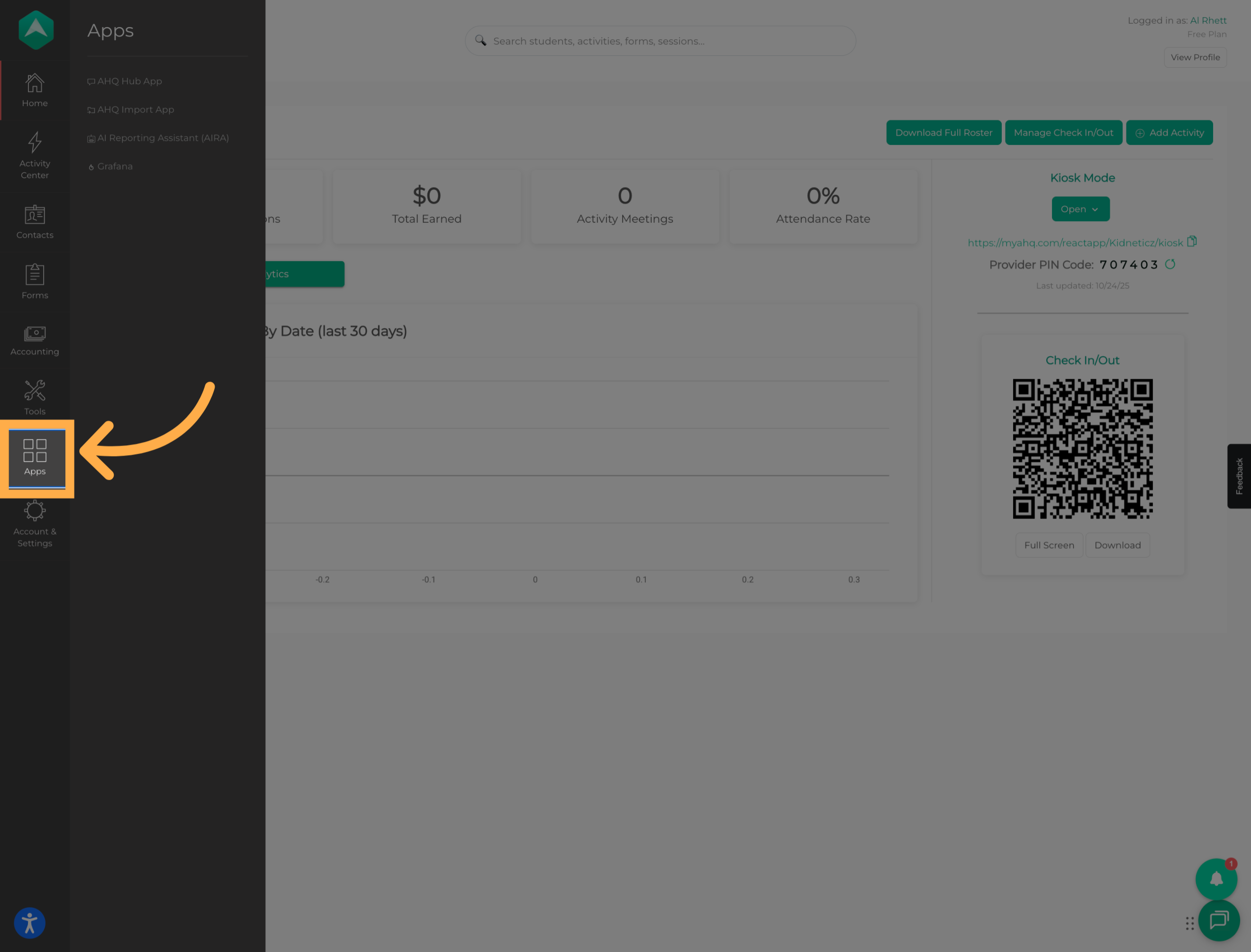
💡 Tip: The tools available under Apps may vary depending on your organization and the access provided to your account.
2. Open Grafana
Select “Grafana” to open the reporting tool and continue to the login page. 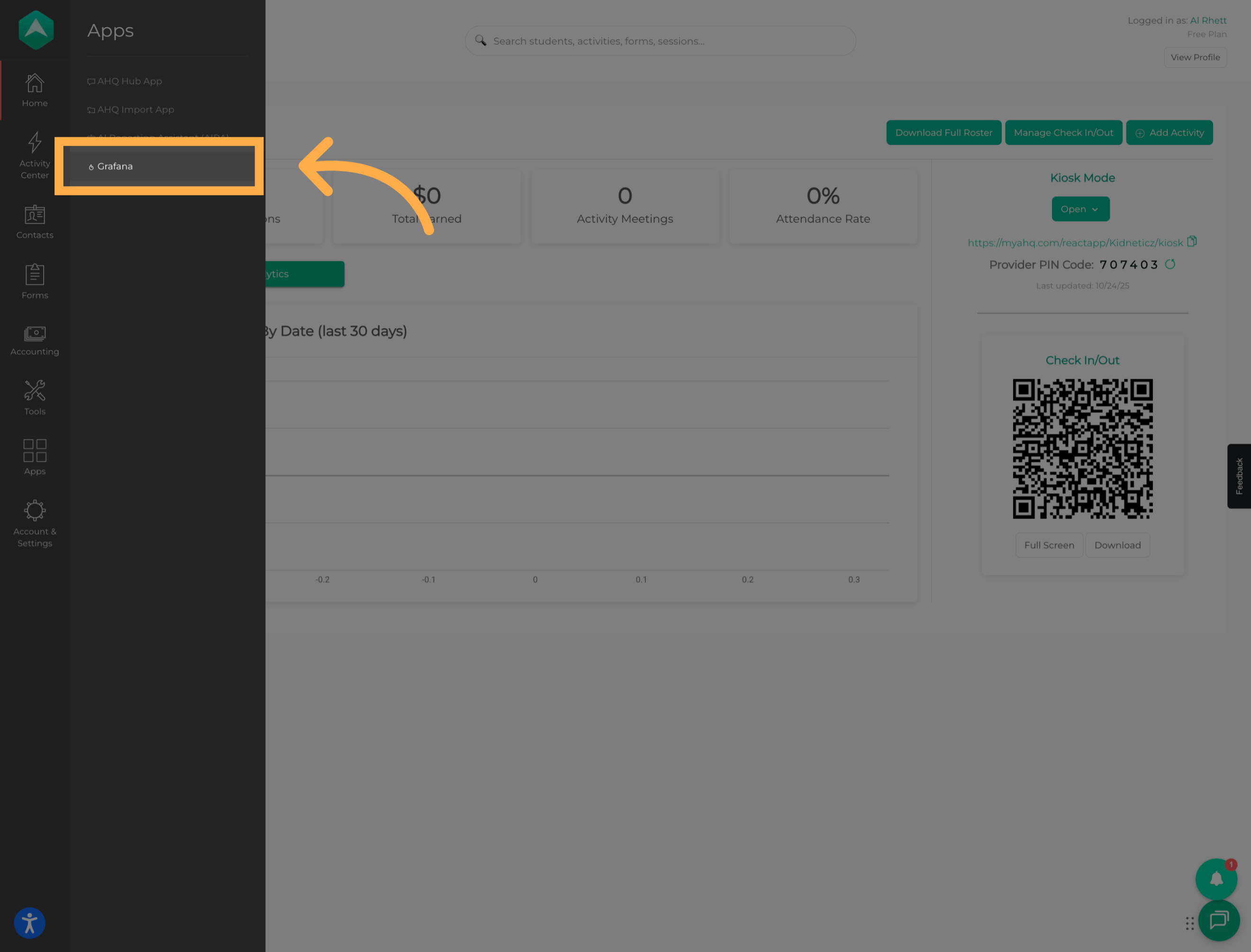
3. Enter Your Credentials
Enter your AfterSchool HQ email and password to sign in to Grafana.
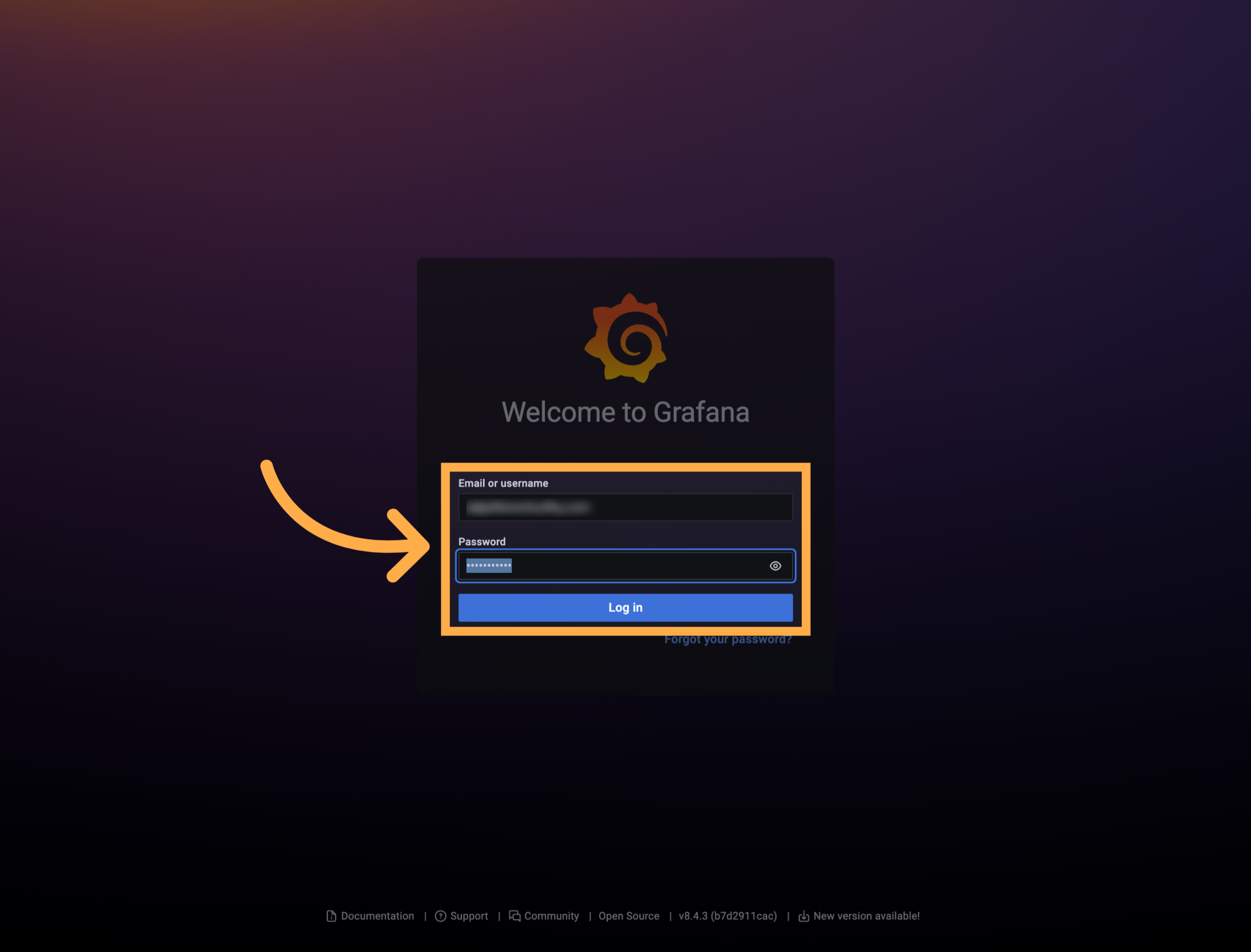
💡 Tip: Use the same email address associated with your AfterSchool HQ account.
4. Continue to Grafana
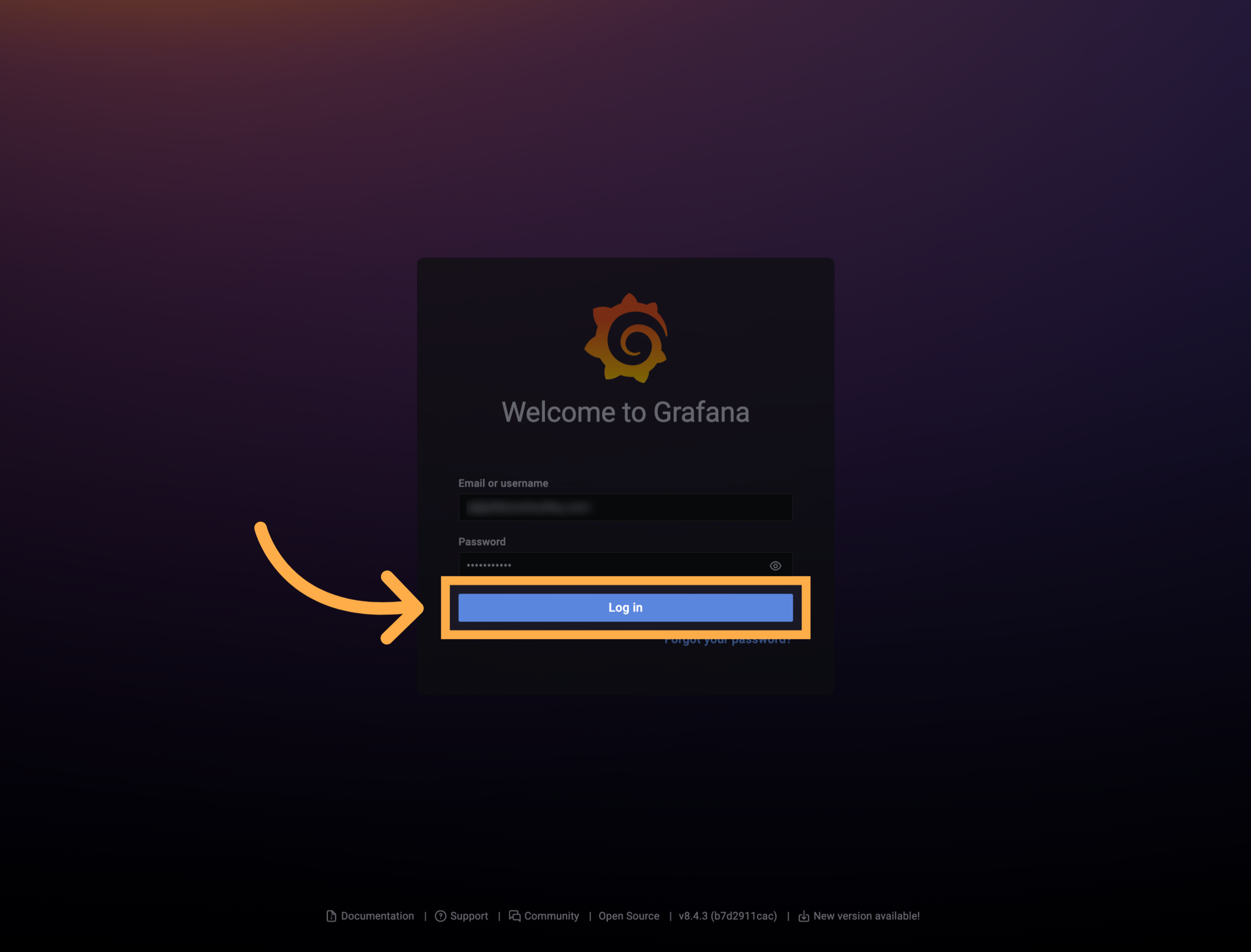
Select “Login” to continue to Grafana.
5. View Your Organization’s Reports
Once you’re in Grafana, you’ll be able to view the reports available for your organization.
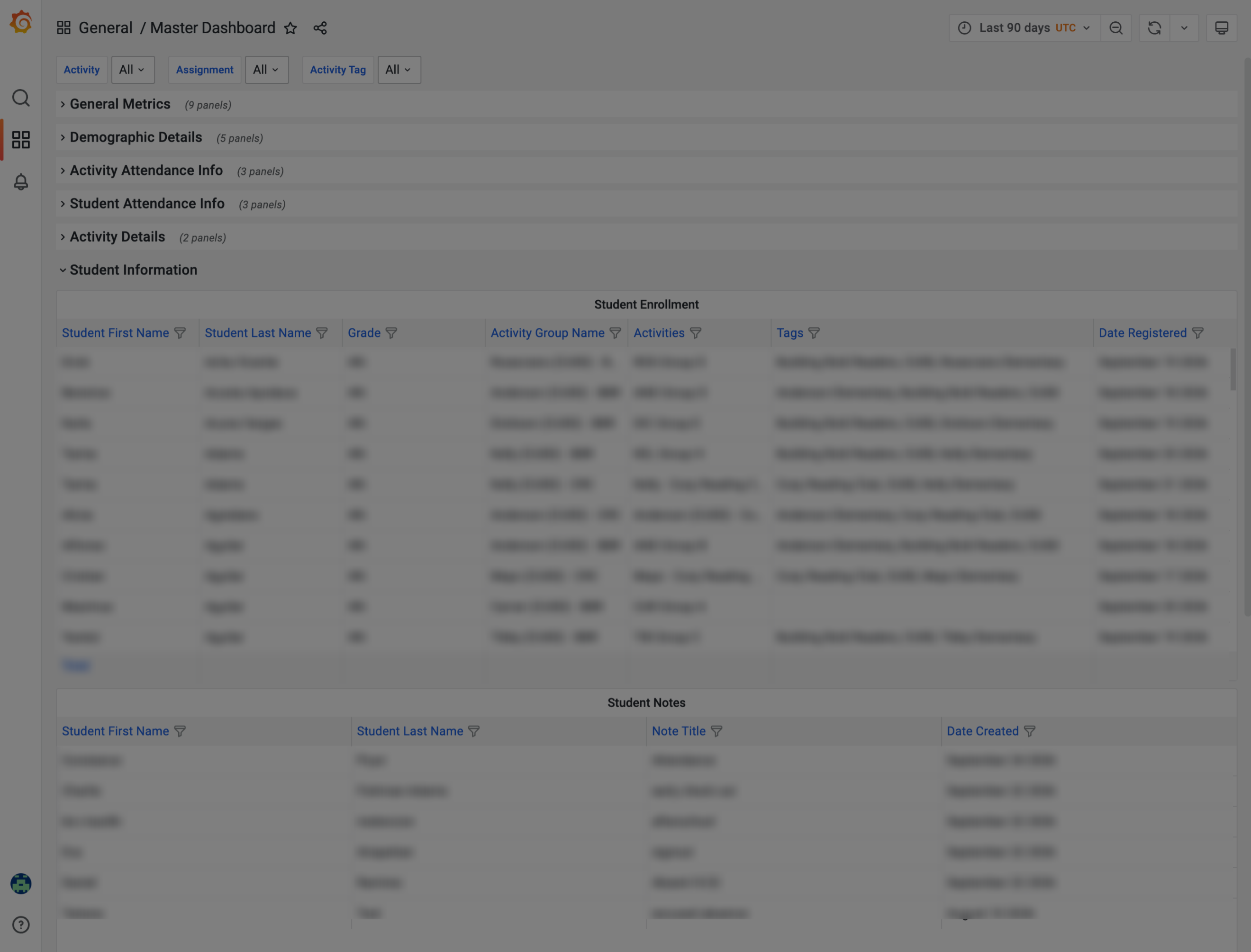
💡 Tip: If you expected to see a particular report but cannot find it, confirm with your organization’s administrator or leadership team that the report is available to you.
Frequently Asked Questions
Q: What is Grafana in AfterSchool HQ?
A: Grafana is a reporting tool available to AfterSchool HQ Enterprise customers that provides access to reports and organizational data.
Q: Is Grafana available to all AfterSchool HQ customers?
A: No. Grafana is available to Enterprise customers.
Q: Does every user at an Enterprise organization have access to Grafana?
A: Not necessarily. Organizations may limit reporting access to specific staff members. Your ability to access Grafana depends on the permissions provided to your account.
Q: Where can I find Grafana?
A: If Grafana is available to your account, you can find its shortcut under Apps in AfterSchool HQ.
Q: Why don't I see Grafana under Apps?
A: There are two common reasons:
-
Your organization may not be an Enterprise customer with Grafana access.
-
Your organization may have Grafana but reporting access has not been provided to your account.
If you're unsure, check with your organization’s administrator or leadership team.
Q: What credentials should I use to log in to Grafana?
A: Use the email and password associated with your AfterSchool HQ account.
Q: Why can another staff member access Grafana but I can't?
A: Reporting access may differ between staff members. Your organization may have chosen to provide Grafana access only to certain users.
Q: Will everyone see the same reports in Grafana?
A: The reports available to you may depend on your organization’s reporting setup and your access.
Q: What should I do if I have Grafana access but can't log in?
A: First, confirm that you're using the email and password associated with your AfterSchool HQ account. If you continue to experience issues, contact the AfterSchool HQ Support Team for assistance.
💡If you experience any issues or have further questions with “How to Access Grafana Reporting in AfterSchool HQ”, don't hesitate to get in touch with our support team at support@afterschoolhq.com.