![ASHQ Logo Vert Flat.png]](https://support.afterschoolhq.com/hs-fs/hubfs/ASHQ%20Logo%20Vert%20Flat.png?height=40&name=ASHQ%20Logo%20Vert%20Flat.png)
Once your Drop-In form has been created and attached to an activity, staff can begin adding Drop-In students directly from the attendance screen.
Follow the steps bellow to learn how to add students, manage attendance, and track daily Drop-In records.
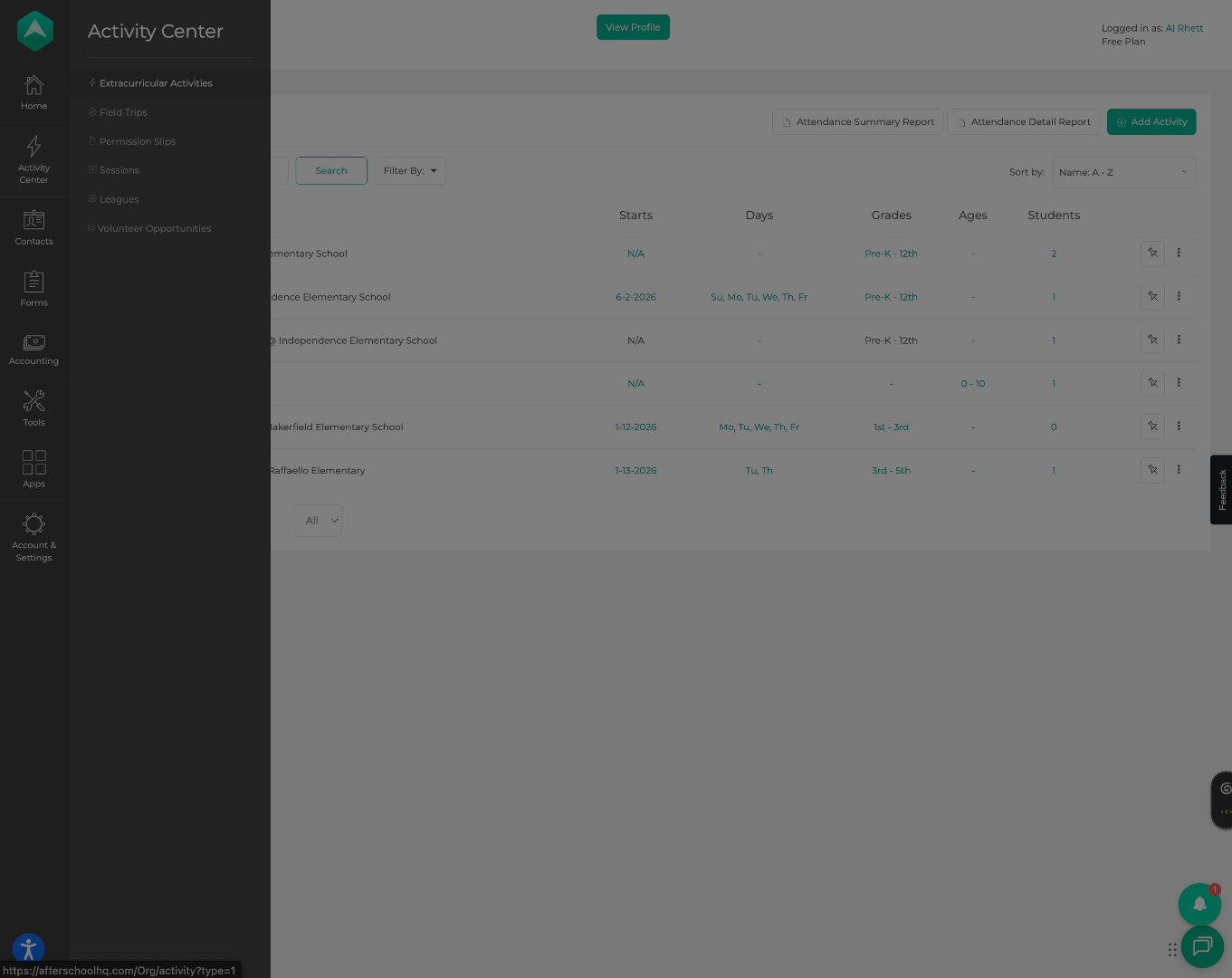
1. Open Extracurricular Activities
Hover over “Activity Center” and select “Extracurricular Activities”
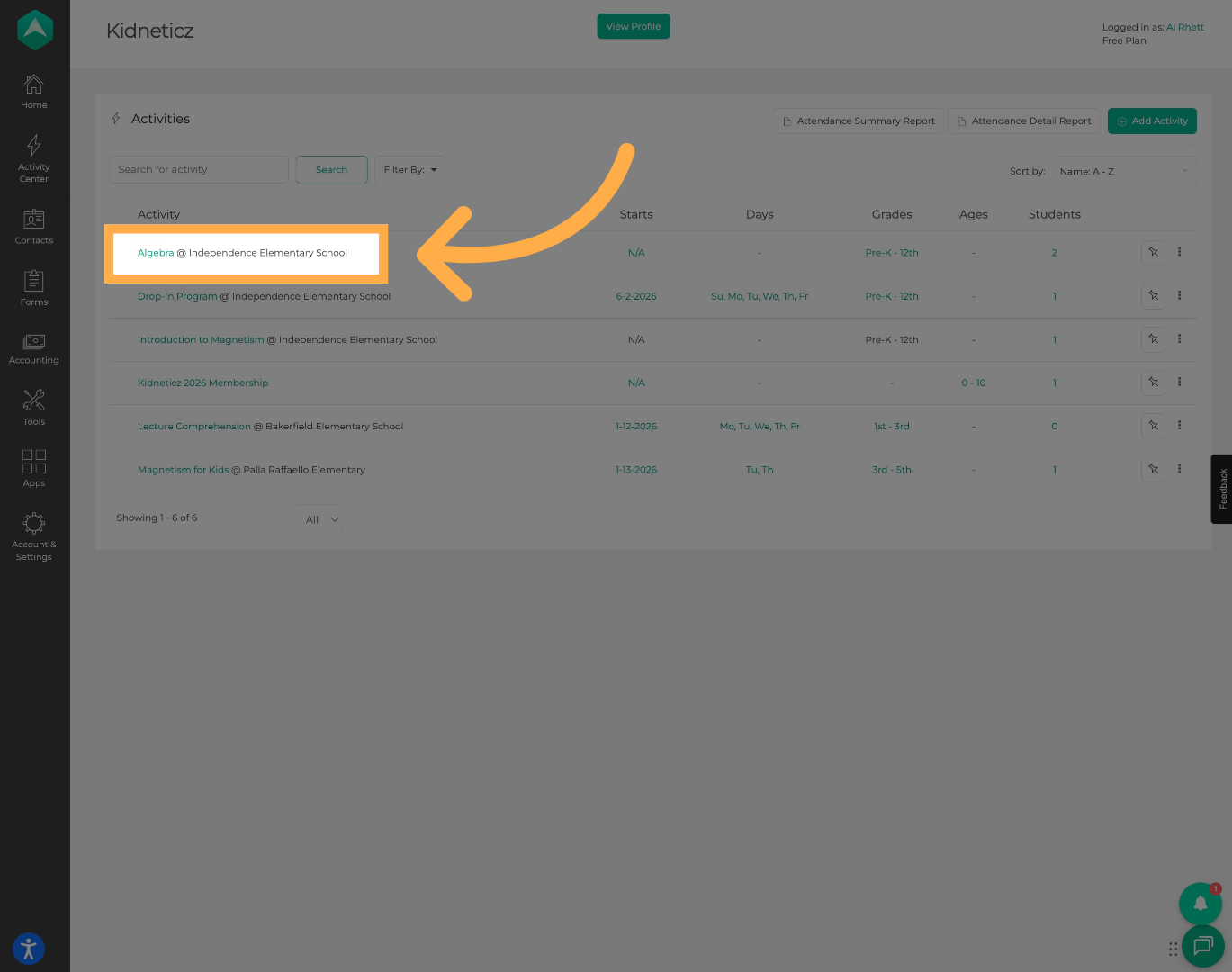
2. Select an Activity
Open the activity where you would like to add your Drop-In.
3. Open Attendance Management
Click “Attendance” to manage student attendance records.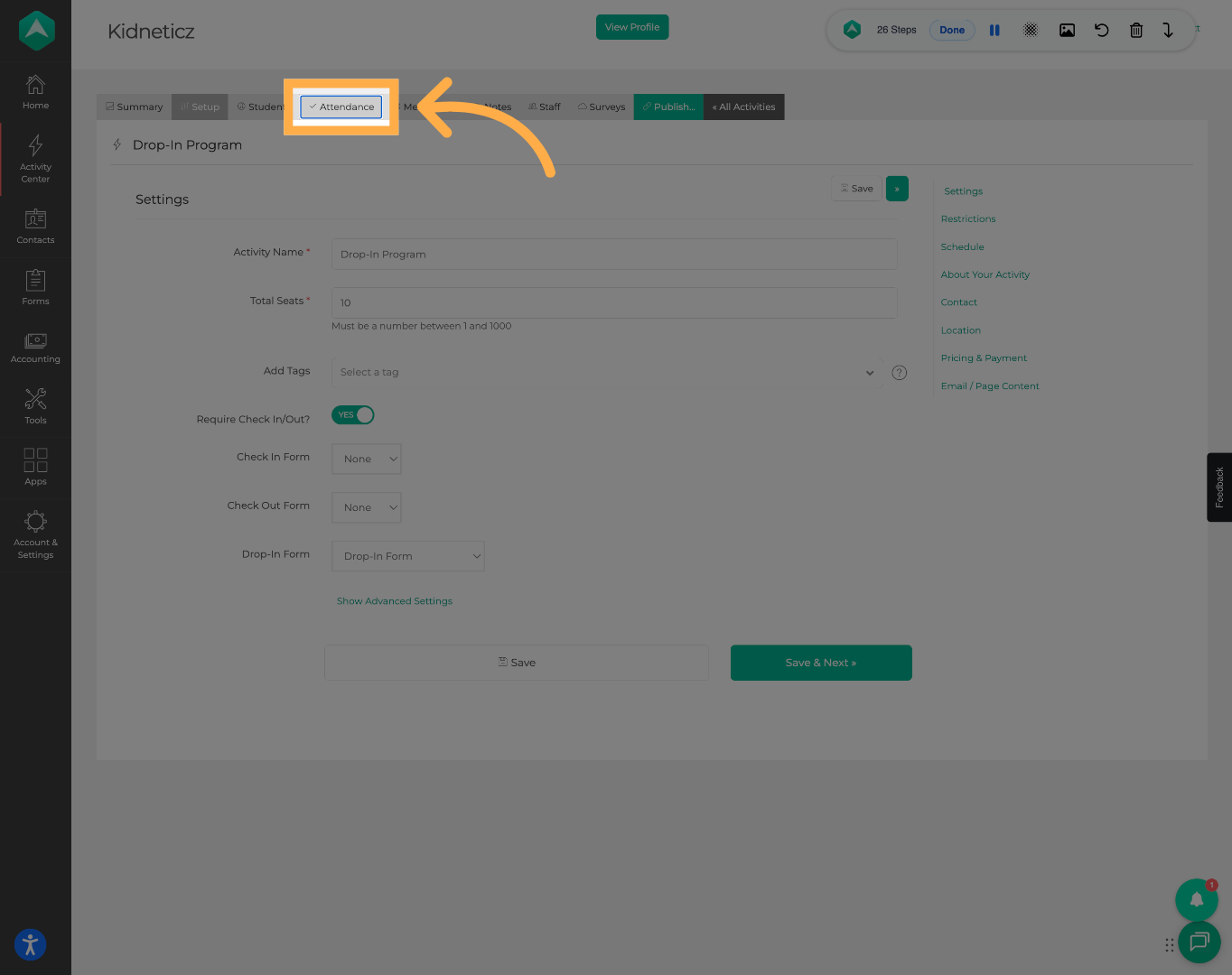
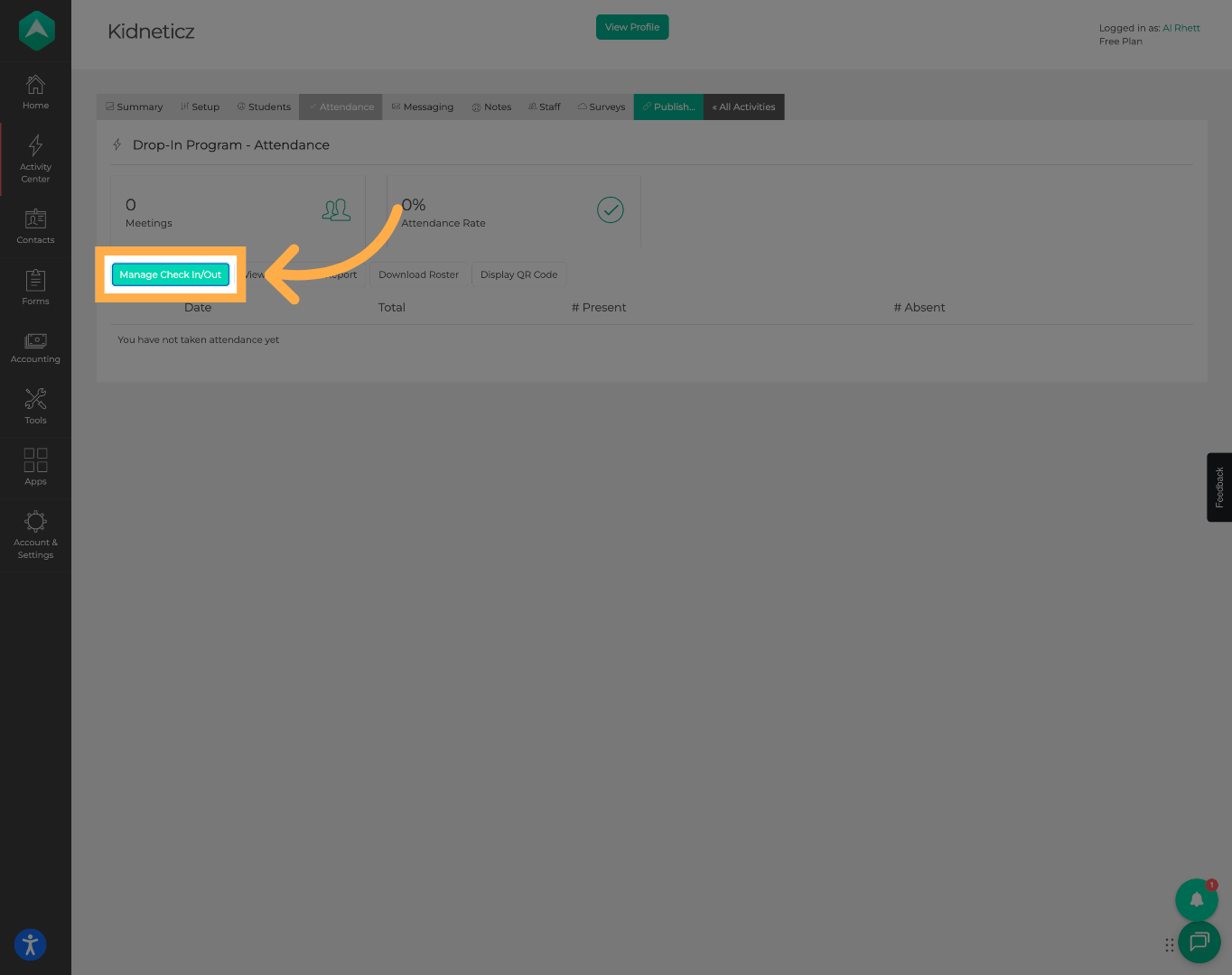
4. Open Check-In and Check-Out
Select “Manage Check In/Out” to manage student attendance and Drop-In records.
5. Add a Drop-In Student
Click “Add Drop-In” to begin creating a Drop-In attendance record.
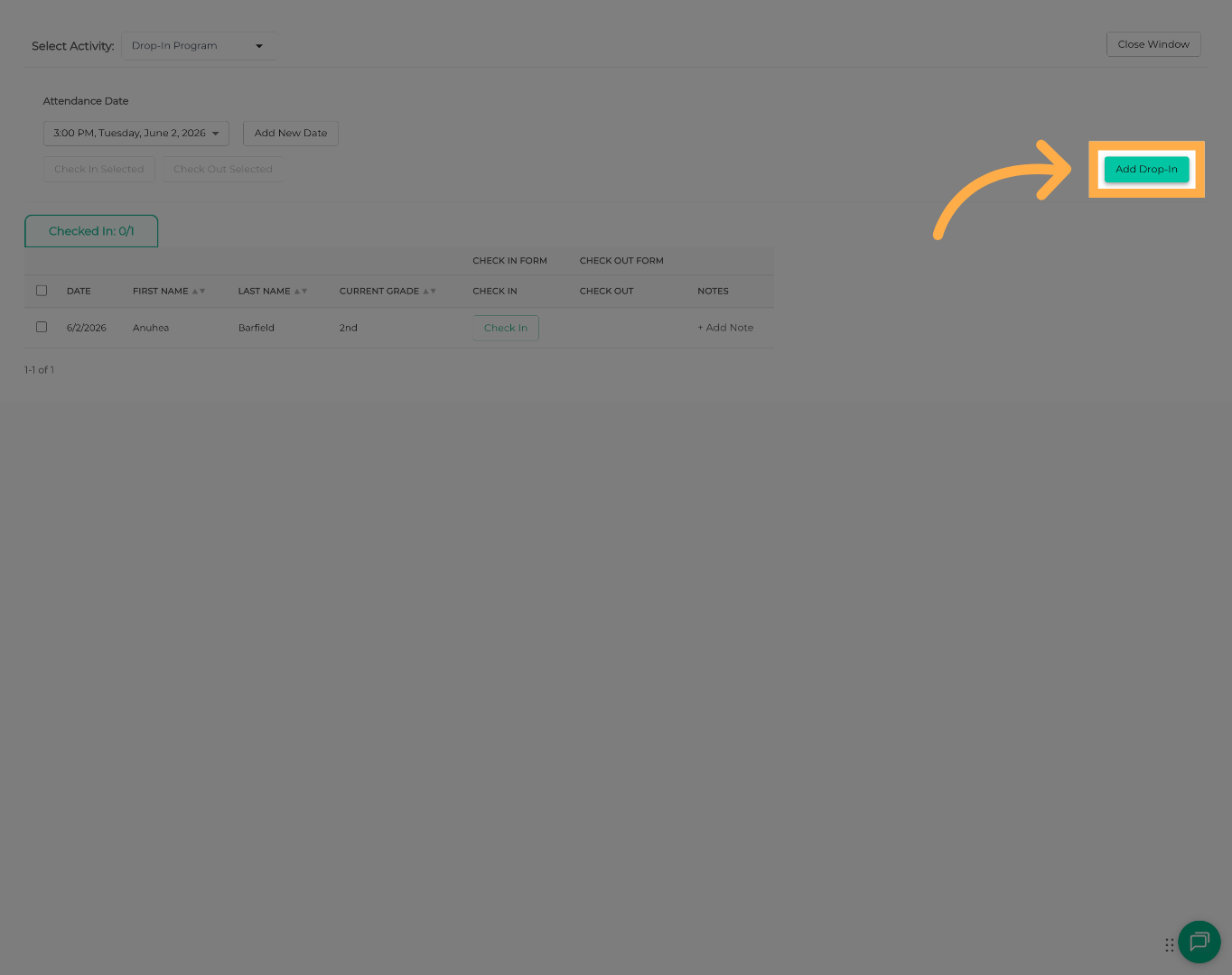
💡 Tip: Drop-In can be used for both existing and new students.
6. Search for a Student
Search for the student you would like to check in. The system will first search existing student records to help prevent duplicate profiles.
If the student already exists in the system, select their name and continue with the Drop-In process.
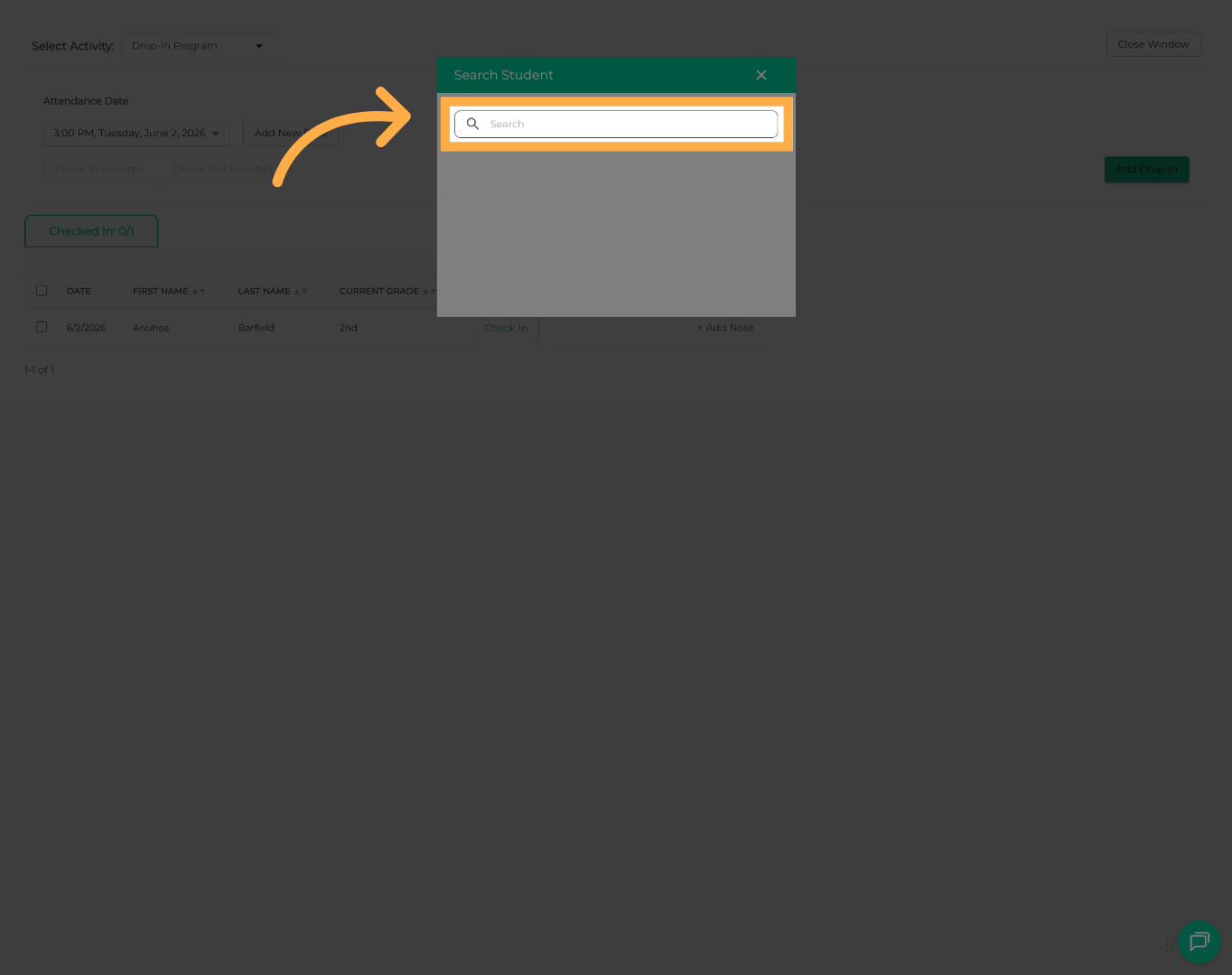
💡 Tip: Always search carefully before creating a new student profile.
7. Add a New Student
If no matching student is found, click “Add Student” to create a new student profile.
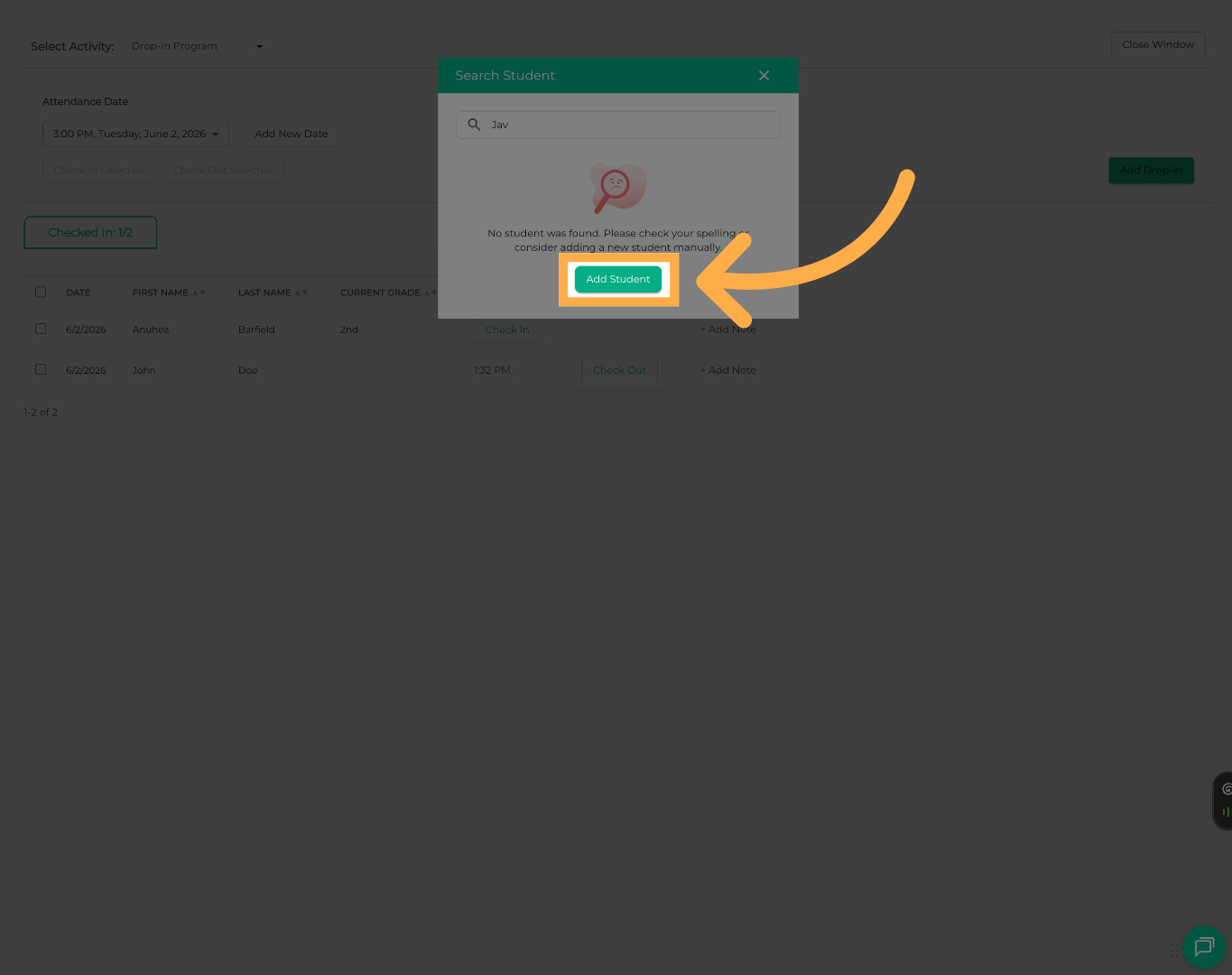
8. Complete the Drop-In Form
Enter the required student information and complete any additional Drop-In questions configured by your organization.
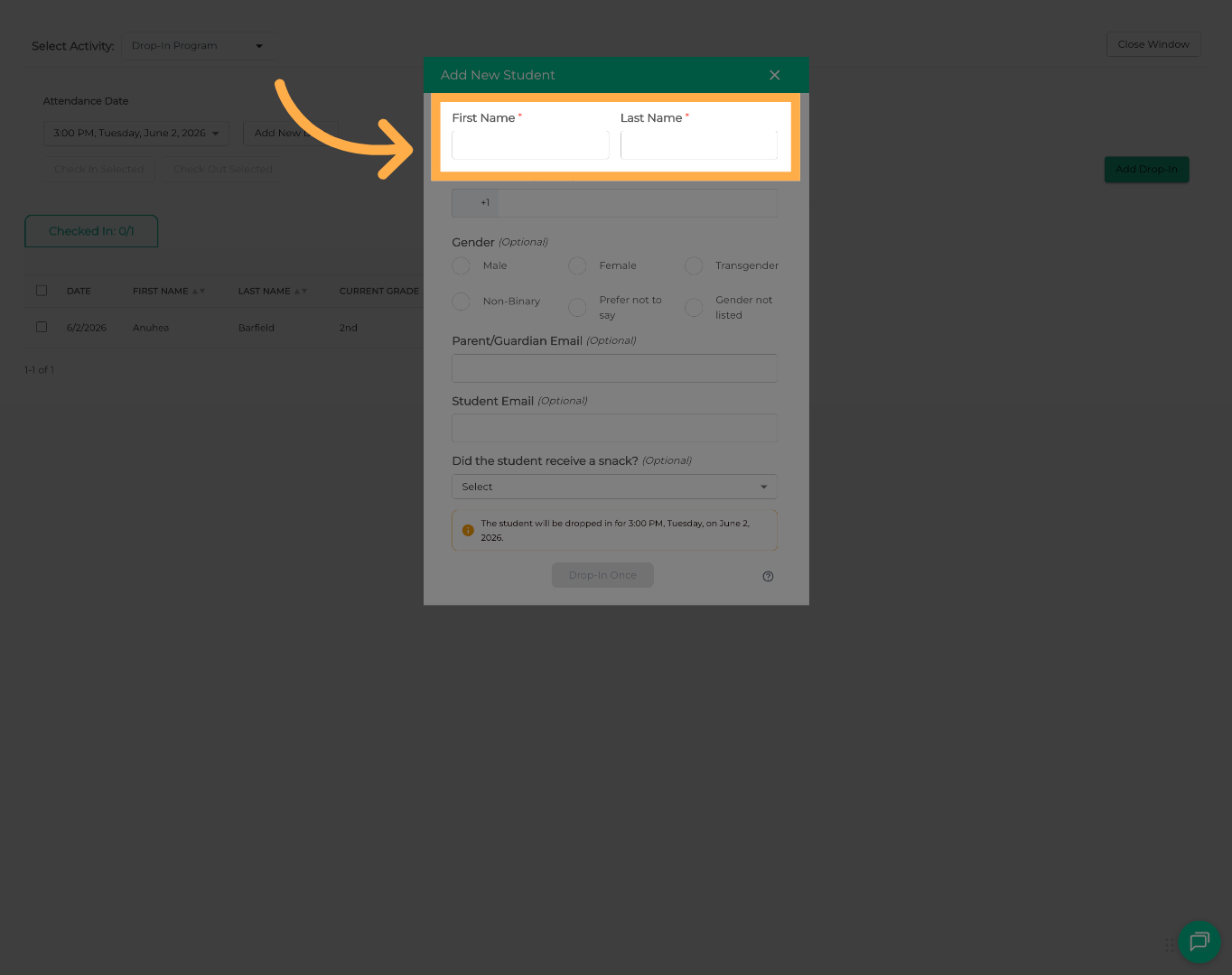
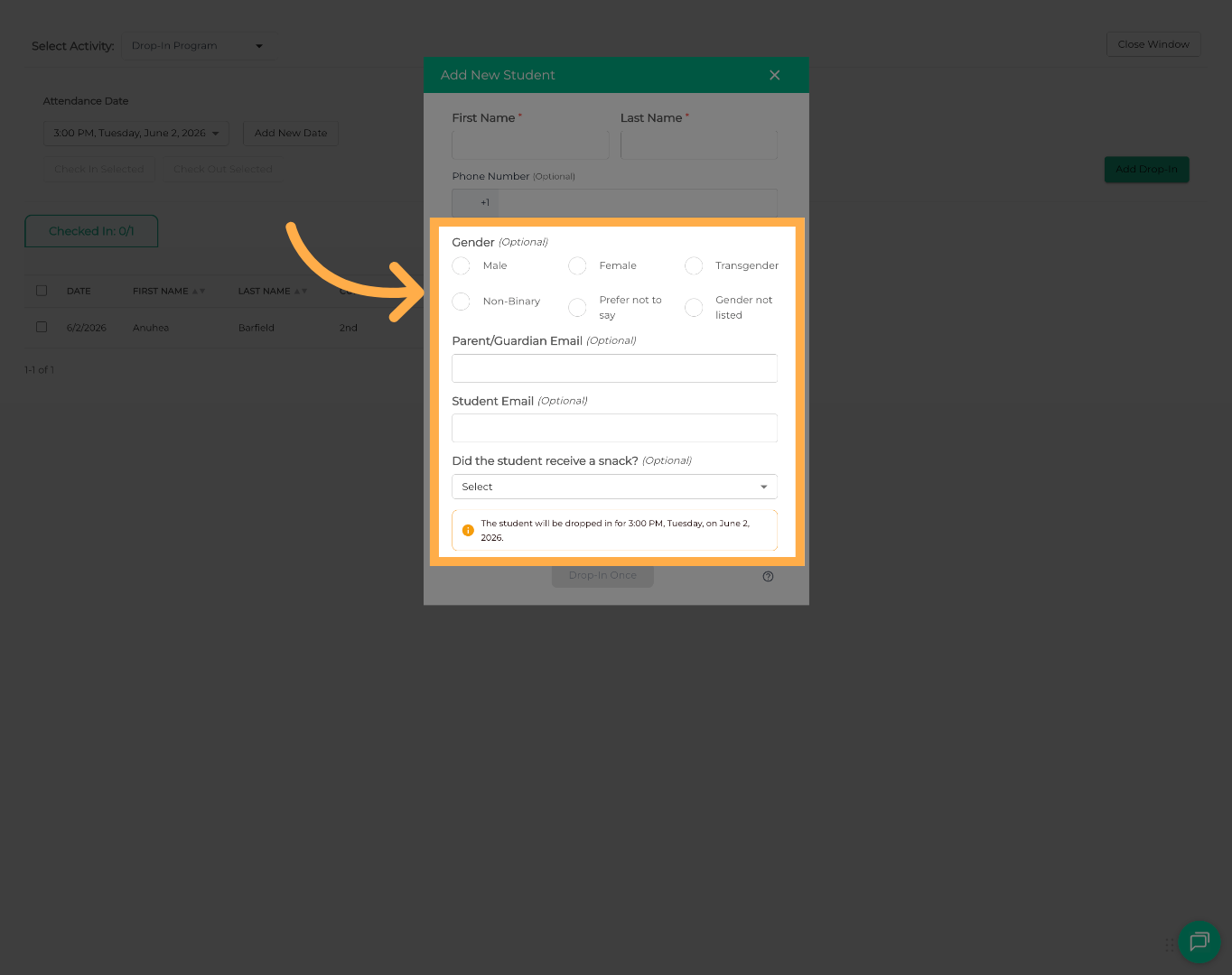
💡 Tip: Required fields such as First Name and Last Name are necessary for attendance tracking.
9. Review Student Information
Review all entered information before continuing.
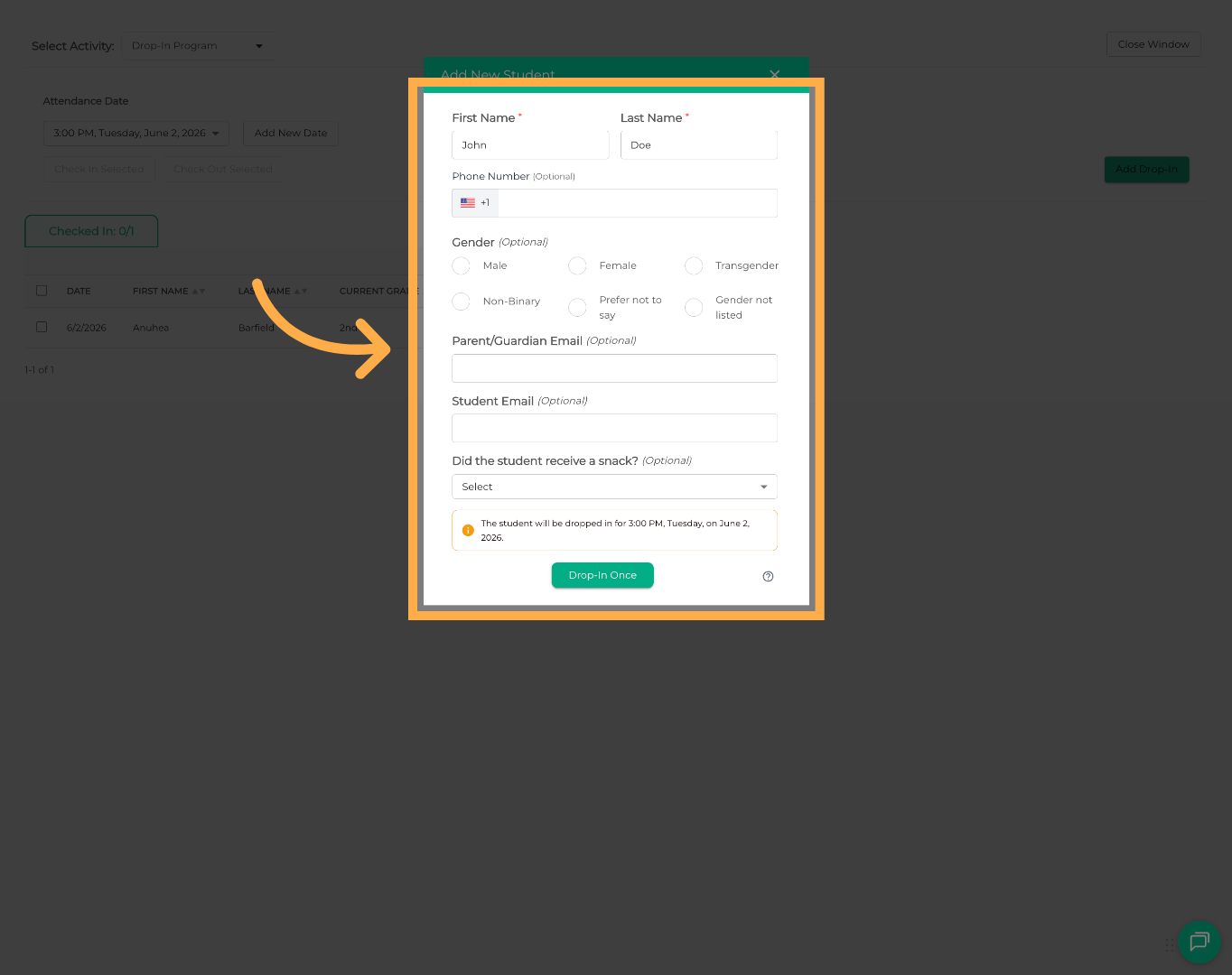
💡 Tip: Double-check spelling and contact information to help avoid duplicate student records.
10. Confirm the Drop-In
Click “Drop In” to check the student into the activity.
The student will now appear on the attendance roster for the day, including the timestamp showing when the student was checked in.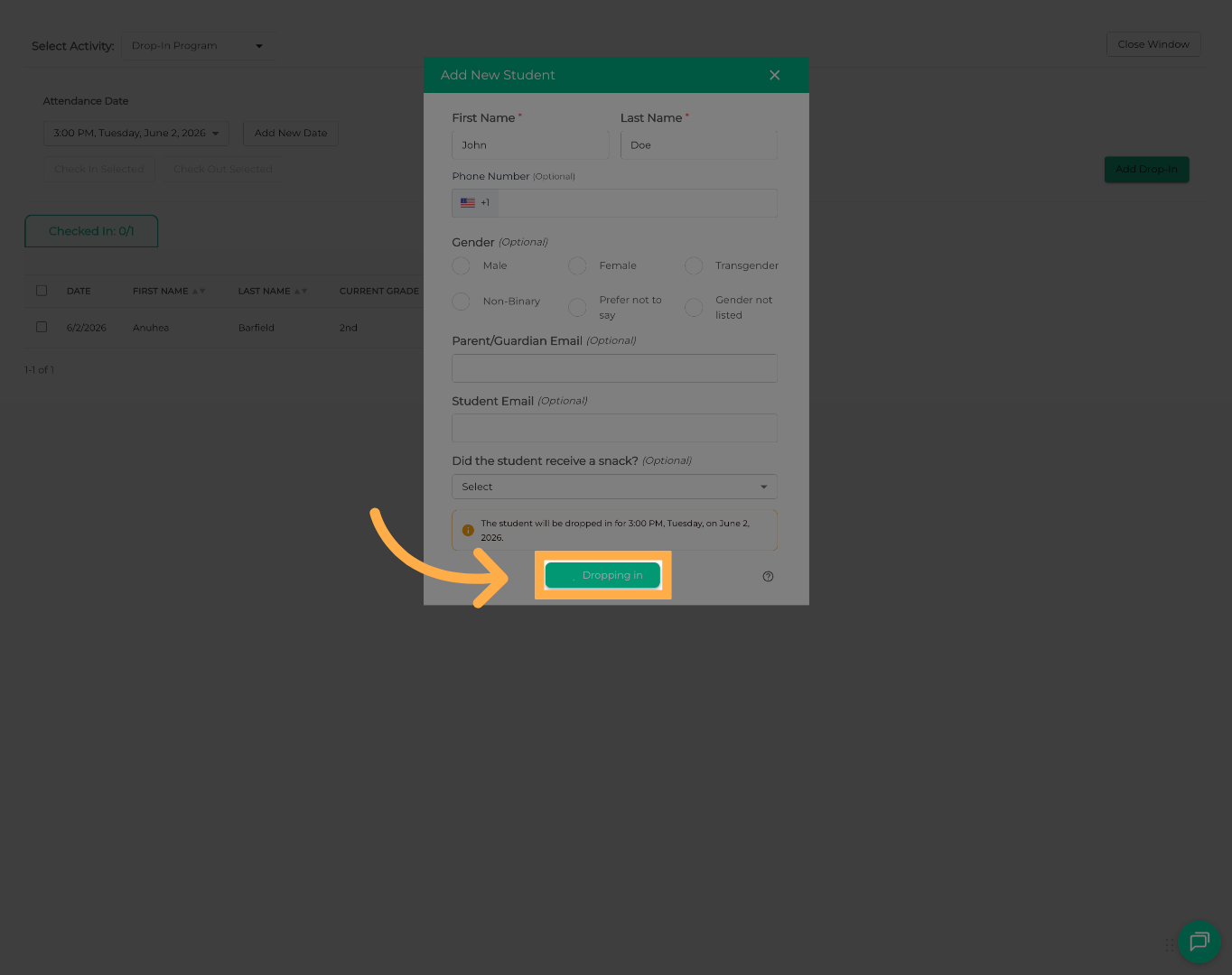
11. Locate the Student in Attendance
When the student is ready to leave, locate them within the attendance list.
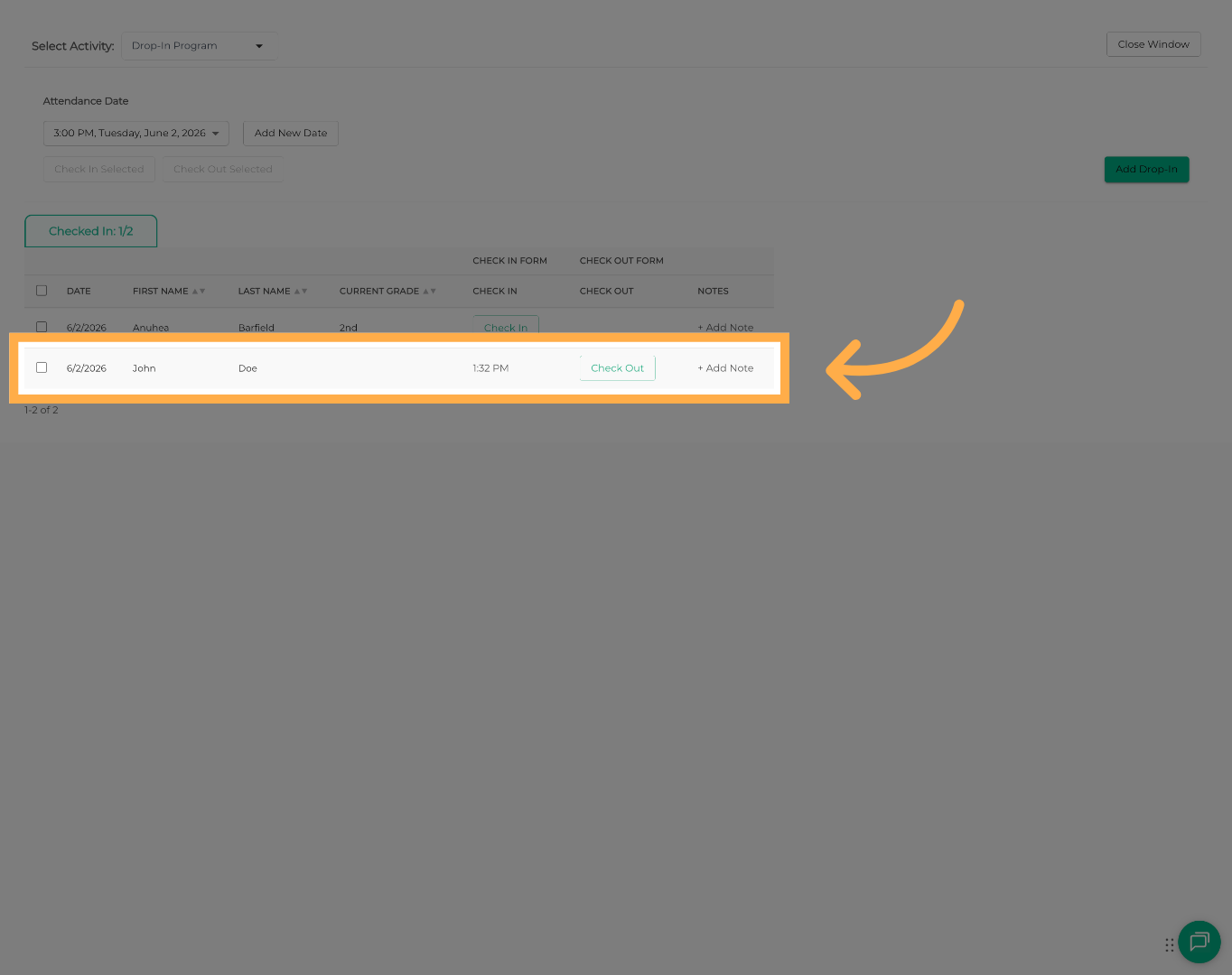
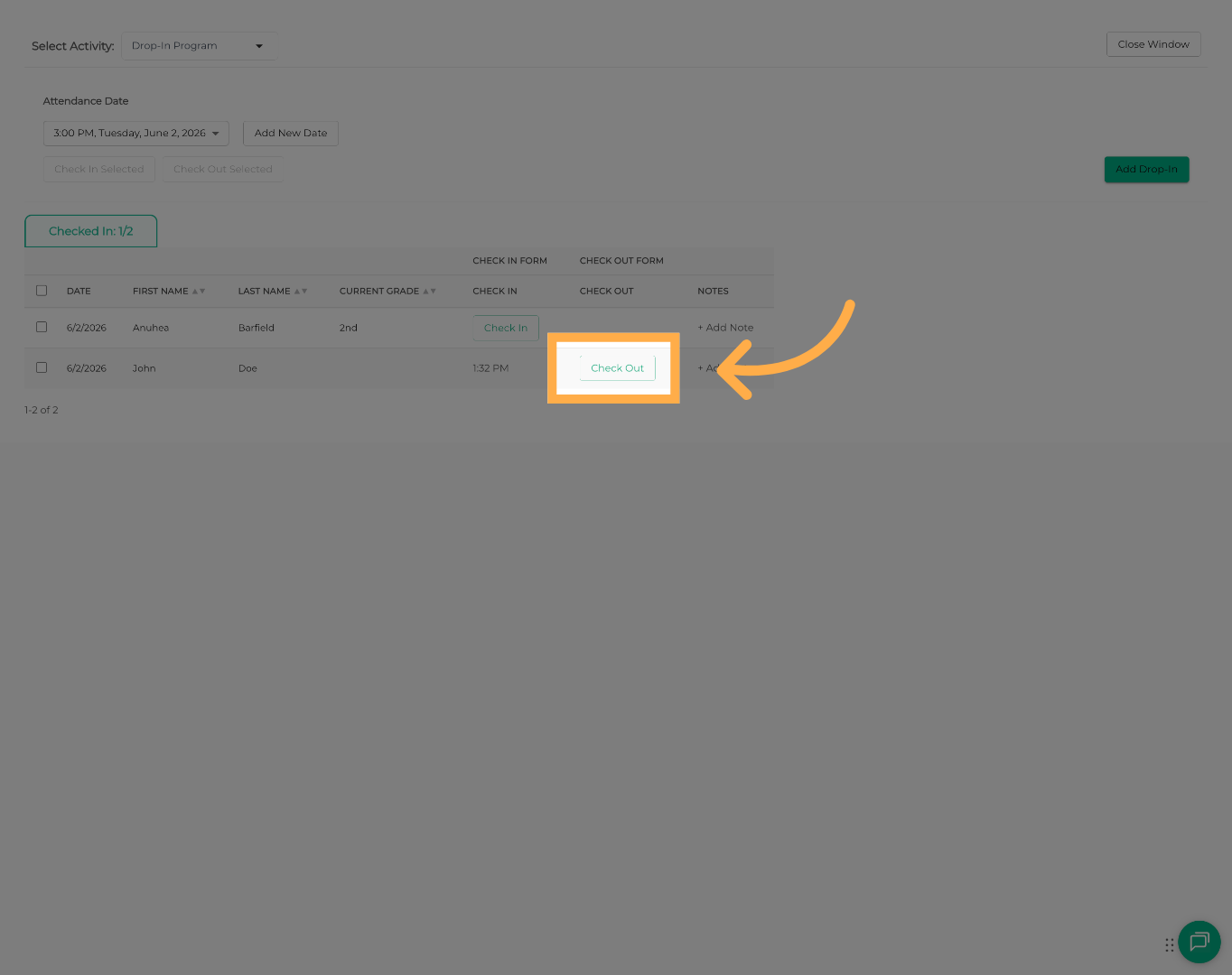
12. Check the Student Out
Click on “Check Out” to record the student’s departure time.
💡 Tip: Check Out records help maintain accurate attendance and reporting information.
Frequently Asked Questions
Q: Can existing students use Drop-In?
A: Yes. Existing students can be searched and added directly to the attendance roster.
Q: What happens if I cannot find a student during search?
A: If no matching student is found, you can create a new student profile directly from the Drop-In process.
Q: Does Drop-In create duplicate student profiles?
A: The system searches for existing students first to help prevent duplicates. We recommend searching carefully before creating new students.
Q: Can I check a Drop-In student out later?
A: Yes. Drop-In students can be checked out through the attendance screen just like standard attendees.
Q: Will Drop-In students appear in attendance reports?
A: Yes. Drop-In students are included in attendance tracking and reporting.
Q: Can Drop-In students be charged or billed?
A: Drop-In is designed for attendance tracking only and does not replace registration or payment workflows.
If payment collection is required, we recommend having the family complete the standard registration process.
💡If you experience any issues or have further questions with “How to add a Drop-In”, don't hesitate to get in touch with our support team at support@afterschoolhq.com.