![ASHQ Logo Vert Flat.png]](https://support.afterschoolhq.com/hs-fs/hubfs/ASHQ%20Logo%20Vert%20Flat.png?height=40&name=ASHQ%20Logo%20Vert%20Flat.png)
Need to control when registration opens and closes for a session? Follow the instructions below to learn how to create enrollment periods for sessions.
1. Open Sessions
Navigate to the Sessions area to view and manage available sessions.
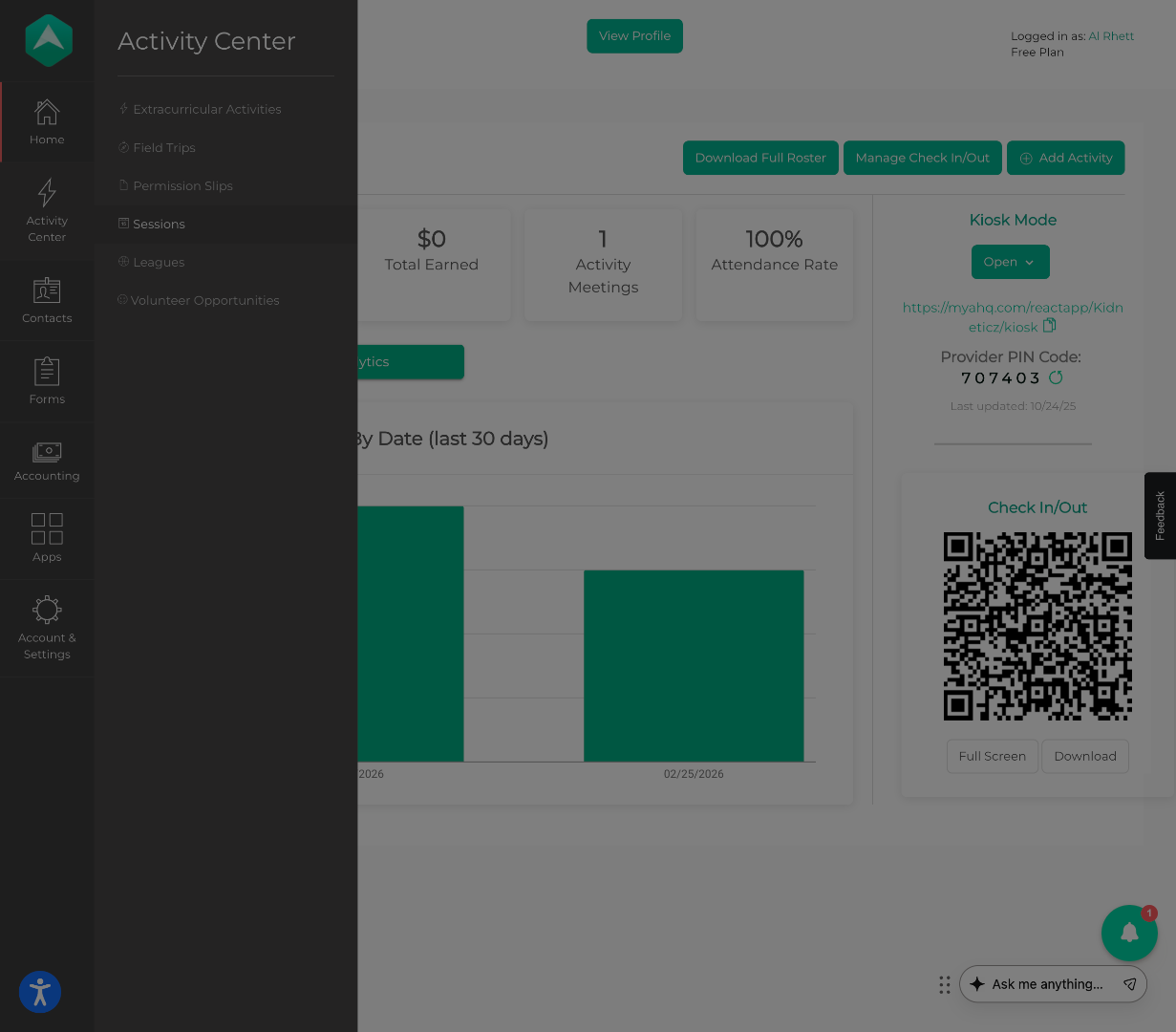
💡 Tip: Sessions help organize activities and registration periods within your program structure.
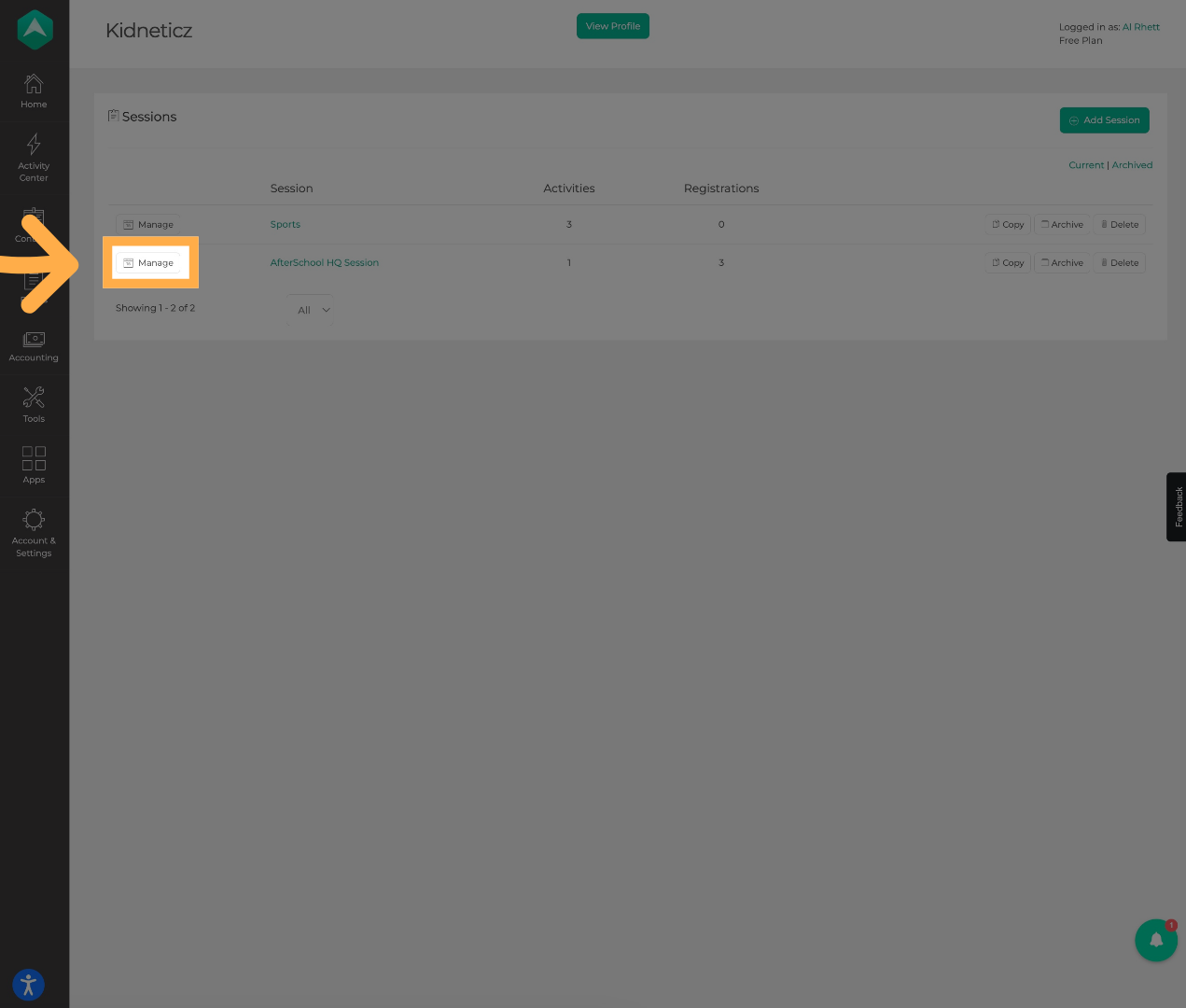
2. Open Session Management
Click “Manage” to access a specific session settings.
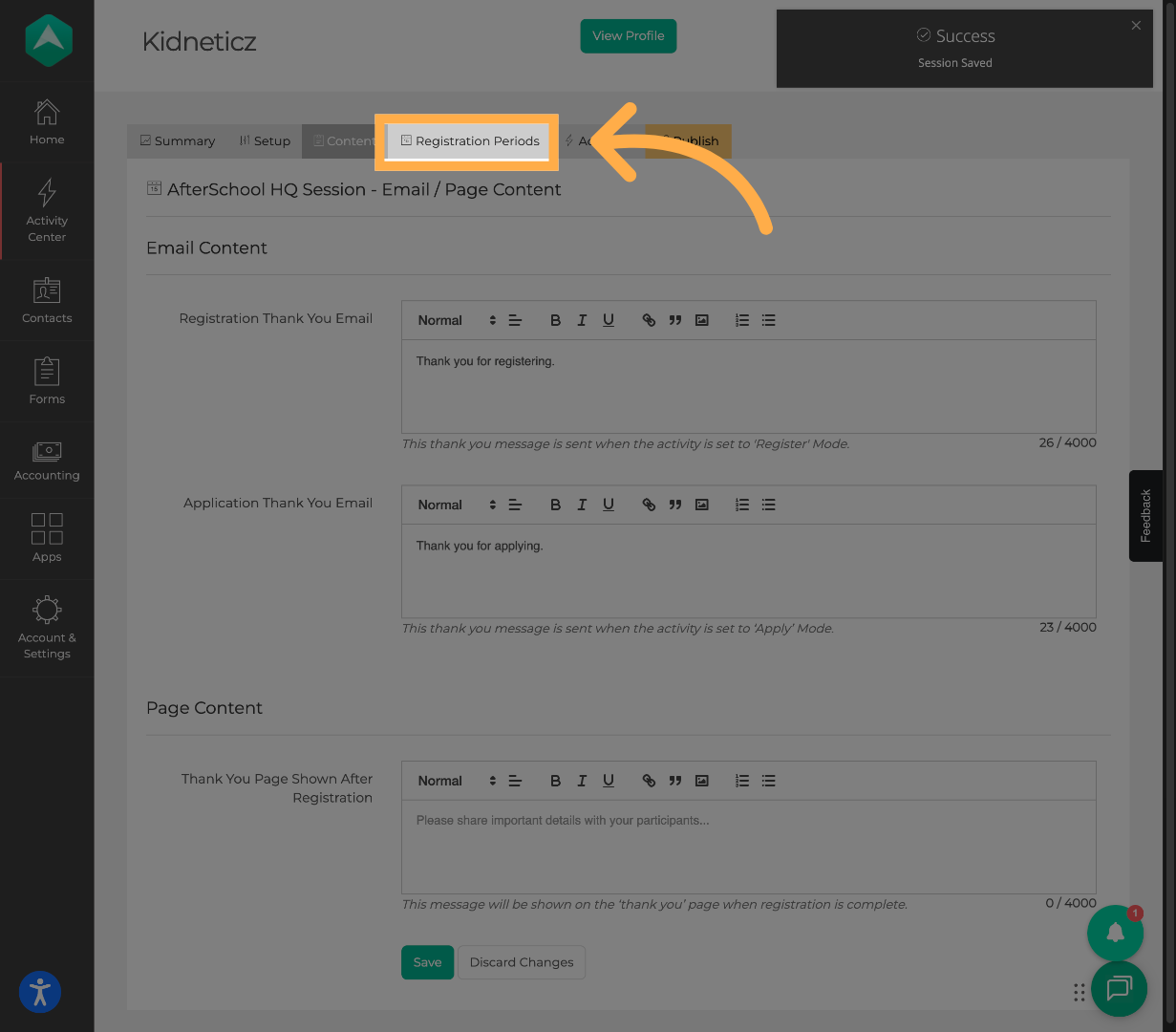
3. Open Registration Periods
Click “Registration Periods” to view and manage enrollment windows for the selected session.
4. Add a Registration Period
Click “Add Registration Period” to create a new enrollment period.
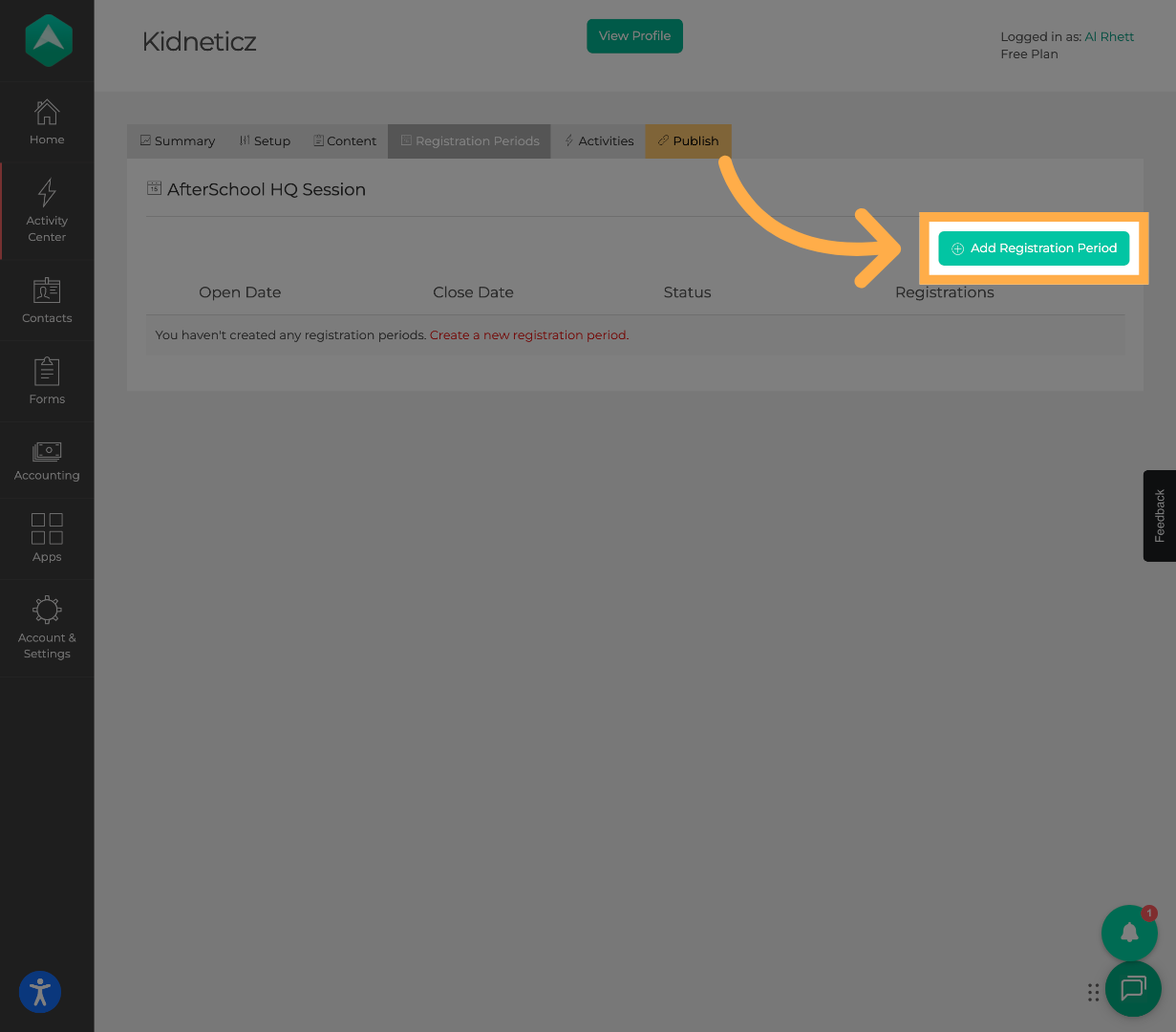
💡 Tip: You can create different enrollment periods to manage registration timing for specific groups or program phases.
5. Select Registration Open Date and Time
Choose the date and time when registration should become available to participants and families.
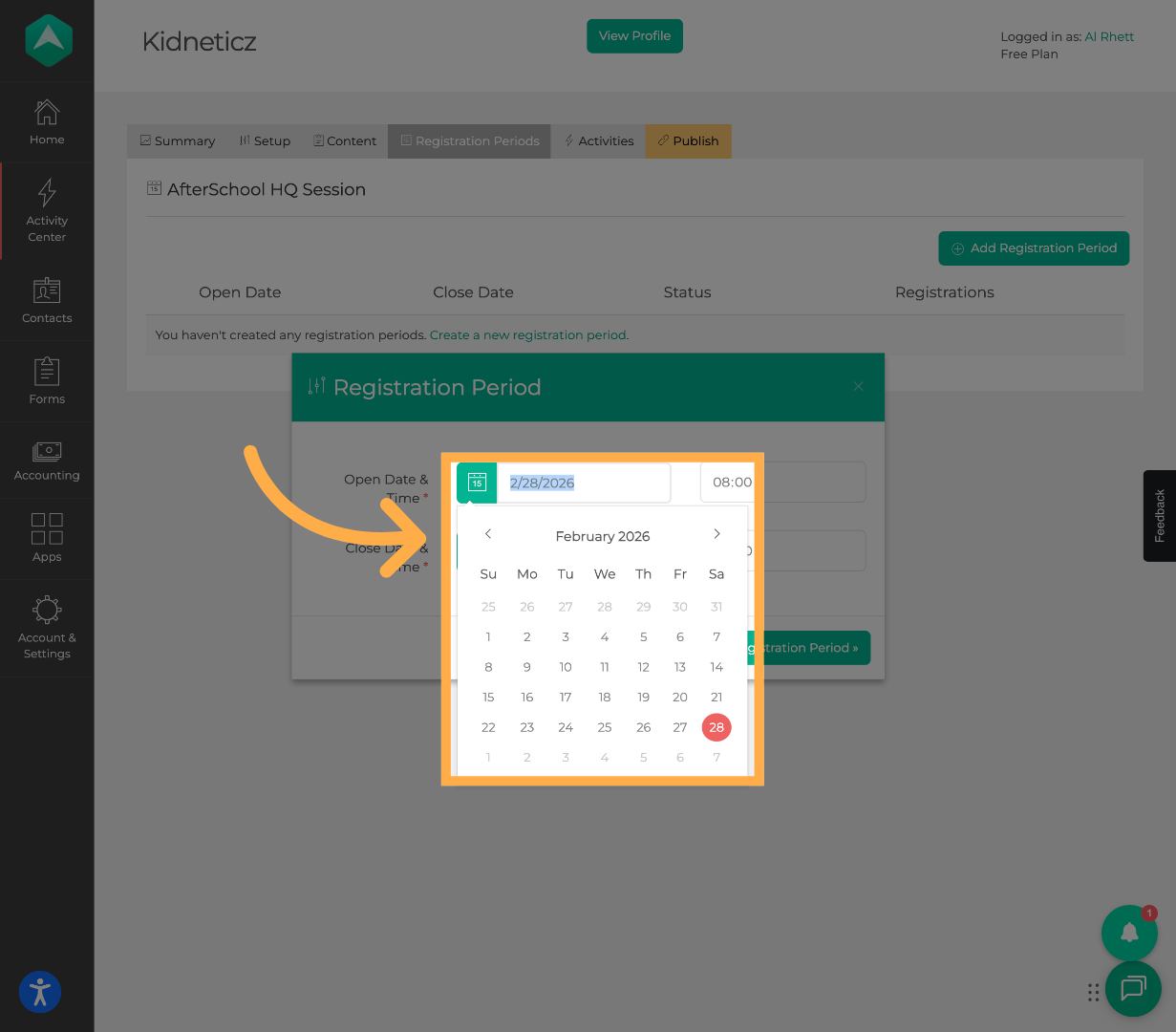
6. Select Registration Close Date and Time
Choose the date and time when registration should close for the session.
💡 Tip: Closing registration dates help prevent late registrations after enrollment deadlines.
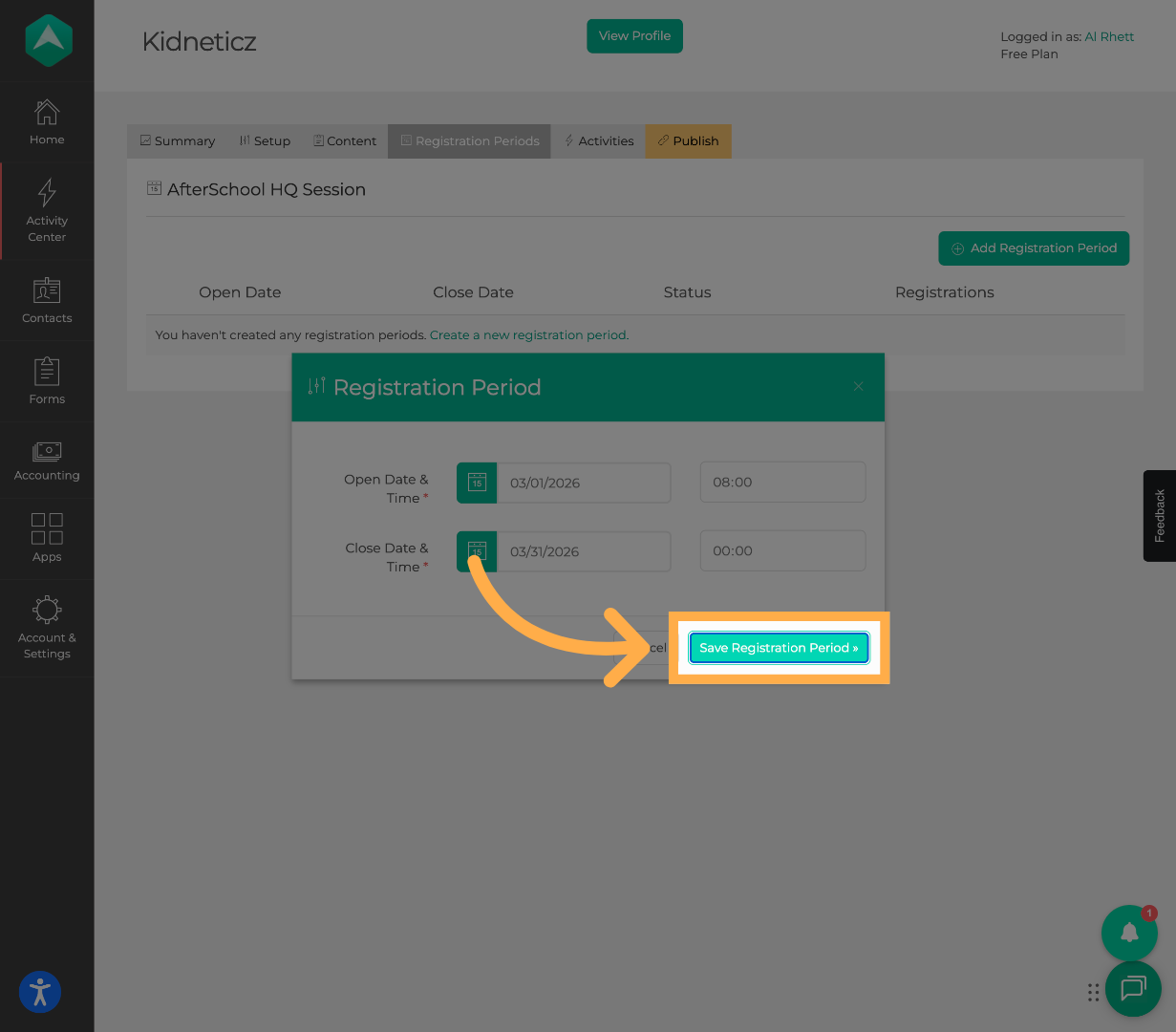
7. Save the Registration Period
Click “Save Registration Period” once you have finished configuring the enrollment dates and times.
💡 Tip: After saving, review the registration period to confirm the enrollment window is correct.
Frequently Asked Questions
Q: What is an enrollment period?
A: An enrollment period controls the timeframe when registration is open and available for participants and families.
Q: Can I edit registration periods later?
A: Yes. Registration periods can typically be updated or adjusted later if needed.
Q: What happens when the registration close date passes?
A: Registration for the session will no longer be available once the enrollment period closes.
Q: Can sessions have multiple registration periods?
A: Depending on your organization’s setup, sessions may support multiple enrollment periods for different registration phases.
Q: Why are enrollment periods important?
A: Enrollment periods help organizations manage registration timing, deadlines, and participant access.
💡If you experience any issues or have further questions with “How to Add an Enrollment Period to a Session”, don't hesitate to get in touch with our support team at support@afterschoolhq.com.