![ASHQ Logo Vert Flat.png]](https://support.afterschoolhq.com/hs-fs/hubfs/ASHQ%20Logo%20Vert%20Flat.png?height=40&name=ASHQ%20Logo%20Vert%20Flat.png)
Need to transfer participants between activities? This guide will walk you through how to copy or move participants, assign registration statuses, and configure transfer settings.
1. Access Extracurricular Activities
Open the “Extracurricular Activities” section to view available activities.
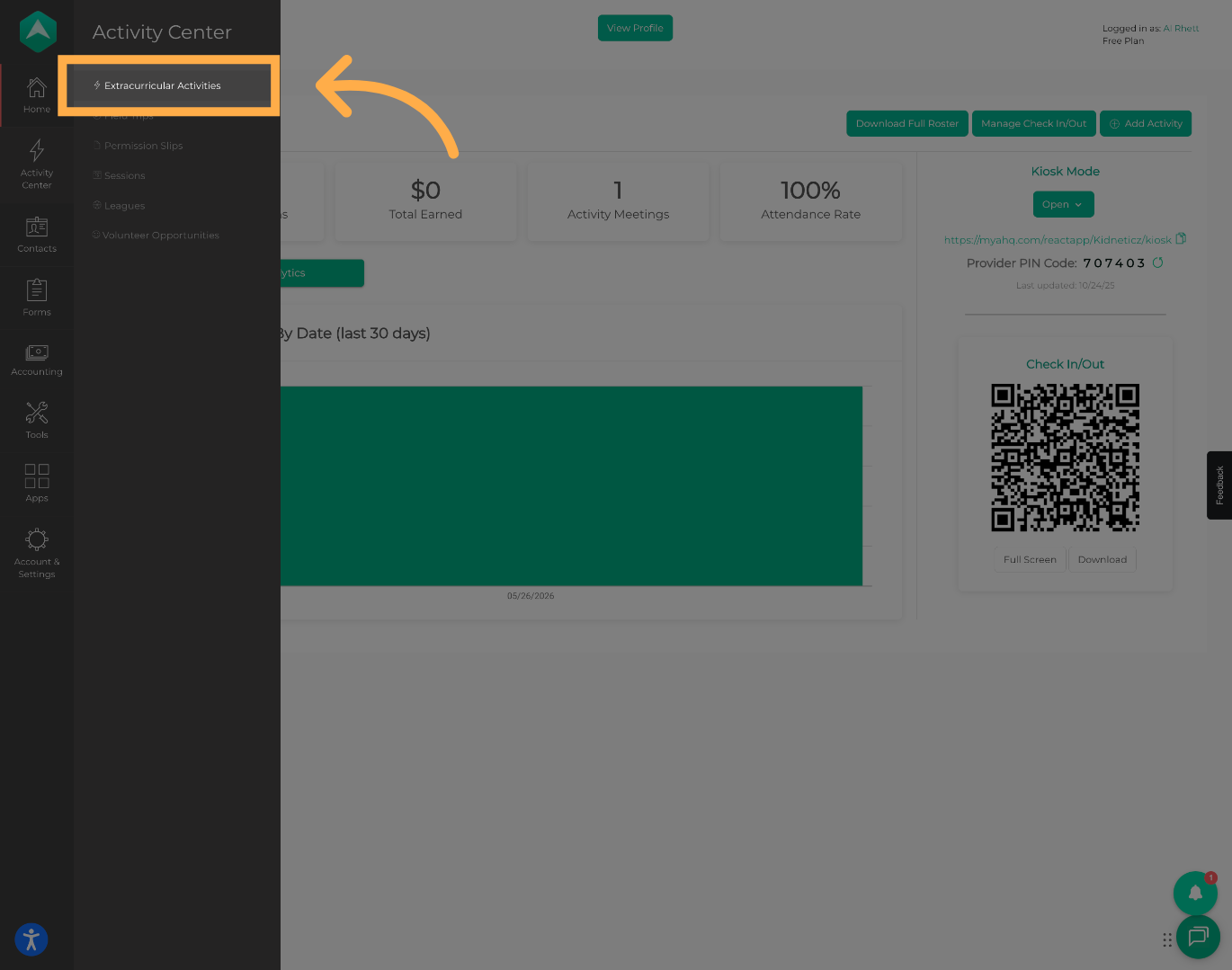
💡 Tip: This is where you can manage activities, participants, attendance, and enrollment settings.
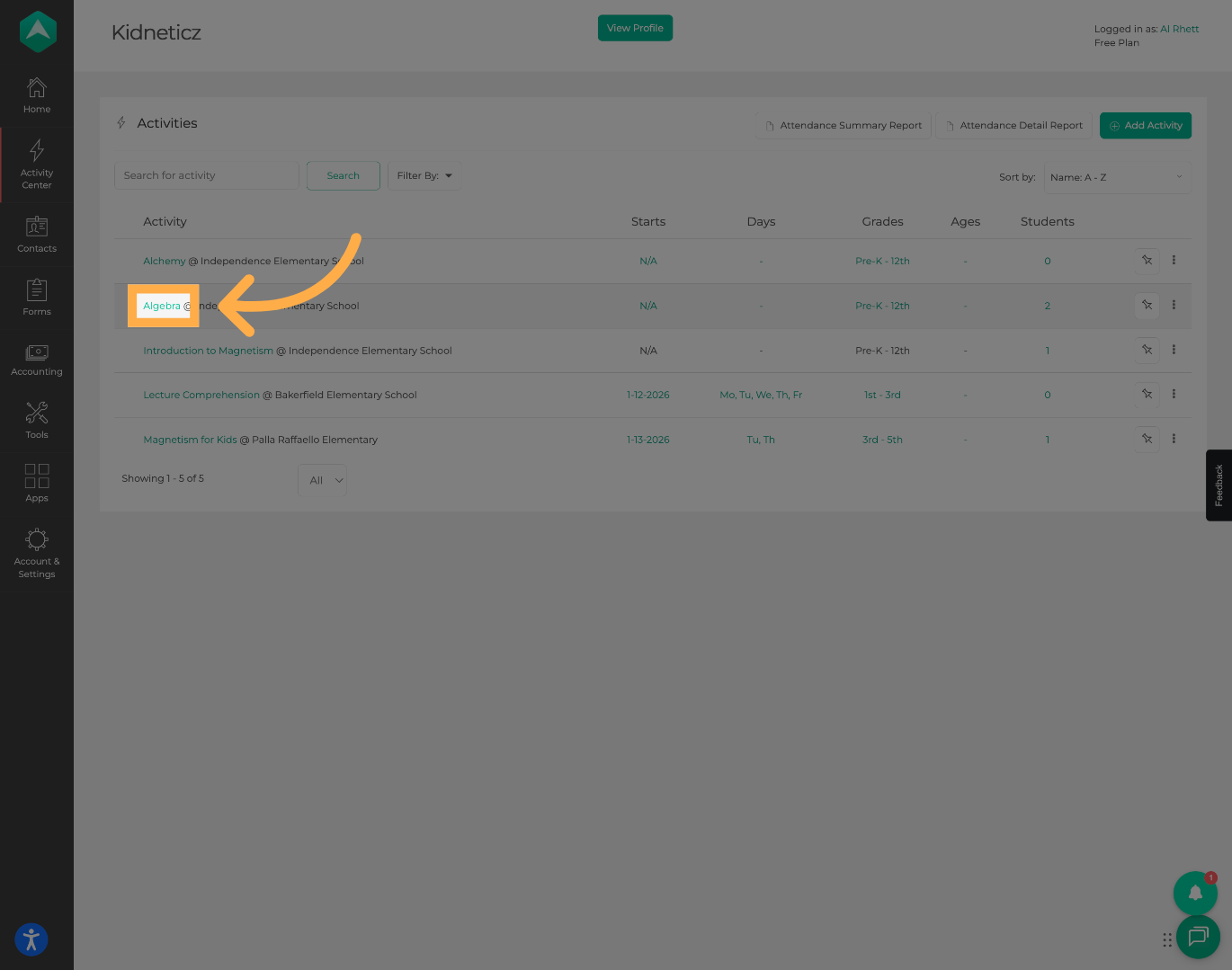
2. Open an Activity
Select the activity containing the participants you would like to copy or move.
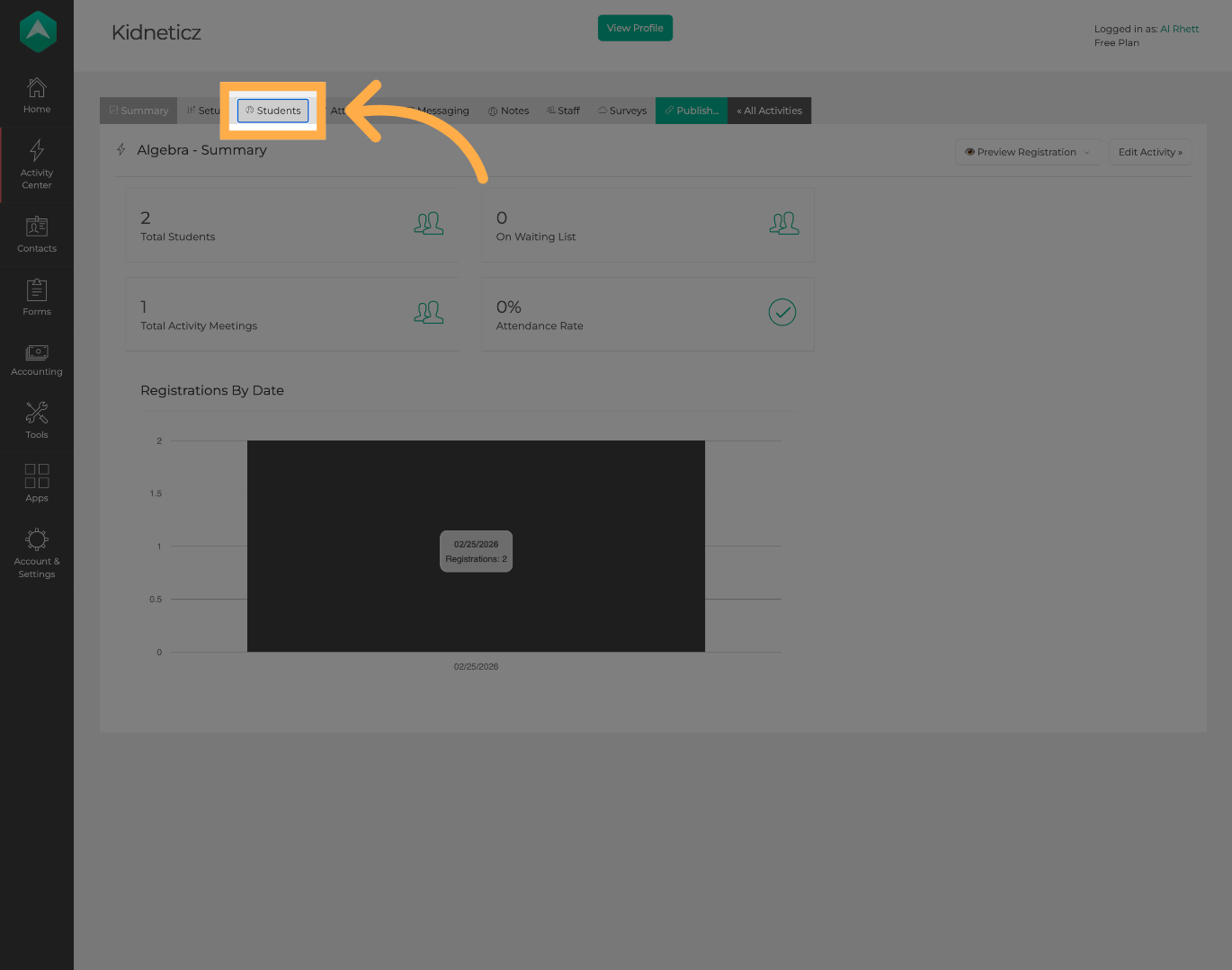
3. Open the Students Section
Click “Students” to view the roster of enrolled participants.
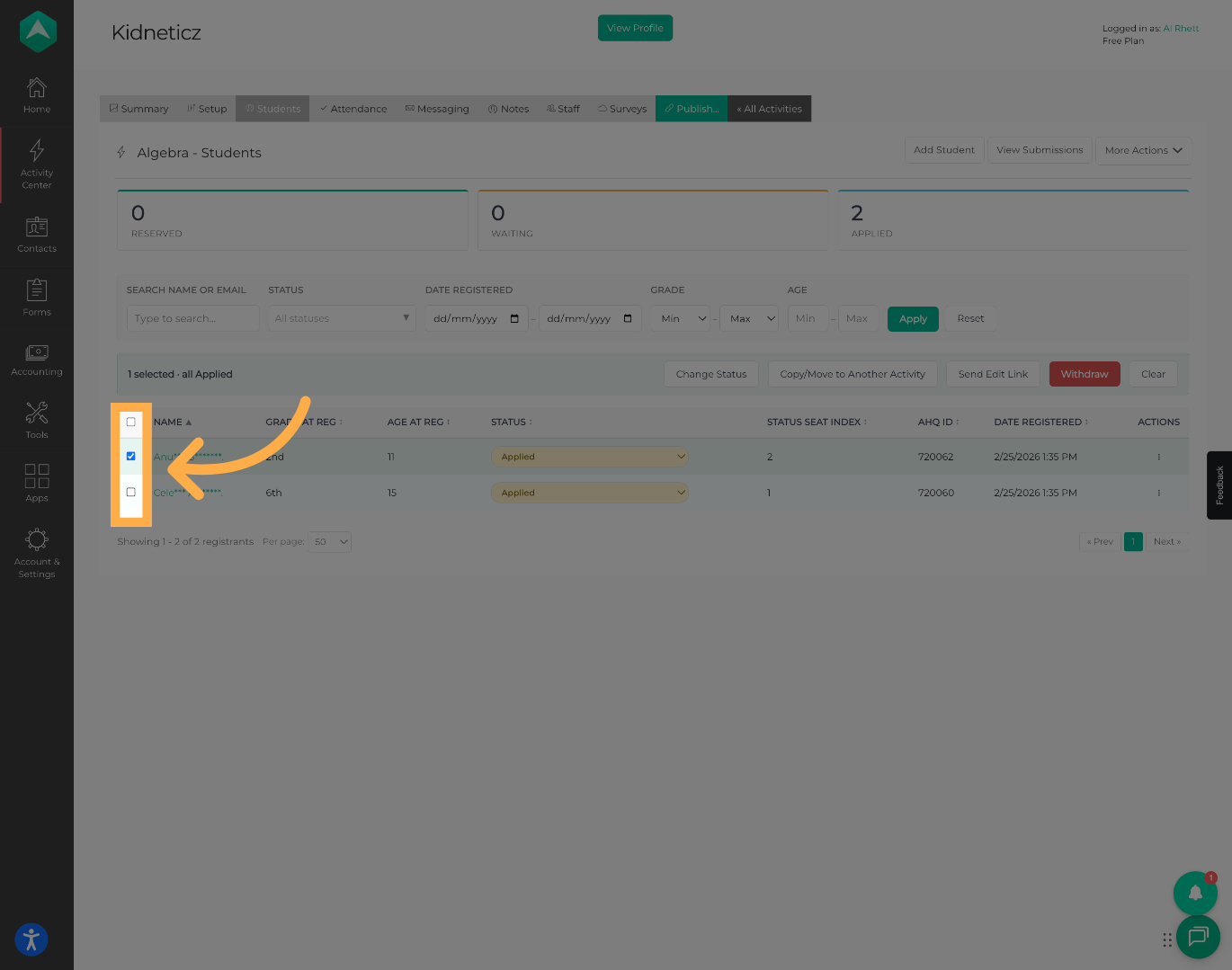
4. Select Participants
Use the checkboxes to select one or more participants.
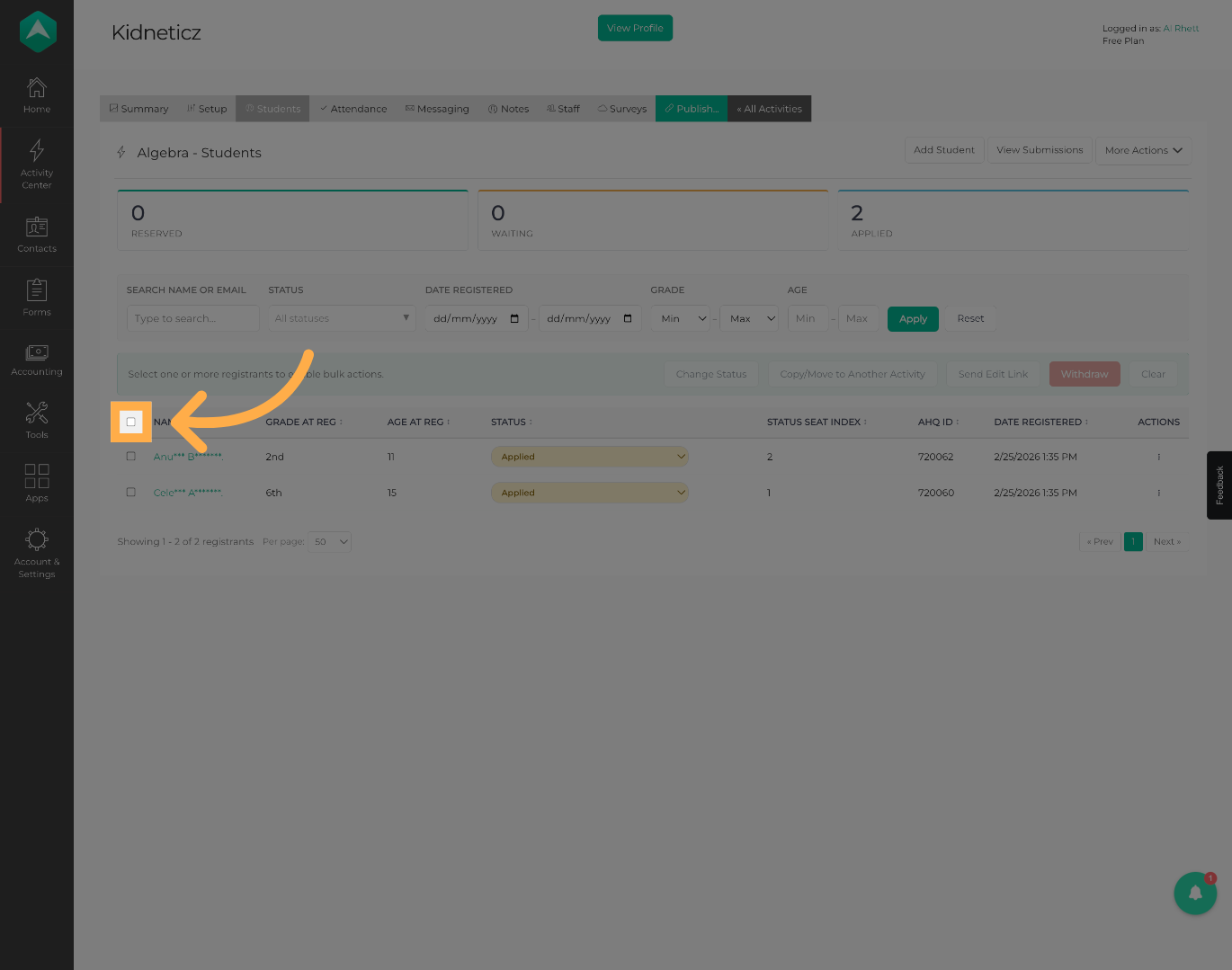
💡 Tip: You can select individual participants or multiple participants at once.
5. Review Participant Selection
Review your selection and remove any participants that should not be included in the transfer.
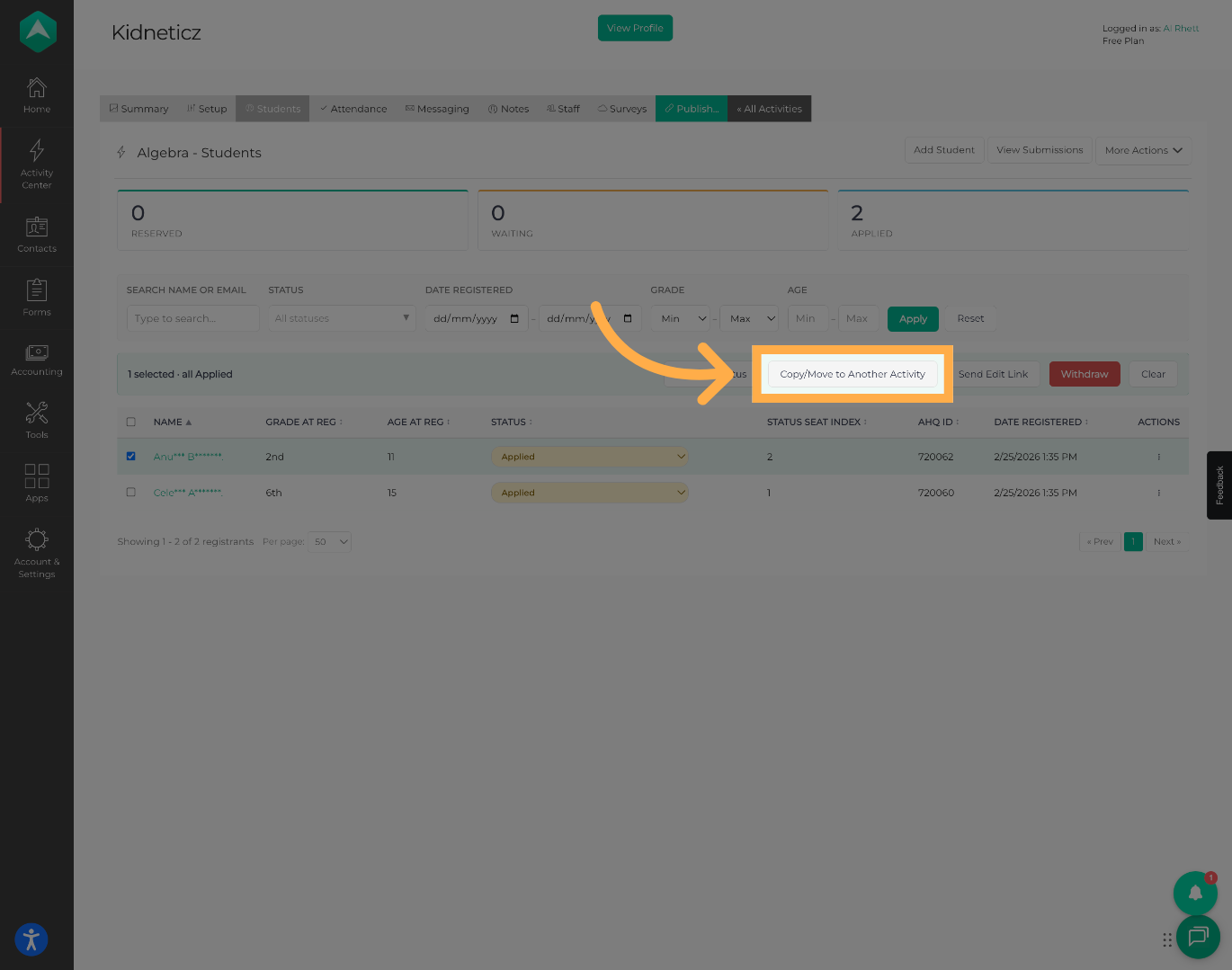
6. Open Copy/Move Options
Click “Copy/Move to Another Activity” to begin the transfer process.
7. Select the Destination Activity
Search for and select the activity where participants should be copied or moved.
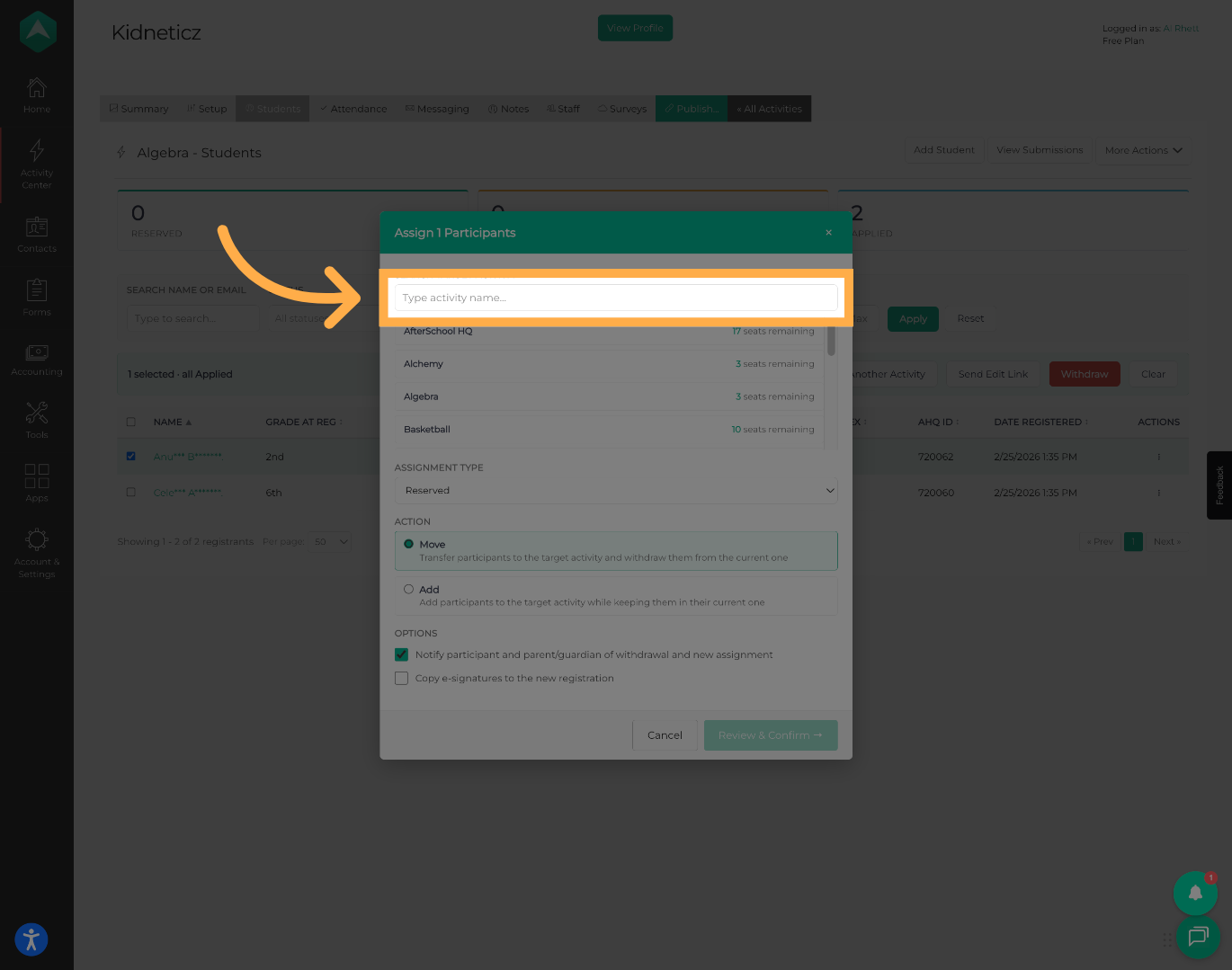
💡 Tip: Only activities available to your organization will appear in the activity search.
8. Select a Registration Status
Choose the registration status that should be assigned to participants in the destination activity.
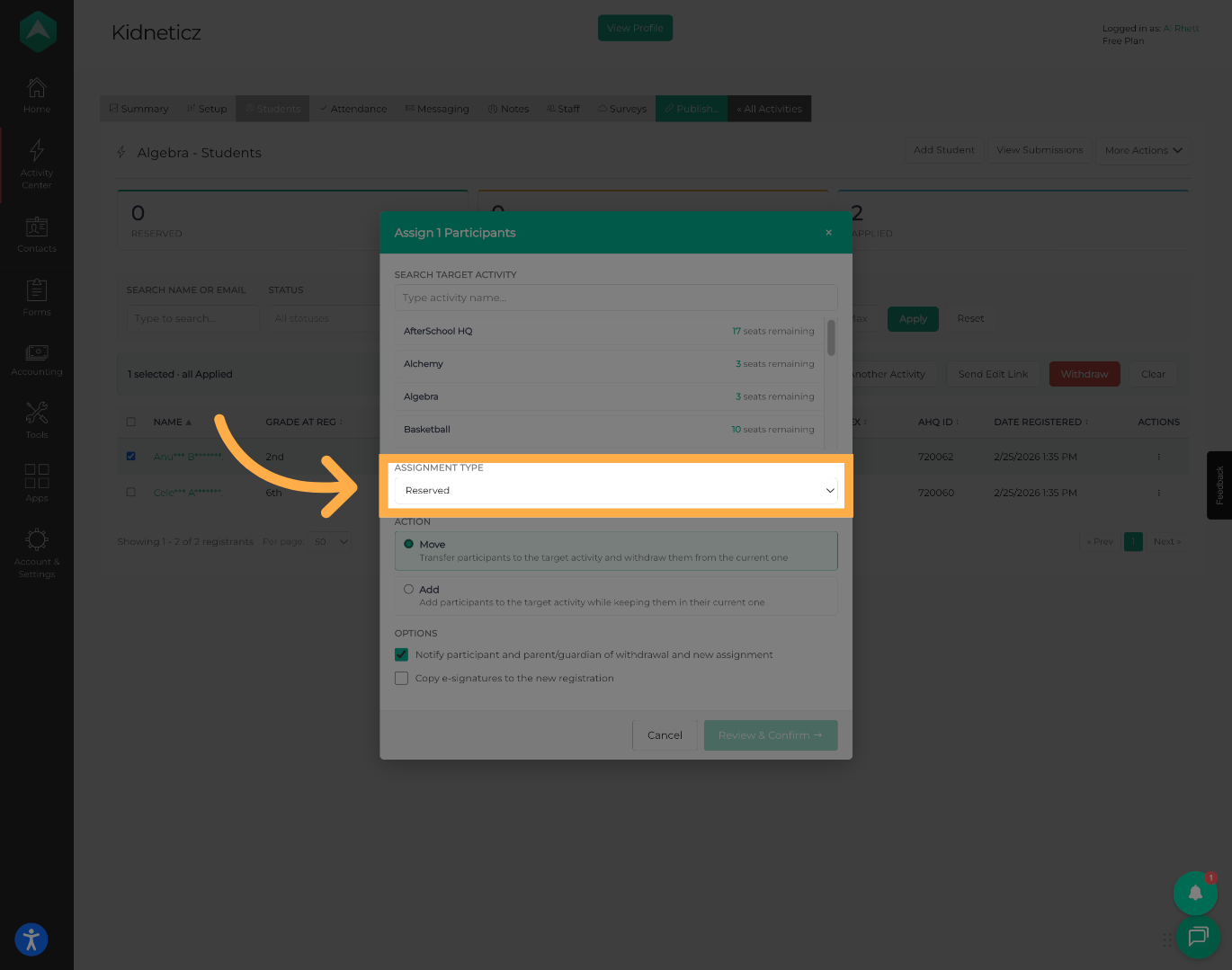
💡 Tip: Common statuses include Reserved, Applied, Waiting List, and Reserved Pending Payment.
9. Choose Copy or Move
Select whether you would like to Copy participants to the new activity or Move them entirely.
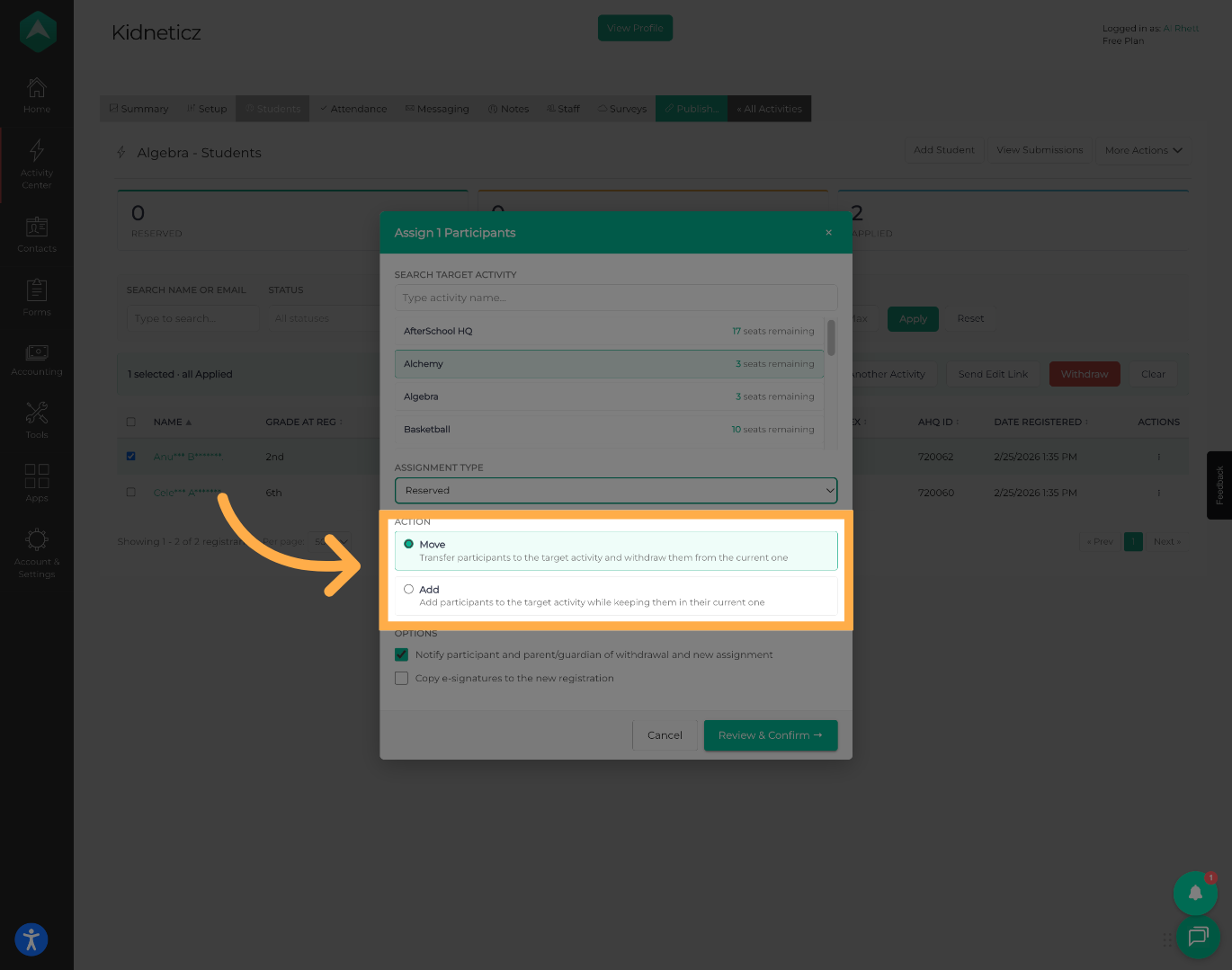
💡 Tip: Copy keeps participants enrolled in both activities, while Move removes them from the original activity.
10. Configure Additional Options
Choose whether to send notification emails and whether participant signatures should be copied.
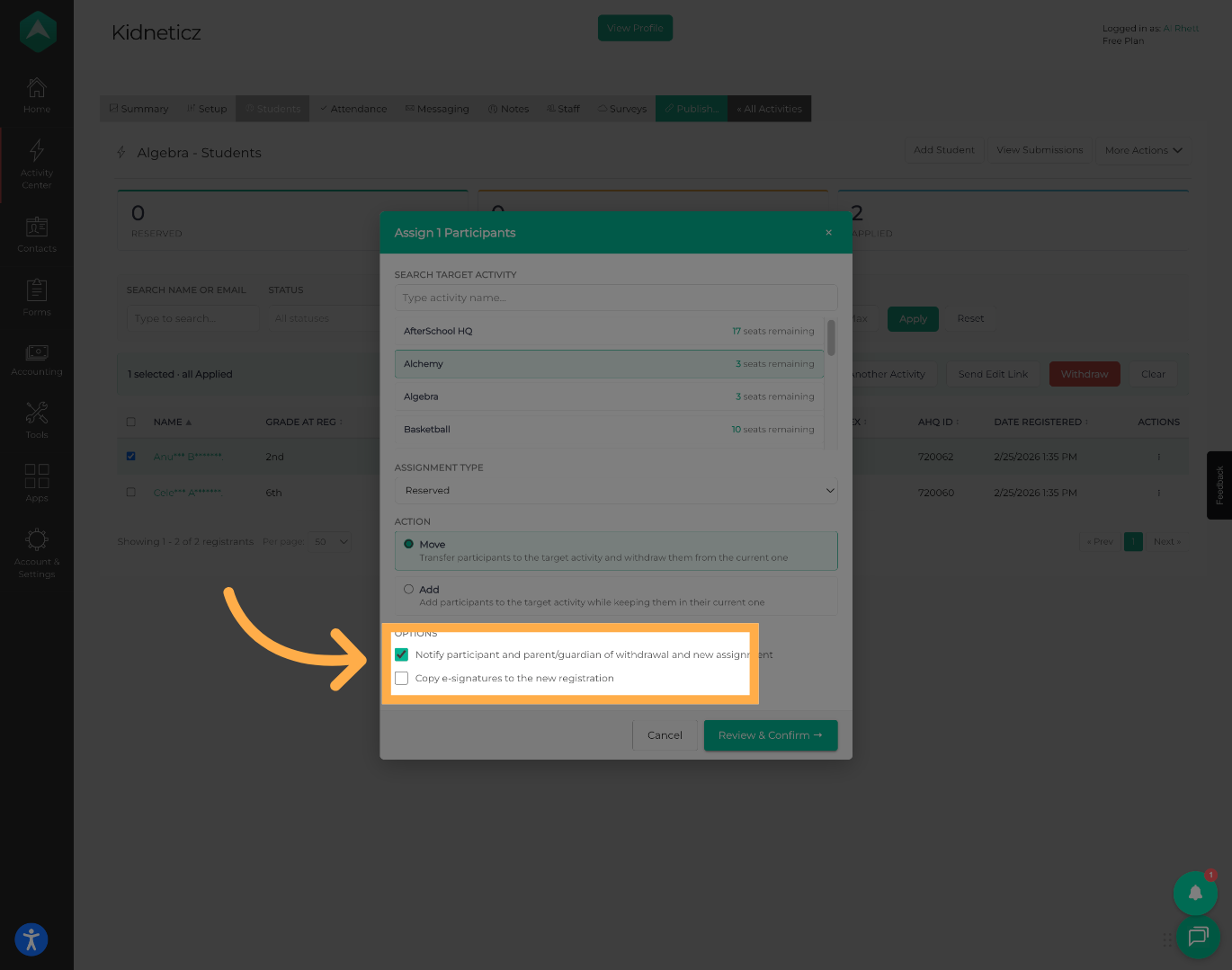
💡Tip: Copying signatures can help prevent families from needing to complete registration forms again.
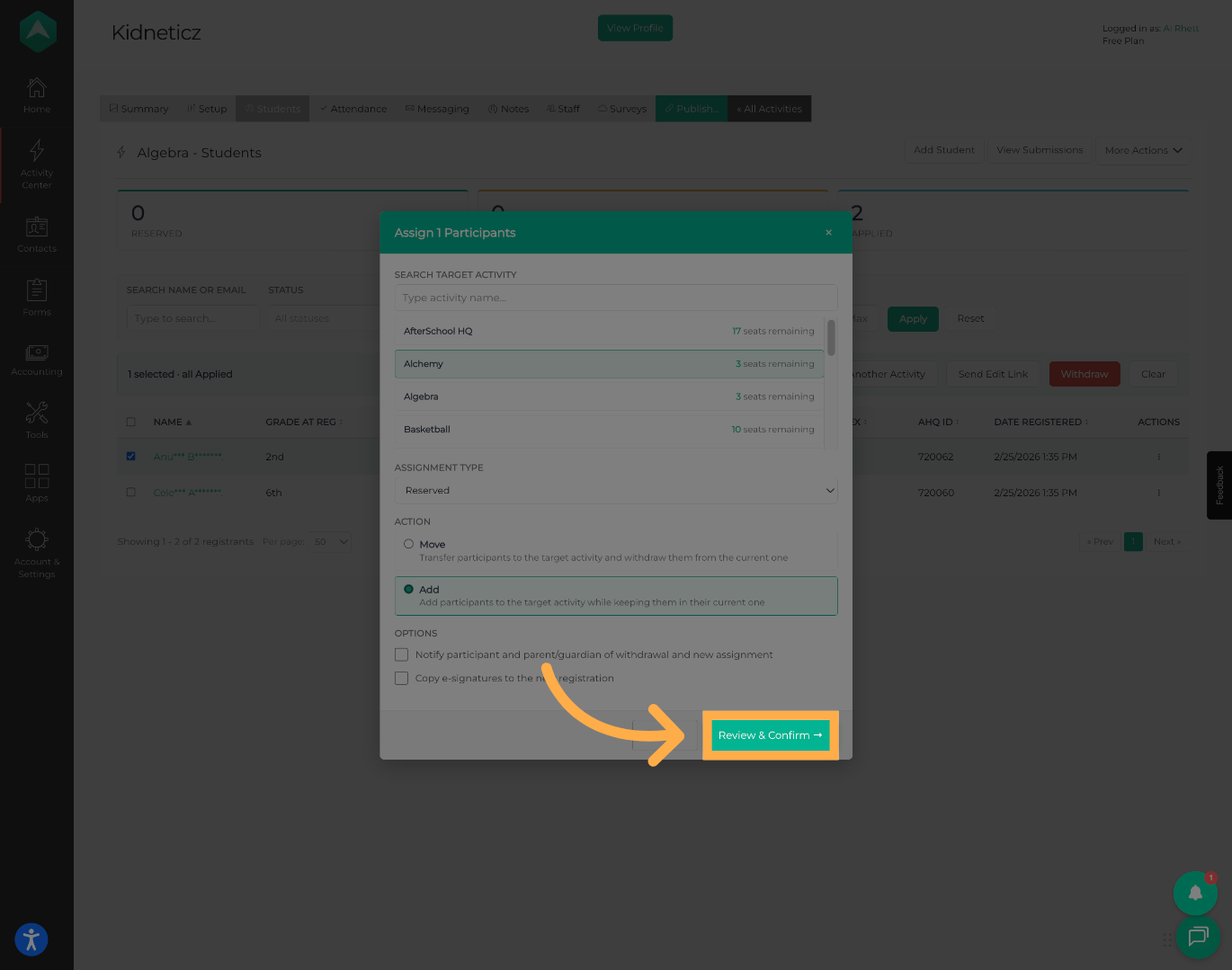
11. Review and Confirm
Click “Review & Confirm” to verify the transfer details.
12. Review Participant List
Expand the details section to review all participants included in the transfer.
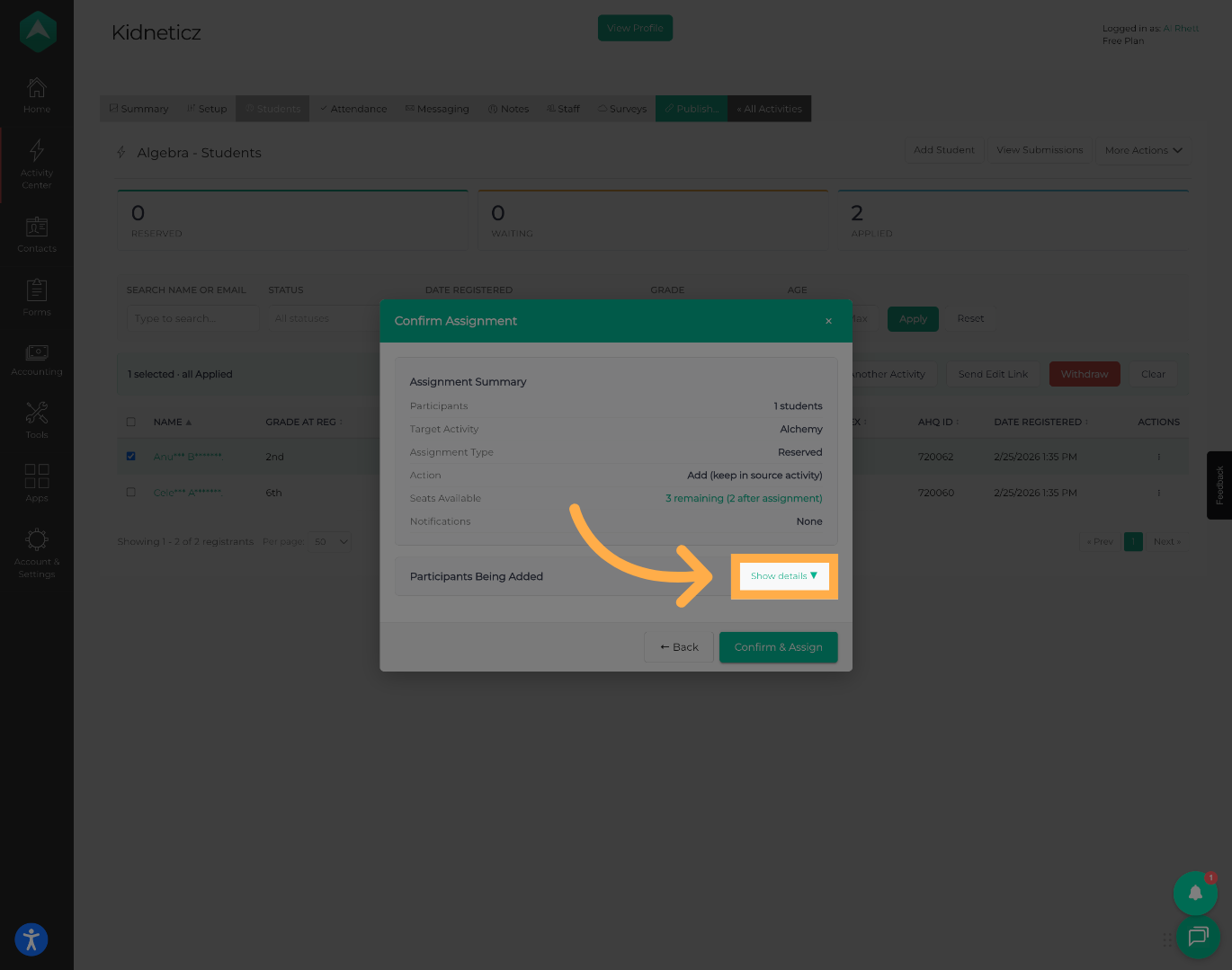
💡 Tip: Verify the destination activity, registration status, and participant list before proceeding.
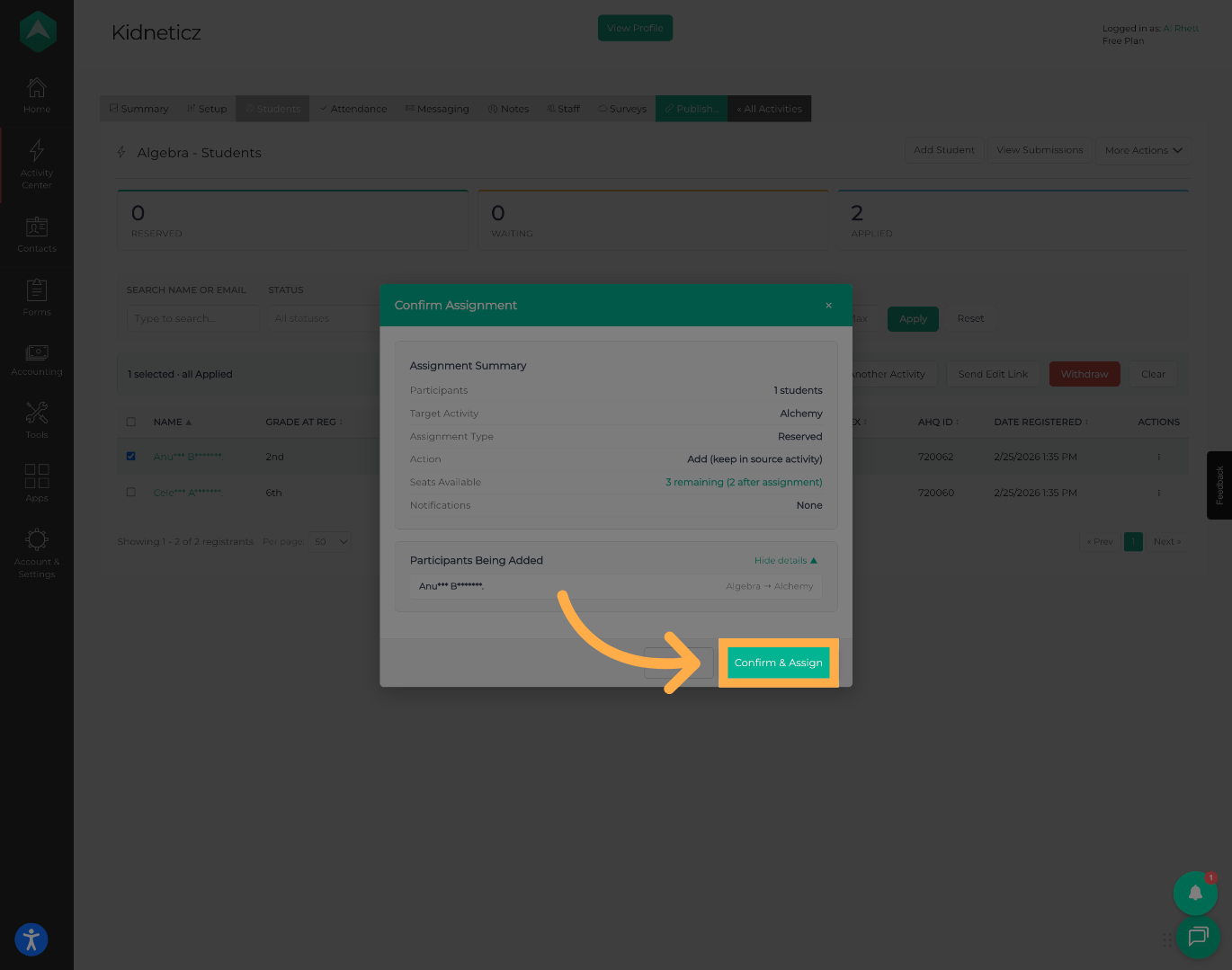
13. Confirm and Assign Participants
Click “Confirm & Assign” to complete the transfer and assign participants to the destination activity.
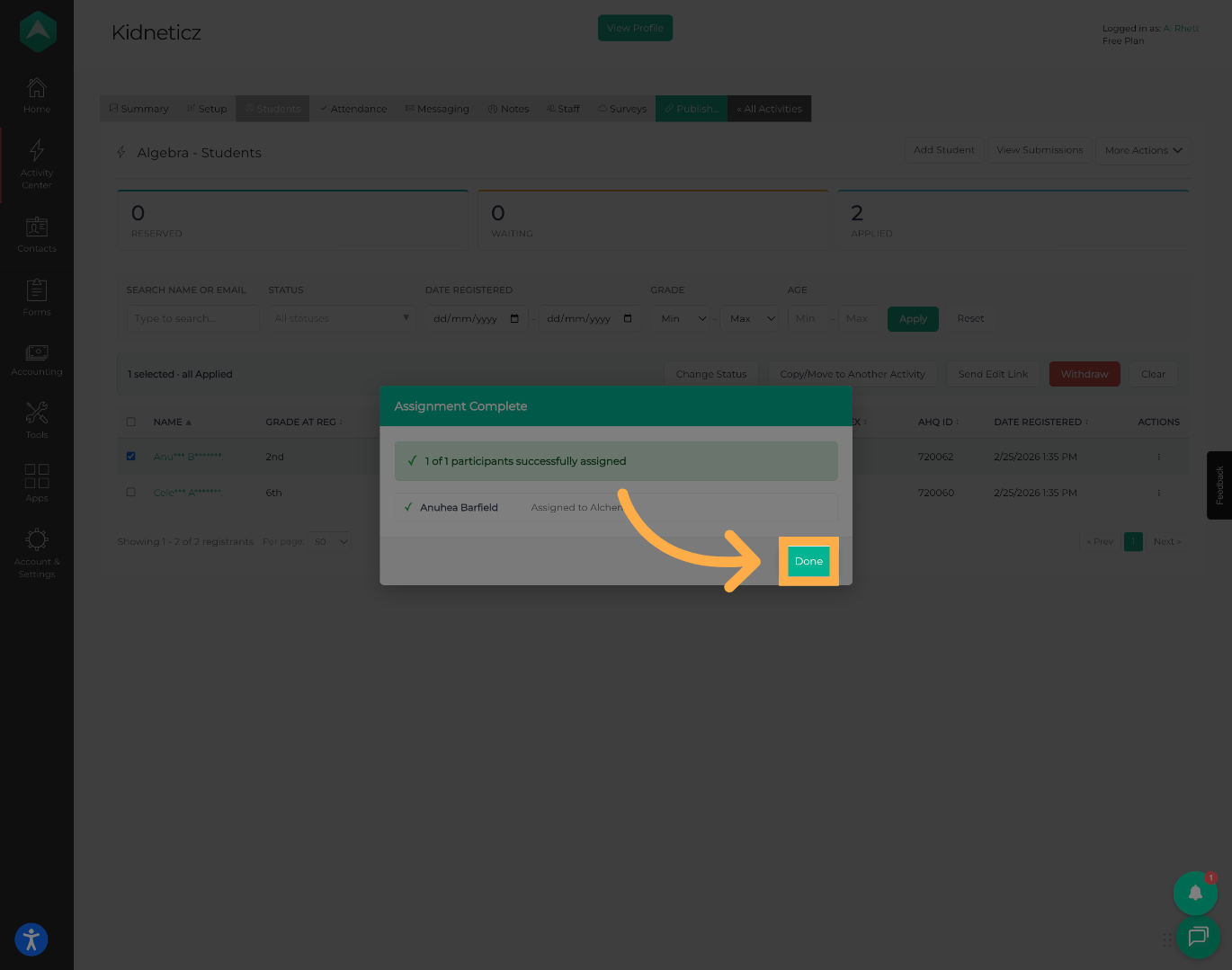
14. Complete the Transfer
Click “Done” to finish the transfer process and return to the activity roster.
Frequently Asked Questions
Q: What is the difference between Copy and Move?
A: Copy keeps participants enrolled in both activities. Move removes participants from the original activity and enrolls them in the destination activity.
Q: Can I transfer multiple participants at the same time?
A: Yes. You can select multiple participants and transfer them in a single action.
Q: Will participant signatures transfer to the new activity?
A: Signatures can be copied during the transfer process if the option is selected.
Q: Will families receive a notification?
A: You can choose whether notification emails are sent during the transfer process.
Q: Can I assign a different registration status during the transfer?
A: Yes. The registration status can be selected before completing the transfer.
Q: What happens when I move a participant?
A: The participant is removed from the original activity and enrolled in the destination activity.
Q: What happens when I copy a participant?
A: The participant remains enrolled in the original activity and is also enrolled in the destination activity.
💡If you experience any issues or have further questions with “How to Bulk Move Participants to Another Activity”, don't hesitate to get in touch with our support team at support@afterschoolhq.com.