![ASHQ Logo Vert Flat.png]](https://support.afterschoolhq.com/hs-fs/hubfs/ASHQ%20Logo%20Vert%20Flat.png?height=40&name=ASHQ%20Logo%20Vert%20Flat.png)
Need to update your payment information? Follow the instructions below to learn how to add and manage payment methods in AfterSchool HQ.
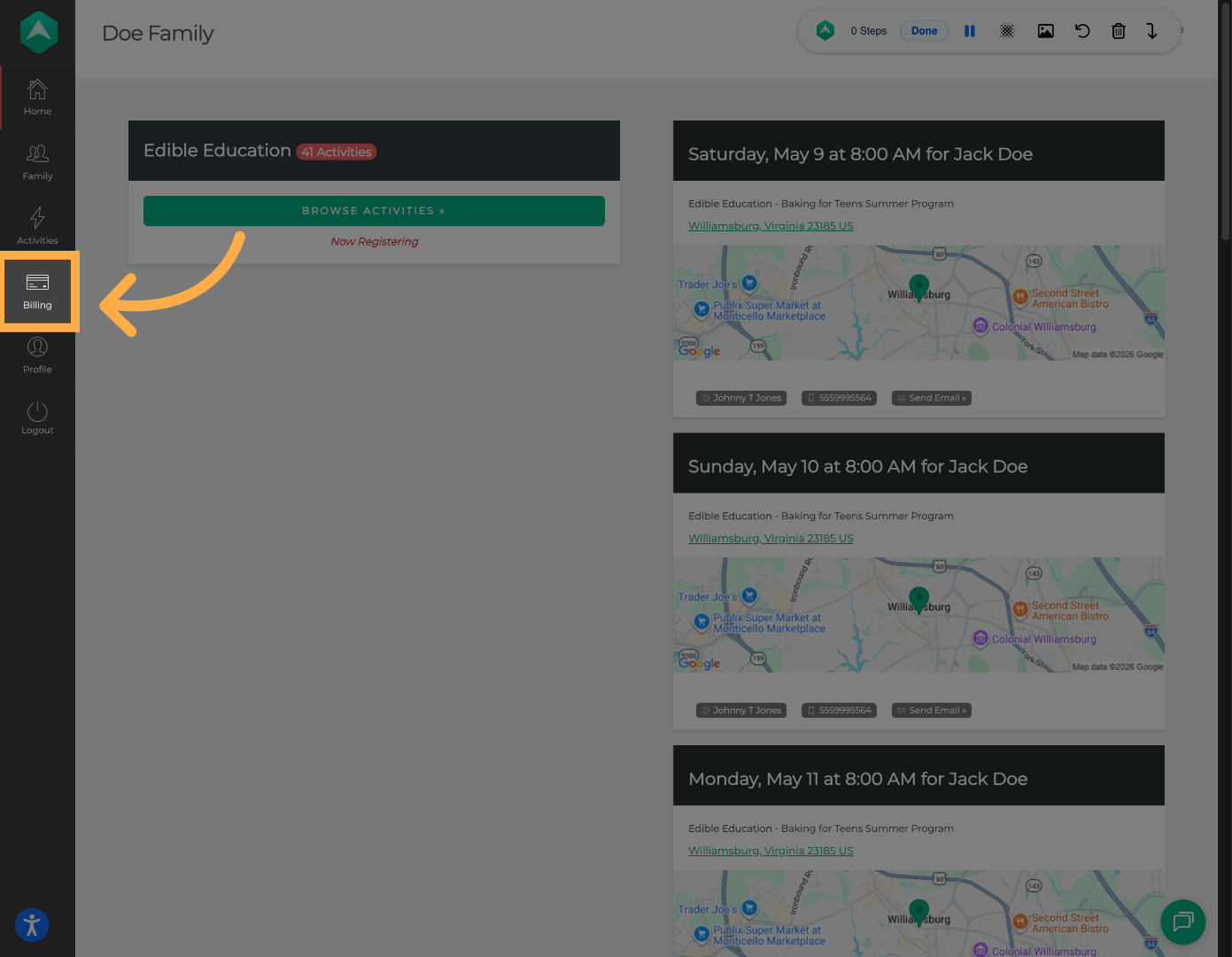
1. Open Billing
Click “Billing” from the left-side menu to access your billing settings.
💡Tip: For security, make sure you are connected to a trusted internet network when entering payment information.
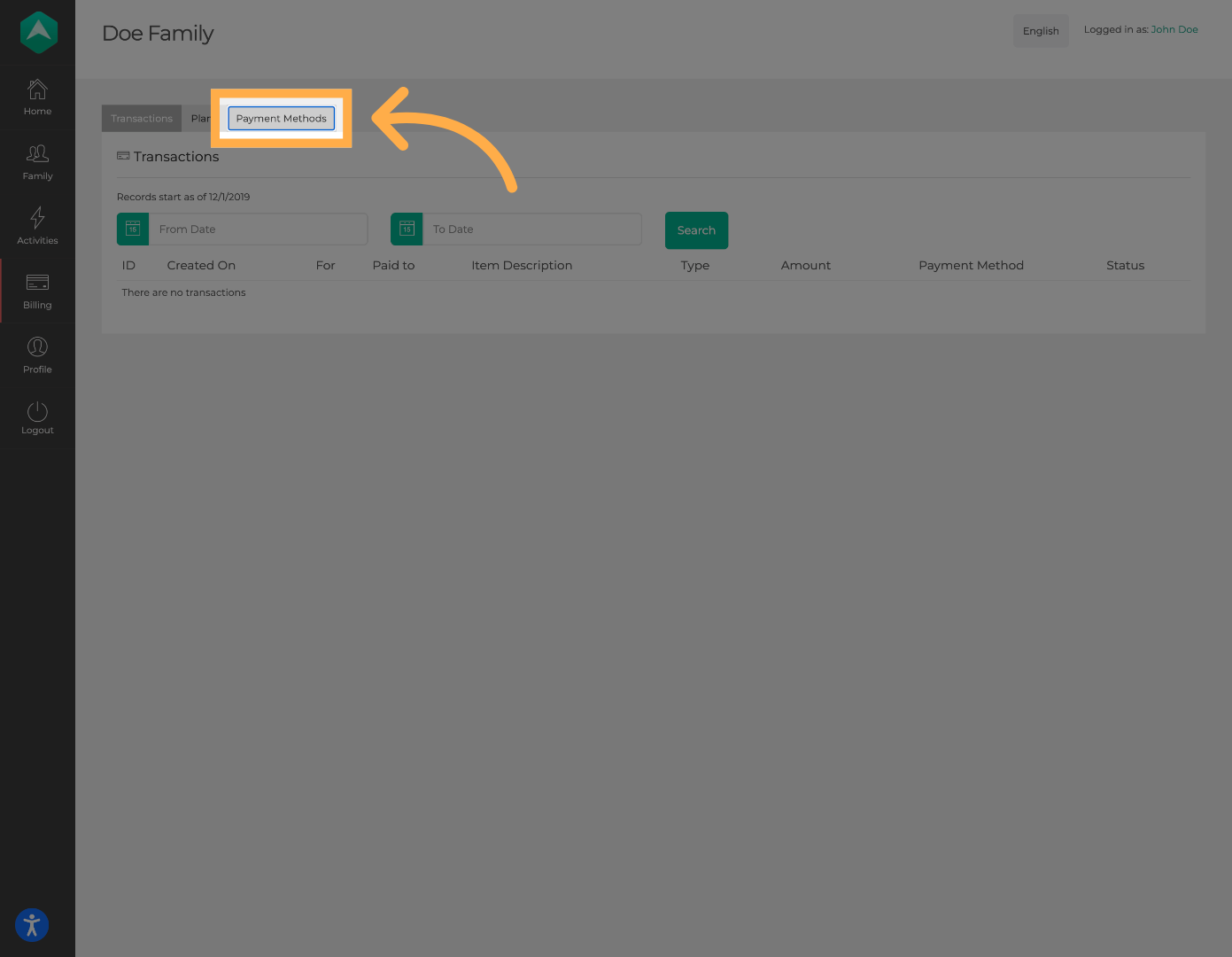
2. Open Payment Methods
Select “Payment Methods” to view your saved payment options.
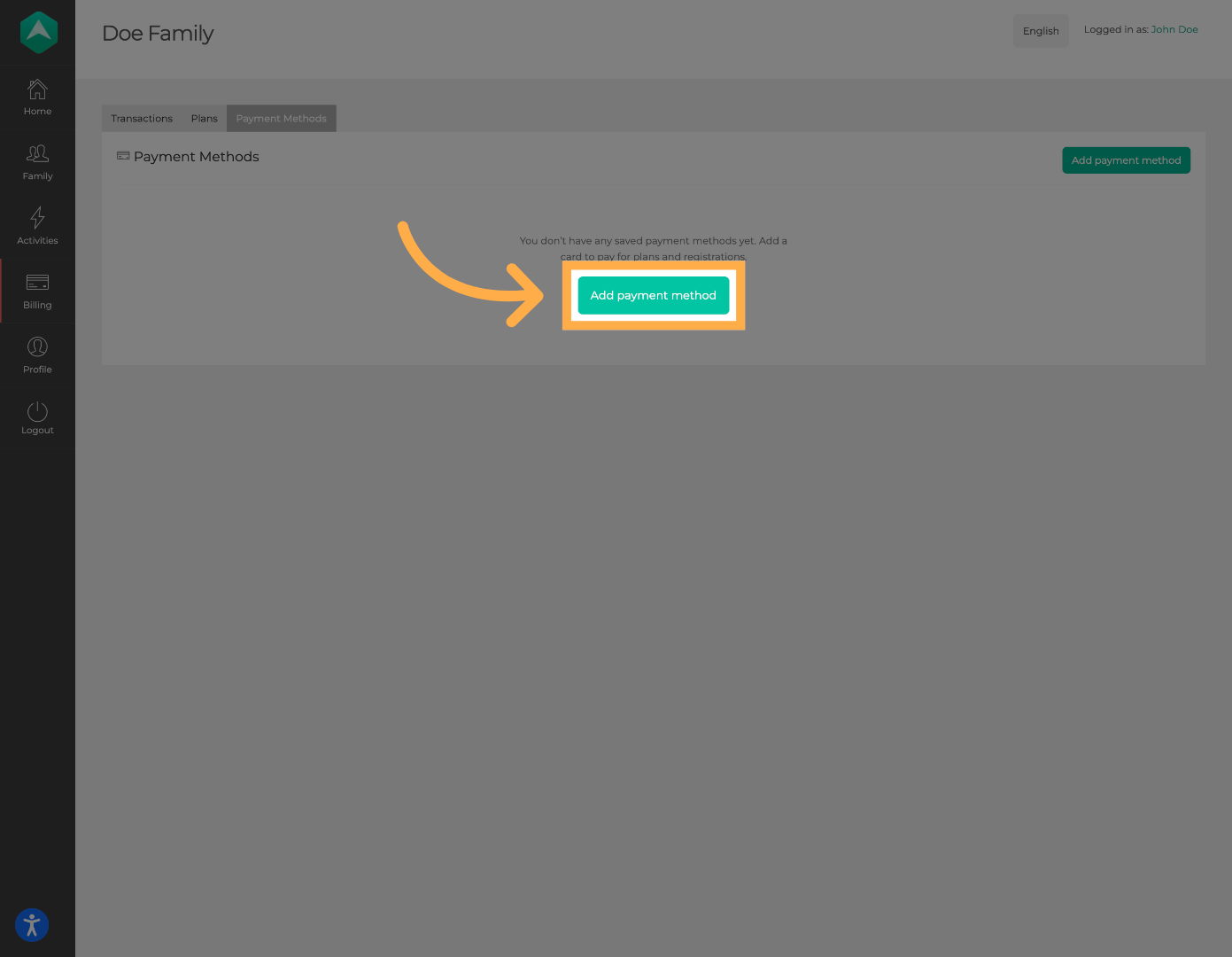
3. Add a Payment Method
Click “Add Payment Method” to add a new credit or debit card to your account.
💡Tip: If your card expires or changes, update it as soon as possible to avoid payment interruptions.
4. Enter Card Information
Enter your card information securely using Stripe.
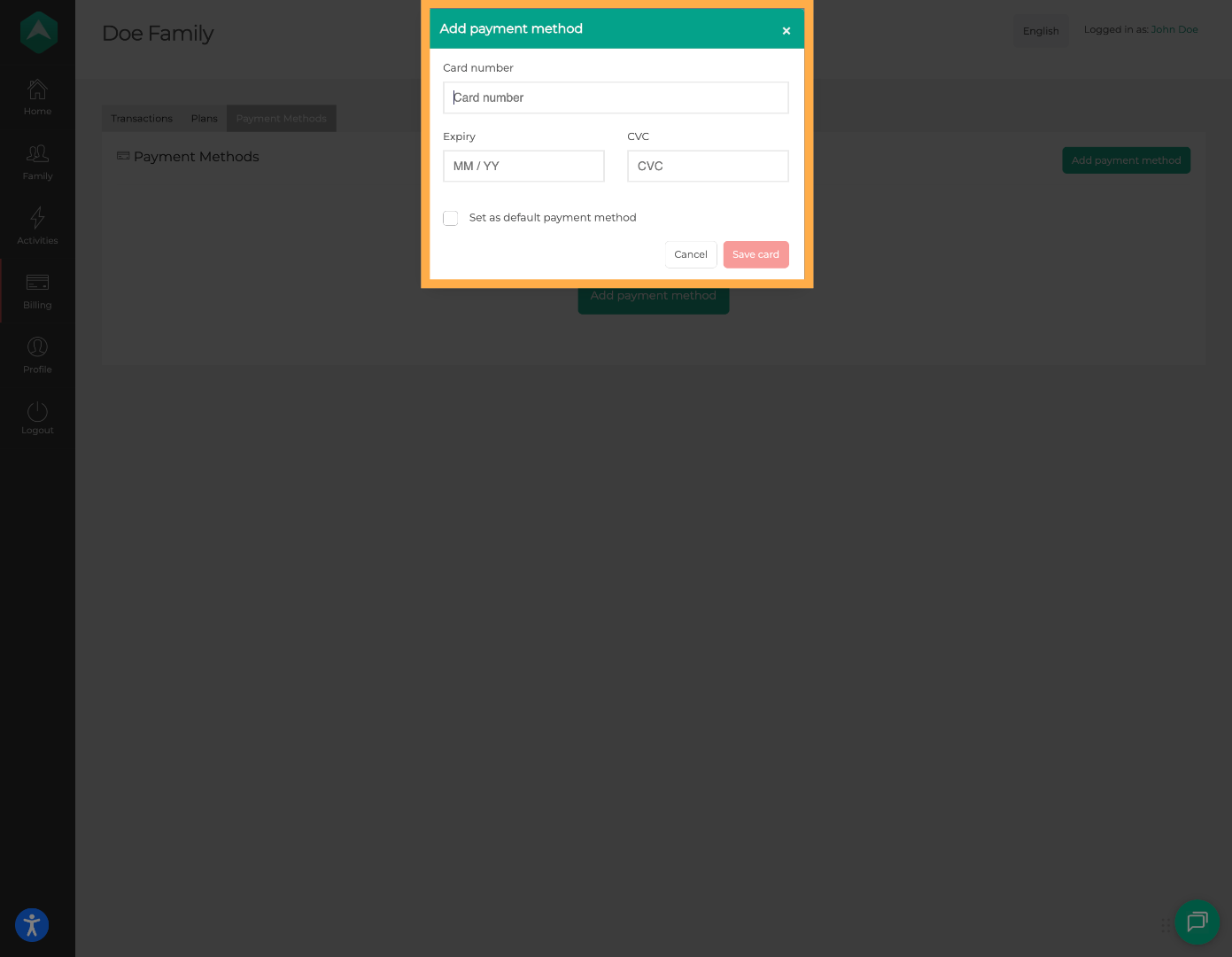
5. Set Default Payment Method (Optional)
Select “Set as Default” if you would like this card to be your primary payment method.
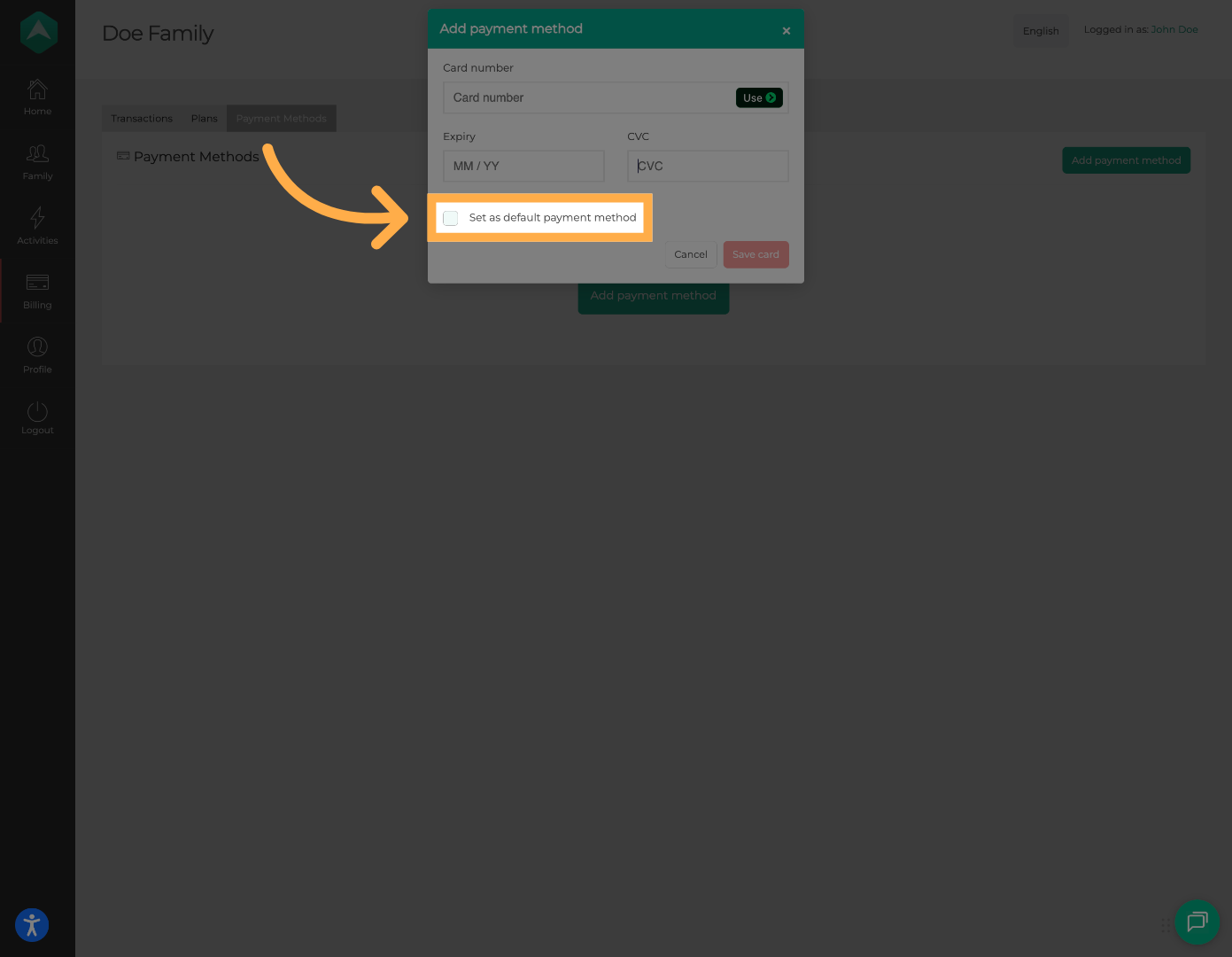
💡Tip: Setting a default card helps ensure future payments process using your preferred payment method.
6. Save Your Card
Click “Save Card” to finish adding your payment method.
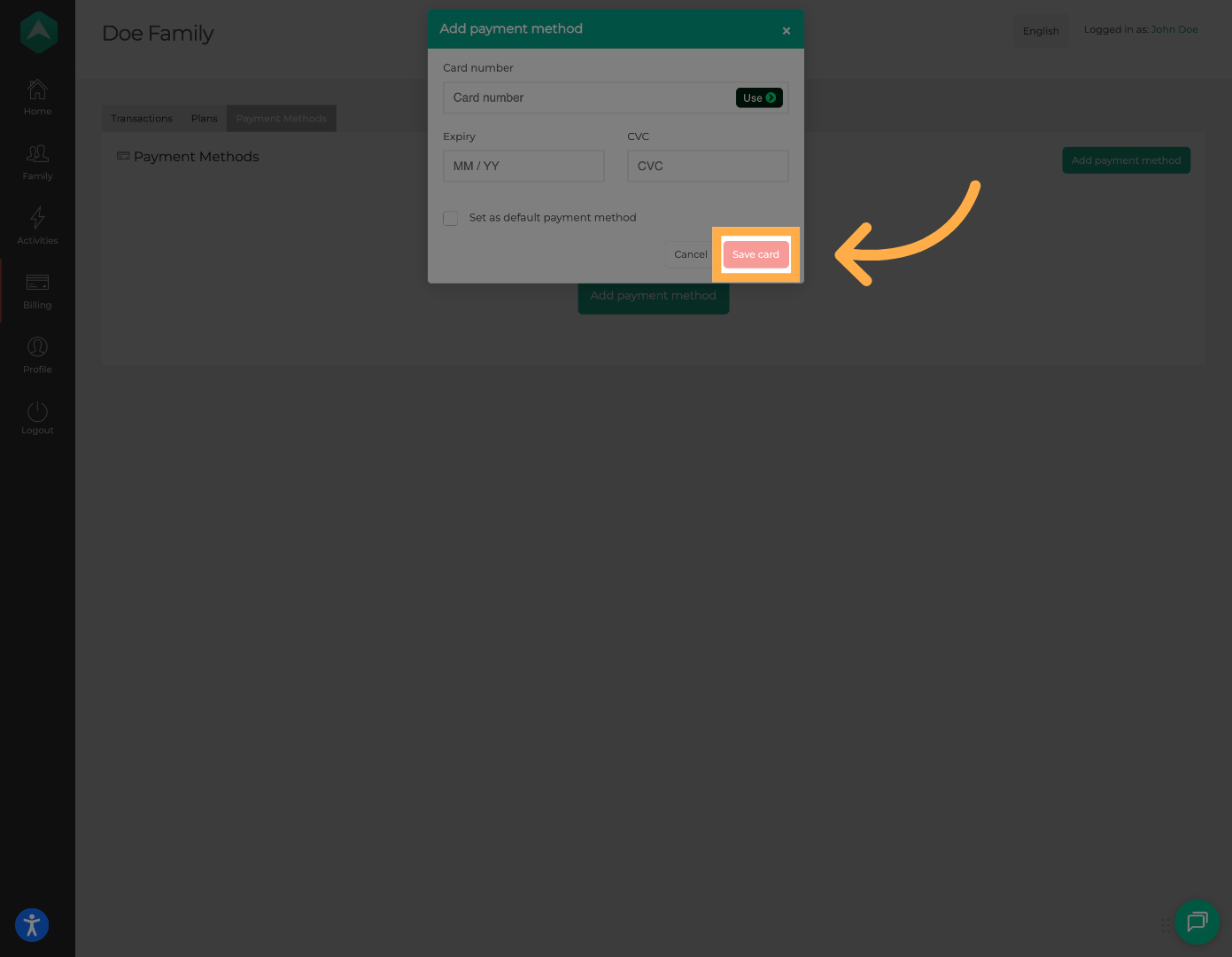
💡Tip: Ensure your card number, expiration date, and security code are entered correctly before saving.
Frequently Asked Questions
Q: What payment methods are accepted?
A: Most major credit and debit cards are accepted through Stripe.
Q: Can I save more than one payment method?
A: Depending on your account setup, you may be able to store multiple payment methods.
Q: What does “Set as Default” mean?
A: Your default payment method will be used automatically for future charges and payment plans unless changed.
Q: Is my payment information secure?
A: Yes. Payment information is processed securely through Stripe.
Q: Can I remove or replace a payment method later?
A: Yes. You can return to the Payment Methods section anytime to manage your saved cards.
Q: Why is my card not saving?
A: Possible reasons may include:
-
Incorrect card information
-
Expired card
-
Billing address mismatch
-
Bank restrictions or declined authorization
💡If you experience any issues or have further questions with “How to Change Your Payment Method”, don't hesitate to get in touch with our support team at support@afterschoolhq.com.