![ASHQ Logo Vert Flat.png]](https://support.afterschoolhq.com/hs-fs/hubfs/ASHQ%20Logo%20Vert%20Flat.png?height=40&name=ASHQ%20Logo%20Vert%20Flat.png)
Some activity providers offer QR code Check In/Out to make attendance fast and secure. If this feature is enabled, you can scan the provider’s QR code to check your student in or out of an activity.
Option 1: Scan the QR Code
Step 1: Scan the QR Code
Locate the QR code provided by the activity provider. Open the camera app on your device, point it at the QR code, and tap the prompt to open the Check In/Out page.
Step 2: Search for the Student
Use the search field to find your child by name, then select the correct student to continue.
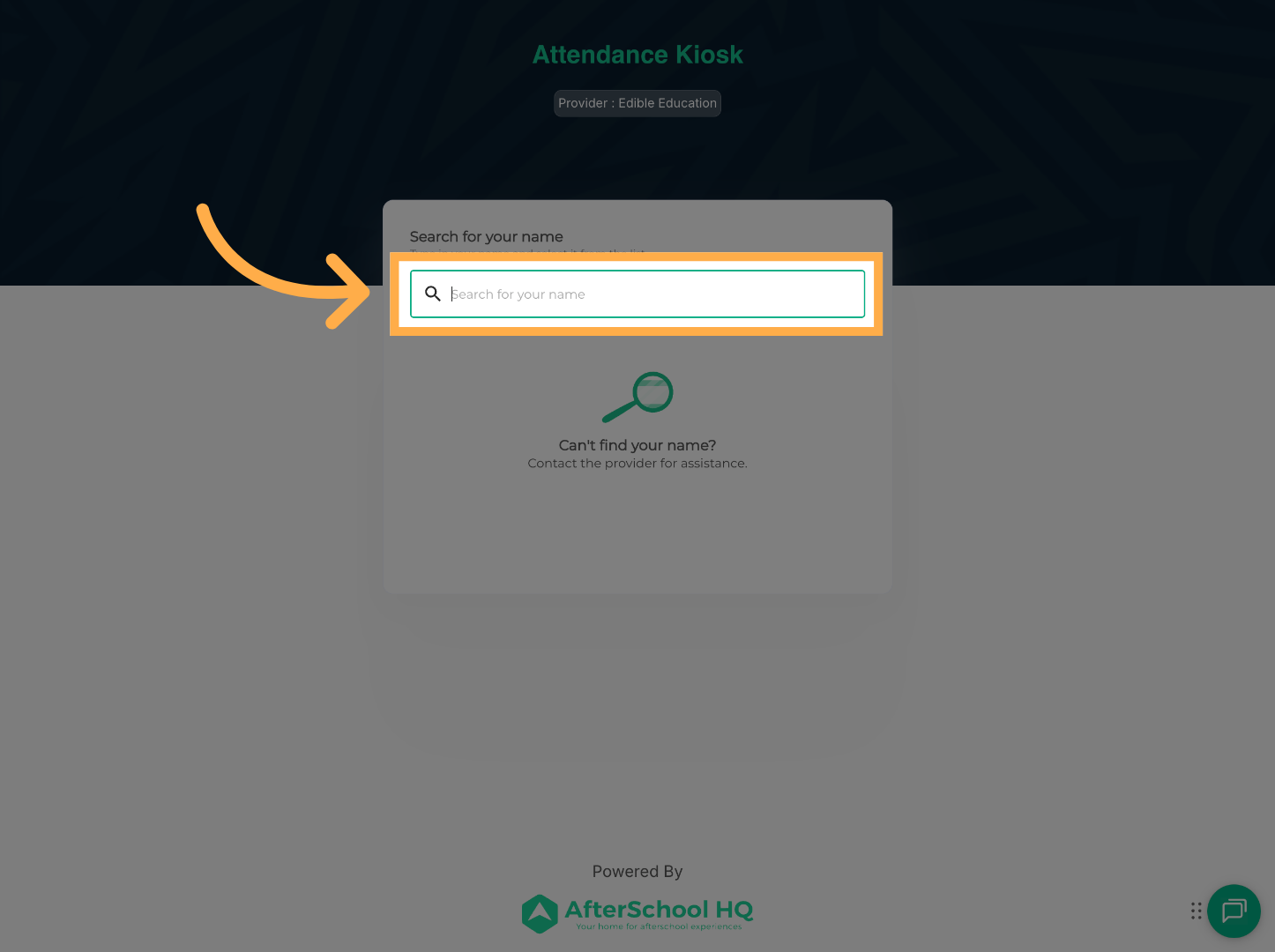
💡 Note: If you have multiple children registered with the provider, you’ll be able to search and select each one individually.
Step 3: Enter Your Phone Number
Enter the phone number associated with your Check In/Out PIN, then click “Proceed”.
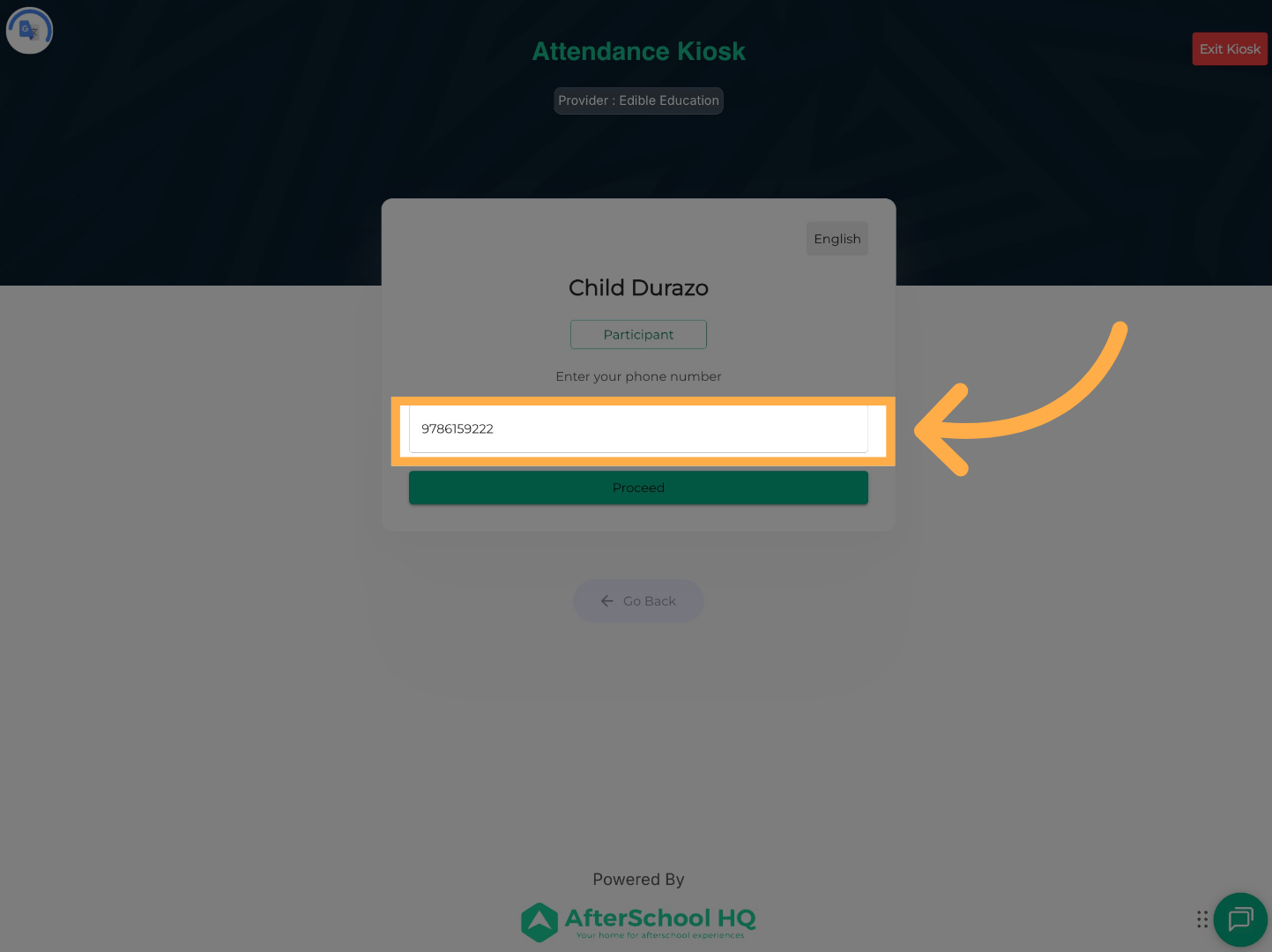
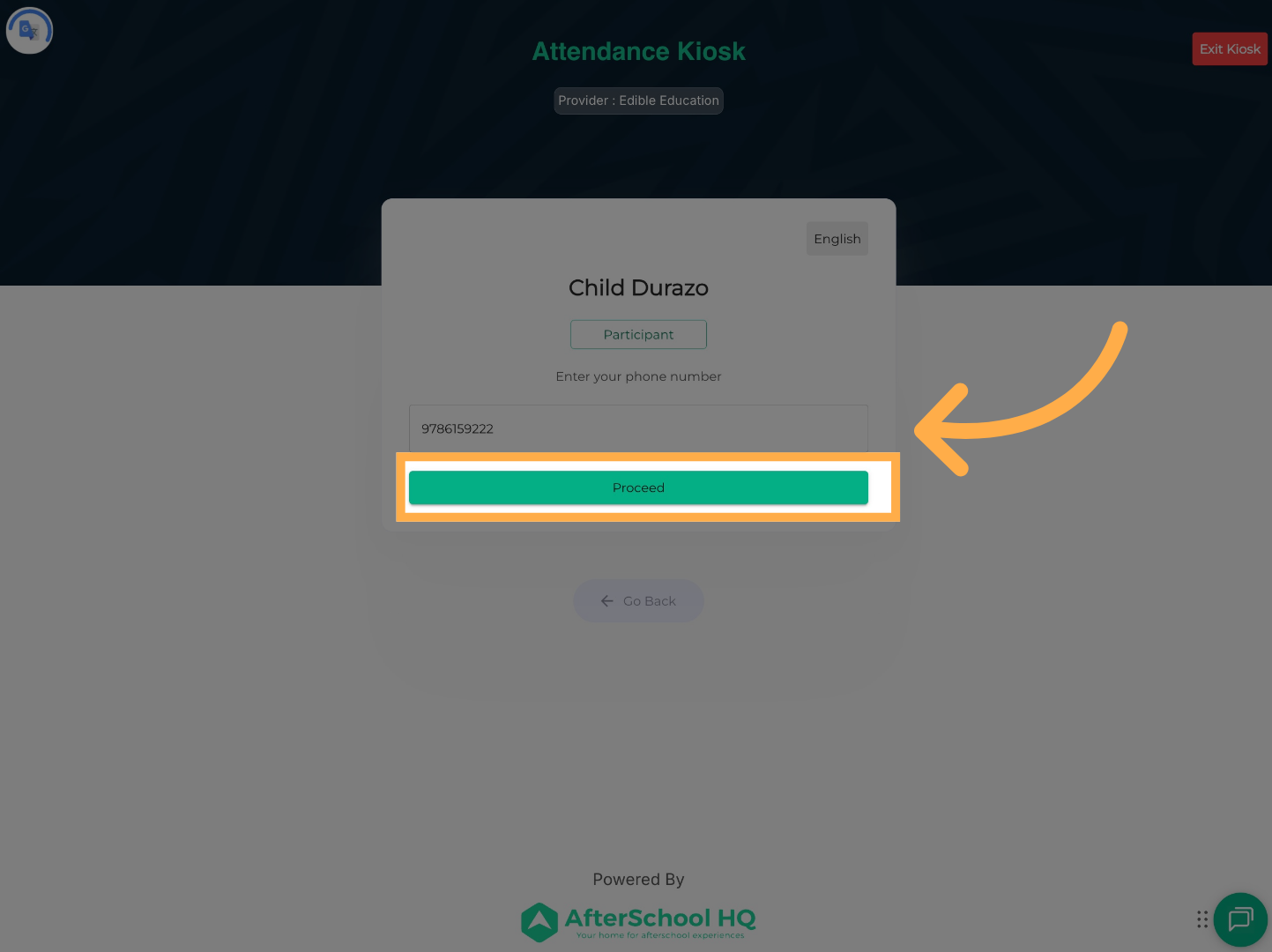
💡 Note: If the phone number is incorrect, you’ll receive a message stating that you are not authorized when you attempt to enter your PIN.
Step 4: Enter Your PIN
Enter your PIN code, then click “Proceed”.

Step 5: Check In or Check Out
Select Check In or Check Out for the student.
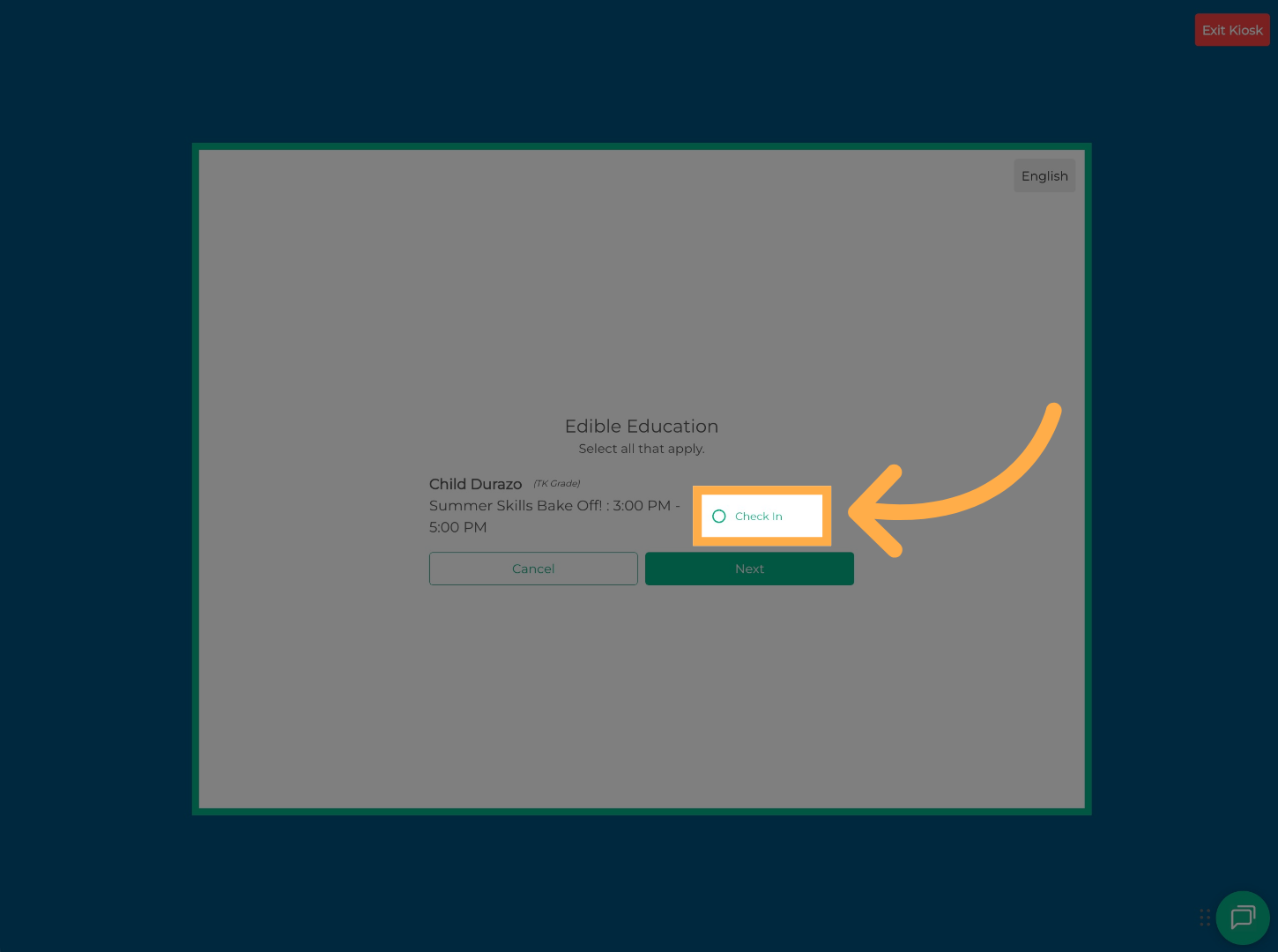
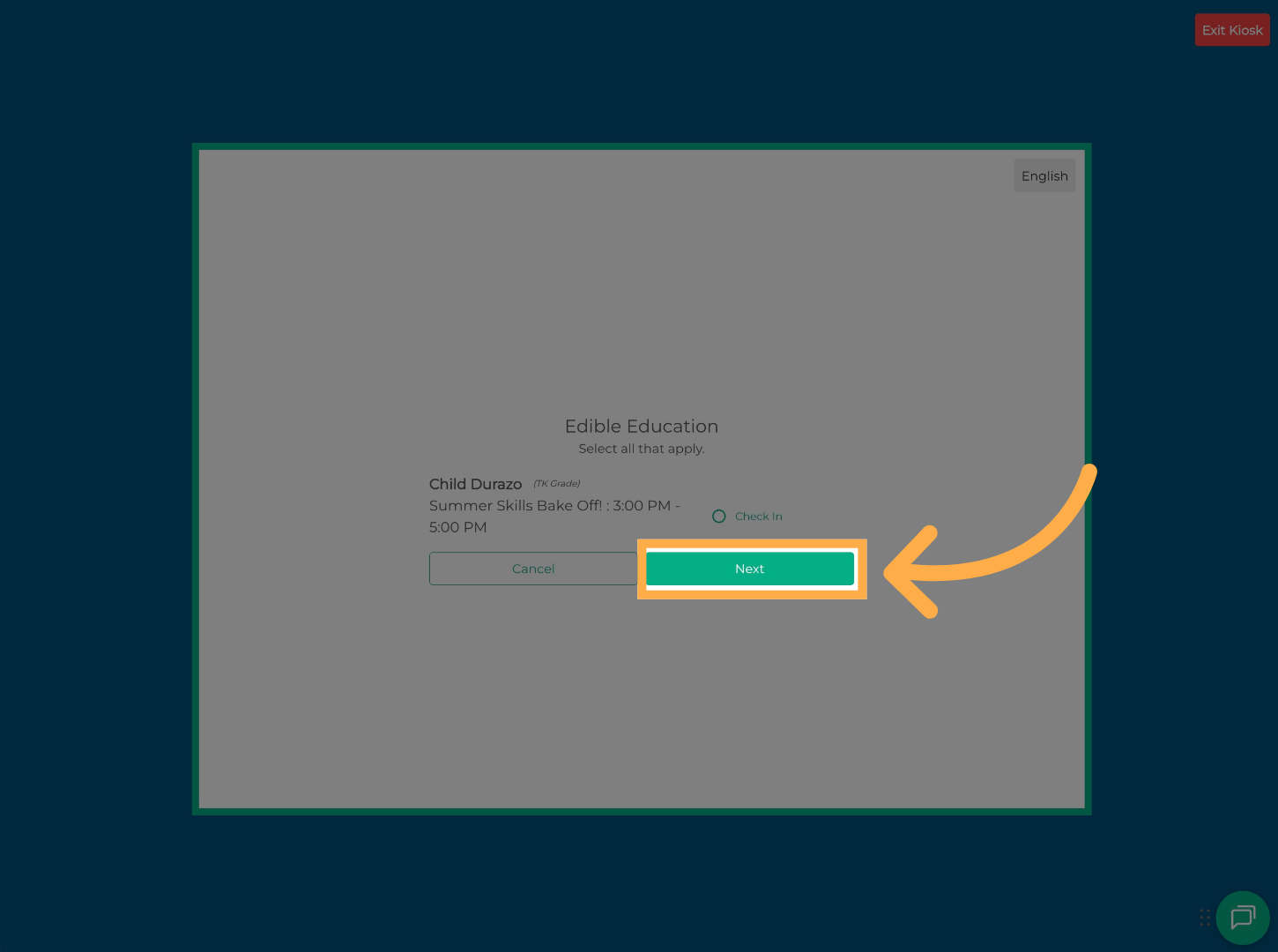
💡 Note: If you check a student into a new activity with the same provider without checking them out first, the system will automatically check them out of the previous activity.
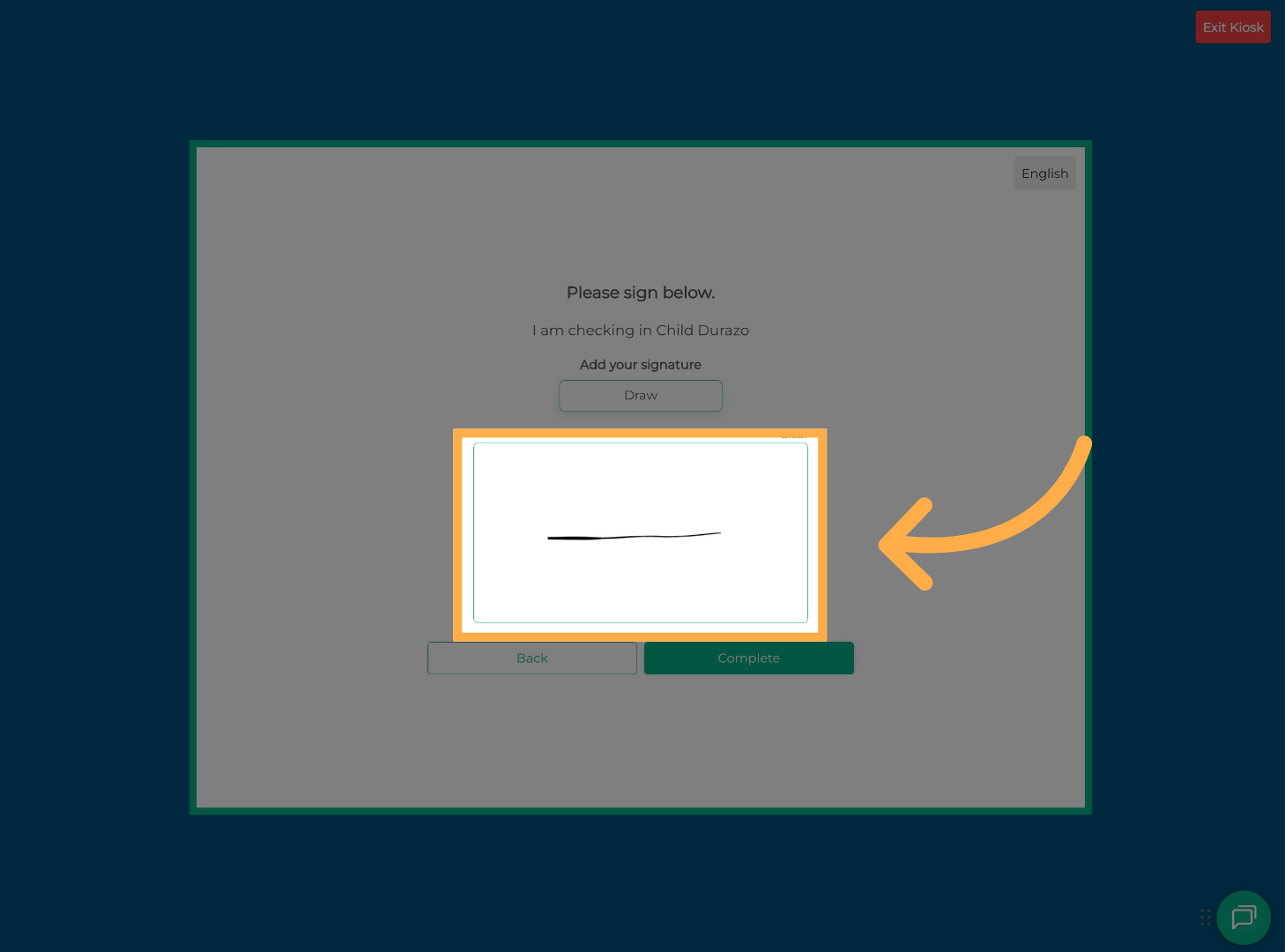
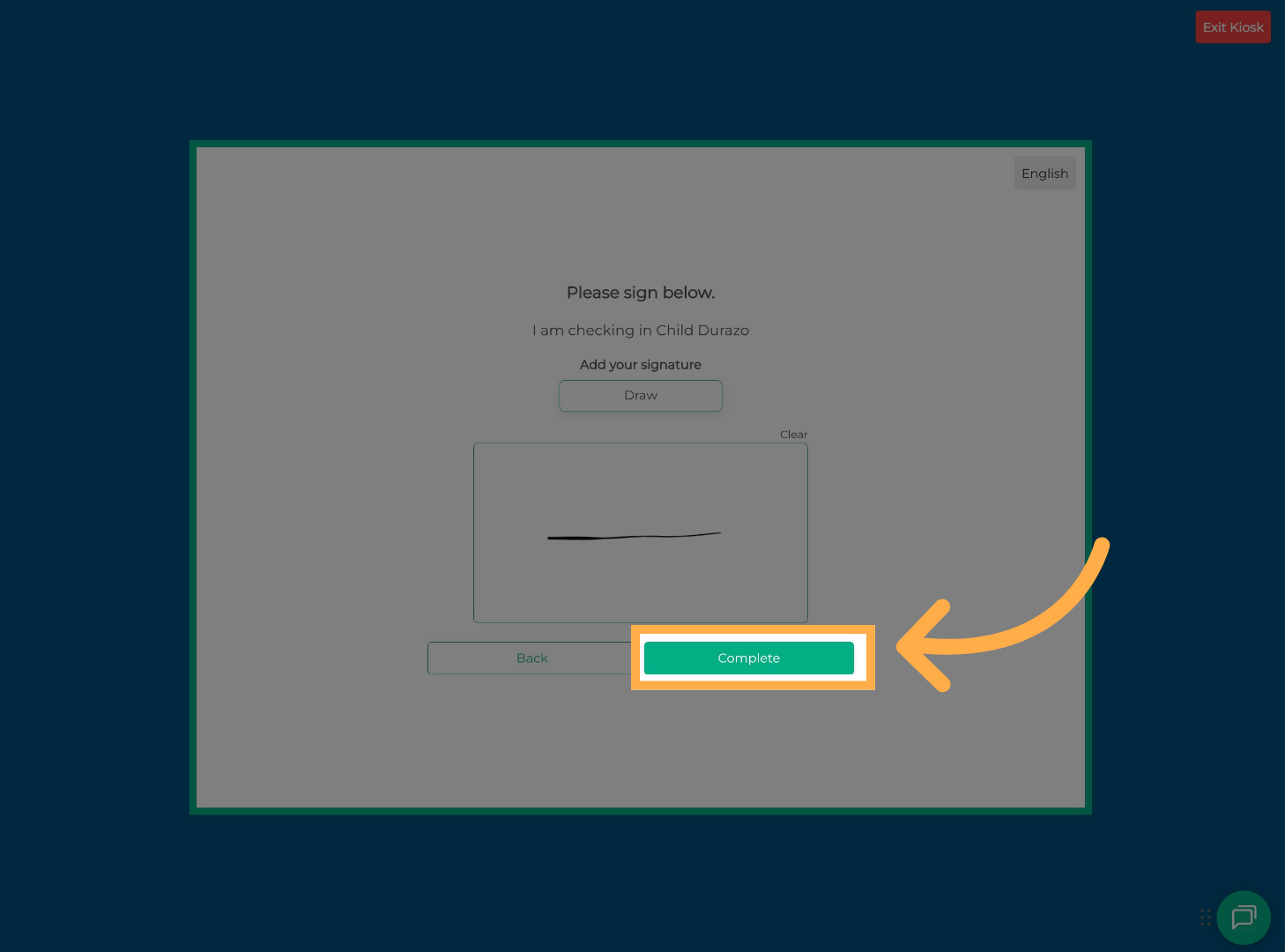
Step 6: Add Your Signature
Enter your signature to complete the action.
Frequently Asked Questions
Q: I scanned the QR code, but the page won’t load. What should I do?
A: Make sure you have a stable internet connection. If the page doesn’t open, try using a different browser or device. For best results, we recommend using Google Chrome.
A: No problem! After you search for your student during the Check In/Out process, you'll see a “Forgot PIN?” option on the screen. Just follow the prompts to create a new PIN.
Q: What happens if I check my child into another activity without checking out of the first one?
A: No worries—the system will automatically check them out of the previous activity when you check them into a new one with the same provider.
Q: Do I have to use the QR code every time?
A: Not necessarily. If your provider offers a kiosk setup, you can use those as alternatives to the QR code.
A: Double-check that you’re using the phone number associated with your AfterSchool HQ account. If the issue continues, reach out to the provider or support for assistance.
💡If you experience any issues or have further questions with “How to Check In and Check Out Your Child”, don't hesitate to get in touch with our support team at support@afterschoolhq.com.