![ASHQ Logo Vert Flat.png]](https://support.afterschoolhq.com/hs-fs/hubfs/ASHQ%20Logo%20Vert%20Flat.png?height=40&name=ASHQ%20Logo%20Vert%20Flat.png)
This article walks you through the steps to copy an activity so you can save time and stay organized.
🎥 Video Guide Available
For your convenience, we’ve included a video guide that covers the same steps outlined in this article.
Step-by-Step: Copy an Activity
Step 1: Open the Activity Center
From your Home page, click Activity Center in the left-hand sidebar.
%2011.59.36%20p.m..png?width=670&height=362&name=Copia%20de%20Captura%20de%20pantalla%202026-01-27%20a%20la(s)%2011.59.36%20p.m..png)
Step 2: Select Extracurricular Activities
Click Extracurricular Activities to view a list of all your existing activities.
%2011.59.36%20p.m..png?width=670&height=362&name=Captura%20de%20pantalla%202026-01-27%20a%20la(s)%2011.59.36%20p.m..png)
Step 3: Choose an Activity to Copy
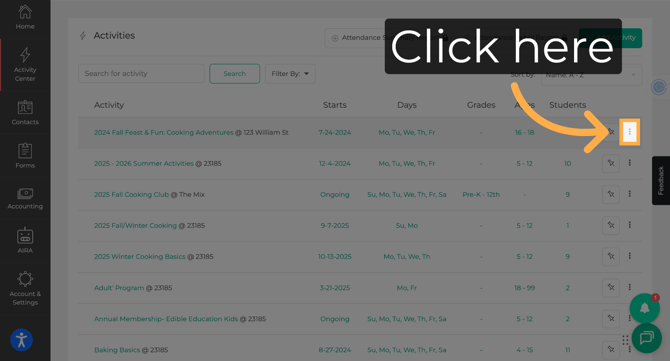
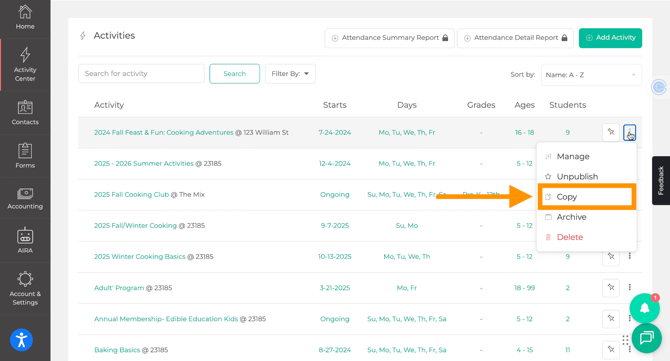
Locate the activity you’d like to duplicate, click the three-dot menu on the right side of the activity, and select Copy.
Step 4: Configure the Copy
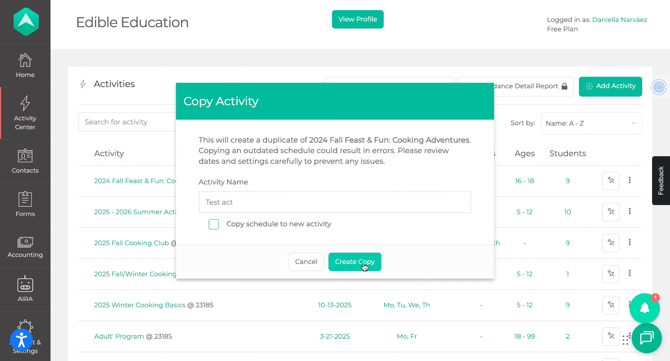
In the Copy Activity pop-up window:
-
Enter a new Activity Name.
-
Choose whether you’d like to copy the schedule to the new activity.
-
Selecting this option will automatically copy the days, times, and schedule details from the original activity into the newly created one.
-
Step 5: Create the Copy
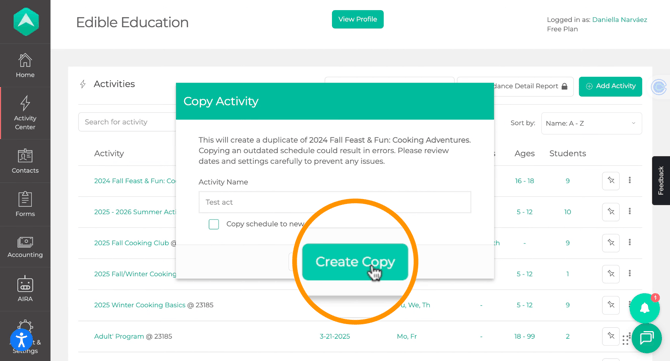
Click Create Copy to generate the new activity.
Step 6: Update the New Activity
You’ll be redirected to the Activity Setup page. From here, you can update any settings—such as dates, grades, capacity, or instructors—to ensure the activity matches your new needs.
💡 Need Help?
If you have questions or experience any technical issues while copying an activity in AfterSchool HQ, please contact our support team at support@afterschoolhq.com. We’re happy to help!