![ASHQ Logo Vert Flat.png]](https://support.afterschoolhq.com/hs-fs/hubfs/ASHQ%20Logo%20Vert%20Flat.png?height=40&name=ASHQ%20Logo%20Vert%20Flat.png)
AfterSchool HQ allows you to update Check-In and Check-Out times when attendance records need to be corrected or adjusted.
You can update individual entries or select multiple records to apply the same time in bulk.
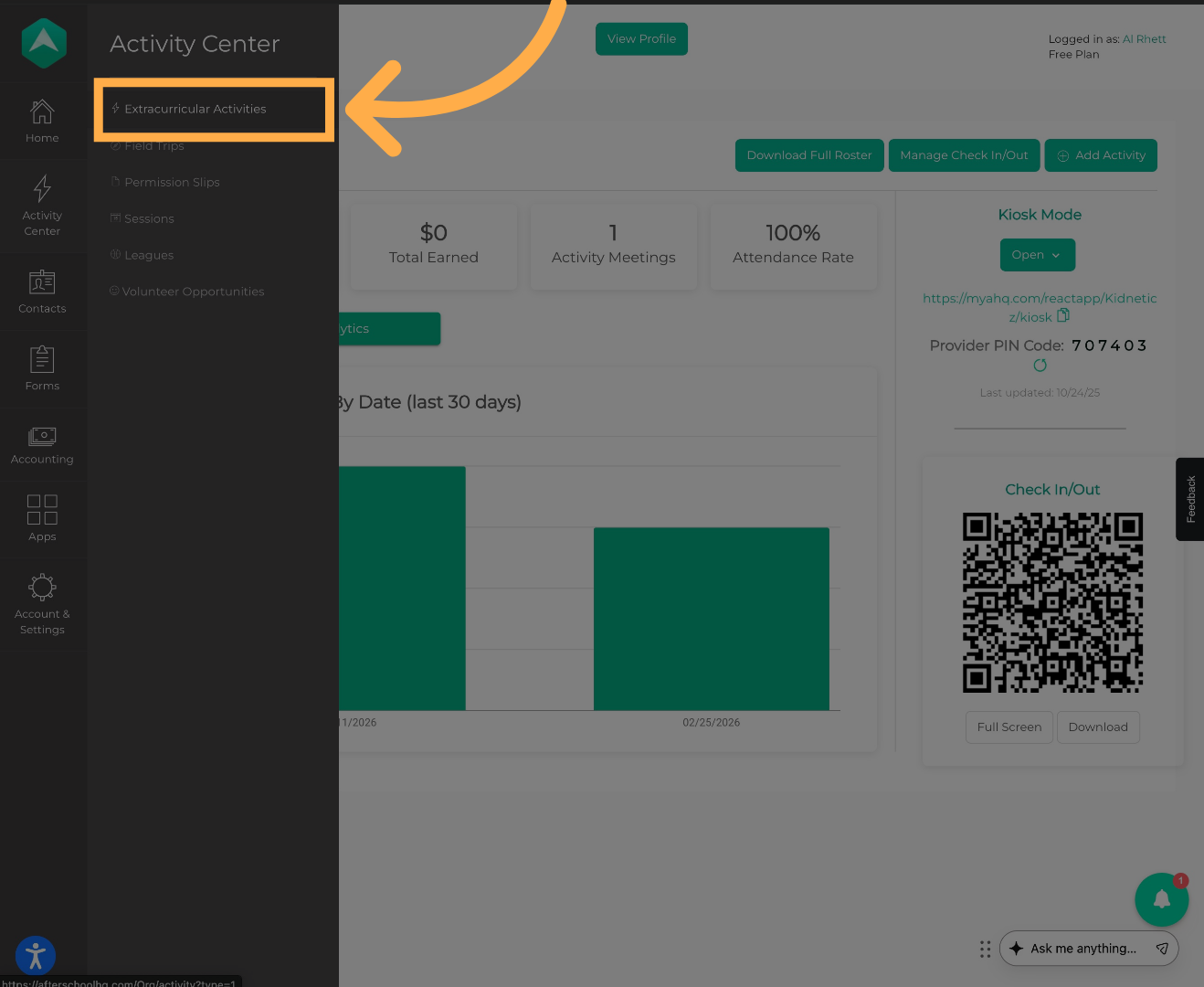
1. Go to Extracurricular Activities
From your dashboard, click “Extracurricular Activities.”
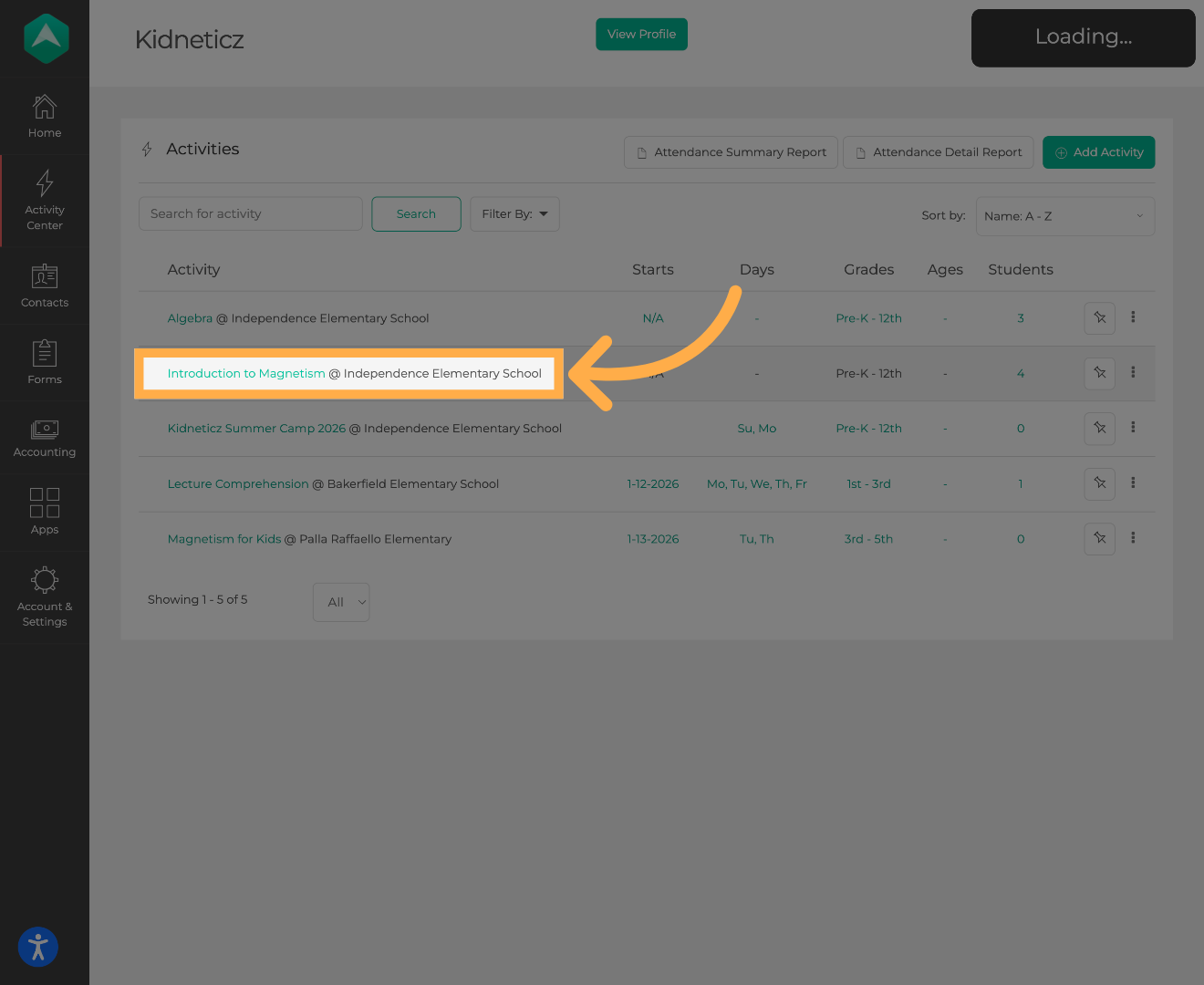
2. Open the Activity
Select the activity you would like to manage.
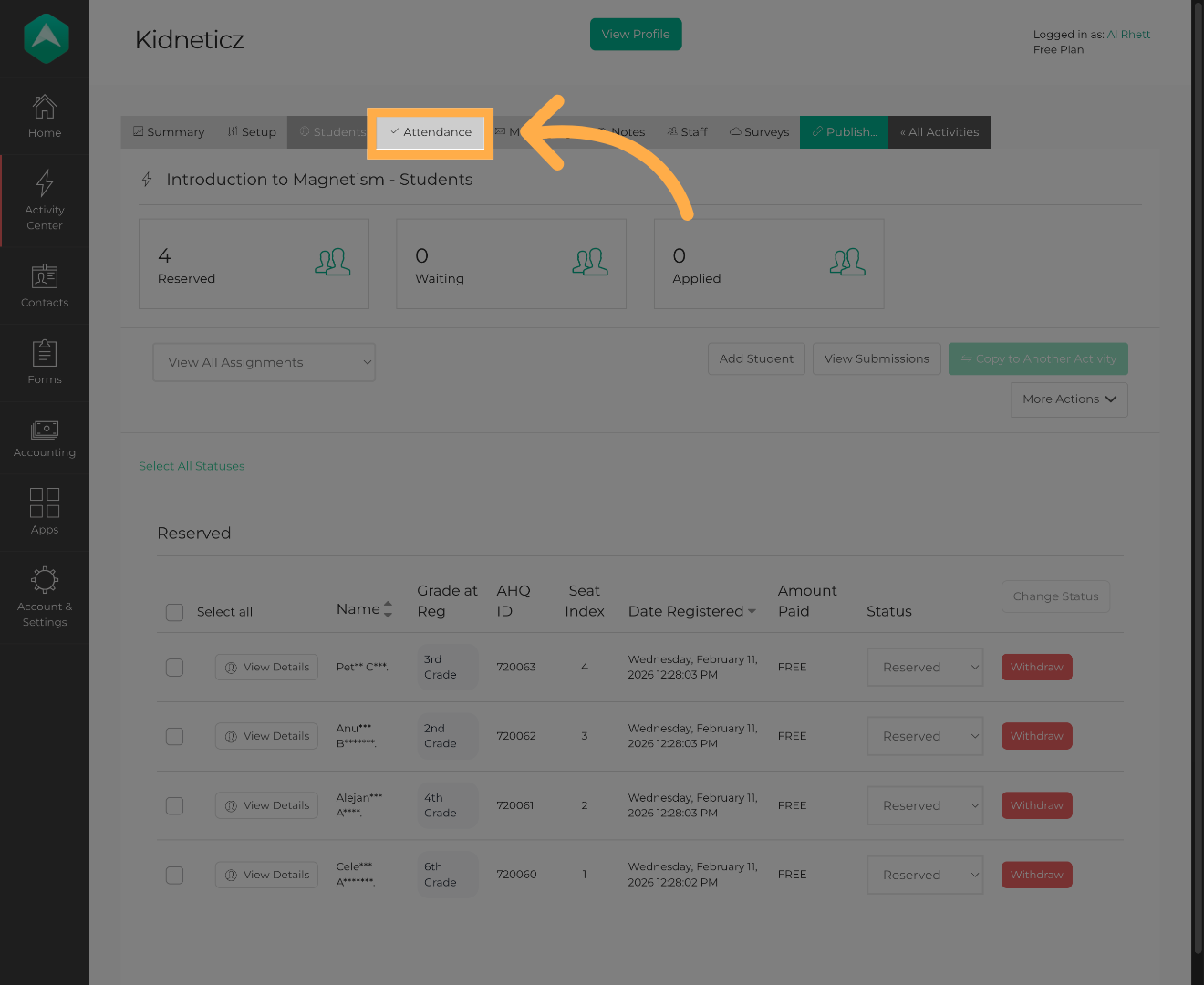
3. Go to the Attendance Tab
Click on “Attendance.”
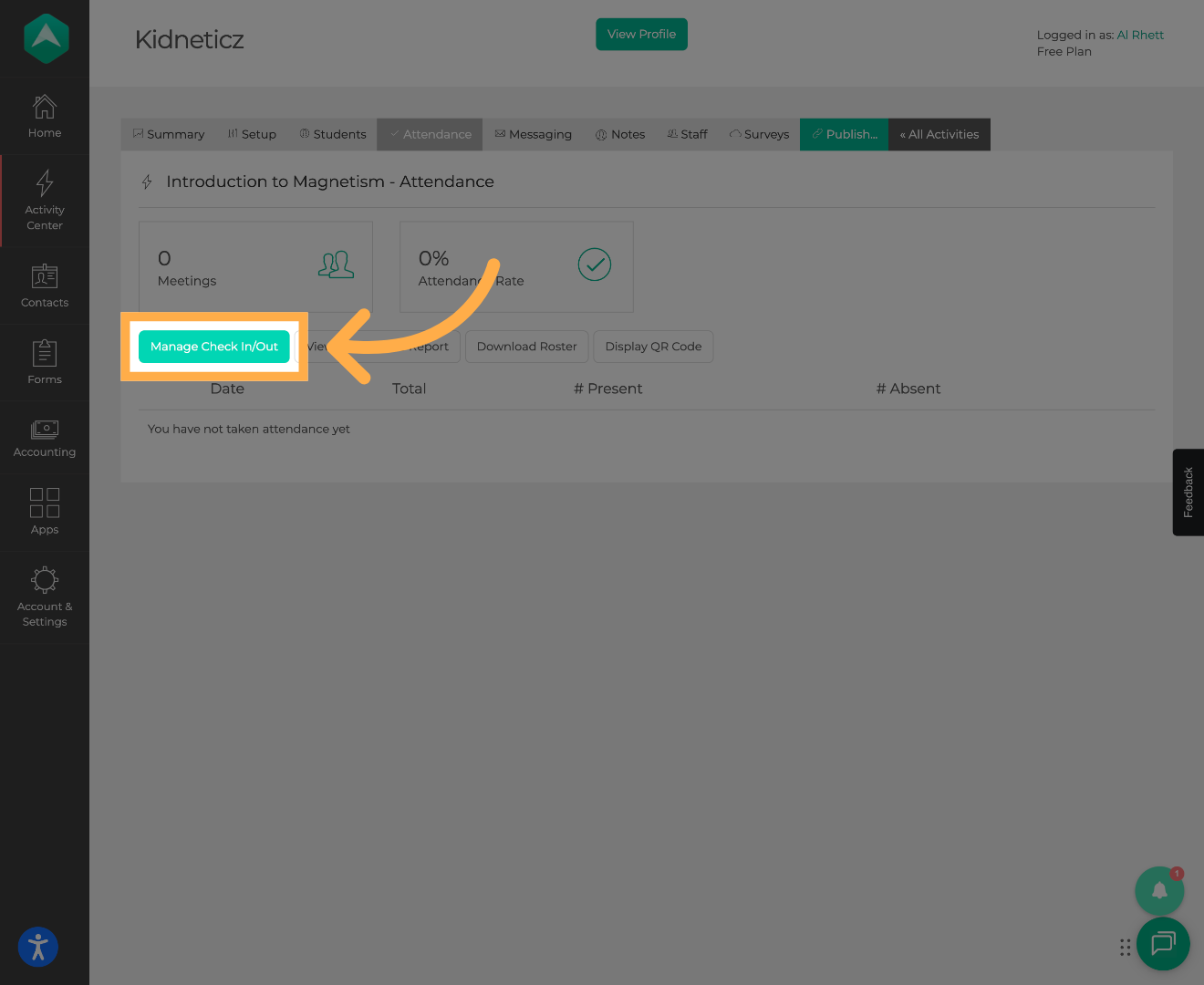
4. Open Check In/Out Management
Click “Manage Check In/Out” to begin editing time stamps.
5. Select Students to Update
Navigate to the correct attendance date. Use the main checkbox to select all students at once, or manually select/unselect individual students as needed.
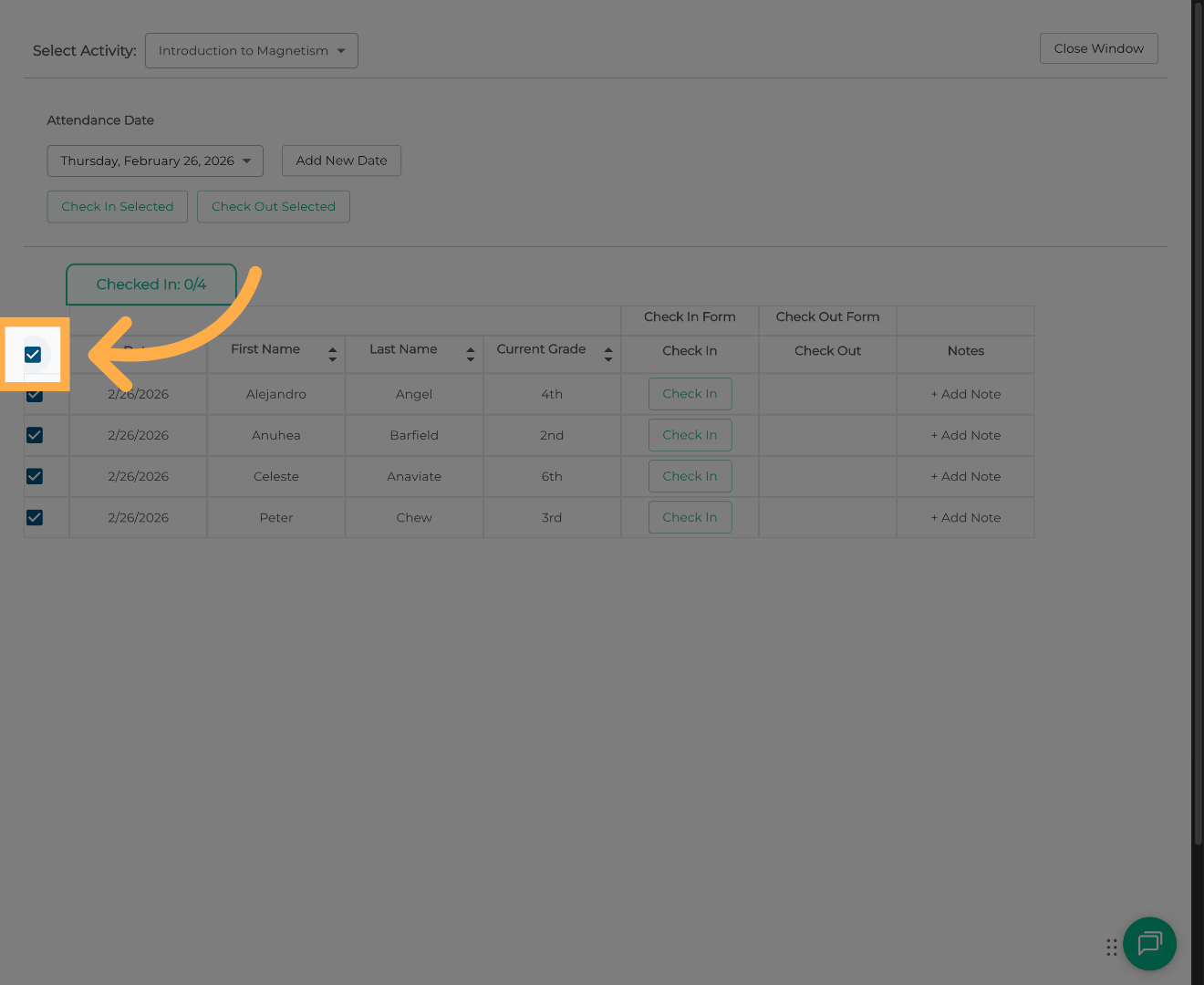
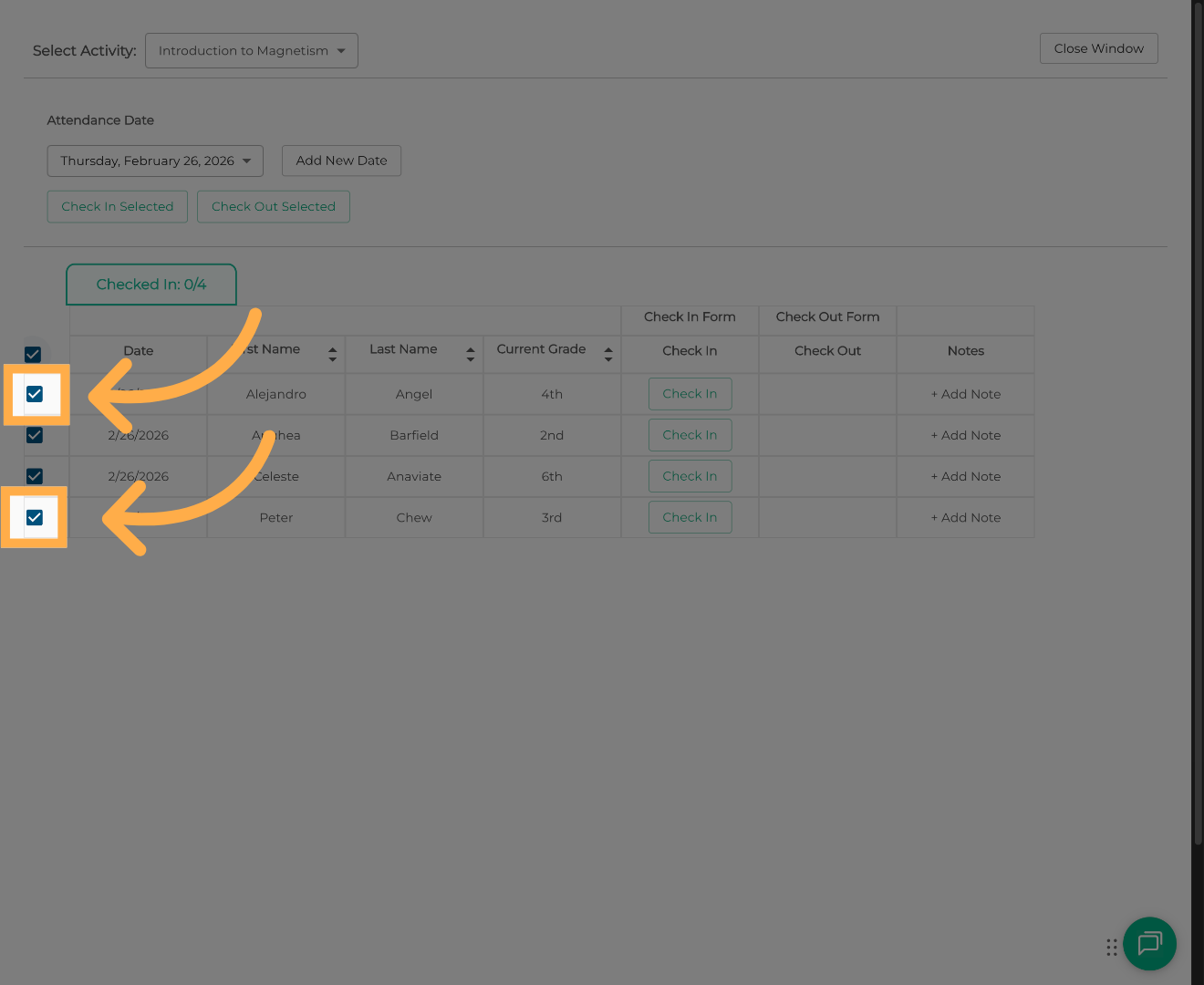
💡 Tip: Double-check your selected students before applying changes to avoid updating the wrong records.
6. Apply a Check-In Time
Click “Check In Selected” to update the check-in time for the selected students.
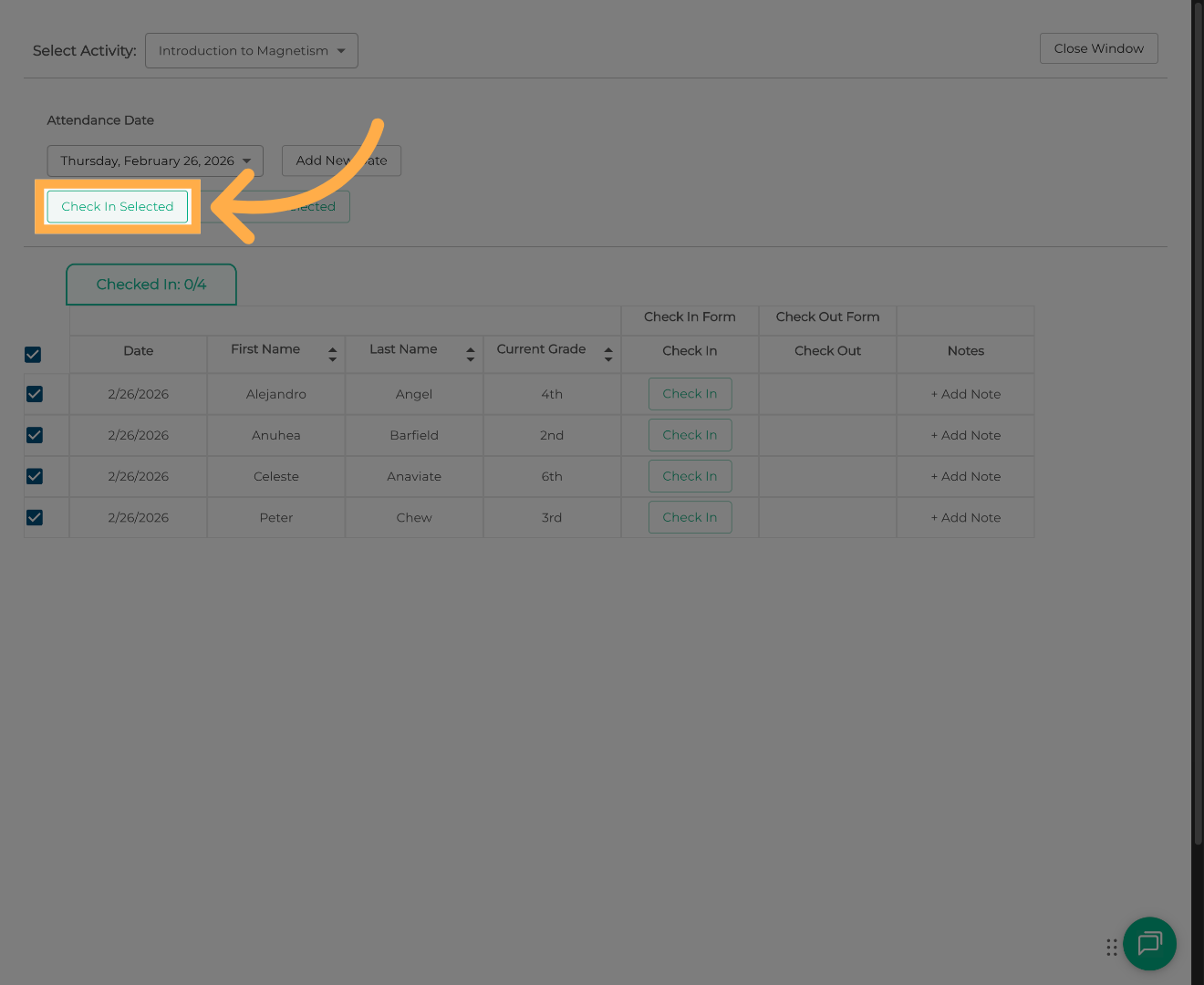
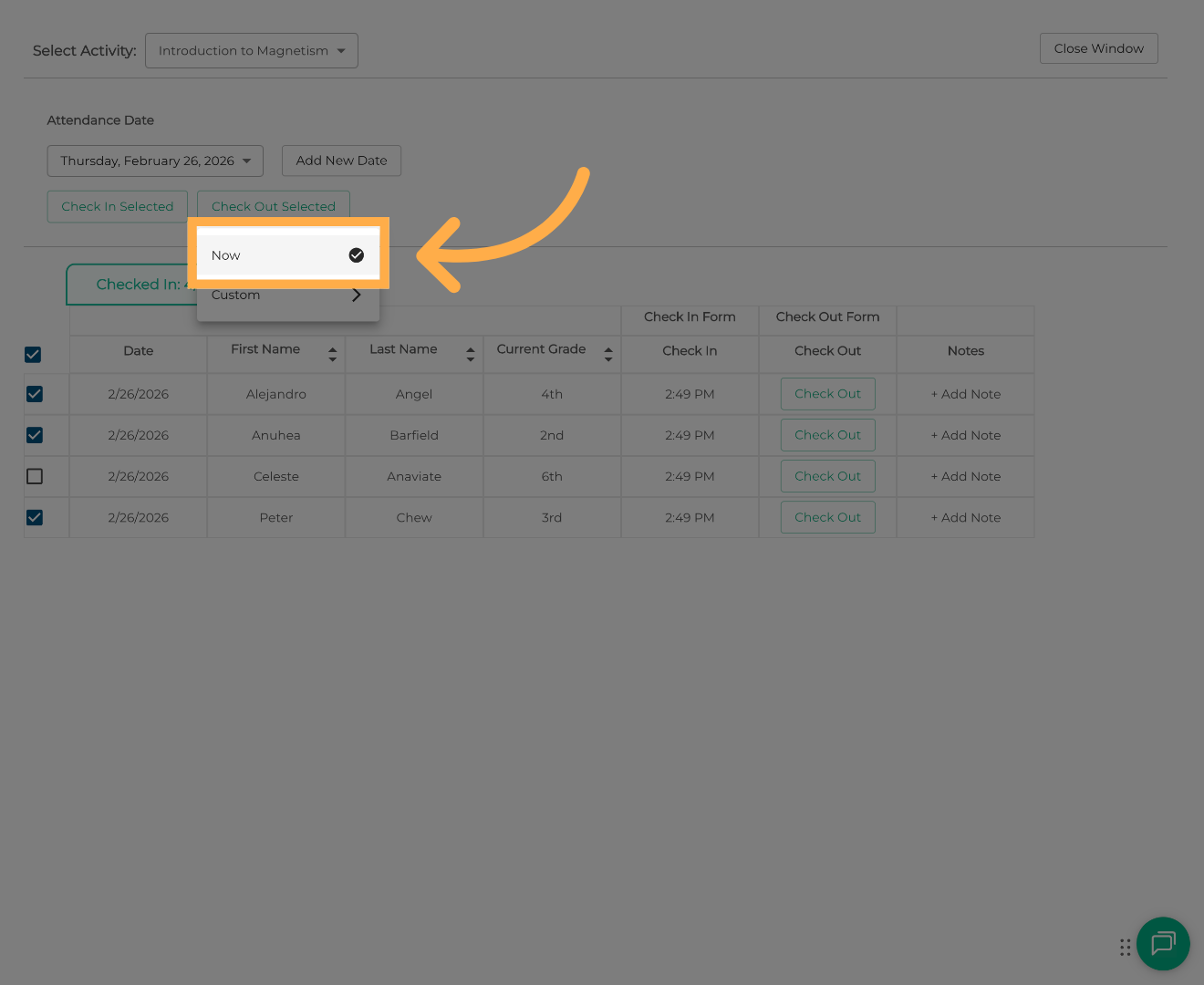
7. Choose Time Option (Now or Custom)
You can select:
-
“Now” to automatically insert the current date and time.
-
“Custom” to manually set a specific check-in time.
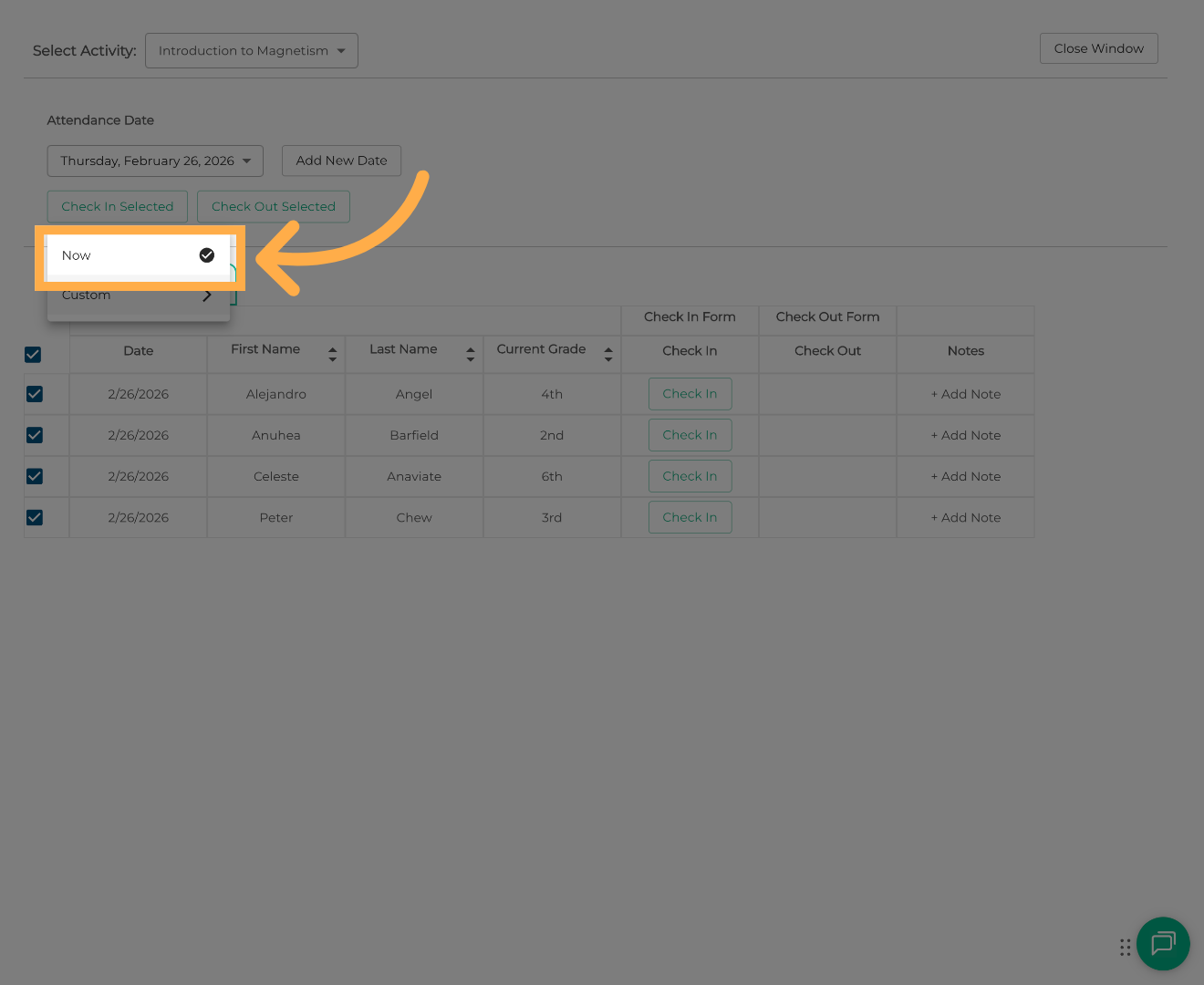
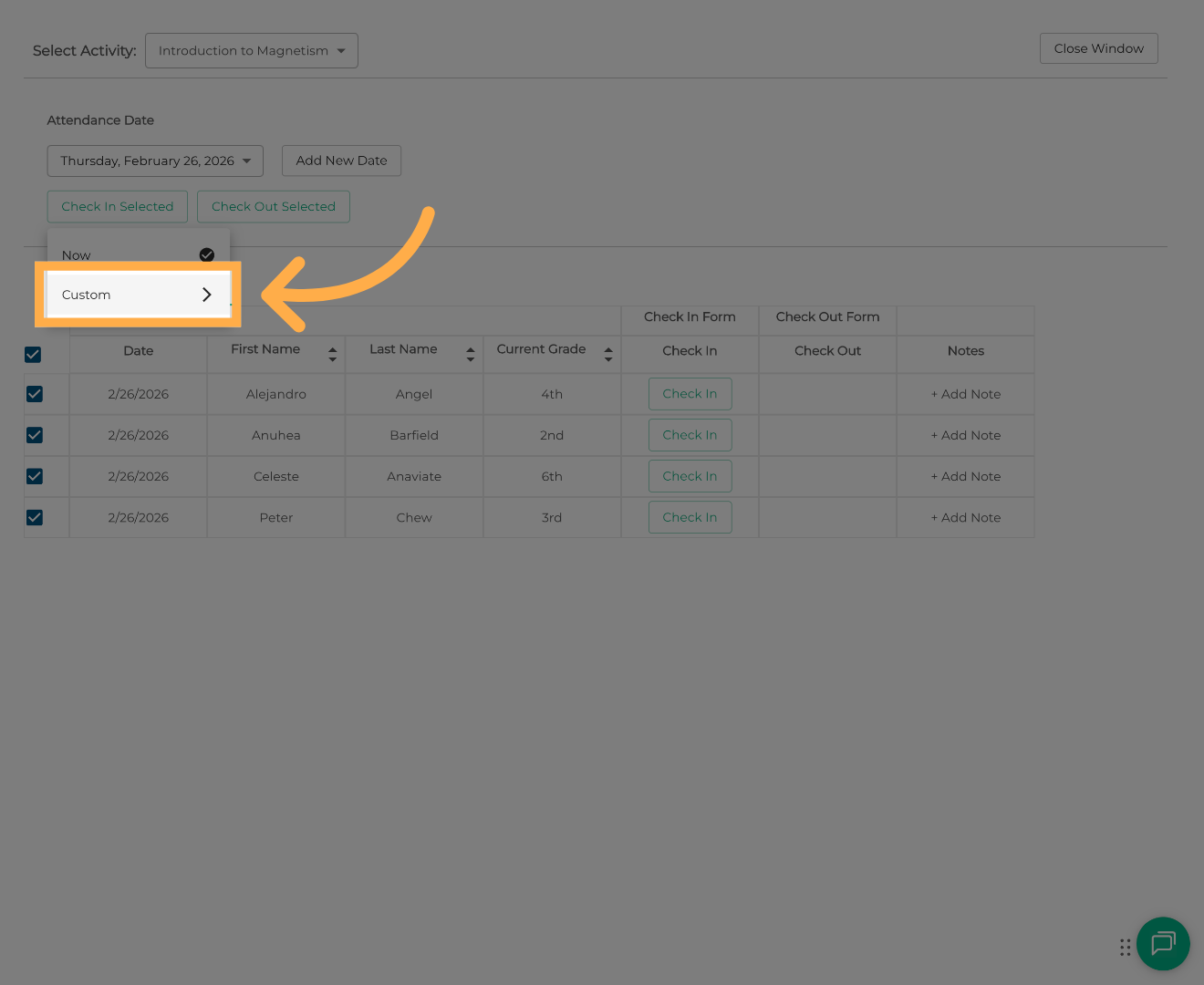
💡Tip: Use “Now” for real-time corrections. Use “Custom” when backdating or correcting past attendance.
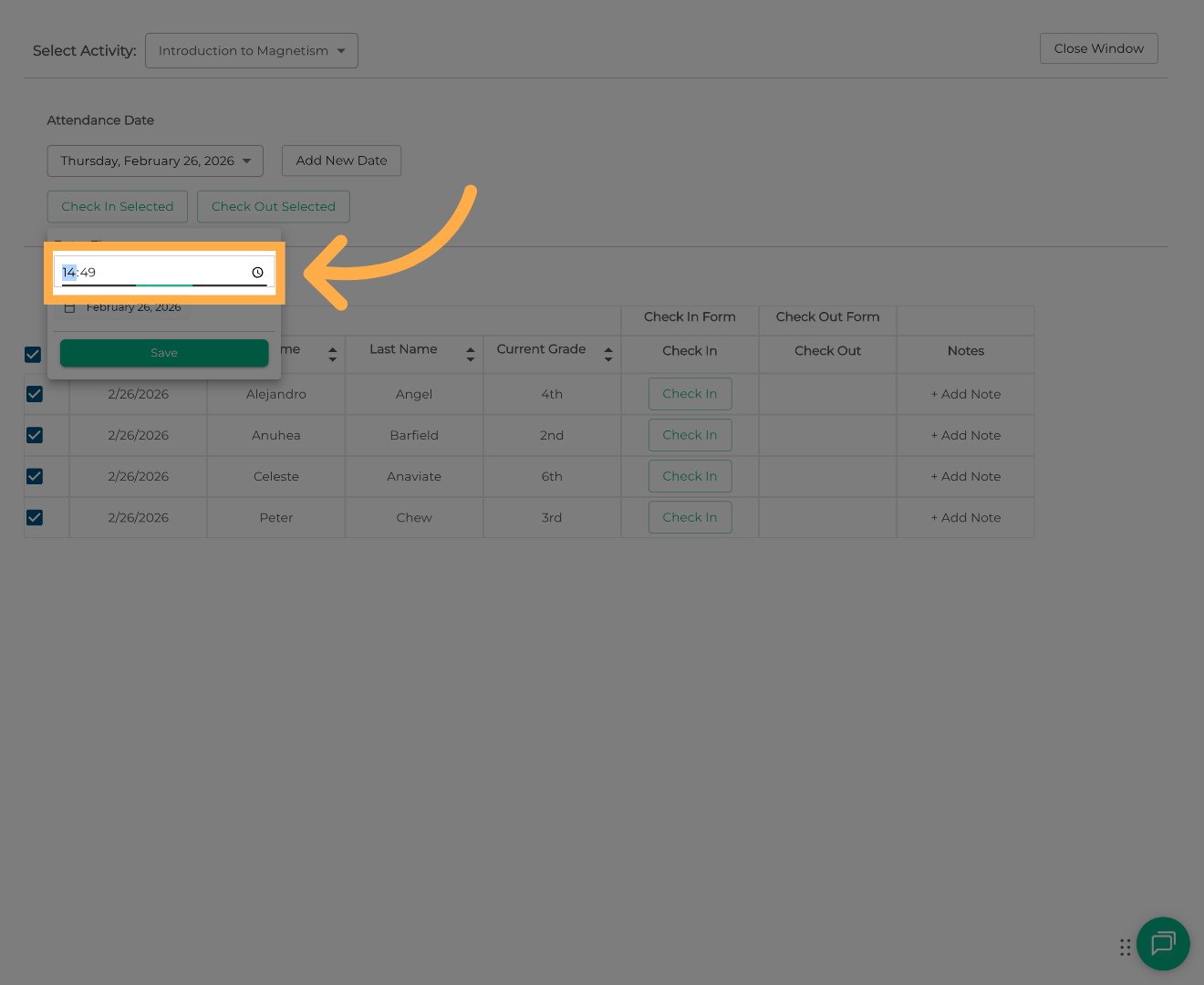
8. Set a Custom Time (Optional)
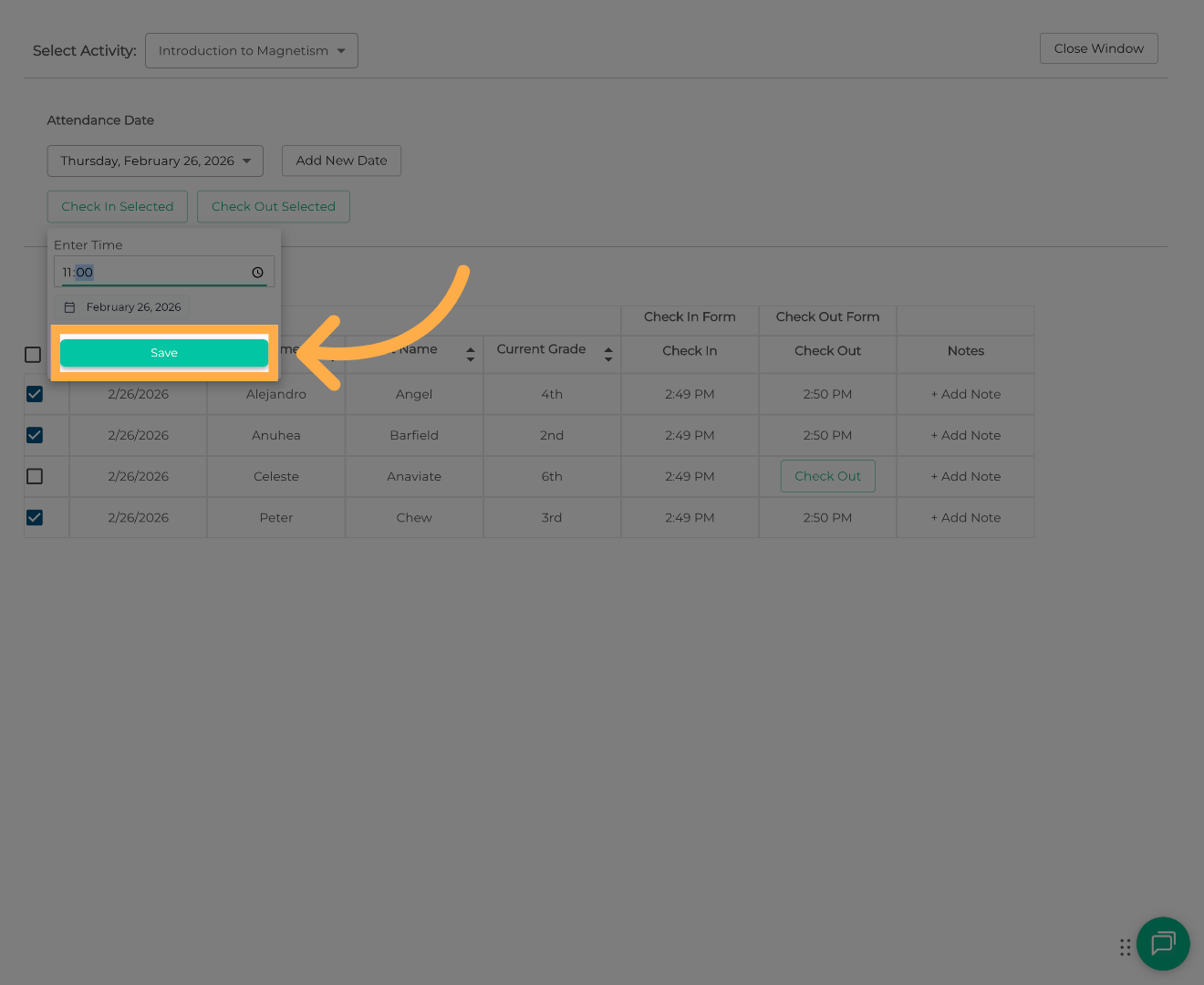
If using a custom time, click the timestamp field to select the desired hour and minute.
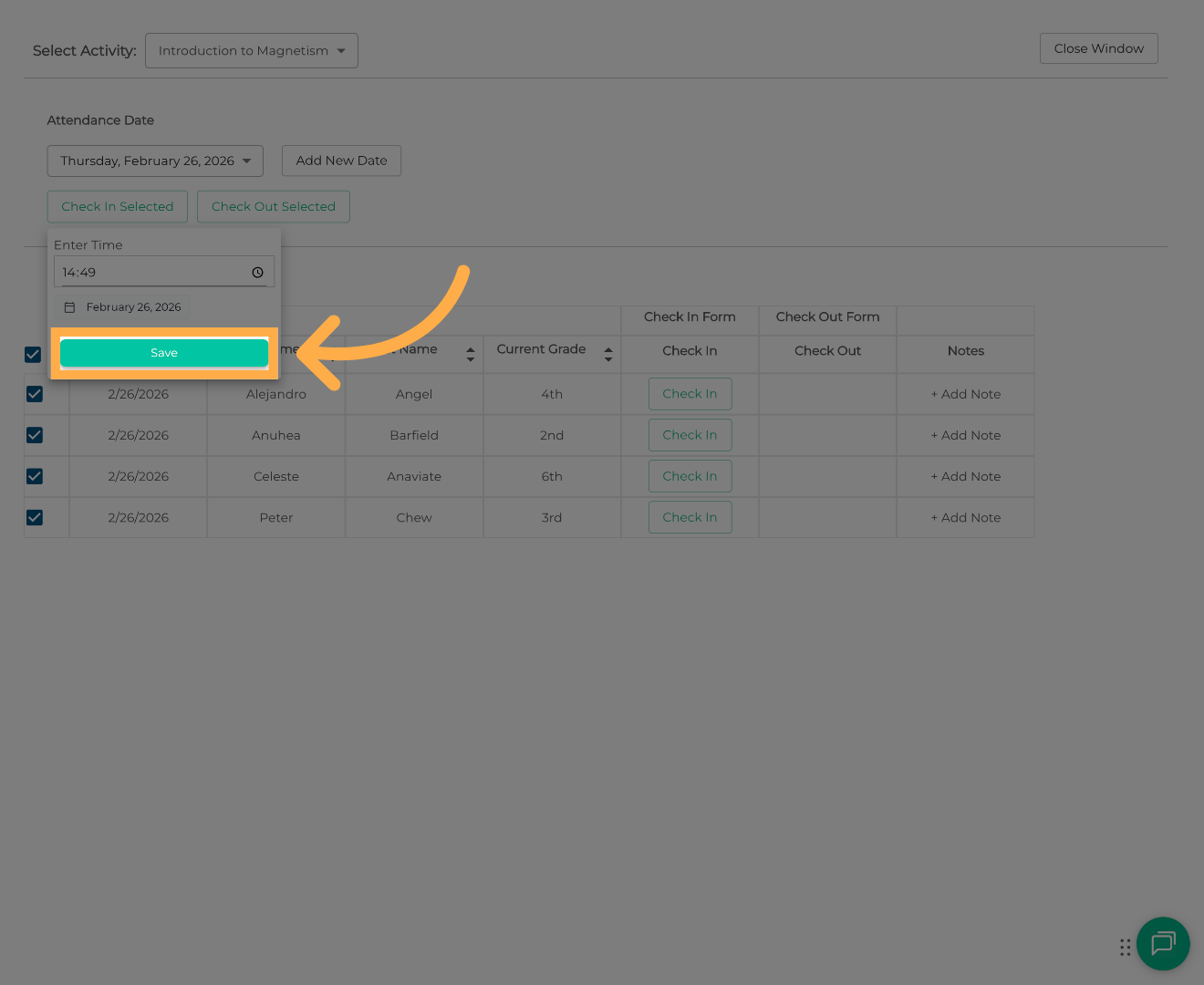
9. Save Check-In Changes
Click “Save” to confirm and apply the updated check-in times.
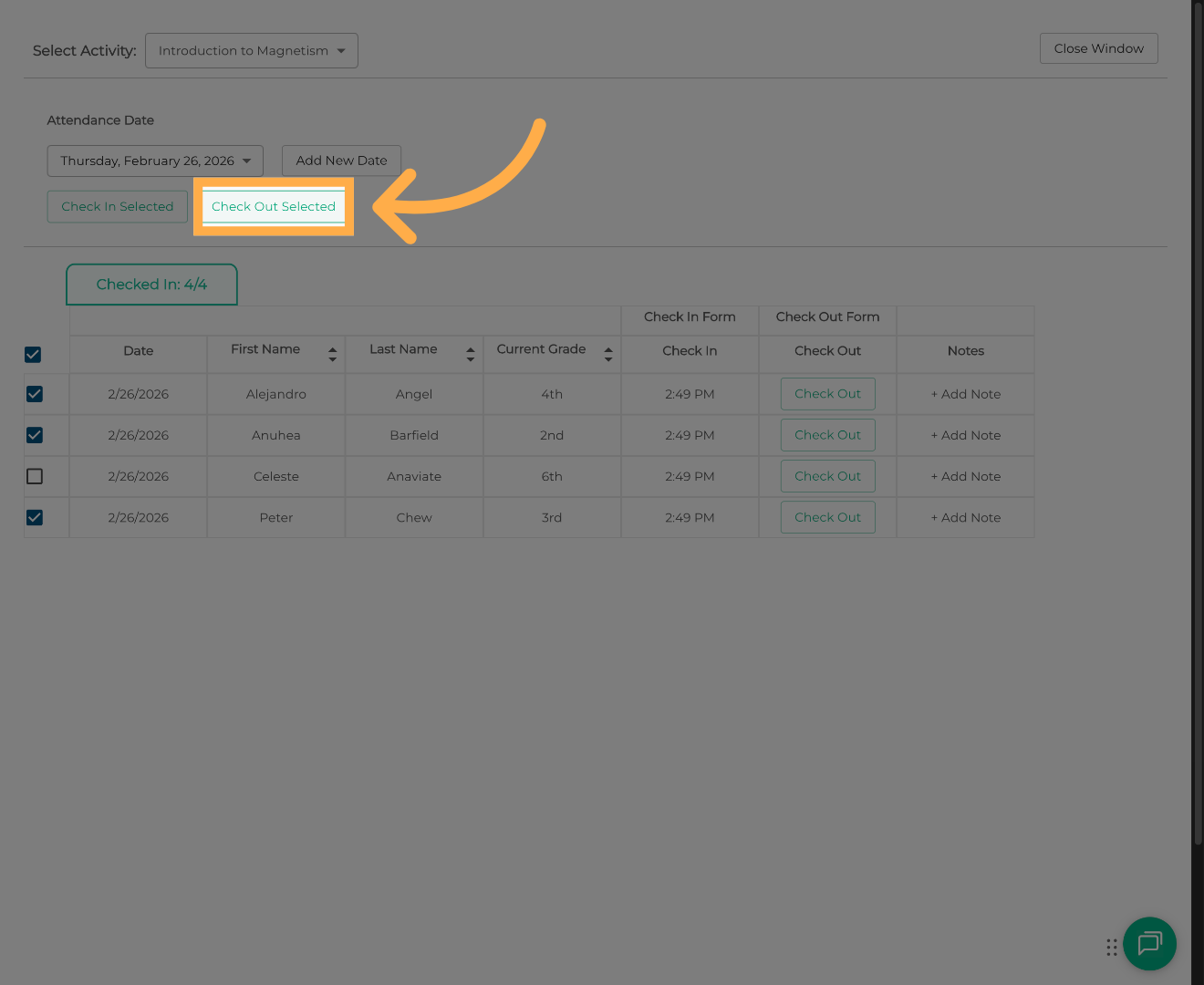
10. Select Students for Check-Out
To update check-out times, follow the same process.
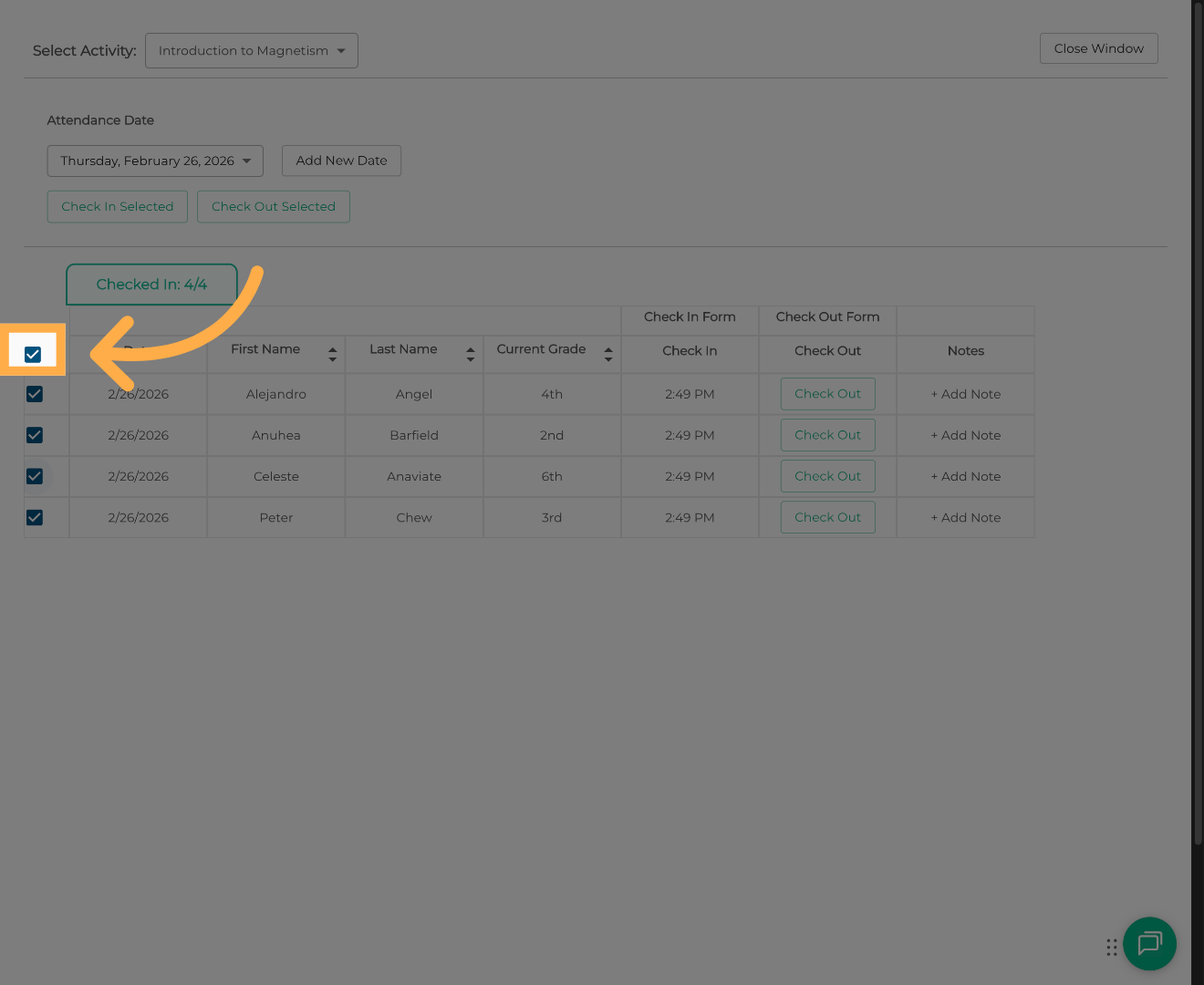
11. Finalize Updates
Click “Save” to ensure all check-in and check-out changes are successfully applied.
Frequently Asked Questions
Q: Can I edit check-in or check-out times for a past date?
A: Yes. Navigate to the correct attendance date first, then follow the same process to update or bulk edit the time stamps.
Q: Can I update multiple students at once?
A: Yes. Use the main checkbox to select all students, or manually select specific students before clicking Check In Selected or Check Out Selected.
Q: What’s the difference between “Now” and “Custom”?
A: “Now” automatically inserts the current date and time.
“Custom” allows you to manually choose a specific time.
Q: Will editing time stamps affect attendance reports?
A: Yes. Updated time stamps will reflect in attendance reports and any exports pulled after the changes are saved.
Q: Will editing time stamps affect billing?
A: If your activity uses attendance-based billing, updating time stamps may impact billing calculations. Make sure any changes are accurate before saving.
Q: Can I undo a time stamp after saving?
A: There is no automatic undo button. However, you can reopen the attendance date and manually update the time again if needed.
Q: Why can’t I edit time stamps?
A: You may not have the necessary permissions. Contact your administrator to confirm your access level.
💡If you experience any issues or have further questions with “How to Correct or Bulk Edit Check-In/Out Times”, don't hesitate to get in touch with our support team at support@afterschoolhq.com.