![ASHQ Logo Vert Flat.png]](https://support.afterschoolhq.com/hs-fs/hubfs/ASHQ%20Logo%20Vert%20Flat.png?height=40&name=ASHQ%20Logo%20Vert%20Flat.png)
Want to make your activities more appealing to families?
This guide will show you how to add and edit an activity description in AfterSchool HQ, along with helpful tips for creating content that clearly communicates what your program offers.
❗Before You Begin
Before updating your activity description, make sure you have access to the activity you want to edit.
It may also help to gather relevant program information, such as activity highlights, learning objectives, flyers, and pictures you want to include.
1. Access Extracurricular Activities
Start by navigating to “Extracurricular Activities” from the main menu to access your organization's programs.
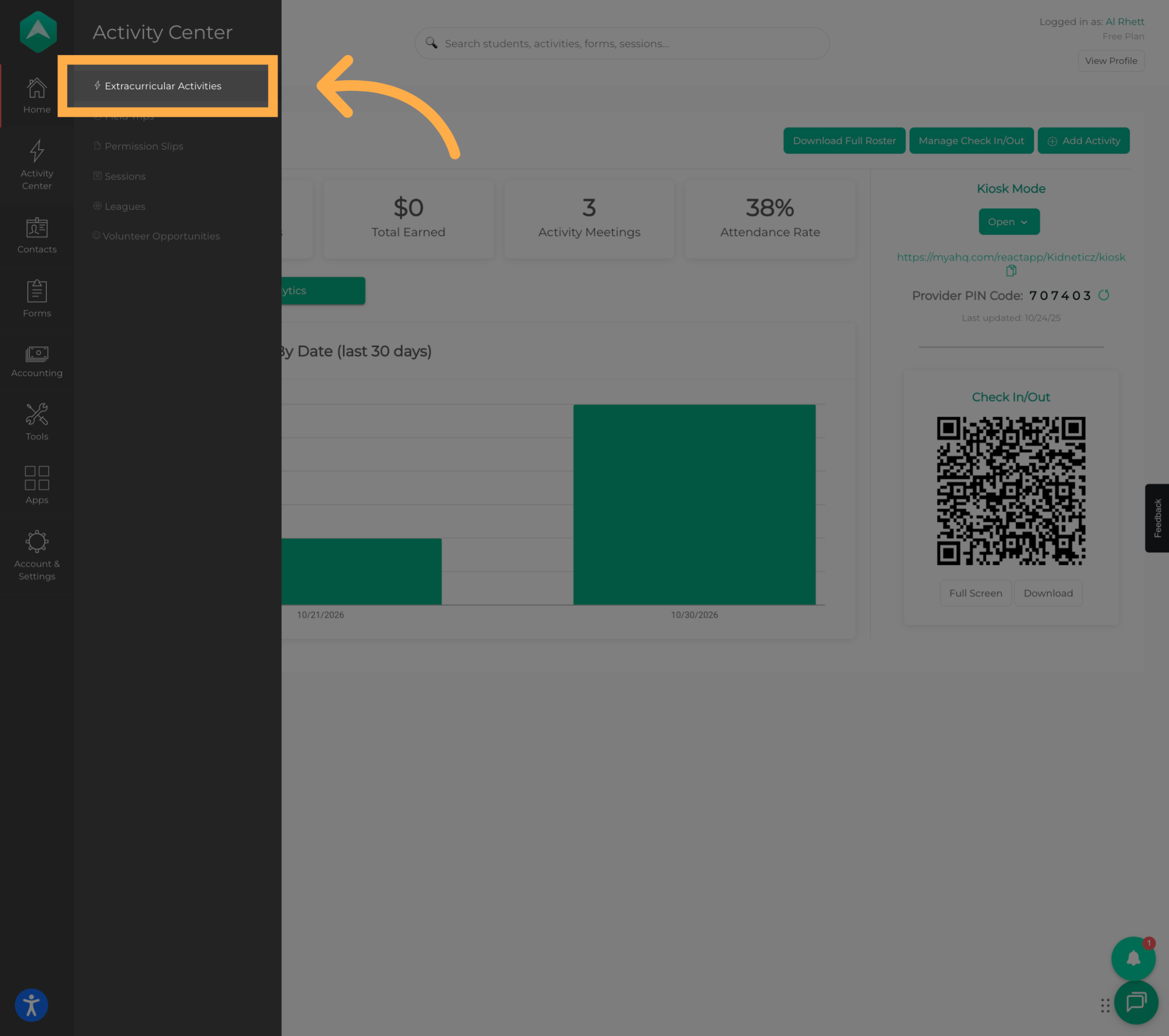
💡 Tip: Make sure you're working under the correct organization or site before making changes.
2. Open the Activity
Find the activity you want to update and open it to access its details and configuration settings.
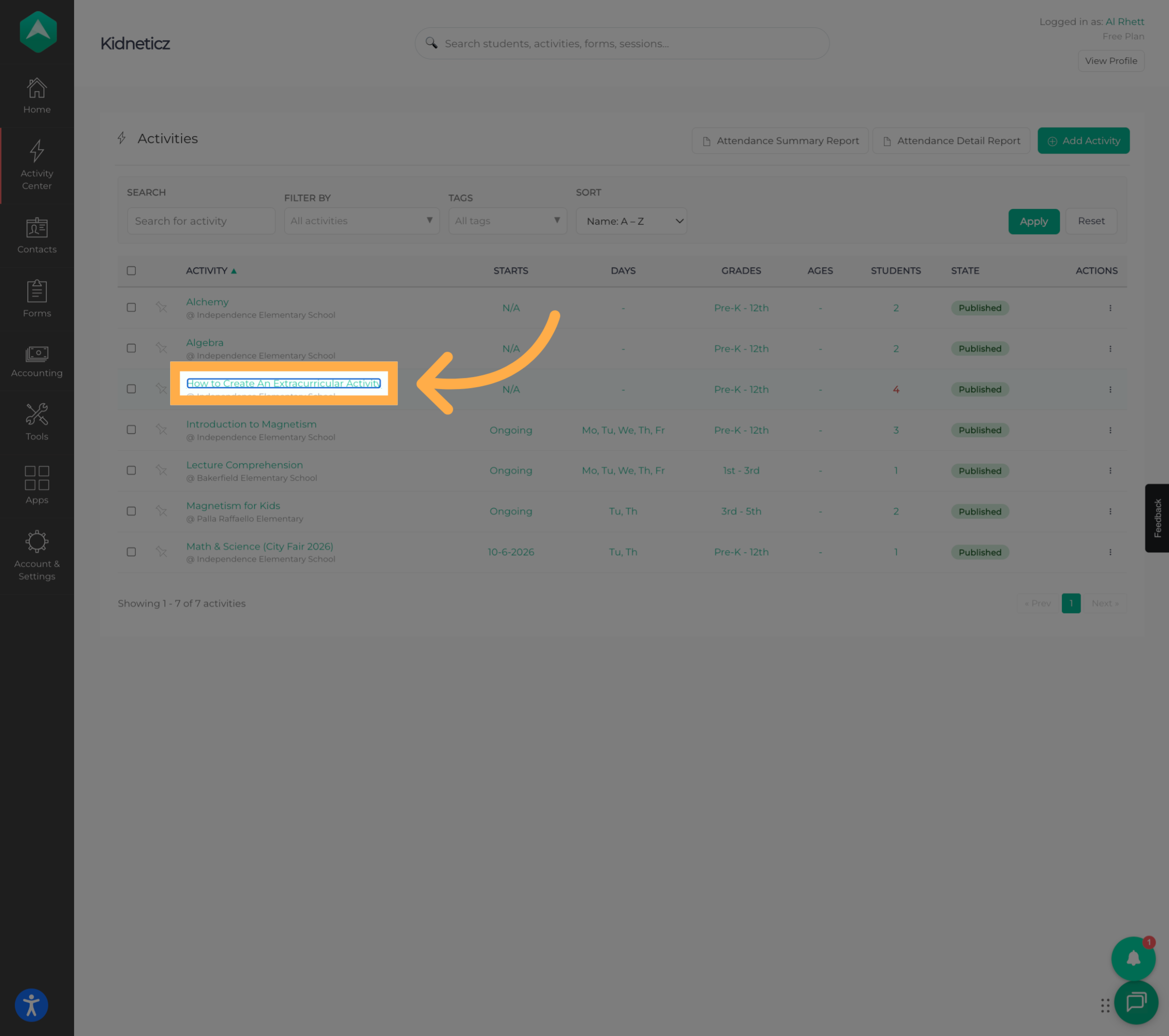
💡 Tip: Double-check the activity name before proceeding to ensure you're editing the correct program.
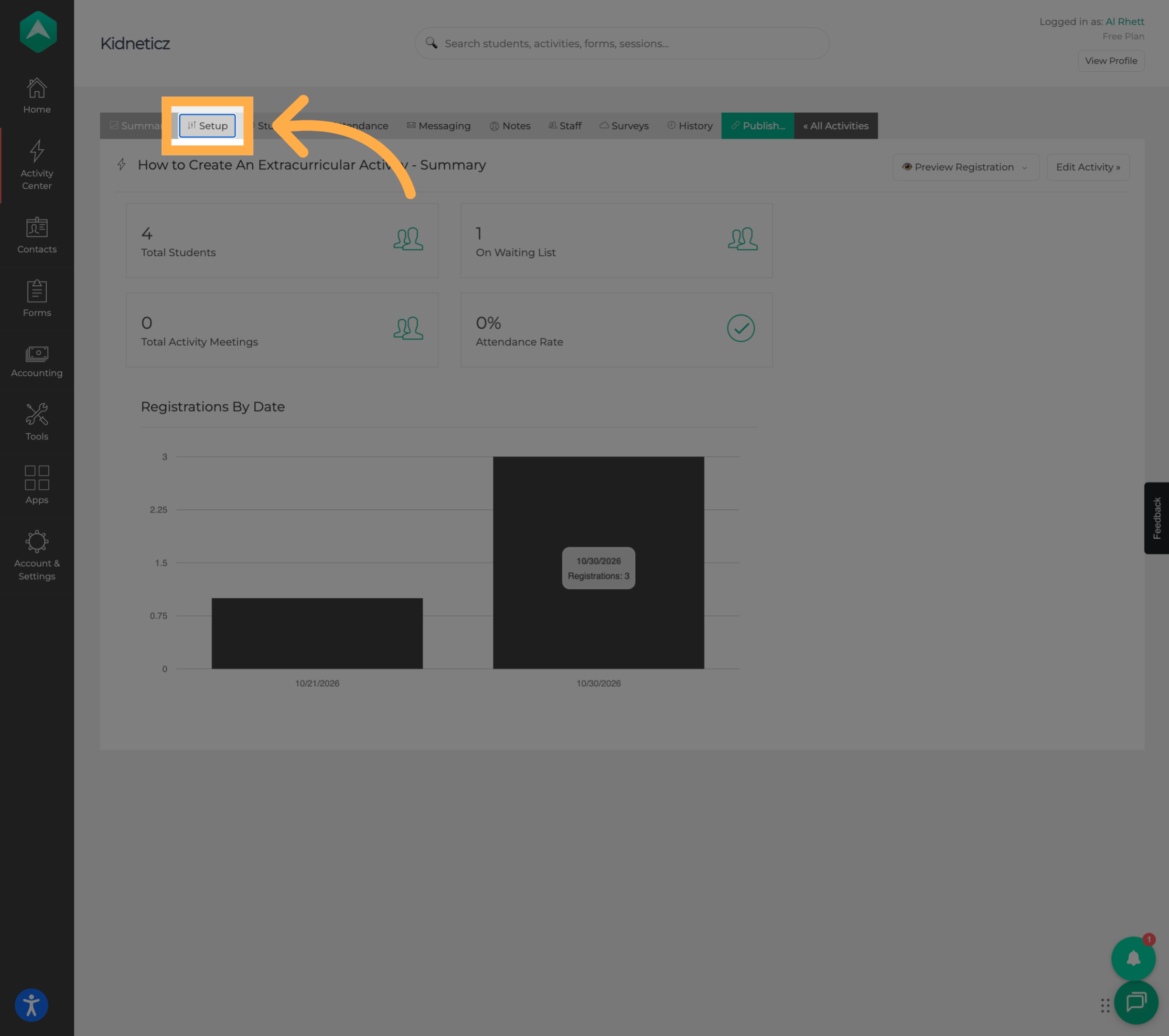
3. Open the Setup Section
Click the “Setup” tab to access the activity's settings and make changes to its information.
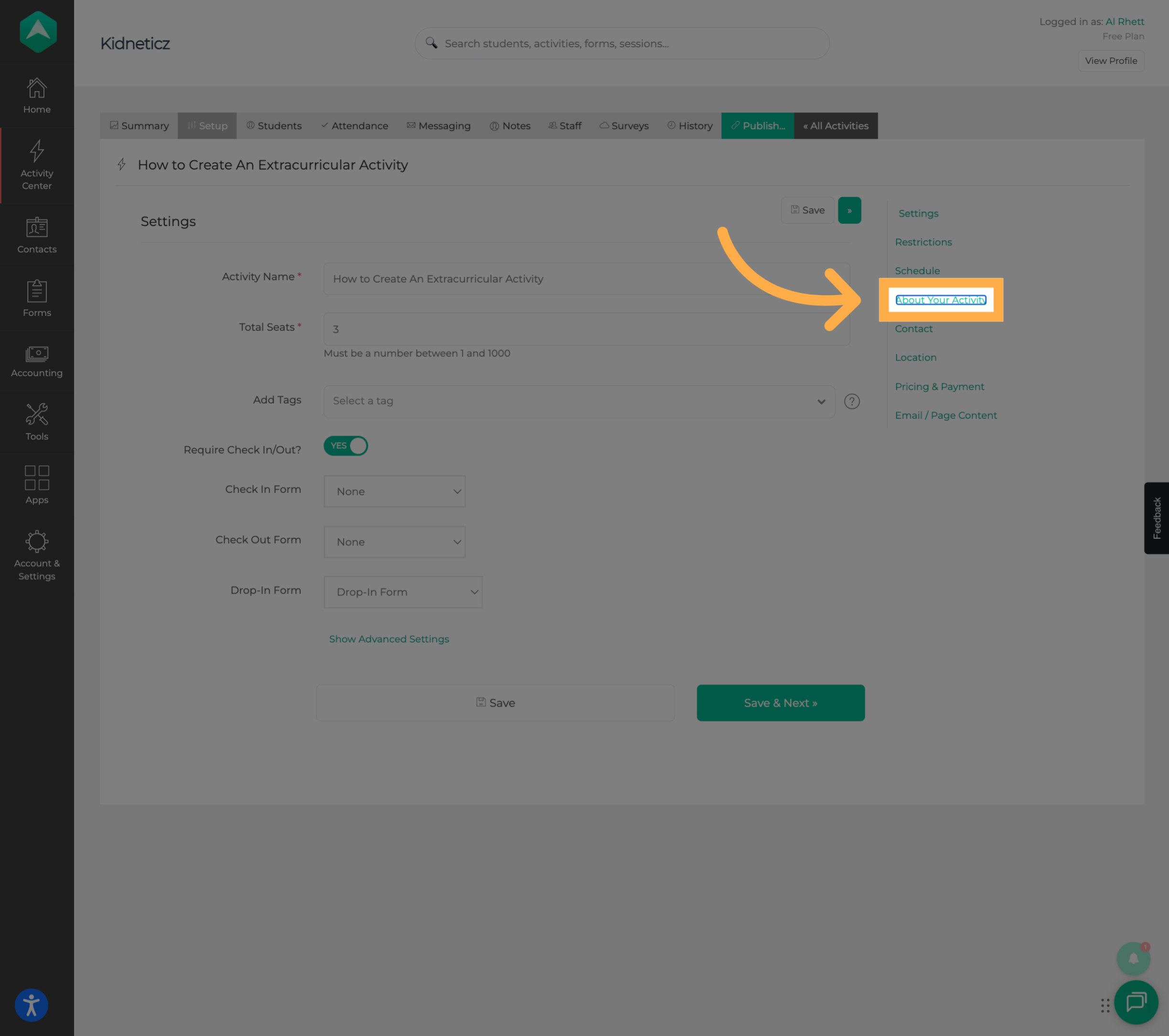
4. Open About Your Activity
Navigate to the “About Your Activity” section, where you can review and customize the information displayed on your activity page.
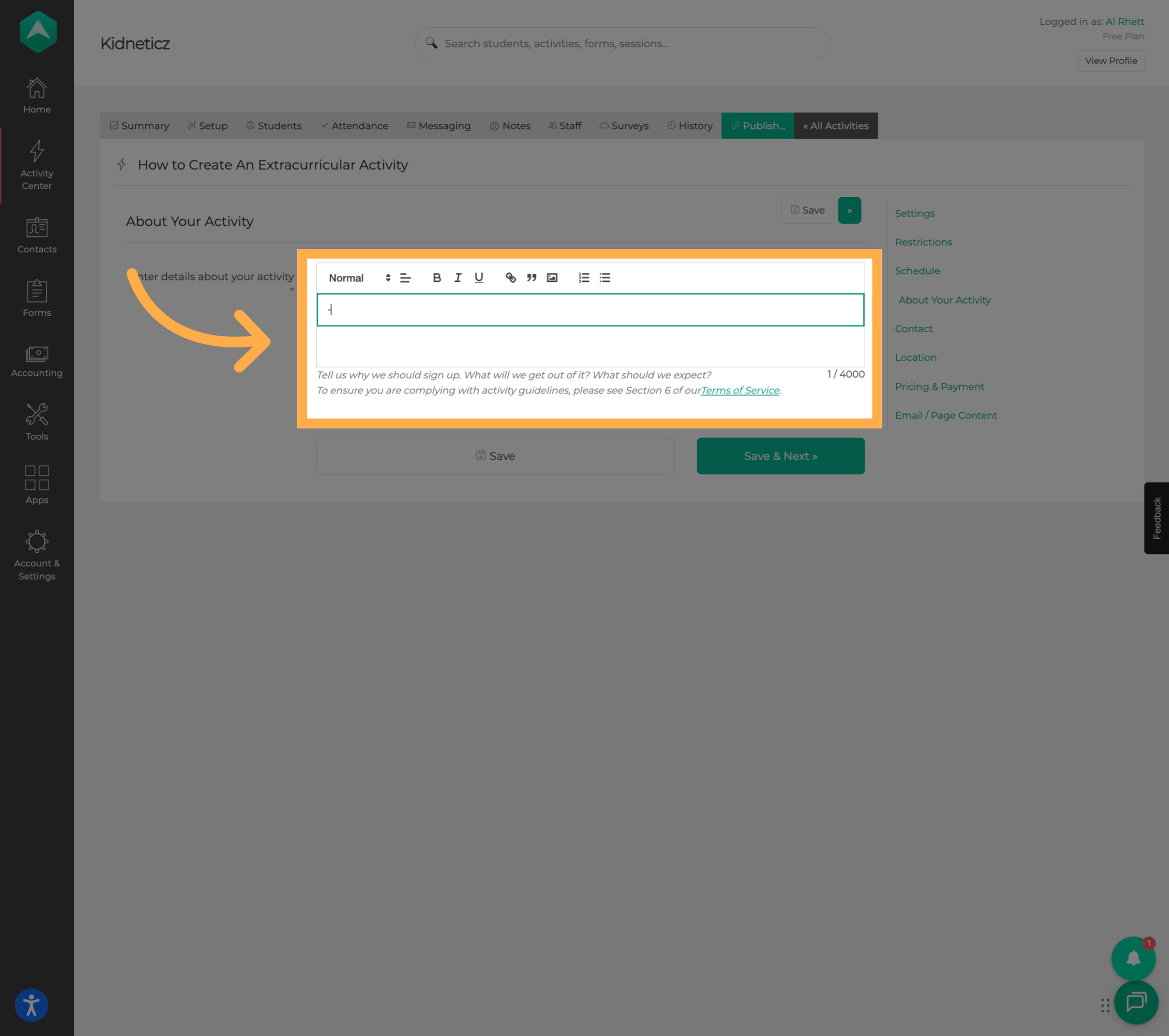
5. Customize the Activity Description
Enter or update your activity description using the description editor.
You can include relevant program information, format your text, and add pictures or other content to help families understand what your activity offers.
Consider including:
- Activity overview: Explain what the program is about.
- Participant experience: Describe what participants will do.
- Skills and benefits: Highlight relevant learning opportunities and skills participants may develop.
- Program highlights: Explain what makes the activity interesting or unique.
- Additional details: Include relevant expectations or information families should know.
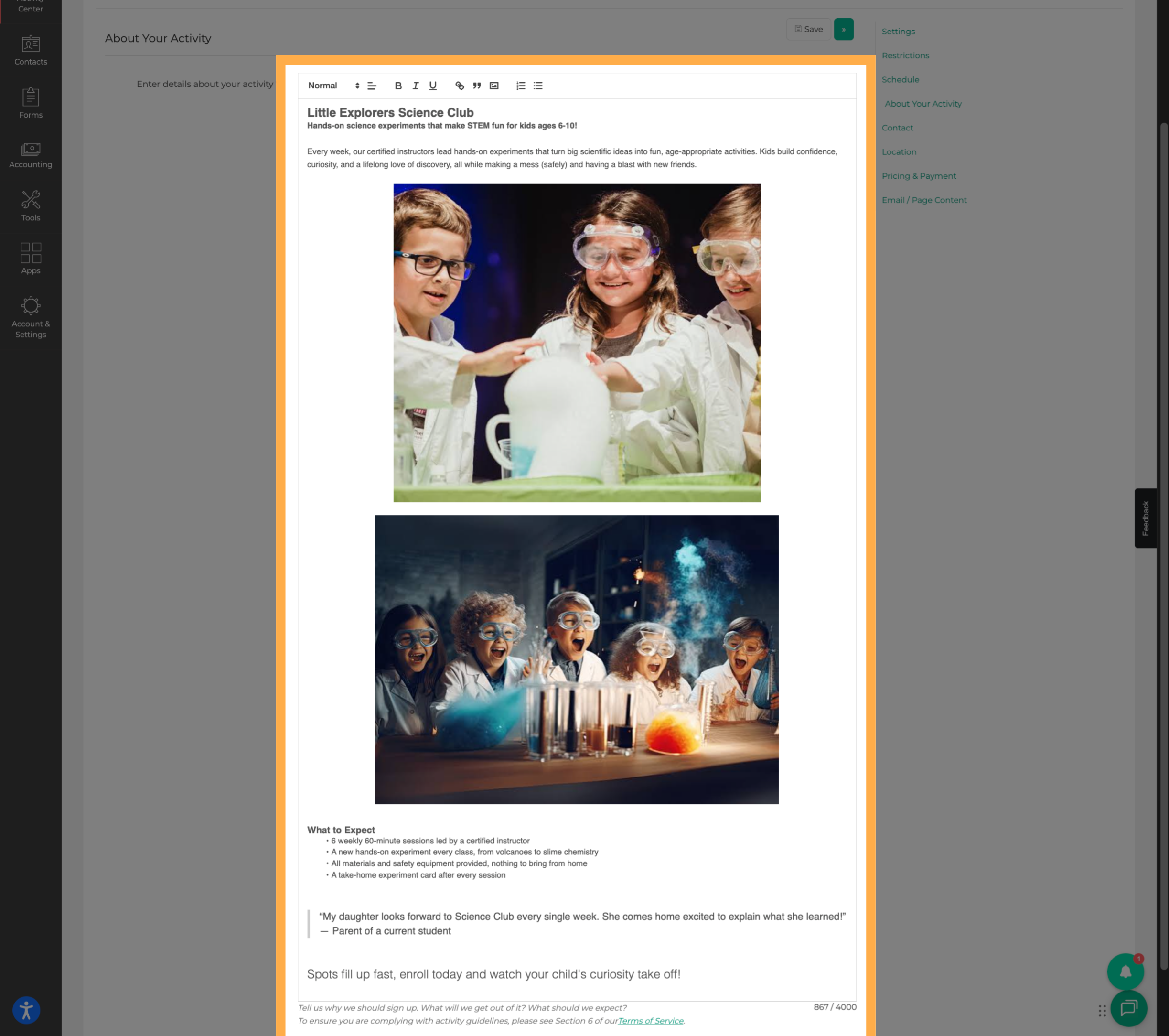
💡 Tip: Use short paragraphs, clear language, and an inviting tone. Focus on what families would want to know when deciding whether to register.
7. Save Your Changes
Once you've finished customizing your description, click “Save” to apply your changes.
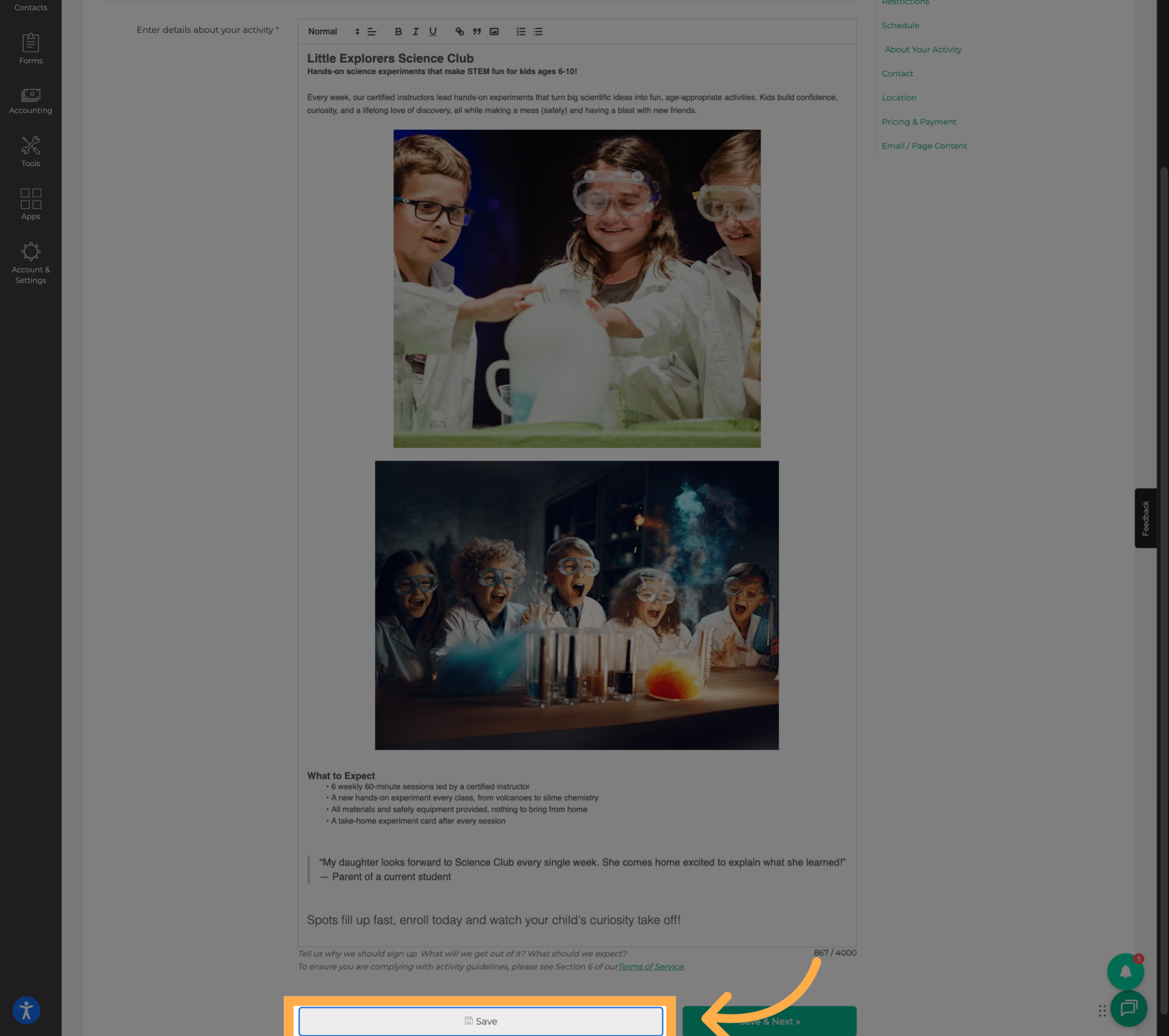
💡 Tip: Before saving, check for spelling errors, outdated information, and missing details.
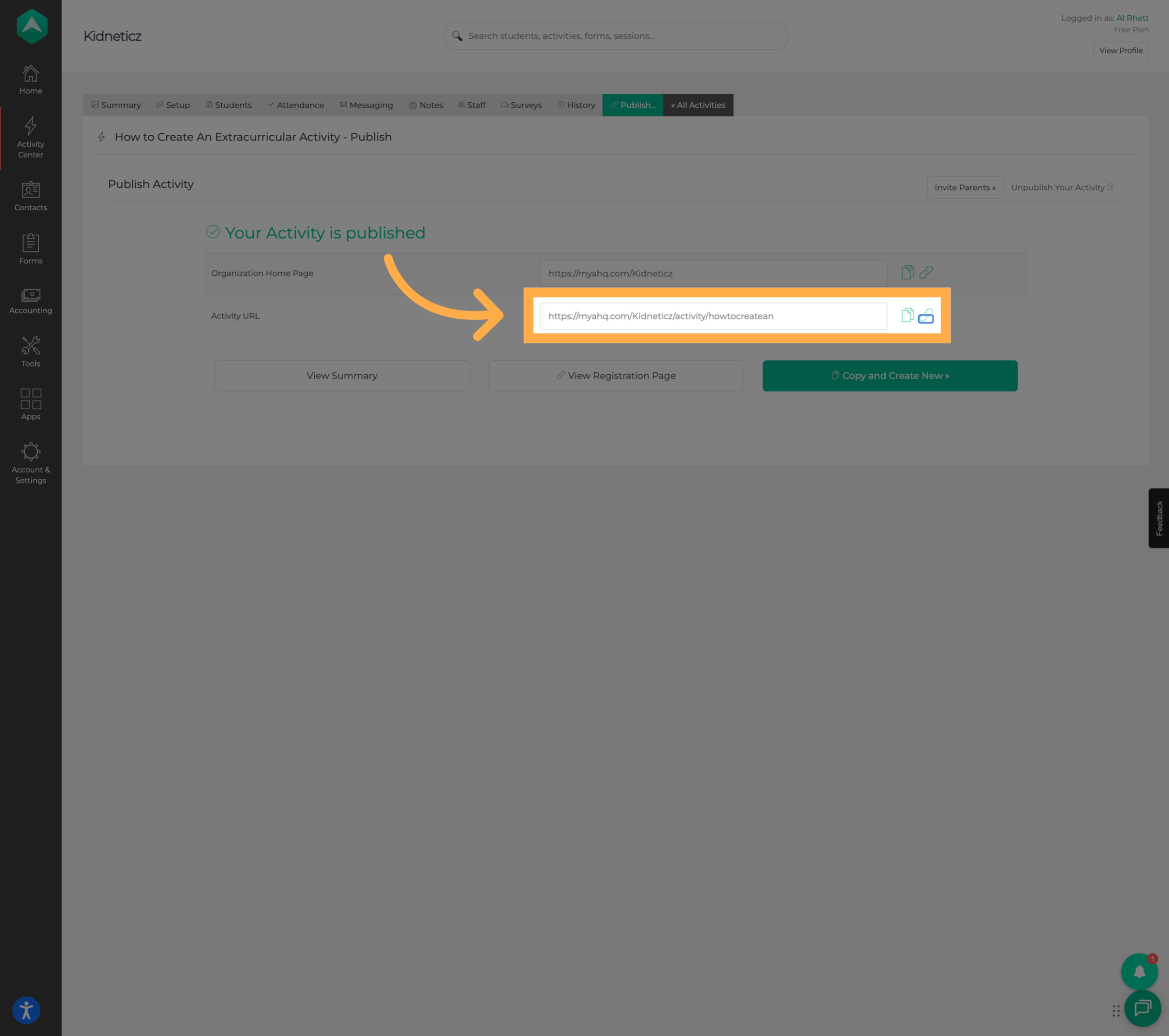
8. Access the Activity Link
To preview your updated activity description, click “Publish” to access the activity link.
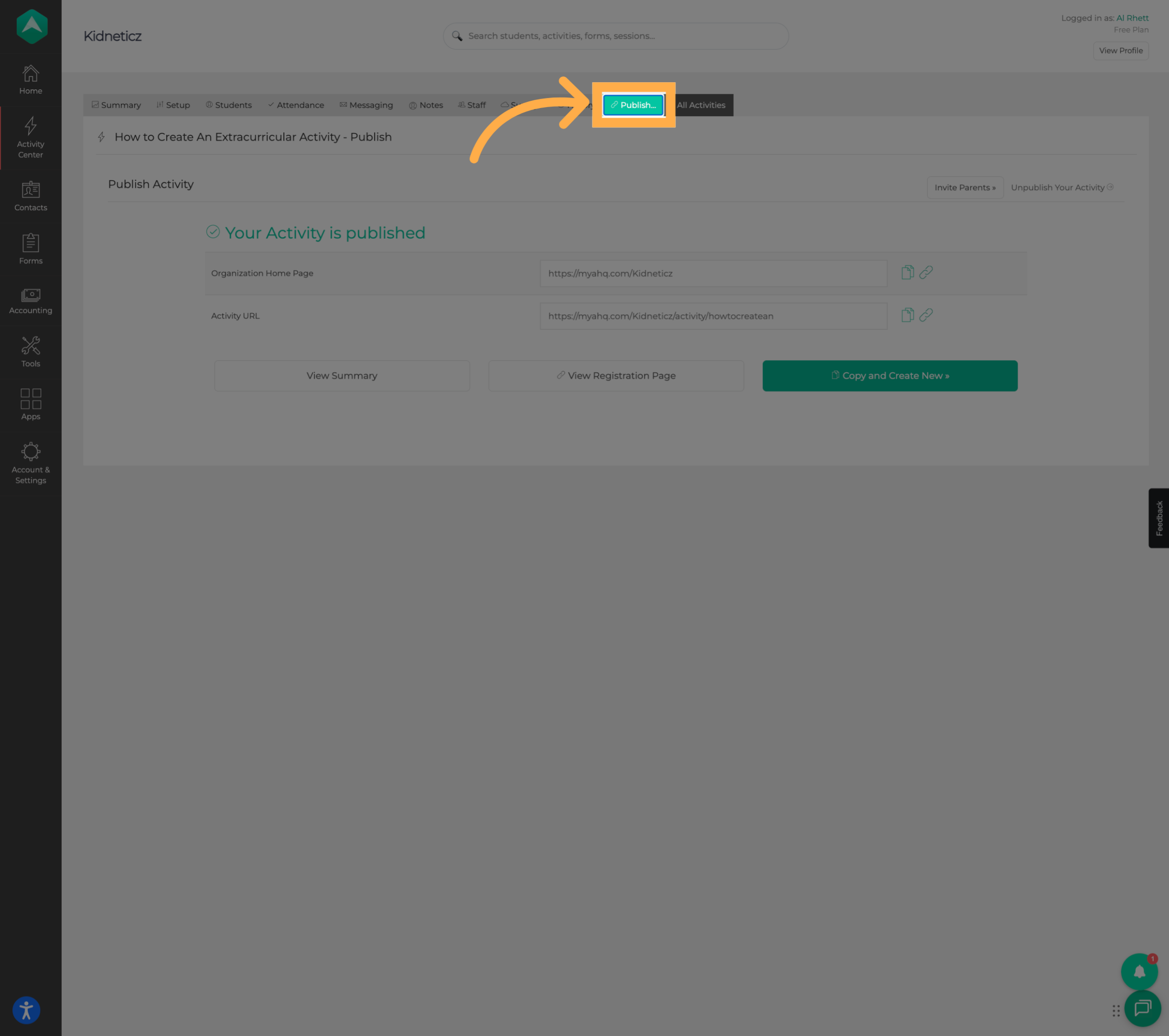
9. Open the Activity Page
Open the activity page directly and view your changes.
10. Review Your Changes
Take a moment to review the activity page and confirm that your description, images, and other details appear as expected.
Check that the information is clear, accurate, and easy for families to read.
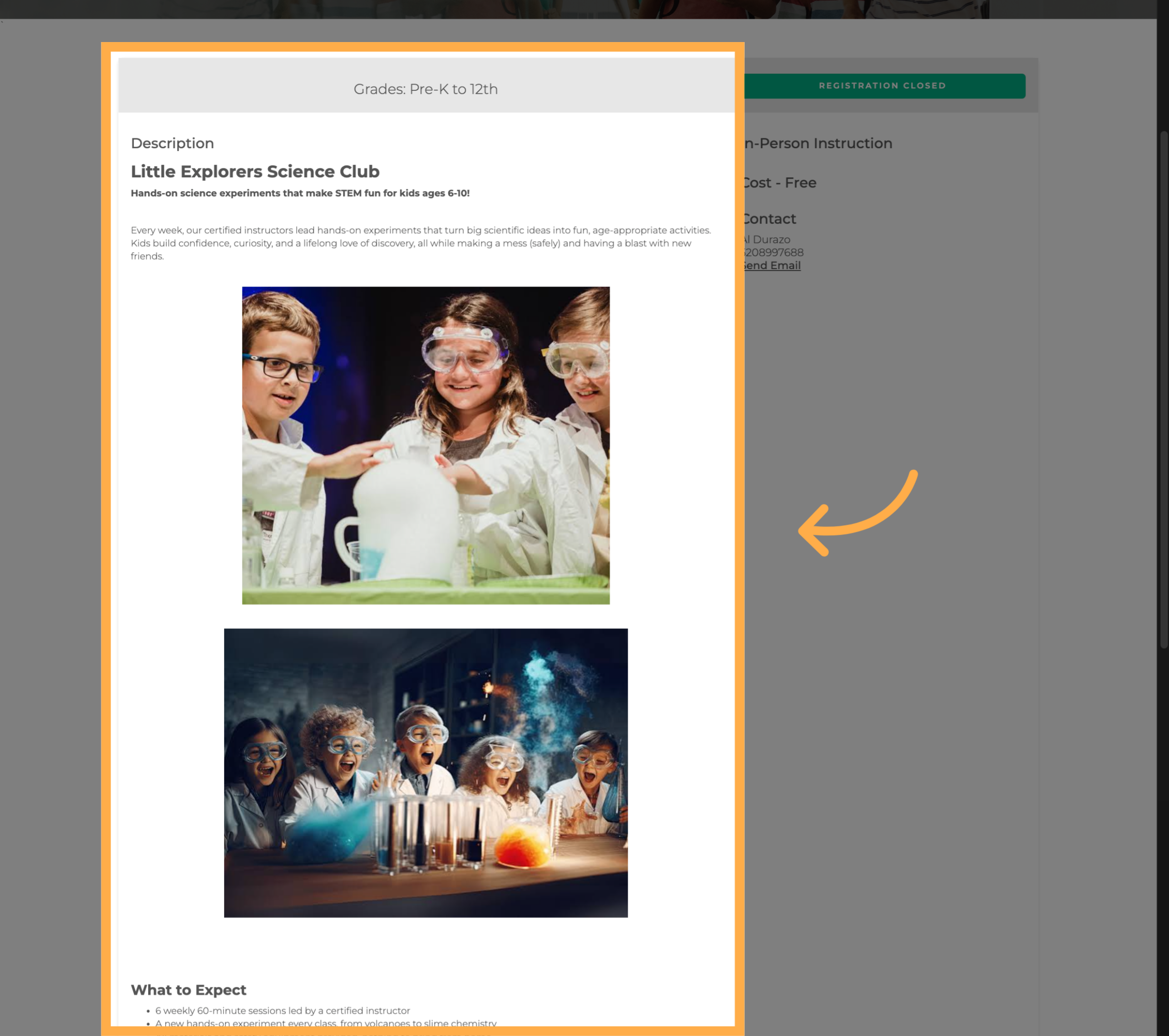
💡 Tip: If you notice anything that needs improvement, return to the activity's Setup section, make your adjustments, and save your changes.
Frequently Asked Questions
Q: Where can I edit my activity description?
A: Navigate to Extracurricular Activities, open the activity, select Setup, and go to About Your Activity. From there, you can access the description editor.
Q: What should I include in an activity description?
A: Include an overview of the activity, what participants will do, relevant learning opportunities, program highlights, and any important details families should know.
Q: Can I add pictures or other content to my description?
A: The description editor supports formatting and additional content, including pictures and links. You can use these features to make your activity information more informative and engaging.
Q: How long should my activity description be?
A: There is no single ideal length. Include enough information to explain the program clearly while keeping the content concise and easy to read.
Q: Can I update the description after an activity has been published?
A: Yes. You can return to the activity's Setup section, update the description, and save your changes.
Q: How can I preview my updated description?
A: After saving your changes, access the published activity link and click the chain link icon to open the activity page and review your updates.
Q: Do I need to publish the activity again to preview my changes?
A: If the activity is already published, use the existing activity link to review the page. Follow the available workflow in AfterSchool HQ to access the link.
Q: What should I check when reviewing my activity page?
A: Make sure the description is accurate, easy to read, and free of errors. Also, review any images, links, and other displayed information.
💡If you experience any issues or have further questions with “How to Create an Engaging Activity Description”, don't hesitate to get in touch with our support team at support@afterschoolhq.com.