![ASHQ Logo Vert Flat.png]](https://support.afterschoolhq.com/hs-fs/hubfs/ASHQ%20Logo%20Vert%20Flat.png?height=40&name=ASHQ%20Logo%20Vert%20Flat.png)
Create a digital permission slip to collect approvals and required forms from families, all in one place.
1. Sign In to Your Account
Log in to your AfterSchool HQ provider account.
2. Navigate to Permission Slips
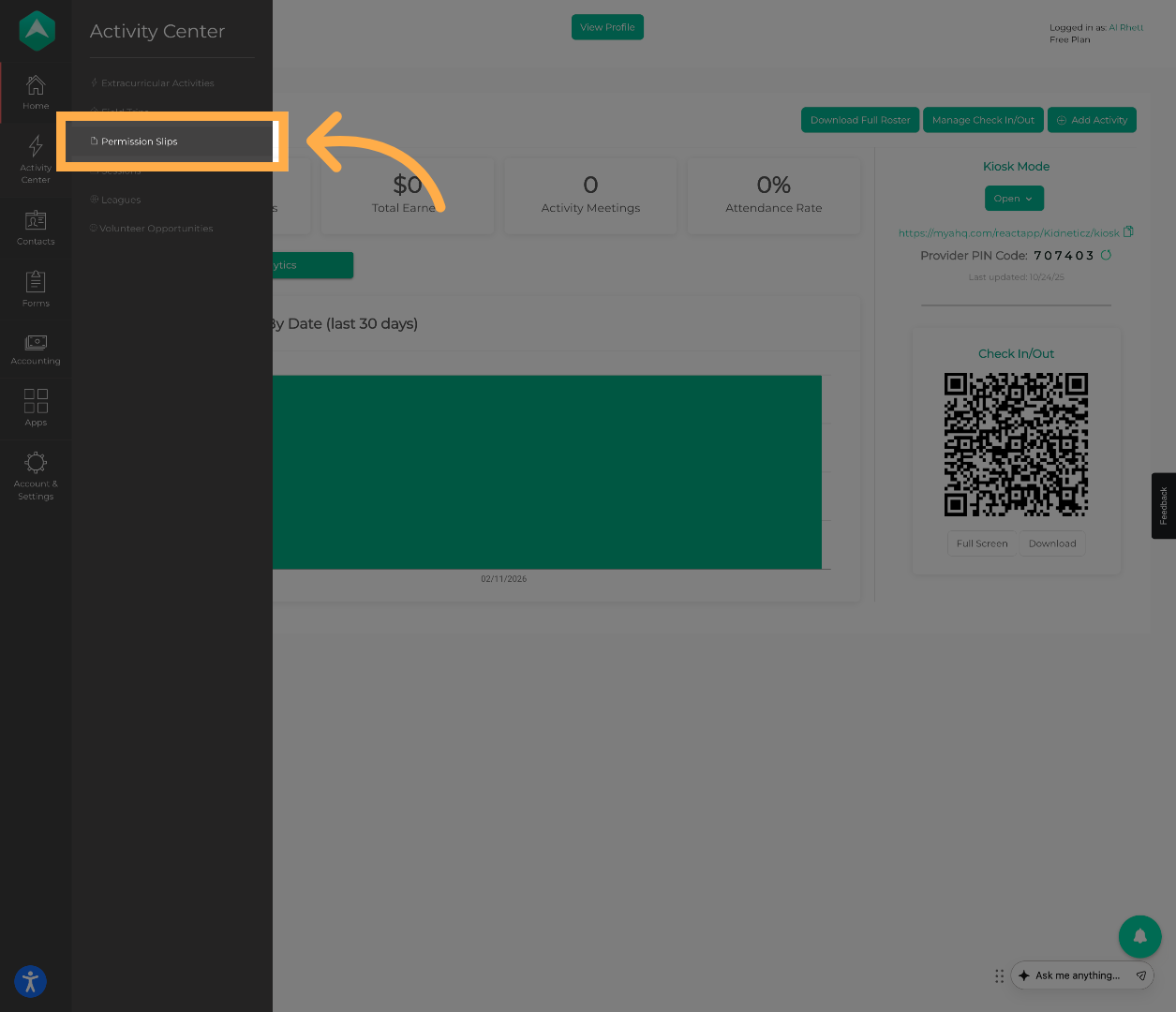
From the left-hand menu, click “Activity Center”, then select Permission Slips.
3. Create a New Permission Slip
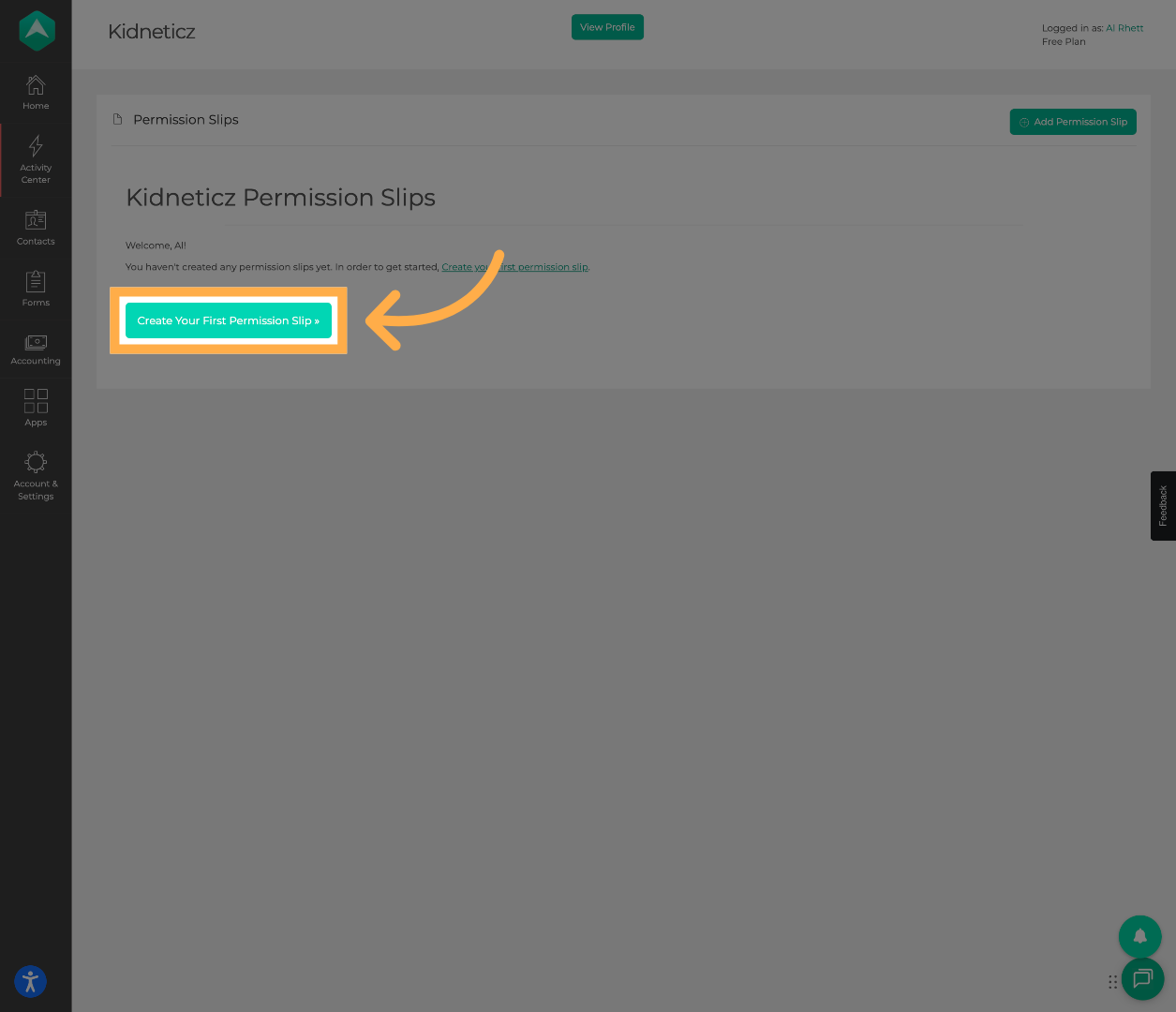
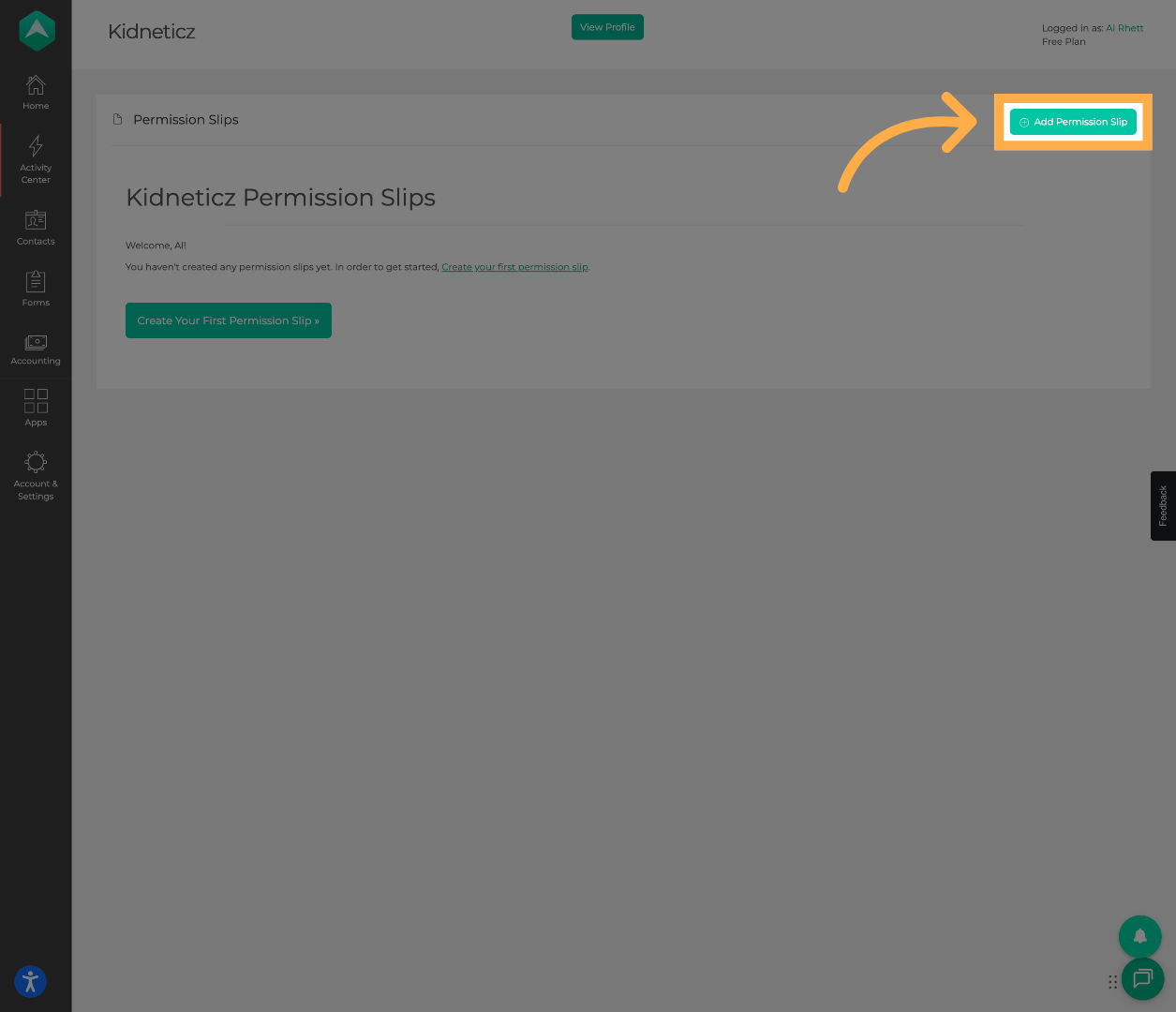
Click “Create Your First Permission Slip” (or “Add Permission Slip” if you’ve created one before).
4. Configure Basic Settings
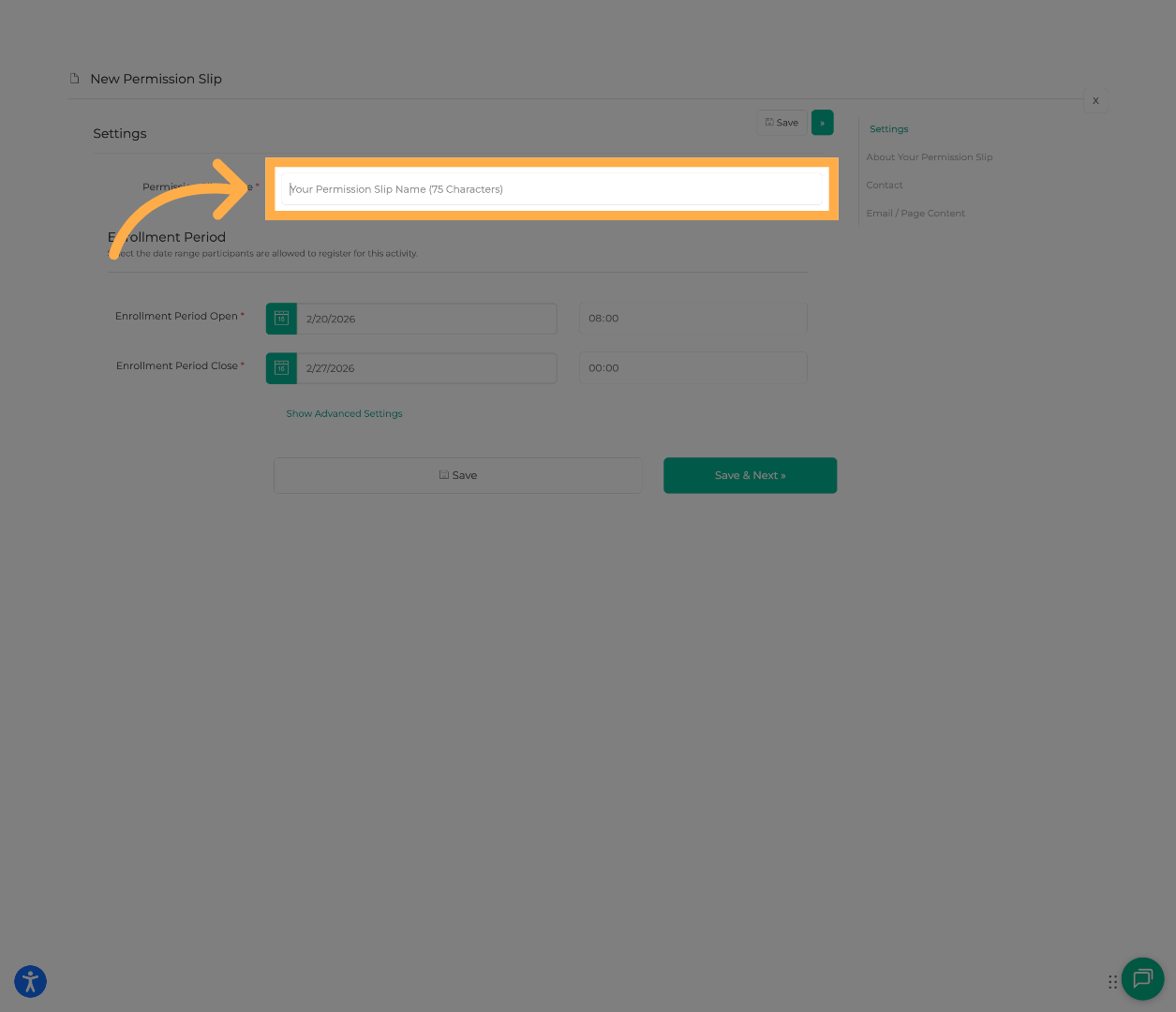
Enter the following:
-
Permission Slip Name
-
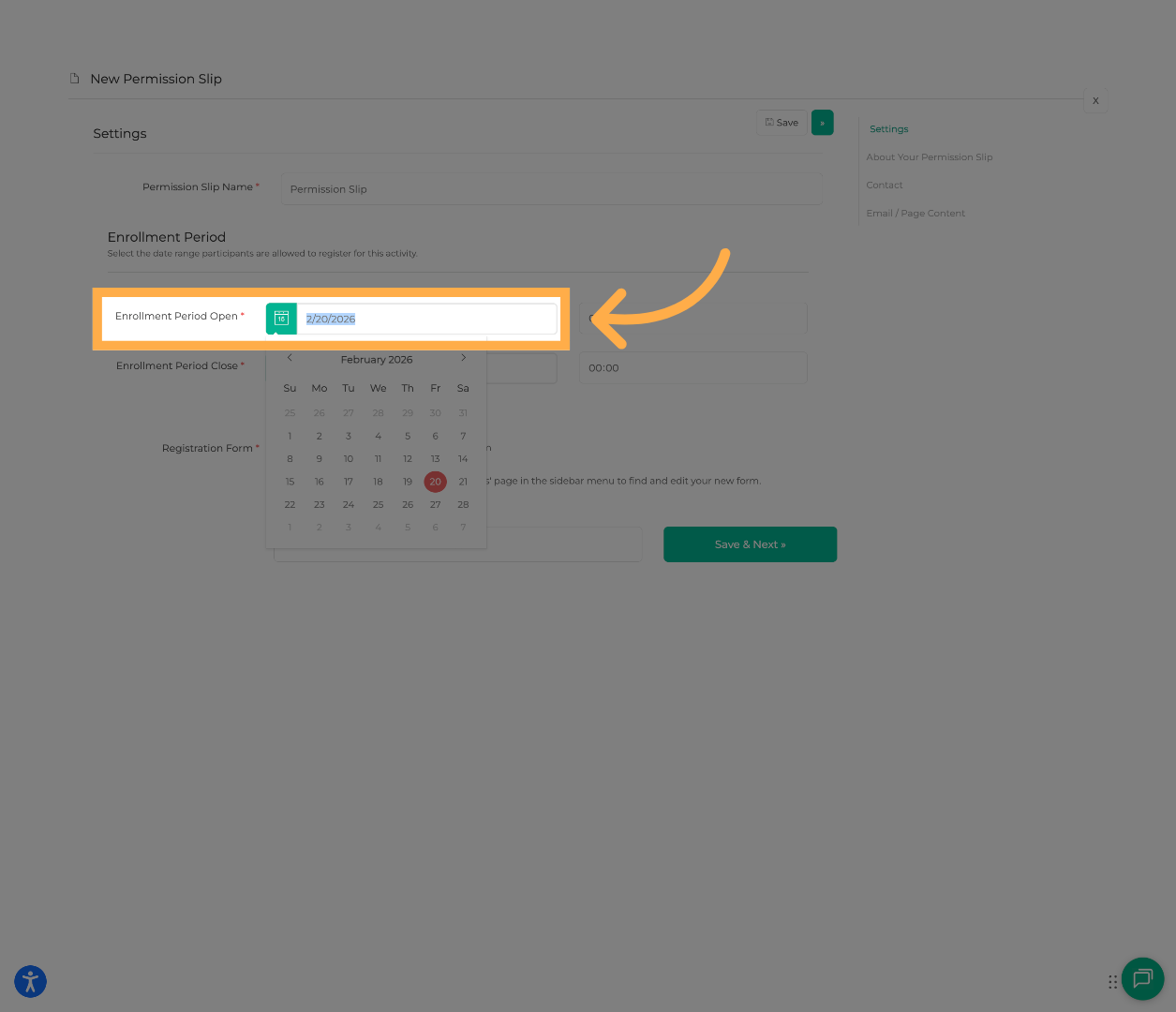
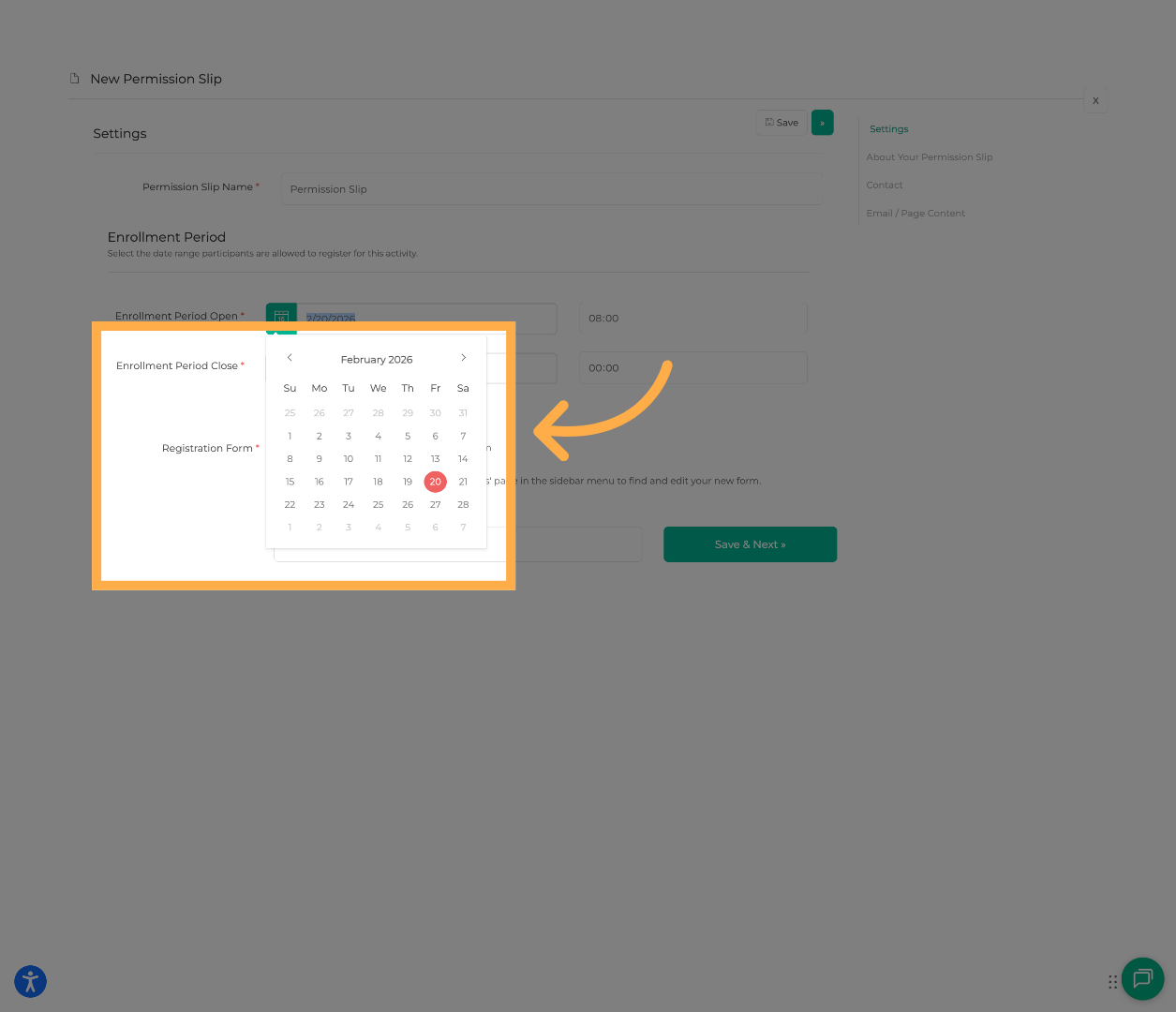
Set the Sign-Up Period (start and end dates)
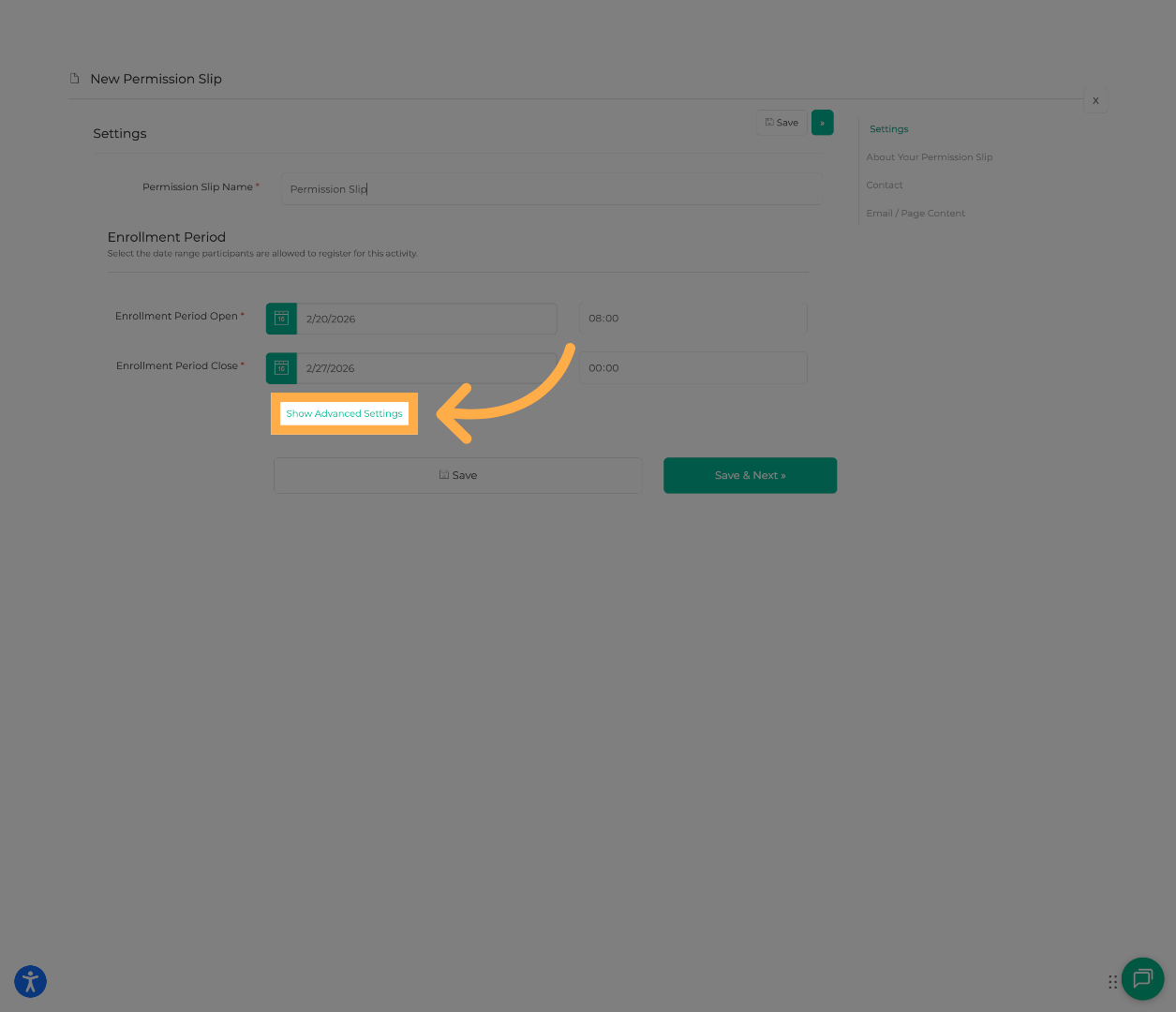
If you would like families to complete a specific form, click “Show Advanced Settings” to attach it.
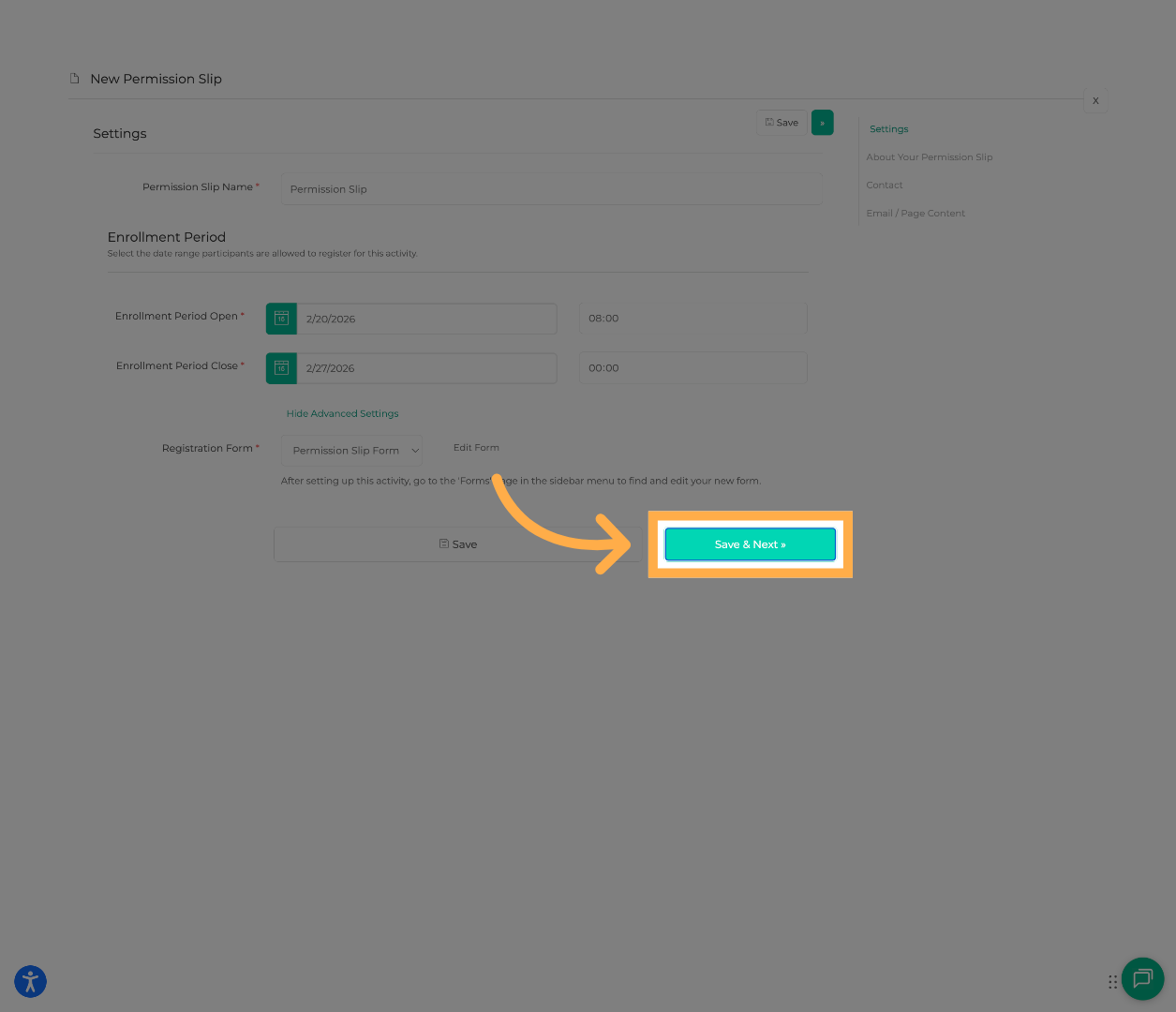
When finished, click “Save & Next” to continue.
💡Tip: Double-check your start and end dates before publishing to ensure families can register during the correct timeframe..
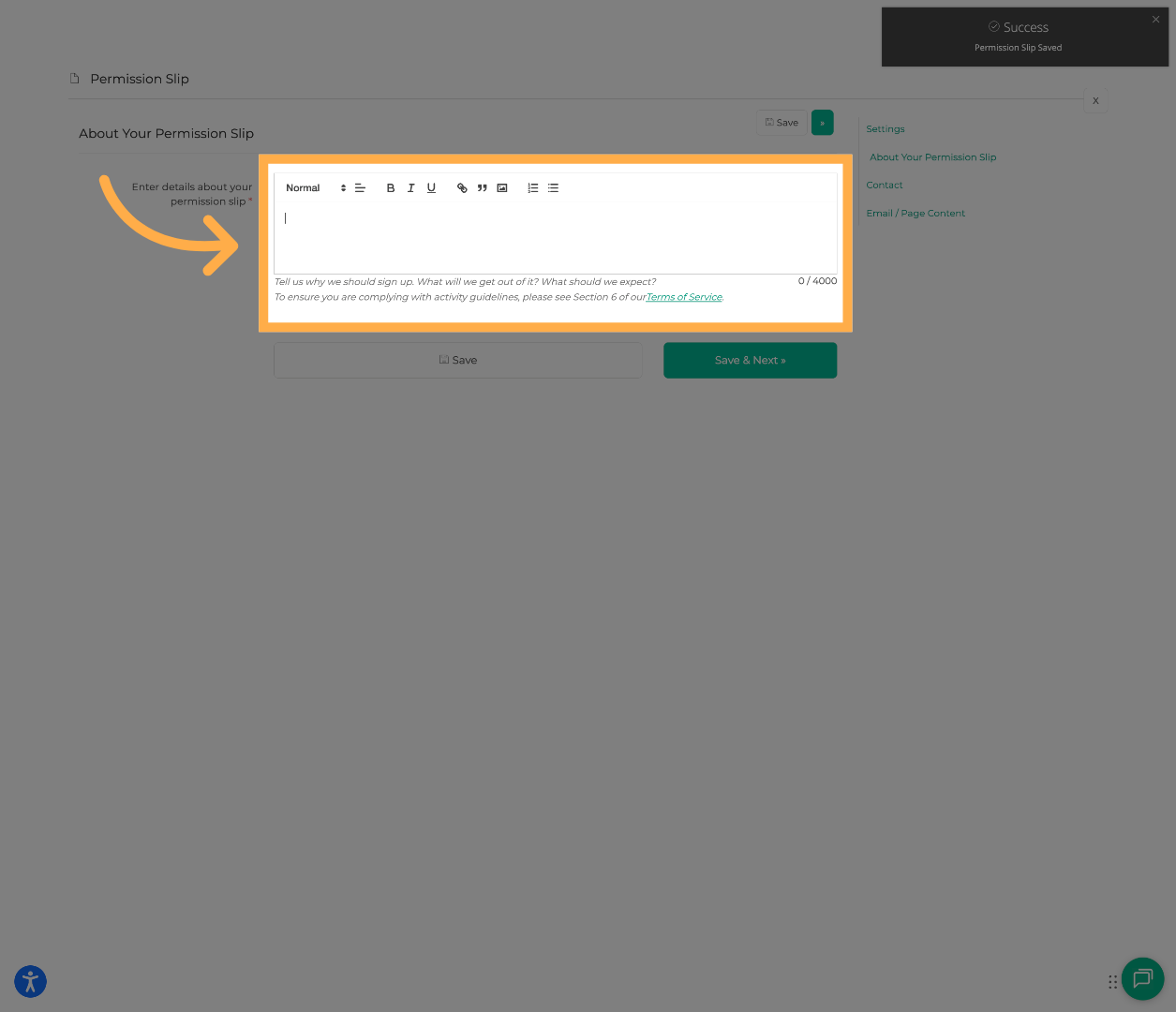
5. Add Permission Slip Details
Enter a clear description explaining:
-
What the permission slip is for
-
Important event details
-
Expectations for families
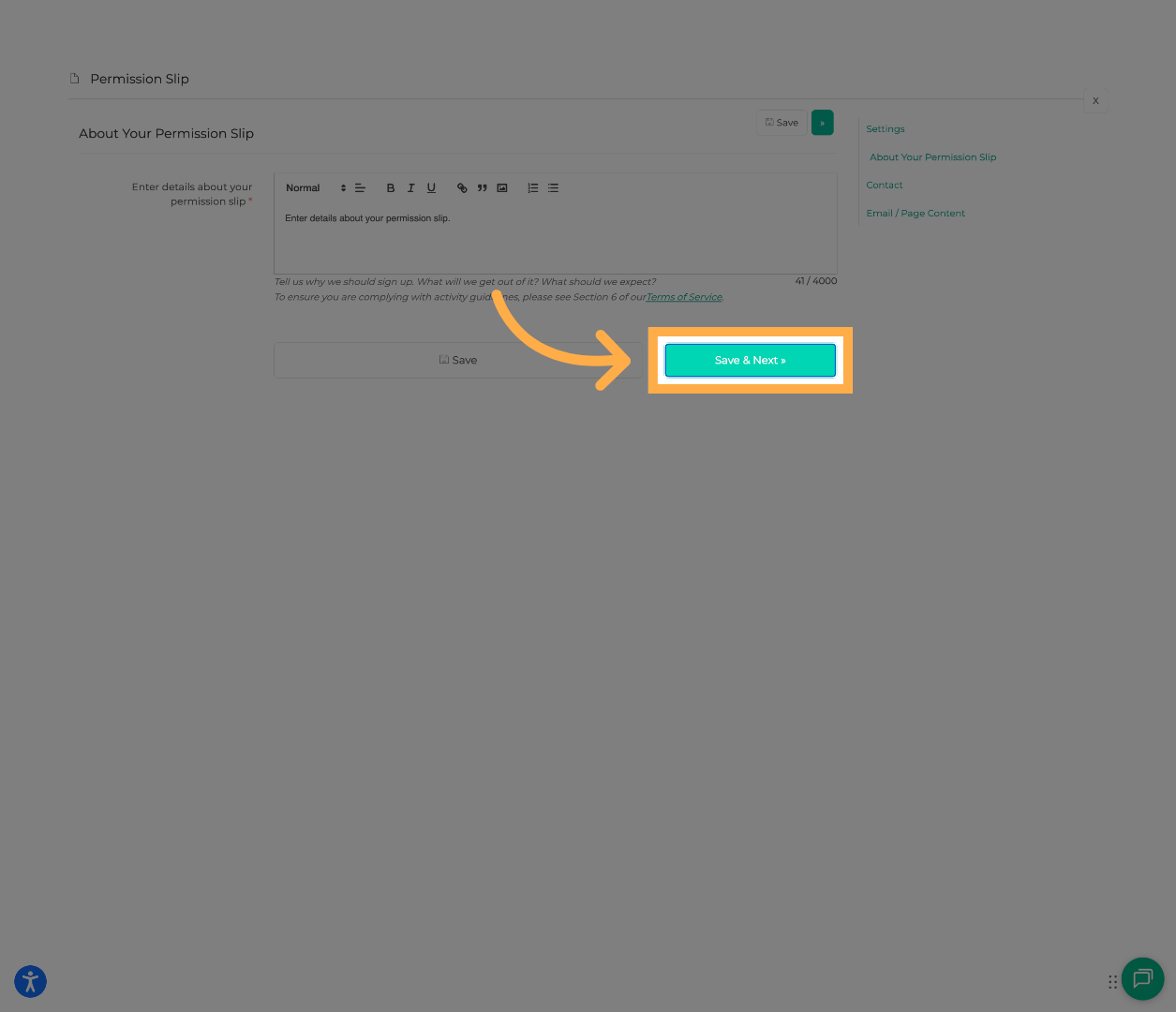
Once finished, click “Save & Next”.
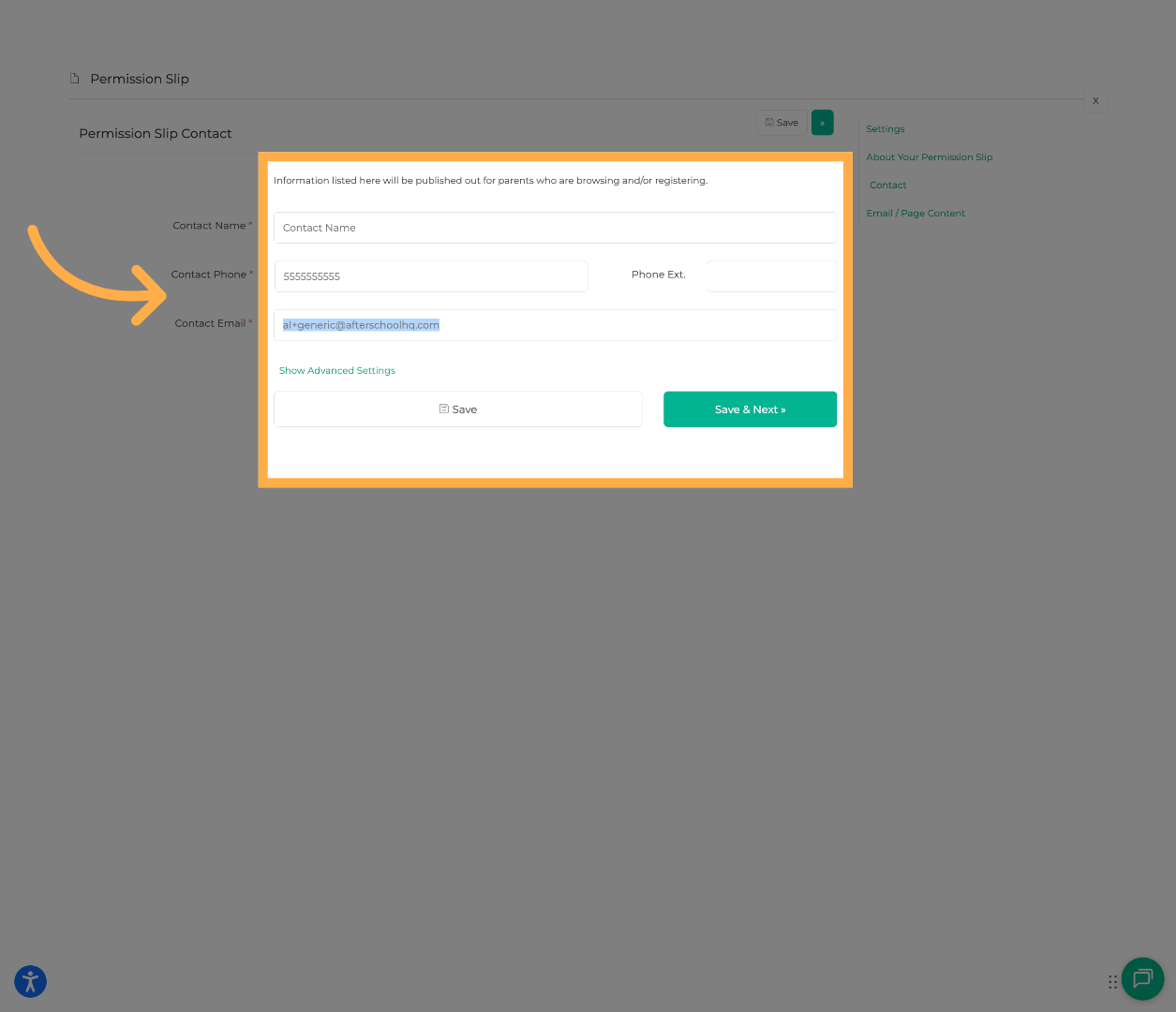
6. Add Contact Information
You can:
-
Manually enter the Contact Name, Phone, and Email,
OR
-
Click “Show Advanced Settings” to select an existing instructor from the dropdown.
You may also choose:
-
No Assigned Instructor
-
+ Add Instructor
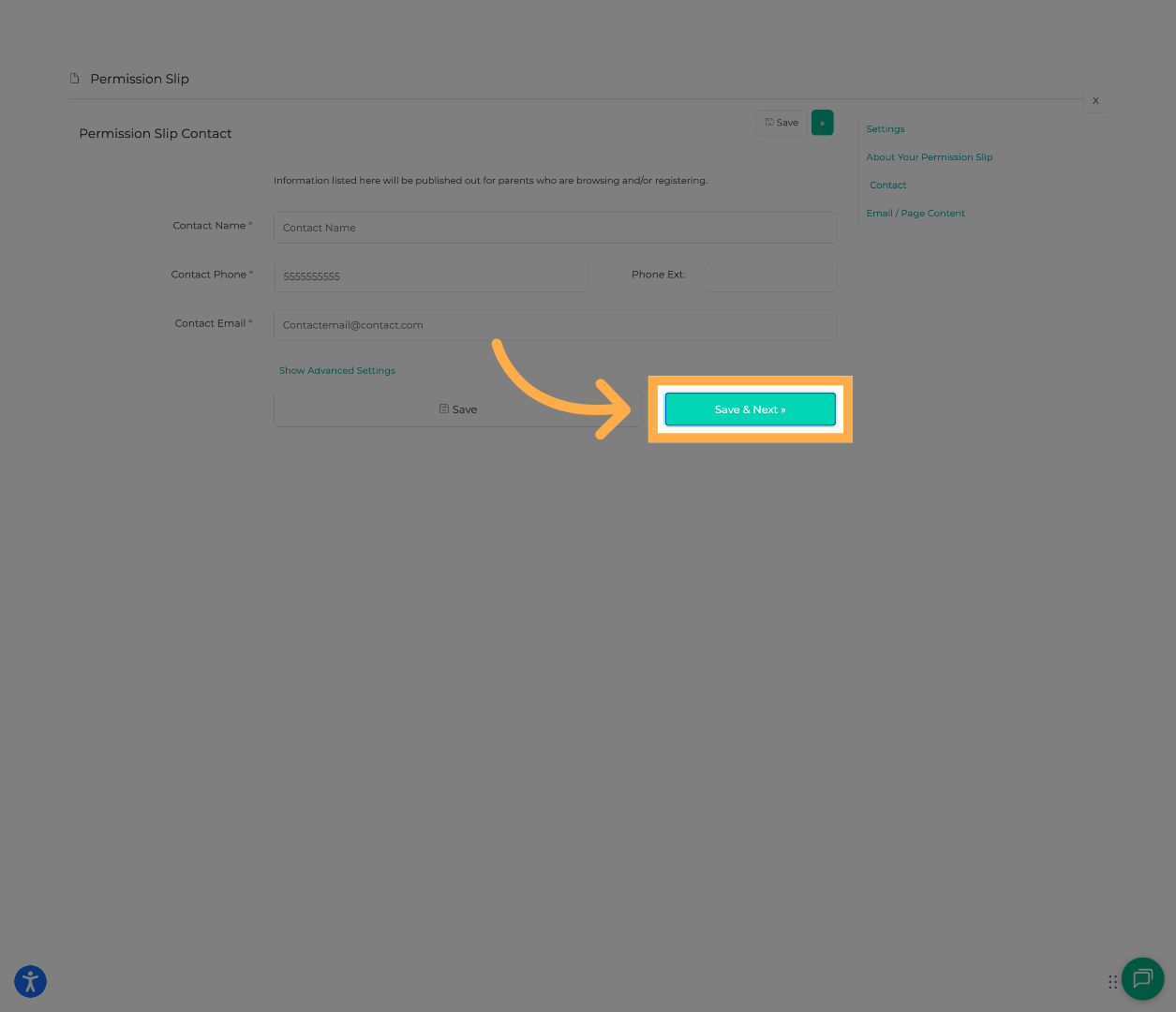
Click “Save & Next”.
💡Tip: Ensure the listed contact name and email are accurate so families know who to reach out to with questions.
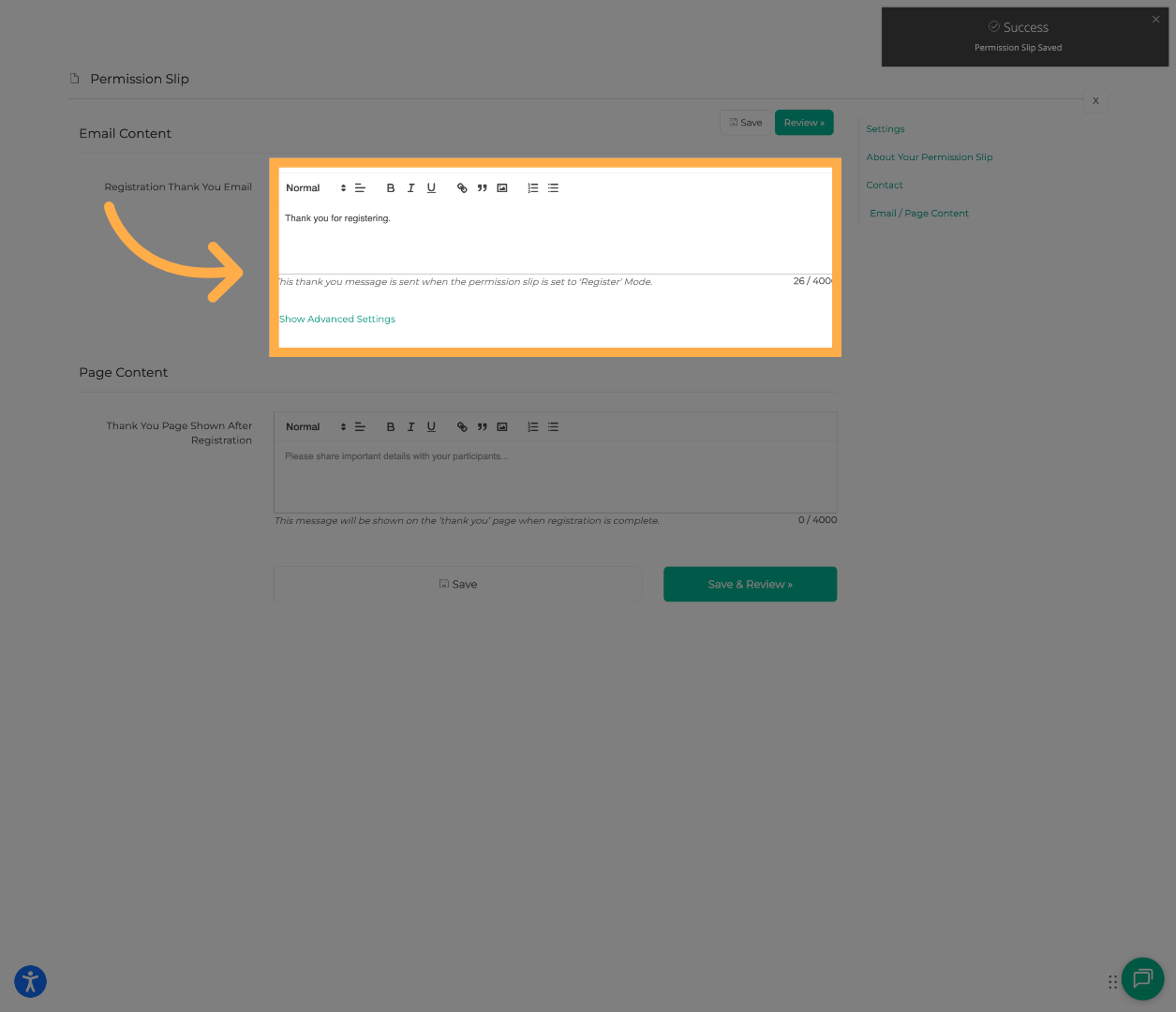
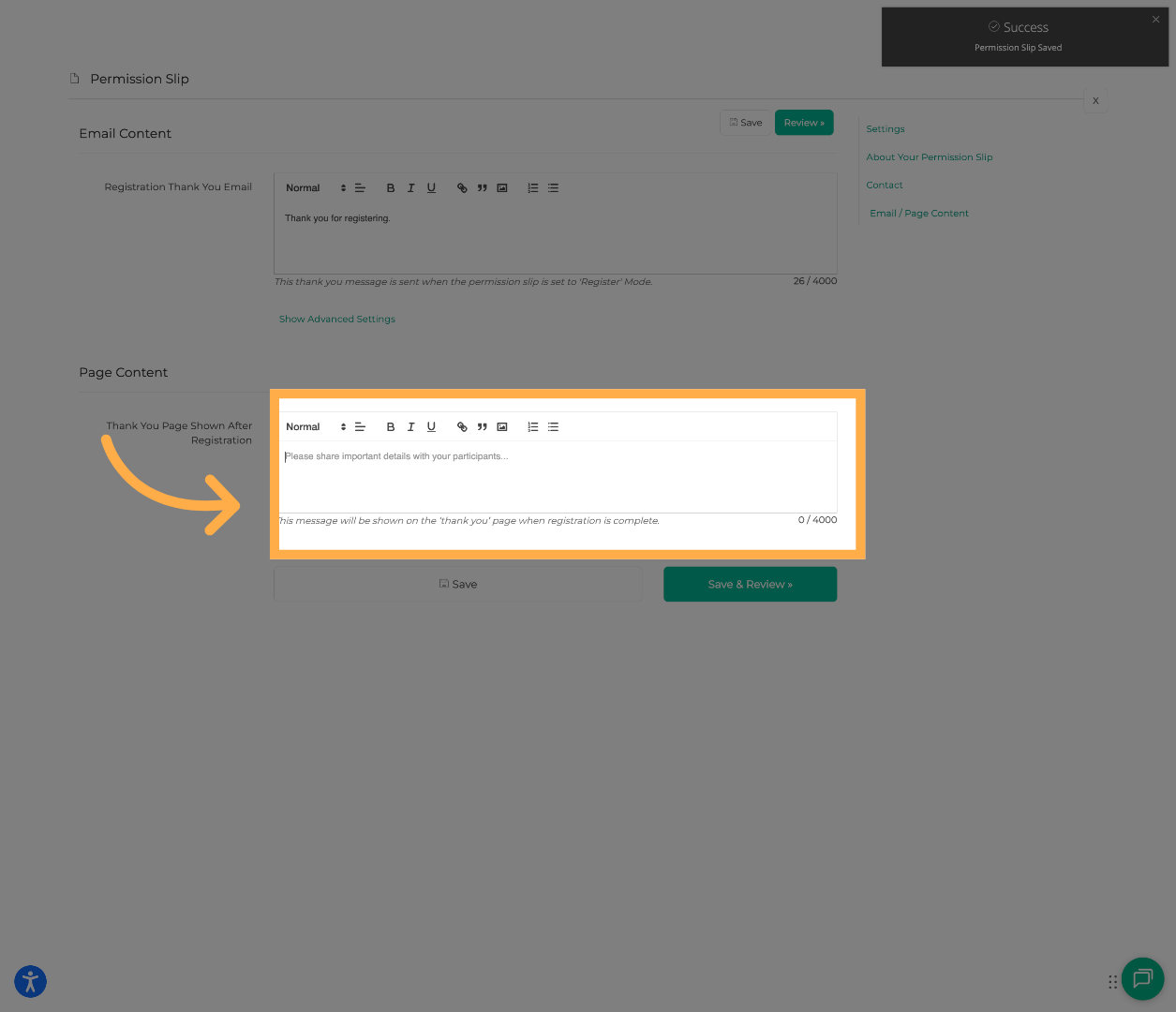
9. Customize Email Content
Enter a confirmation or thank-you message that families will receive after completing the permission slip.
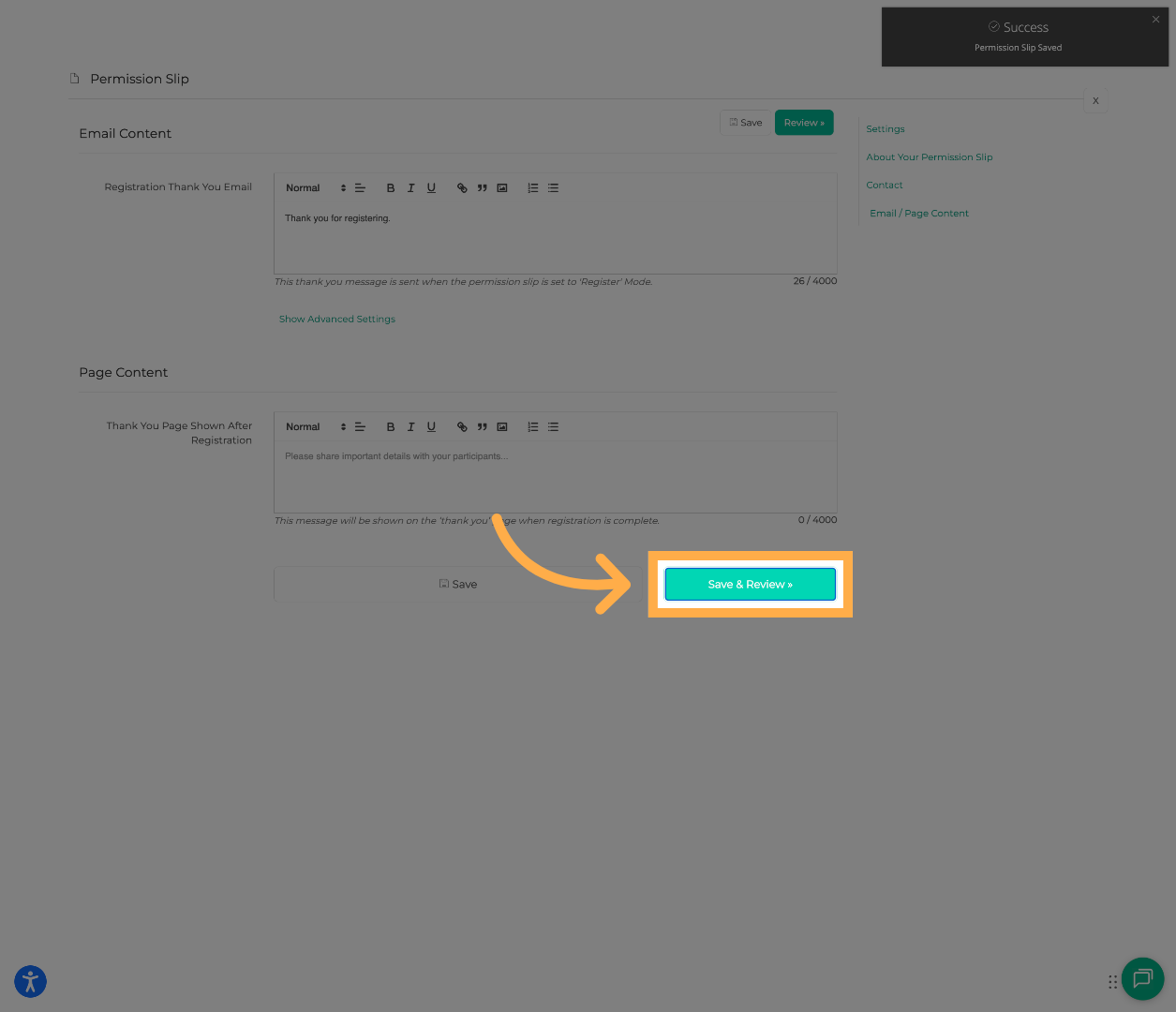
Click “Save & Review” to continue.
💡Tip: Use the confirmation email section to provide next steps, reminders, or contact information. This helps families feel confident their submission was received.
10. Publish Your Permission Slip
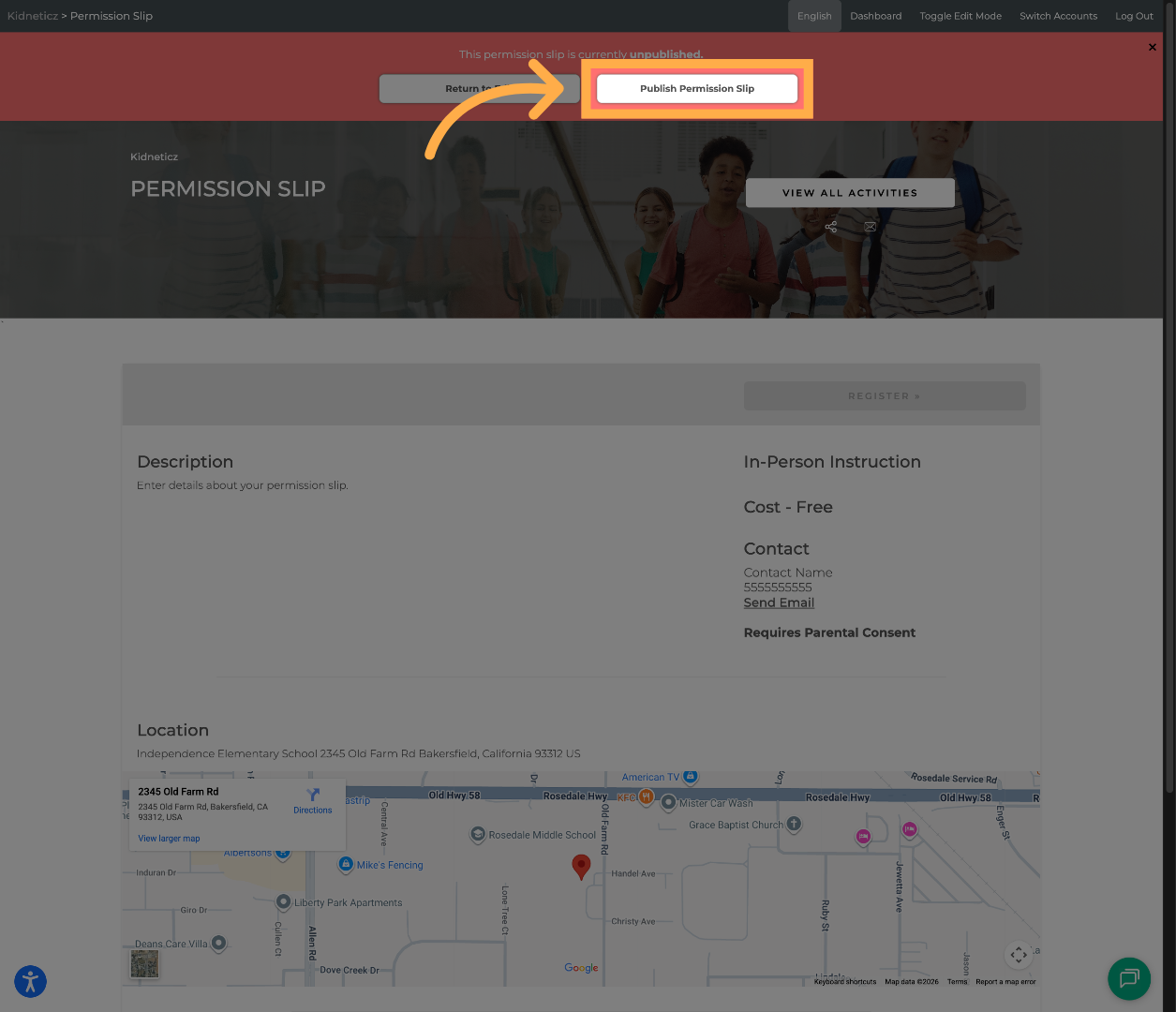
Once everything looks correct, click “Publish” to make it available.
💡Tip: If collecting permission slips during an event or meeting, generate a QR code to make access quick and convenient for families.
11. Share Your Permission Slip
There are two ways to share your permission slip with families.
Option 1: Share the Direct Link
-
Go to Activity Center” > Permission Slips
-
Click “Manage”
-
Click “Publish”
-
Copy the registration link
You can:
-
Send it via Messages
-
Email it directly
-
Generate a QR code and add it to a flyer
Option 2: Send Invitations to a Contact List
If you have a Contact List created:
-
Go to the Students tab
-
Click “Invite Contacts”
-
Select your Contact List
-
Enter your message
-
Click “Send Invites”
Parents will receive an email invitation to complete the permission slip.
Frequently Asked Questions
Q: Can I attach a custom form to my permission slip?
A: Yes. Under “Show Advanced Settings”, you can select a form for families to complete when submitting the permission slip.
Q: Can I edit a permission slip after publishing it?
A: Yes. You can return to Activity Center > Permission Slips, click “Manage”, and make updates. After editing, be sure to save and republish if needed.
Q: How do parents access the permission slip?
Parents can access it through:
-
A direct link you share
-
An email invitation sent through a contact list
-
A QR code you generate and distribute
Q: Does a permission slip track attendance?
A: No. Permission slips are designed to collect approvals and forms. They do not include attendance tracking features.
Q: What happens after a parent completes the permission slip?
A: The parent will receive a confirmation message, and you will be able to see their submission.
💡 If you experience any issues or have further questions with “How to Create and Share a Permission Slip”, don't hesitate to get in touch with our support team at support@afterschoolhq.com.