![ASHQ Logo Vert Flat.png]](https://support.afterschoolhq.com/hs-fs/hubfs/ASHQ%20Logo%20Vert%20Flat.png?height=40&name=ASHQ%20Logo%20Vert%20Flat.png)
Downloading a student roster gives you quick access to participant information for your extracurricular activities.
Whether you need a printable roster for attendance or a spreadsheet for reporting and data management, AfterSchool HQ makes it easy to export your roster in just a few clicks.
1. Access Extracurricular Activities
From the main navigation menu, click “Extracurricular Activities” to view all available activities within your organization.
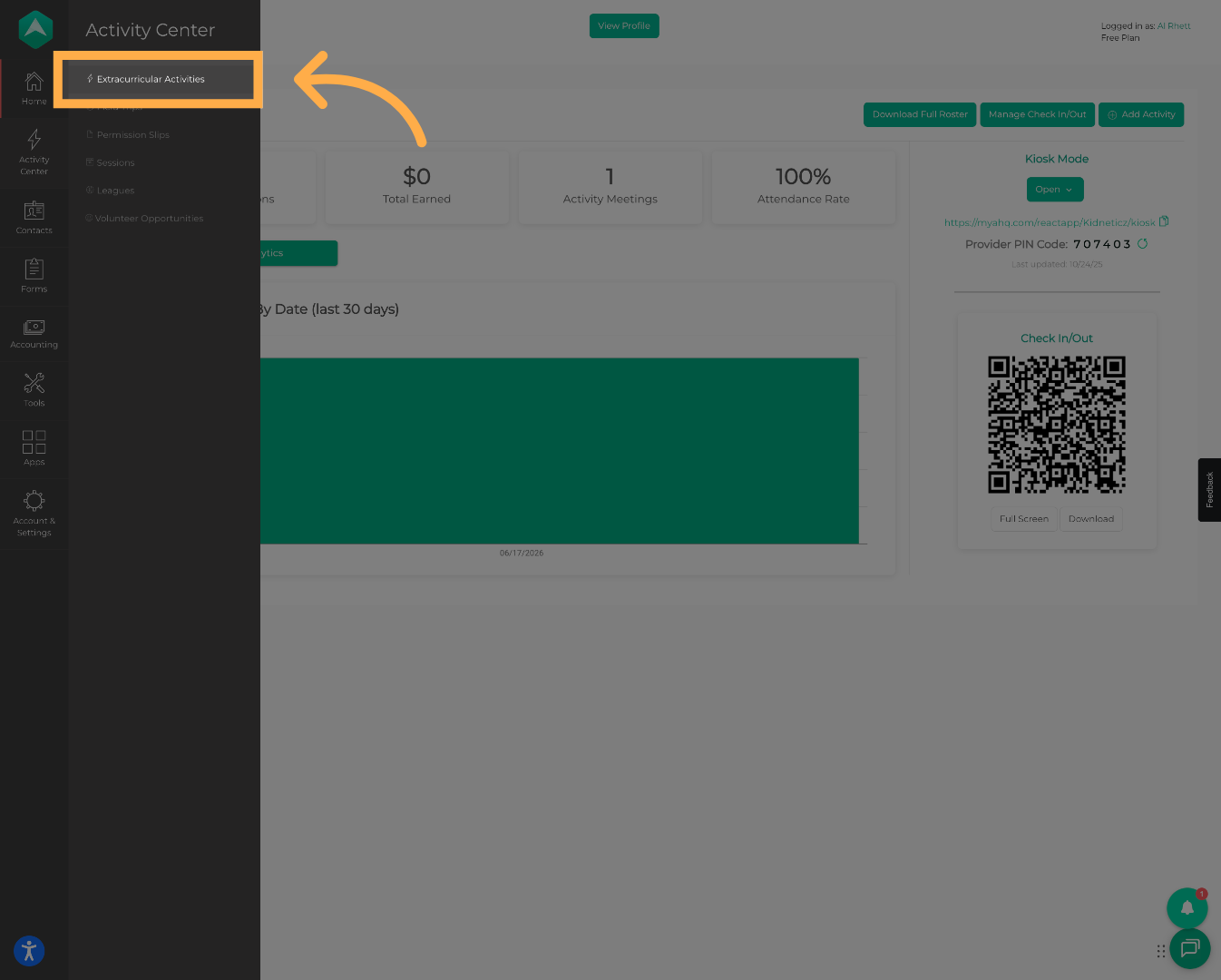
💡 Tip: This section displays all activities where you can manage enrollments, attendance, rosters, and activity settings.
2. Open an Activity
Select the activity for which you would like to download a student roster.
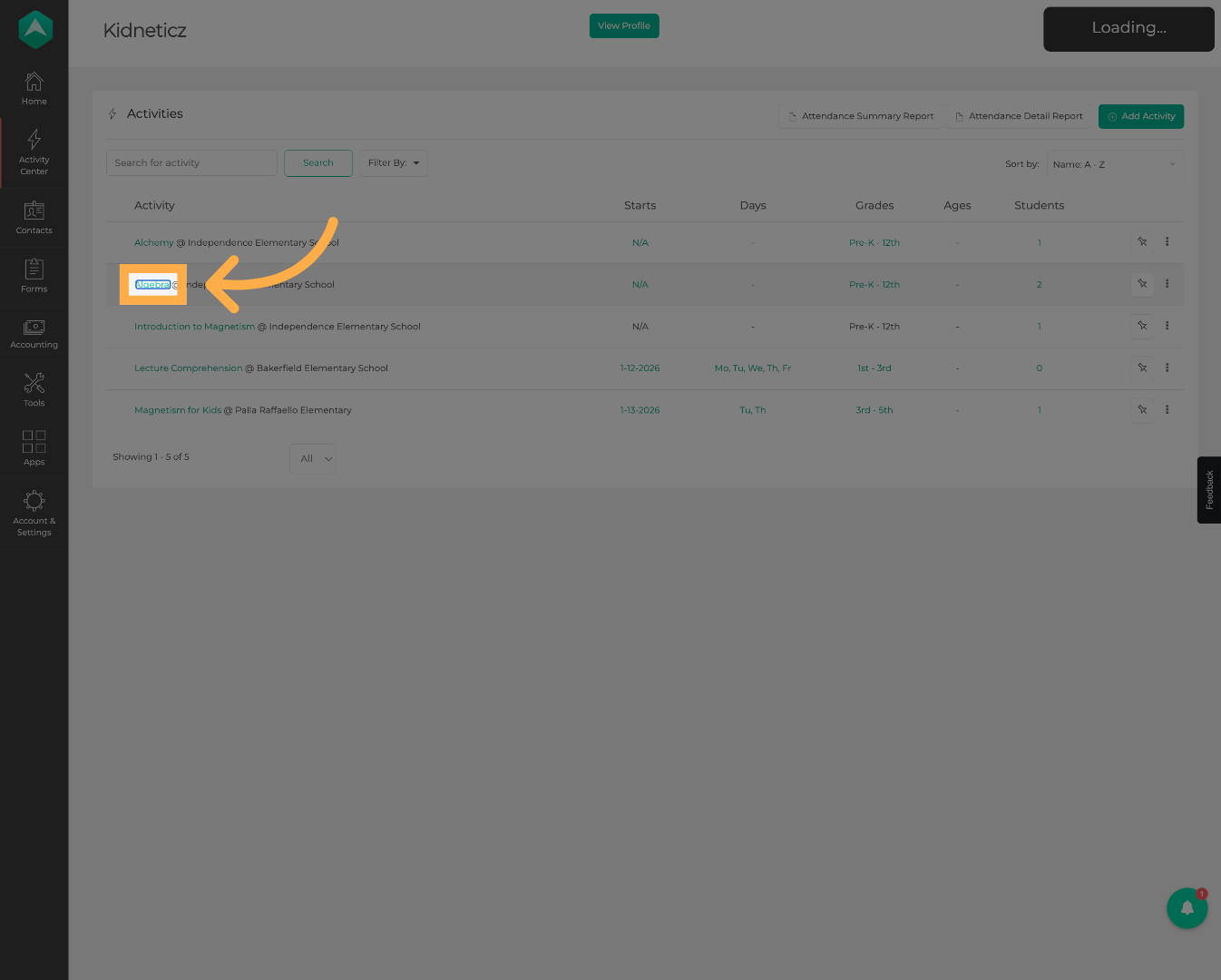
💡 Tip: Make sure you've selected the correct activity before downloading the roster.
3. Open the Students Section
Click “Students” to view the roster of participants enrolled in the selected activity.
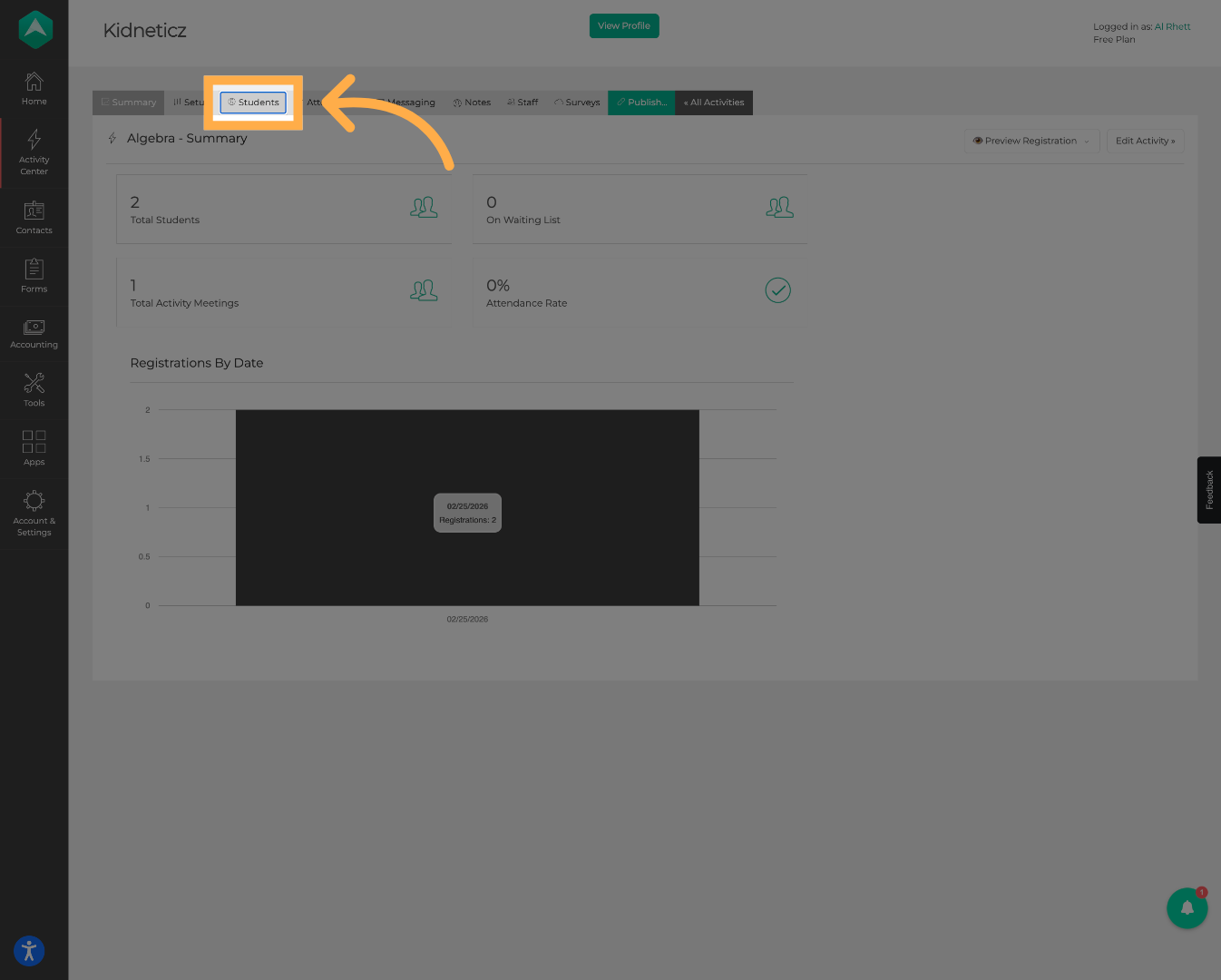
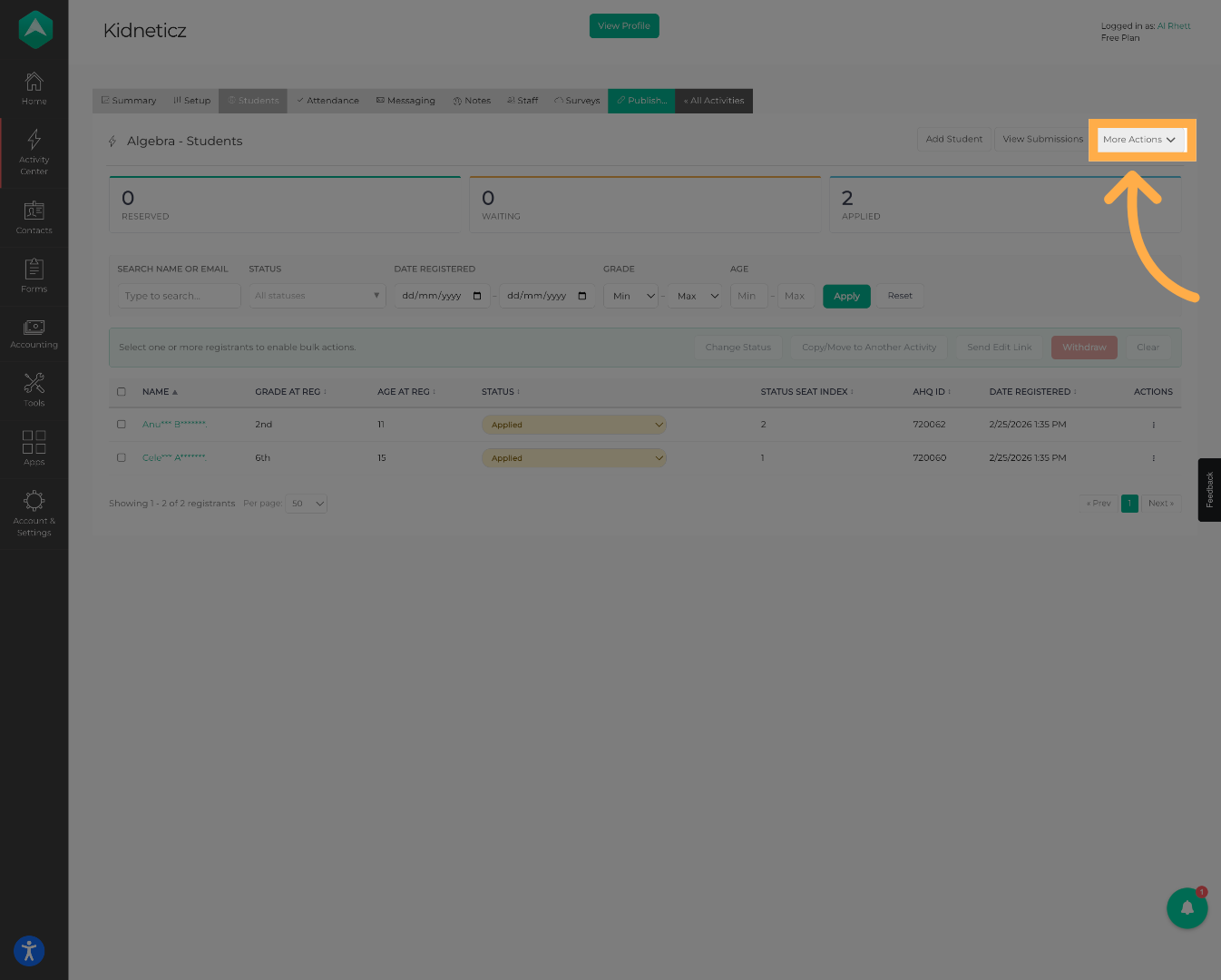
4. Open More Actions
Click the “More Actions” menu to view additional options available for the activity roster.
5. Choose Download Roster
Select “Download Roster” to begin the export process.
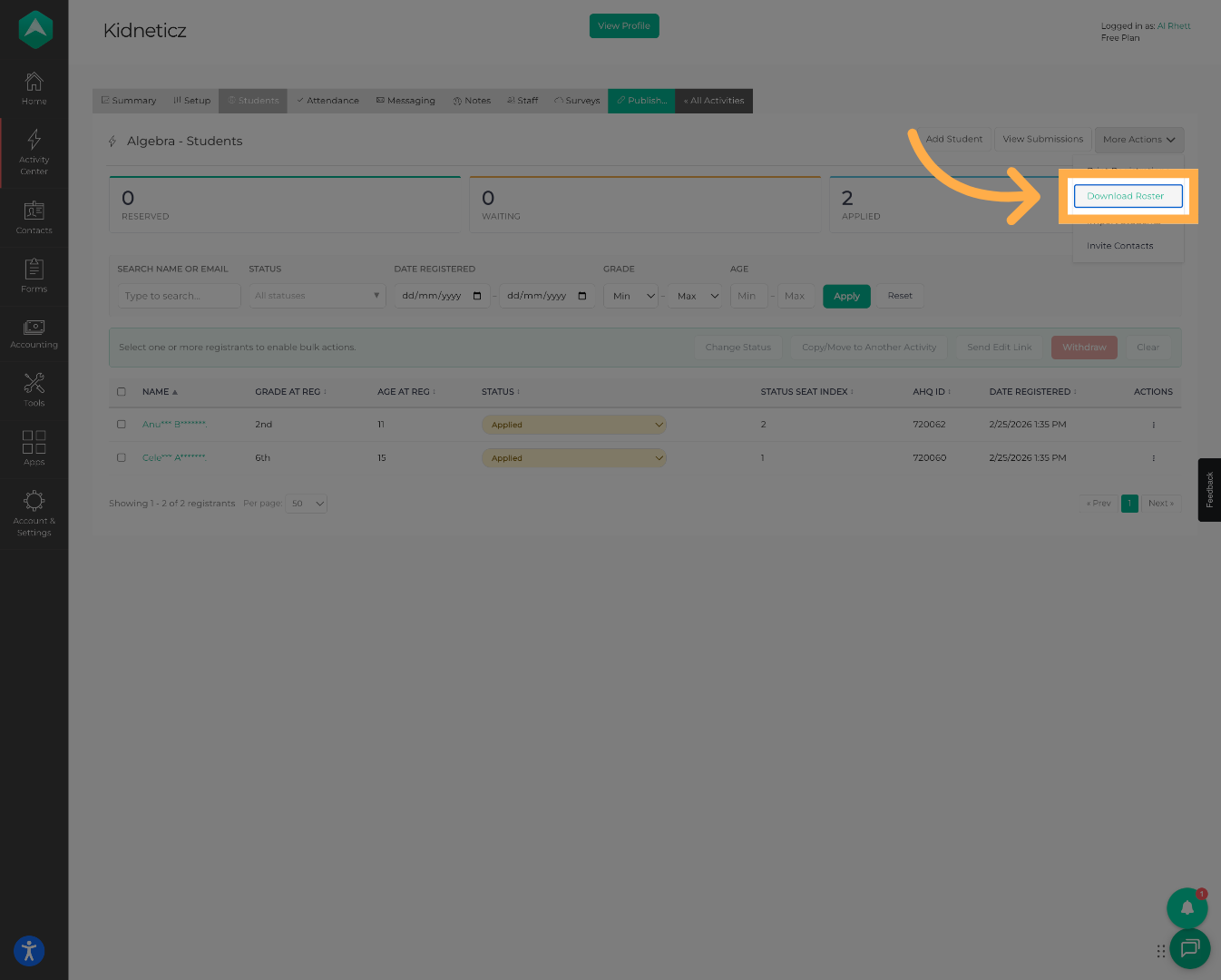
💡 Tip: You can export your roster in either PDF or CSV format depending on how you plan to use the information.
6. Download as a PDF
Choose “PDF Version” if you'd like a printable version of the student roster.
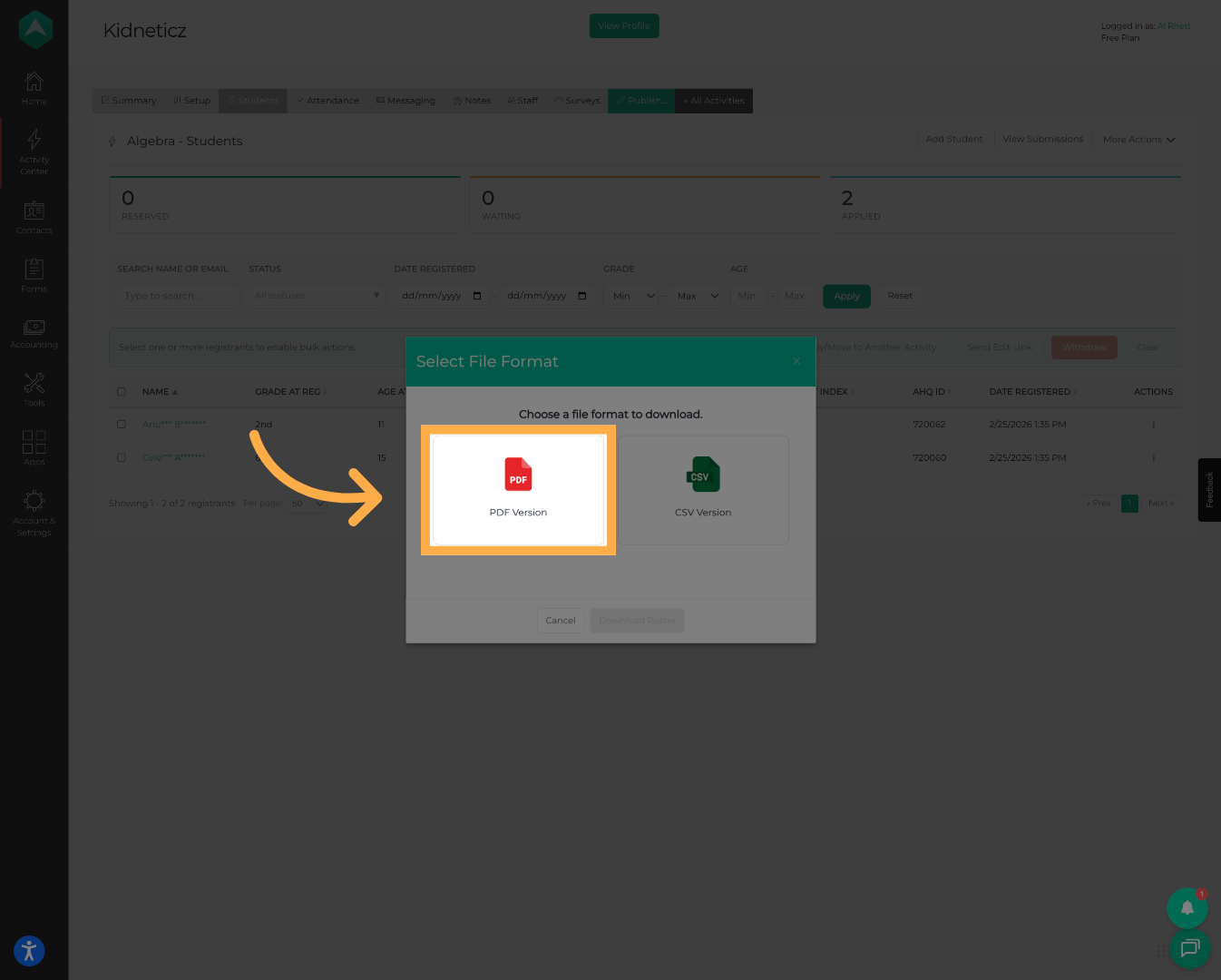
💡 Tip: PDF rosters are ideal for taking attendance, sharing with staff, or printing for on-site use.
7. Download as a CSV
Choose “CSV Version” to export the roster as a spreadsheet.
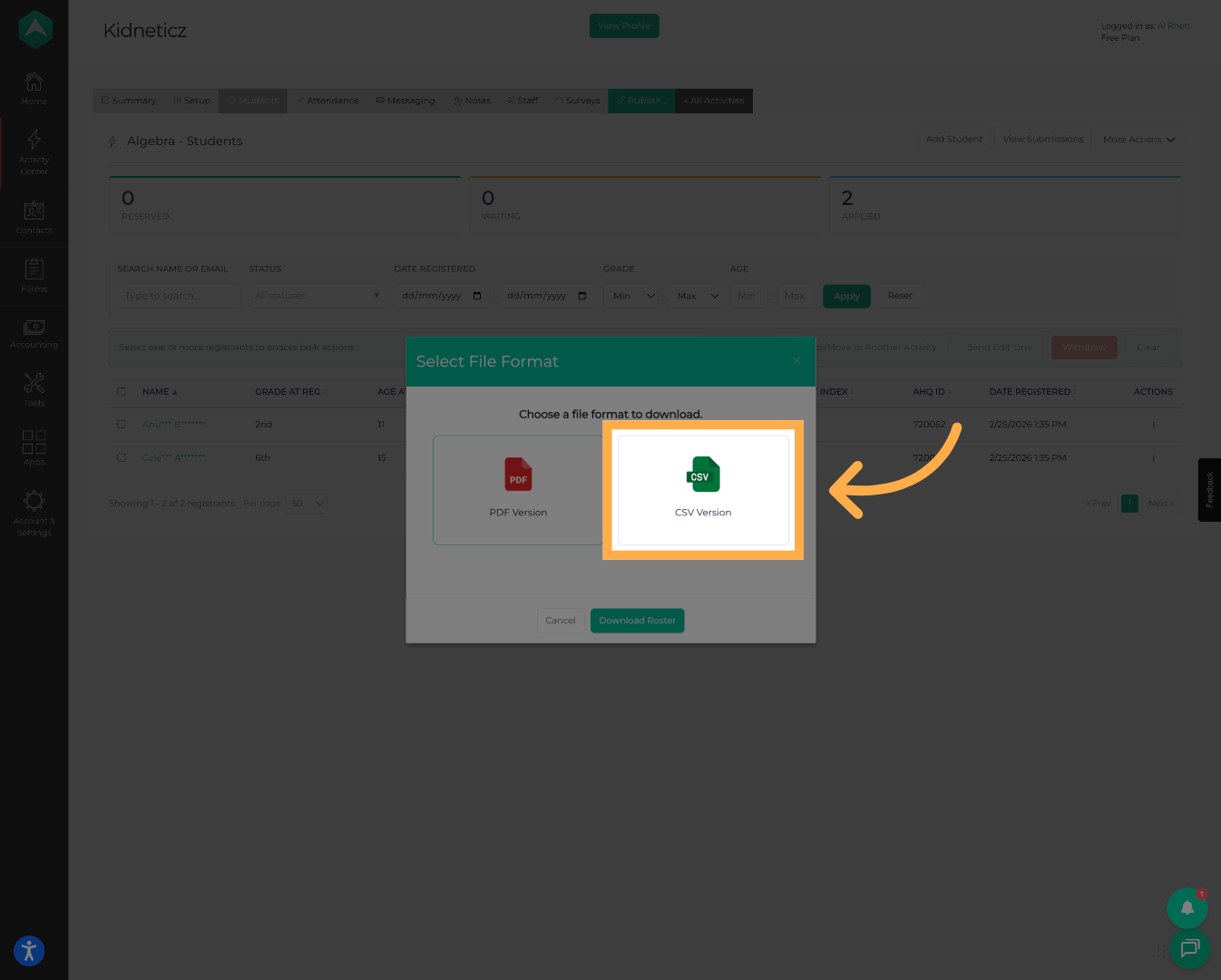
💡 Tip: CSV files can be opened in Microsoft Excel, Google Sheets, or other spreadsheet applications for sorting, filtering, and reporting.
8. Download the Roster
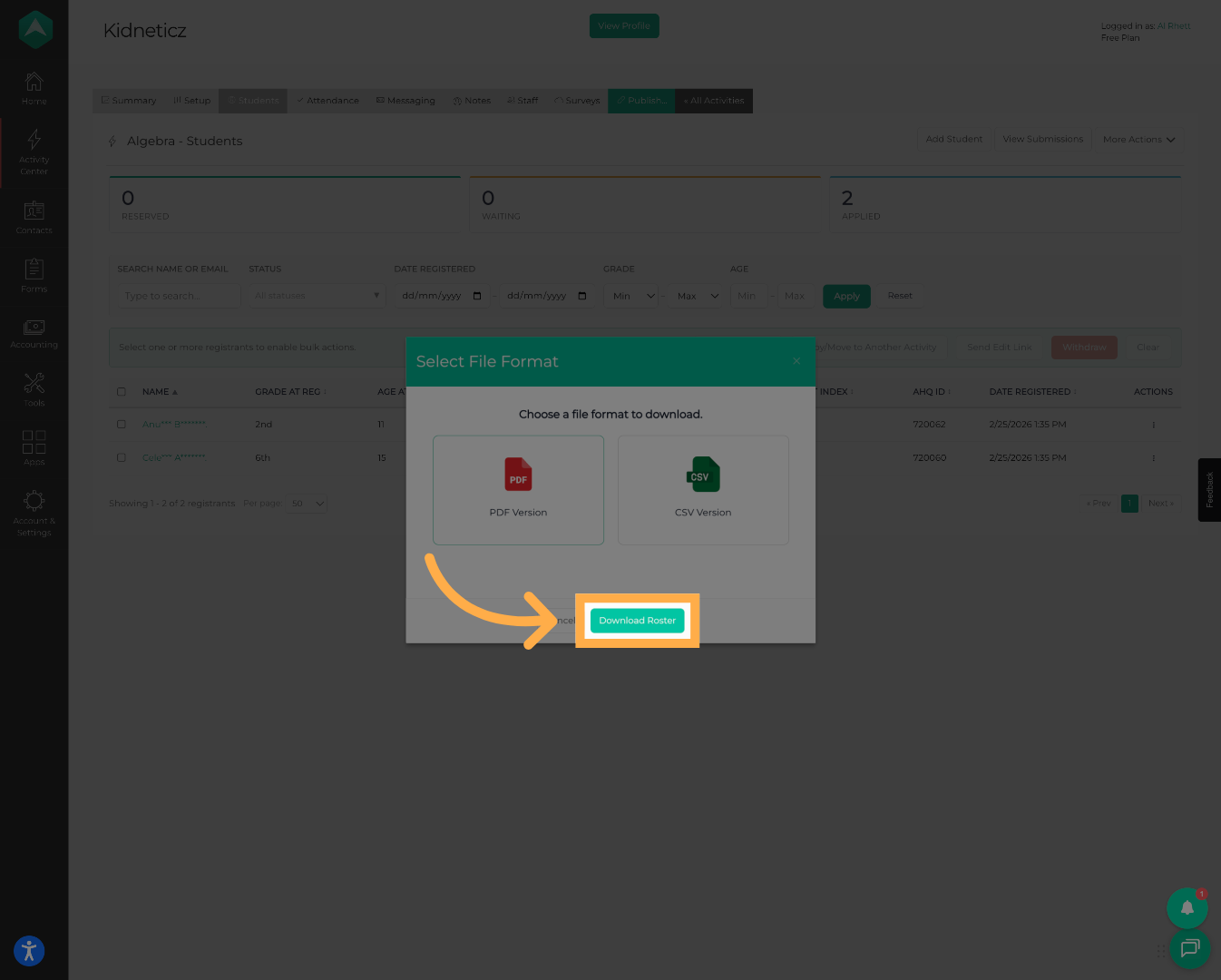
Click “Download Roster to generate the selected file.
9. Save the Student Roster
Once the download is complete, open or save the file to your computer for future reference.
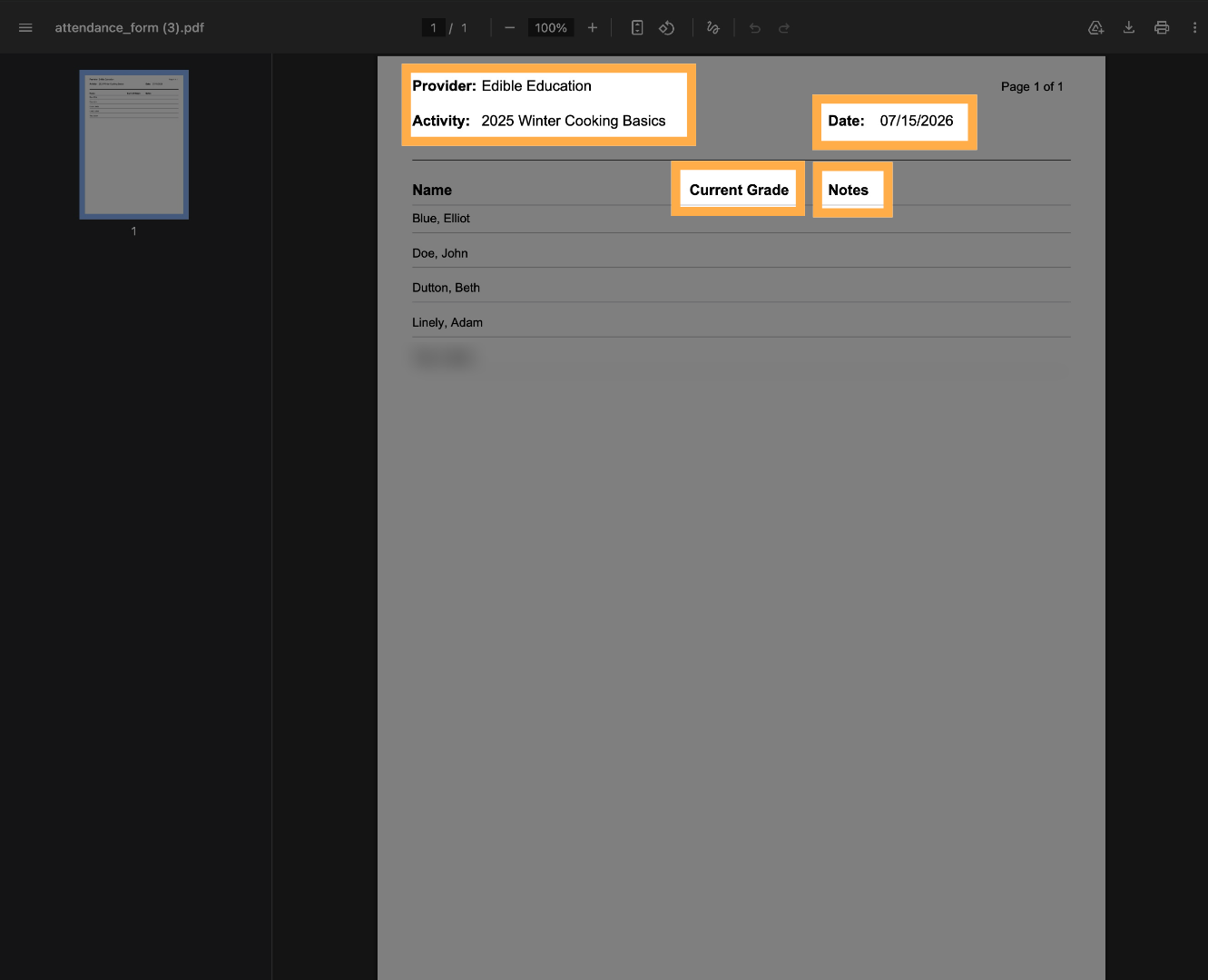
💡 Tip: Saving a copy of your roster makes it easy to share participant information with staff or use it for reporting and recordkeeping.
Frequently Asked Questions
Q: What formats can I download a student roster in?
A: Student rosters can be downloaded as either a PDF or CSV file.
Q: When should I use the PDF version?
A: Use the PDF version when you need a printable roster for attendance or reference.
Q: When should I use the CSV version?
A: Use the CSV version when you need to analyze, sort, filter, or report on roster data using spreadsheet software.
Q: Can I download a roster for any activity?
A: Yes. As long as you have permission to access the activity, you can download its student roster.
Q: Will downloading a roster make changes to my activity?
A: No. Downloading a roster is a read-only action and does not modify participant or activity information.
💡If you experience any issues or have further questions with “How to Download a Student Roster”, don't hesitate to get in touch with our support team at support@afterschoolhq.com.