![ASHQ Logo Vert Flat.png]](https://support.afterschoolhq.com/hs-fs/hubfs/ASHQ%20Logo%20Vert%20Flat.png?height=40&name=ASHQ%20Logo%20Vert%20Flat.png)
The Edit Attendance Dates feature allows you to update which activity dates are associated with a student’s attendance record.
You can select one or multiple students and add them to additional attendance dates or remove dates that should no longer be associated with their records.
❗Before You Begin
- Make sure you are working in the correct activity.
- Identify the students whose attendance dates need to be updated.
- Confirm whether you need to add or remove attendance dates.
- Review existing attendance carefully before removing dates.
⚠️ Warning: Removing an attendance date will also delete any check-in and check-out times recorded for that student on the removed date. This information cannot be restored after it is deleted.
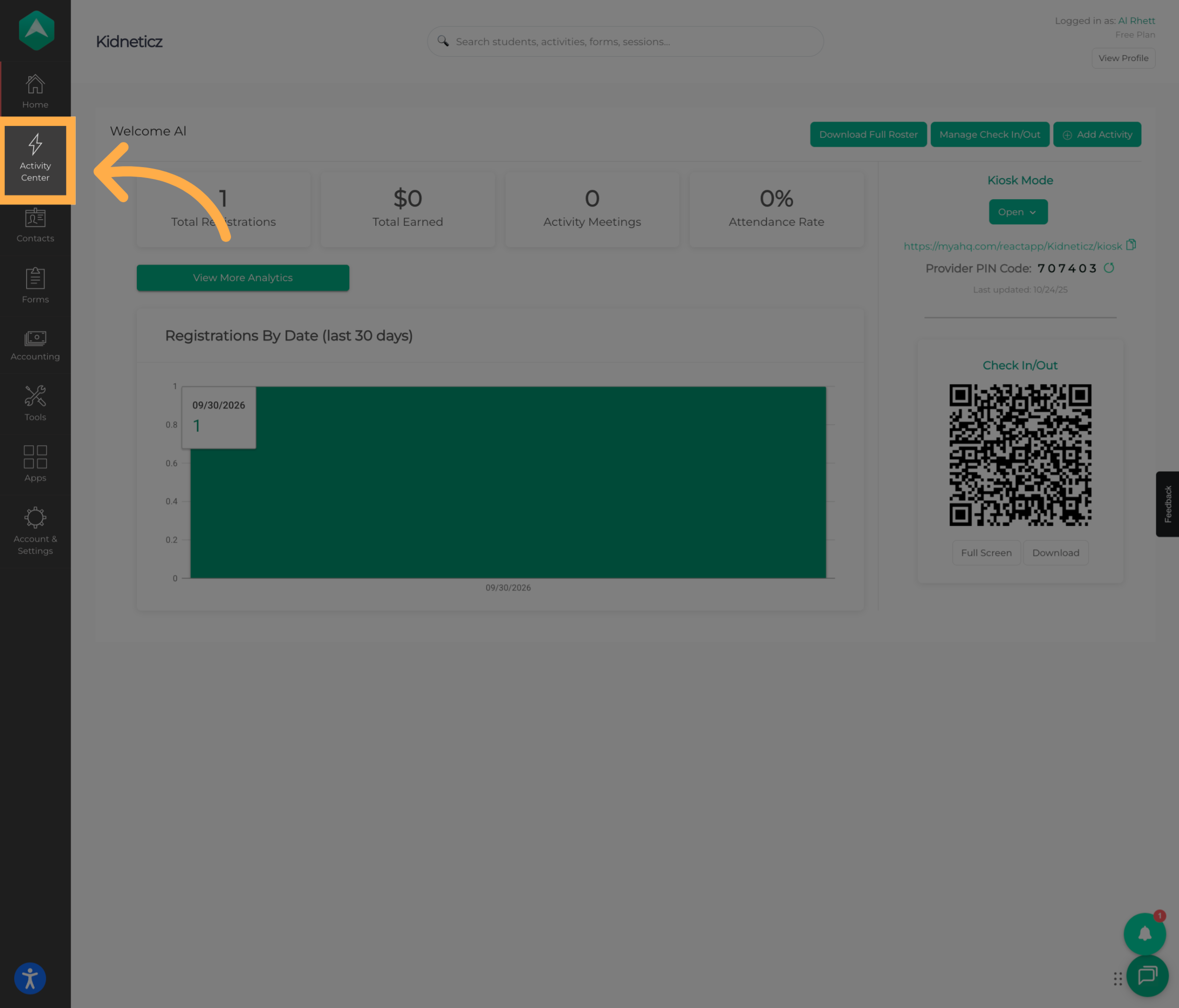
1. Open the Activity Center
Open the “Activity Center” to access your organization’s activities.
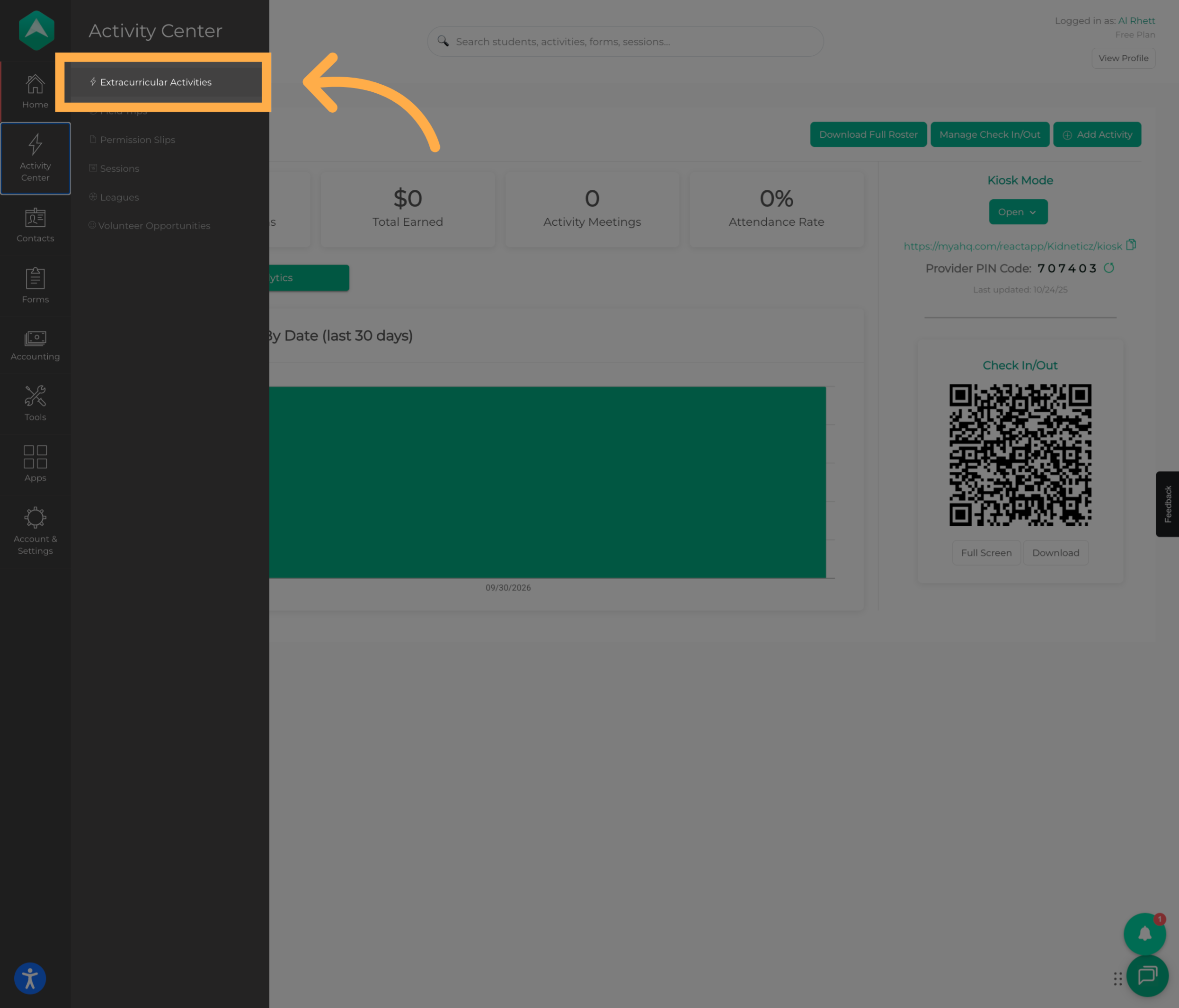
2. Open Extracurricular Activities
Select “Extracurricular Activities” to view and manage your organization’s activities.
3. Select an Activity
Choose the activity containing the students whose attendance dates you want to update.
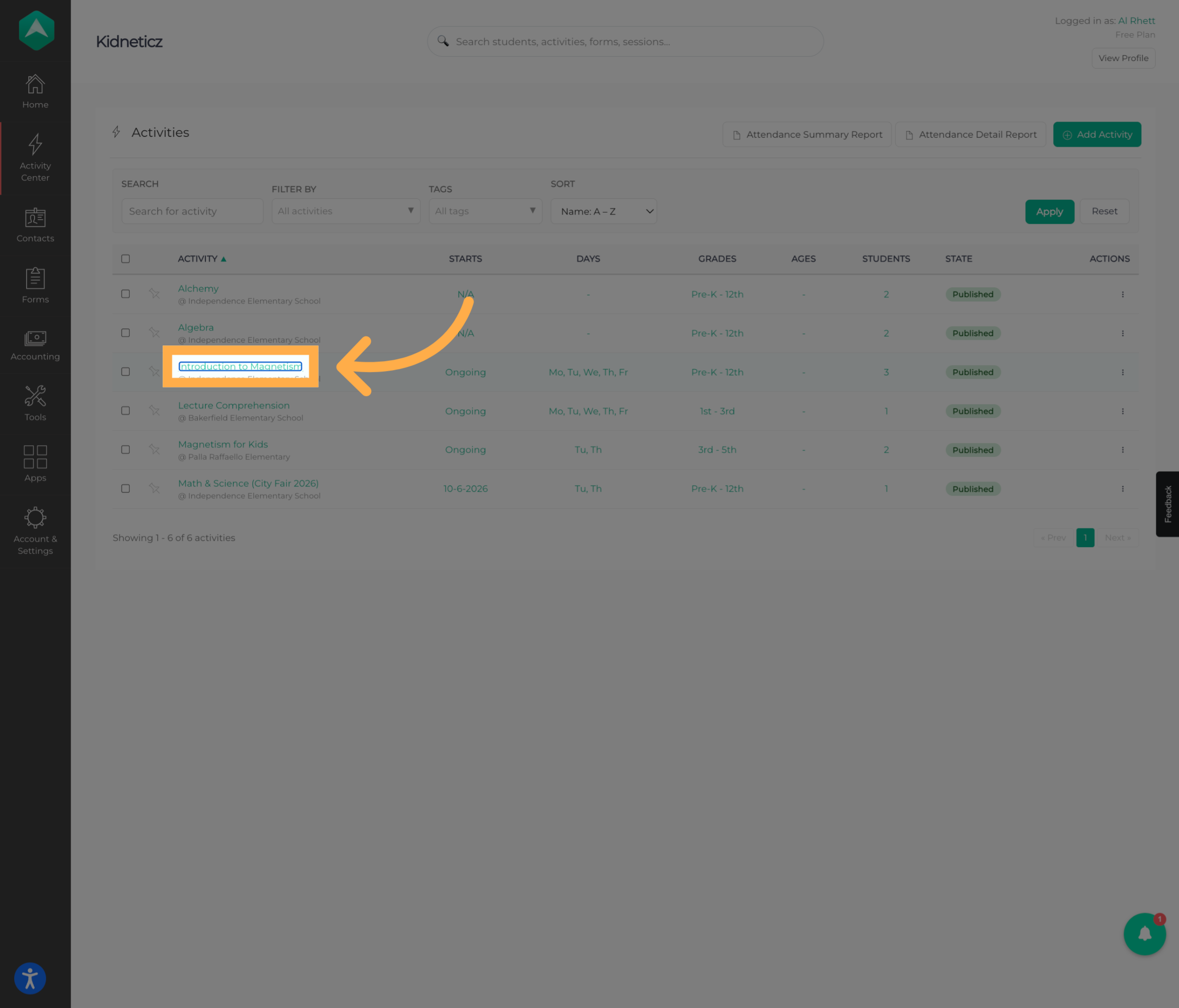
💡 Tip: Confirm that you have selected the correct activity before making attendance changes, especially if your organization has activities with similar names.
4. Select Students
Select the students whose attendance dates you want to edit.
You can select the applicable students before opening the attendance editing options.
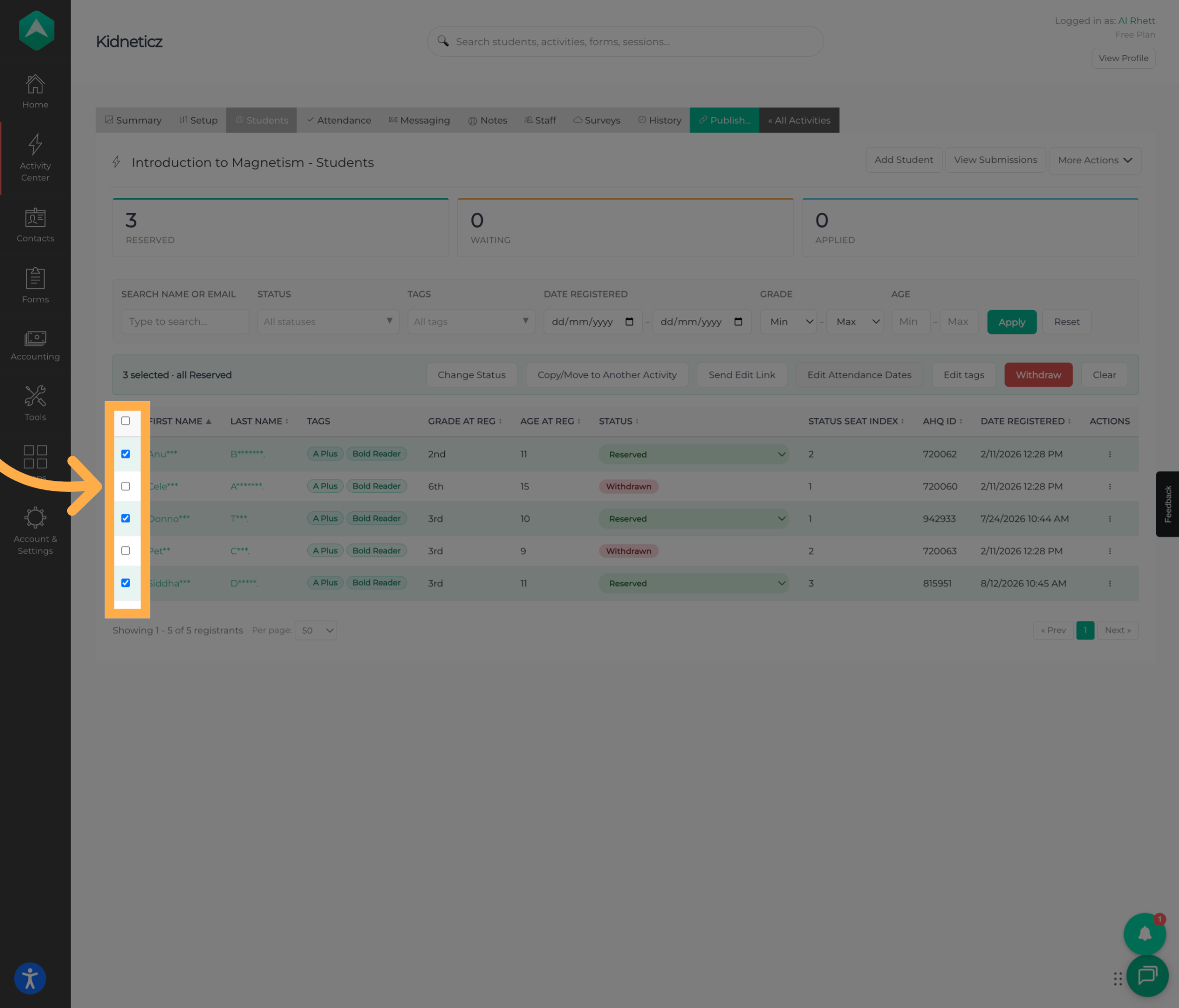
💡 Tip: You can use this workflow to update attendance dates for multiple students at the same time when they need the same changes.
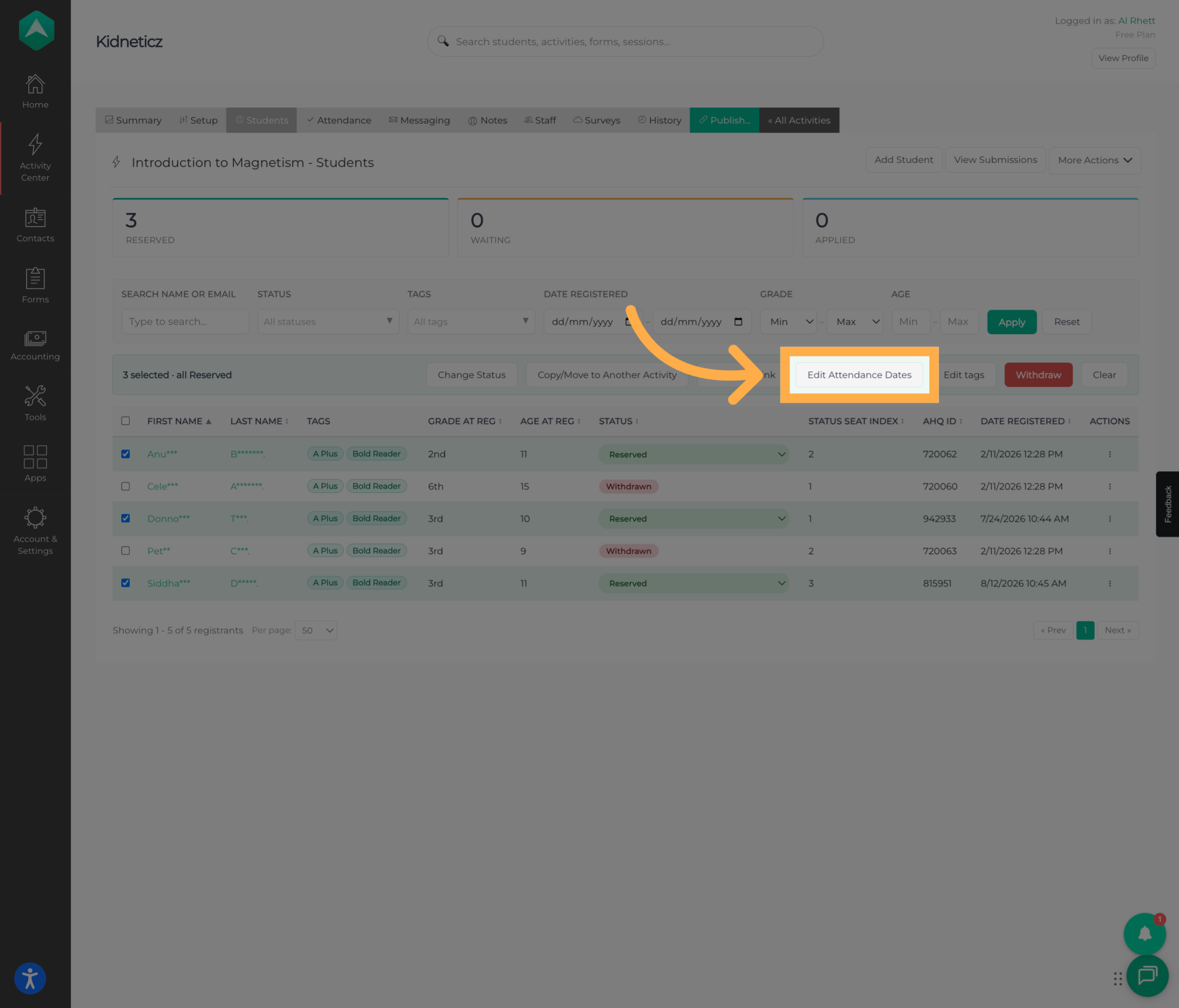
5. Select Edit Attendance Dates
Once you’ve selected the students, choose “Edit Attendance Dates” to begin making changes to their attendance records.
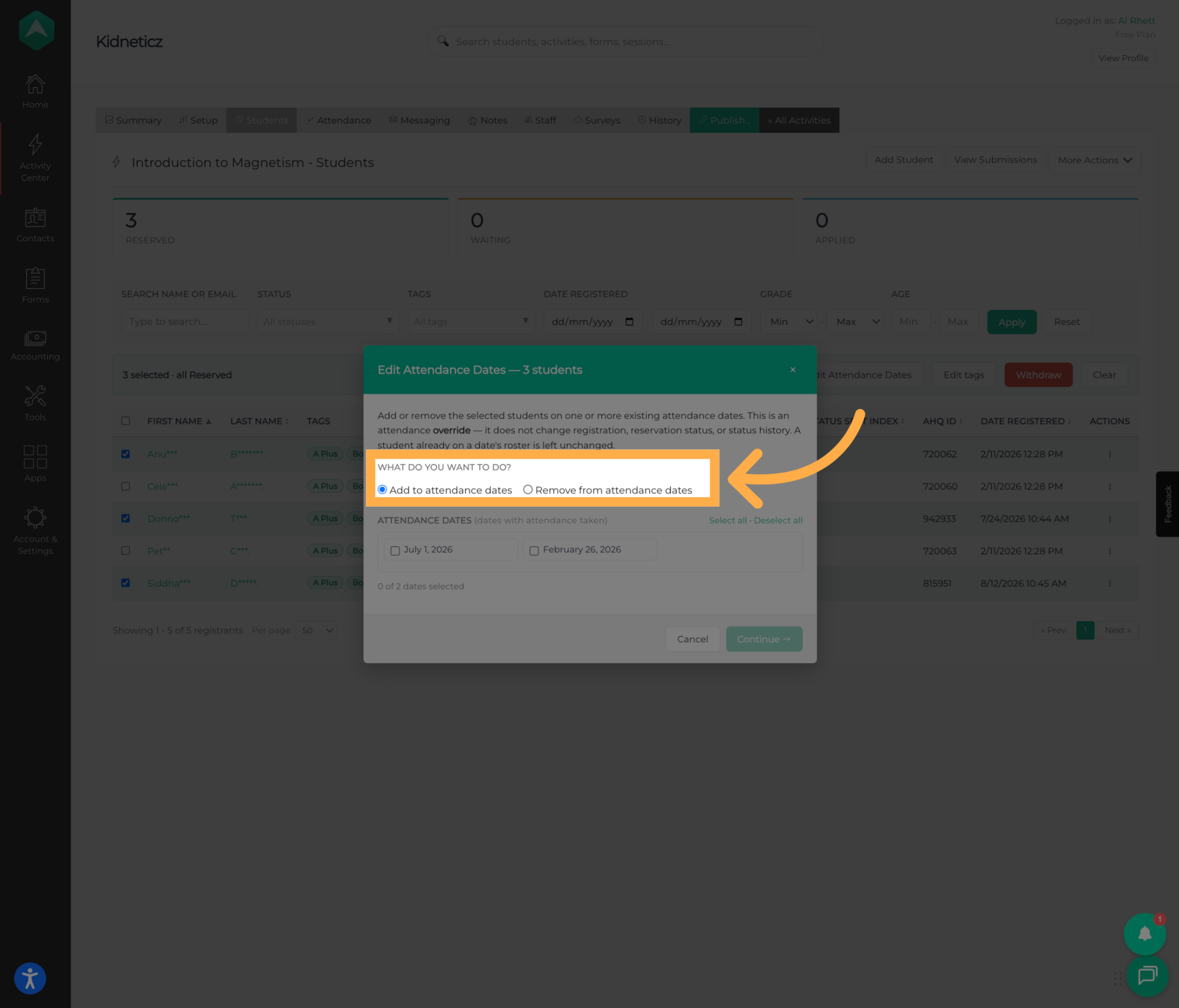
6. Choose to Add or Remove Dates
Choose whether you want to add or remove attendance dates for the selected students.
The next steps will depend on the type of change you want to make.
7. Confirm Attendance Removal (Optional)
If you’re removing attendance dates, review the warning before continuing.
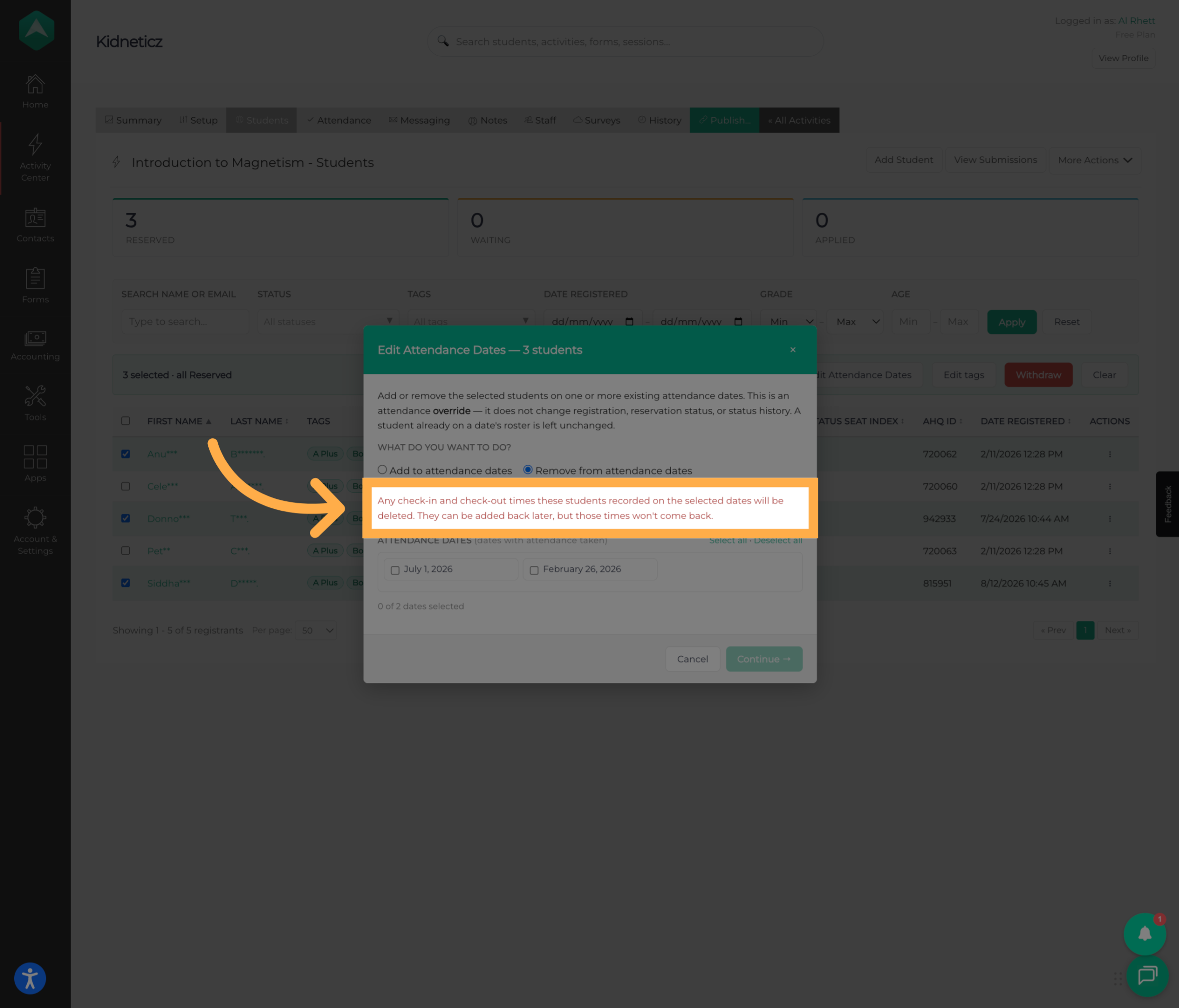
❗Important: Review the selected students and dates carefully before confirming a removal. If you need to preserve existing check-in or check-out information, do not remove the attendance date.
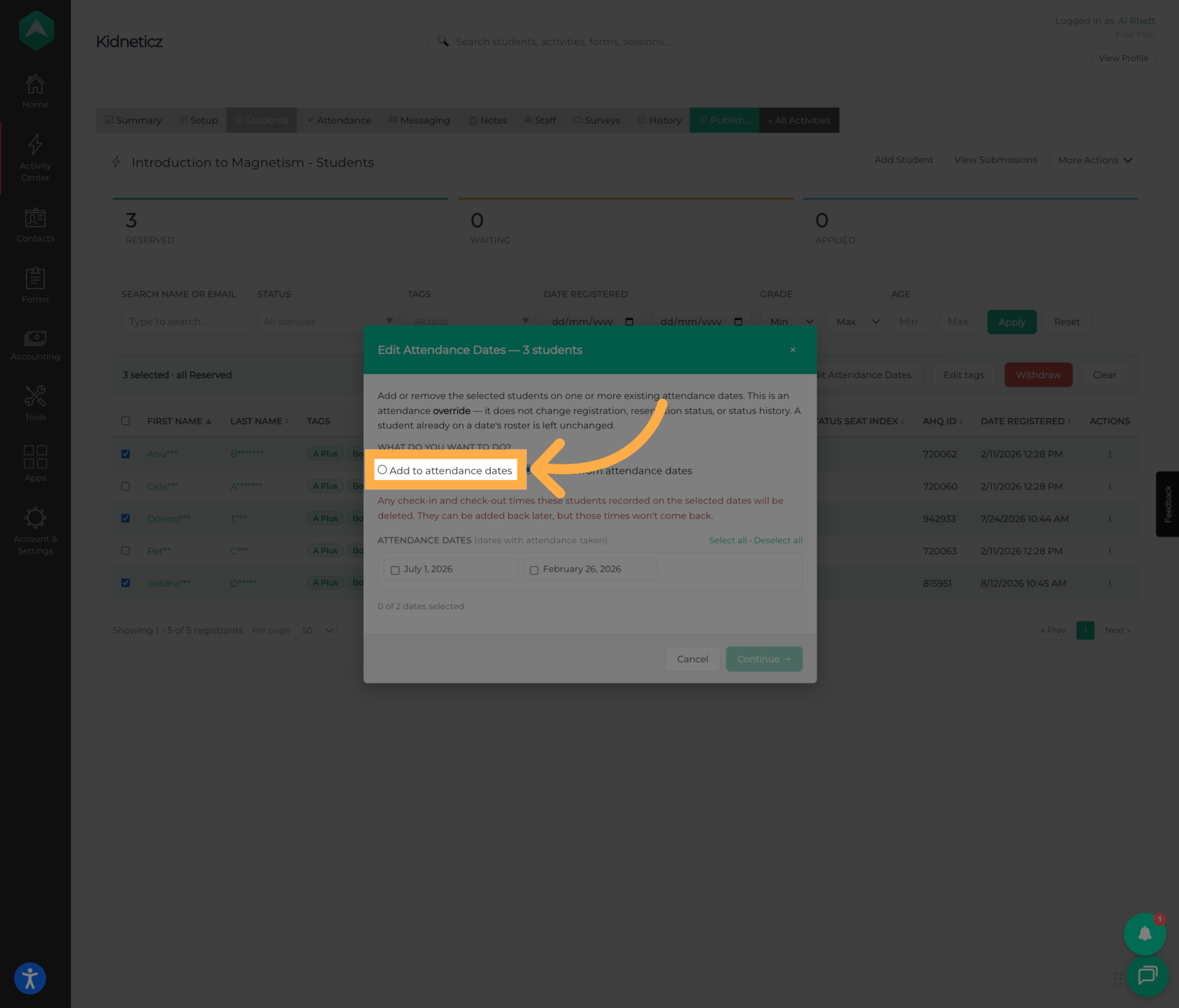
8. Choose to Add Attendance Dates
If you want to add attendance instead, select the option to “Add to attendance dates” to the selected students’ records.
9. Select an Attendance Date
Choose the attendance date you want to add from the available dates for the activity.
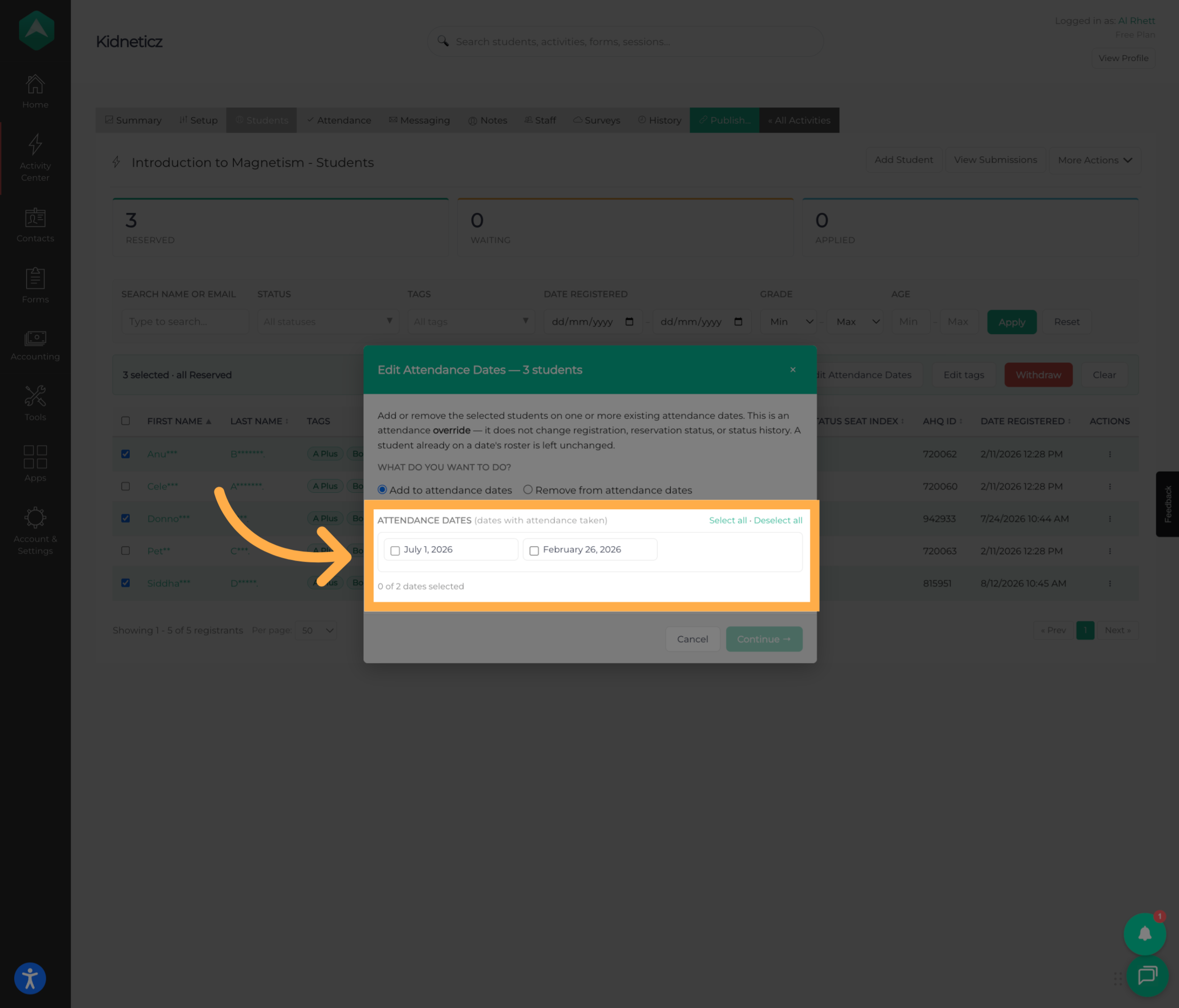
💡 Tip: Only the available attendance dates for the selected activity can be chosen from this screen.
10. Continue with the Update
After selecting the attendance date, continue to the next screen to review the changes before they are applied.
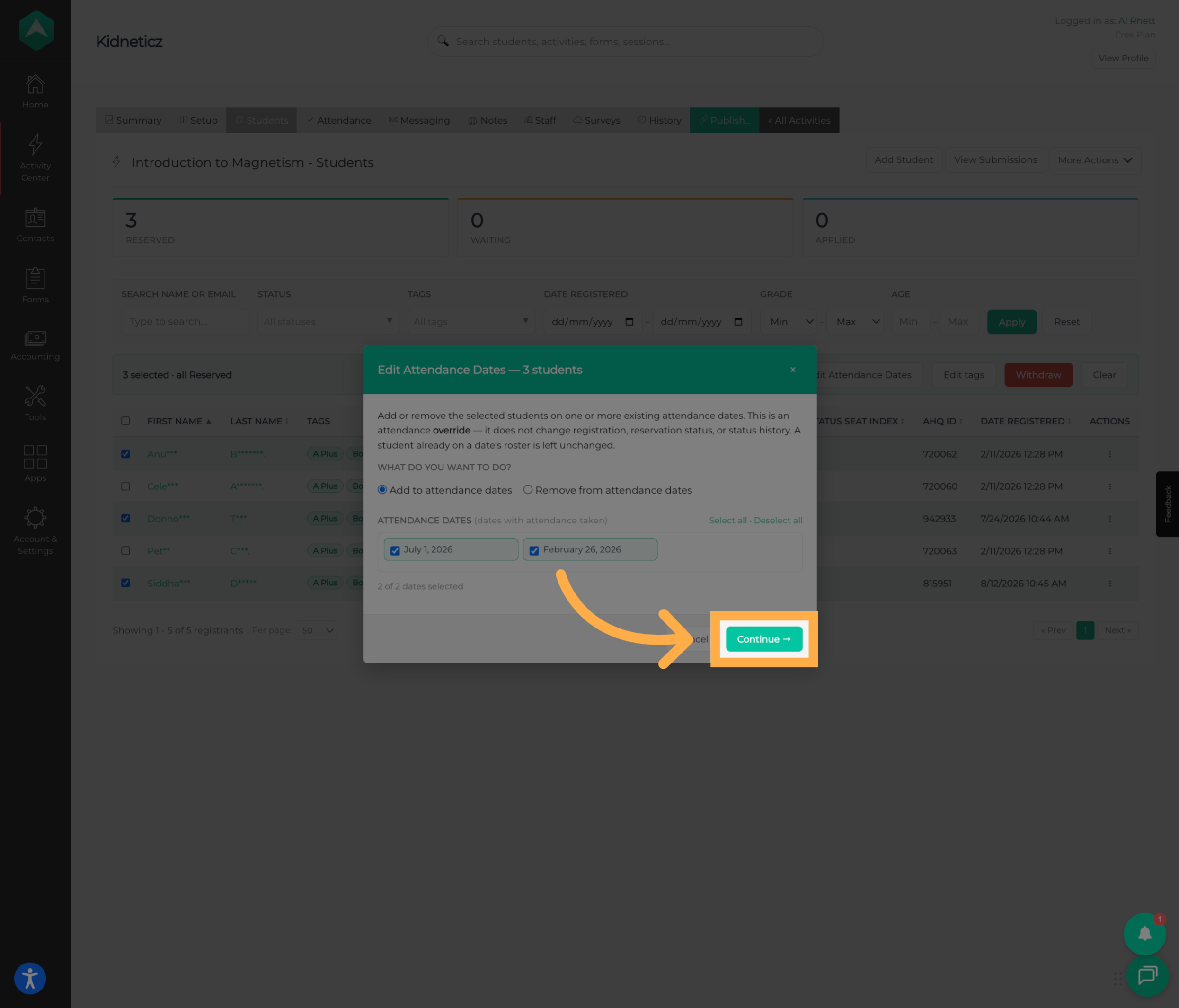
11. Review the Attendance Changes
Review the selected students and attendance dates to make sure the information is correct.
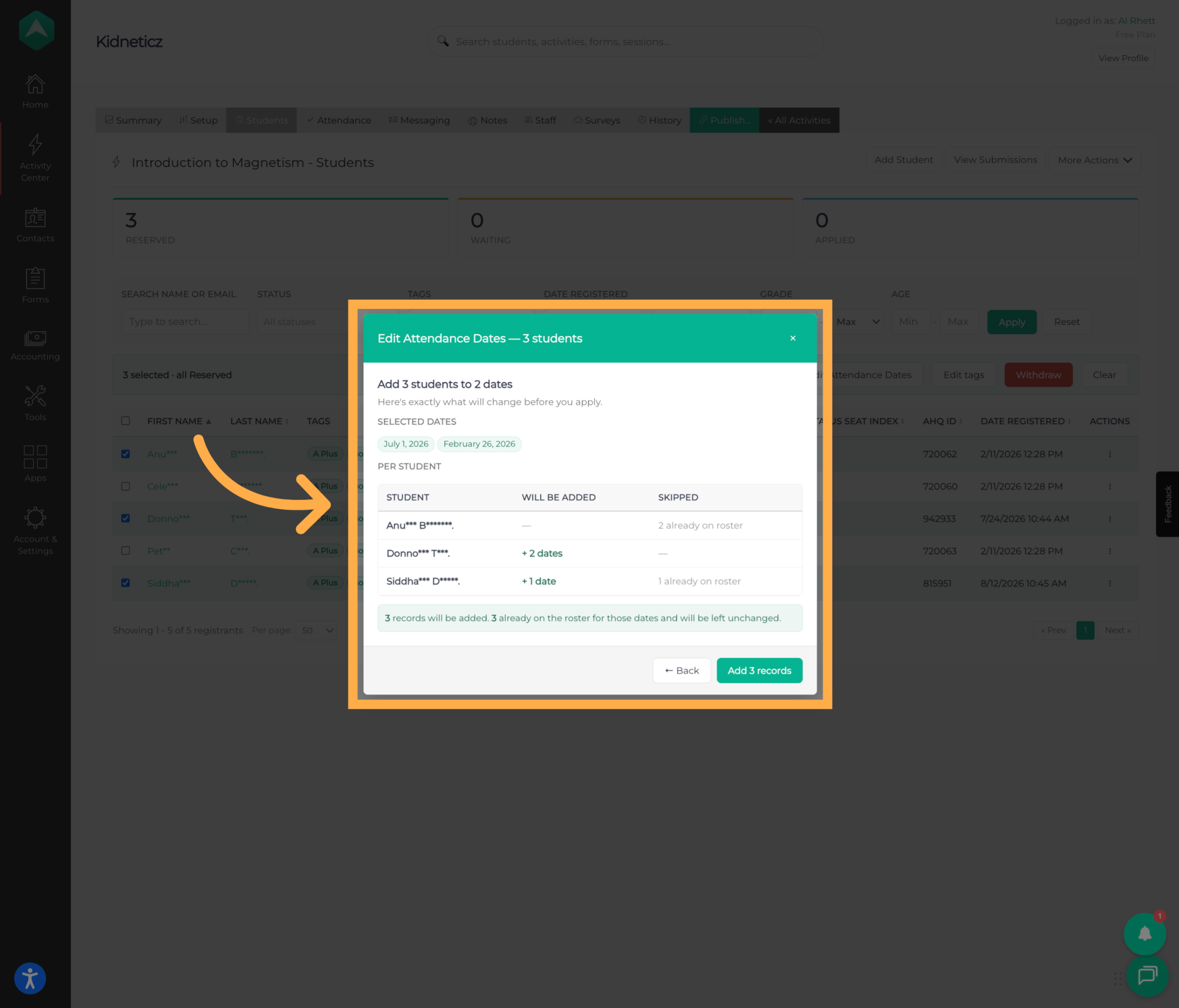
💡 Tip: When updating multiple students at once, review the student list carefully to make sure everyone selected should receive the same attendance date changes.
12. Add the Attendance Records
Confirm the update to add the selected students to the specified attendance dates.
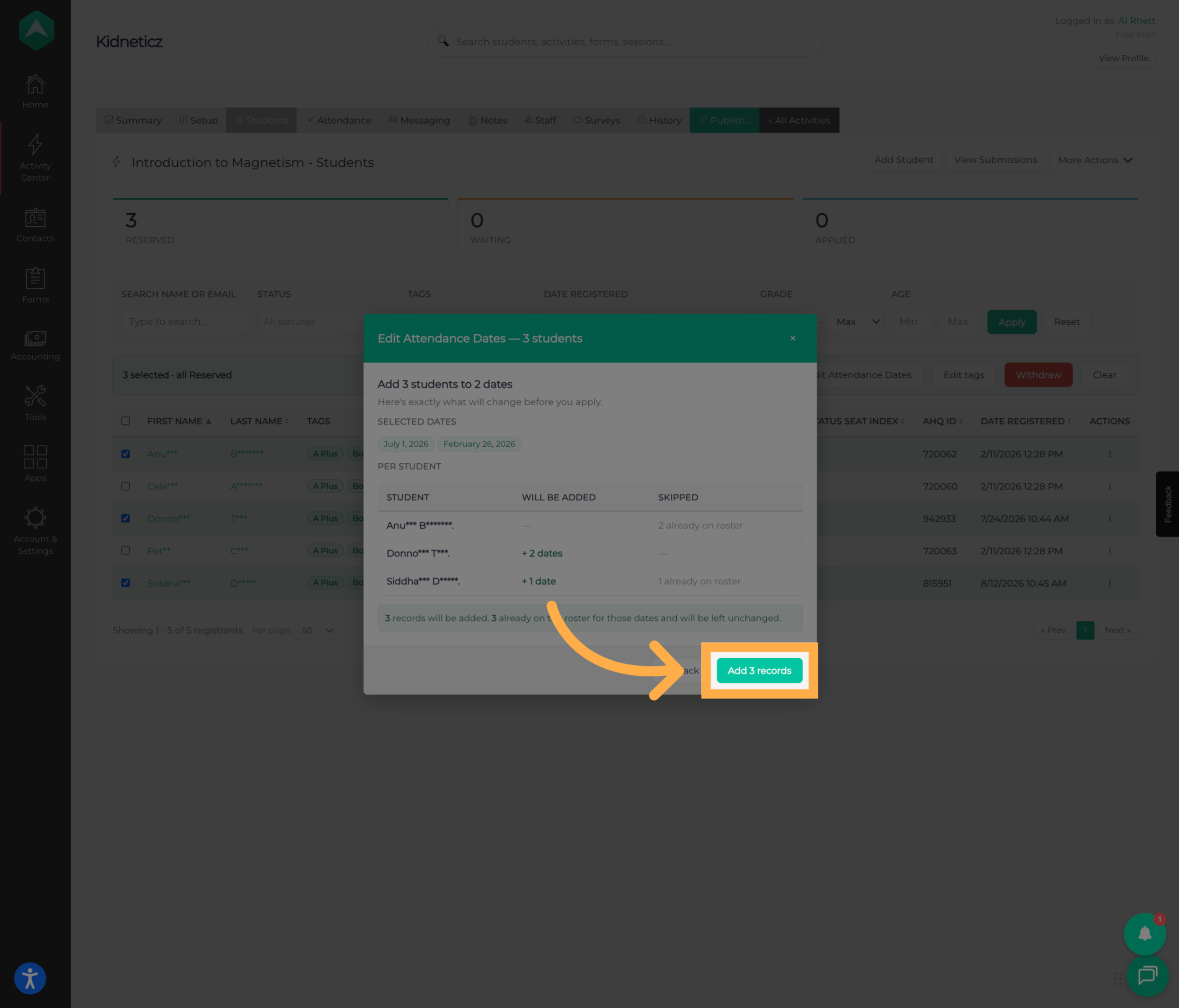
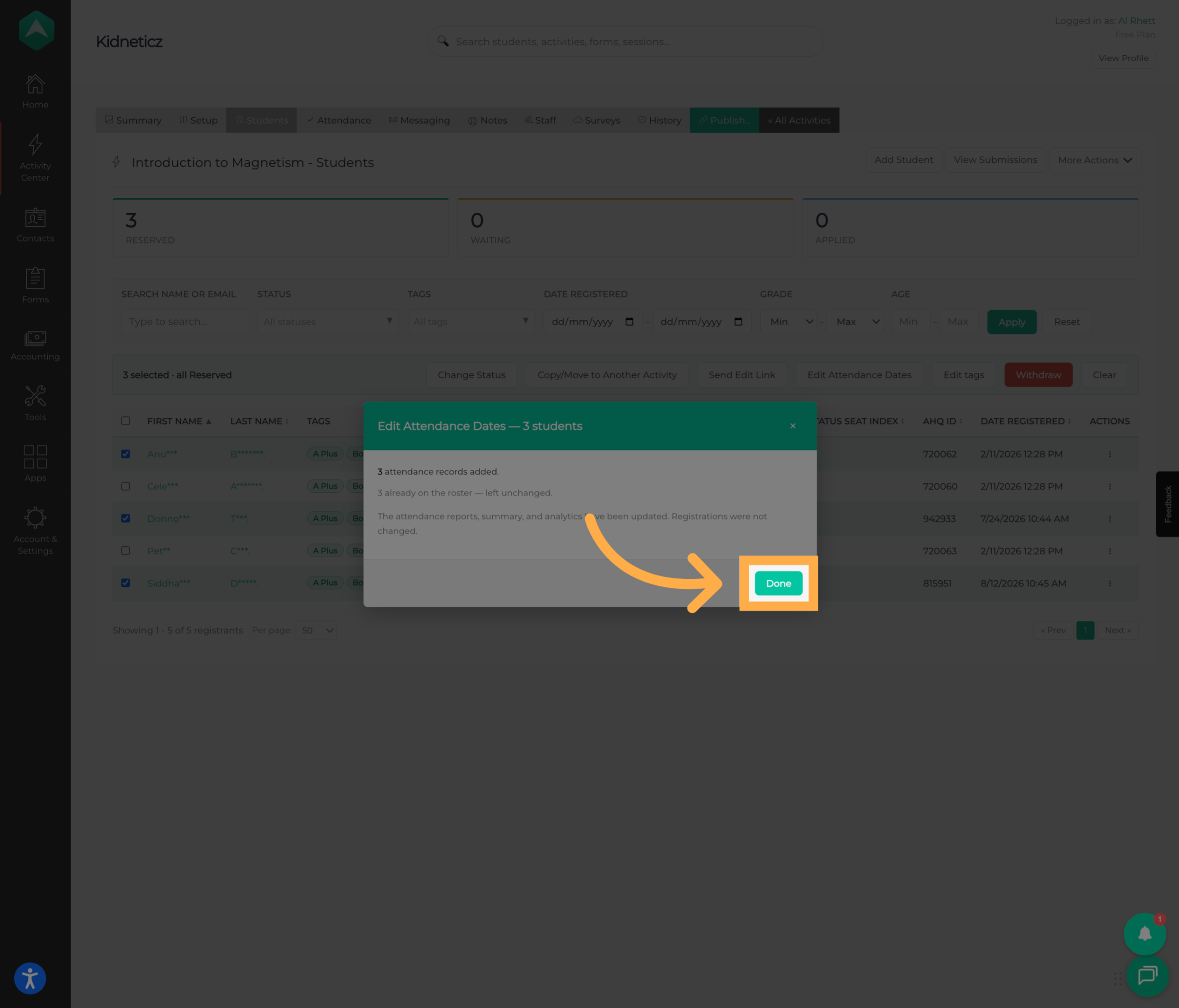
13. Complete the Attendance Update
Once the update is complete, return to the activity and continue managing attendance as needed.
Frequently Asked Questions
Q: What does Edit Attendance Dates do?
A: “Edit Attendance Dates” allows you to add or remove attendance dates associated with selected students in an activity.
Q: Can I update attendance dates for multiple students at once?
A: Yes. You can select multiple students and use “Edit Attendance Dates” to apply the same attendance date changes to their records.
Q: Can I add a student to a previous attendance date?
A: Yes, as long as the date is available for the activity. Select the student, choose “Edit Attendance Dates”, and add the applicable attendance date.
Q: Can I remove an attendance date from a student’s record?
A: Yes. Select the student and use “Edit Attendance Dates” to remove the applicable date.
Q: What happens to check-in and check-out times when I remove an attendance date?
A: Any check-in and check-out times recorded for the student on that date will be deleted when the attendance date is removed.
Q: Can deleted check-in and check-out times be restored?
A: No. Check-in and check-out information deleted as part of removing an attendance date cannot be restored.
Q: Can I choose which attendance date to add?
A: Yes. When adding attendance, you can select from the available attendance dates for the activity.
Q: Can I review my changes before they are applied?
A: Yes. After selecting the attendance dates, you’ll have an opportunity to review the selected students and dates before confirming the update.
Q: What should I do if I selected the wrong students?
A: Review the selected students before confirming the attendance update. If the selections are incorrect, go back and adjust them before applying the changes.
💡If you experience any issues or have further questions with “How to Edit Attendance Dates for Students”, don't hesitate to get in touch with our support team at support@afterschoolhq.com.