![ASHQ Logo Vert Flat.png]](https://support.afterschoolhq.com/hs-fs/hubfs/ASHQ%20Logo%20Vert%20Flat.png?height=40&name=ASHQ%20Logo%20Vert%20Flat.png)
Managing summer or transition programs? Watch the video below to learn how to enable grade rollover and allow students to register based on their next grade level.
This feature allows students to register for activities based on the grade they are moving into, rather than their current grade — helping avoid registration issues during summer or school transitions.
❗Before You Begin
Use this feature when:
- Students are transitioning to the next grade (e.g., summer programs).
- Your programs are based on next school year grade levels.
- You want to reduce manual overrides and support requests.
1. Go to Settings
Navigate to “Account & Settings → Settings”.
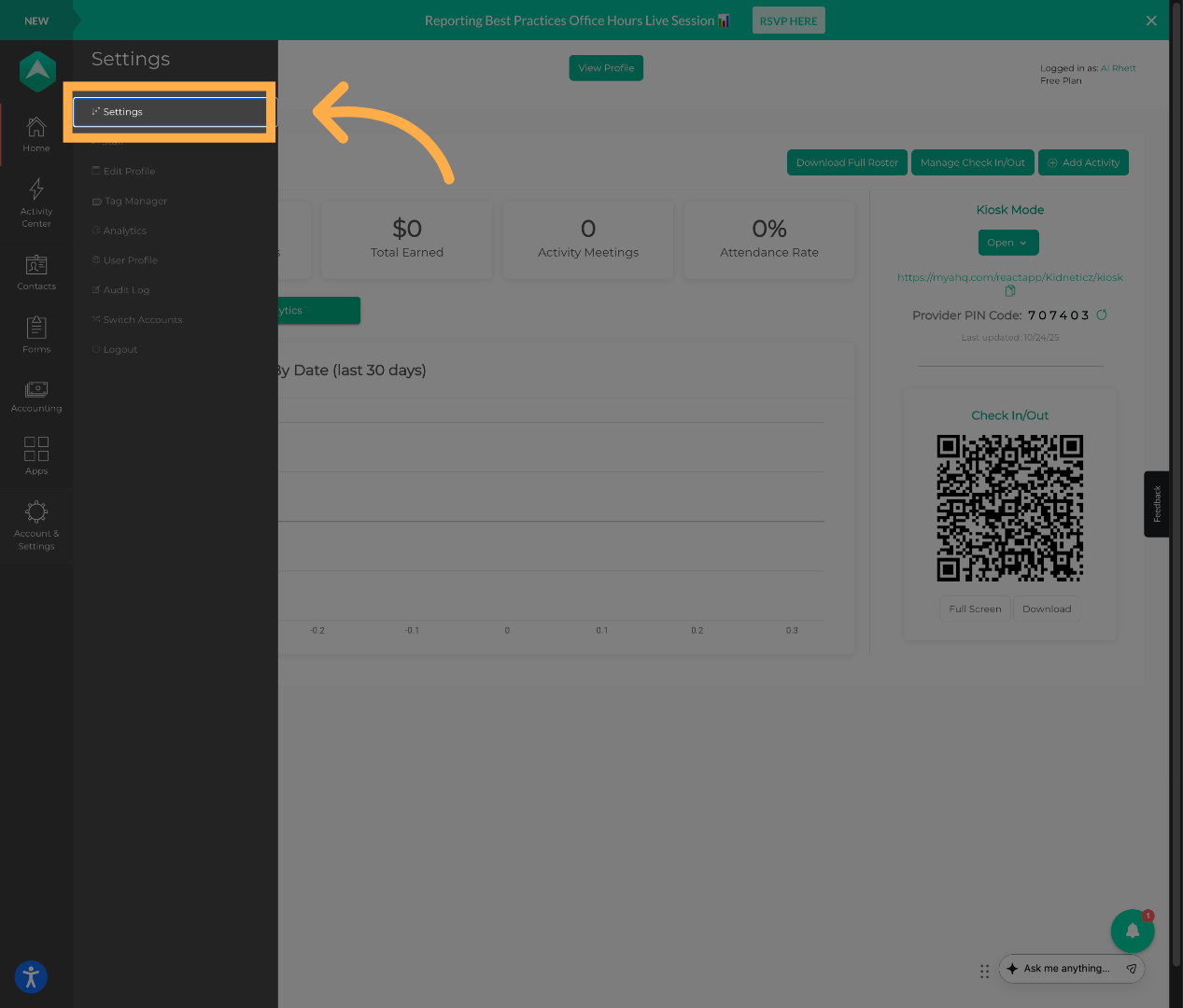
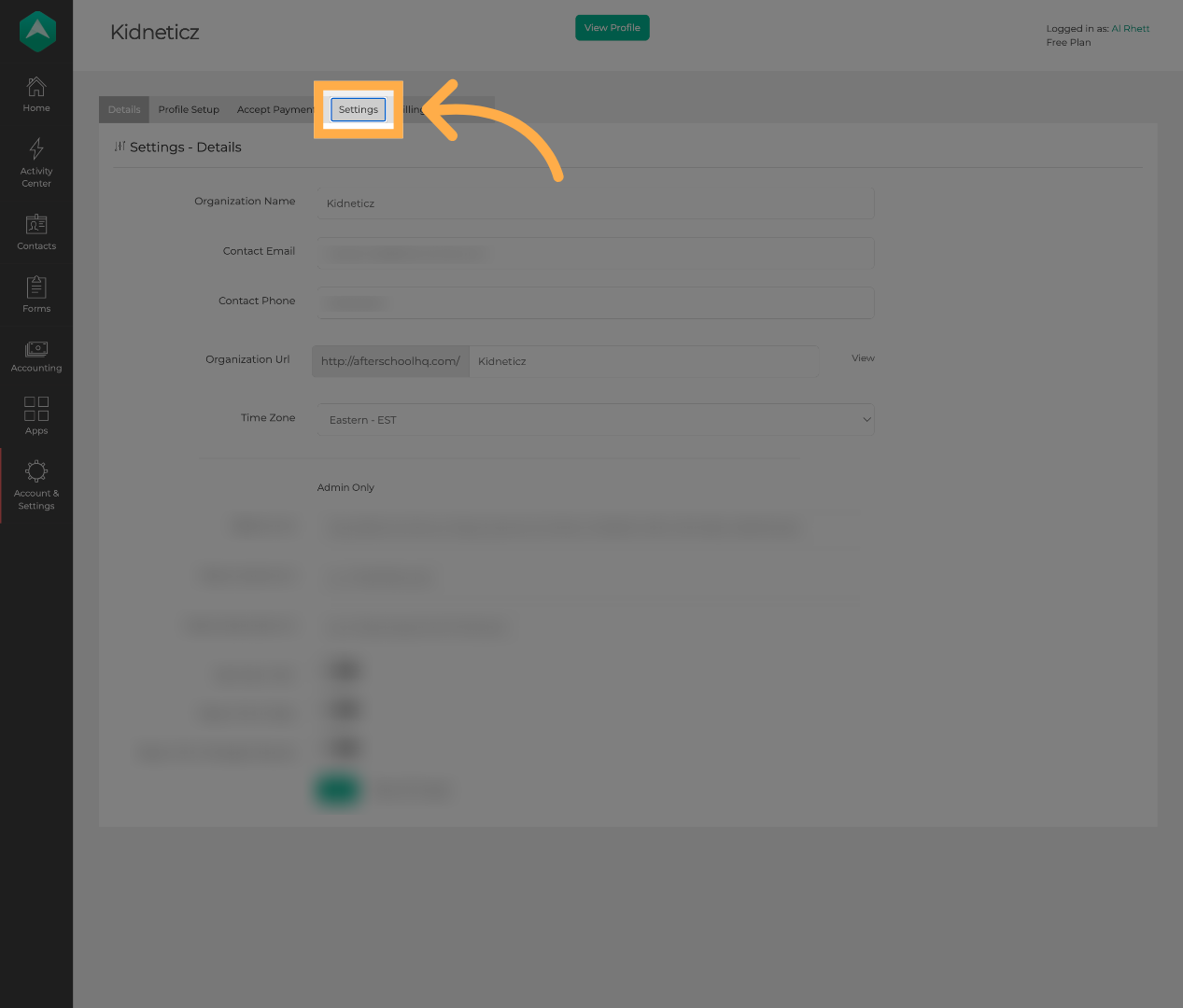
2. Open Settings
Click “Settings” again to access detailed settings options.
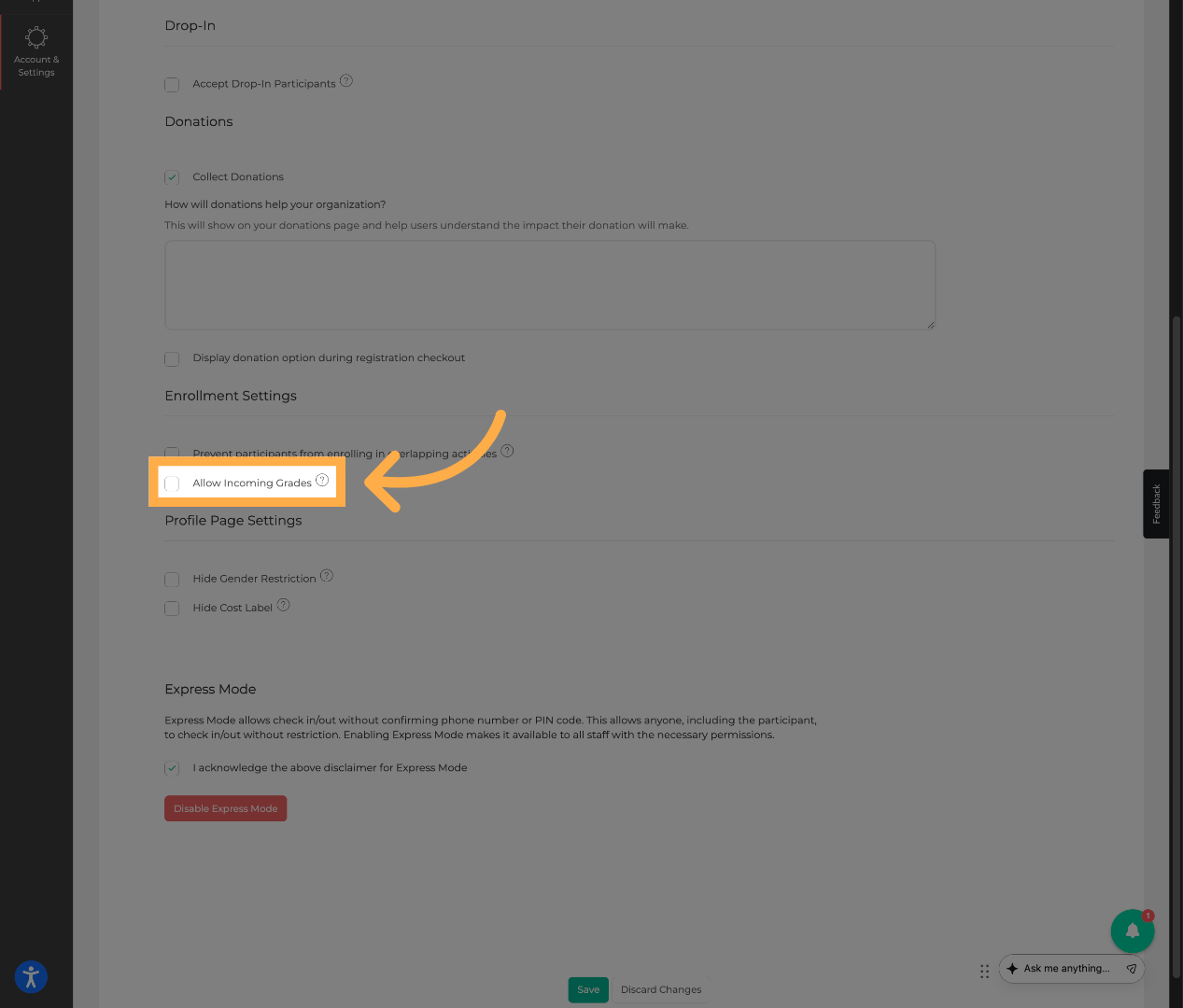
3. Enable Incoming Grades
Turn on “Allow Incoming Grades”.
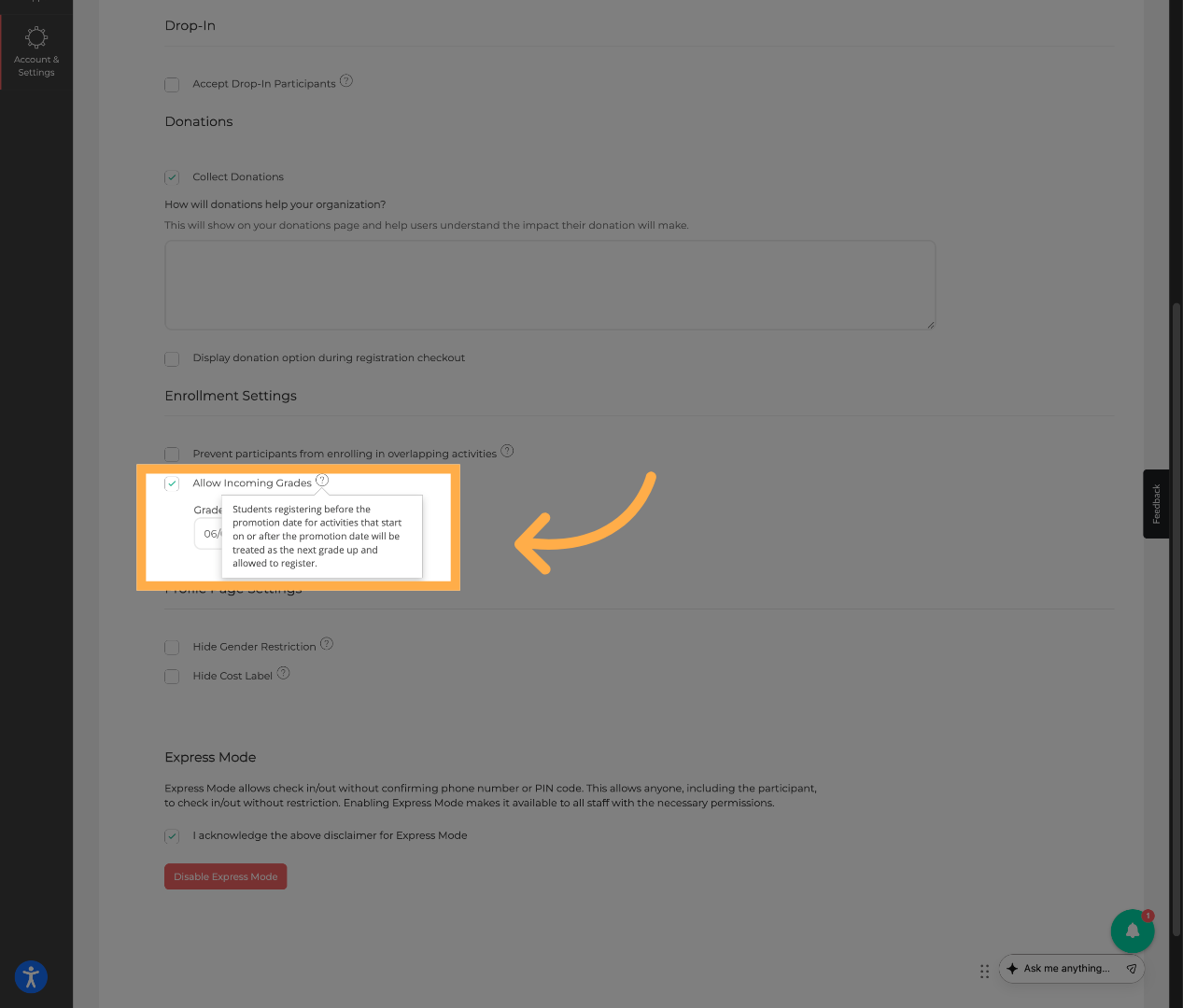
4. Set Promotion Date
Select your Grade Promotion Date.
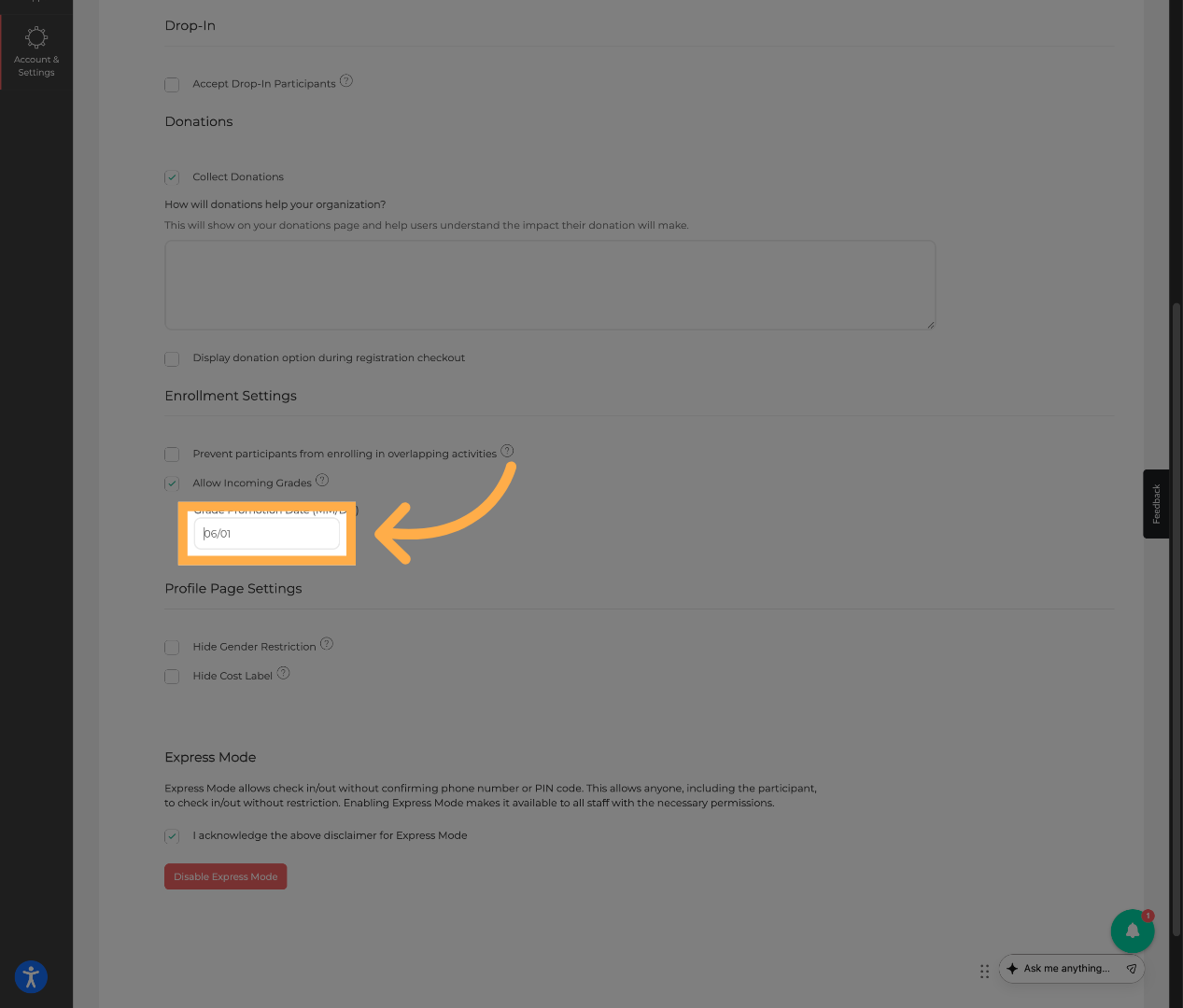
This is the date when students are considered to have moved to their next grade.
💡Tip: Set your promotion date before opening registration.
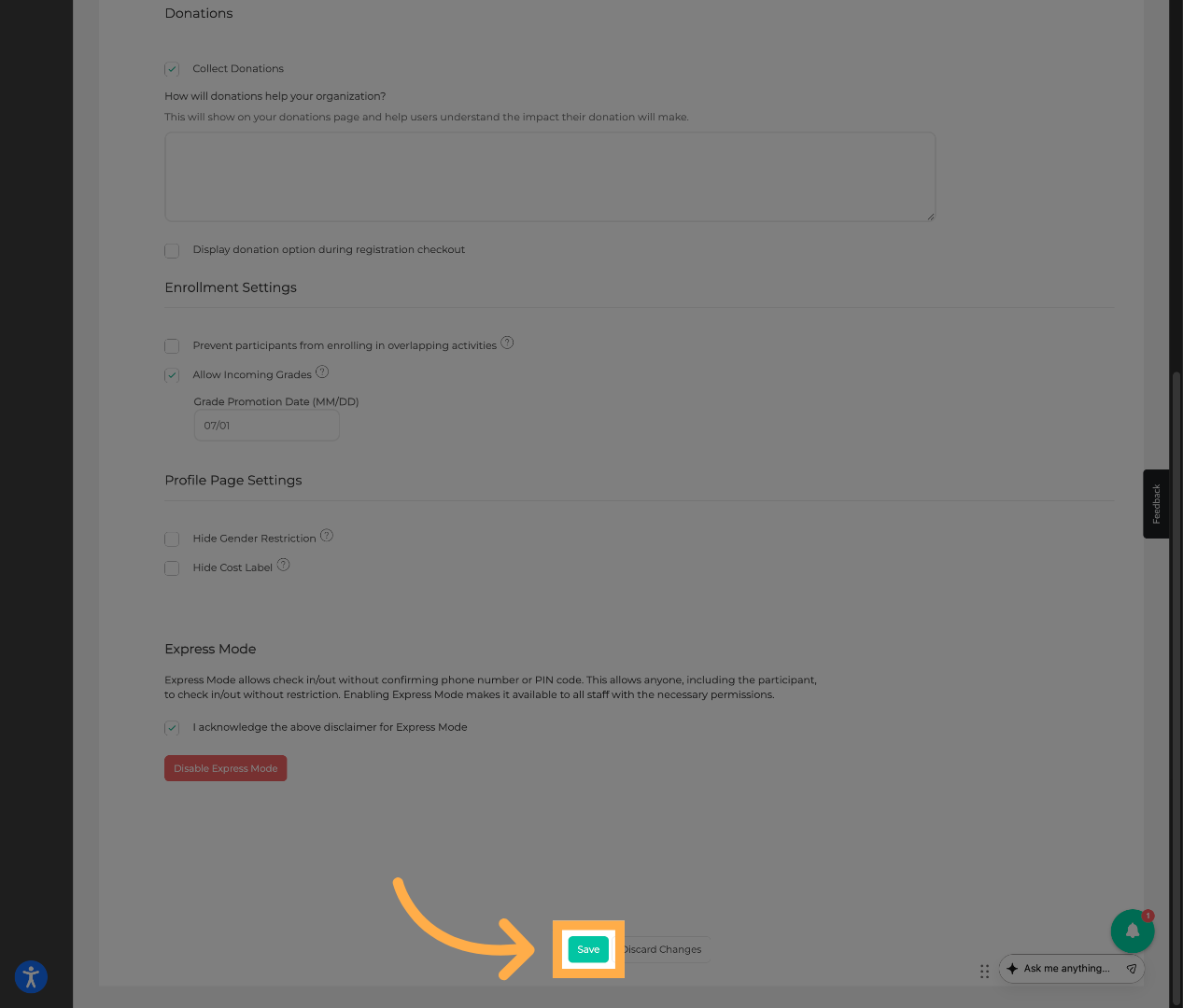
5. Save Changes
Click “Save” to apply your settings.
💡Tip: Communicate clearly to families that incoming grades are being used.
✏️ How It Works
- Before the promotion date → students are considered their current grade
- On/after the promotion date → students are considered their incoming grade
This only affects registration eligibility, not stored student data.
👁️ What Families Will See
- Activities may display “Incoming Grade” indicators
- Students can register based on their next grade level
- Clearer experience during summer enrollment periods
Frequently Asked Questions
Q: Does this change a student’s grade permanently?
A: No — it only affects registration eligibility.
Q: Can I change the promotion date later?
A: Yes, but changes after registrations begin may cause confusion.
Q: What happens if I don’t enable this feature?
A: Students will only be able to register using their current grade, which may block valid registrations.
Q: What about students repeating a grade?
A: They may need to be handled manually depending on your setup.
💡If you experience any issues or have further questions with “How to Enable Incoming Grades”, don't hesitate to get in touch with our support team at support@afterschoolhq.com.