![ASHQ Logo Vert Flat.png]](https://support.afterschoolhq.com/hs-fs/hubfs/ASHQ%20Logo%20Vert%20Flat.png?height=40&name=ASHQ%20Logo%20Vert%20Flat.png)
Want to bring more attention to a particular activity? AfterSchool HQ allows you to feature activities on your organization's profile page, making them more visible to families browsing your available programs.
Featured activities appear at the top of your activity list and are identified with a star, helping them stand out from other programs.
❗Before You Begin
Before featuring an activity, make sure you have access to your organization's AfterSchool HQ account and can view the Extracurricular Activities section.
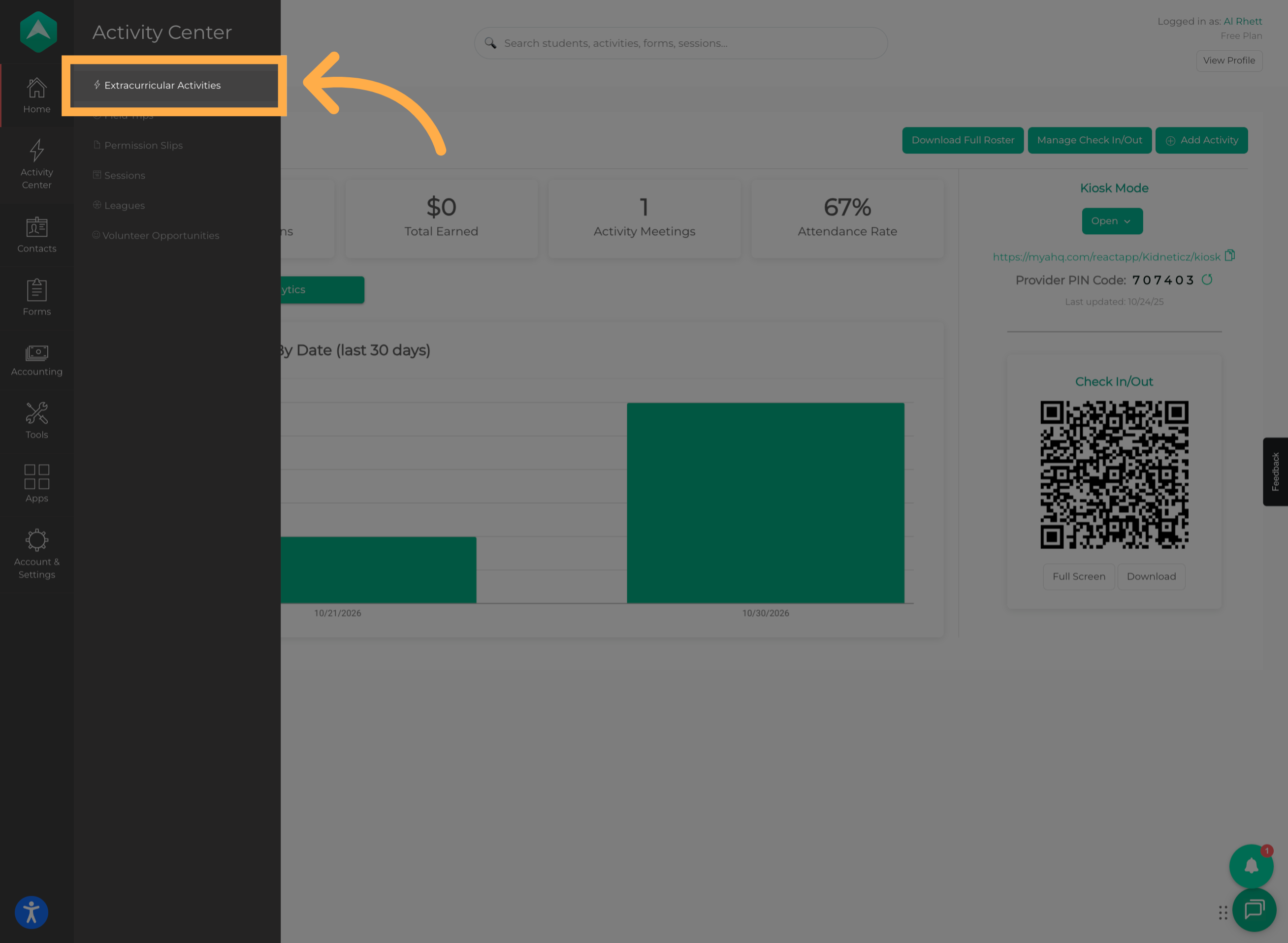
1. Access Extracurricular Activities
From the main navigation menu, click “Extracurricular Activities” to view your organization's activities.
2. Select an Activity to Feature
Locate the activity you want to highlight and click the pin icon next to it to feature it on your organization's profile.
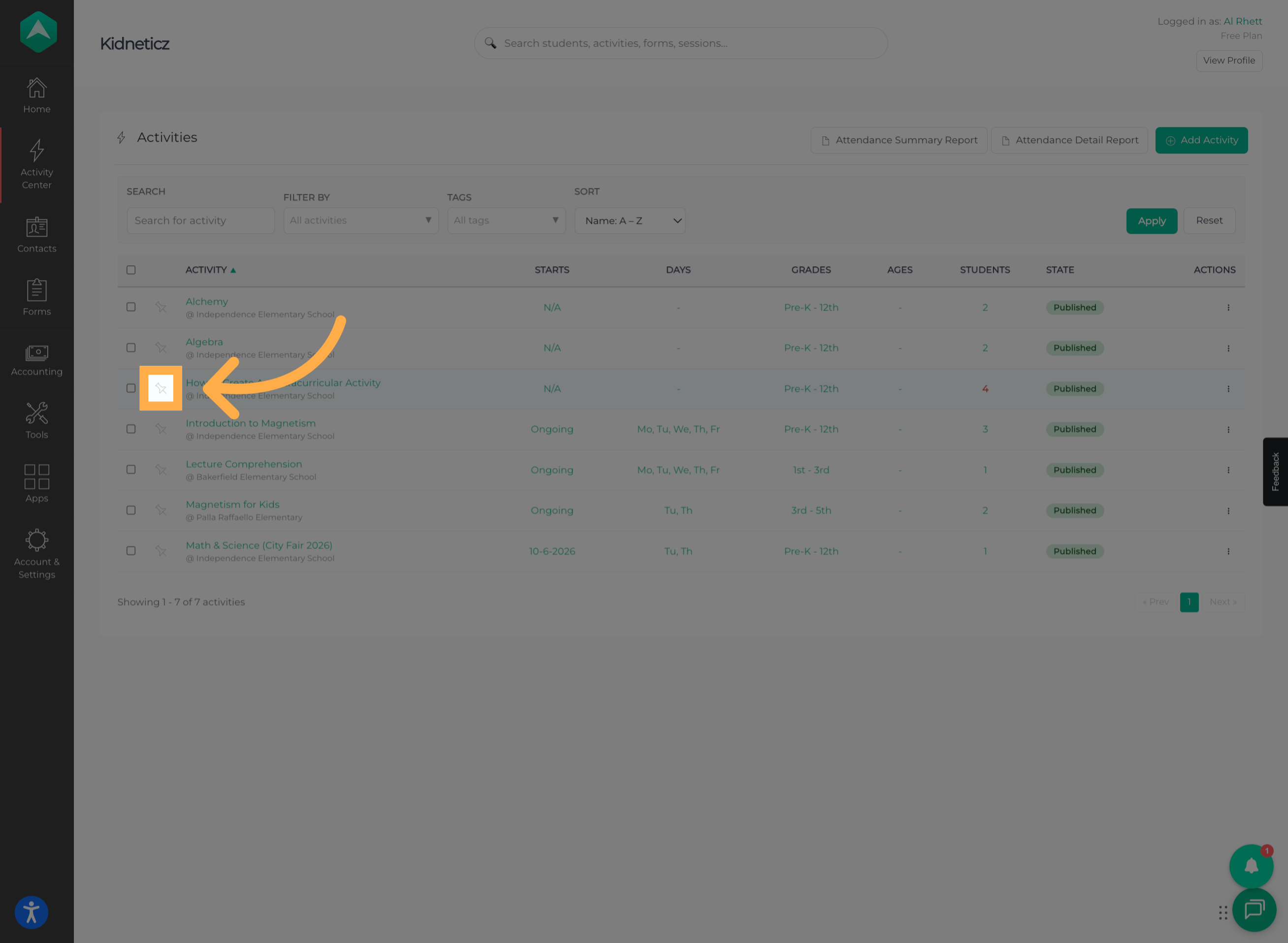
💡 Tip: Choose an activity you'd like to bring more attention to, such as a new program, an upcoming activity, or one you want families to discover more easily.
3. Confirm the Featured Status
Once selected, the pin icon will turn yellow, indicating that the activity has been successfully marked as featured.
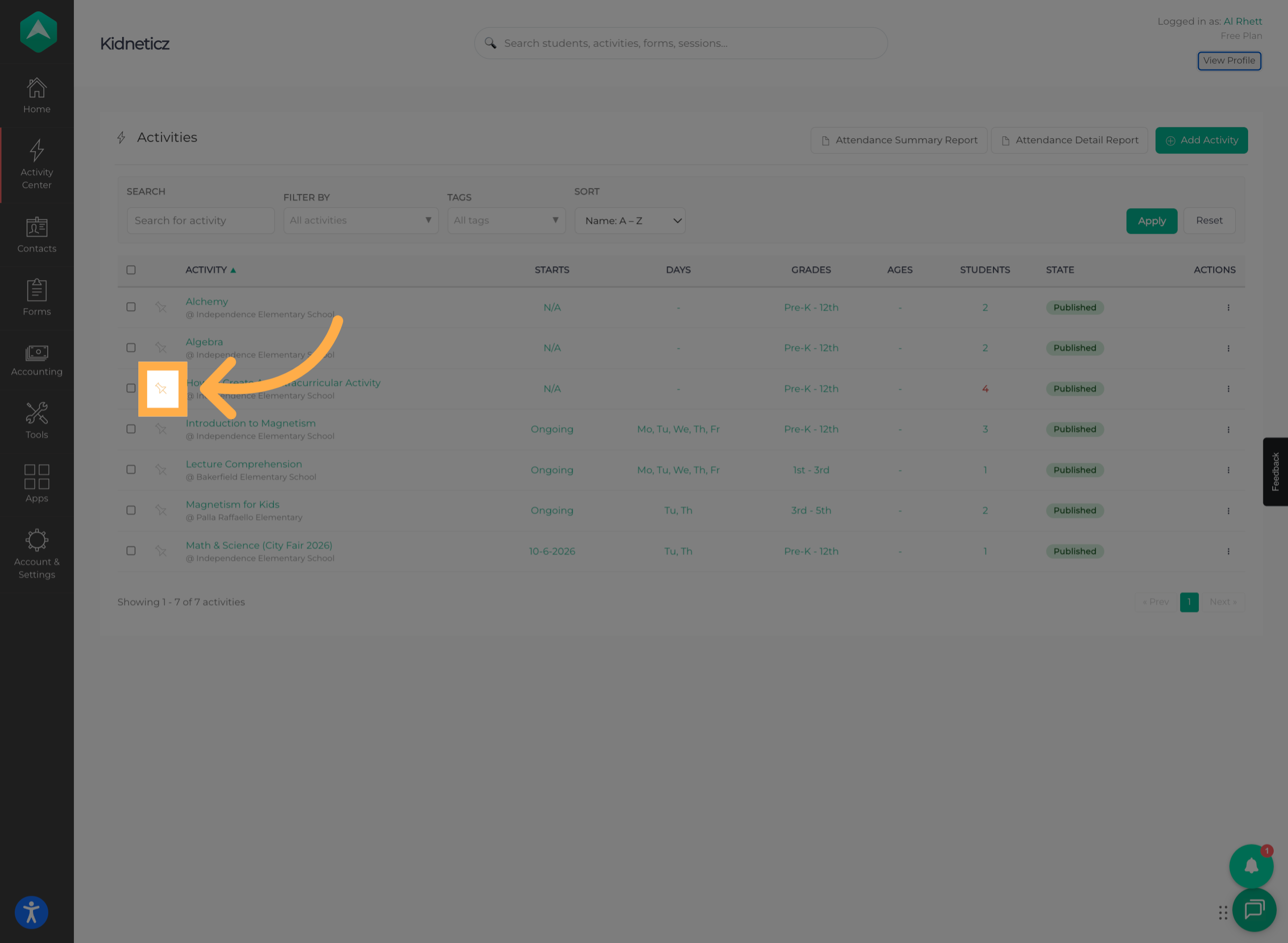
💡 Tip: Look for the yellow pin icon to confirm that you've selected the correct activity.
4. Open Your Organization Profile
To see how the changes appear on your profile, click “View Profile” to open your organization's public-facing page.
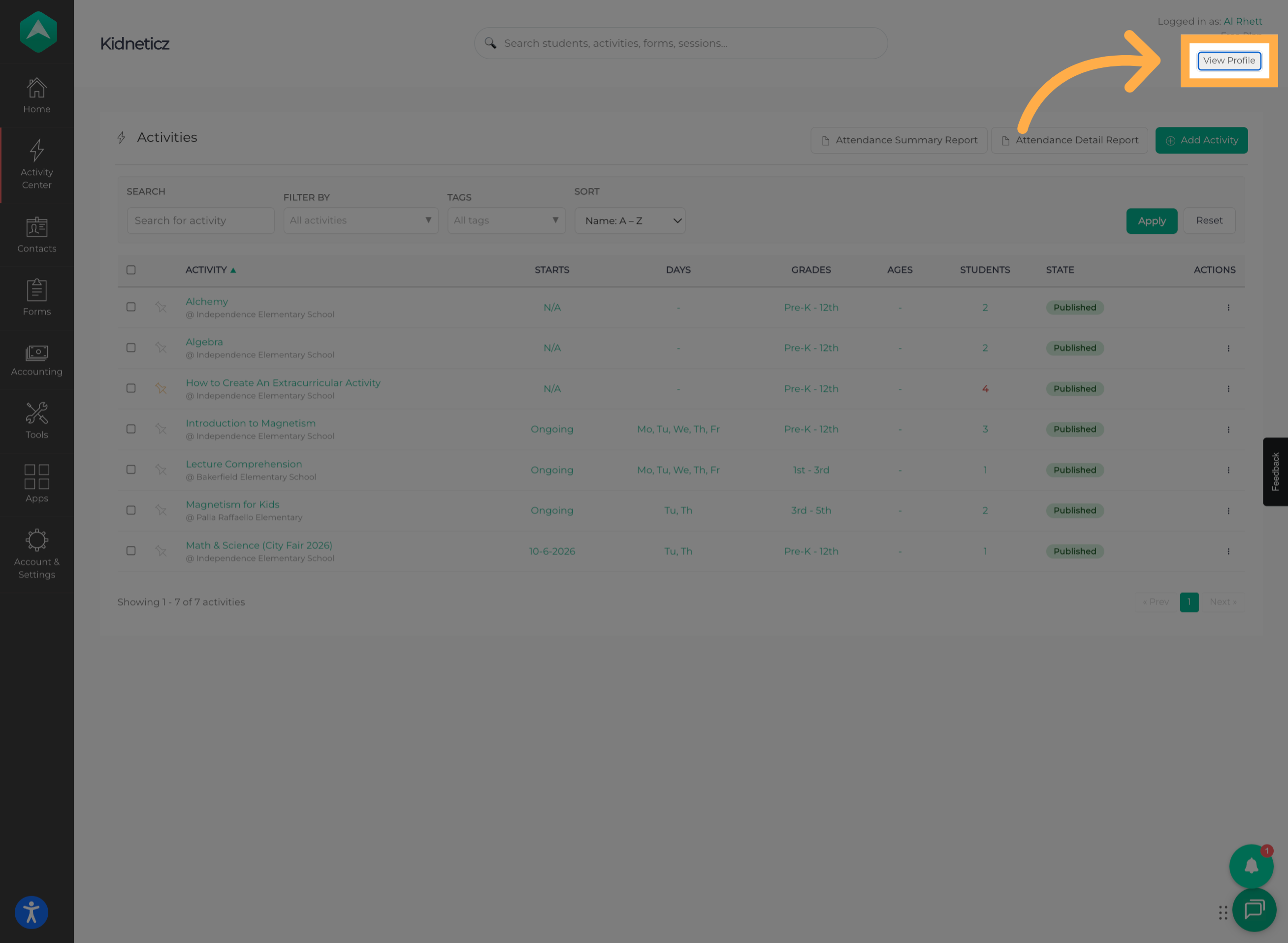
💡 Tip: Reviewing your public profile allows you to see how families experience your organization's activity listings.
5. Verify the Featured Activity
You'll now see the featured activity displayed at the top of your activity list, marked with a star. This helps bring attention to the program and makes it easier for families to find.
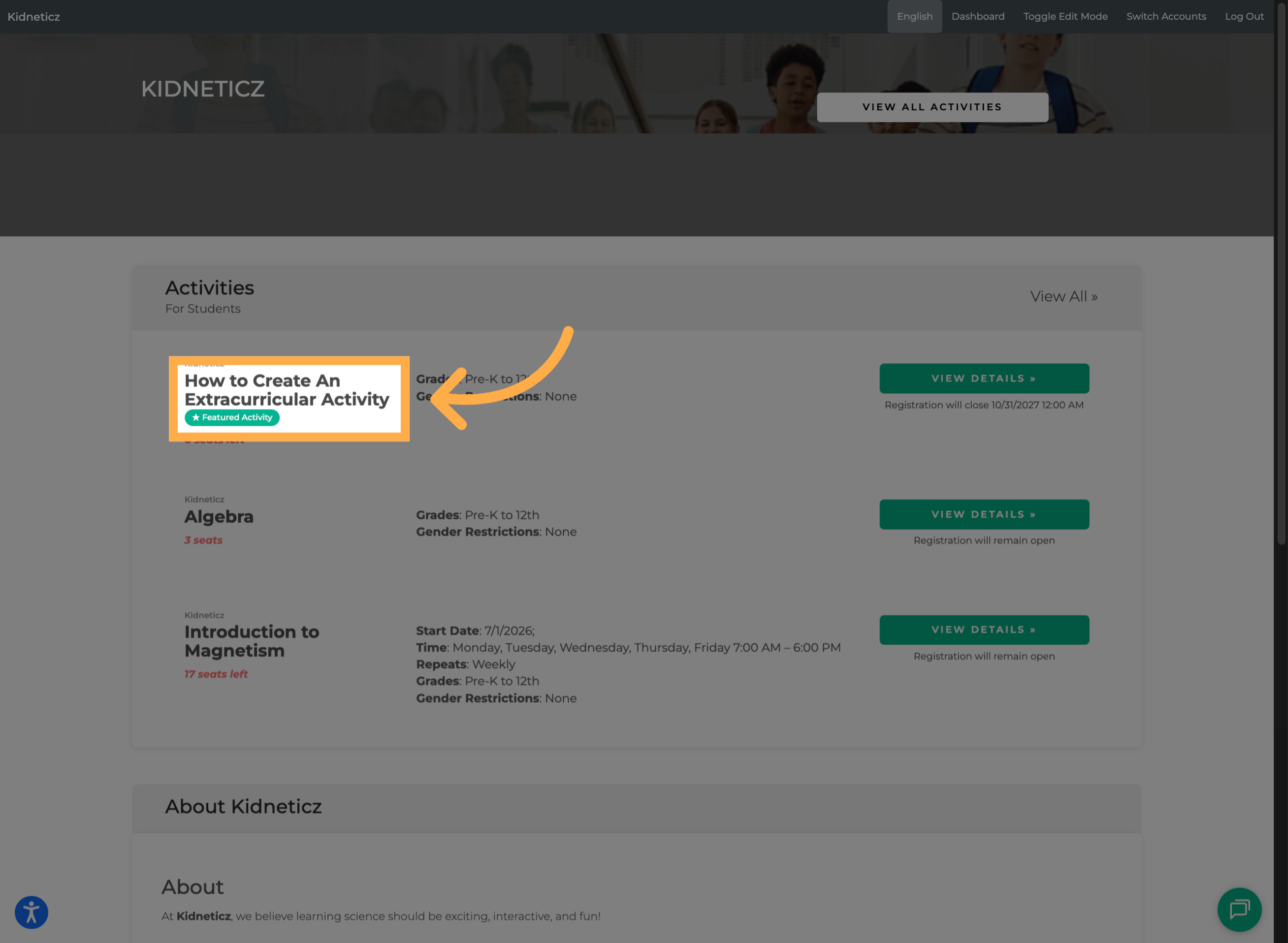
💡 Tip: Make sure the correct activity appears at the top of your list before sharing your organization profile with families.
Frequently Asked Questions
Q: What does it mean to feature an activity?
A: Featuring an activity highlights it on your organization's profile page, placing it at the top of your activity list so families can find it more easily.
Q: How do I know if an activity has been successfully featured?
A: Once you click the pin icon, it will turn yellow. You can also click “View Profile” to verify that the activity appears at the top of your activity list with a star.
Q: Where do featured activities appear?
A: Featured activities appear at the top of the activity list on your organization's public-facing profile page.
Q: Does featuring an activity change its registration settings?
A: No. Featuring an activity is intended to highlight it on your organization's profile. It does not replace the activity's registration or setup options.
Q: Can I feature a different activity later?
A: Yes. You can return to the “Extracurricular Activities” section to manage which activities you want to highlight on your organization profile.
Q: Will families be able to see the featured activity?
A: Yes. Featured activities are displayed on your organization's public-facing profile, where families can browse your programs.
💡If you experience any issues or have further questions with “How to Feature an Activity”, don't hesitate to get in touch with our support team at support@afterschoolhq.com.