![ASHQ Logo Vert Flat.png]](https://support.afterschoolhq.com/hs-fs/hubfs/ASHQ%20Logo%20Vert%20Flat.png?height=40&name=ASHQ%20Logo%20Vert%20Flat.png)
AfterSchool HQ allows you to invite an additional parent or guardian to help manage your family's account. Once invited, they can access the family account, manage student information, register children for activities, and more.
1. Begin Student Registration
Start by registering your child for an activity.
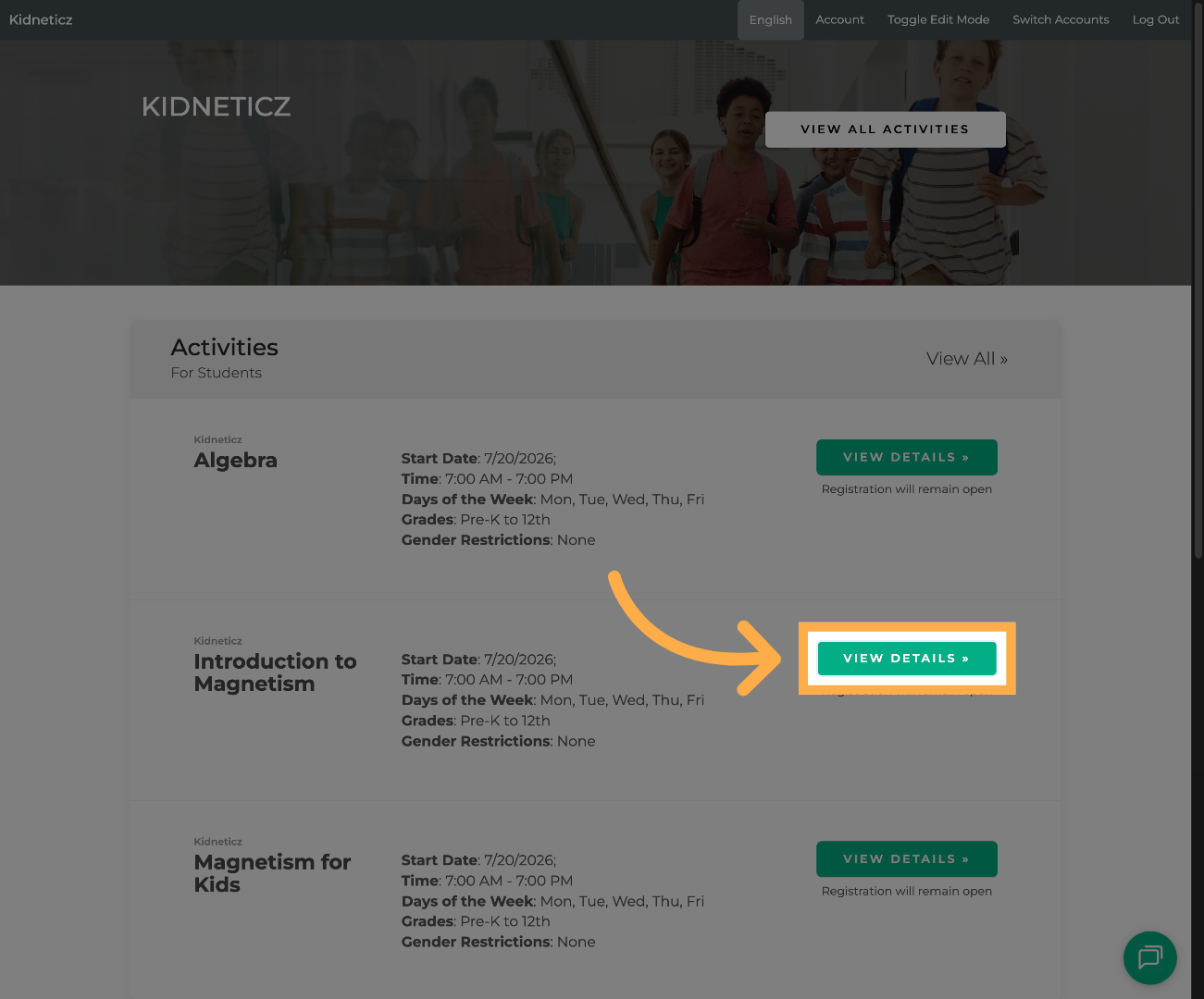
2. Open the Registration Form
Click “Register” to begin the registration process for the selected activity.
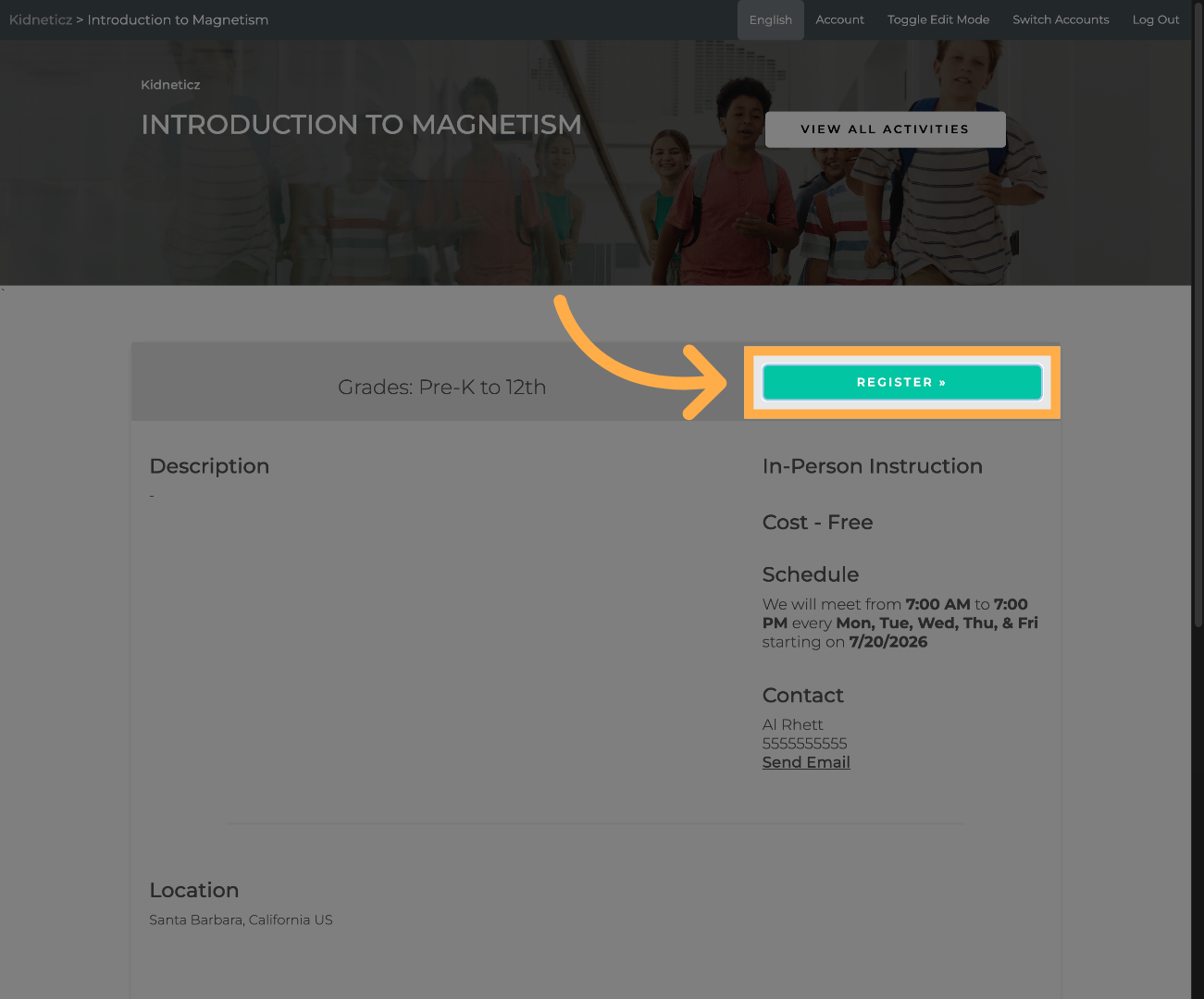
3. Start the Registration
Click “Enroll” to begin completing the desired student's registration.
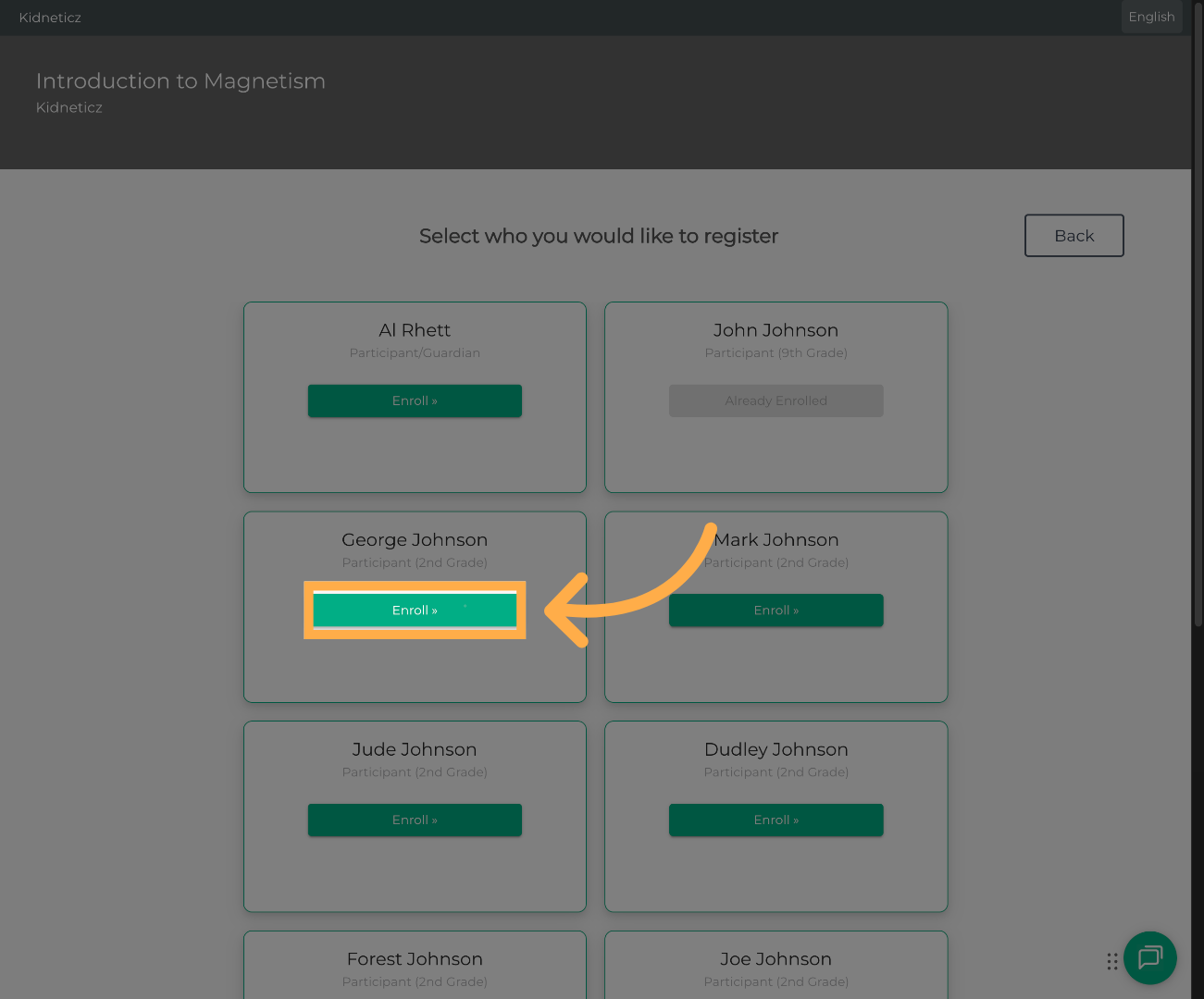
4. Complete the Registration Form
Continue answering the registration questions until you reach the Additional Parent /Guardian section.
5. Add an Additional Parent or Guardian
Enter the additional parent or guardian's full name and email address.
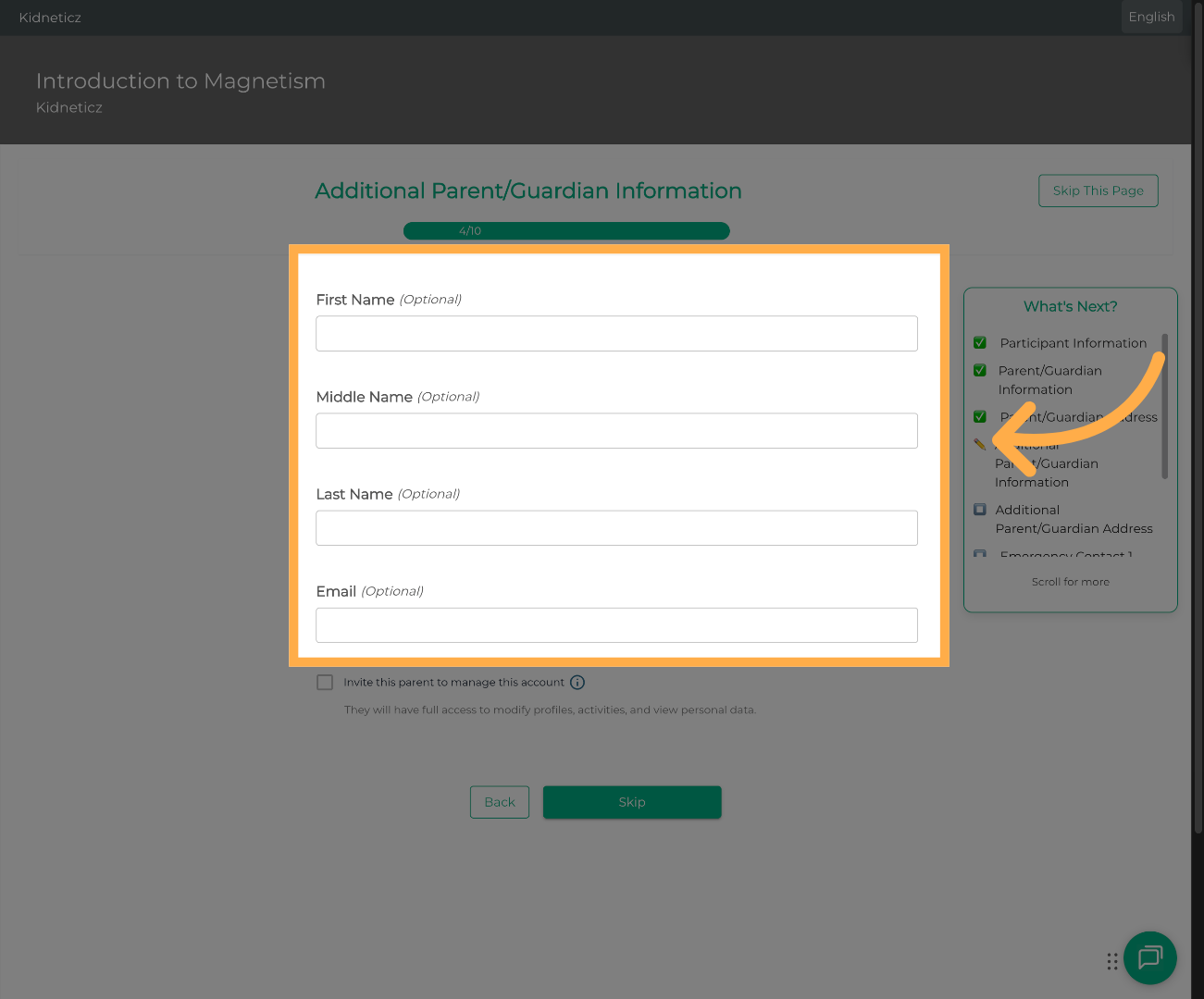
💡 Tip: Make sure you enter the correct email address. The invitation will be sent to this email, and the parent or guardian will use it to access the family account.
6. Review Parent Access
Review the permission notice explaining the level of access the additional parent or guardian will receive.
Once invited, they will be able to manage the family account, student profiles, registrations, and other available account information.
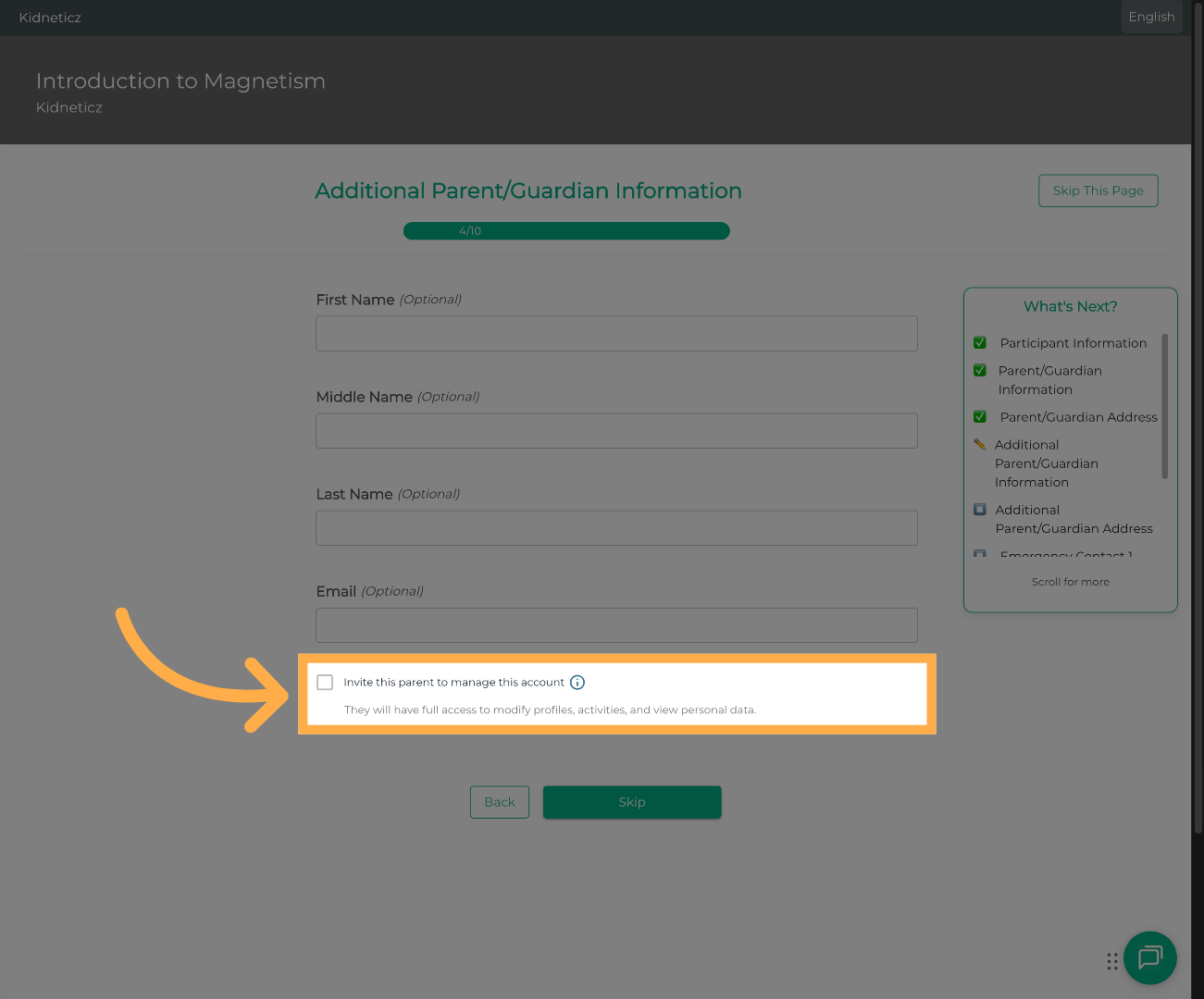
💡 Tip: Only invite someone you trust, as they'll be able to help manage your family's account.
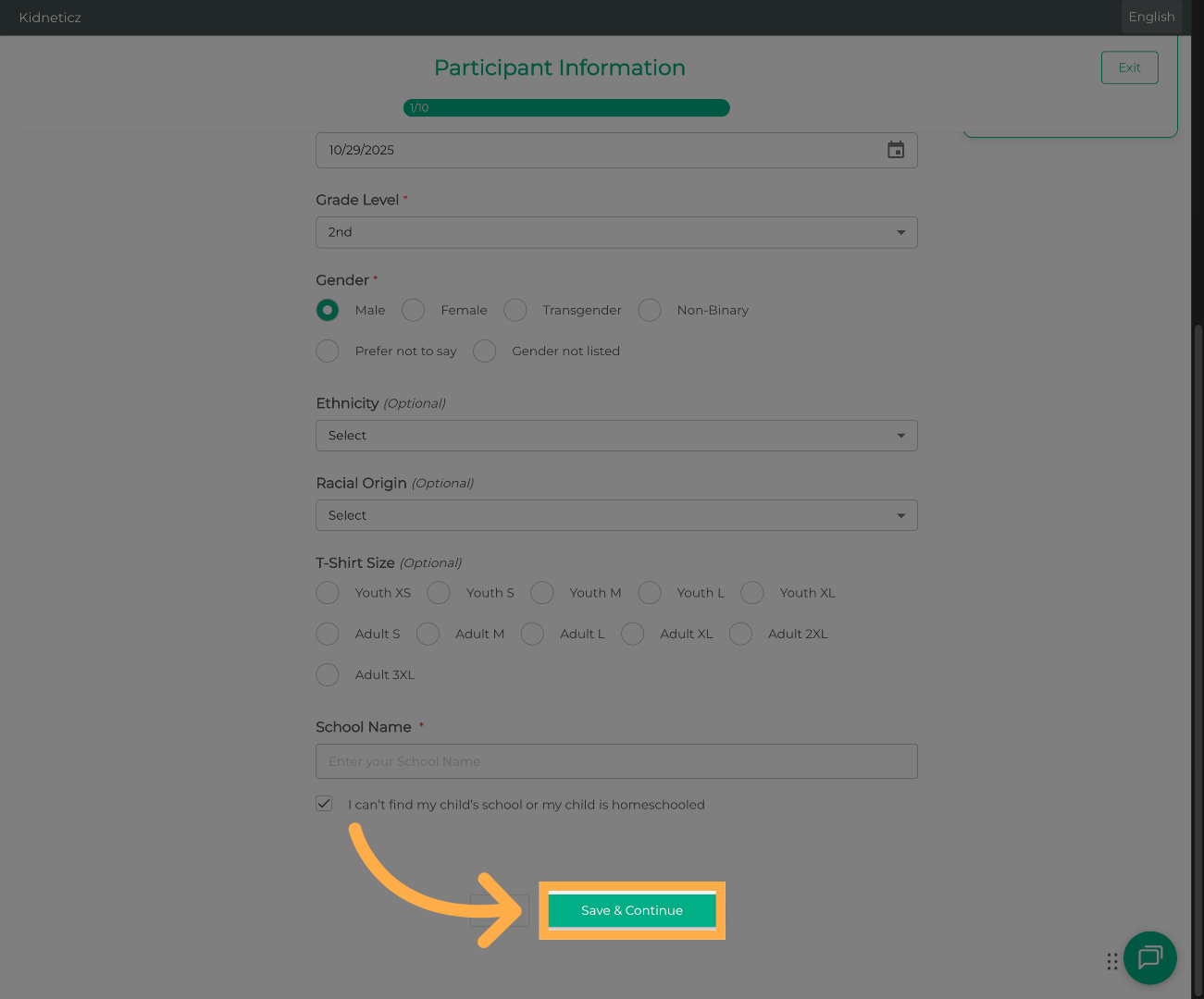
7. Save Registration Progress
Click “Save & Continue” to send the invitation and continue with the registration.
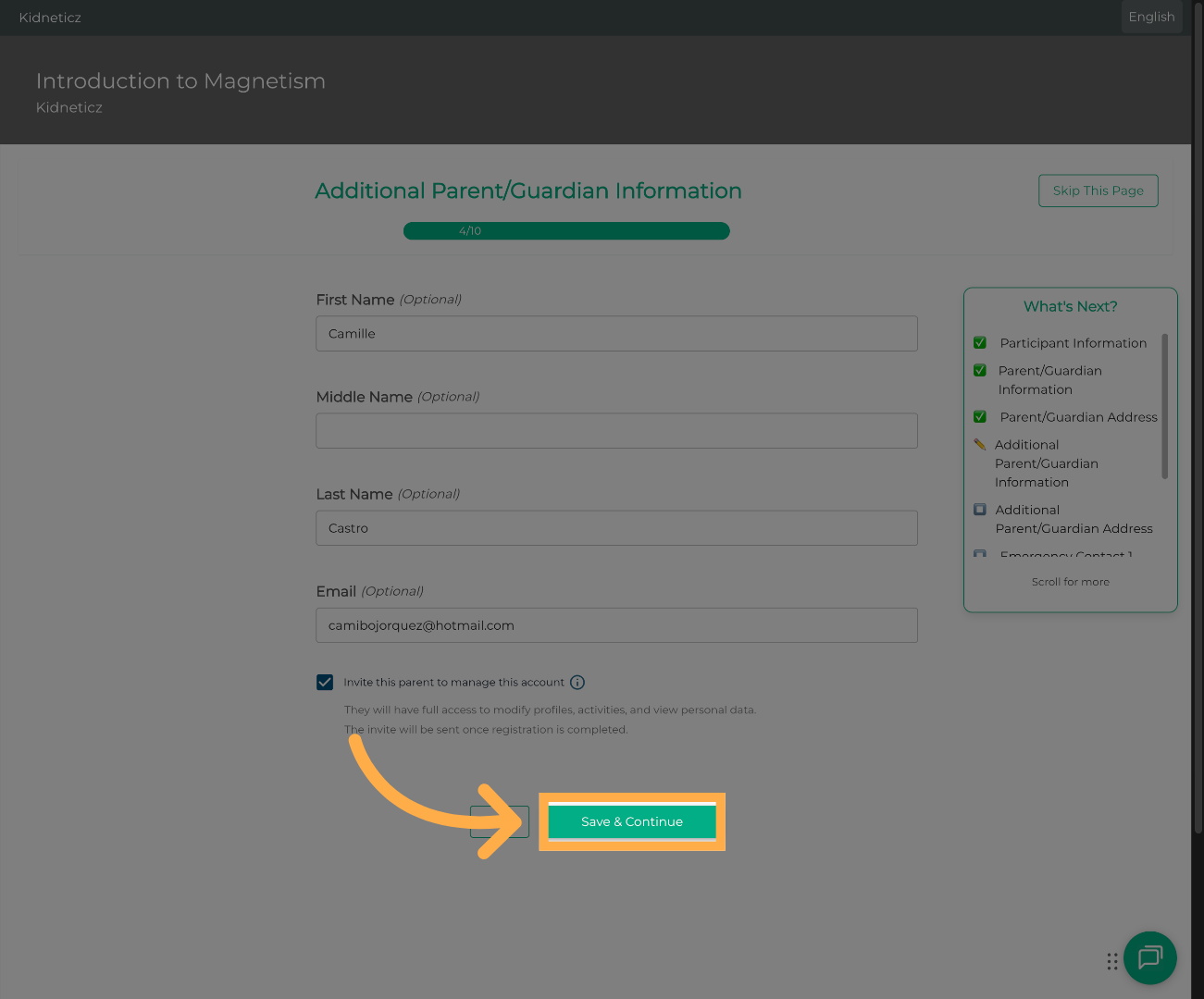
💡 Tip: The invitation email is sent after you save and continue through the registration process.
8. Complete the Remaining Registration
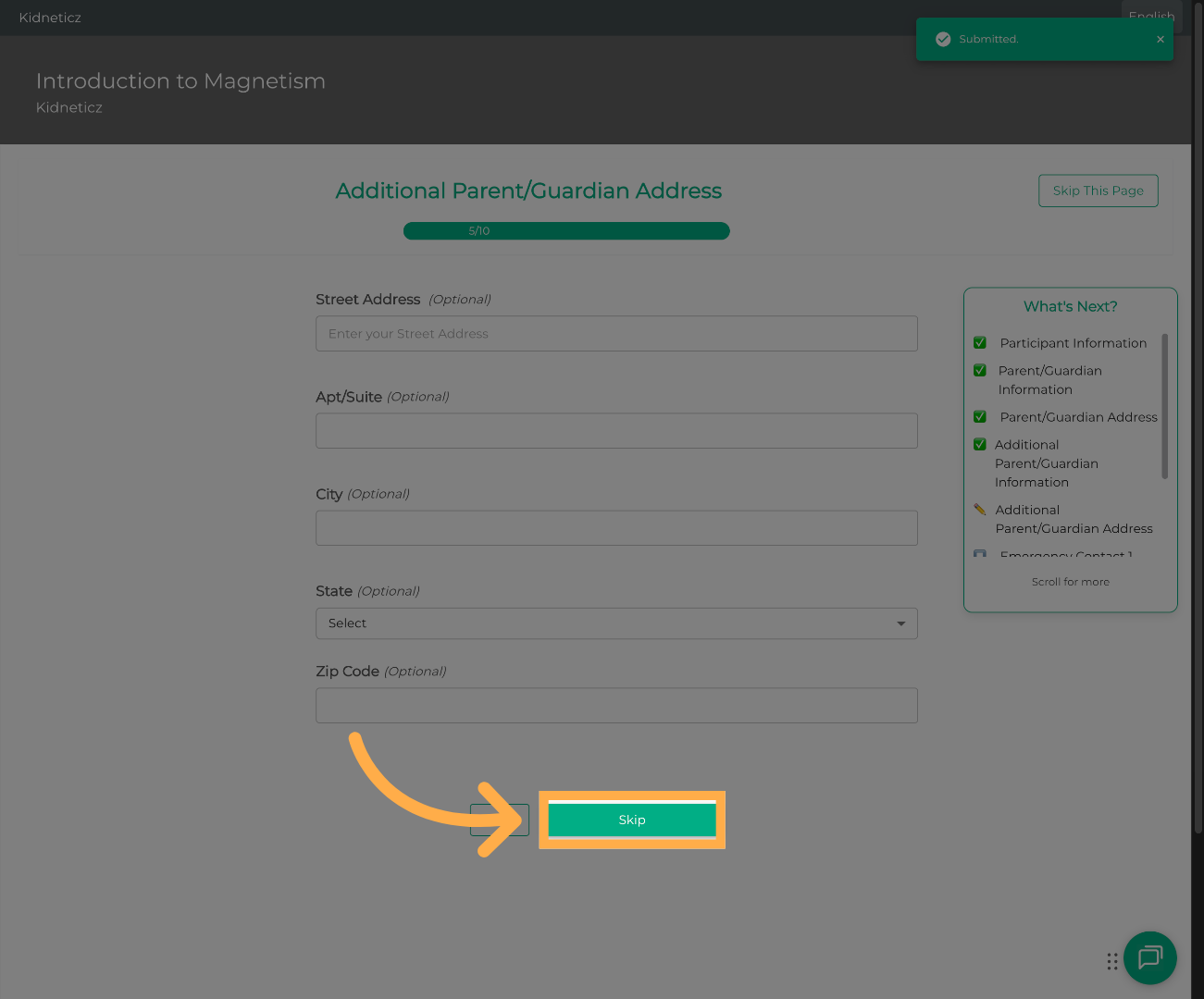
Continue completing the remaining registration questions as usual.
9. Confirm Registration
Review all registration details, then click “Confirm Registration” to complete your child's enrollment.
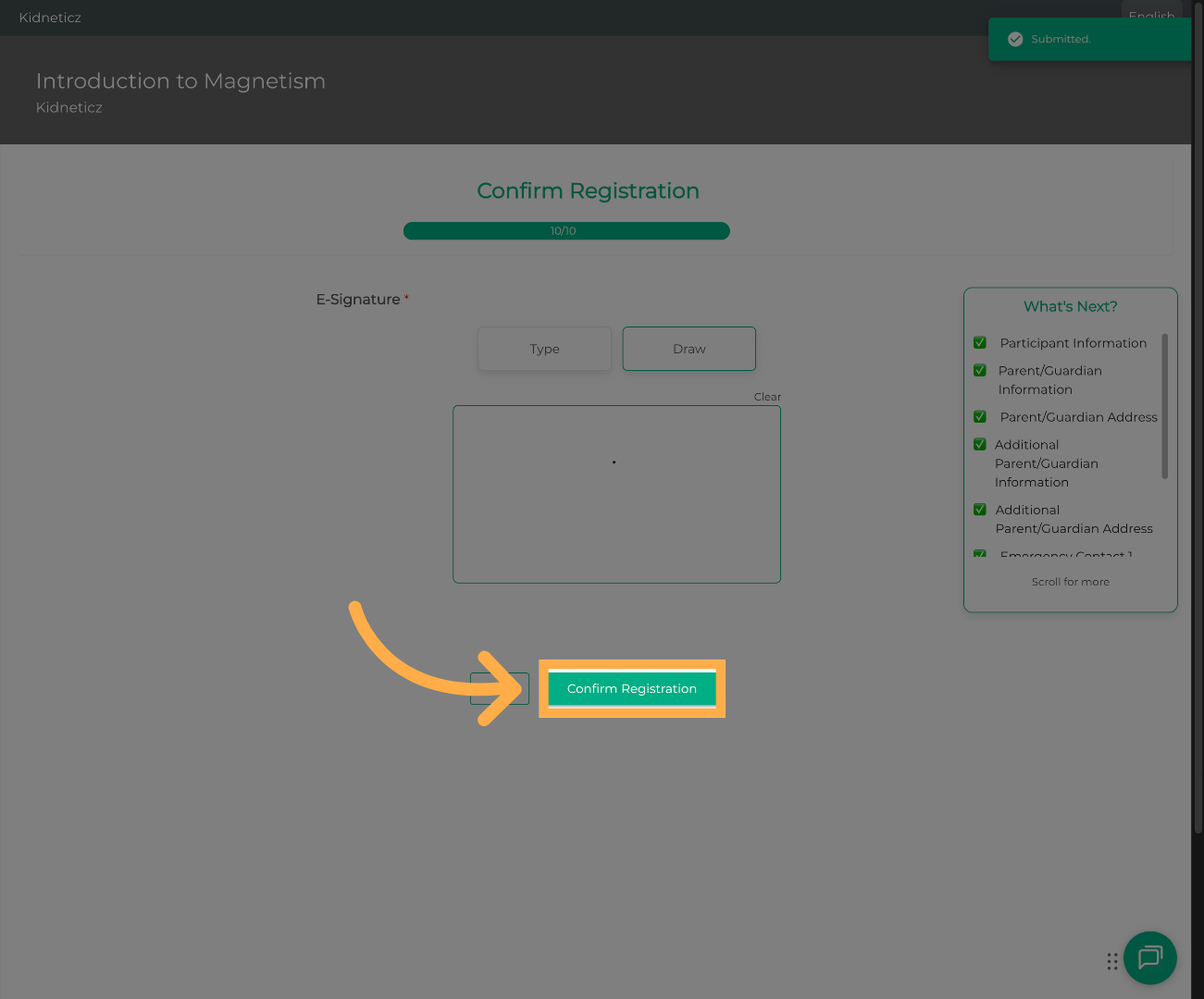
💡 Tip: Double-check your registration details before confirming to ensure everything is accurate.
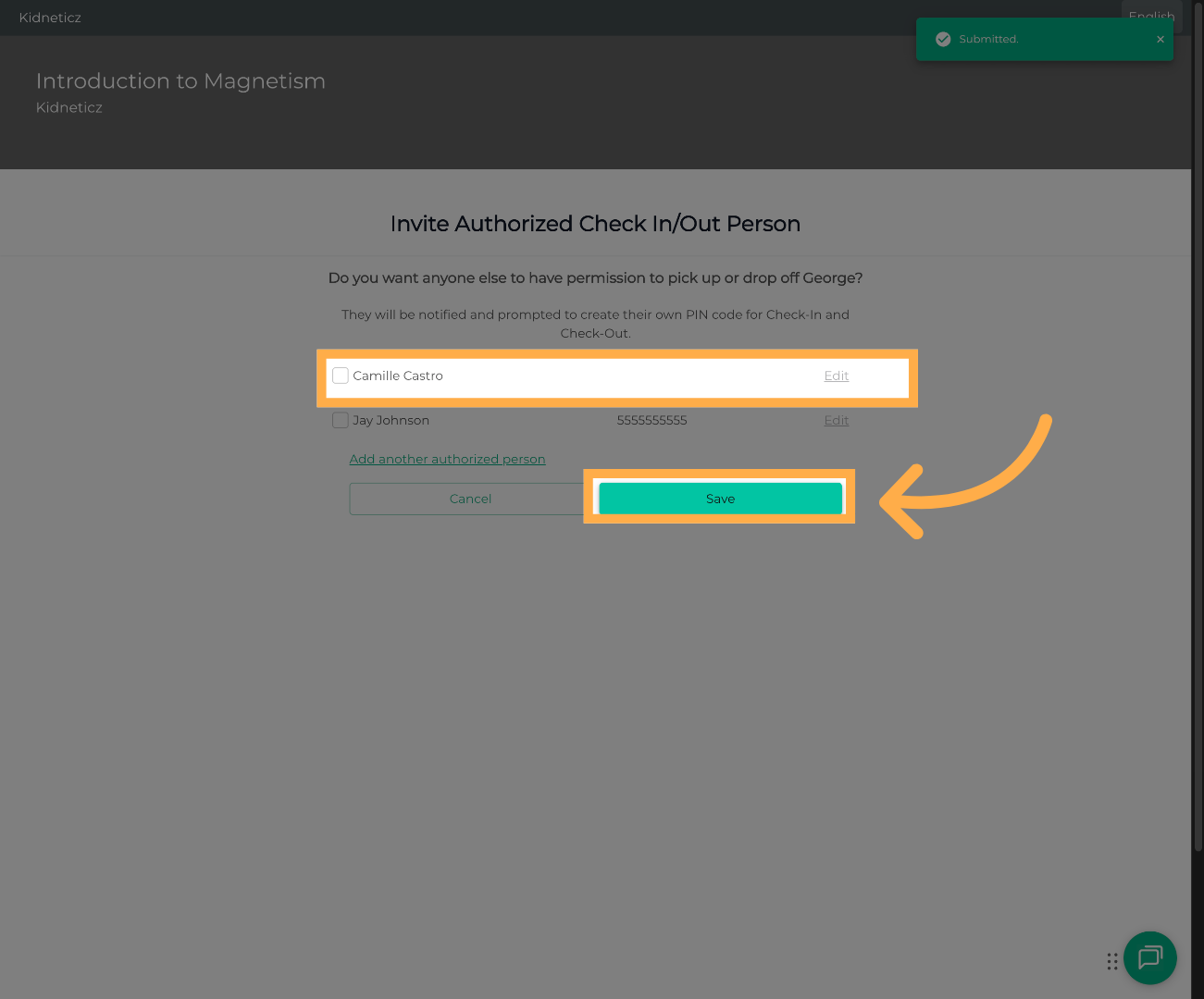
10. Save Registration Data
Click “Save” to finish and securely store the registration information.
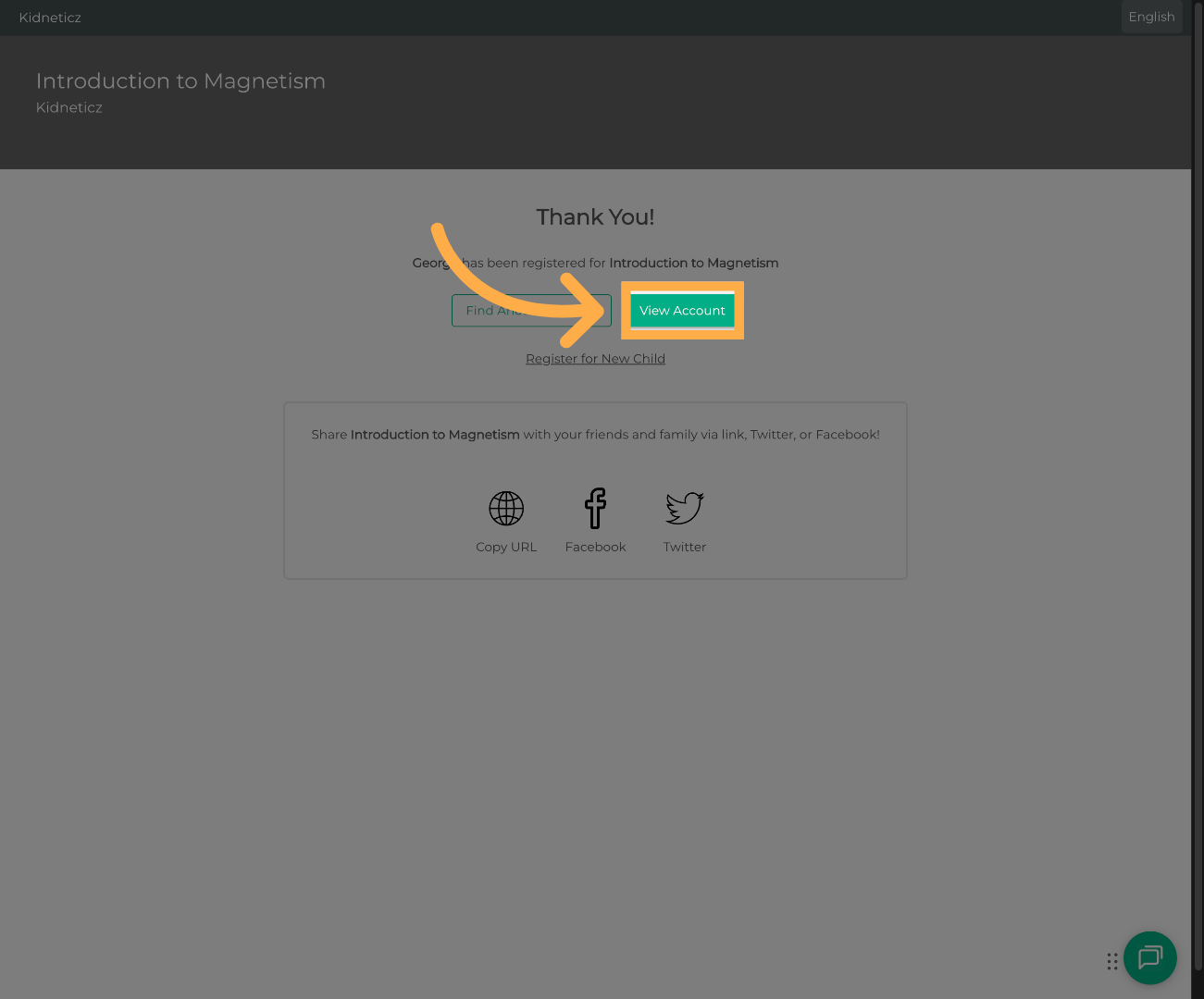
11. Open Your Account
Click “View Account” to open your AfterSchool HQ family account.
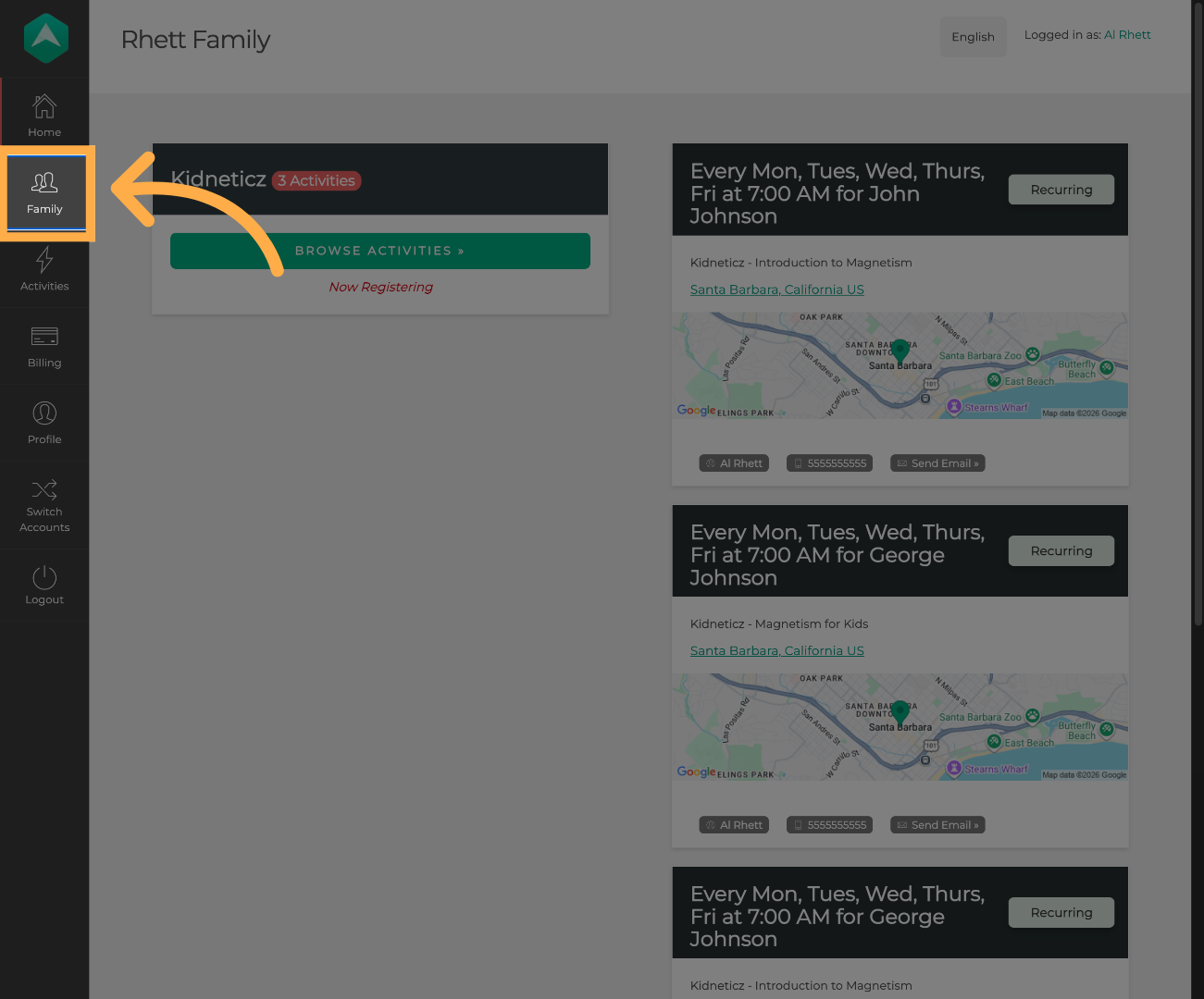
12. Open the Family Section
From your account dashboard, select the “Family” section.
13. View Parent Access
Open your student's profile to verify that the invited parent or guardian appears as an authorized family member with account management access.
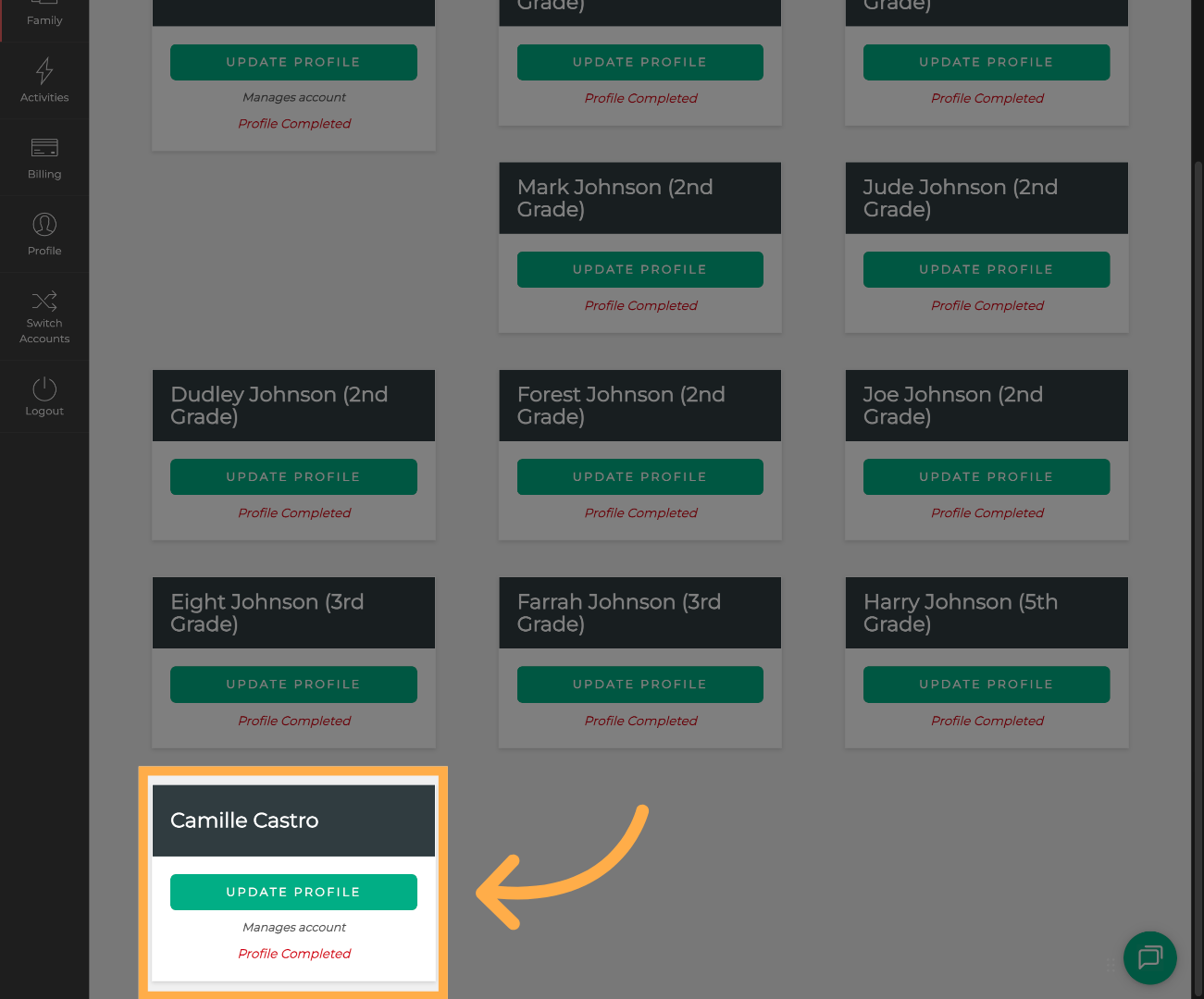
💡 Tip: If the invited parent or guardian has not yet accepted the invitation, their access may remain pending until they complete the invitation process.
Frequently Asked Questions
Q: What can an additional parent or guardian do?
A: Once they accept the invitation, they can manage the family account, update student information, register children for activities, complete forms, make payments (when applicable), and perform other actions available to family account managers.
Q: Does the additional parent or guardian need an AfterSchool HQ account?
A: If they don't already have an account, they'll be prompted to create a login using the email address provided in the invitation.
Q: What happens if I enter the wrong email address?
A: The invitation will be sent to the email address you entered. If you entered the wrong email, you'll need to update the invitation with the correct email address before the additional parent or guardian can access the account.
Q: Where can I see who has access to my family account?
A: You can view authorized parents and guardians by opening your family account and navigating to the Family section.
Q: Does the additional parent or guardian have the same access as me?
A: Yes. The additional parent or guardian will receive the permissions described during the invitation process, allowing them to help manage your family's account and student information.
💡If you experience any issues or have further questions with “How to Invite an Additional Parent to Manage Your Family Account”, don't hesitate to get in touch with our support team at support@afterschoolhq.com.