![ASHQ Logo Vert Flat.png]](https://support.afterschoolhq.com/hs-fs/hubfs/ASHQ%20Logo%20Vert%20Flat.png?height=40&name=ASHQ%20Logo%20Vert%20Flat.png)
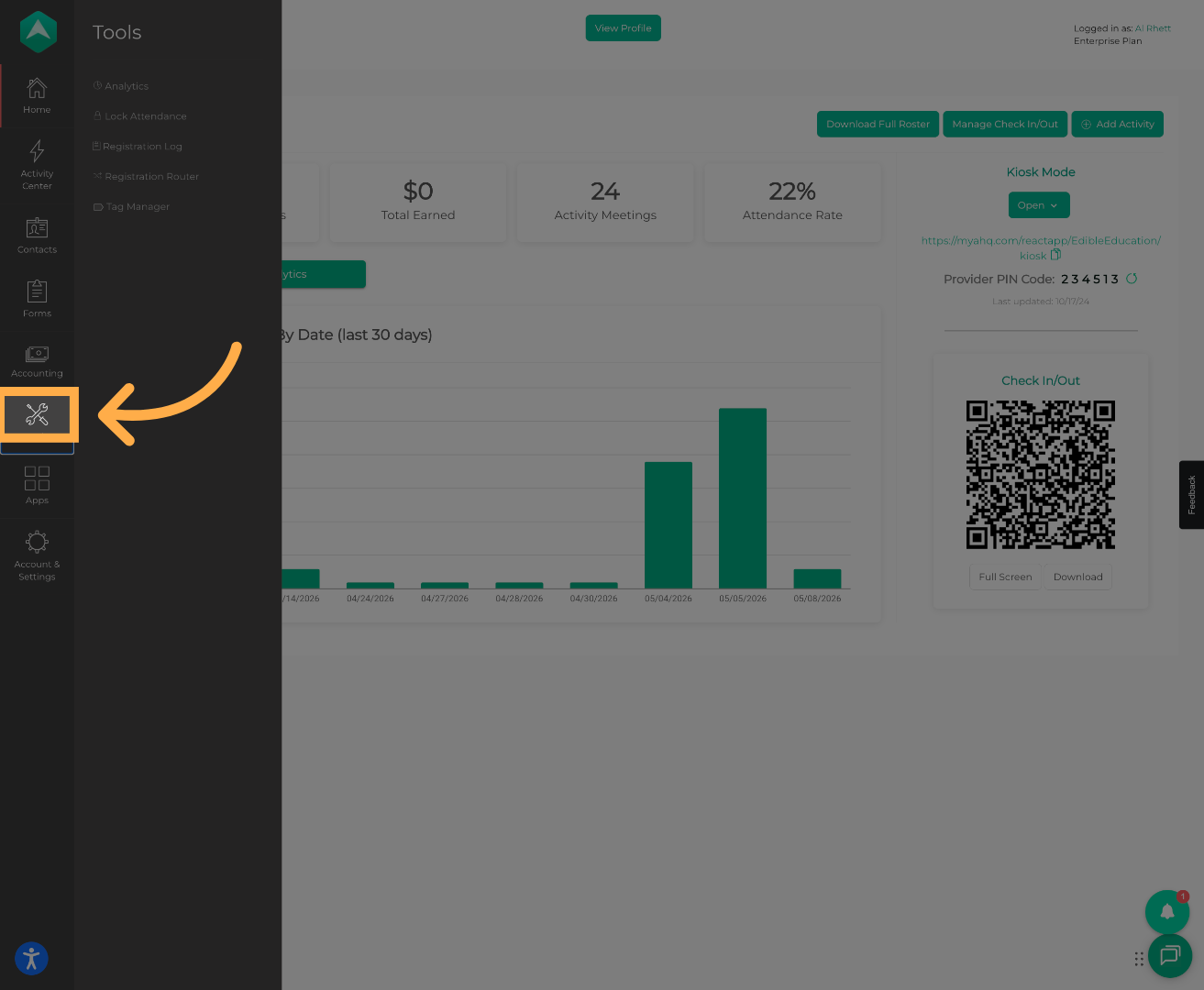
1. Navigate to Tools
From your admin dashboard, click on “Tools”
.
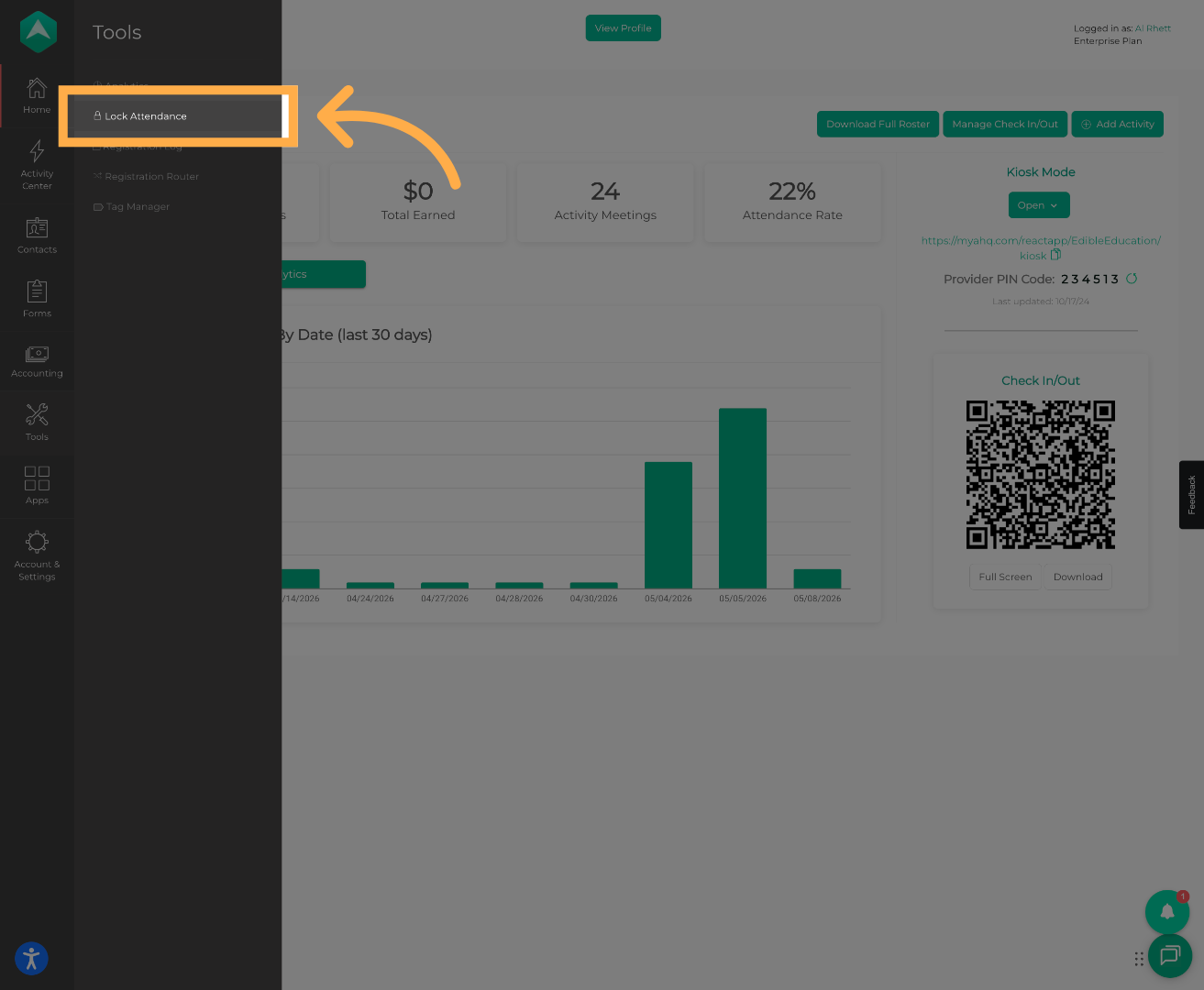
3. Select “Lock Attendance”
Open the Lock Attendance feature from the tools menu.
4. Choose Your Attendance Date Range
Select the date range for the attendance records you would like to lock.
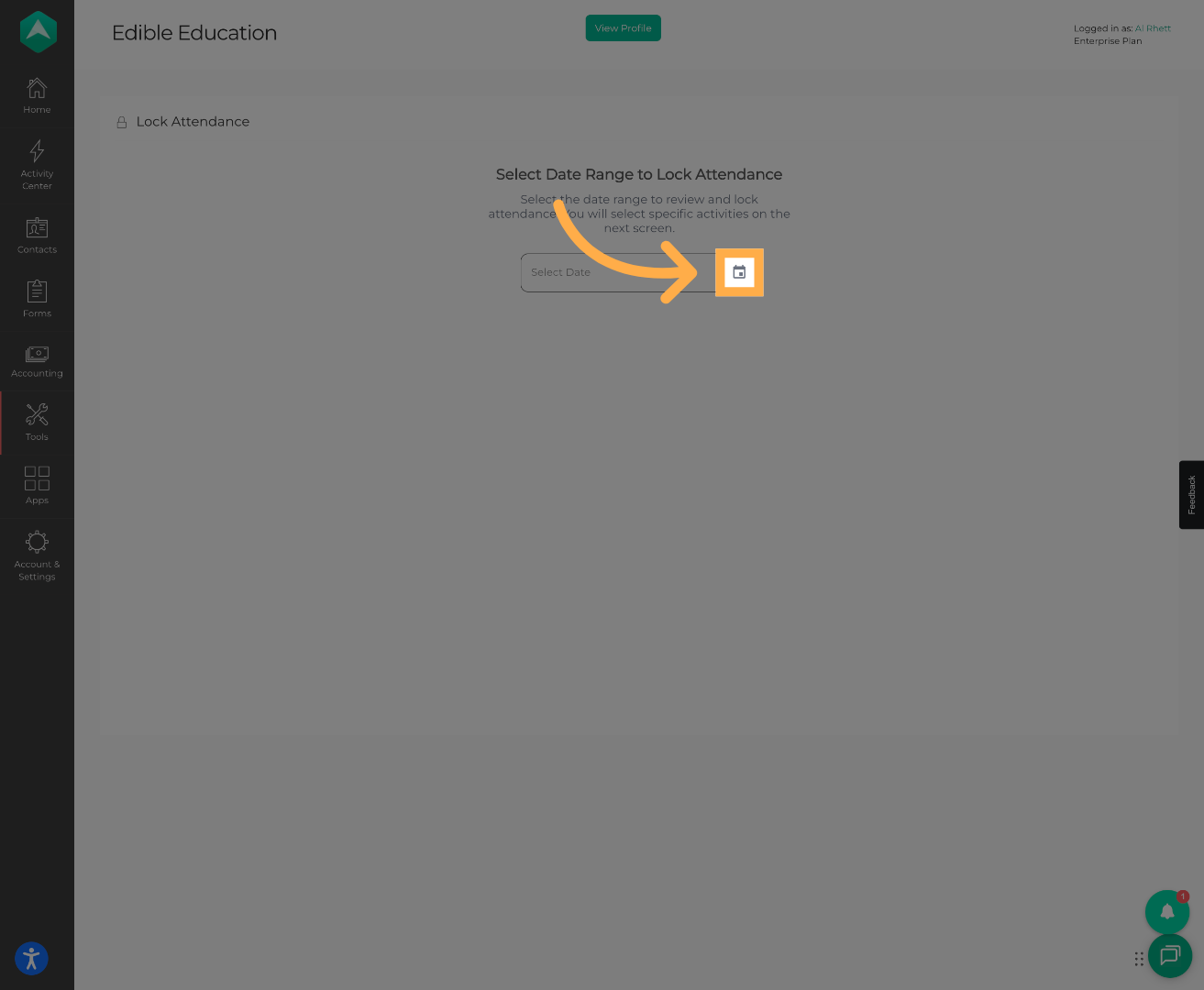
💡Tip: Review the selected date range carefully to avoid locking incorrect attendance periods.
5. Select the Starting Date
Click on the first attendance date you want included in the lock range.
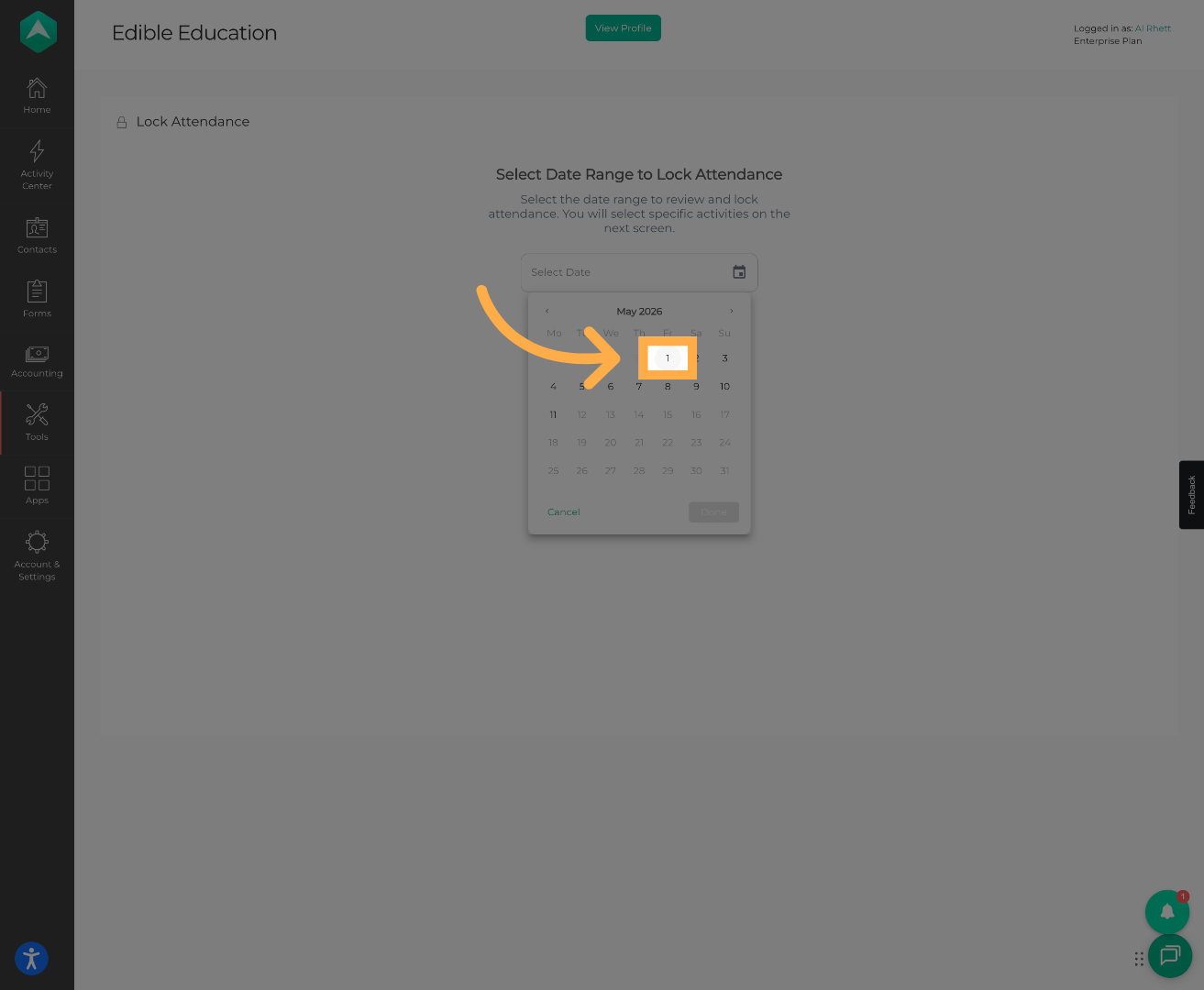
6. Select the Ending Date
Click on the second date to complete your attendance lock range.
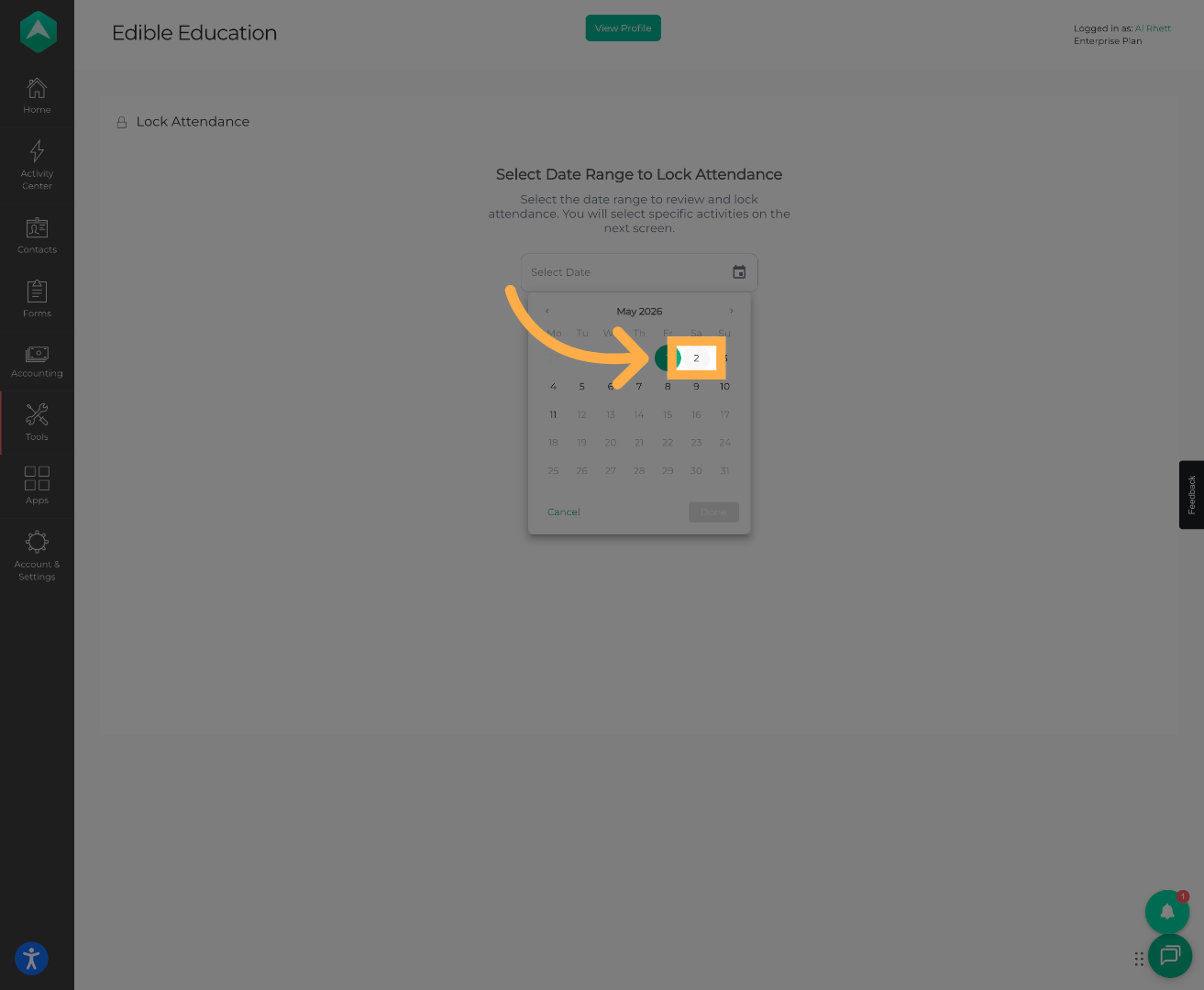
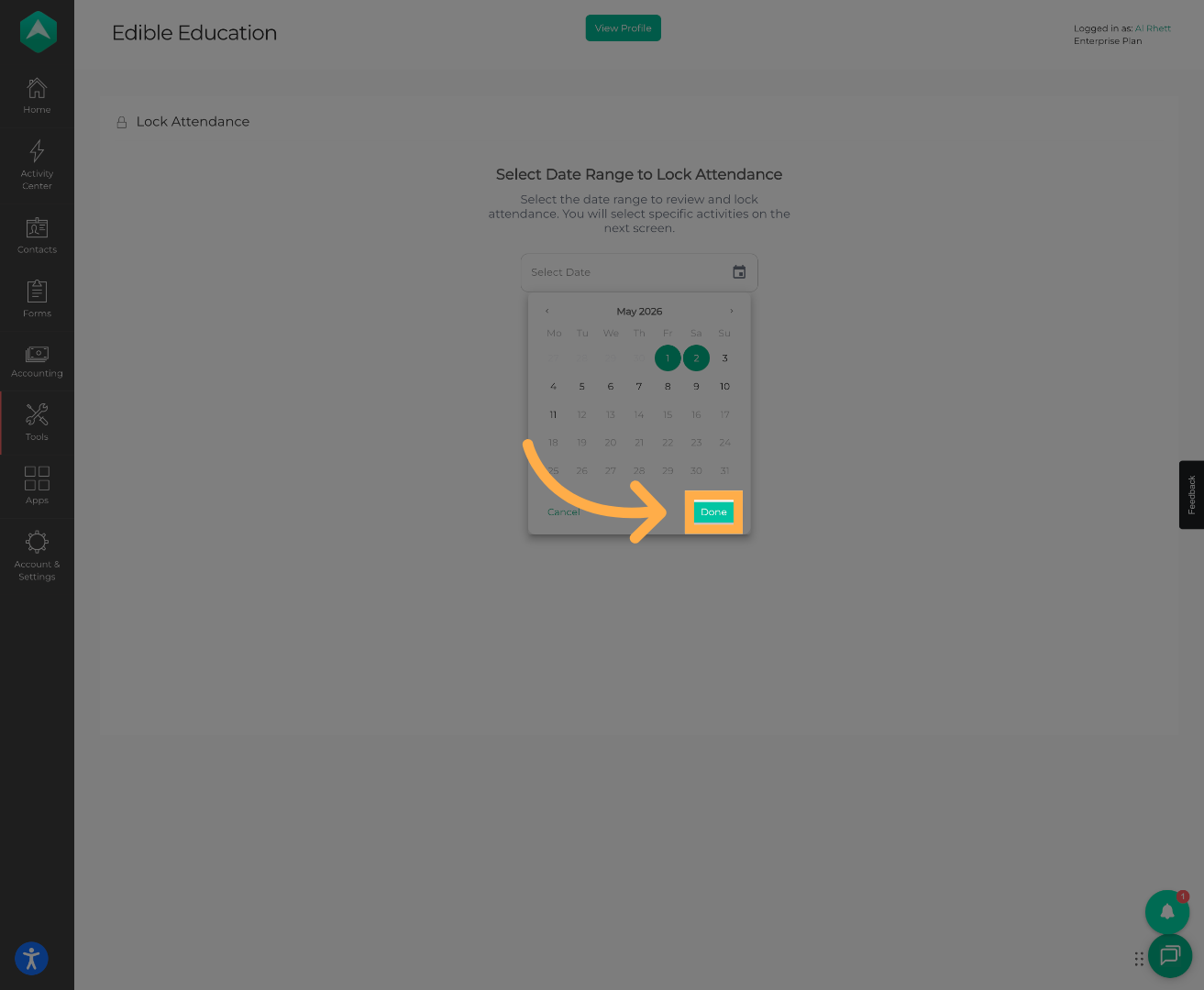
7. Confirm Your Date Selection
Click “Done” to confirm the selected attendance dates.
8. Filter Activities (Optional)
Use filters to narrow down which activities should have attendance locked.
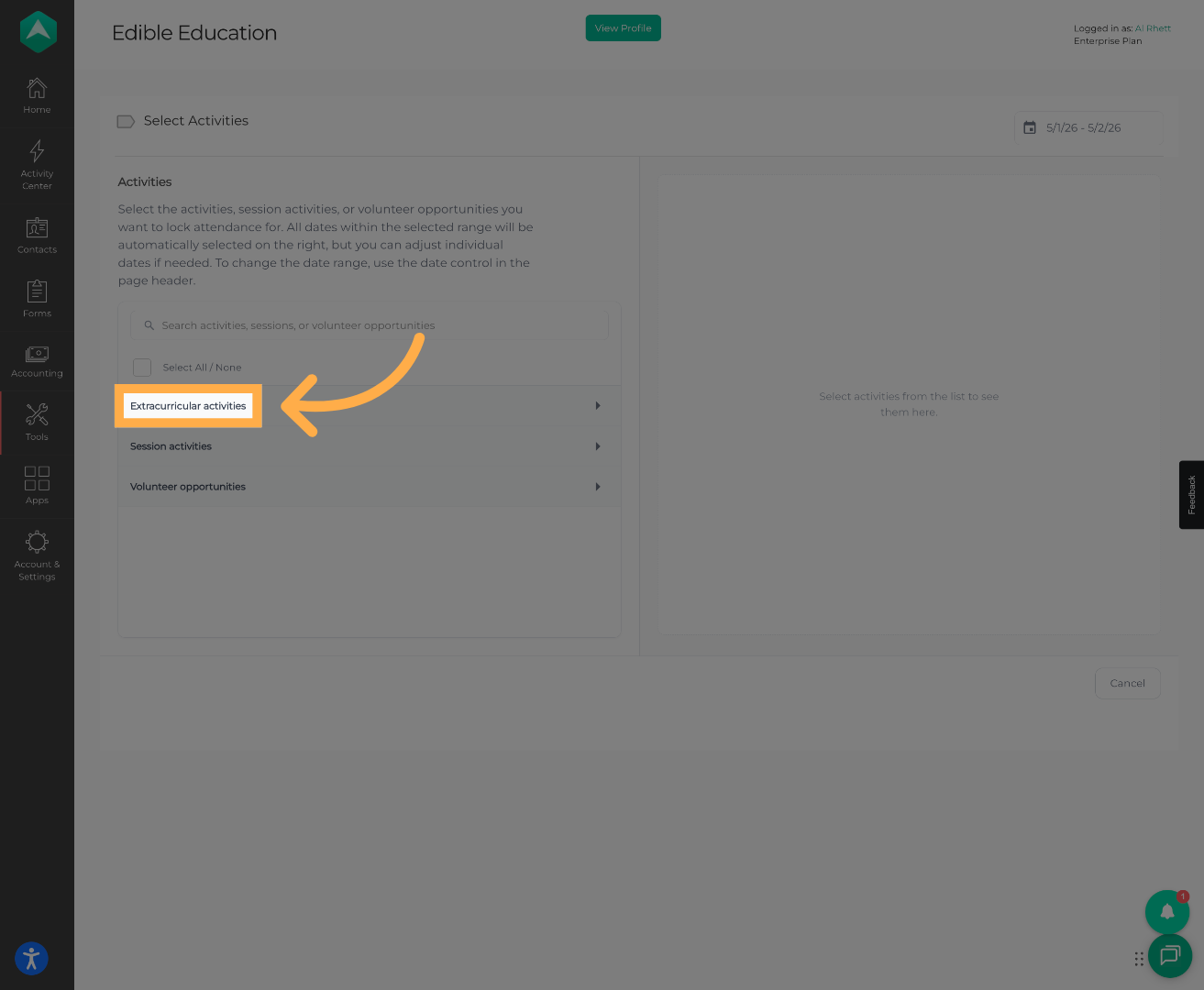
💡Tip: Filters can help narrow down specific activities or extracurricular programs before locking attendance.
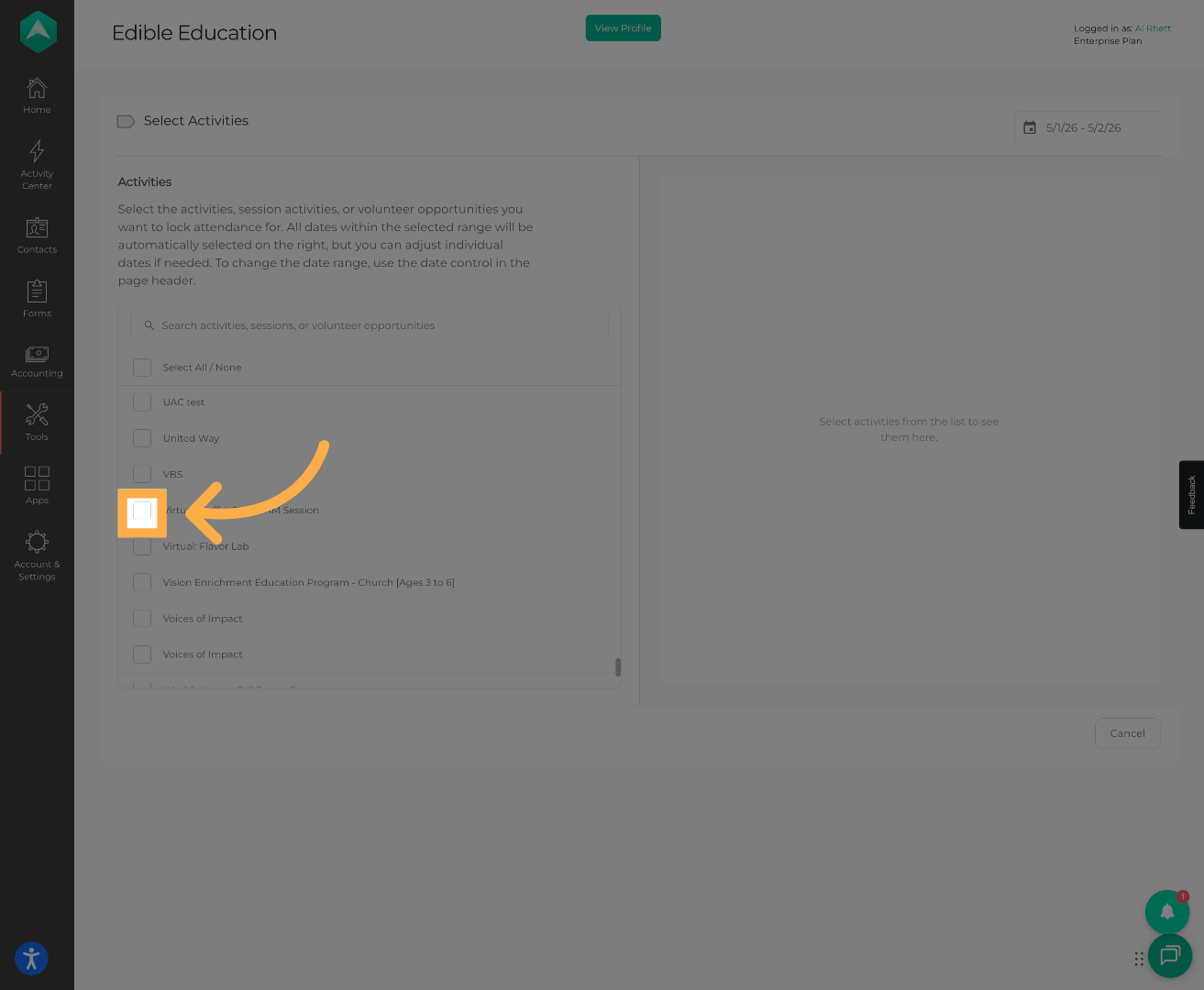
9. Choose Activities for Attendance Locking
Select the activities you want included in the attendance lock.
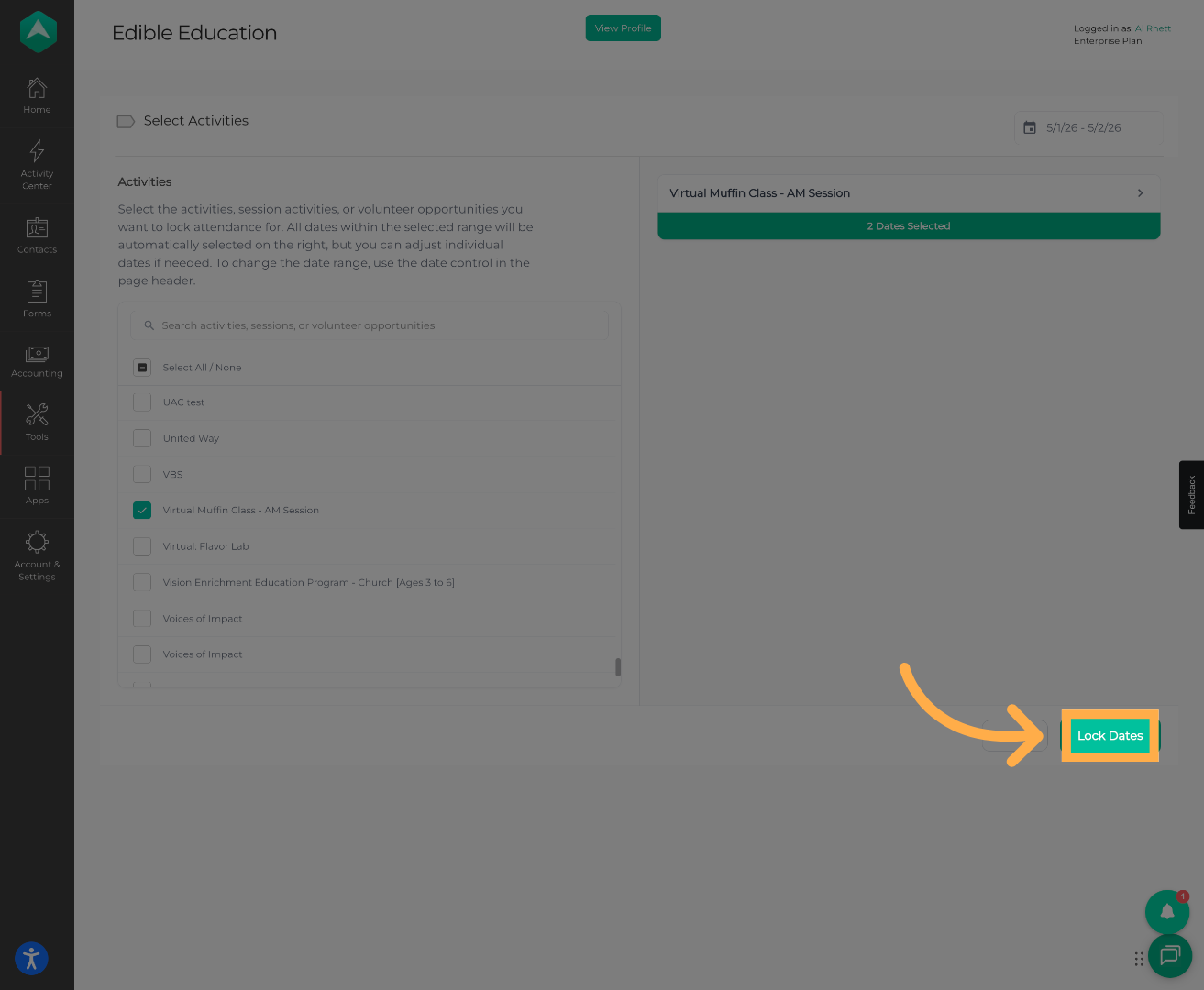
10. Start the Attendance Lock Process
Click “Lock Dates” to begin locking attendance for the selected dates.
11. Add a Lock Title or Description
Enter a title or short description to help identify this attendance lock later.
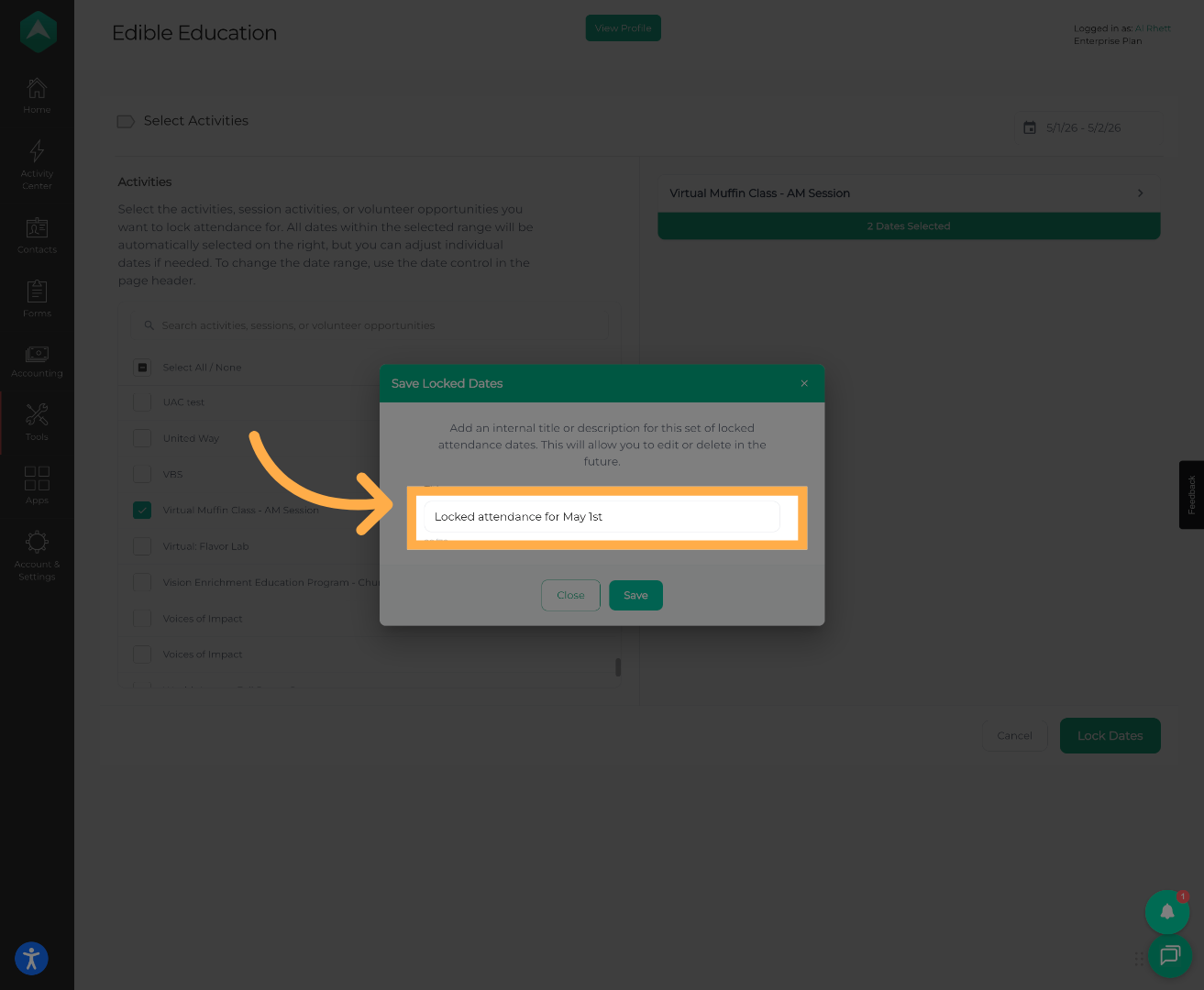
💡Tip: Use clear titles such as “April 2026 Attendance Lock” or “Week 1 Summer Program” to easily identify locked records later.
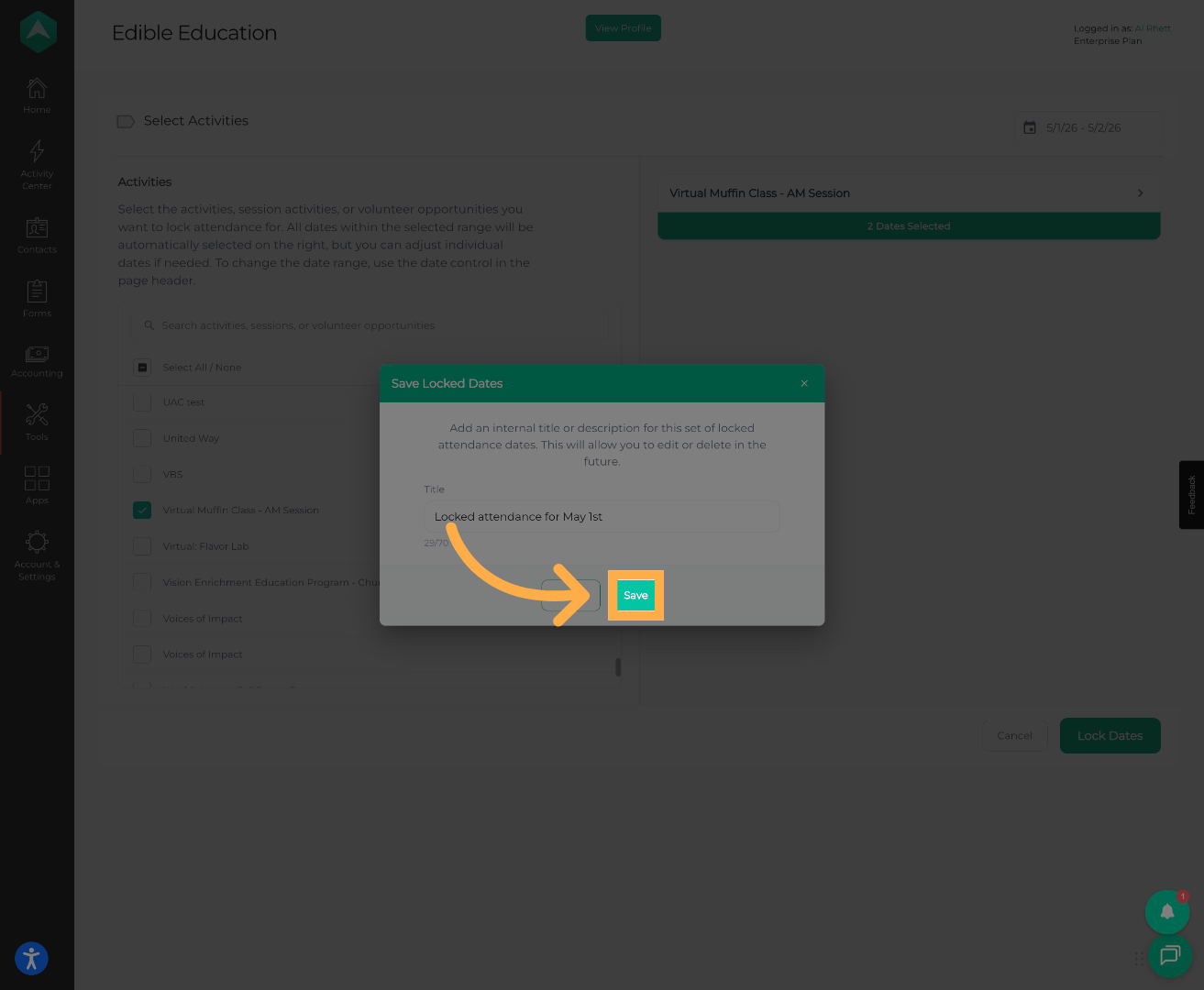
12. Save the Attendance Lock
Click “Save” to finalize and store the locked attendance record.
13. View Your Locked Attendance Records
You can now view the attendance lock you recently created.
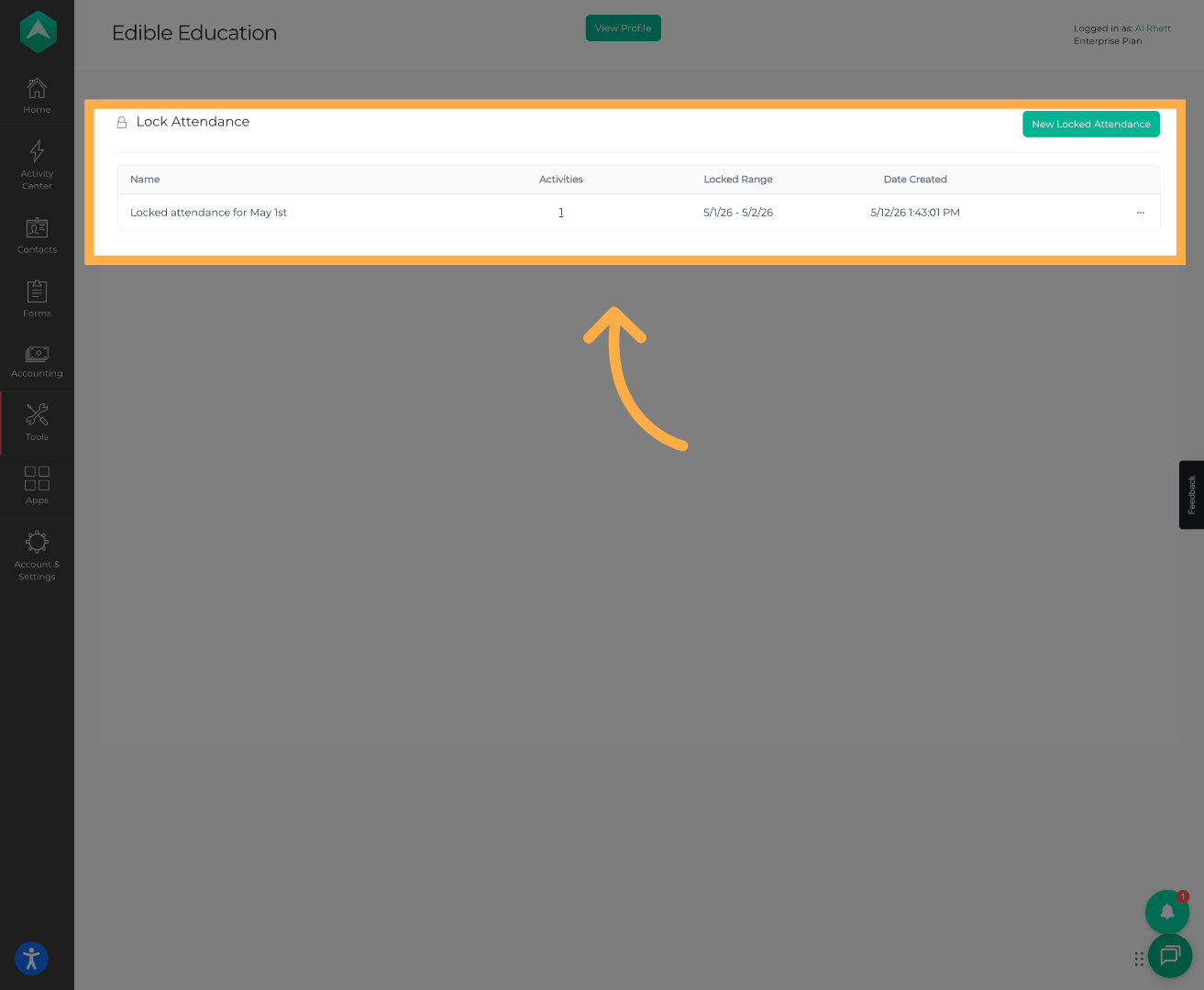
💡Tip: Locked attendance records can still be reviewed later from the attendance lock history section.
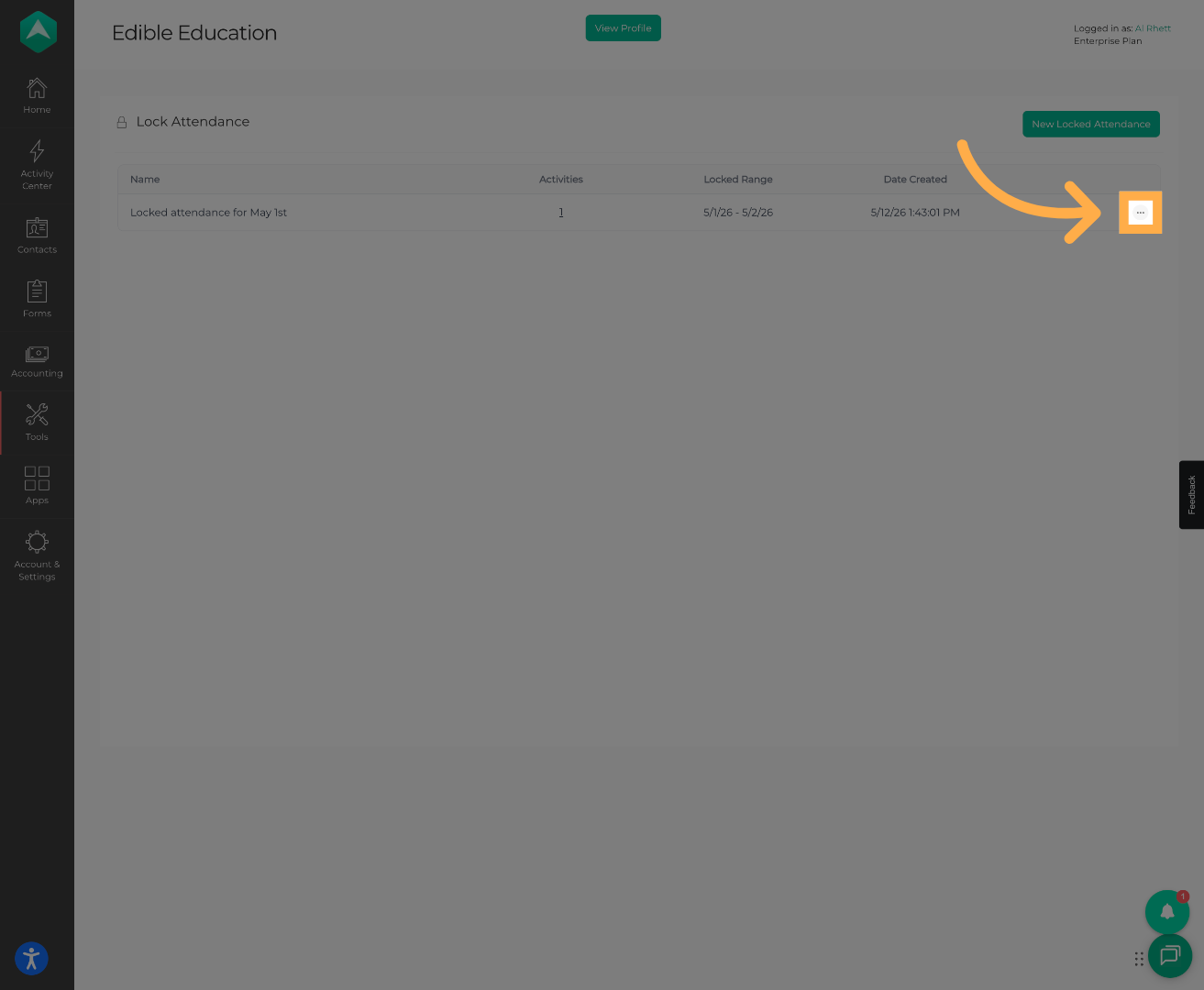
14. Manage Locked Attendance Details
Open the locked attendance record to review, edit, or delete it if needed.
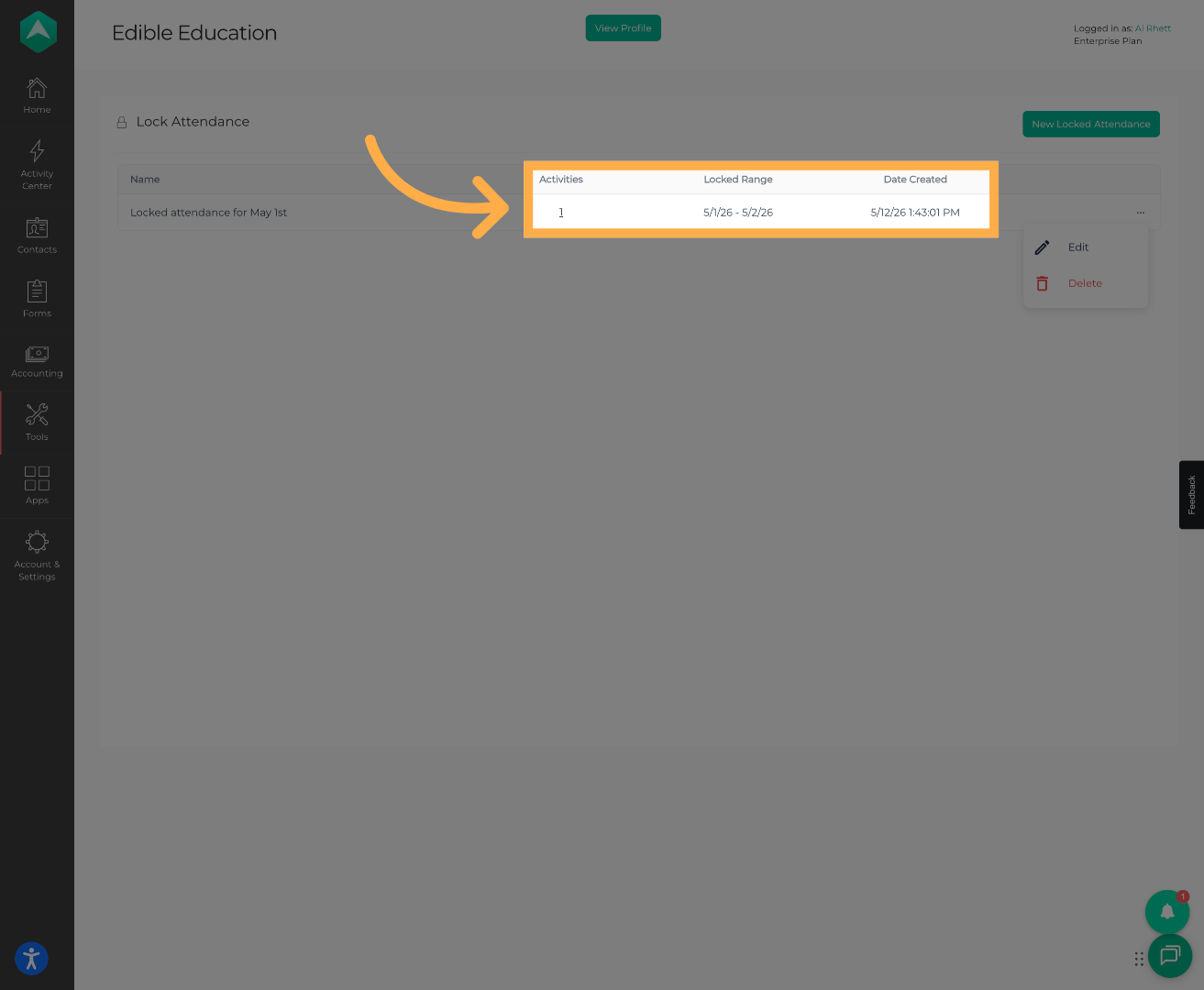
15. Review Additional Attendance Information
View how many activities are included in the lock, the locked date range, and when the lock was created.
Frequently Asked Questions
Q: Why should I add a title or description?
A: Adding a clear title makes it easier to identify attendance locks later, especially when managing multiple programs or date ranges.
Q: When should attendance be locked?
A: Attendance should typically be locked after attendance has been reviewed and finalized by staff for the selected period. Locking attendance prevents the modification of entries.
Q: Where can I view previously locked attendance records?
A: Previously locked attendance records can be viewed from the Lock Attendance section after they are saved.
💡If you experience any issues or have further questions with “How to Lock Attendance”, don't hesitate to get in touch with our support team at support@afterschoolhq.com.