![ASHQ Logo Vert Flat.png]](https://support.afterschoolhq.com/hs-fs/hubfs/ASHQ%20Logo%20Vert%20Flat.png?height=40&name=ASHQ%20Logo%20Vert%20Flat.png)
Managing a large number of activities doesn't have to mean updating each one individually. AfterSchool HQ's activity management tools allow you to quickly find the activities you need and apply actions to multiple activities at once.
1. Access Extracurricular Activities
From the main navigation menu, click “Extracurricular Activities” to view and manage your organization's activities.
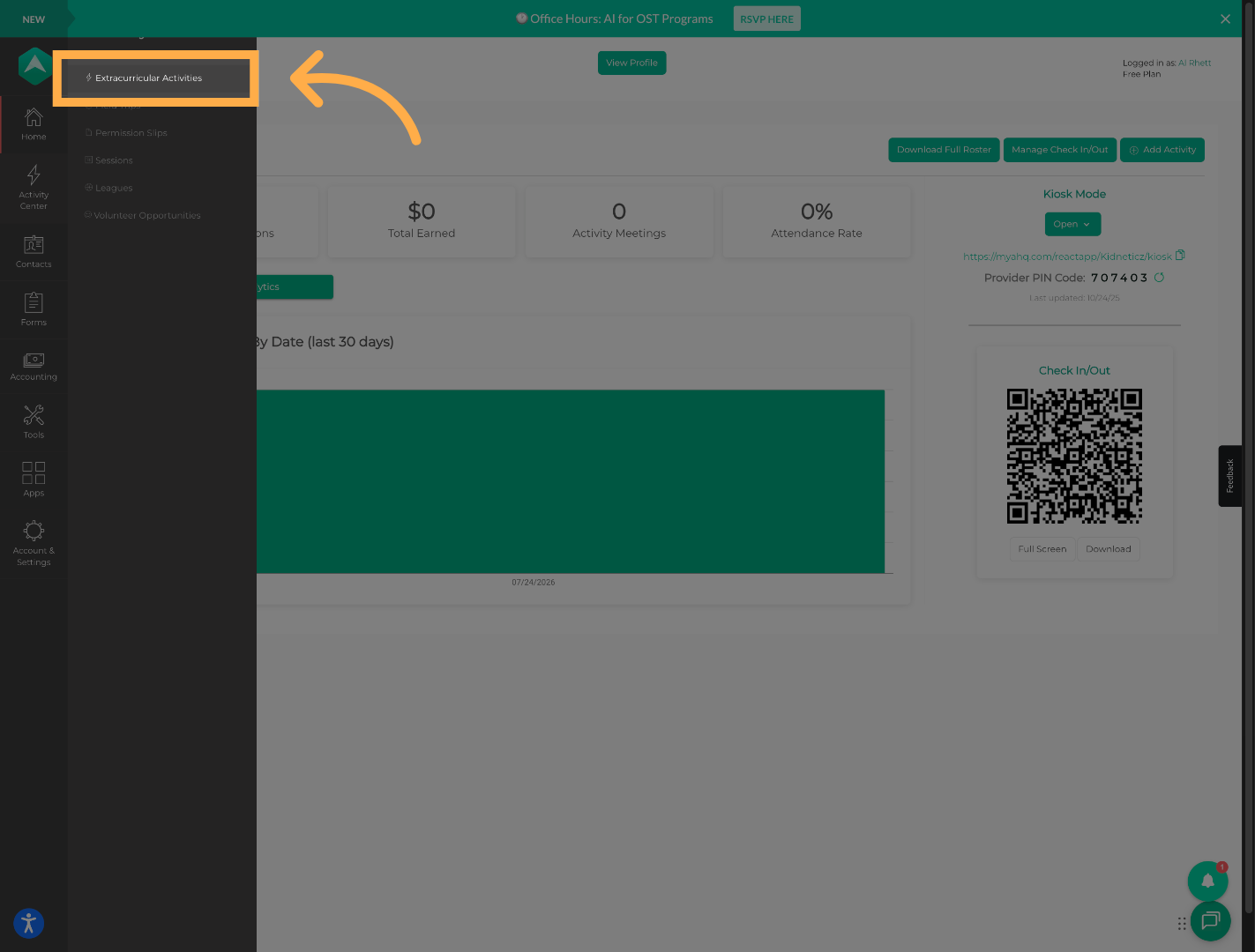
💡 Tip: The Extracurricular Activities section is your central location for viewing and managing your organization's activities.
2. Search, Filter, and Sort Activities
Use the available search and filter options to quickly find the activities you need.
You can search by activity name, filter your activity list, use tags, and sort the results.
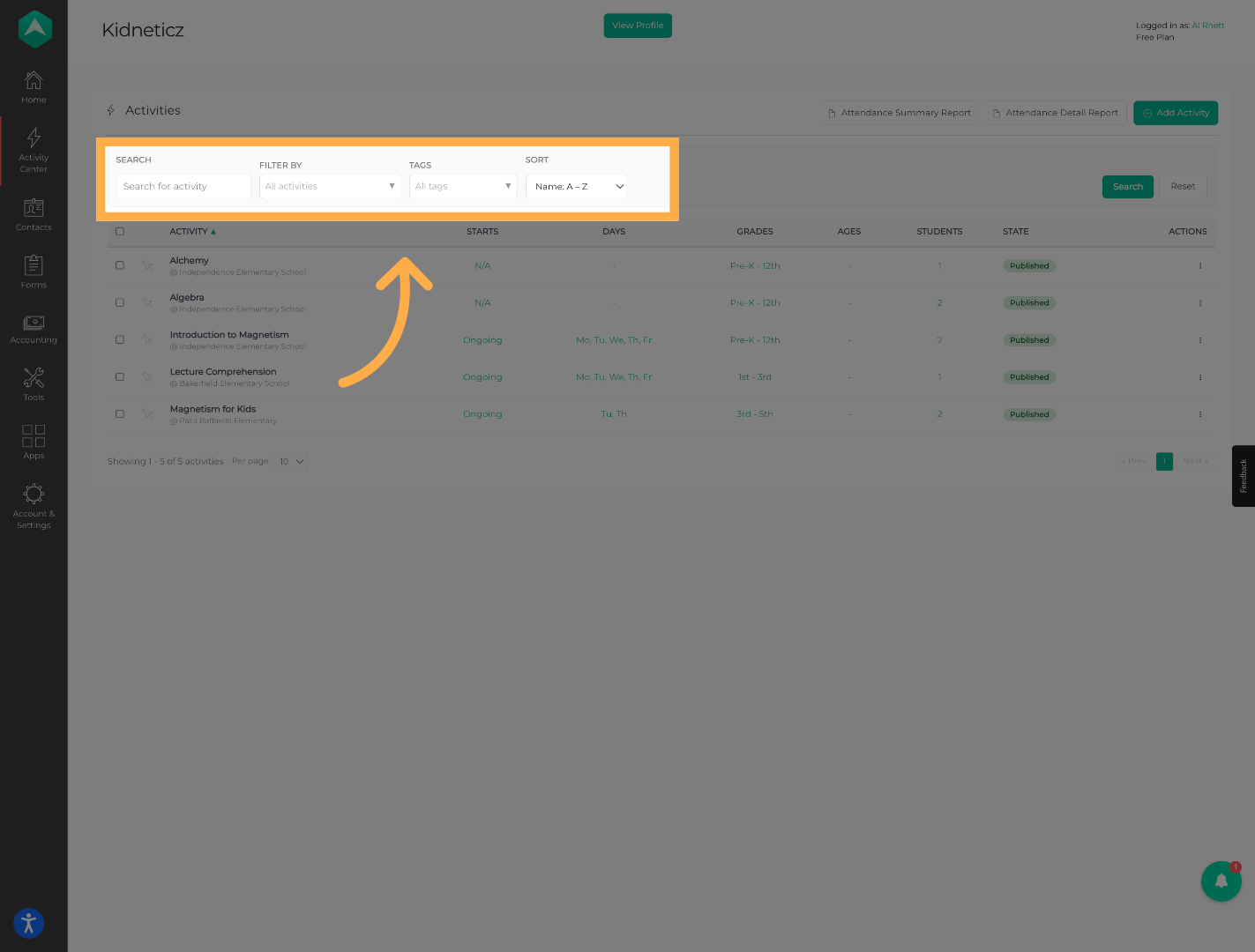
💡 Tip: If your organization has many activities, use filters first to narrow the list and make it easier to find the activities you want to manage.
3. Apply Your Search
Once you've selected your search and filter options, click “Search” to display the activities that match your criteria.
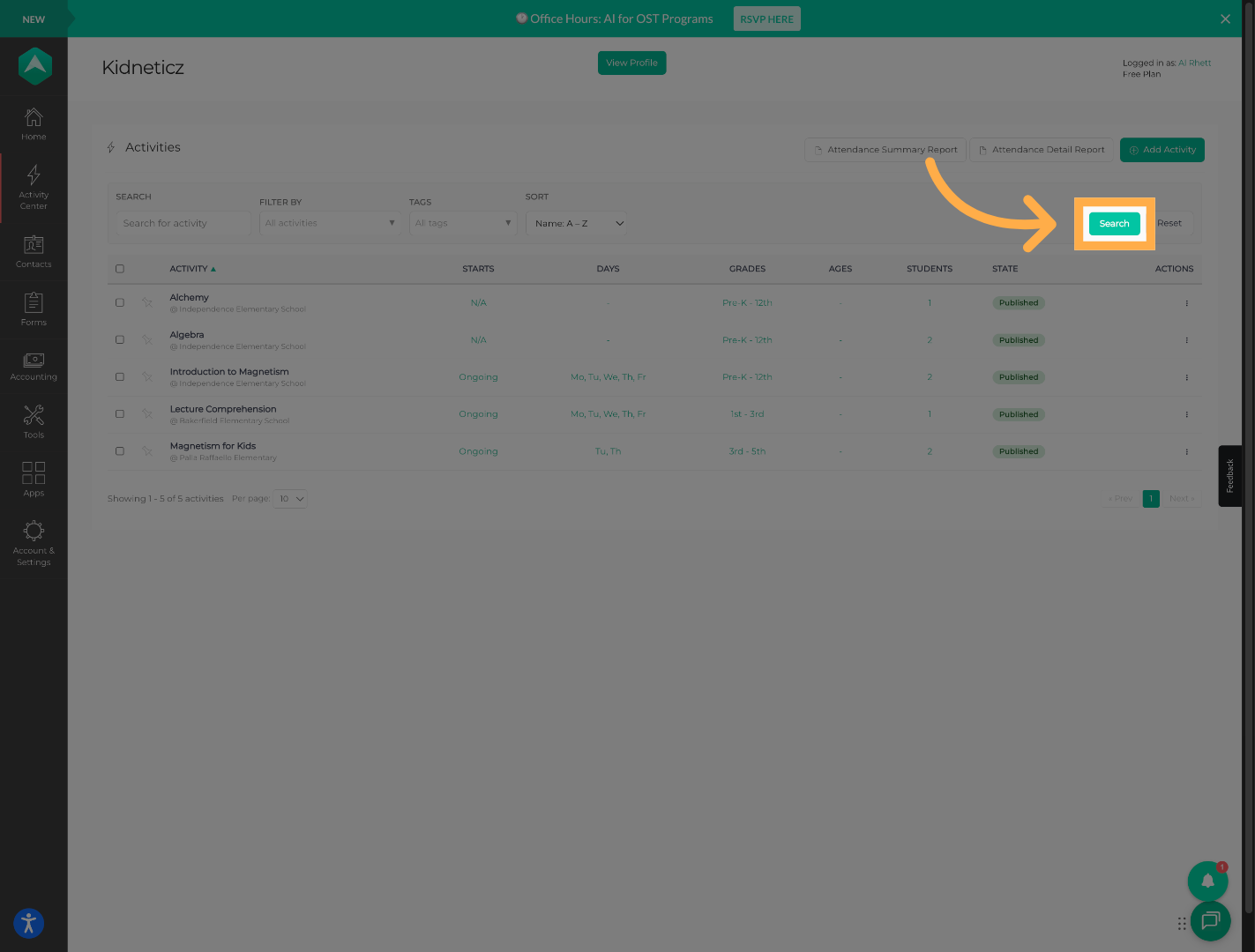
💡 Tip: Review your search results before making selections to ensure you're working with the correct activities.
4. Reset Your Search
Click “Reset” to remove your current search criteria and return to the full activity list.
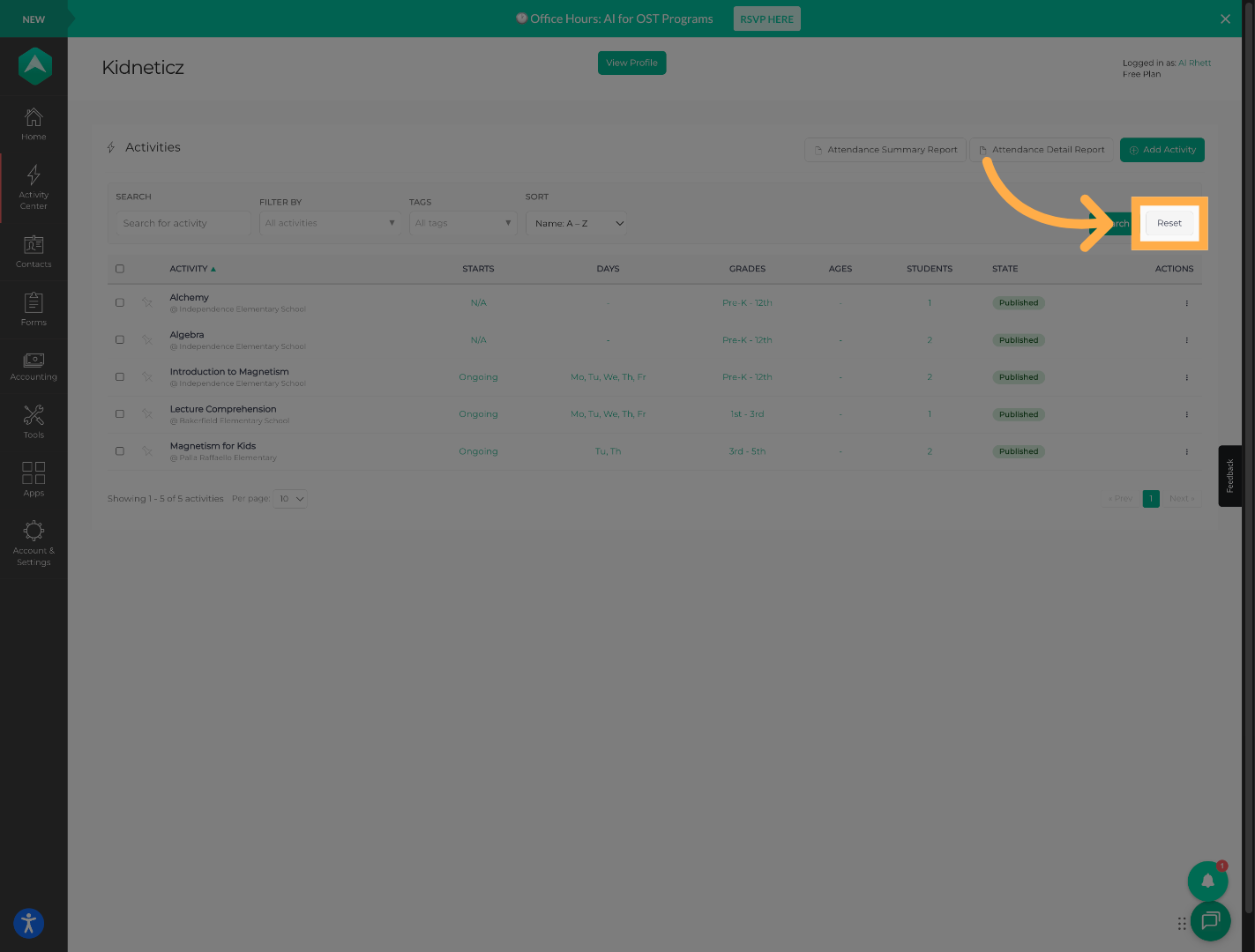
💡 Tip: Use Reset whenever you want to start a new search with different criteria.
5. Select Activities
Select one or multiple activities that you'd like to manage.
Selecting multiple activities allows you to apply the same action to all of them at once.
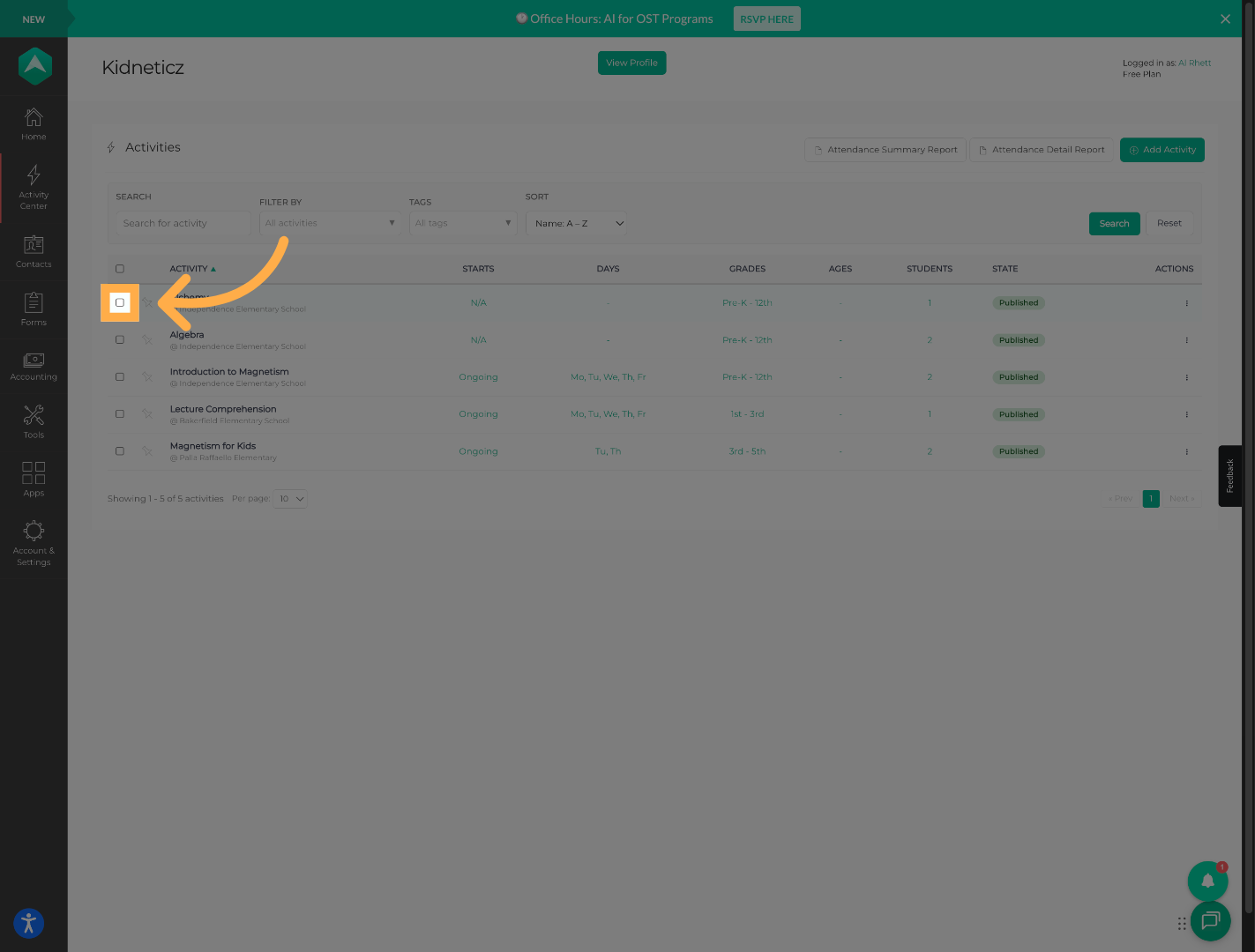
💡 Tip: Double-check your selections before continuing, as the bulk action you choose will apply to every selected activity.
6. Apply a Bulk Action
Once your activities are selected, choose the action you'd like to apply.
✅ You can:
- Pin
- Unpin
- Archive
- Restore
- Delete
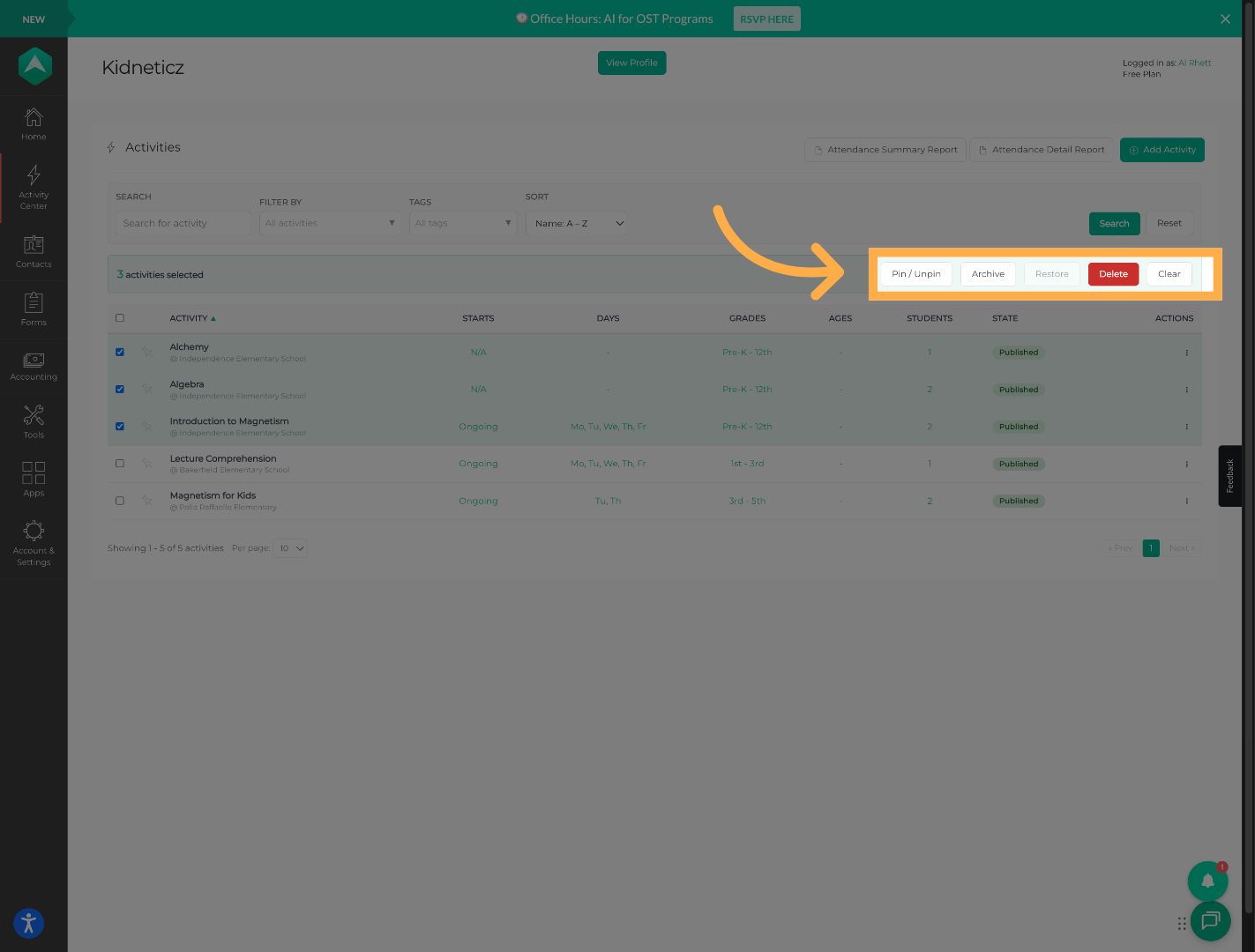
💡 Tip: Use extra care when archiving or deleting multiple activities. Always review your selected activities before confirming the action.
7. Clear Your Selection
When you're finished, click “Clear” to remove your current selections and return to the activity list.
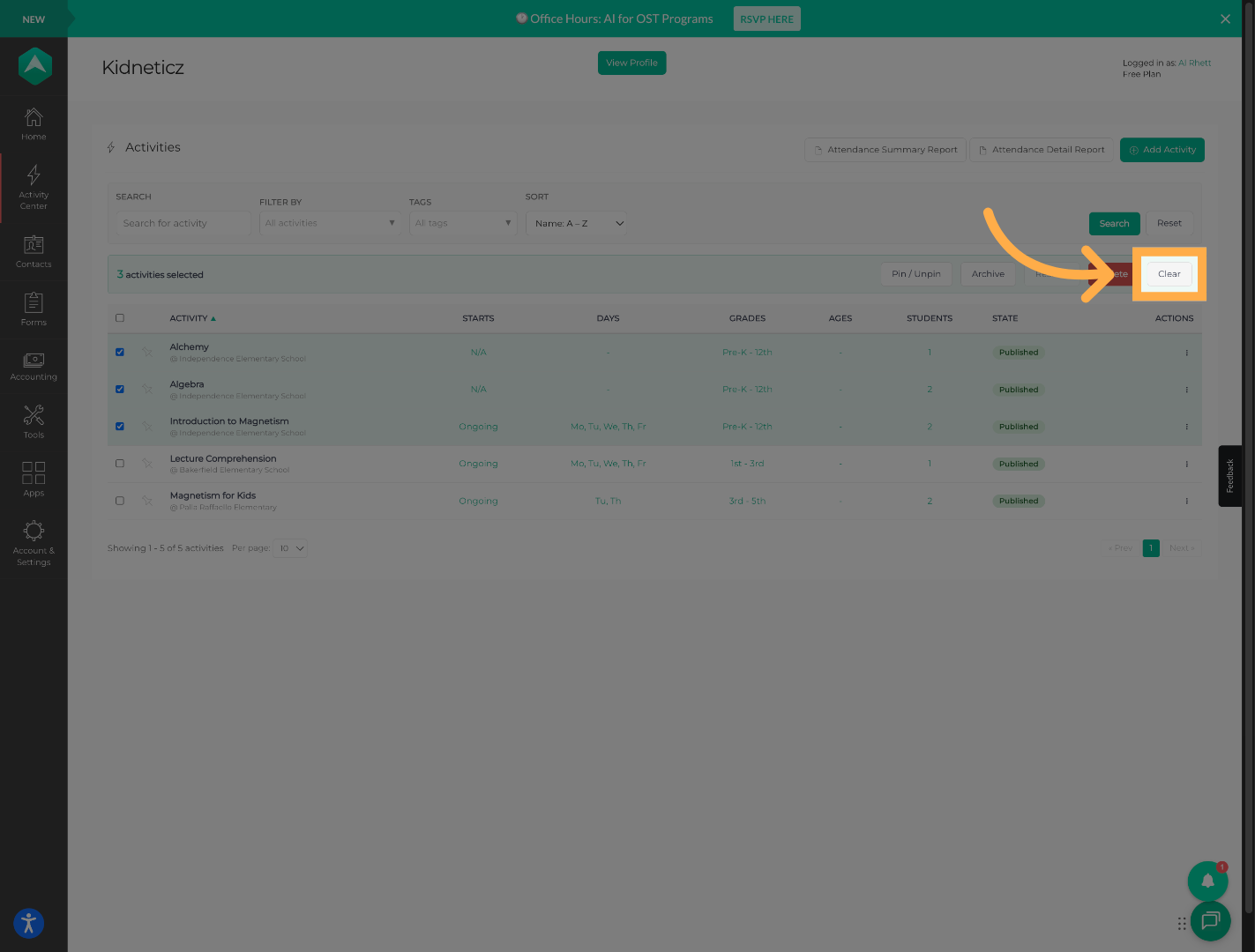
💡 Tip: Clear your previous selections before starting another bulk action to avoid making changes to activities unintentionally.
Frequently Asked Questions
Q: Can I manage multiple activities at once?
A: Yes. Select multiple activities and then choose the bulk action you'd like to apply.
Q: What bulk actions are available?
A: You can pin, unpin, archive, or delete selected activities.
Q: Can I filter activities before selecting them?
A: Yes. You can use the available search, filter, tag, and sorting options to narrow your activity list.
Q: What does Reset do?
A: Reset removes your current search criteria and returns you to the full activity list.
Q: What does Clear do?
A: Clear removes your currently selected activities so you can begin a new selection.
Q: Can I use these actions on just one activity?
A: Yes. You can select a single activity or multiple activities depending on what you need to manage.
💡If you experience any issues or have further questions with “How to Manage Extracurricular Activities in Bulk”, don't hesitate to get in touch with our support team at support@afterschoolhq.com.