![ASHQ Logo Vert Flat.png]](https://support.afterschoolhq.com/hs-fs/hubfs/ASHQ%20Logo%20Vert%20Flat.png?height=40&name=ASHQ%20Logo%20Vert%20Flat.png)
Learn how to quickly add a student to an extracurricular activity by searching for their profile, verifying their information, and completing their registration.
1. Access Extracurricular Activities
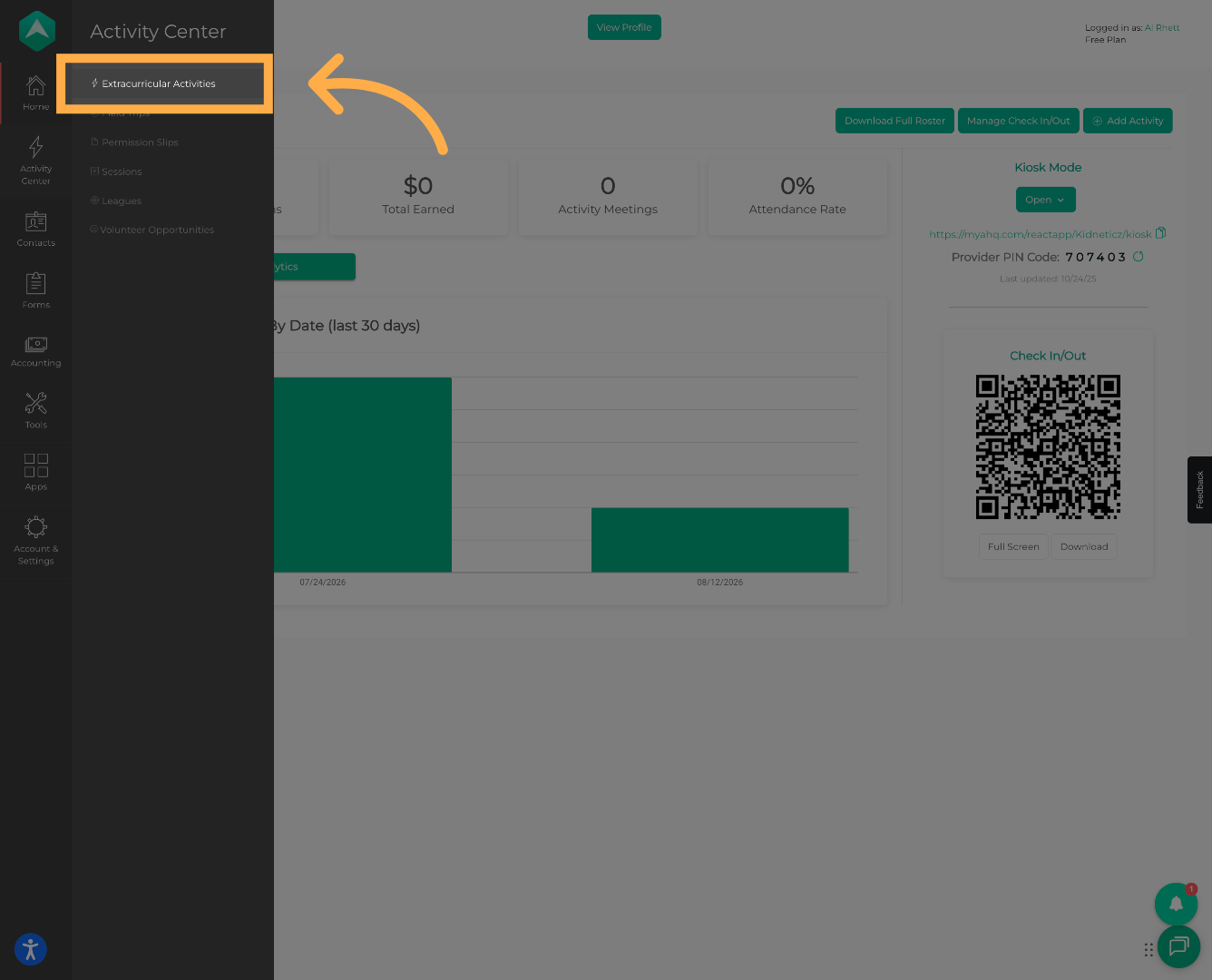
From the main menu, click “Extracurricular Activities” to access your organization’s activities.
2. Select an Activity
Select the activity where you’d like to register a student.
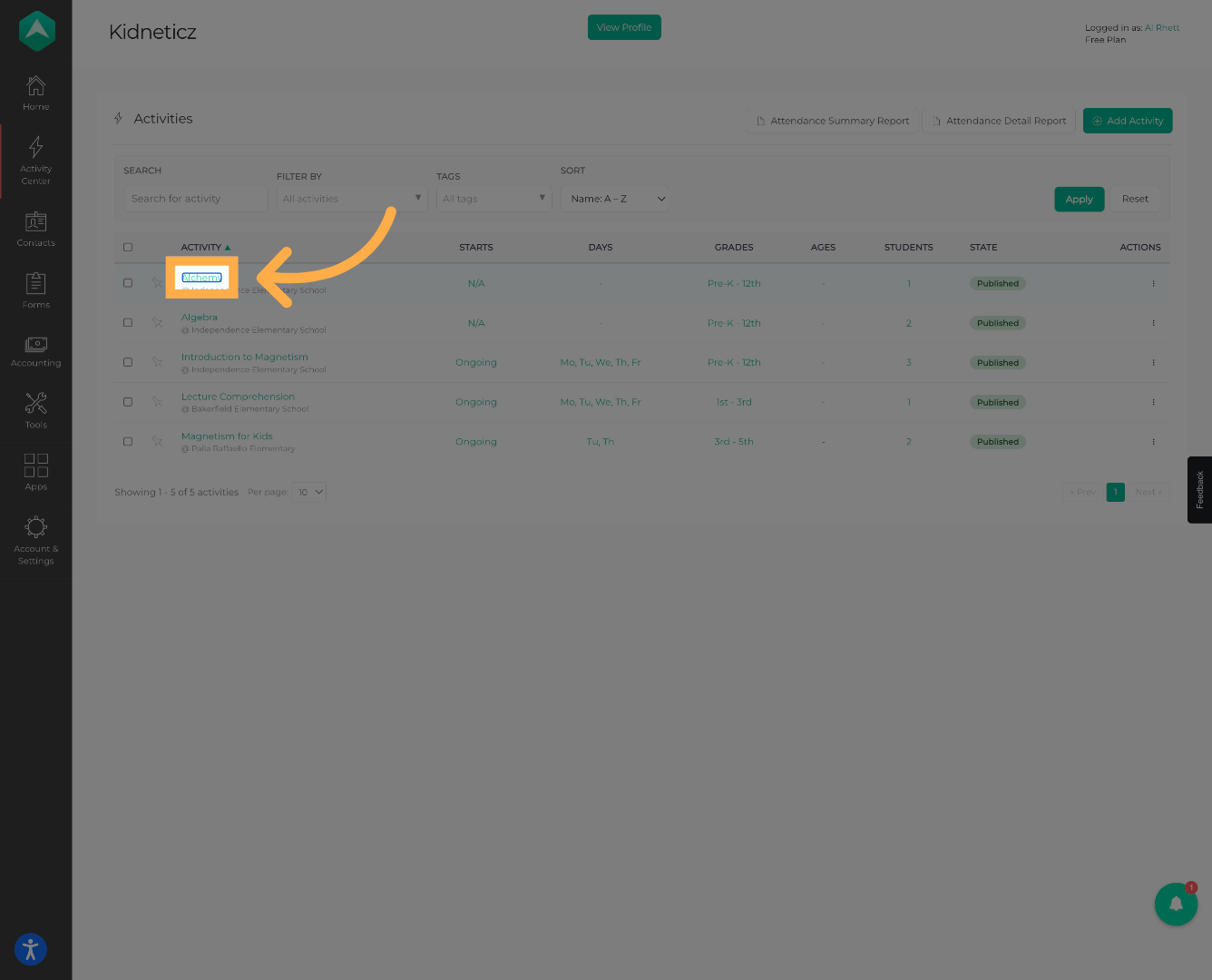
💡Tip: Confirm that you’ve selected the correct activity before continuing.
3. Open the Students Section
Click “Students” to view the students currently registered for the activity.
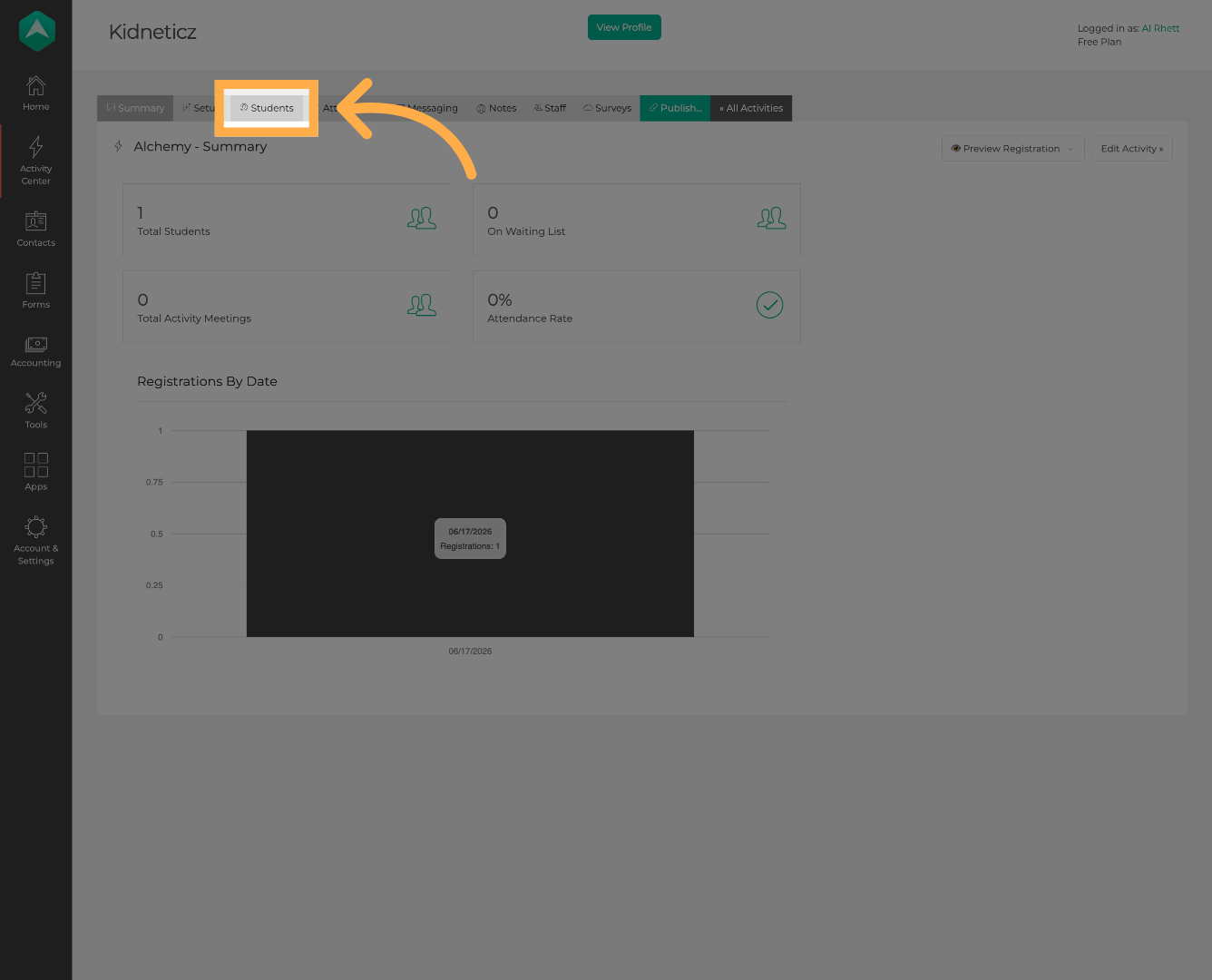
💡Tip: Check the student list first to make sure the student isn’t already registered for the activity.
4. Add a Student
To register a new student, click “Add Student” to begin.
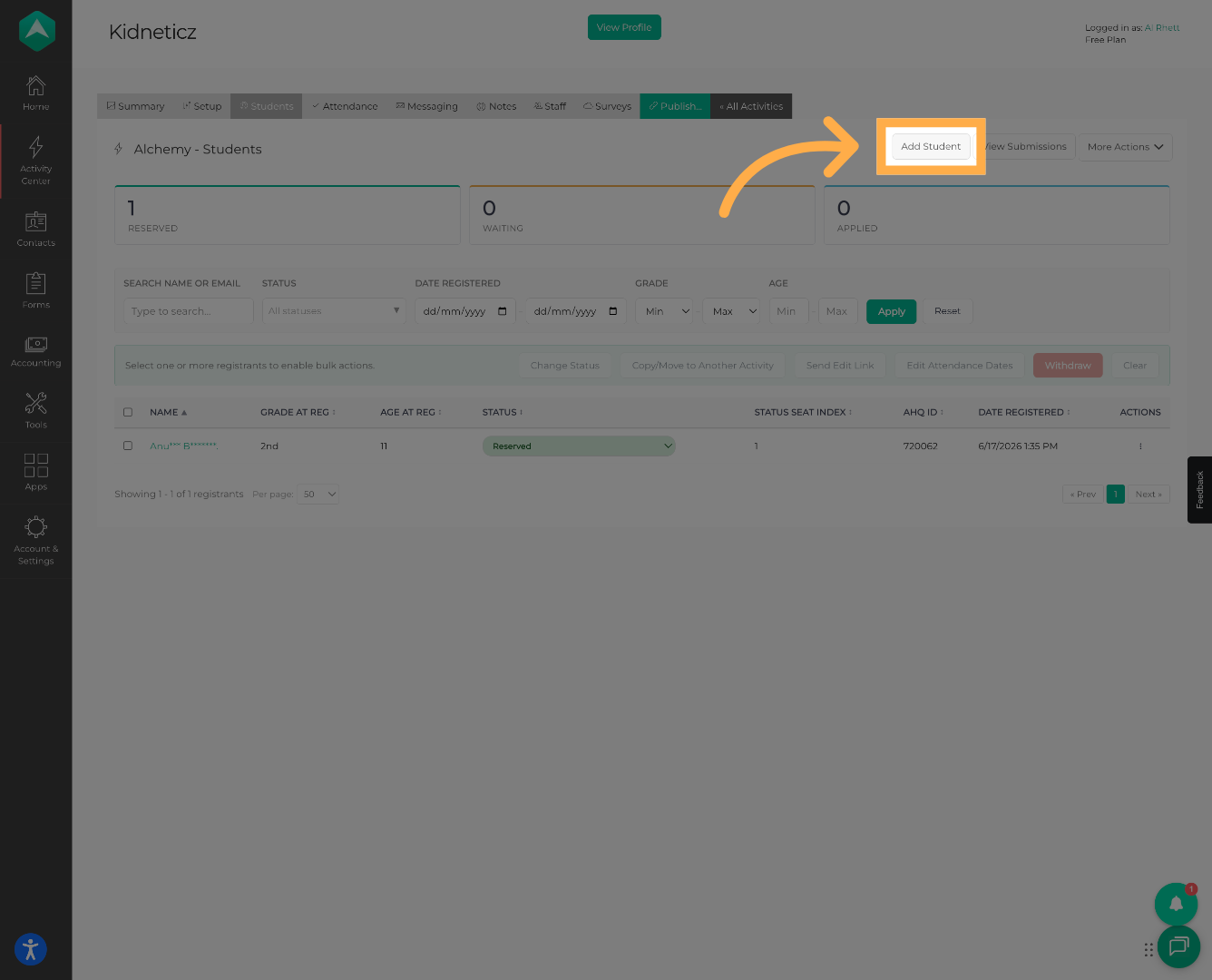
💡Tip: This option allows you to add an existing student profile to the selected activity.
5. Search for a Student
Enter the student’s name in the search field to find their profile.
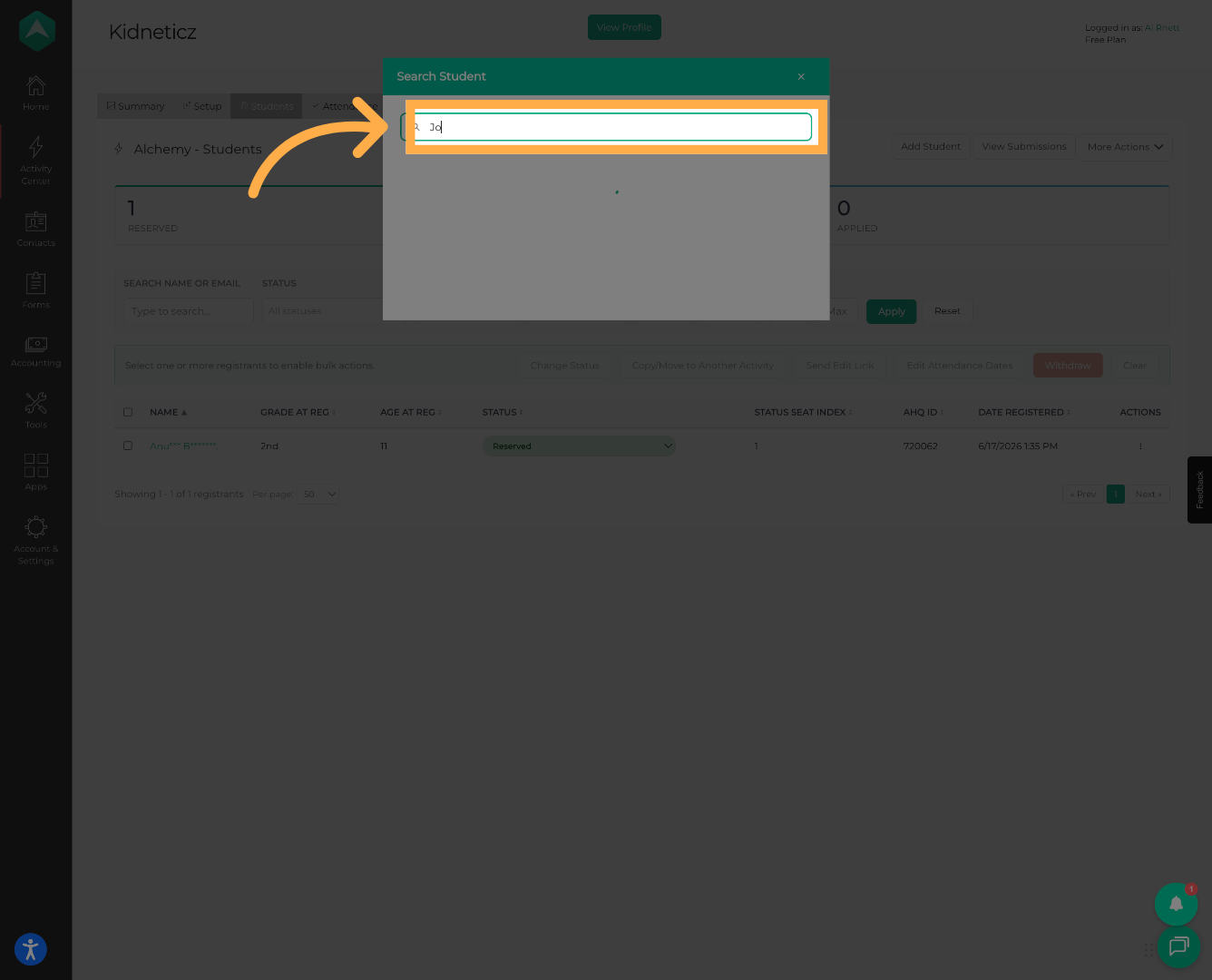
💡Tip: Enter the student’s name carefully to help locate the correct profile.
6. Select the Student
Review the search results and select the student you want to register.
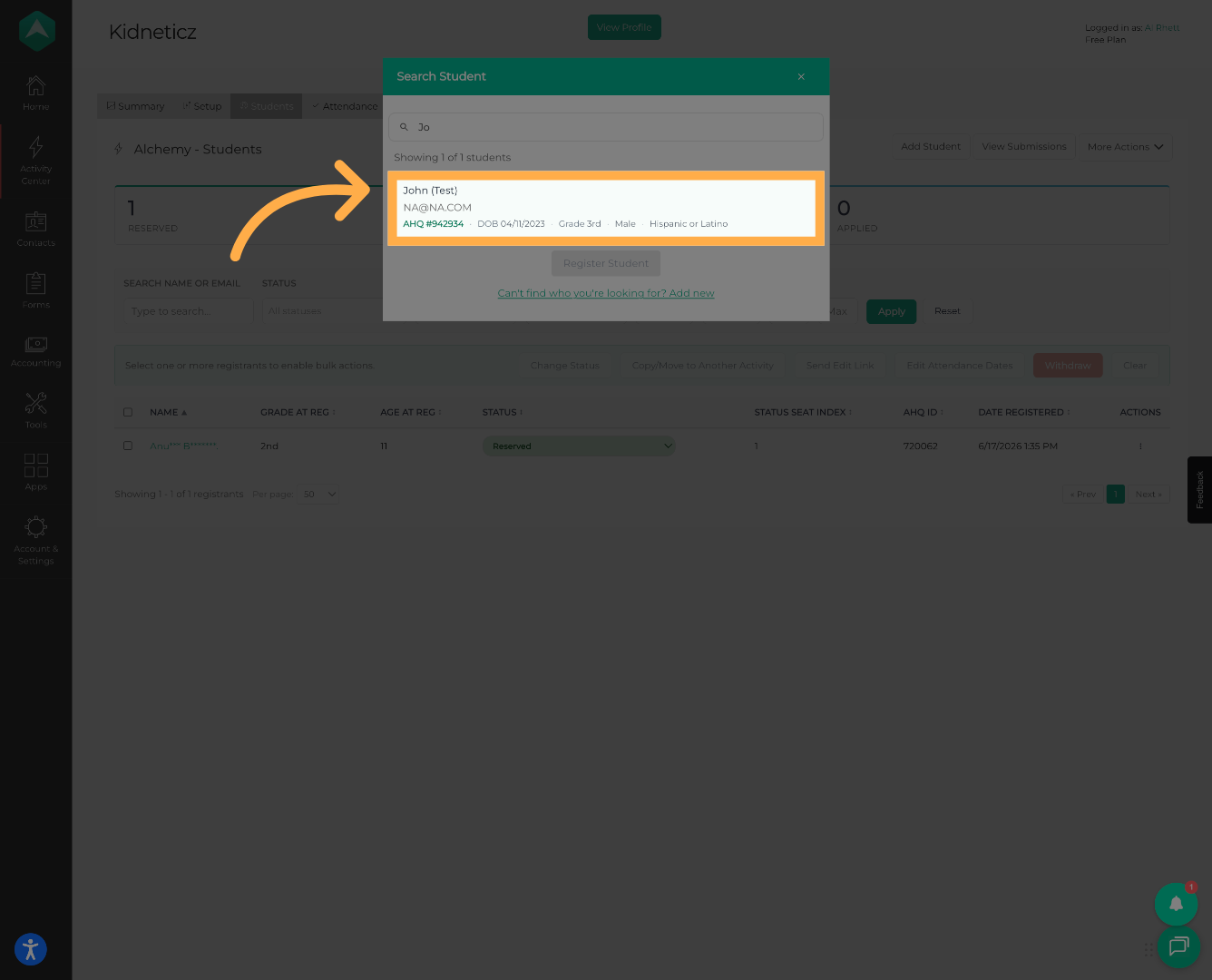
💡Tip: If more than one student appears with the same or a similar name, verify the student’s information before selecting a profile.
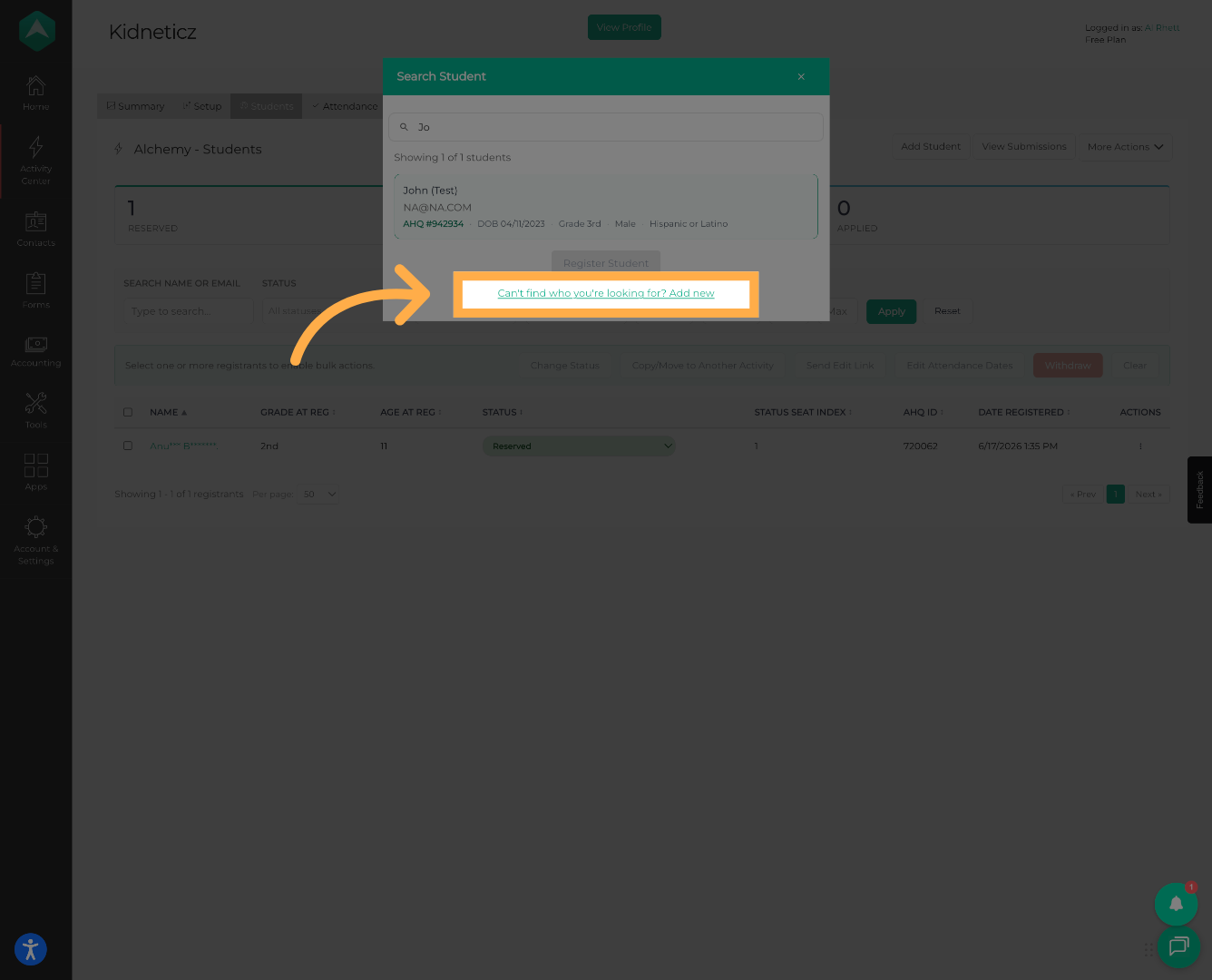
7. Add a New Student
If the student is not listed in the search results and needs to be added as a new student, click “Add New” to create their profile.
8. Verify the Student
If multiple students have the same name, use the student’s date of birth to make sure you select the correct profile.
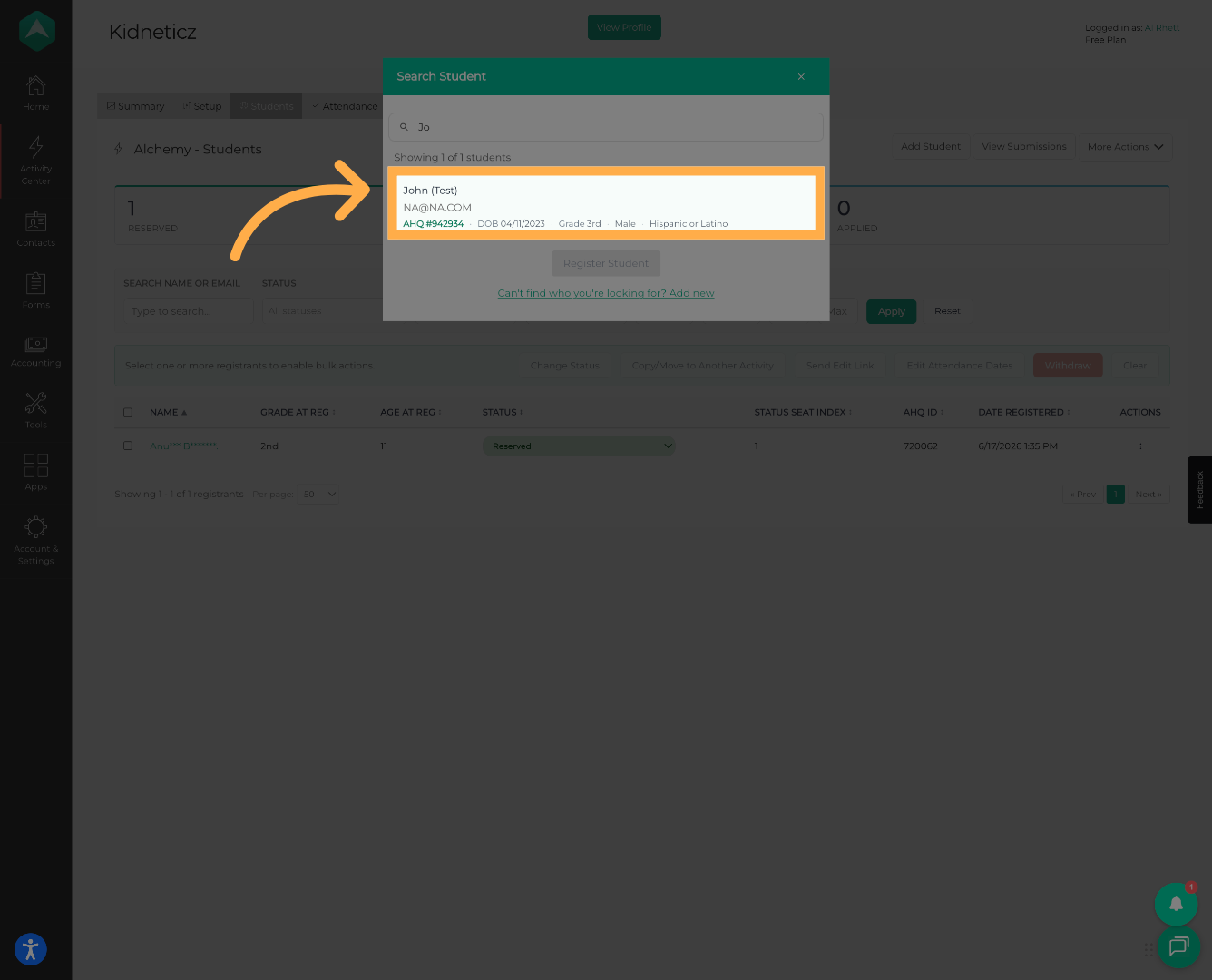
💡Tip: Always verify the student’s date of birth before completing the registration to avoid registering the wrong student.
9. Complete the Registration
Once you’ve confirmed the student is correct, click “Register Student” to complete their registration for the activity.
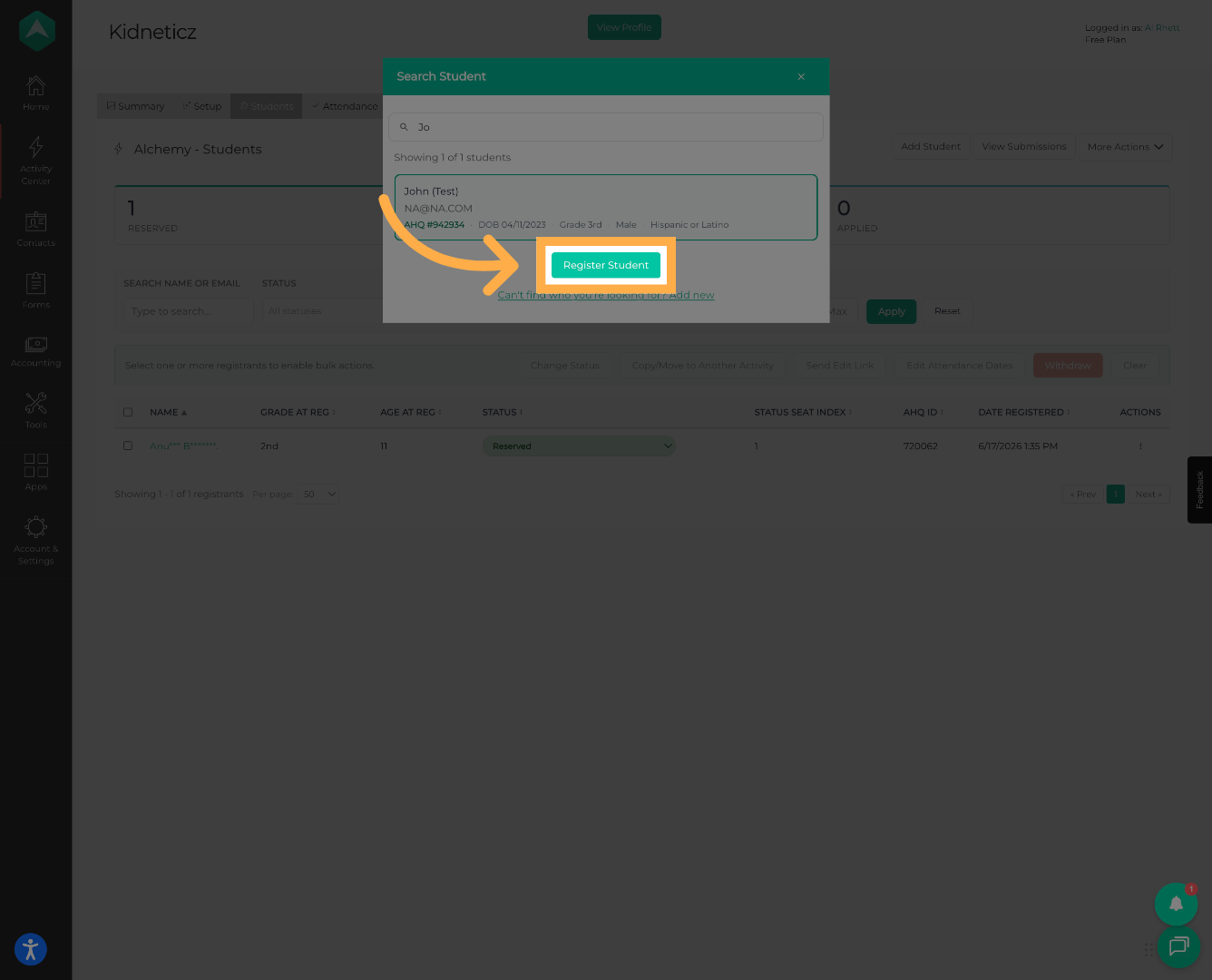
💡Tip: After registering the student, return to the “Students” section and confirm that they now appear on the activity roster.
Frequently Asked Questions
Q: Can I register an existing student profile?
A: Yes. Use “Add Student” to search for an existing student profile and register them for the selected activity.
Q: What if multiple students have the same name?
A: Use the student’s date of birth to identify and select the correct student profile.
Q: What if I can’t find the student?
A: Double-check the spelling of the student’s name and review the search results. If the student still does not appear, the student may not have an existing profile in the system.
Q: What if the student is already registered?
A: Check the Students section before adding them. If they already appear on the roster, they do not need to be registered again.
Q: Can I register the same student for another activity?
A: Yes. Select the other activity and use Add Student to register the student for that activity.
Q: How can I confirm the registration was successful?
A: After clicking Register Student, check the activity’s Students section. The student should appear on the activity roster.
💡If you experience any issues or have further questions with “How to Manually Add a Student”, don't hesitate to get in touch with our support team at support@afterschoolhq.com.