![ASHQ Logo Vert Flat.png]](https://support.afterschoolhq.com/hs-fs/hubfs/ASHQ%20Logo%20Vert%20Flat.png?height=40&name=ASHQ%20Logo%20Vert%20Flat.png)
Your AfterSchool HQ family account gives you one place to manage your family's activity registrations and account information.
From your dashboard, you can explore available programs, review upcoming activities, manage participant profiles, check notifications and payment information, and share account management responsibilities with another parent or guardian.
1. Access Your Family Account
Once you've logged in to AfterSchool HQ, select your family account to access your dashboard and get started.
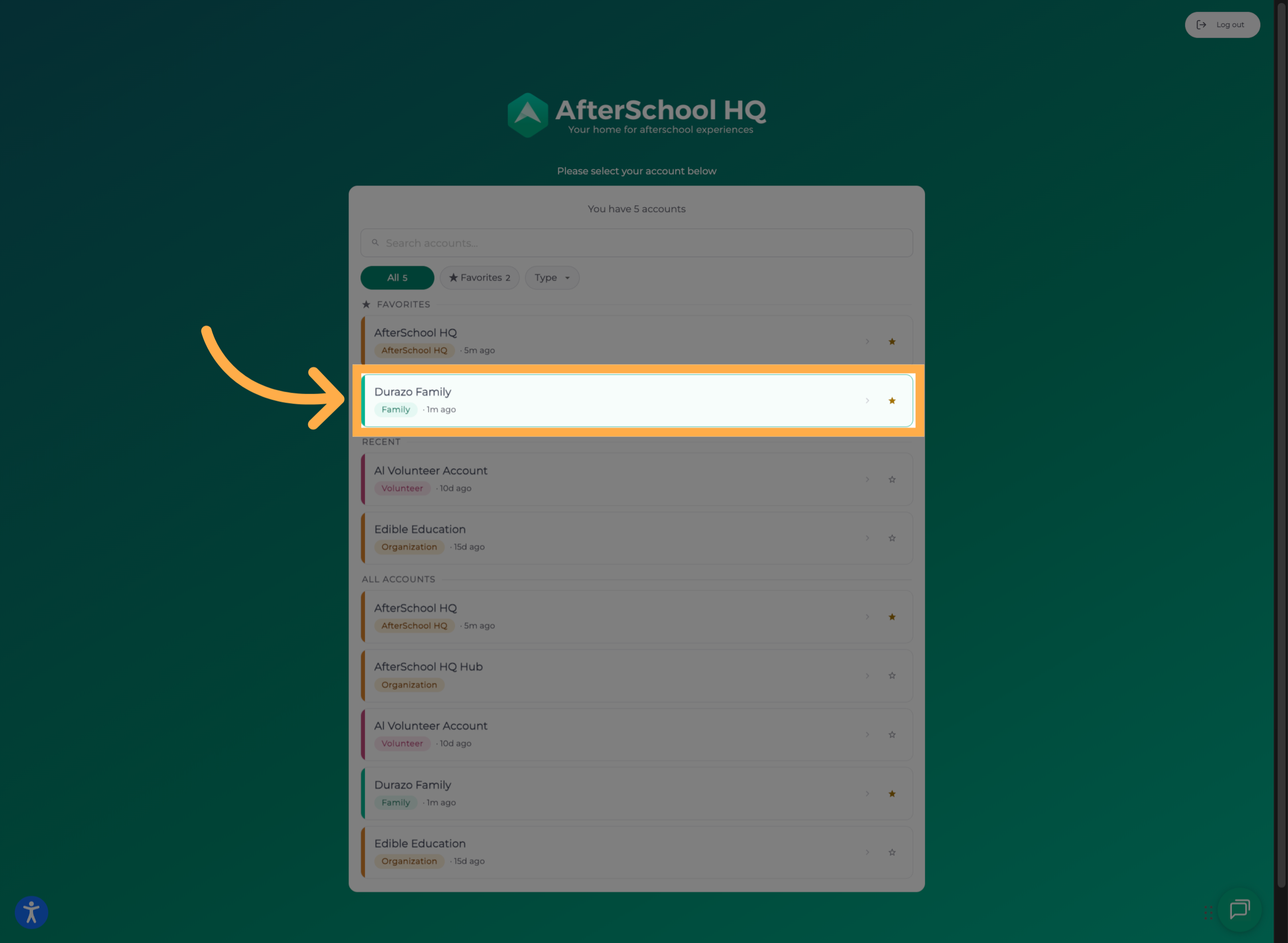
💡Tip: Make sure you're accessing the correct family account, especially if you have access to more than one account.
2. Explore Your Family Dashboard
Your family dashboard provides an overview of your account.
Here, you can see how many children are associated with your account, along with a summary of your upcoming activities.
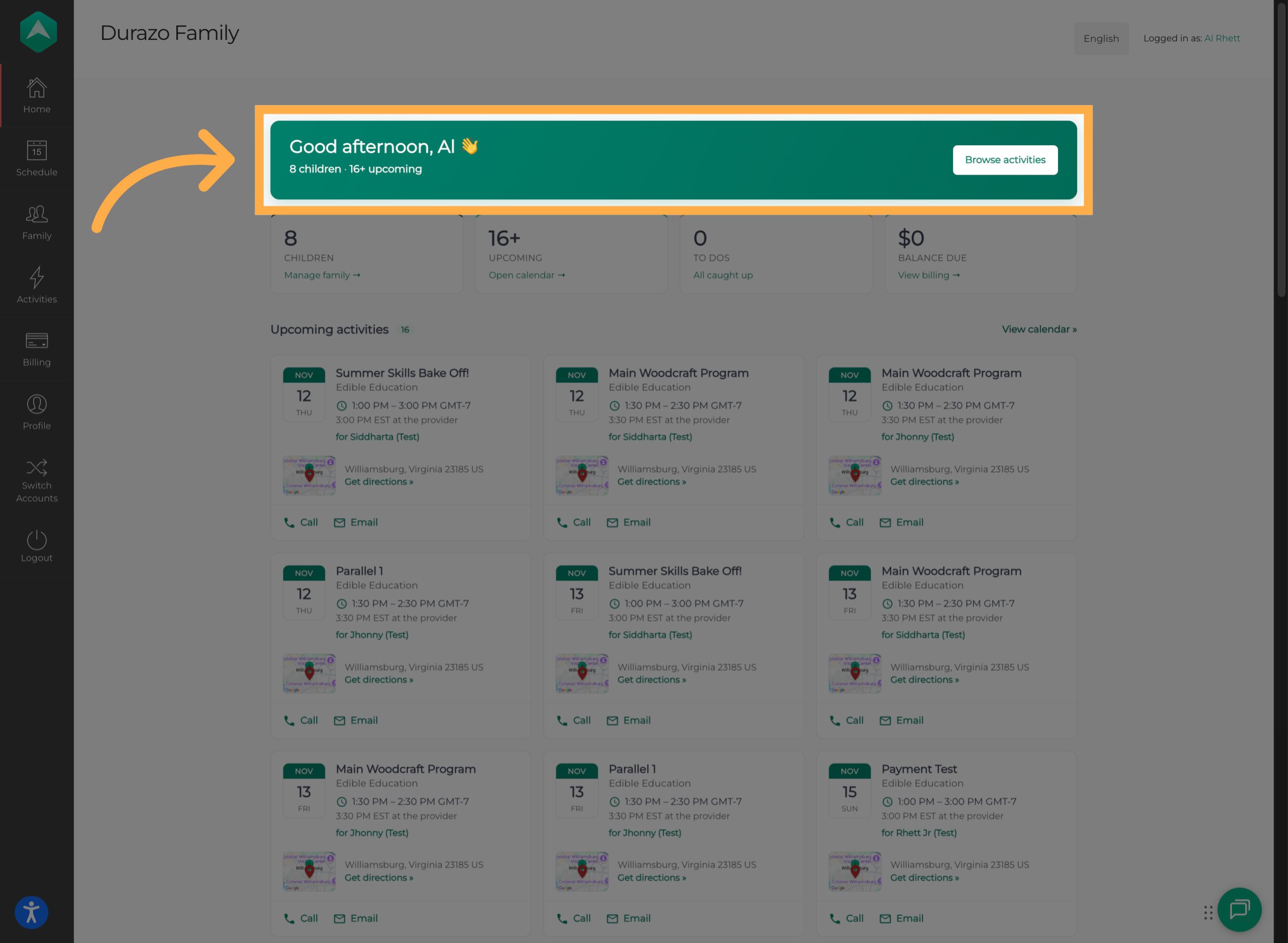
💡Tip: Check your dashboard regularly to stay up to date with your family's scheduled activities.
3. Browse Available Activities
Click “Browse Activities” to explore the activities available to your family and discover programs you may be interested in.
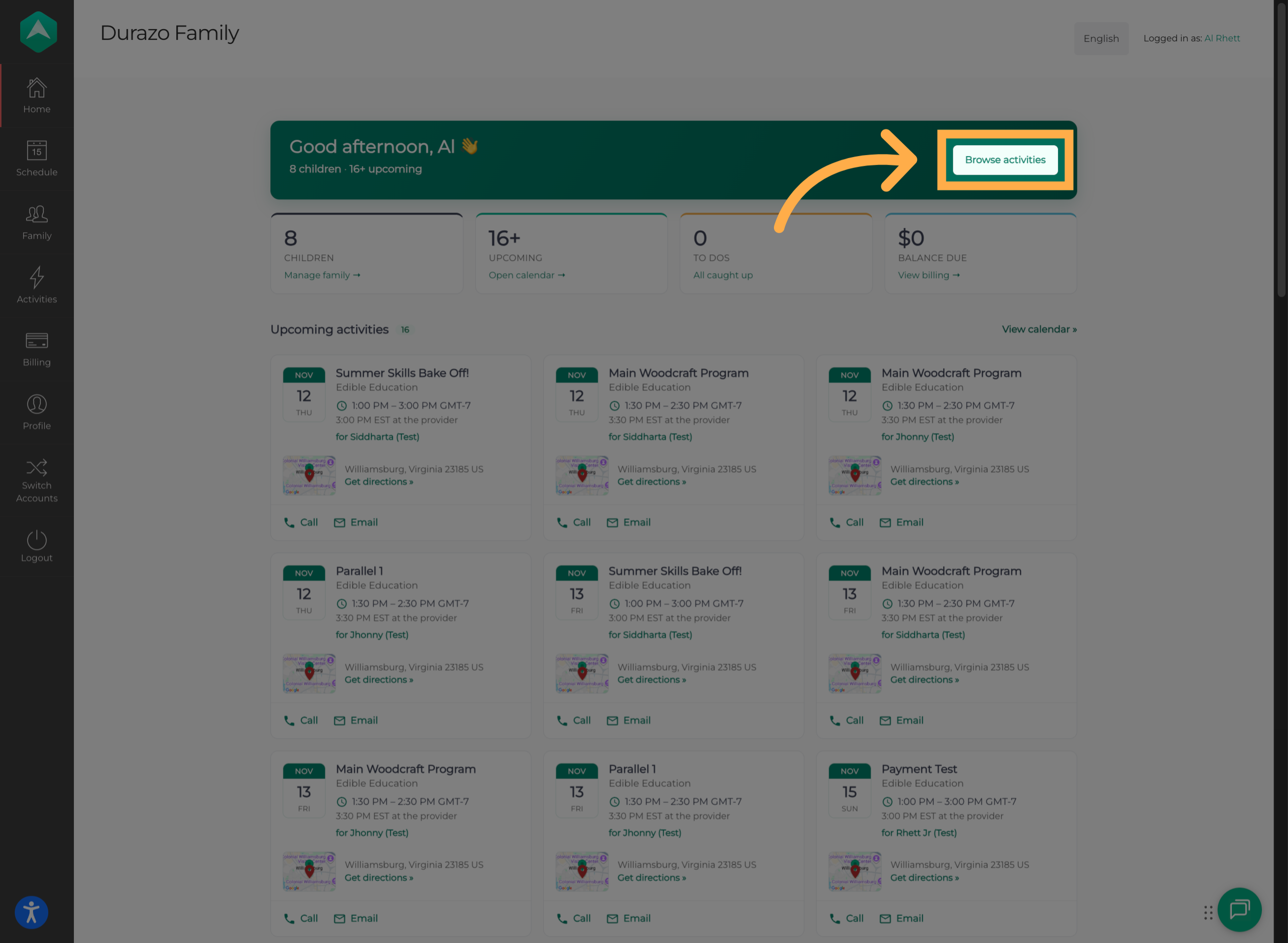
💡Tip: Review the program details before registering to make sure the activity is a good fit for your child.
4. Open Family Management
Navigate to the family management section to review and manage the information associated with your family members.
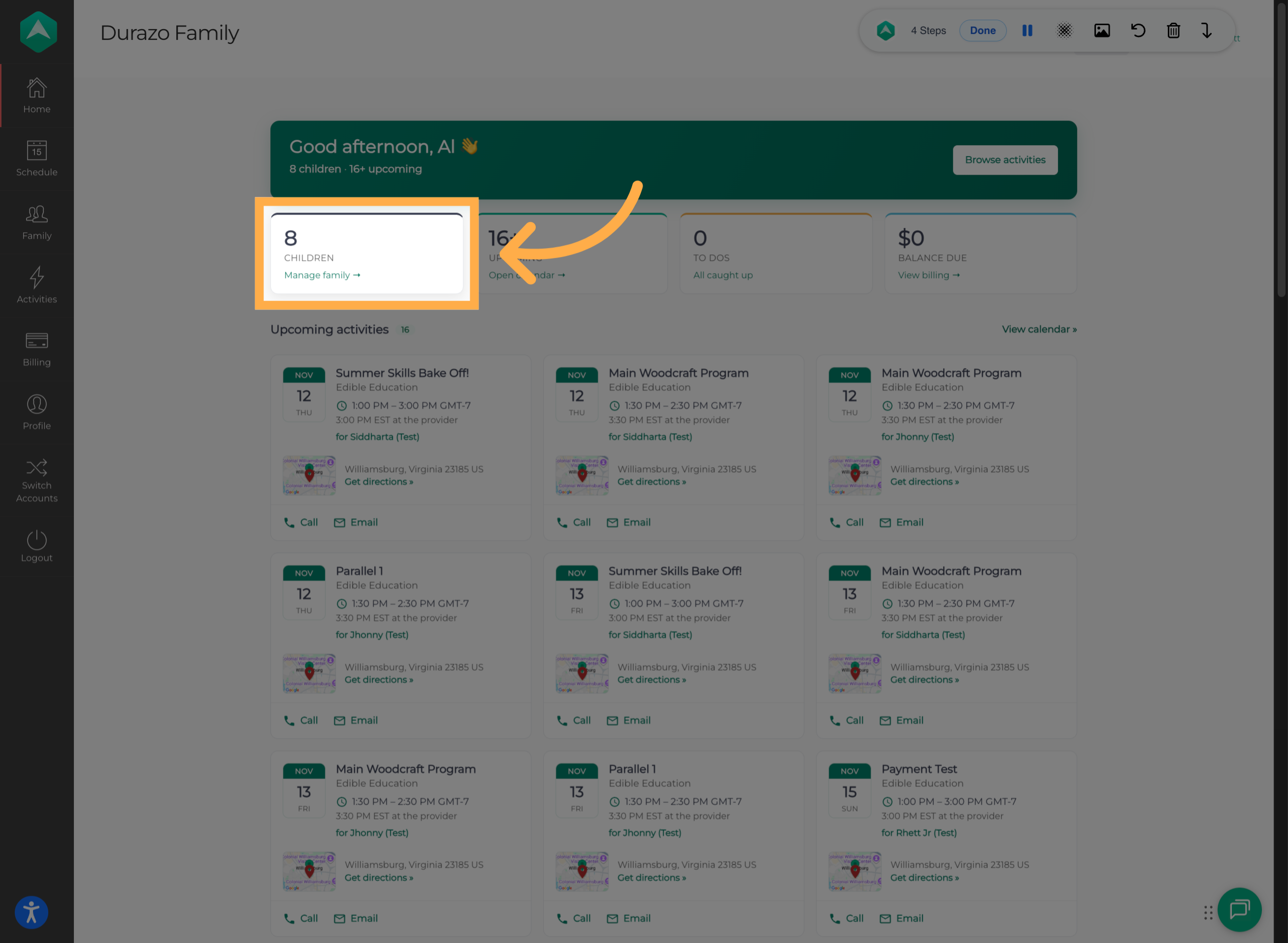
5. Review Participant Profiles
Here, you can view your participants' profiles, review their personal information, and see the activities they're currently assigned to.
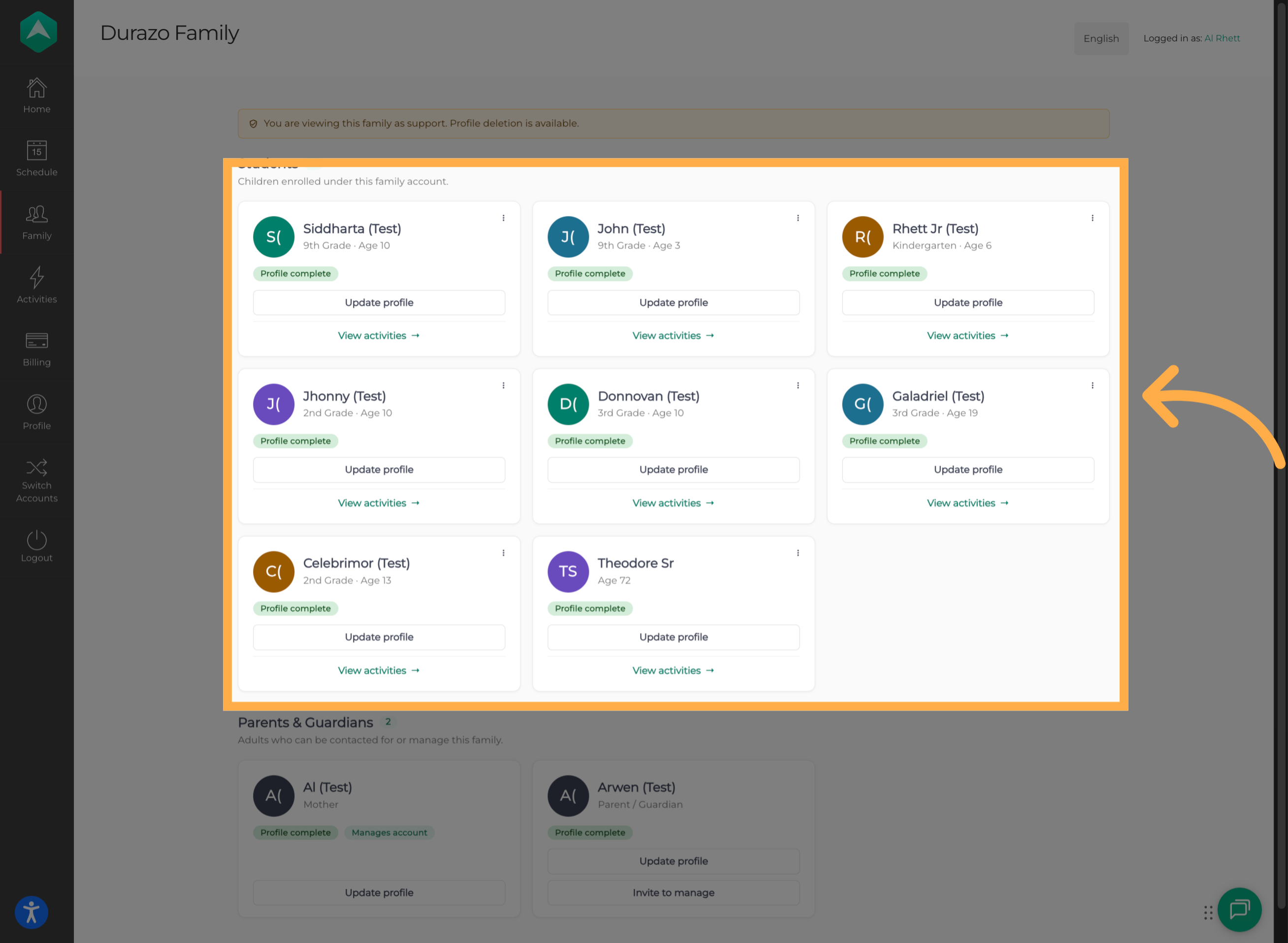
💡Tip: Keep participant information accurate and up to date so activity providers have the information they need.
6. Manage Profile Information and Activities
Select the appropriate option to either update a participant's profile information or review their assigned activities.
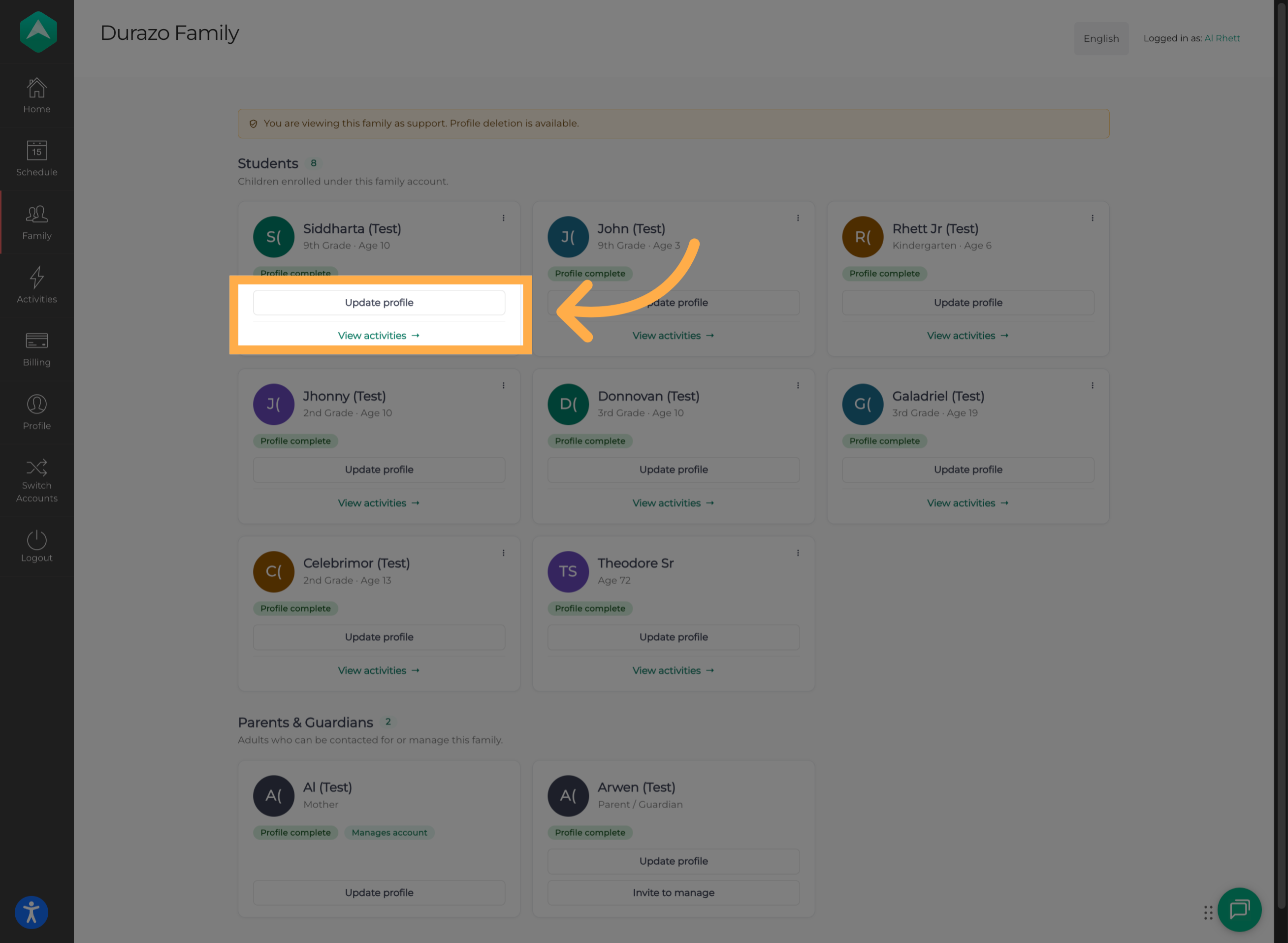
💡Tip: Review the participant's information carefully before saving any changes.
7. Open the Family Calendar
Return to your main dashboard and select the calendar option to view your family's upcoming activities in a calendar format.
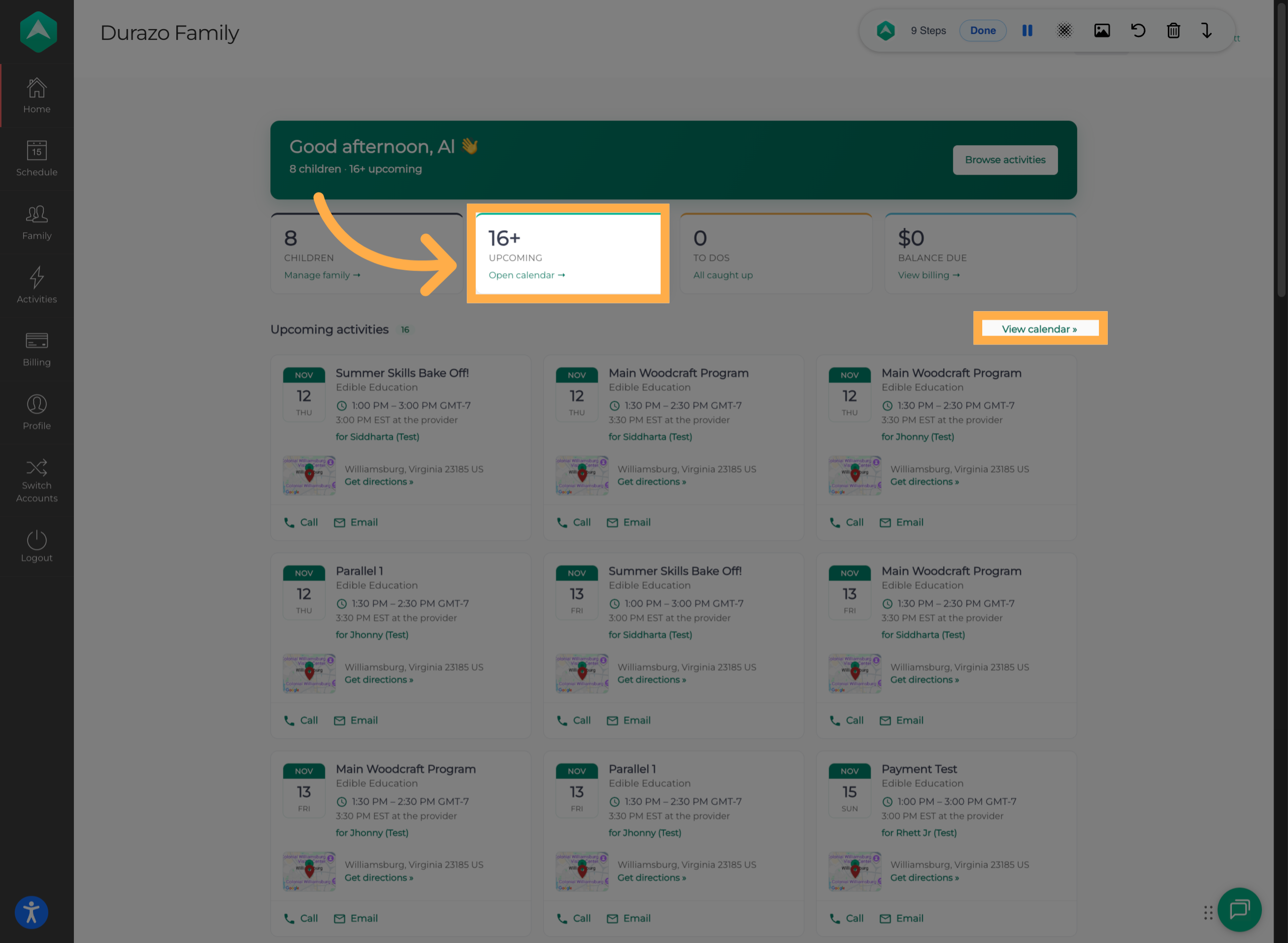
8. View Your Family Schedule
The family calendar gives you an overview of your scheduled activities, with dates and times displayed according to your local time zone.
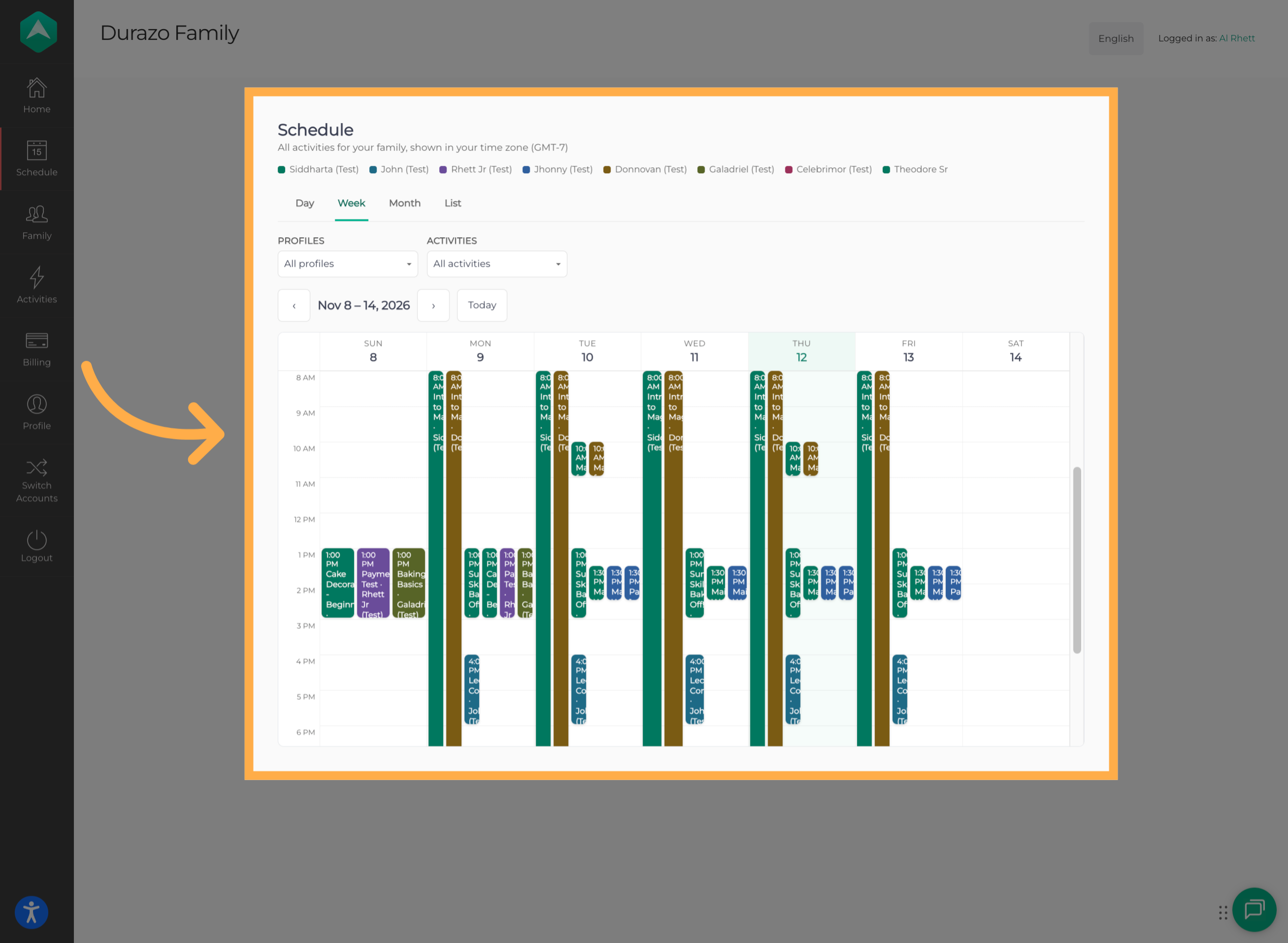
💡Tip: Use the calendar to keep track of activity dates and times and help avoid scheduling conflicts.
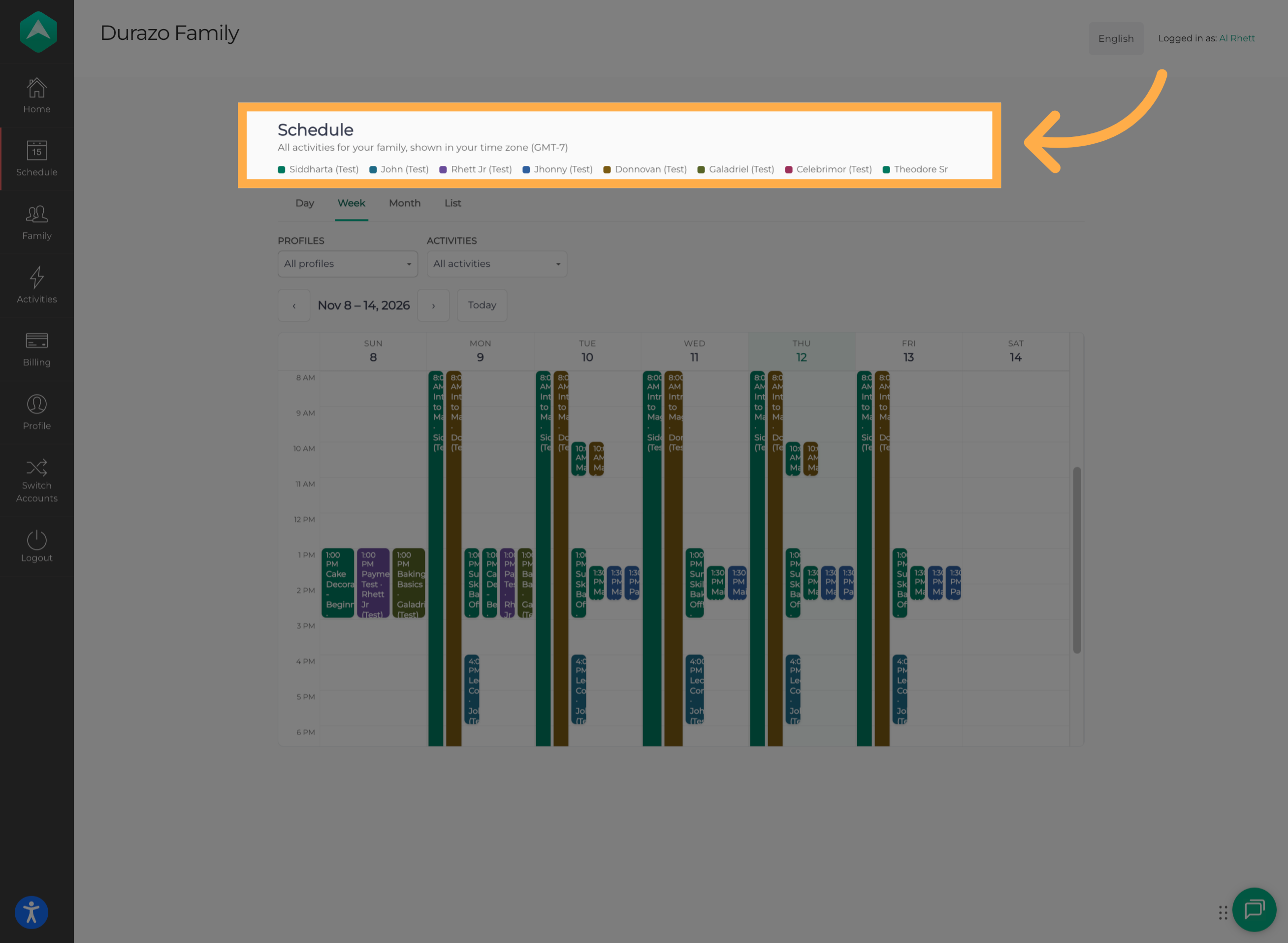
9. Identify Each Family Member
Each child is represented by a different color, making it easier to identify whose activities appear on the calendar.
10. Change the Calendar View
Customize how your schedule is displayed by switching between the Day, Week, Month, and List views.
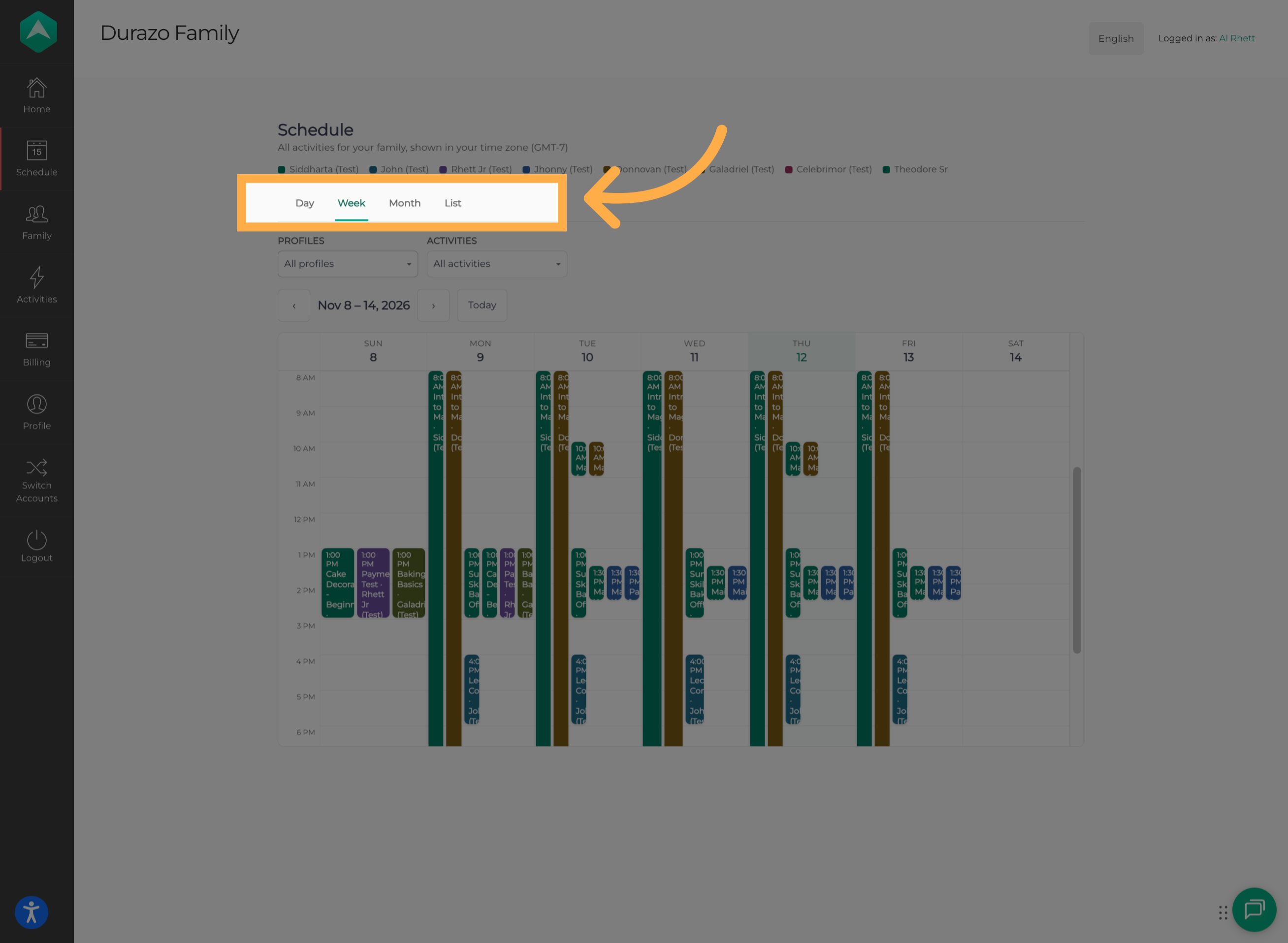
💡Tip: Use the List view for a straightforward overview of scheduled activities, or switch to the Month view when planning ahead.
11. Filter Your Calendar
Use the available filters to narrow down your calendar by family member or activity, making it easier to find specific events.
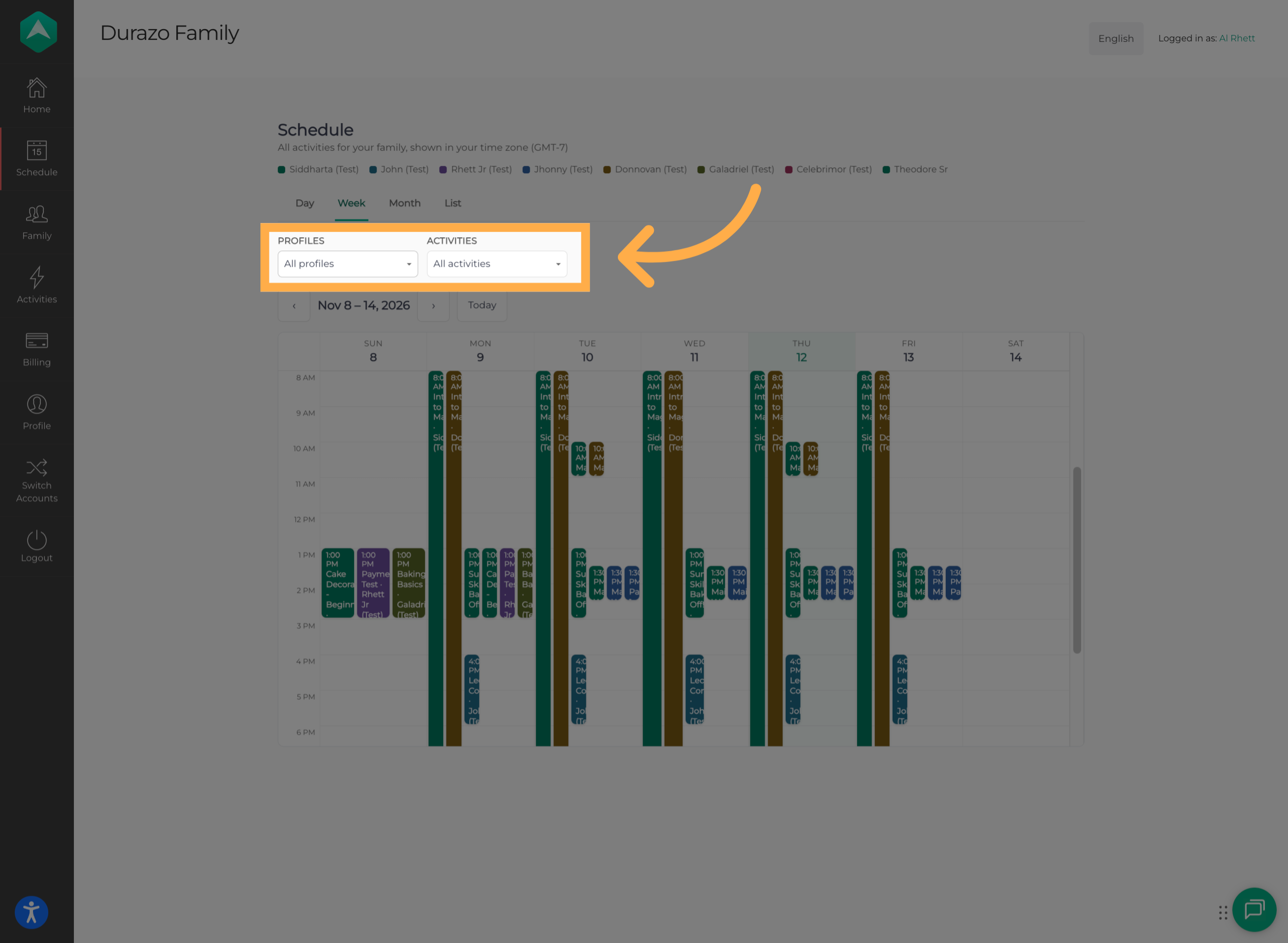
💡Tip: Apply filters when multiple children have activities scheduled around the same time.
12. Review Scheduled Dates
Your calendar will display the dates and scheduled activities based on the view and filters you've selected.
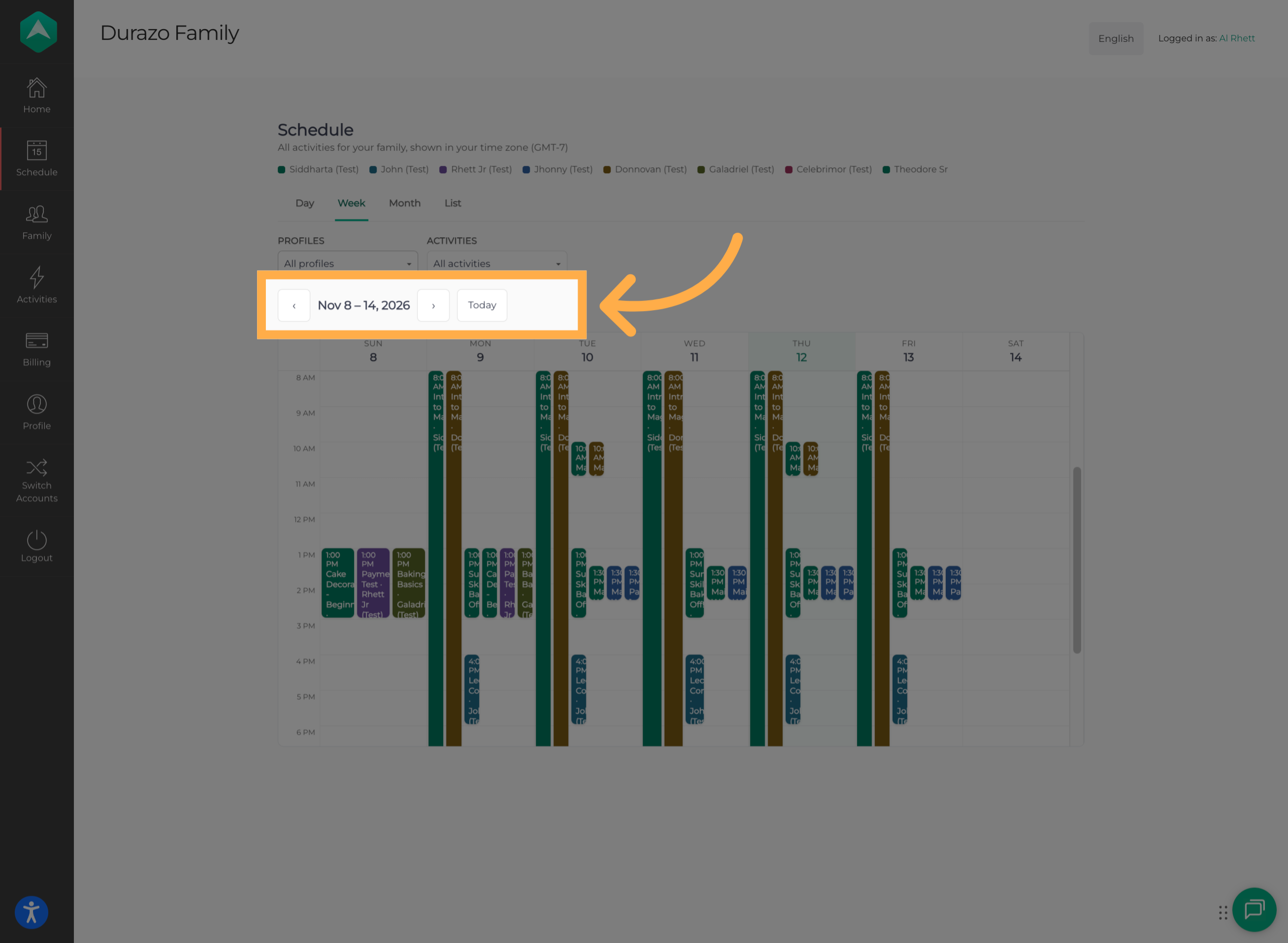
💡Tip: If an activity isn't appearing, check your selected calendar view and filters before assuming it isn't scheduled.
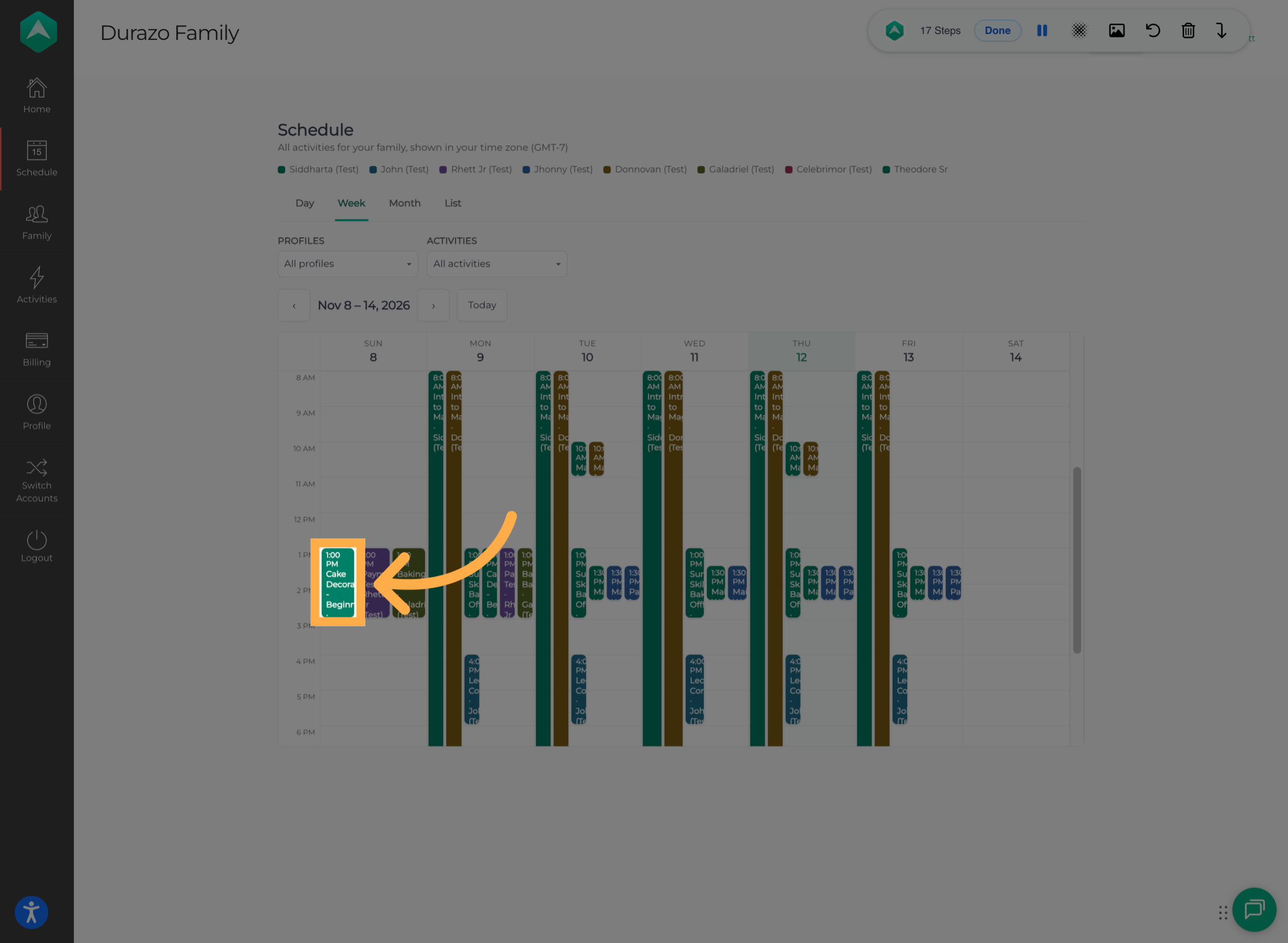
13. Open an Activity
Click on an activity in the calendar to open its program registration page and review additional information.
💡Tip: Review the activity information whenever you need to confirm program details.
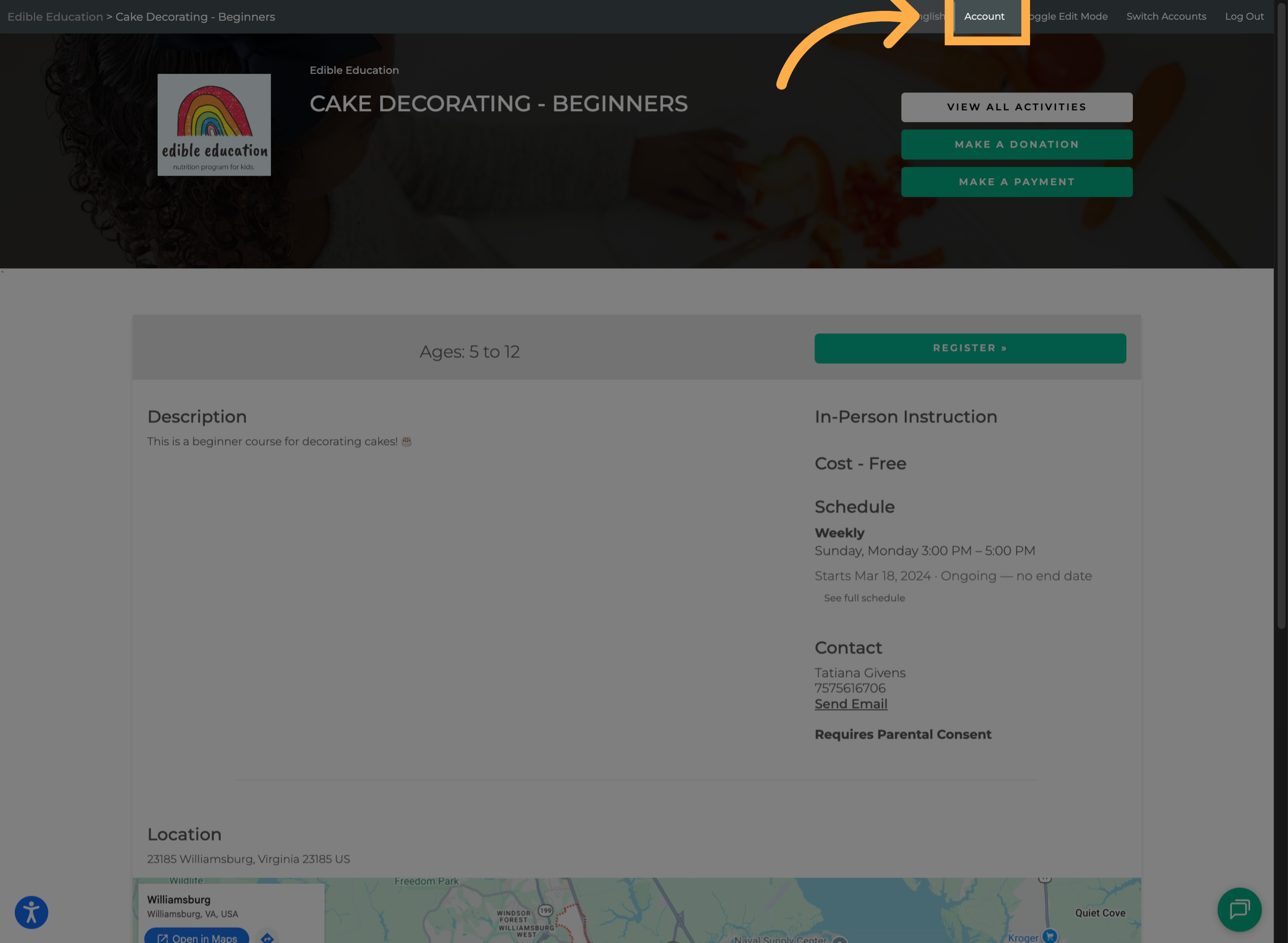
14. Return to Account Settings
To return to your family dashboard, click “Account” in the navigation menu.
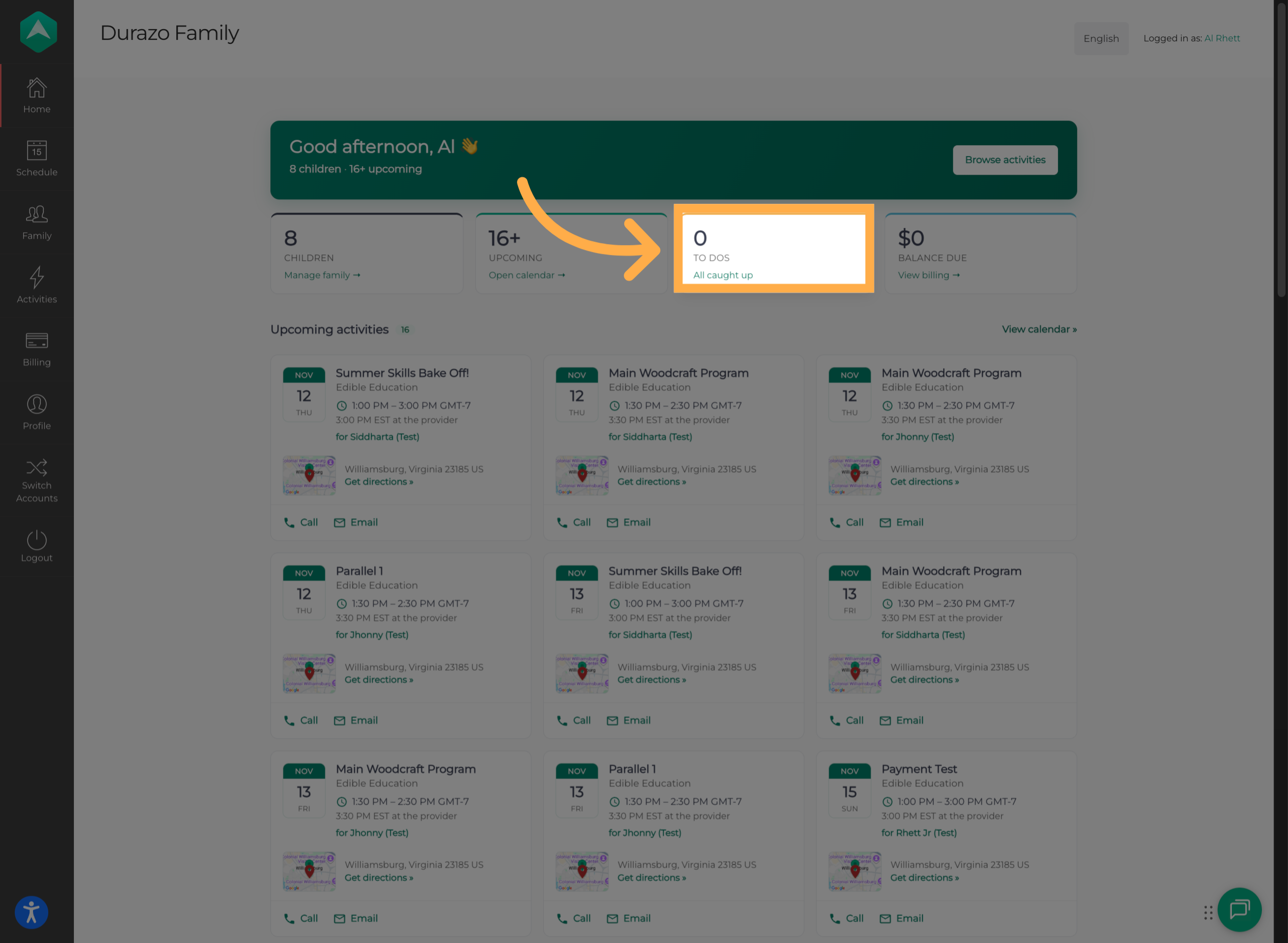
15. Review Your Notifications
From your account dashboard, you can check your notifications to stay informed about important updates and alerts.
💡Tip: Check your notifications regularly so you don't miss important account or activity updates.
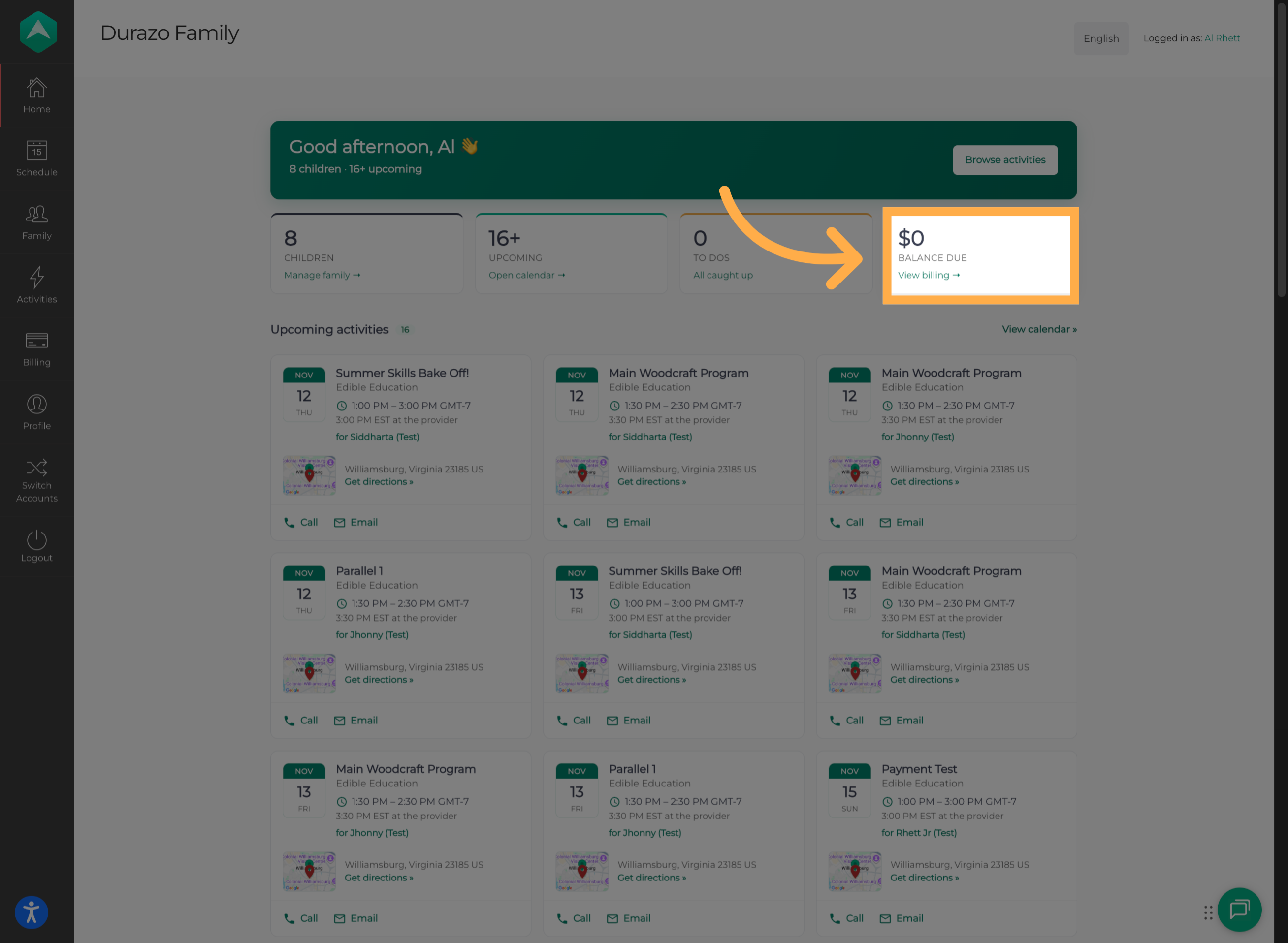
16. Check Your Outstanding Balance
Review any outstanding balance associated with your family account and see whether there are payments that need your attention.
💡Tip: Check your balance periodically to stay aware of any payments that may need to be completed.
17. Manage Your Payment Information
Navigate through your transactions, payment plans, and saved payment methods to review and manage your account's financial information.
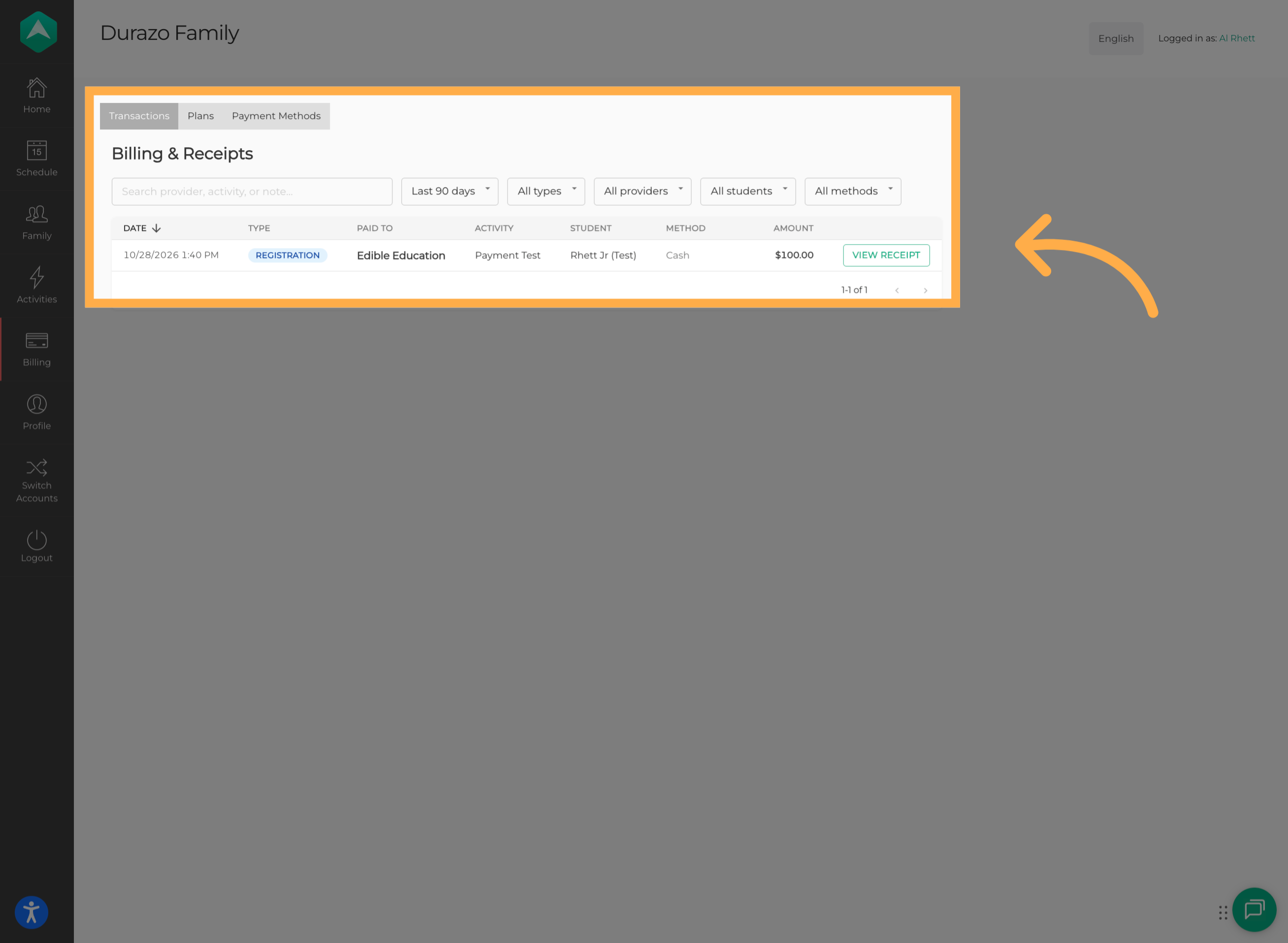
💡Tip: Review your transaction history if you need to verify a payment or keep track of previous account activity.
18. View Upcoming Activities
Back on your main dashboard, you'll find a grid displaying your family's upcoming activities, giving you a quick overview of what's scheduled.
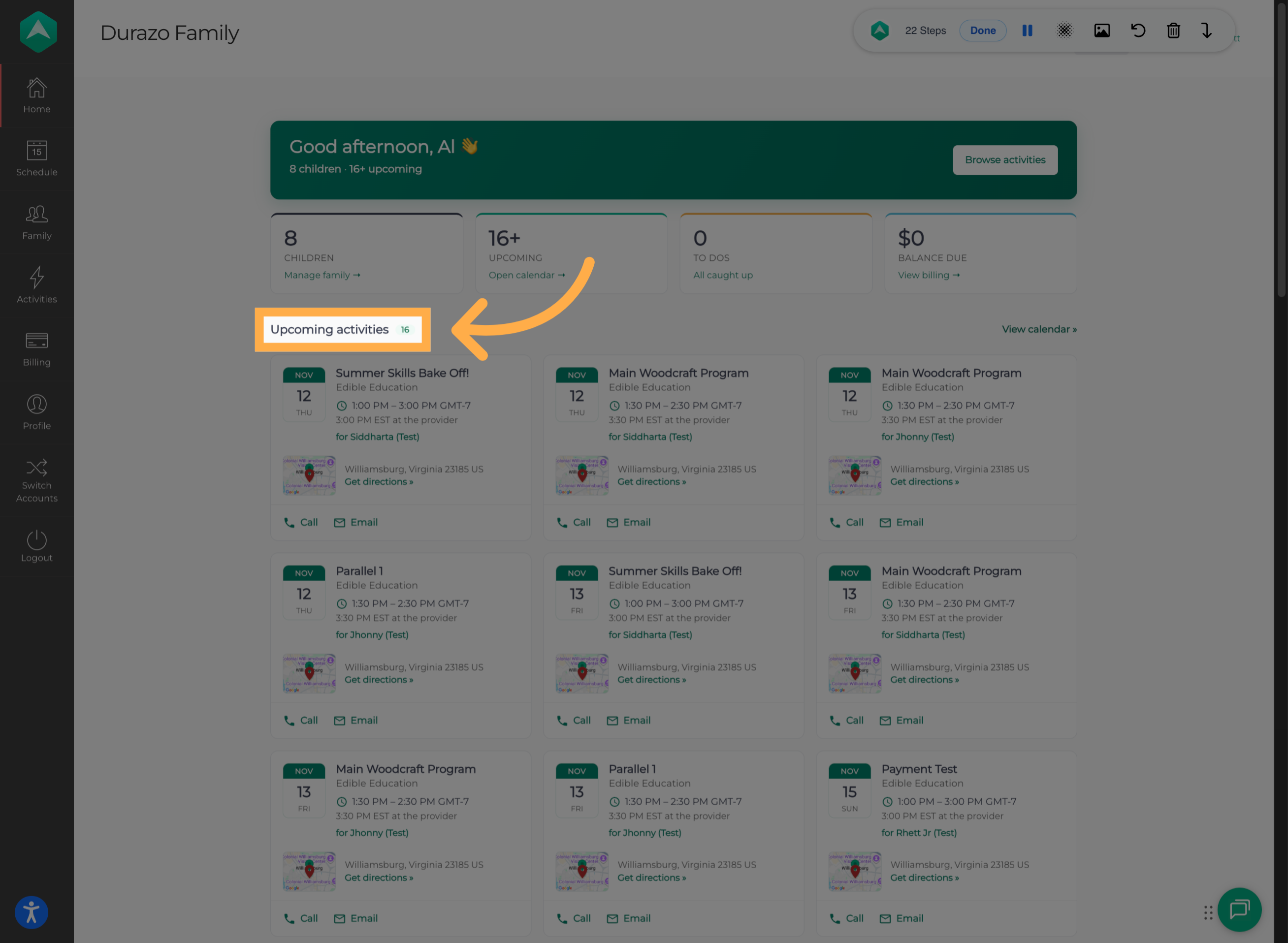
💡Tip: Use this section for a quick check of upcoming activities without needing to open the calendar.
19. Review Activity Details
Select an upcoming activity to view its details, including the date, time, location, and available contact information.
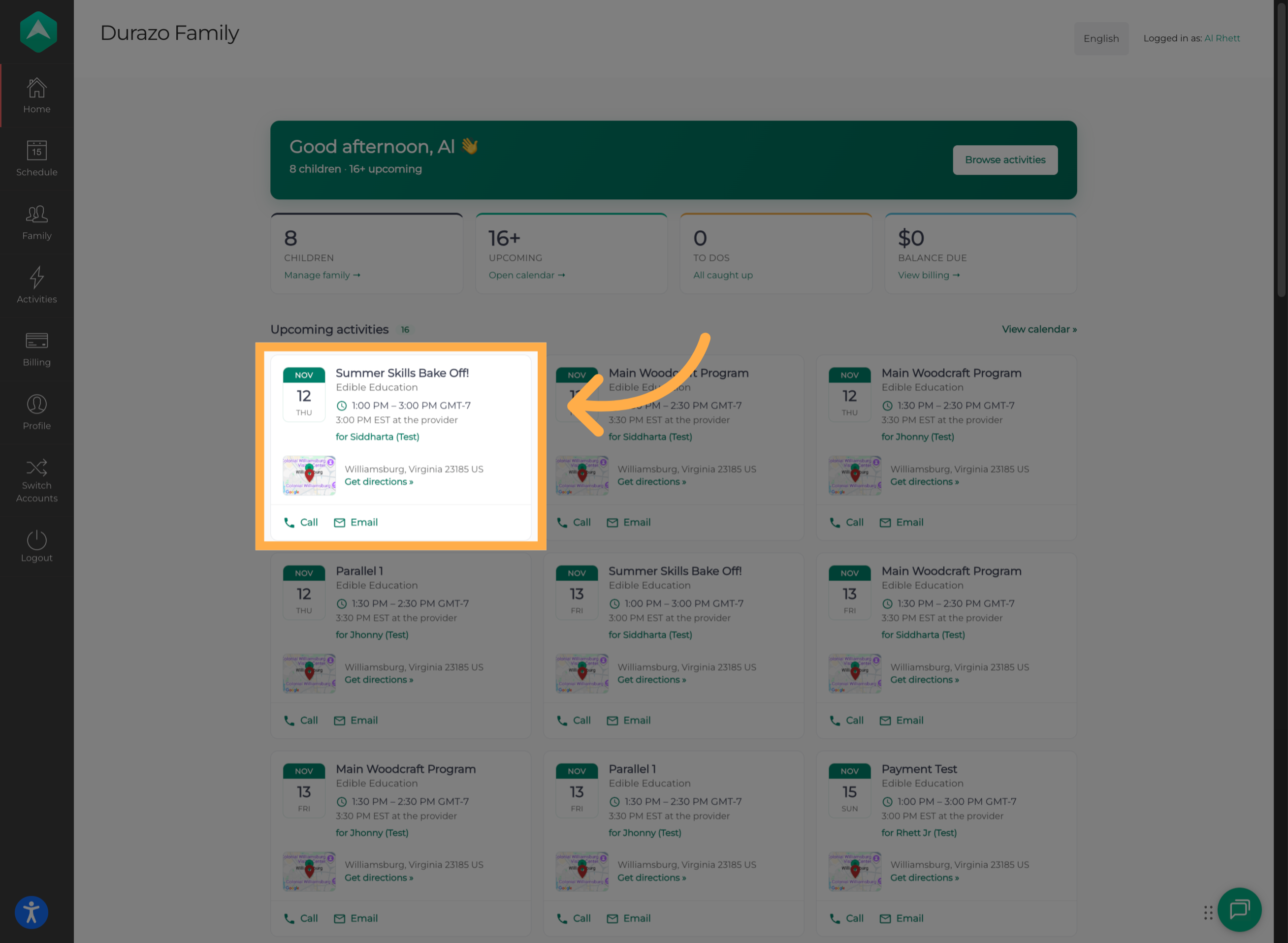
💡Tip: Before attending an activity, confirm its location and schedule. Use the available contact information if you need to reach the program provider.
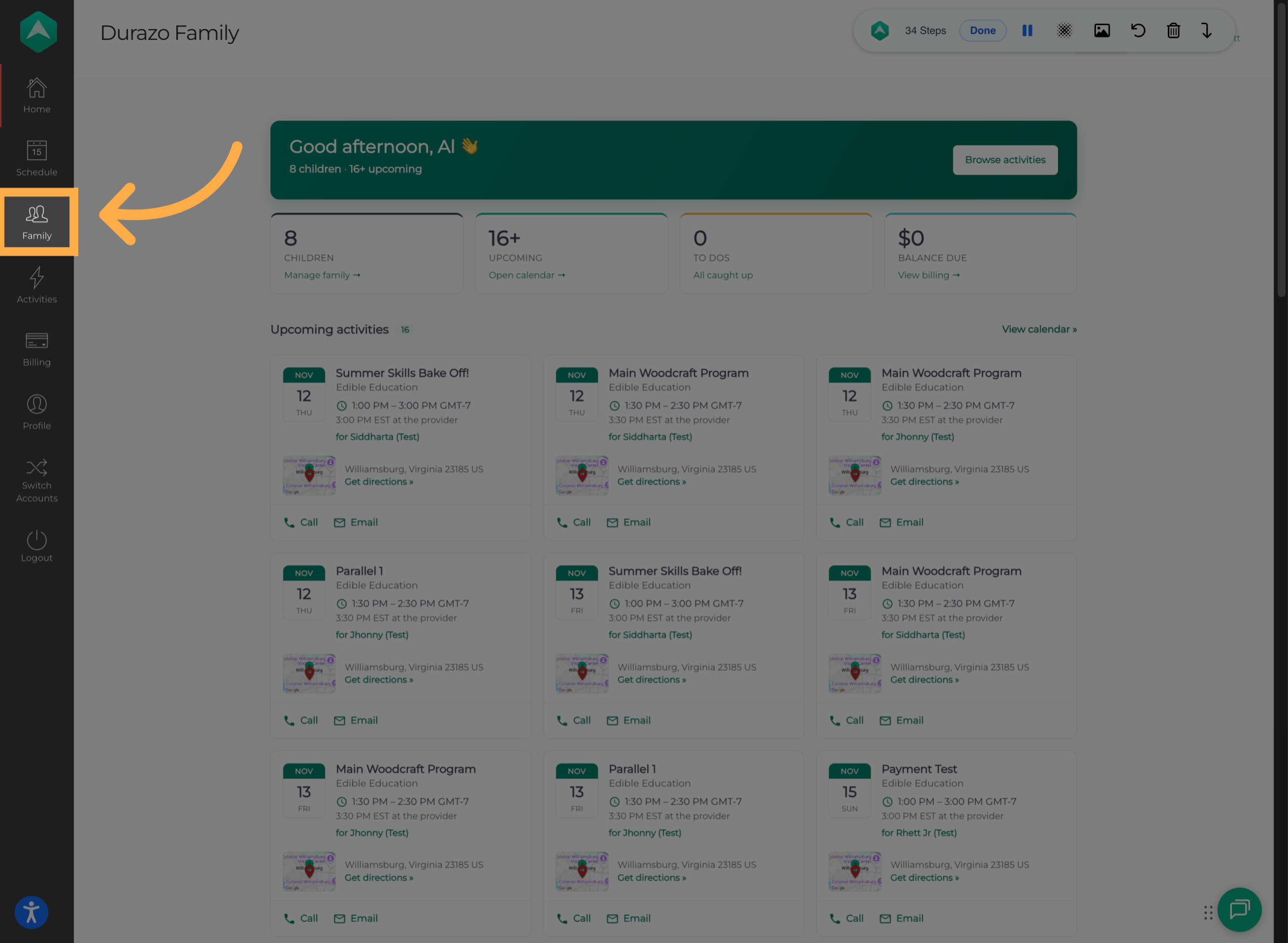
20. Open Your Family Profile
To manage your family's information, navigate to your family profile.
21. Review Parents and Guardians
Scroll down to view the parents and guardians currently associated with your family account.
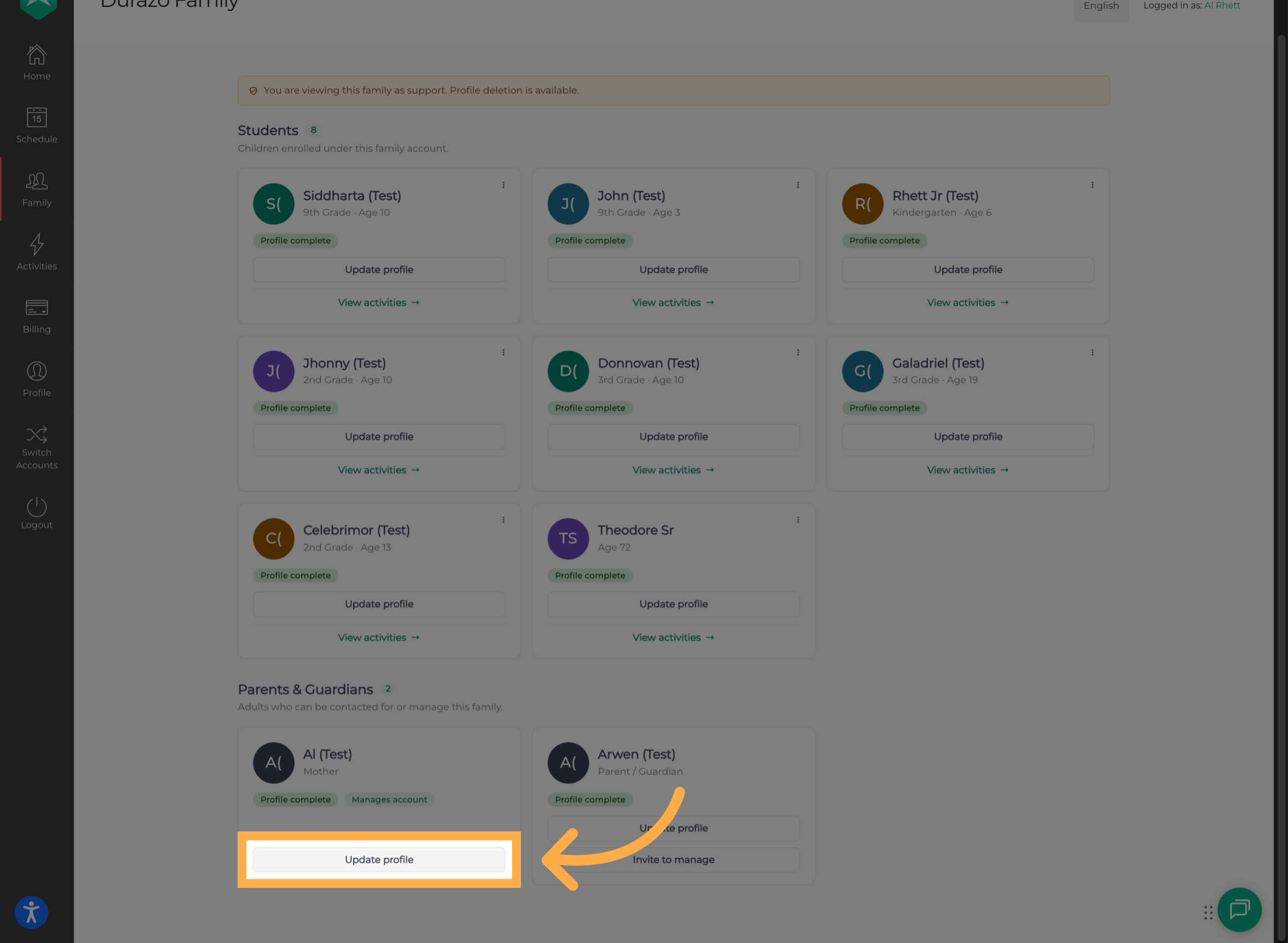
22. Select a Parent or Guardian
Select a parent or guardian profile to review their information and access the available management options.
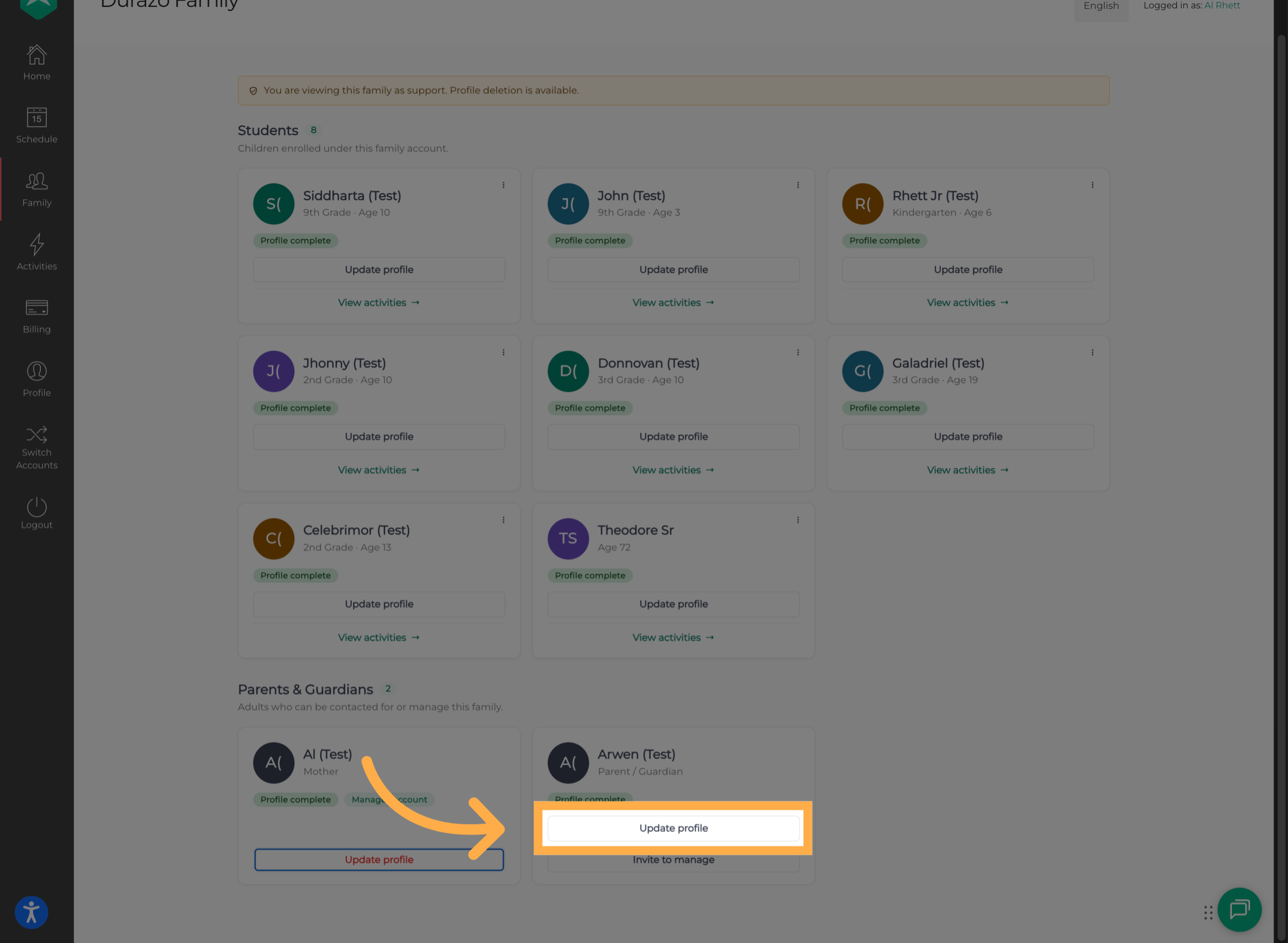
💡Tip: Review the existing parent and guardian profiles before sending a new invitation to avoid adding someone who is already associated with the account.
23. Invite Another Family Manager
If you'd like another parent or guardian to help manage your family's account, you can send them an invitation to become a Family Manager.
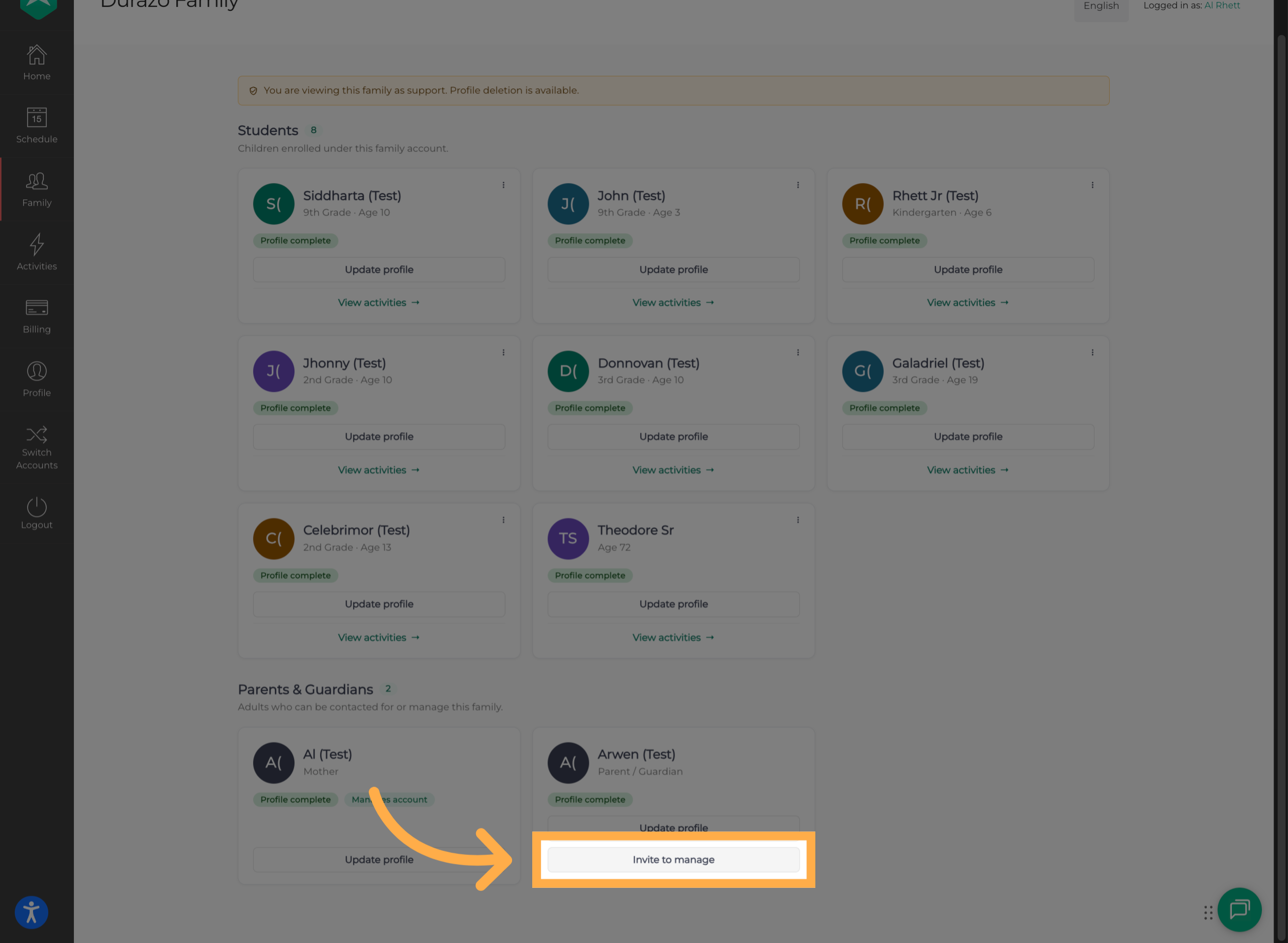
💡Tip: Make sure you have the correct information for the person you're inviting so the invitation reaches the intended recipient.
24. Send the Family Manager Invitation
Complete the invitation process to grant the selected family member management access. Once they accept the invitation, they'll be able to help manage family profiles and activities.
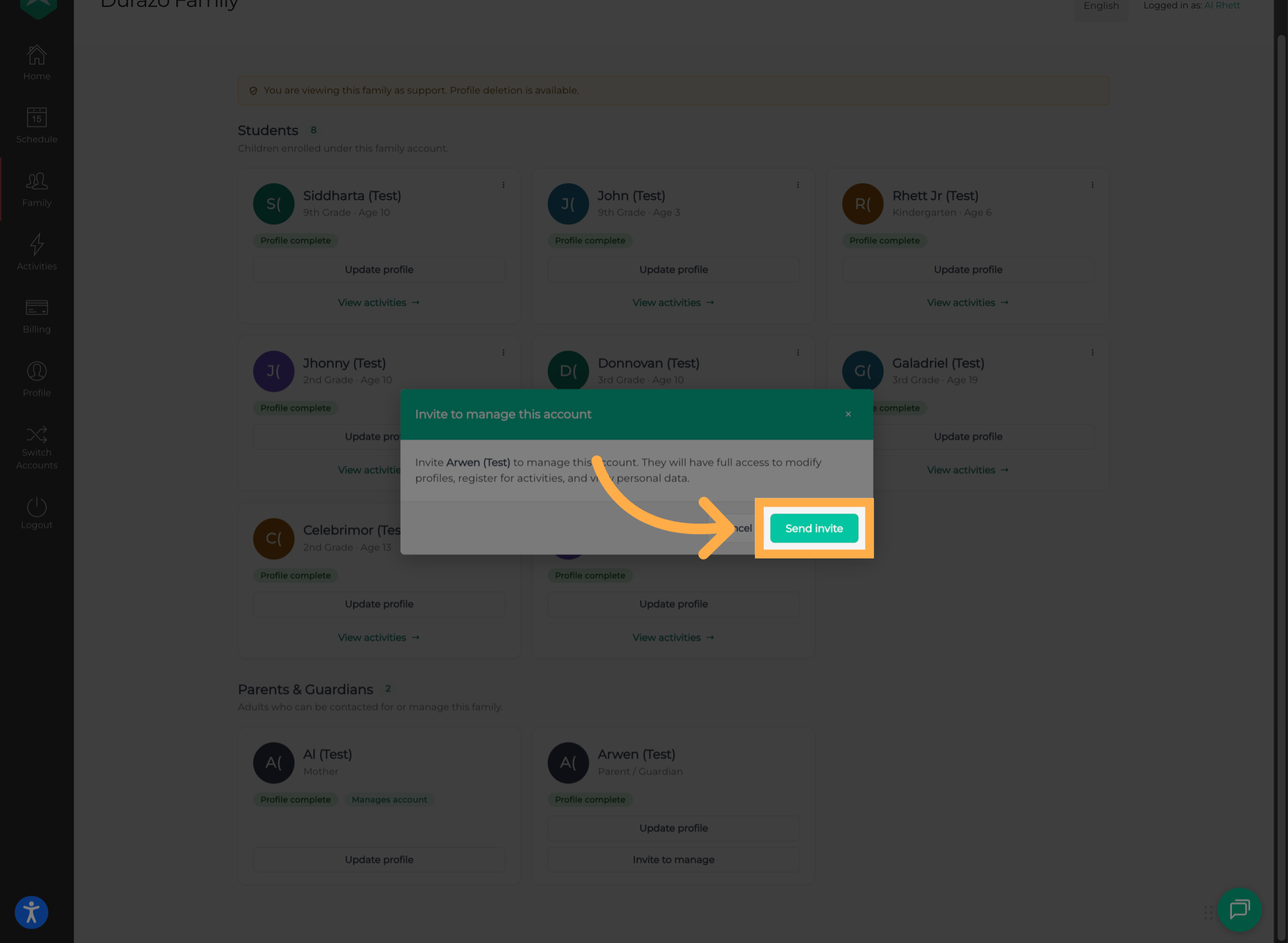
💡Tip: Let the invited parent or guardian know to look for the invitation and complete the acceptance process.
Frequently Asked Questions
Q: Where can I see all the activities my children are registered for?
A: You can review assigned activities through participant profiles, the family calendar, or the upcoming activities section on your dashboard.
Q: Can I view activities for each child separately?
A: Yes. You can use the family calendar filters to narrow the schedule by family member.
Q: What calendar views are available?
A: You can switch between Day, Week, Month, and List views to display your family's schedule in different formats.
Q: Why can't I find a scheduled activity on my calendar?
A: Check the selected calendar view and filters. The activity may not appear if the current filters exclude that family member or activity.
Q: Where can I find information about an activity?
A: Select the activity from your calendar or upcoming activities section to review available details, such as its date, time, location, and contact information.
Q: Where can I check whether I have an outstanding payment?
A: You can review your outstanding balance from your family account dashboard.
Q: Can I review my previous transactions and payment methods?
A: Yes. Navigate to the payment information section of your account to review available transaction details, payment plans, and saved payment methods.
Q: Can another parent or guardian help manage my family account?
A: Yes. You can invite another parent or guardian to become a Family Manager through your family profile.
Q: Does the invited Family Manager have access immediately?
A: The invited person must first accept the invitation. Once accepted, they'll be able to help manage family profiles and activities.
💡If you experience any issues or have further questions with “How to Navigate and Manage Your Family Account”, don't hesitate to get in touch with our support team at support@afterschoolhq.com.