![ASHQ Logo Vert Flat.png]](https://support.afterschoolhq.com/hs-fs/hubfs/ASHQ%20Logo%20Vert%20Flat.png?height=40&name=ASHQ%20Logo%20Vert%20Flat.png)
Need to print a student or participant registration for your records? Follow the instructions below to learn how to access and print registration details in AfterSchool HQ.
1. Access Contacts
Click “Contacts” from the left-side menu.
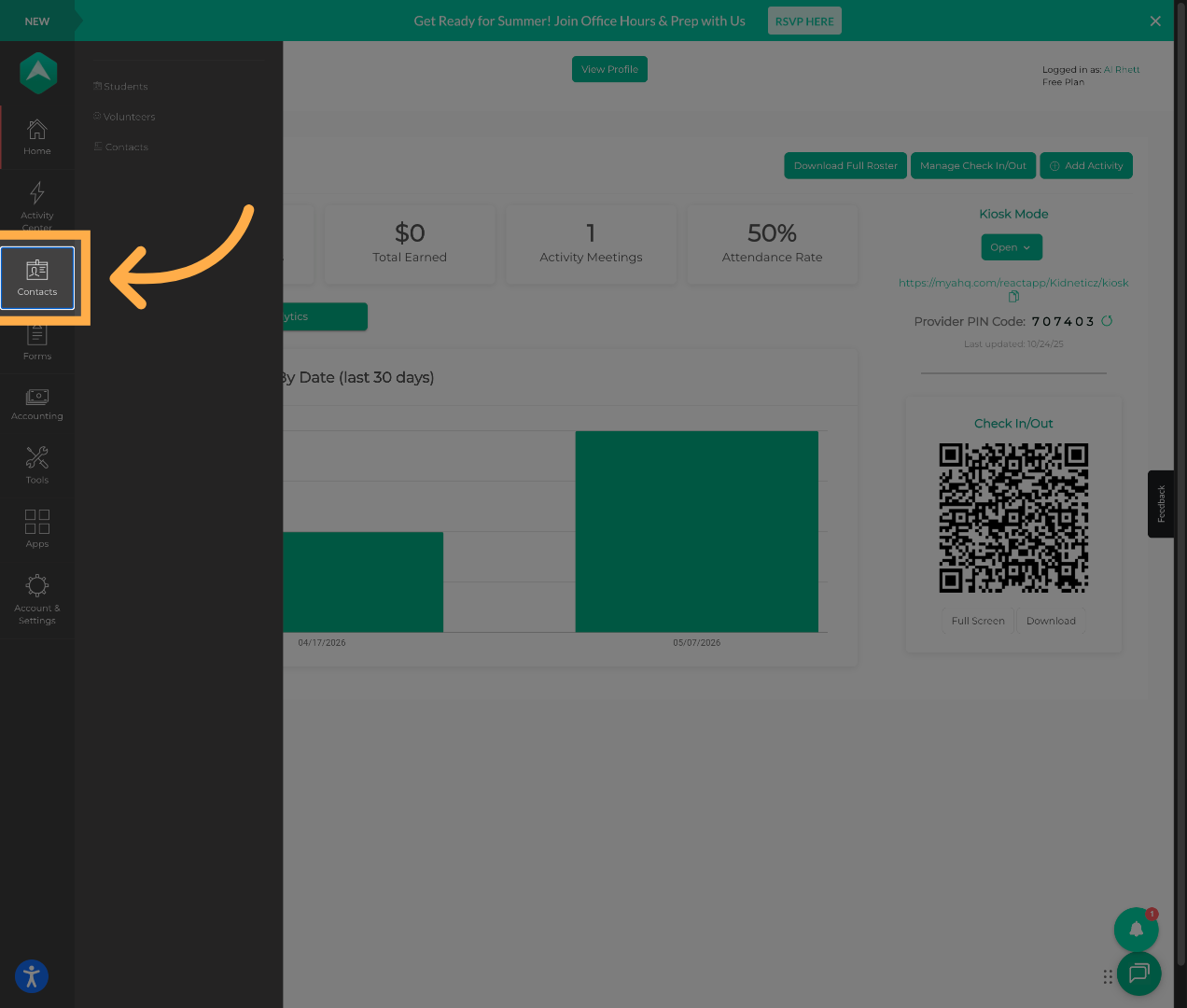
💡 Tip: The Contacts section allows you to manage students and participant information associated with your account.
2. View Student Directory
Select “Students” to view all students associated with your account.
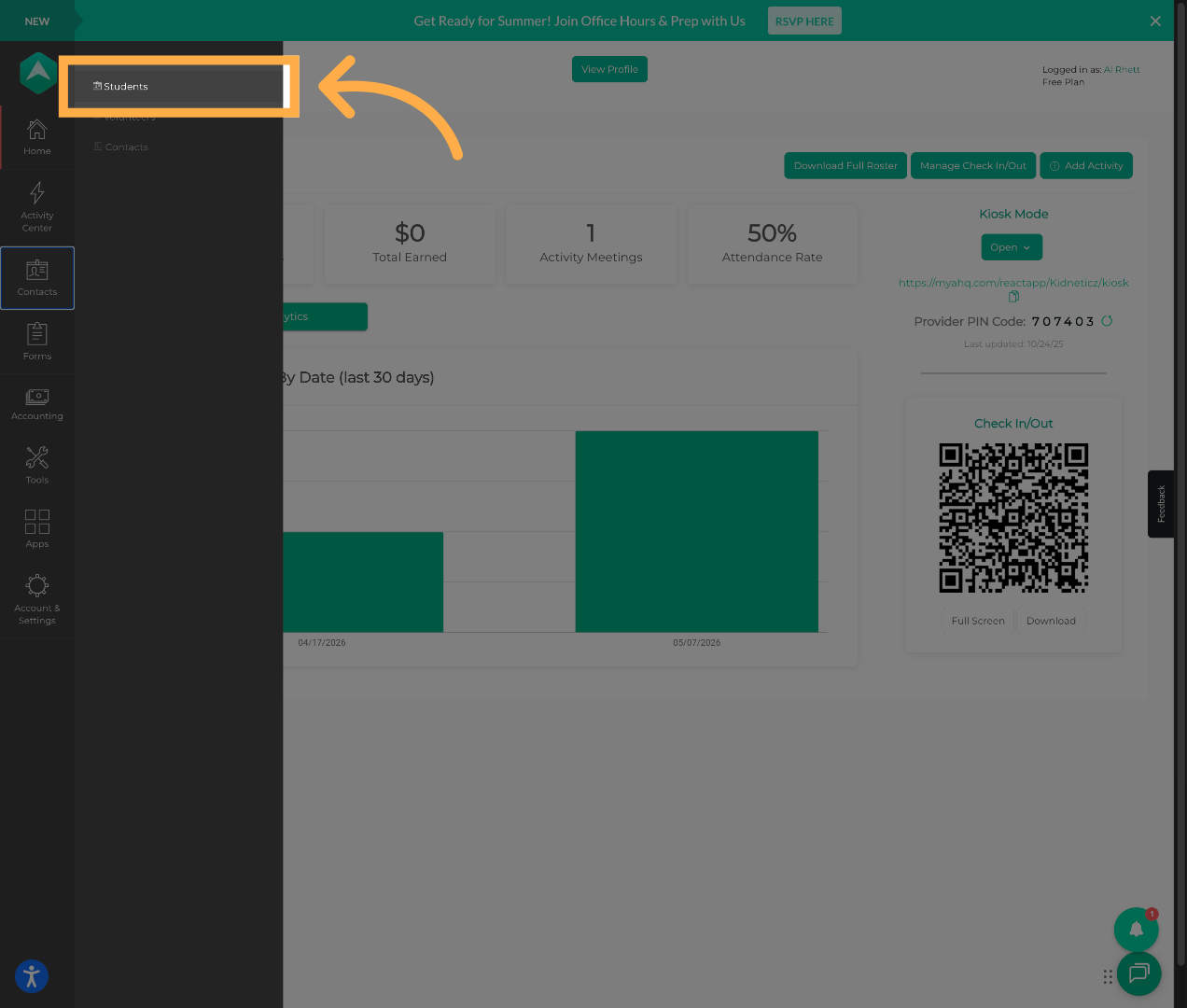
💡 Tip: Use the search bar to quickly locate a specific student if your organization has a large number of registrations.
3. View Student Details
Locate the student you would like to review and click “View Details” to open the student’s profile information.
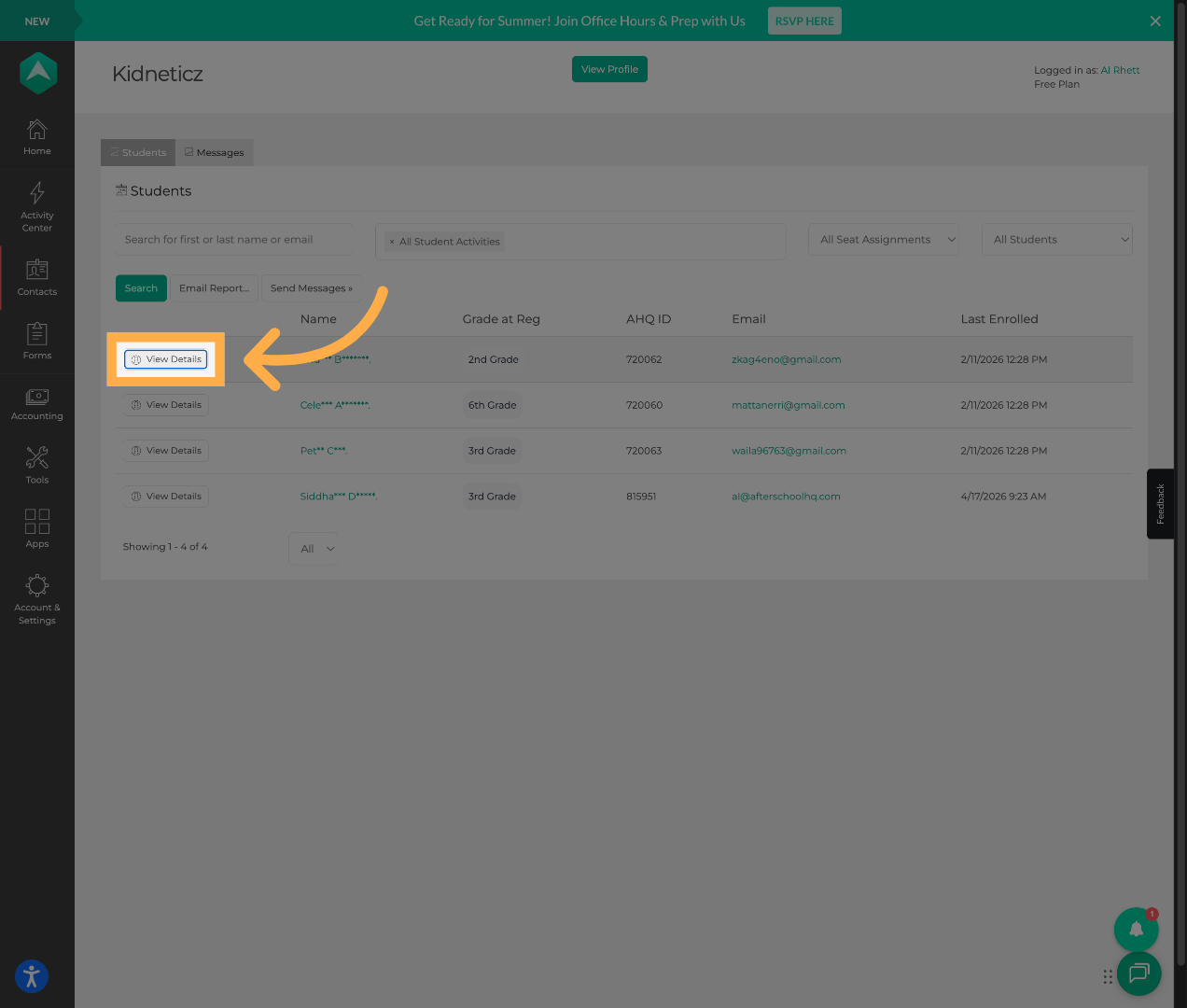
💡 Tip: Student profiles may contain multiple registrations depending on how many activities or programs the participant joined.
5. Access Registration History
Click "Registrations" to view all registrations associated with the student.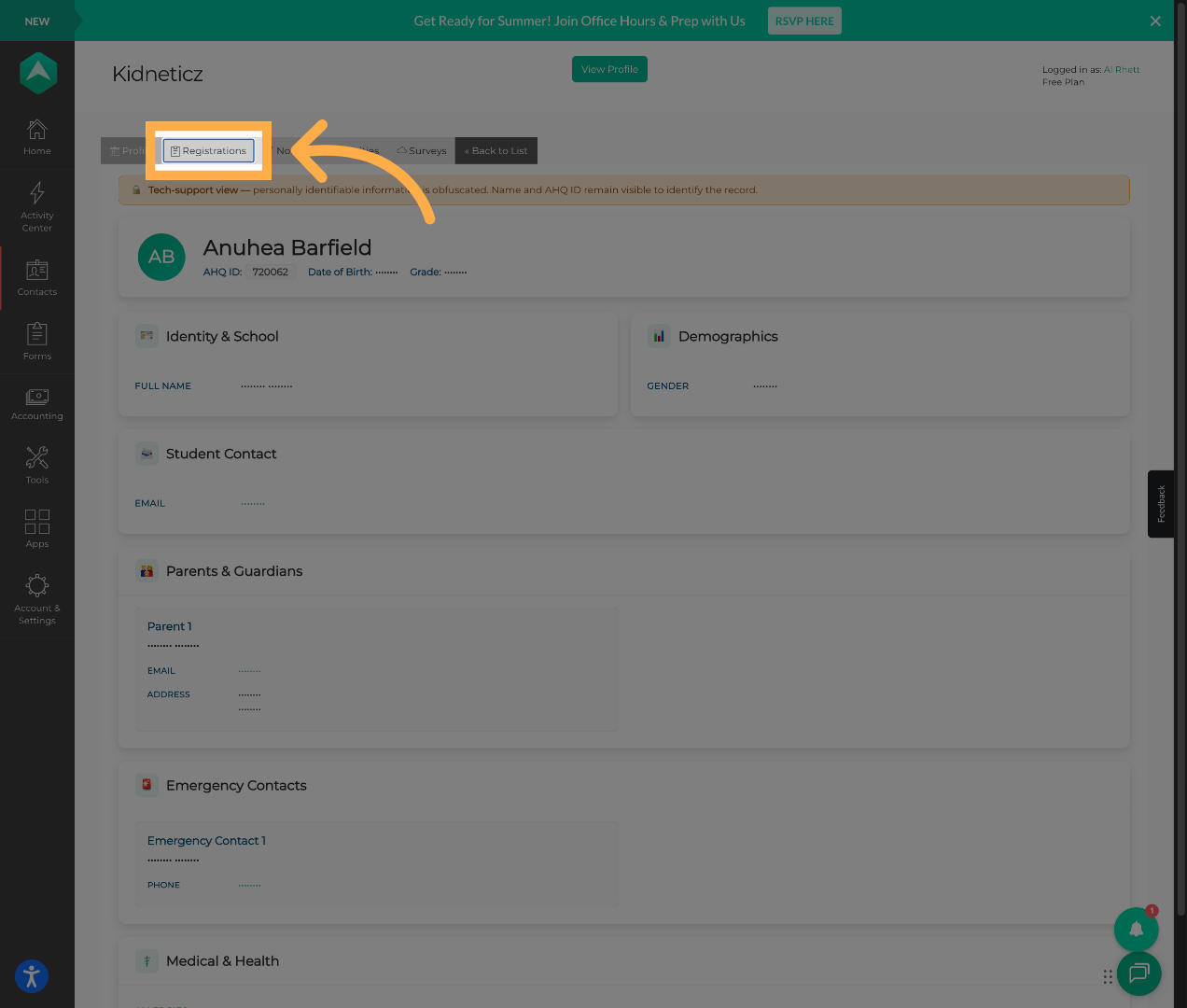
💡 Tip: Review registration dates and activity names carefully before selecting a registration to print.
6. Select a Registration Record
Click on the registration you would like to print.
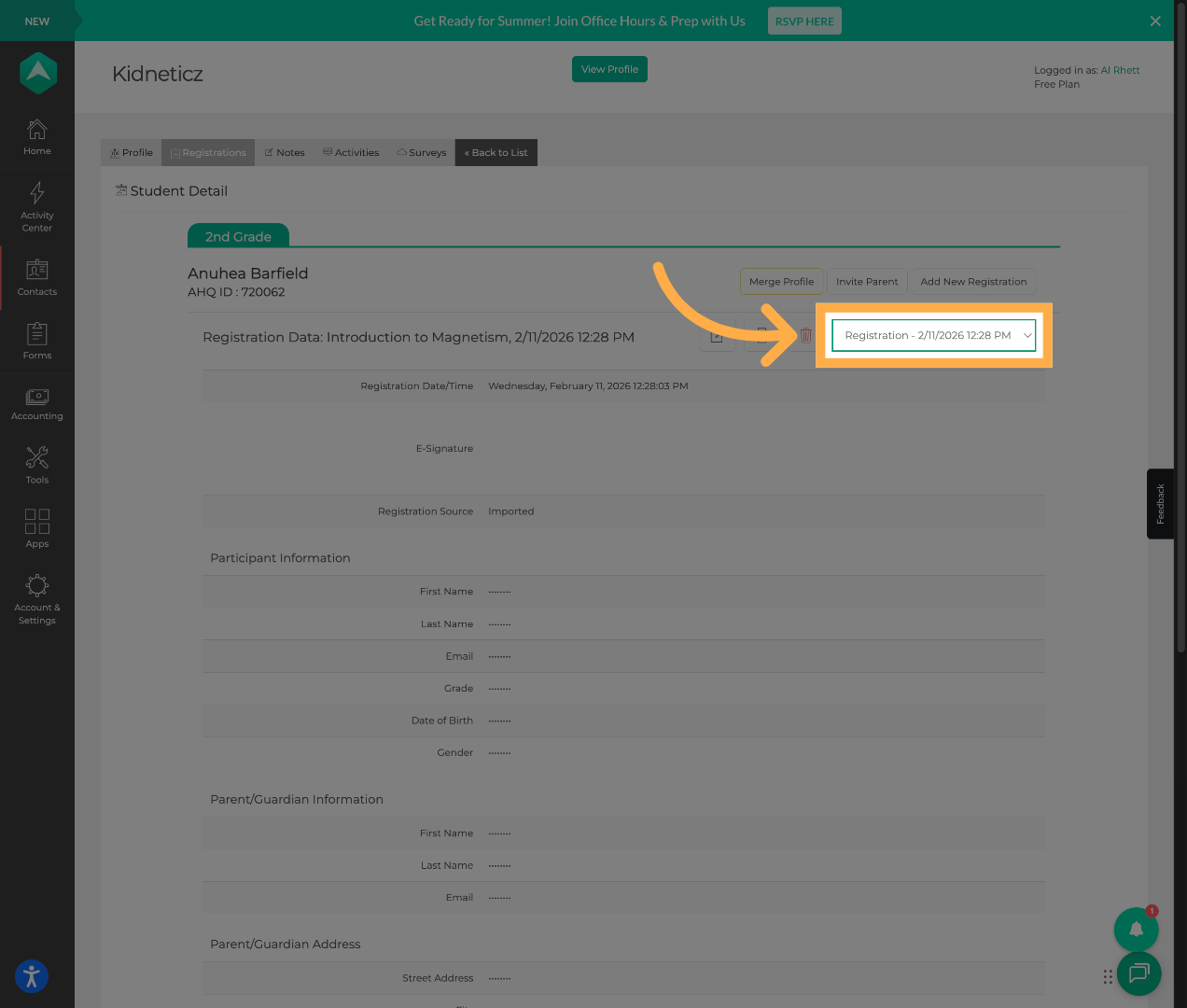
💡 Tip: Some students may have multiple registrations for different sessions or school years.
7. Print Registration
Click on the printer and then on “Print Registration” to generate a printable version of the registration details.
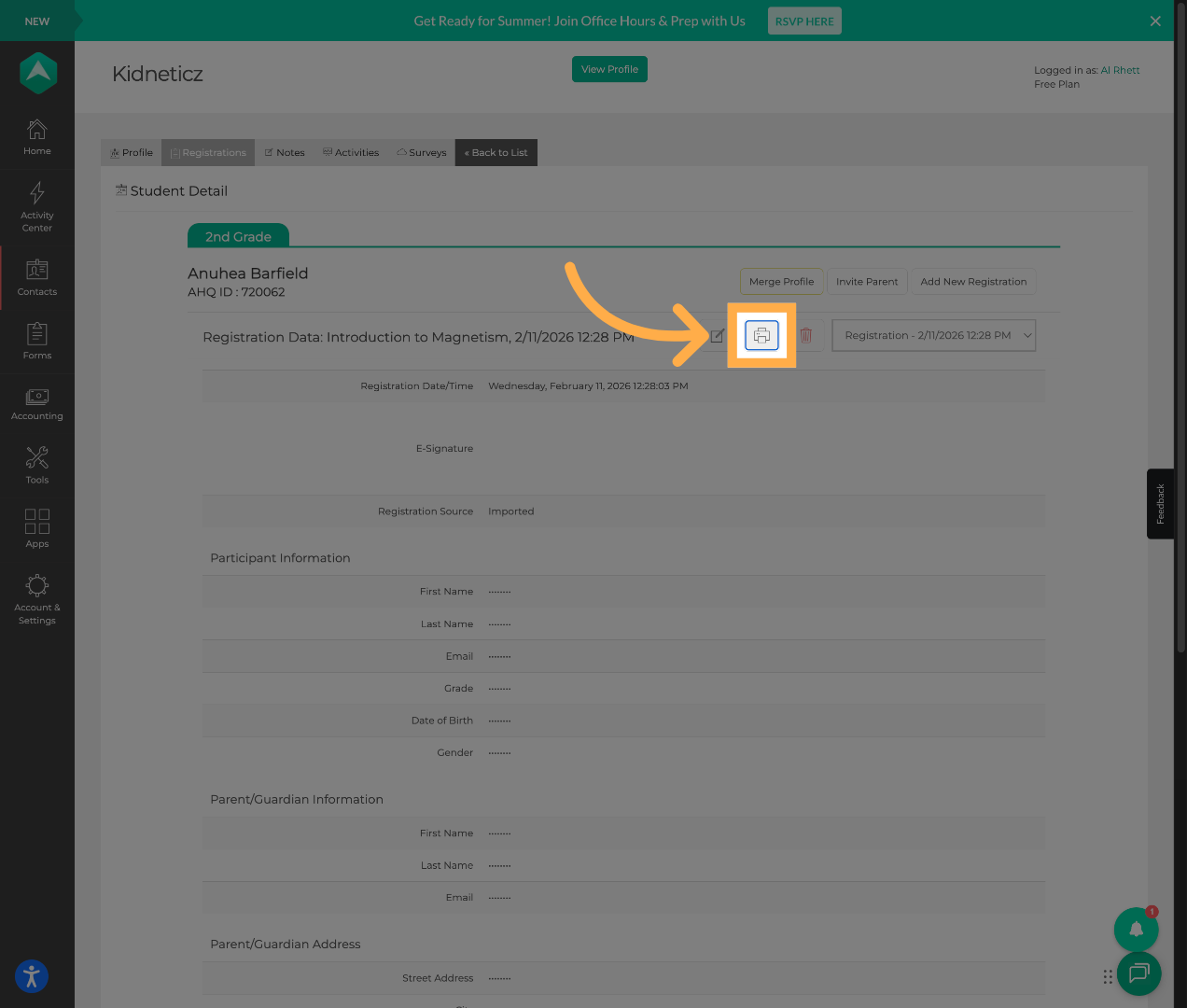
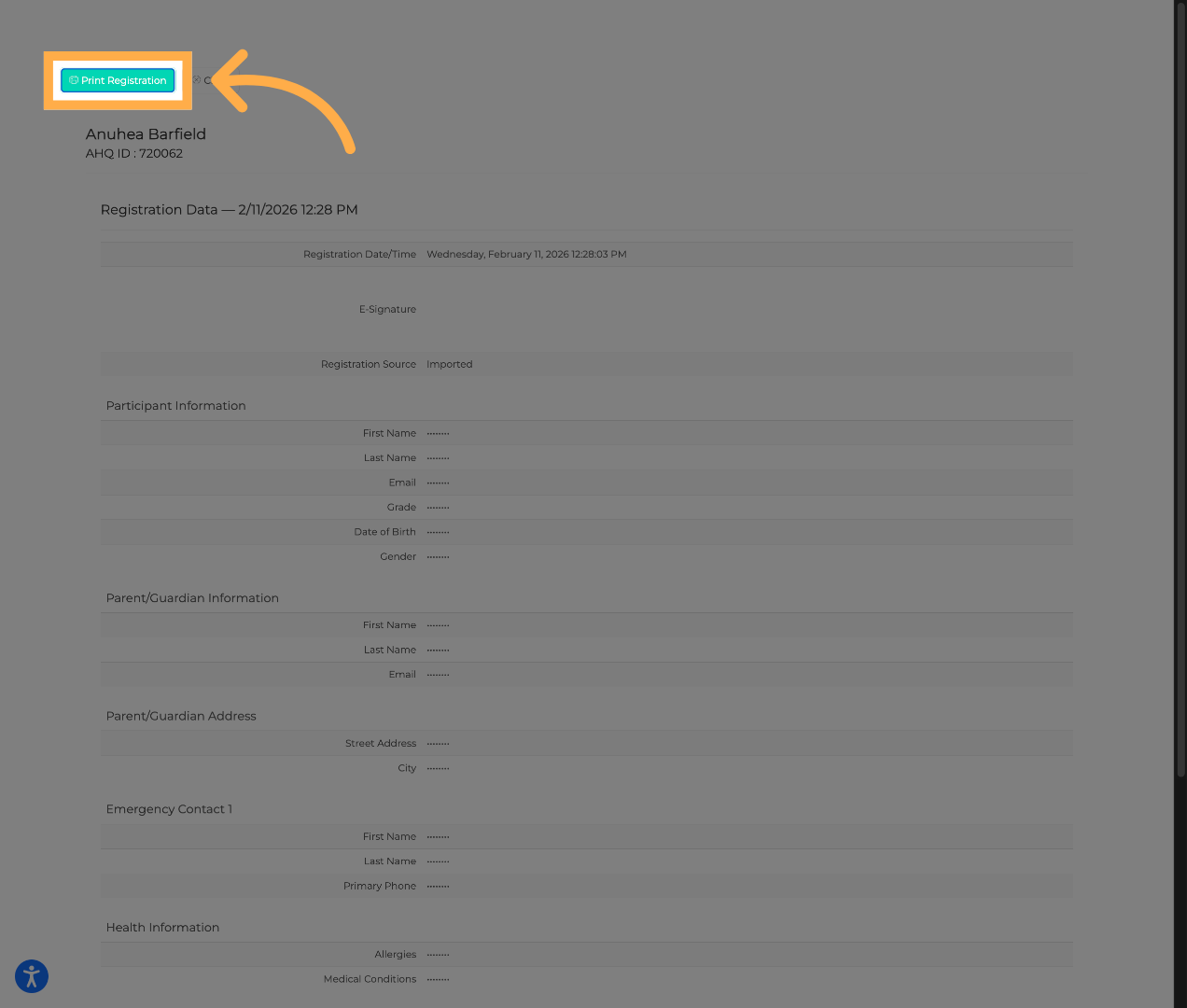
💡 Tip: You can also save the registration as a PDF for digital record keeping instead of printing a physical copy.
8. Print all Registrations
You can also print all registrations from an activity. Click “Extracurricular Activities” to open the activities section in AfterSchool HQ.
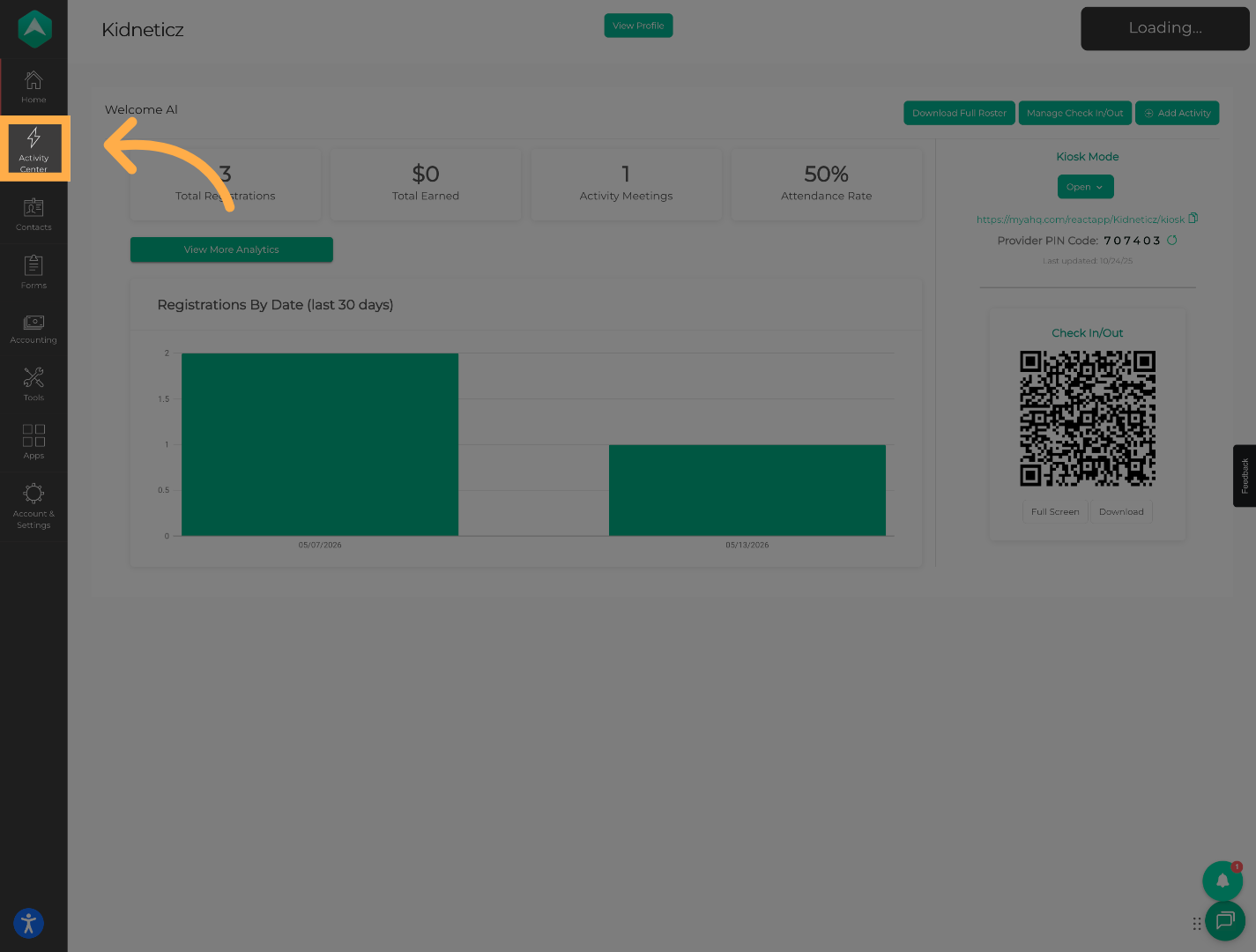
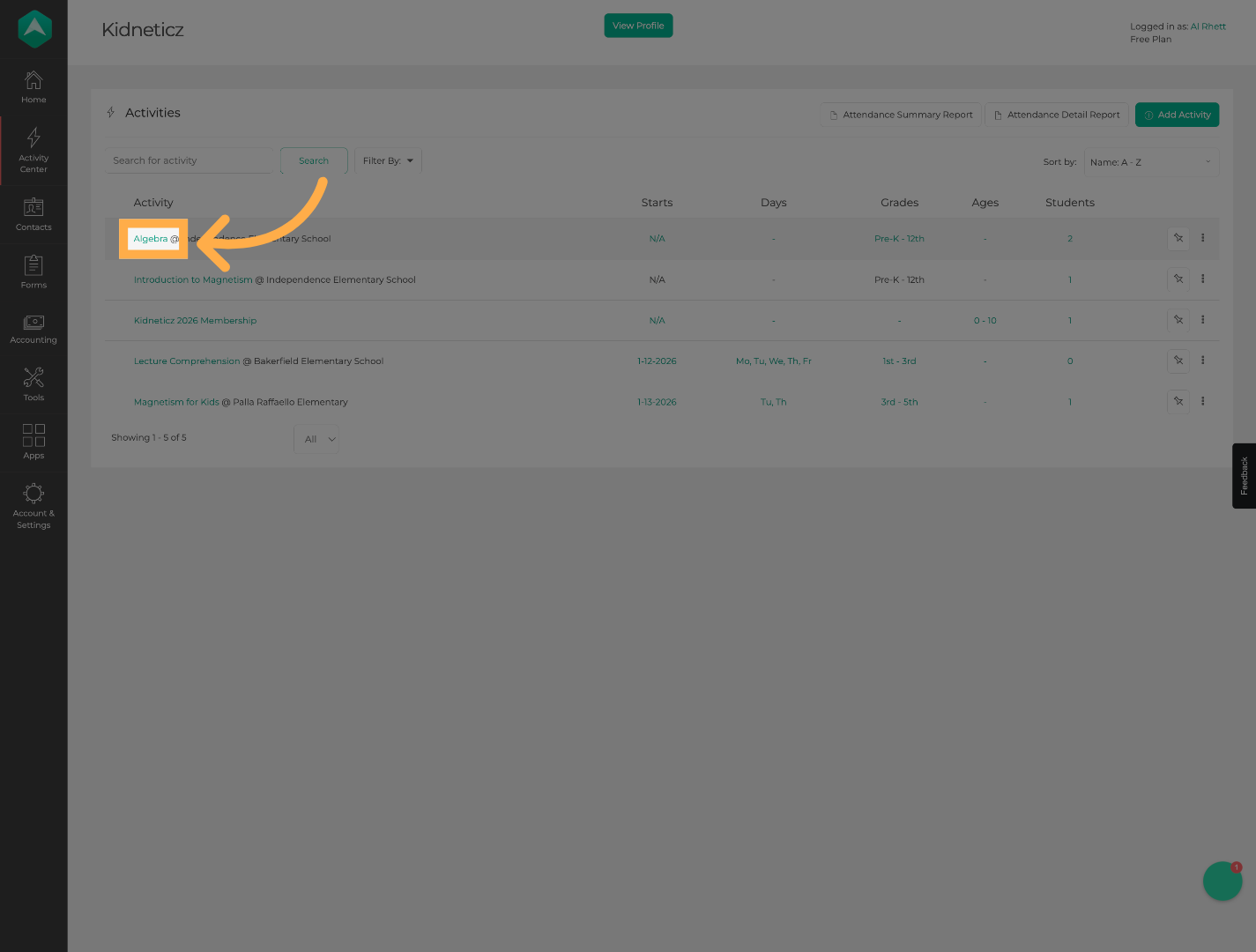
9. Select the Desired Activity
Choose the activity you would like to review or print registrations for.
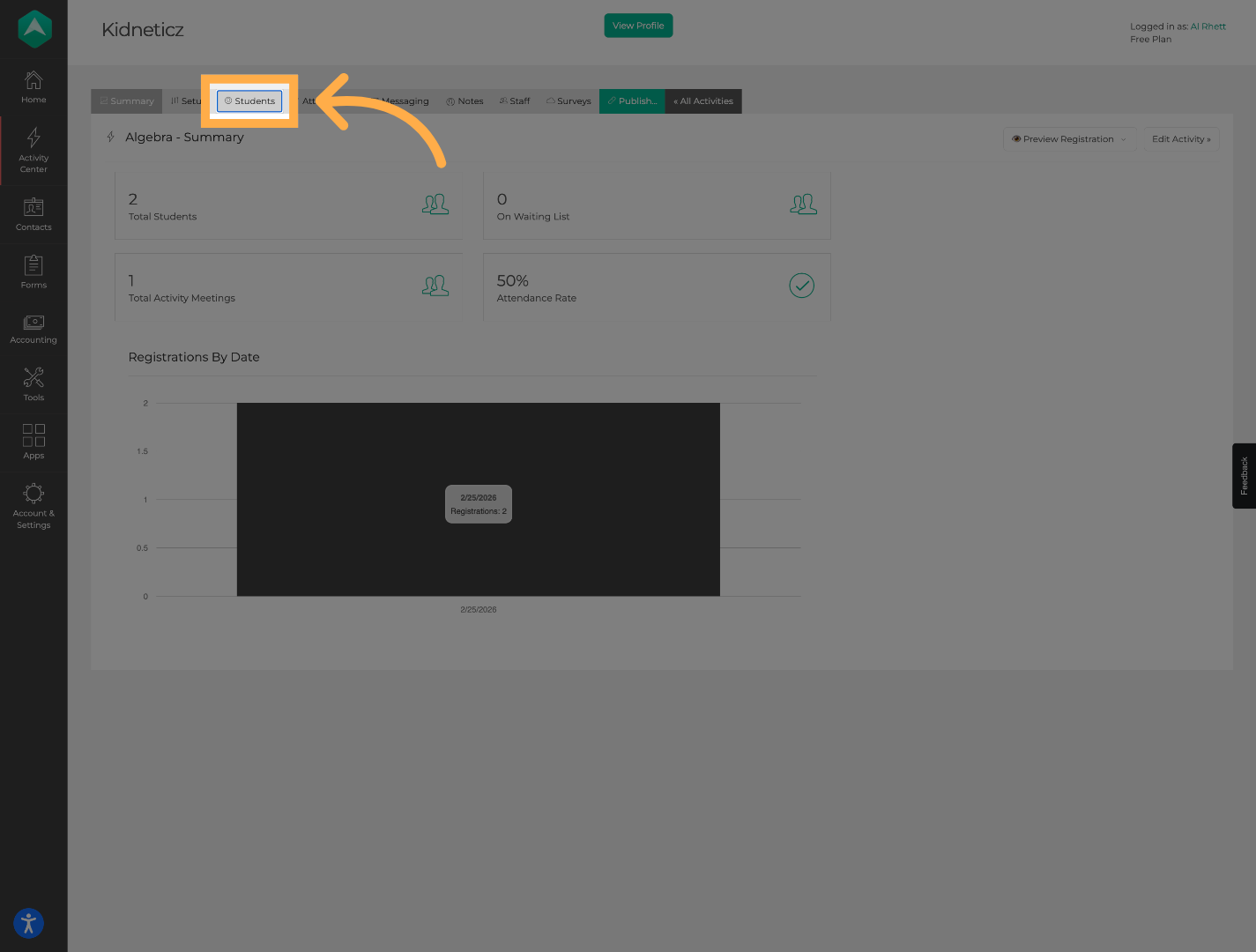
10. Open the Students Tab
Click “Students” to view all participants registered for the selected activity.
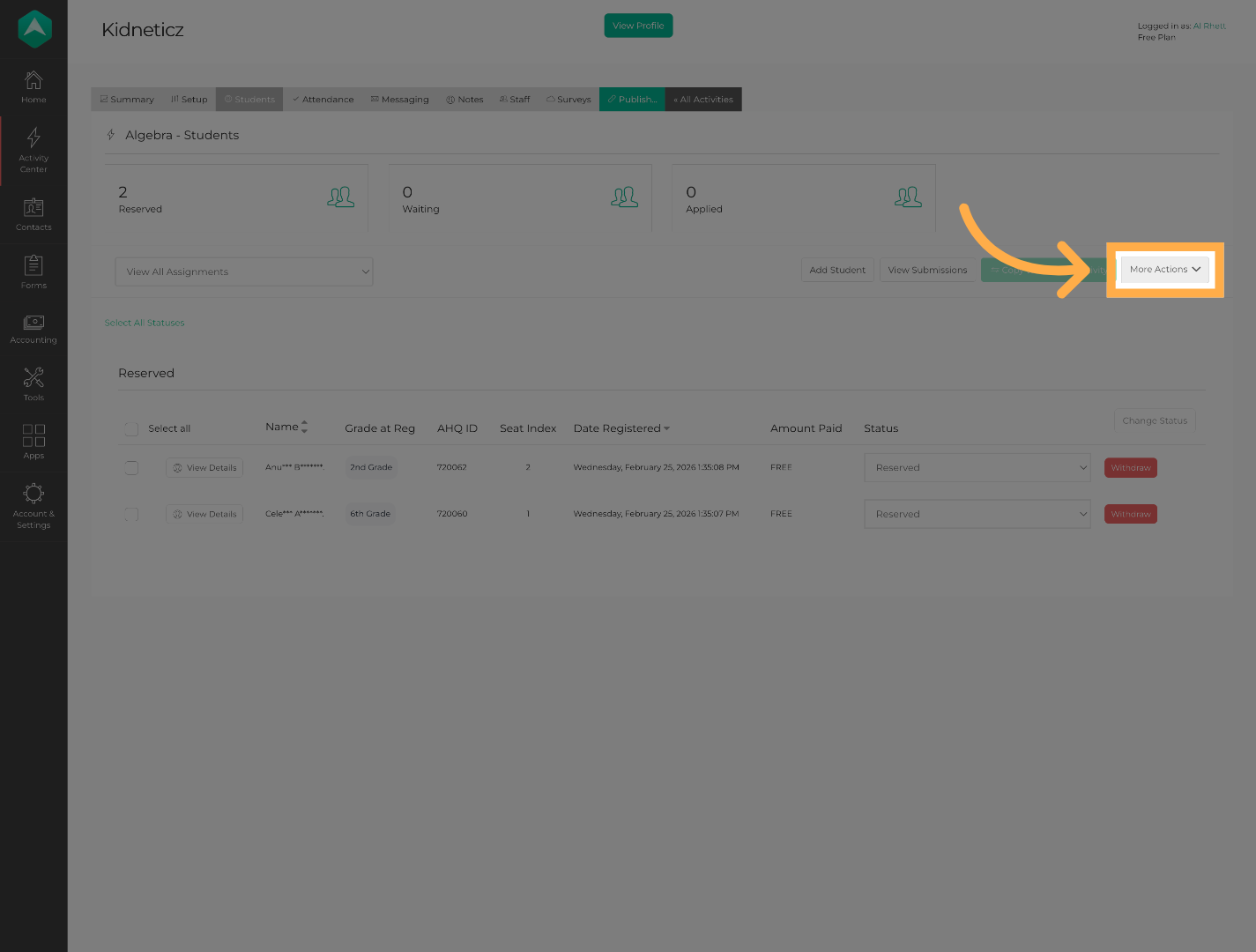
11. Open the More Actions Menu
Click “More Actions” to view additional registration management options.
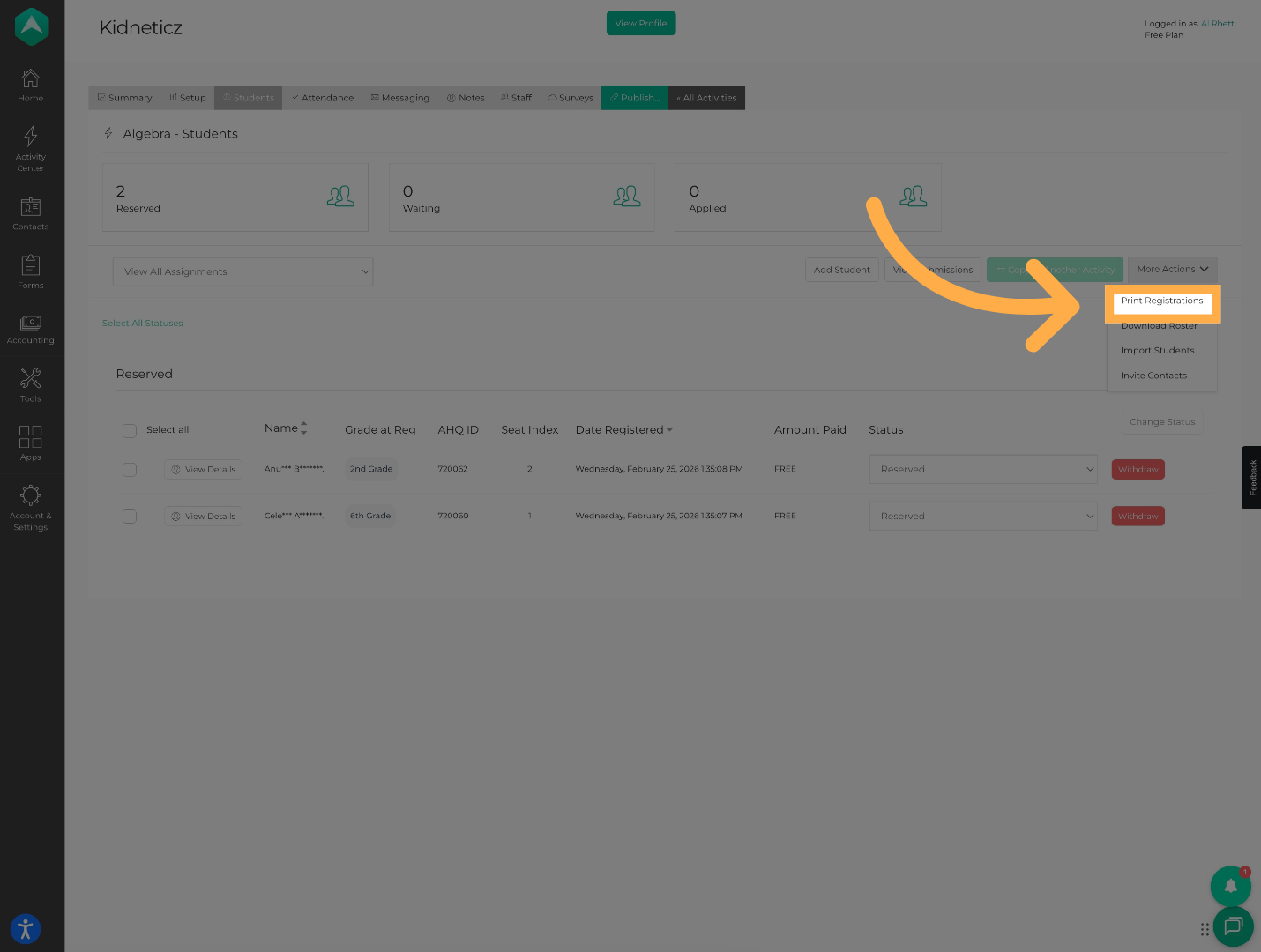
12. Click “Print Registrations”
Click “Print Registrations” to generate a printable version of the participant registration list.
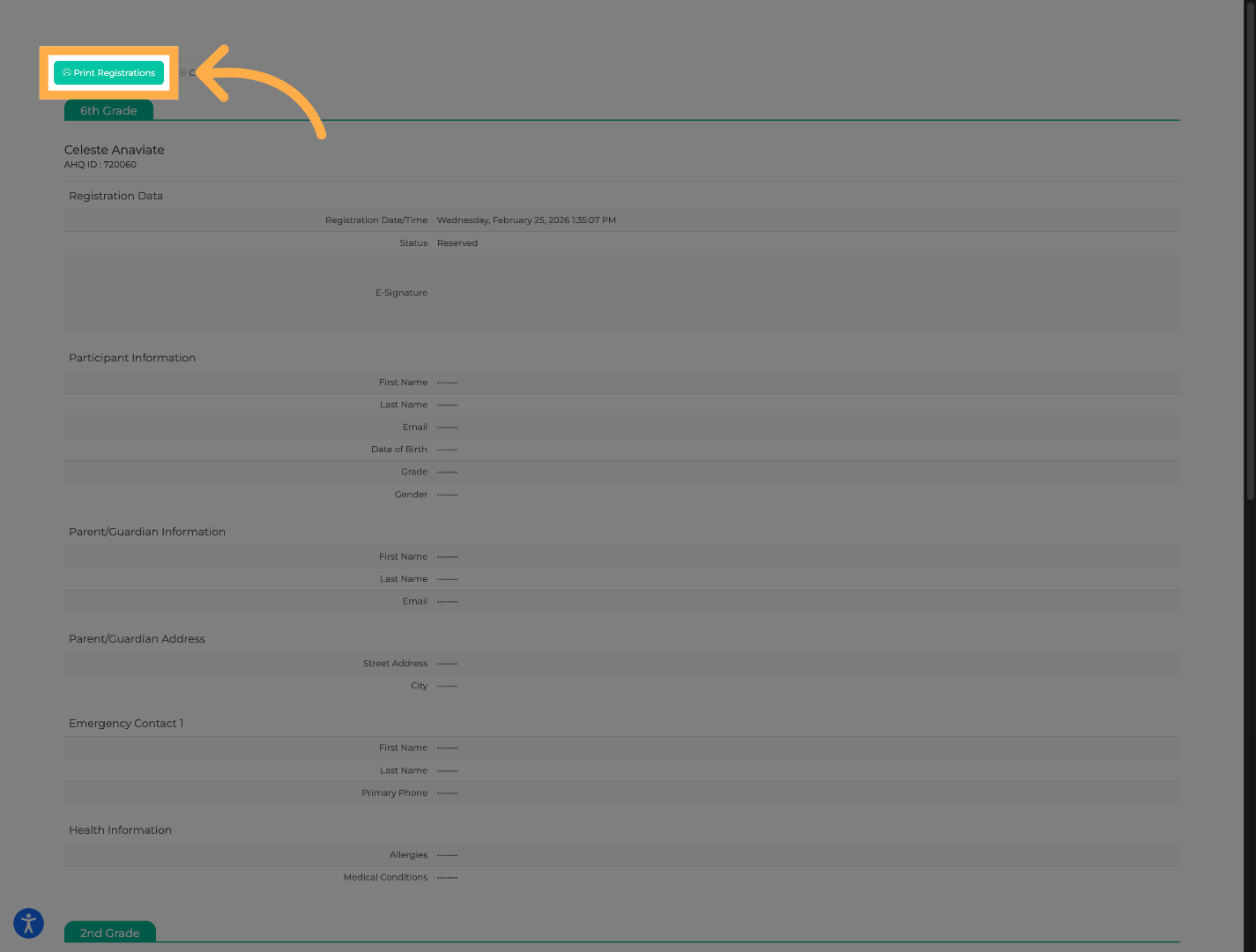
13. Print Registration List
Click “Print Registrations” on this new view to generate a printable version of the participant registration list.
Frequently Asked Questions
Q: Can I print multiple registrations at once?
A: Yes! AfterSchool HQ supports printing individual and multiple registrations.
Q: Can I save the registration as a PDF instead of printing?
A: Yes. Most browsers allow you to save the registration as a PDF from the print window.
Q: Can I print registrations for inactive students?
A: If the registration remains associated with the student profile, you are still able to print it.
💡If you experience any issues or have further questions with “How to Print a Student or Participant Registration”, don't hesitate to get in touch with our support team at support@afterschoolhq.com.