![ASHQ Logo Vert Flat.png]](https://support.afterschoolhq.com/hs-fs/hubfs/ASHQ%20Logo%20Vert%20Flat.png?height=40&name=ASHQ%20Logo%20Vert%20Flat.png)
AfterSchool HQ allows you to remove a student from a specific attendance date without removing them from the entire activity.
This is helpful when a student was accidentally added to an attendance roster, should not appear on a particular date, or needs to be removed from that day's attendance records.
❗Before You Begin
-
Identify the activity containing the student.
- Know the specific attendance date from which the student should be removed.
- Confirm that you're removing the correct student and attendance entry.
‼️Important: Removing a student from an attendance date is different from withdrawing them from an activity. This action only affects the selected attendance date and does not remove their overall activity enrollment.
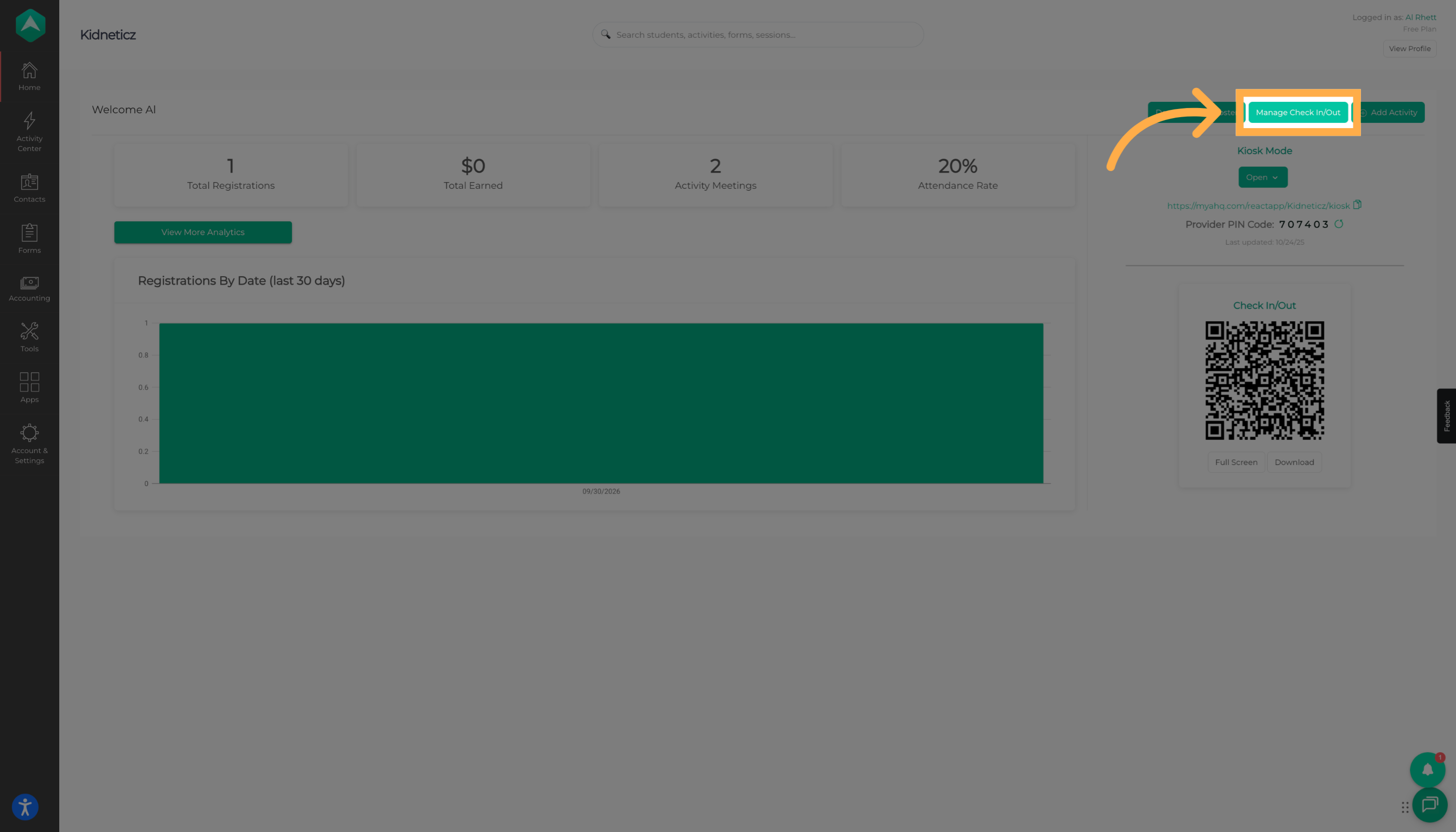
1. Open Manage Check-In/Out
From your AfterSchool HQ account, open “Manage Check-In/Out” to access your organization's attendance records.
2. Select an Activity
Open “Select Activity” and choose the activity containing the student you want to remove from an attendance date.
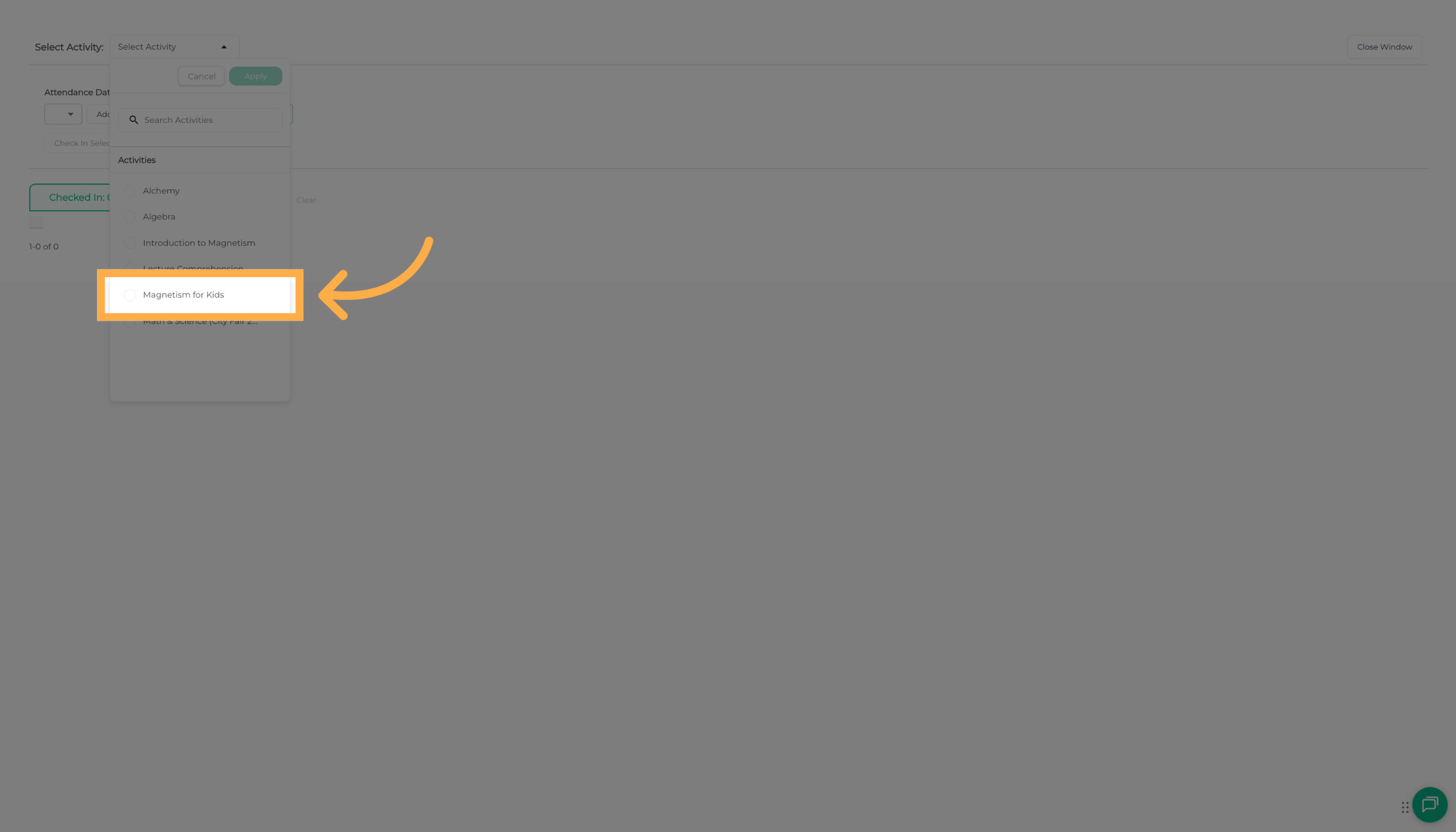
💡 Tip: If your organization manages multiple activities, make sure you select the correct one before proceeding.
3. Apply the Activity Selection
Select “Apply” to confirm your activity selection.

4. Choose an Attendance Date
Use the calendar to select the specific attendance date from which you want to remove the student.
The attendance roster will display the records associated with that date.
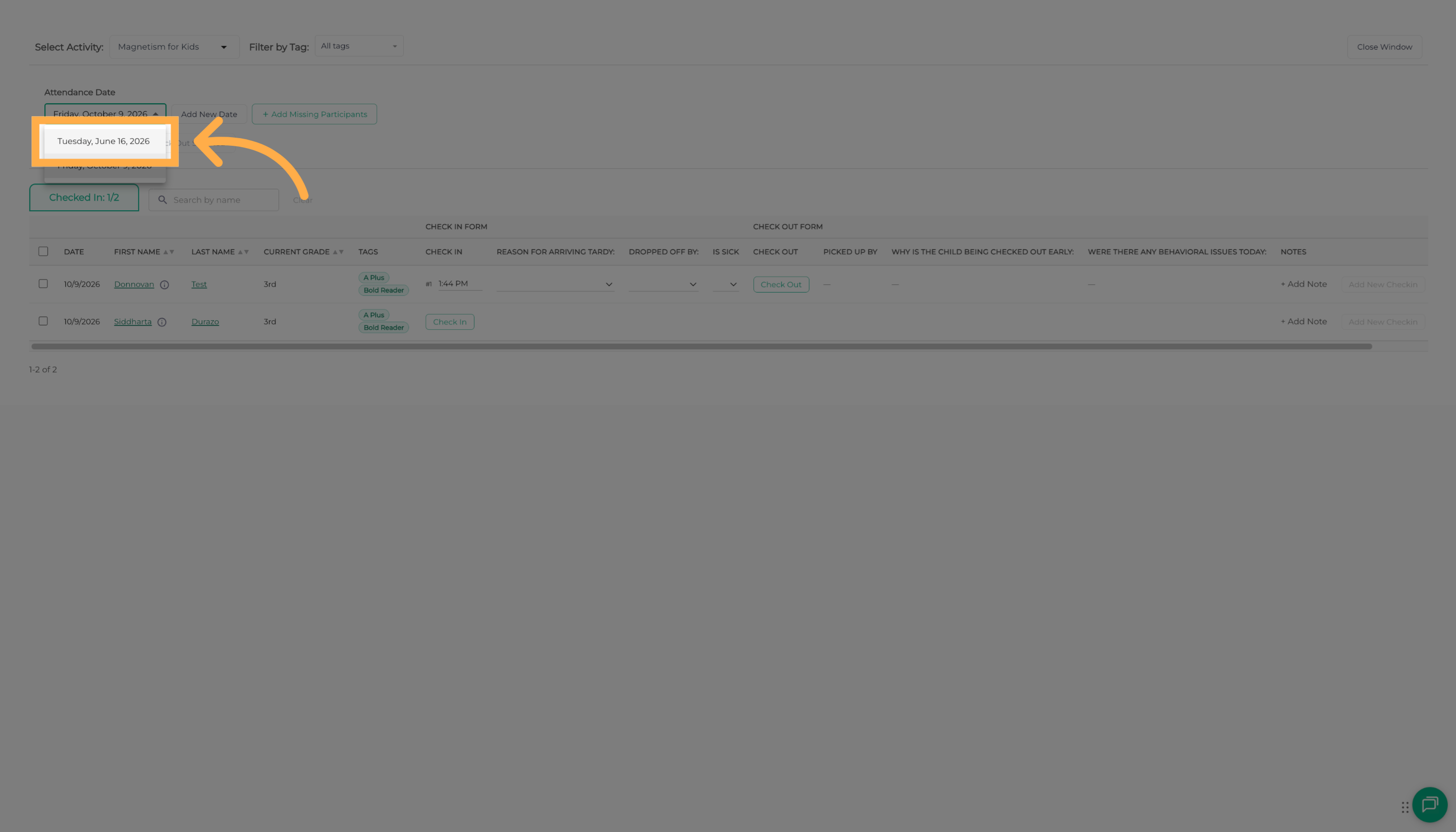
💡 Tip: Double-check the selected date before making changes, especially when managing attendance across multiple days.
5. Locate the Student
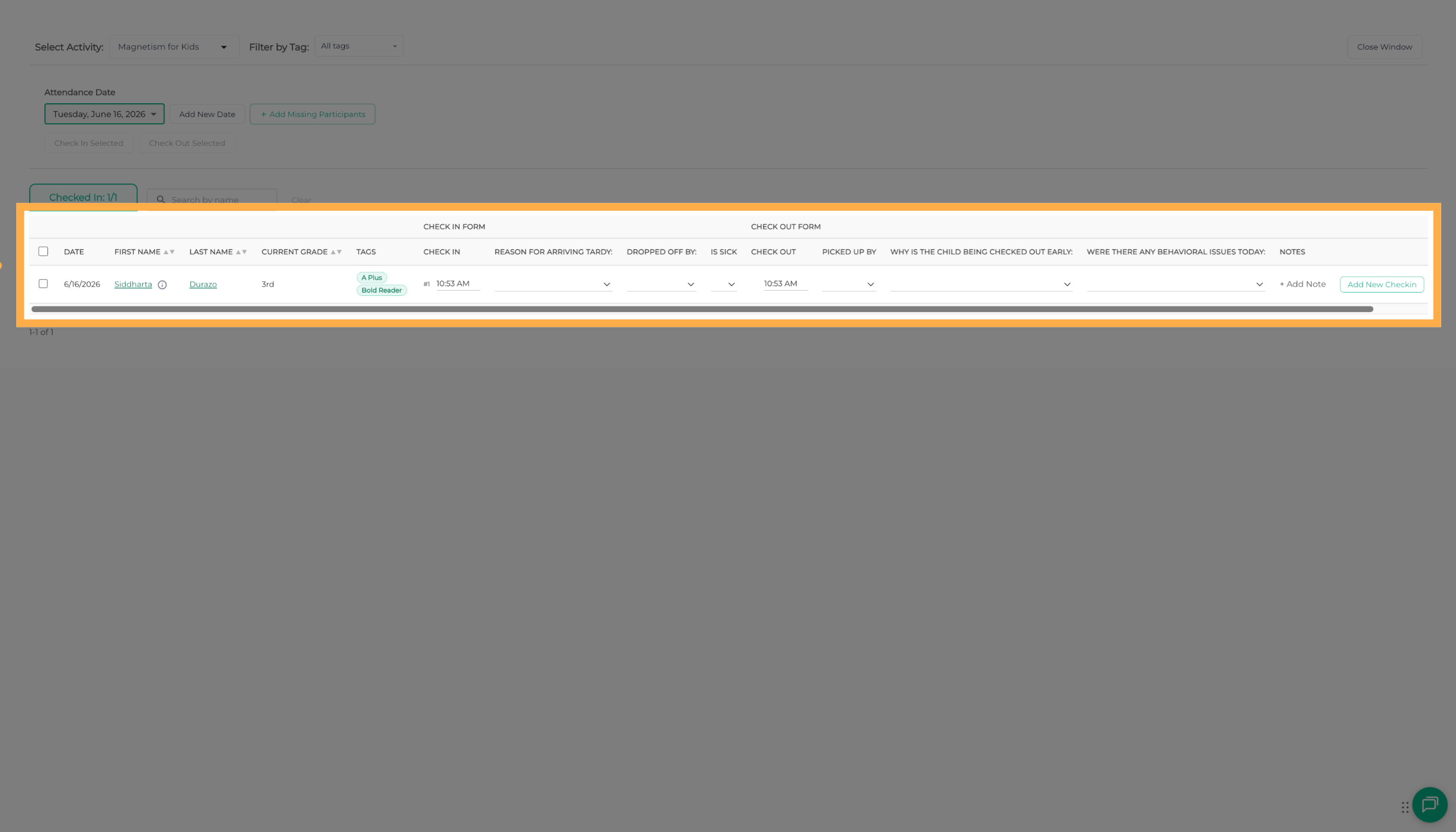
Find the student you want to remove from the selected day's attendance roster.
Review the student's information to make sure you've located the correct attendance record.
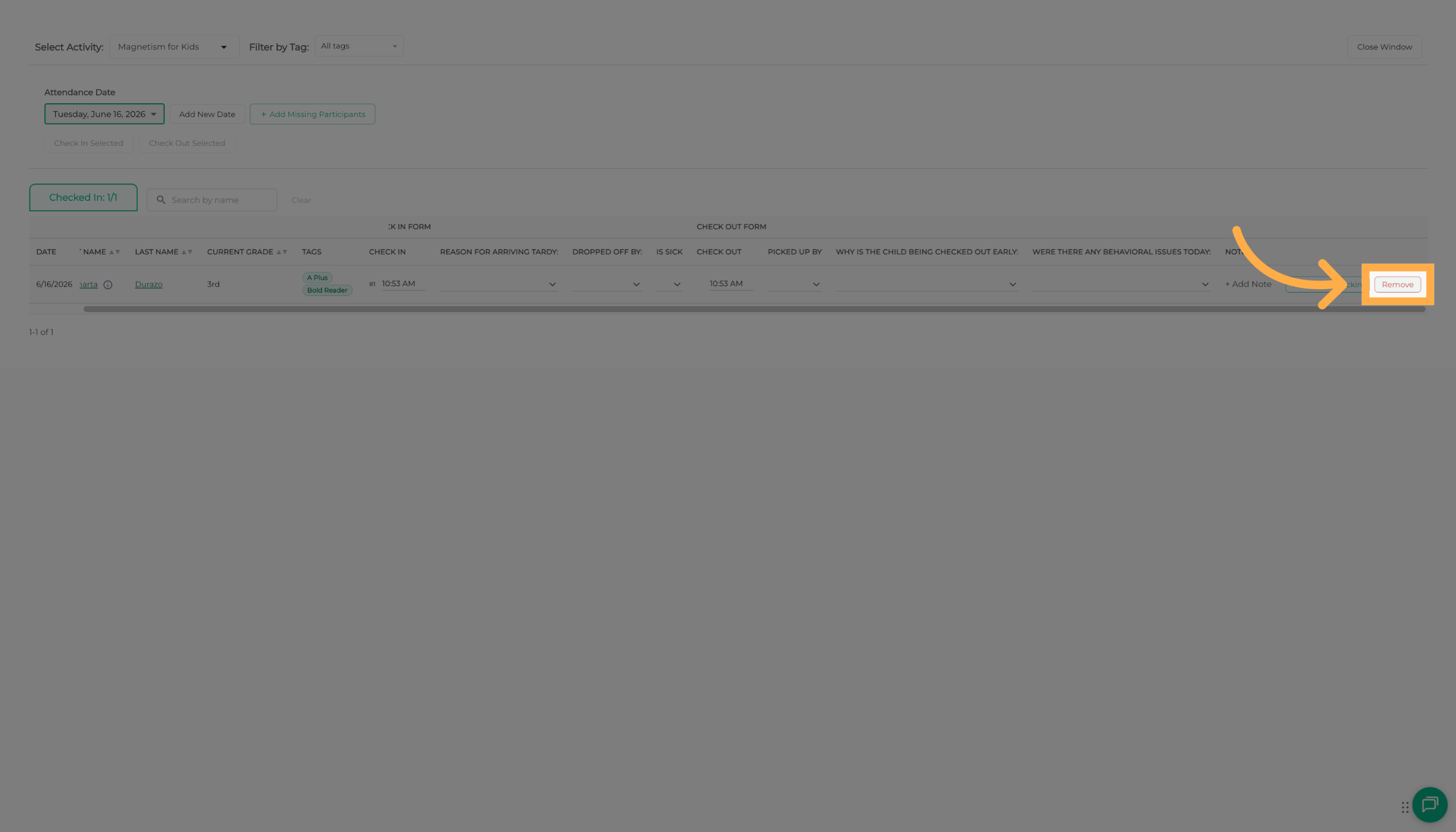
6. Select Remove
Once you've located the student, select “Remove” next to their attendance record.
This will begin the process of removing the student from the selected attendance date.
7. Review the Removal Confirmation
A confirmation message will appear explaining the impact of removing the student.
Removing the student will exclude them from:
- Attendance Totals: The student will no longer be included in attendance counts for that date.
- Reports: The student's attendance entry will be excluded from reports associated with the selected date.
- Analytics: Attendance analytics for that date will no longer include the removed entry.
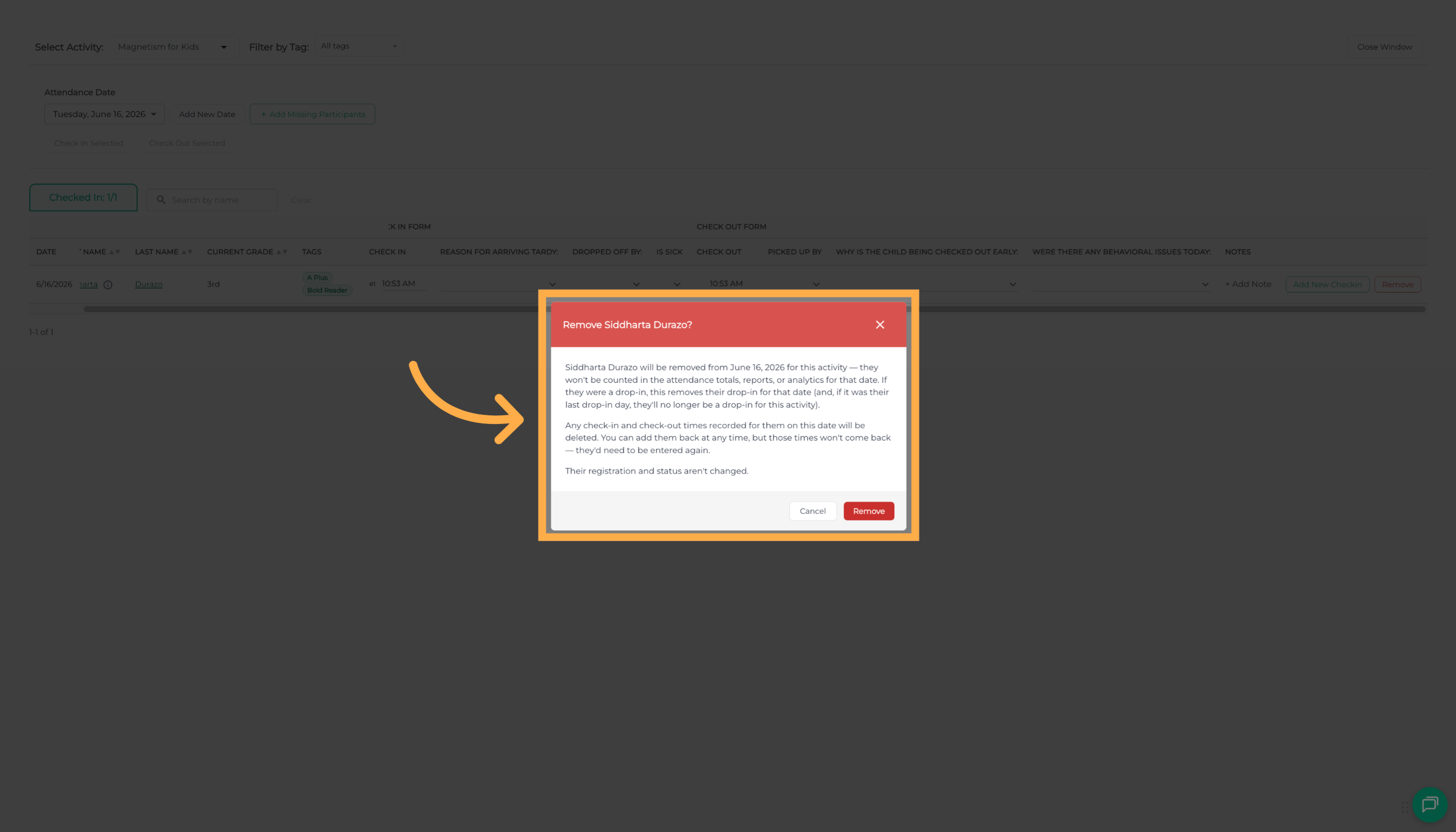
⚠️ Important: Review the confirmation carefully before proceeding. Removing a student changes the attendance records and reporting information associated with that date.
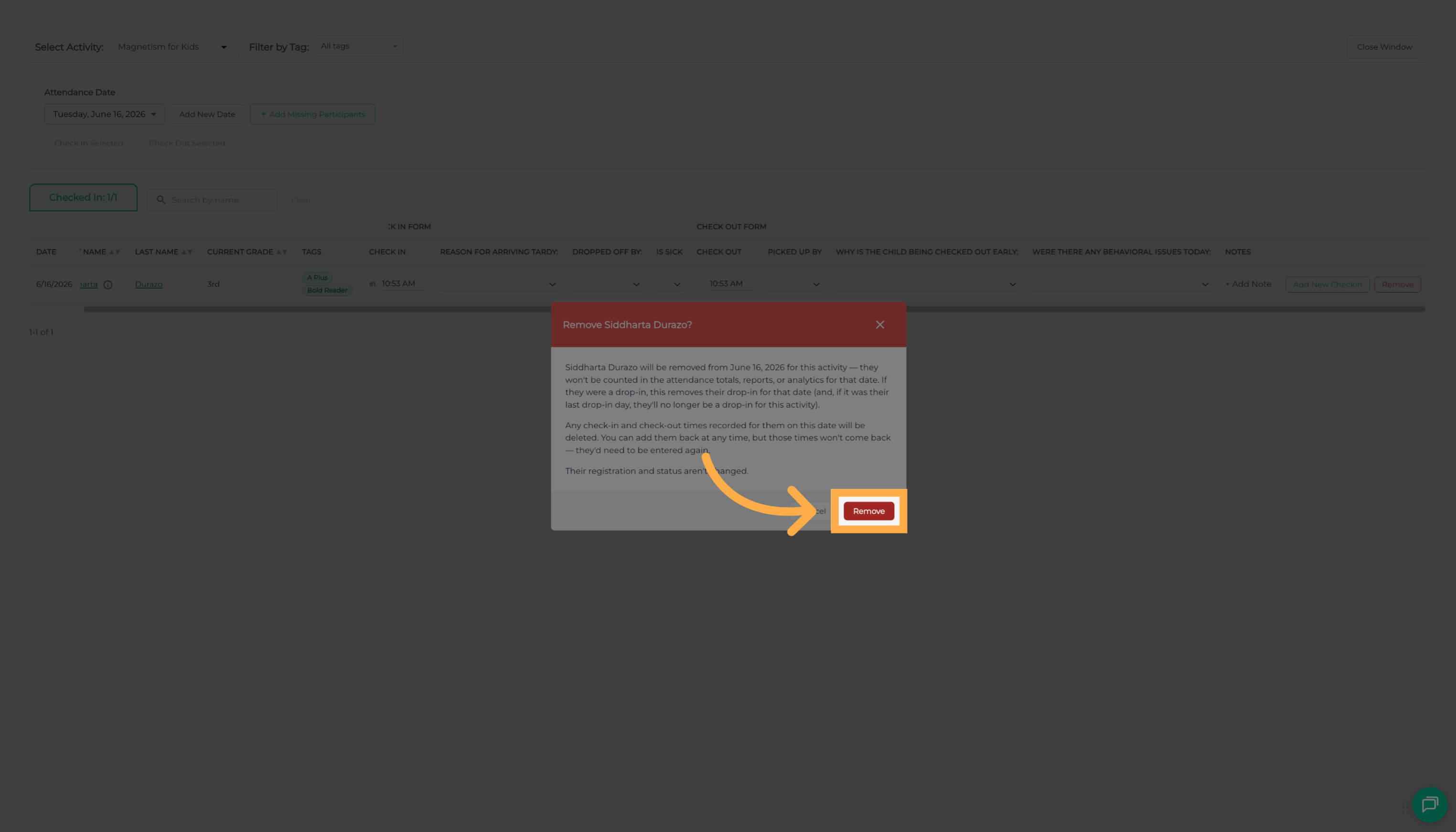
8. Confirm Student Removal
Select “Remove” again to confirm your decision. The student will be removed from the selected attendance date.
Their overall activity enrollment will remain unchanged.
💡 Tip: After completing the removal, review the attendance roster to confirm that the student no longer appears for the selected date.
Frequently Asked Questions
Q: What does removing a student from an attendance date do?
A: It removes the student from the selected day's attendance roster and excludes their attendance entry from the totals, reports, and analytics associated with that date.
Q: Will removing a student from an attendance date remove them from the entire activity?
A: No. The student remains enrolled in the activity. Only their attendance entry for the selected date is removed.
Q: Can I remove a student from just one attendance date?
A: Yes. You can select a specific attendance date and remove the student from that day's attendance roster without affecting their enrollment in the activity.
Q: Where can I remove a student from an attendance date?
A: Open “Manage Check-In/Out”, select the activity, choose the attendance date, locate the student, and select “Remove”.
Q: Will removing a student affect attendance reports?
A: Yes. The removed attendance entry will no longer be included in attendance totals, reports, or analytics for the selected date.
Q: Will this affect the student's attendance on other dates?
A: No. This process removes the student from the specific attendance date you selected. Their attendance records for other dates are not affected by this action.
Q: Can I remove a student who was added to an attendance date by mistake?
A: Yes. This feature can be used to remove students who were accidentally added to a particular attendance roster.
Q: Do I need to confirm the removal?
A: Yes. After selecting “Remove”, AfterSchool HQ displays a confirmation message. You must select “Remove” again to complete the process.
Q: Is removing a student from an attendance date the same as withdrawing them from an activity?
A: No. Removing a student from an attendance date only affects that day's attendance record. Withdrawing a student changes their overall registration status in the activity.
Q: How can I confirm that a student was removed successfully?
A: Return to the selected attendance date and review the roster to confirm that the student no longer appears.
Q: Can I remove students from different attendance dates?
A: Yes. You can select different attendance dates and review the students associated with each date. Repeat the removal process for any additional entries that need to be removed.
Q: What should I do if I accidentally remove the wrong student?
A: Review the affected attendance date and check whether the student can be added back using the available attendance management options. If you need assistance restoring the attendance information, contact AfterSchool HQ Support.
💡If you experience any issues or have further questions with “How to Remove a Student from a Specific Attendance Date”, don't hesitate to get in touch with our support team at support@afterschoolhq.com.