![ASHQ Logo Vert Flat.png]](https://support.afterschoolhq.com/hs-fs/hubfs/ASHQ%20Logo%20Vert%20Flat.png?height=40&name=ASHQ%20Logo%20Vert%20Flat.png)
Need to send an update or announcement to families? Here's a step-by-step walkthrough on how to compose and send messages to families.
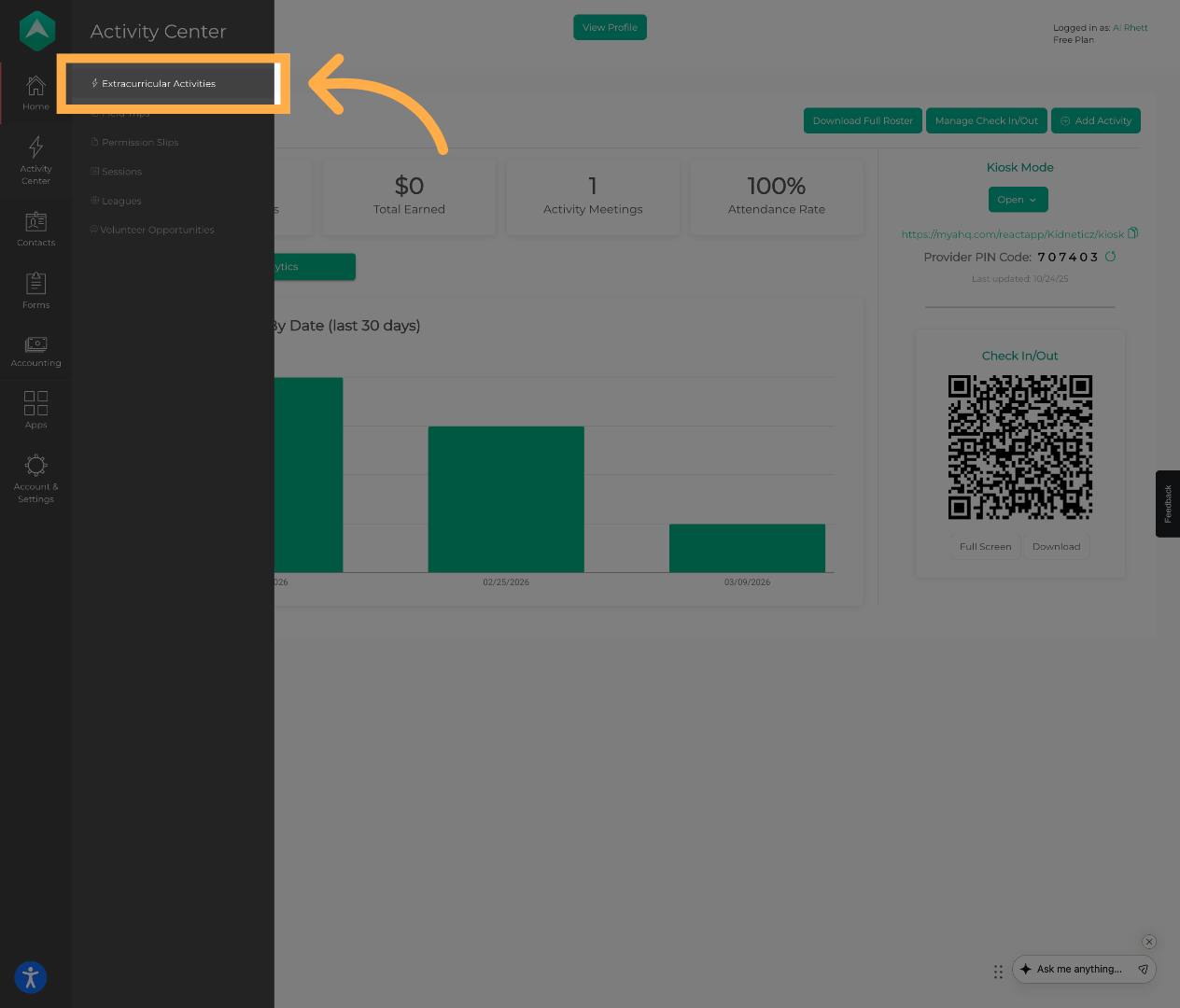
1. Access Extracurricular Activities
Click “Extracurricular Activities” to view your activity list.
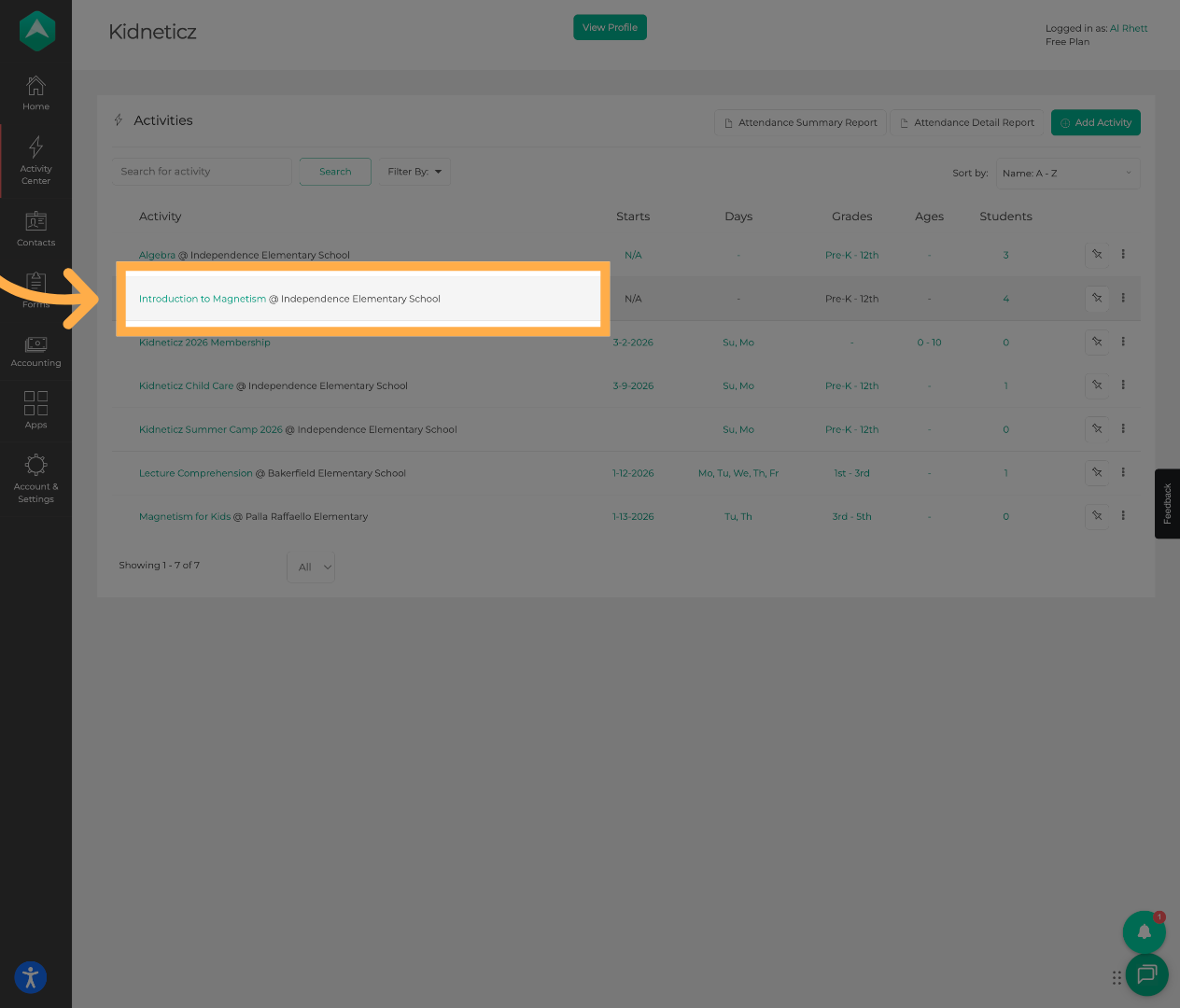
2. Open an Activity
Select the activity you want to message participants from.
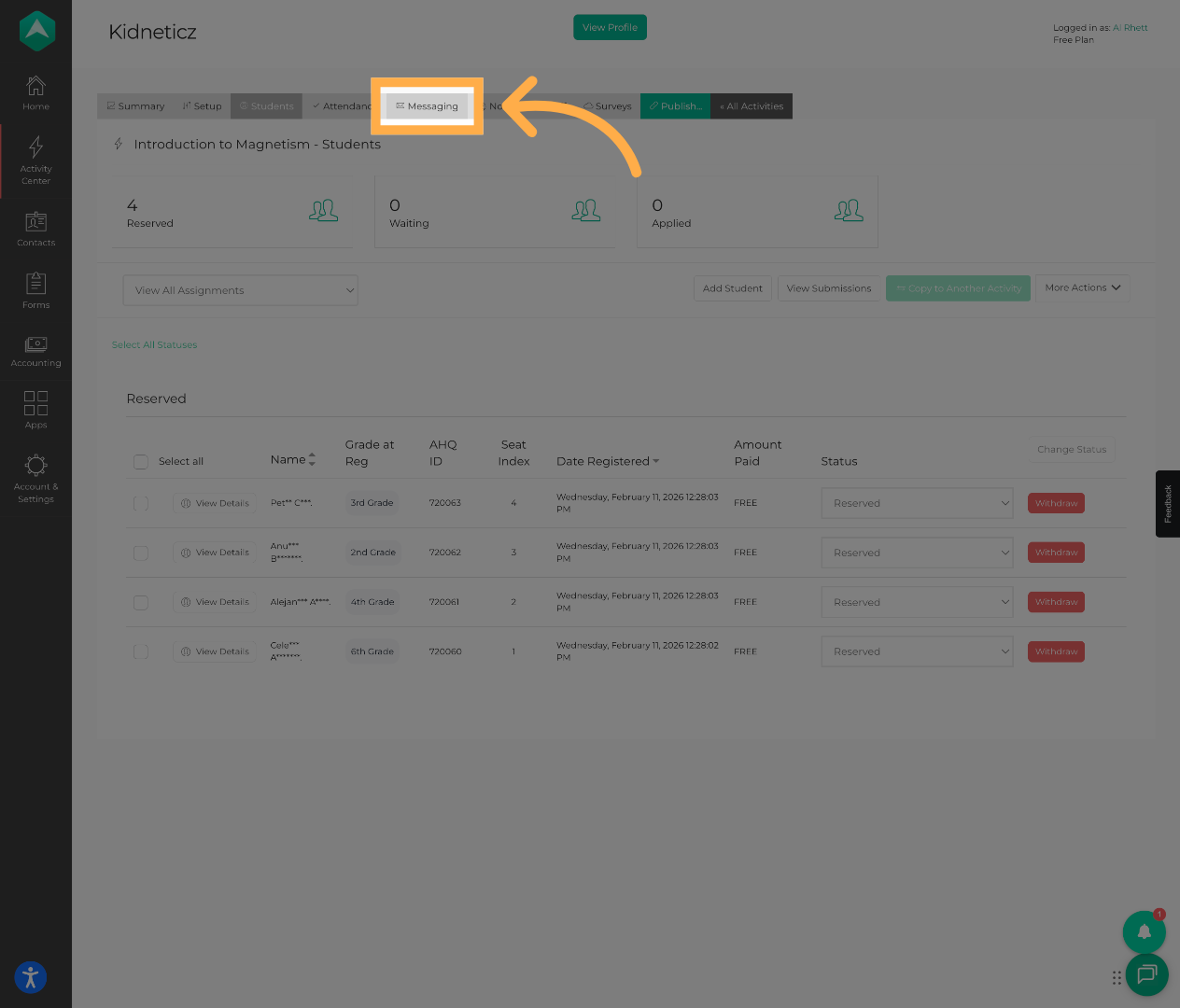
3. Go to the Messaging Tab
Click “Messaging” to manage communications for this activity.
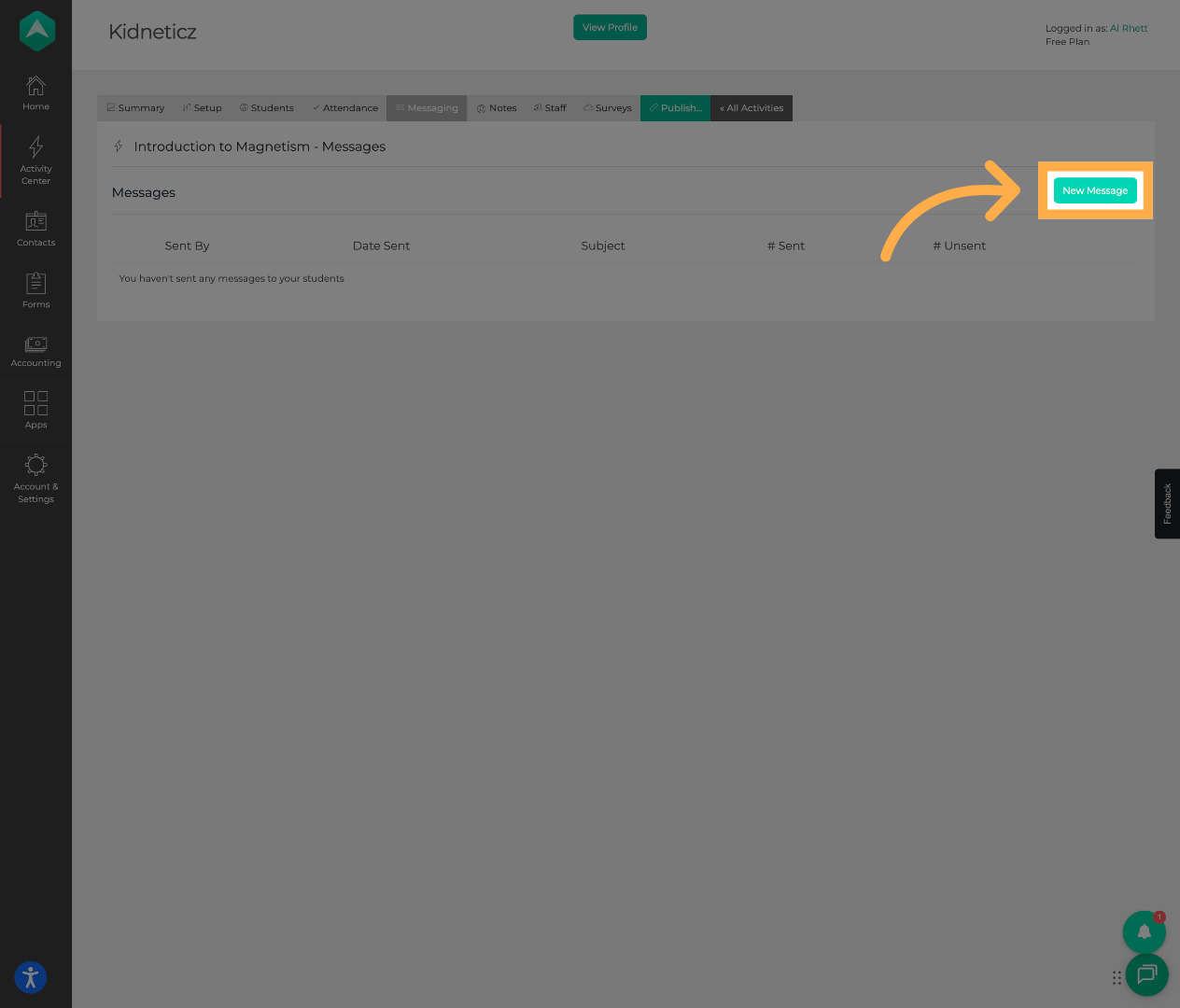
4. Start a New Message
Click “New Message” to begin composing a message.
5. Add a Message Subject
Choose a subject line for your message.
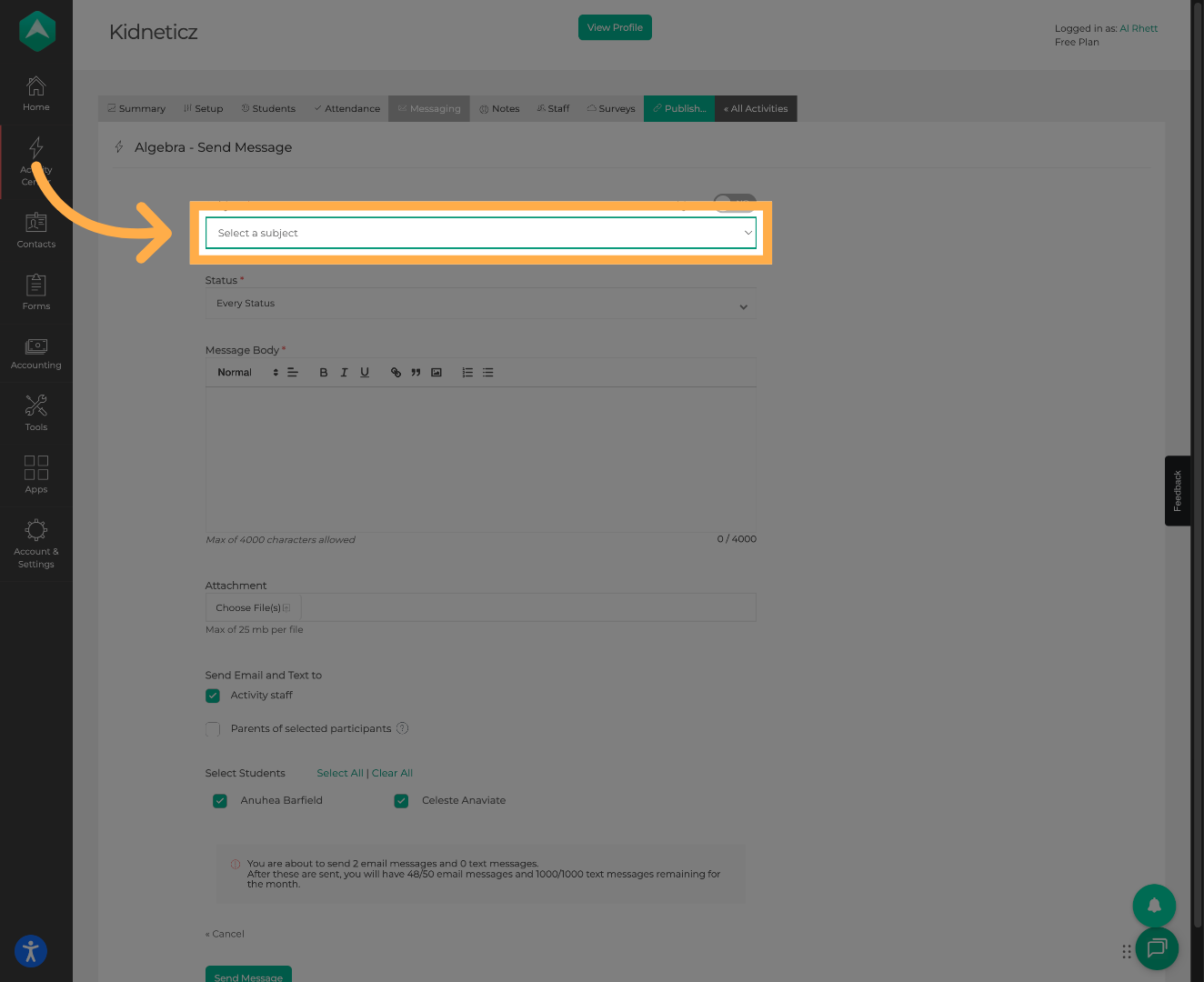
6. Customize the Subject (Optional)
Toggle Custom Subject if you want to create a personalized subject line.
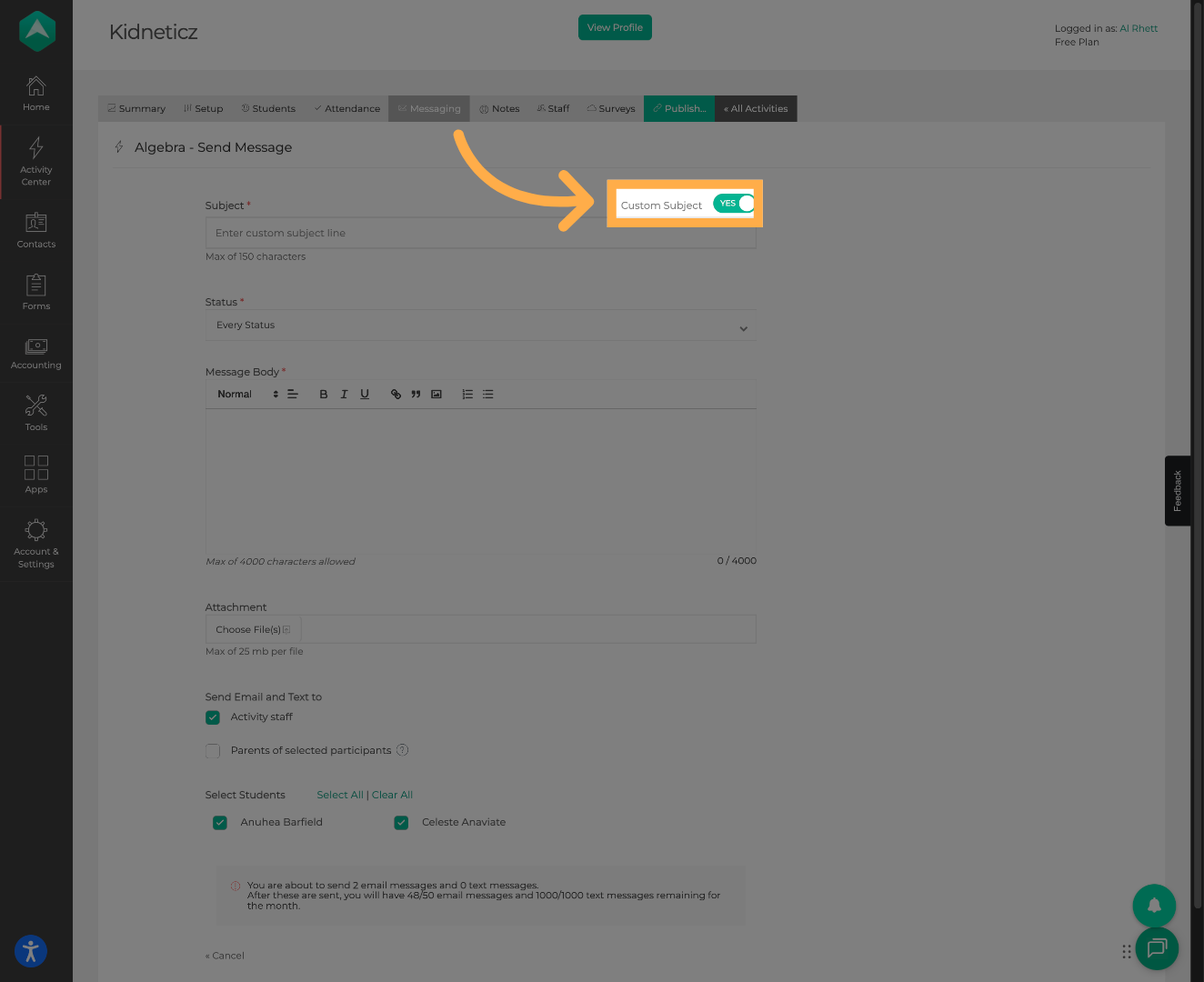
💡Tip: Selecting a message reason helps categorize your communications and makes it easier to review message history later.
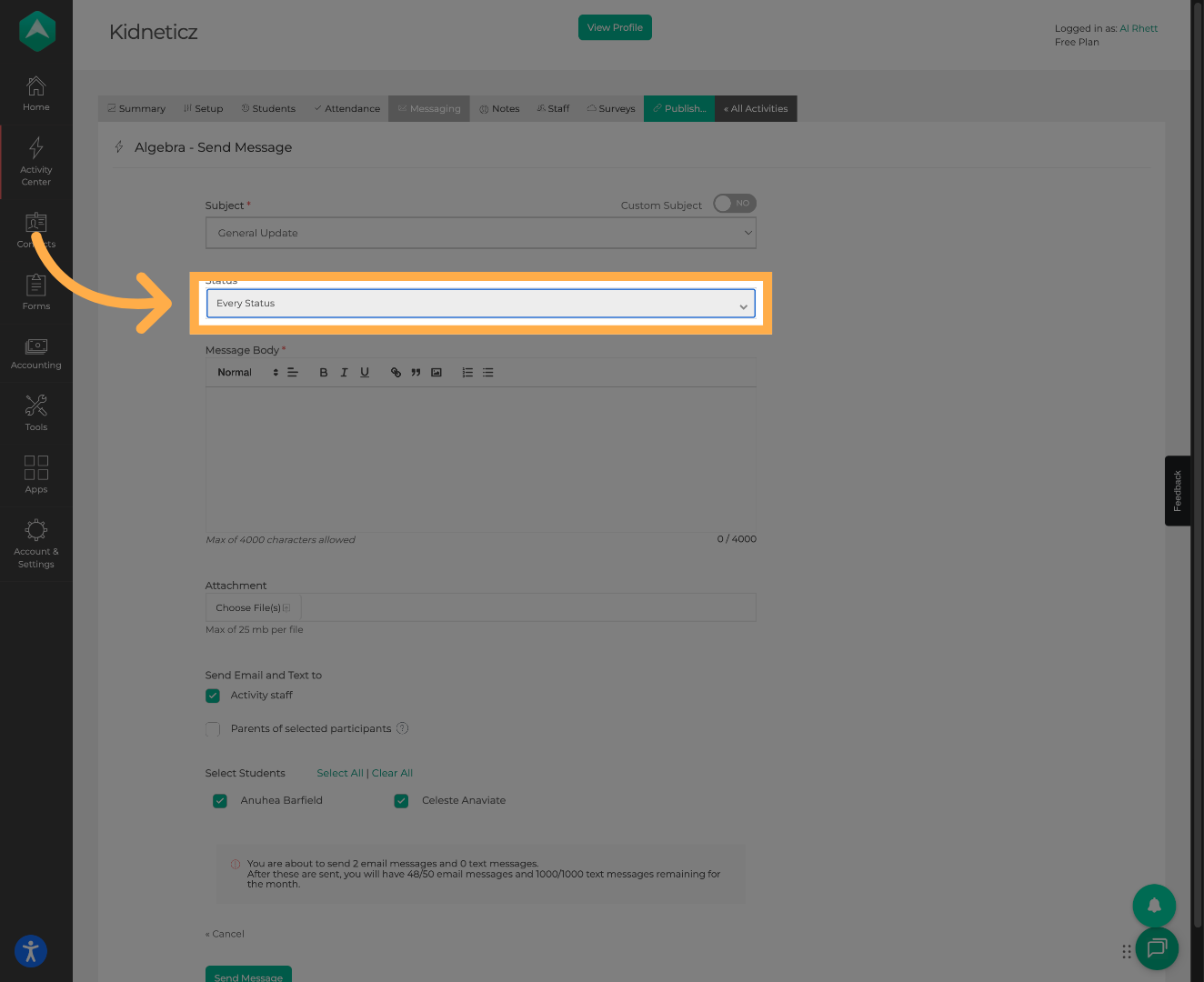
7. Filter Recipients by Status
Choose which participant statuses should receive the message.
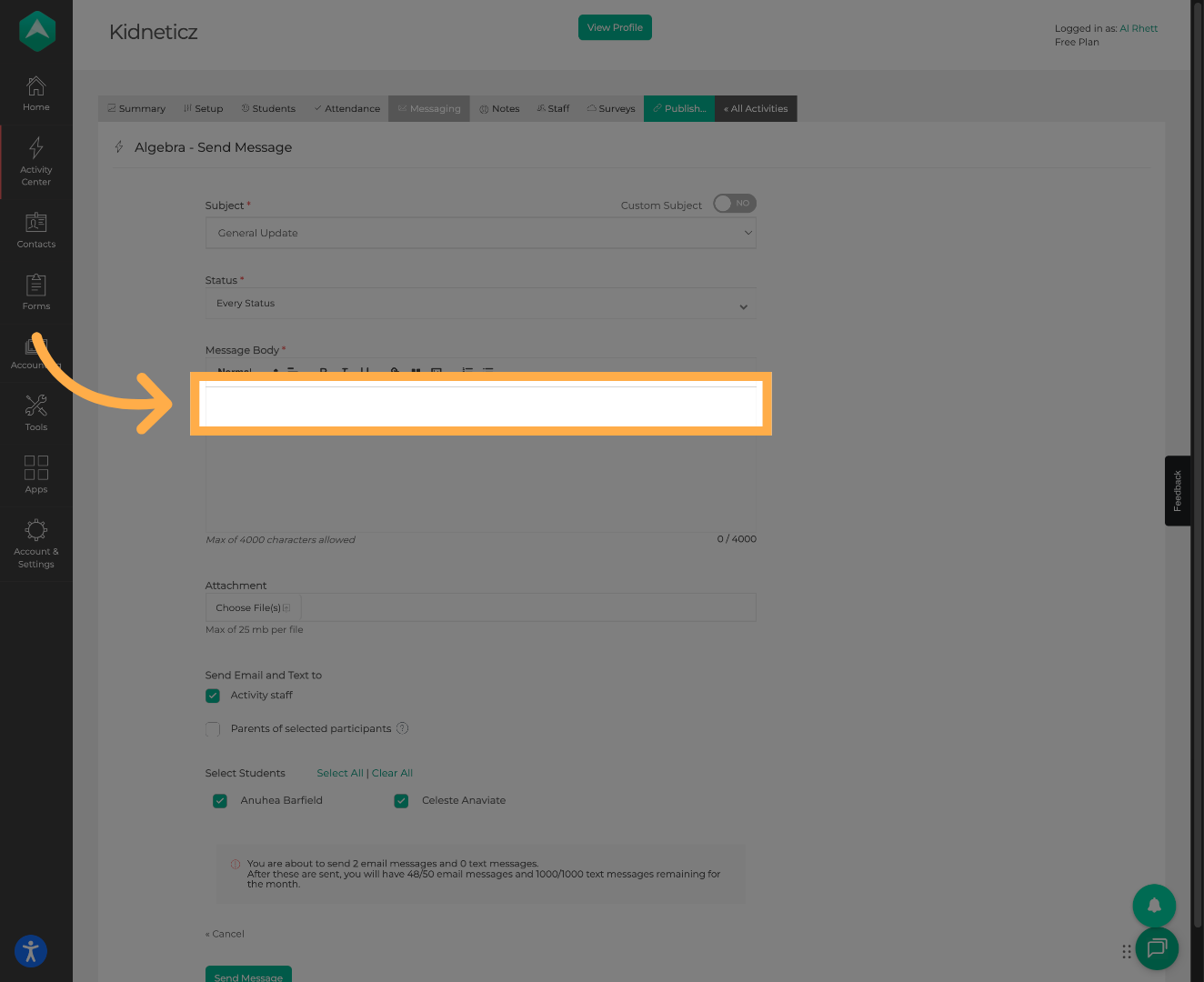
8. Write Your Message
Enter your message text and add images if needed.
9. Add Attachments (Optional)
Attach files or documents to include with your message.
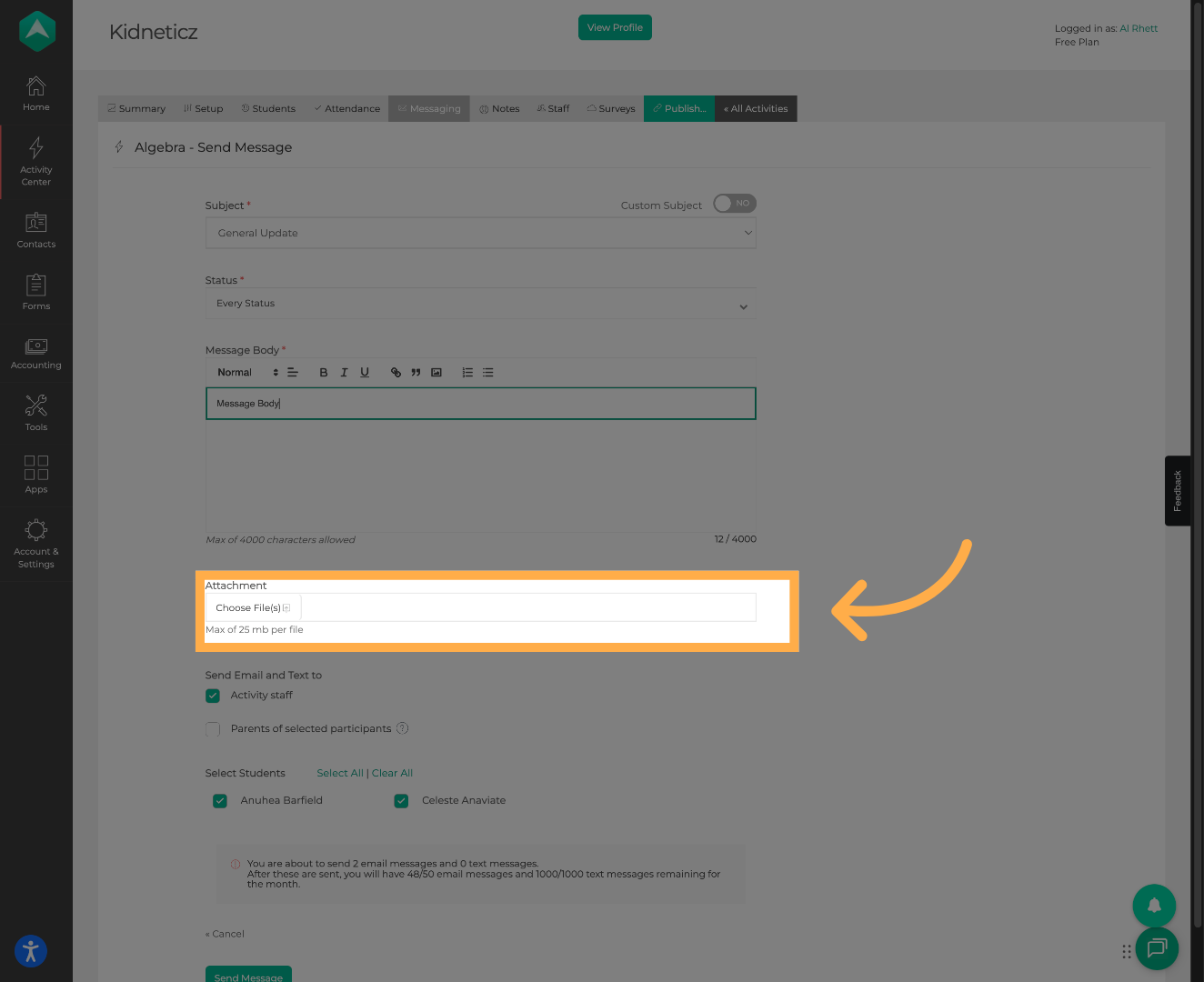
💡Tip: You can attach files or event details to provide additional information to families.
10. Send a Copy to Activity Staff (Optional)
Enable “Send email to activity staff” if you want staff members to receive a copy.
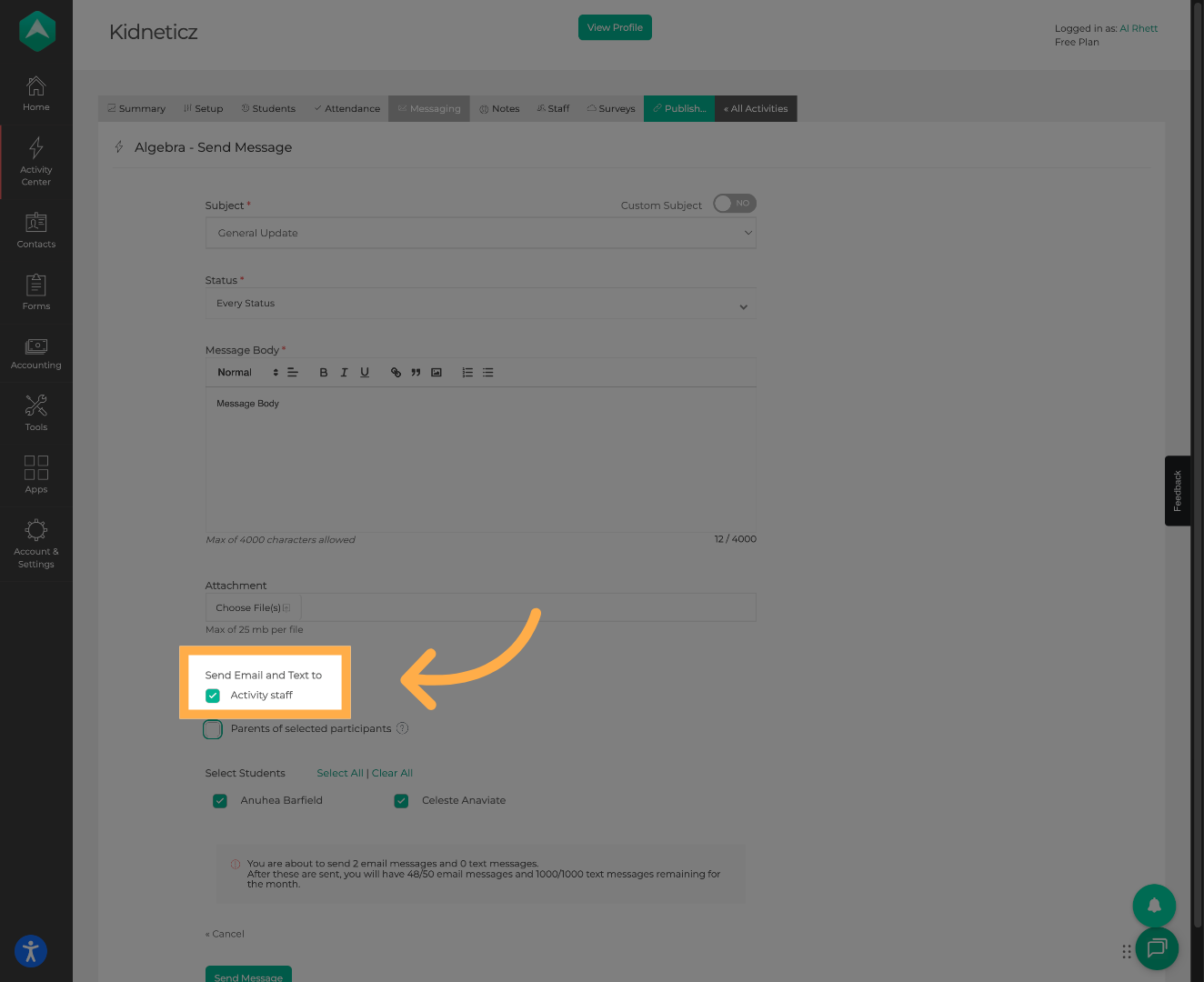
💡Tip: Enable this option if you want instructors or staff members to receive the same message as families.
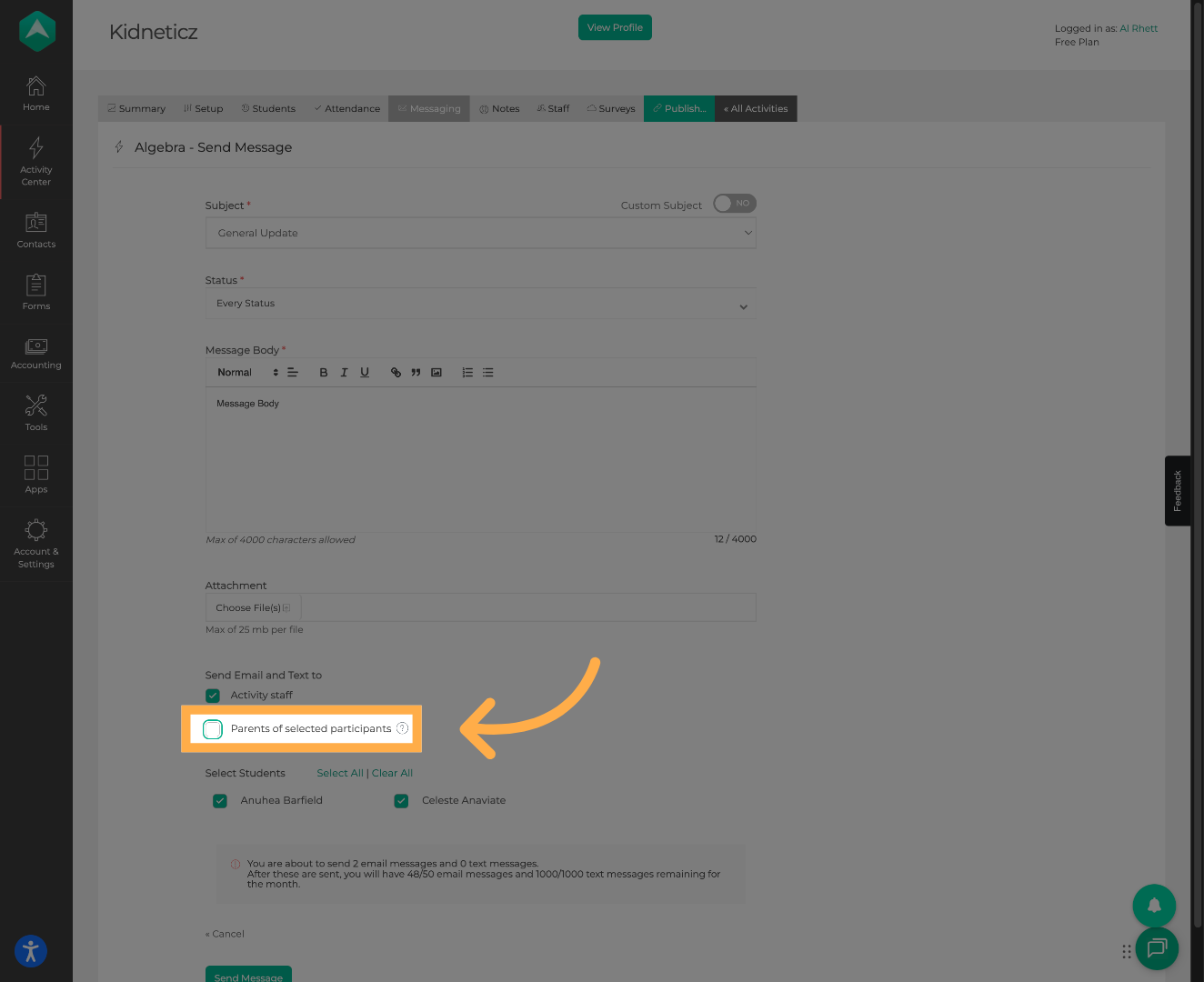
11. Limit Recipients to Parents Only (Optional)
Click “Parents of selected participants” to include parents in the message recipient list.
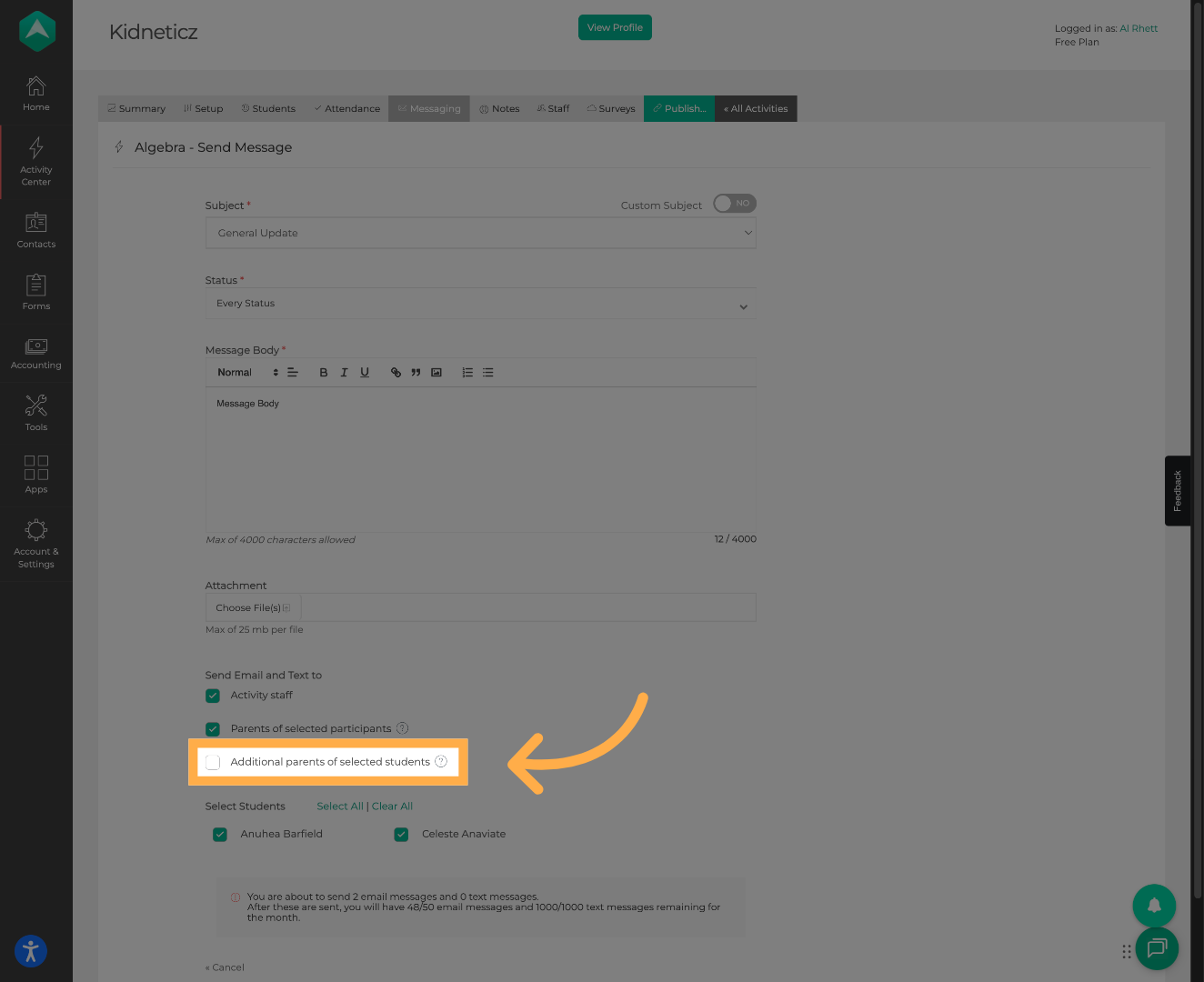
12. Additional Parent Options (Optional)
Click “Additional parents of selected students” to include more parents in the communication.
12. Select Message Recipients
Choose the participants who should receive the message.
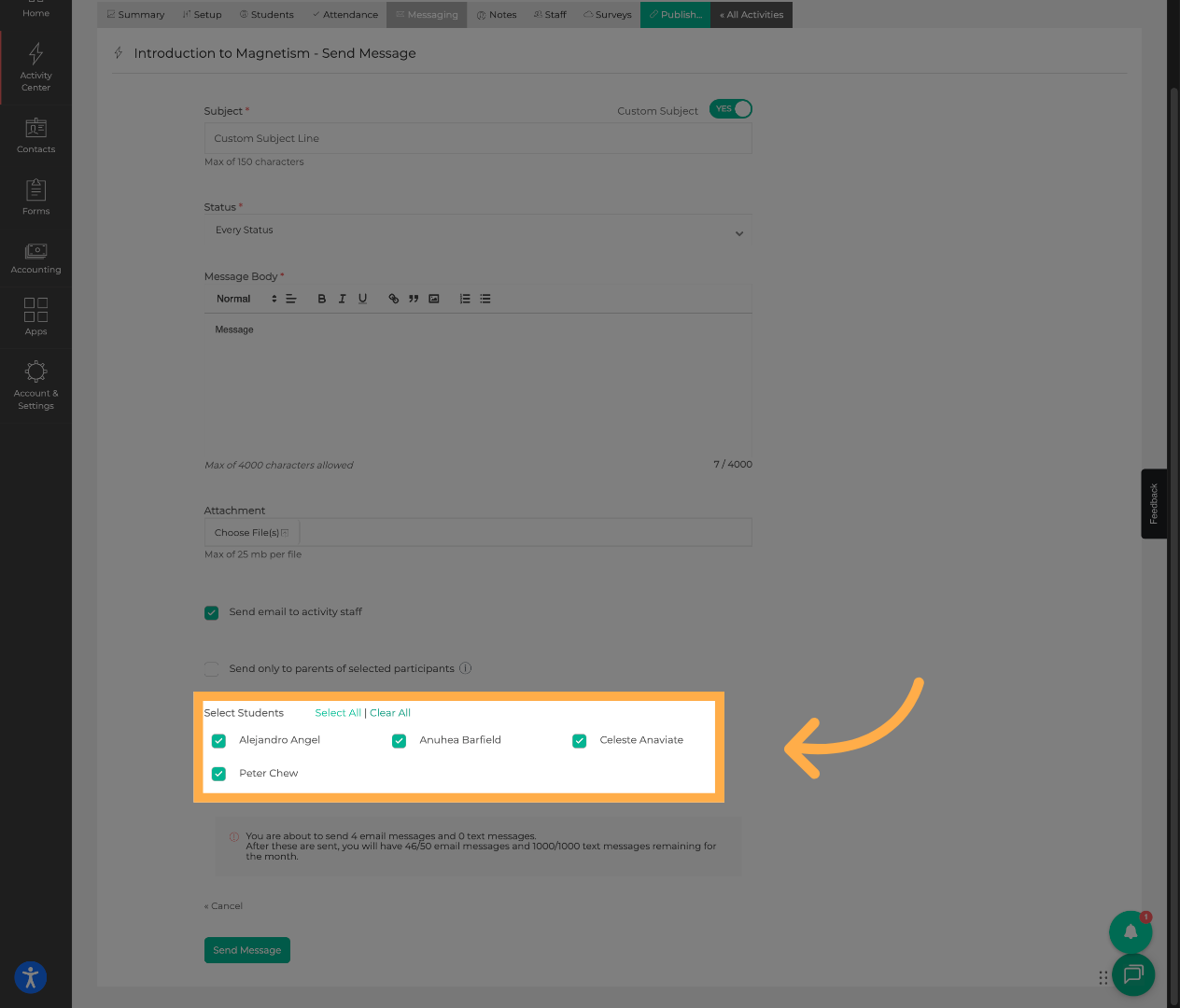
💡Tip: Always review the selected participants before clicking Send Message to make sure the correct recipients are included.
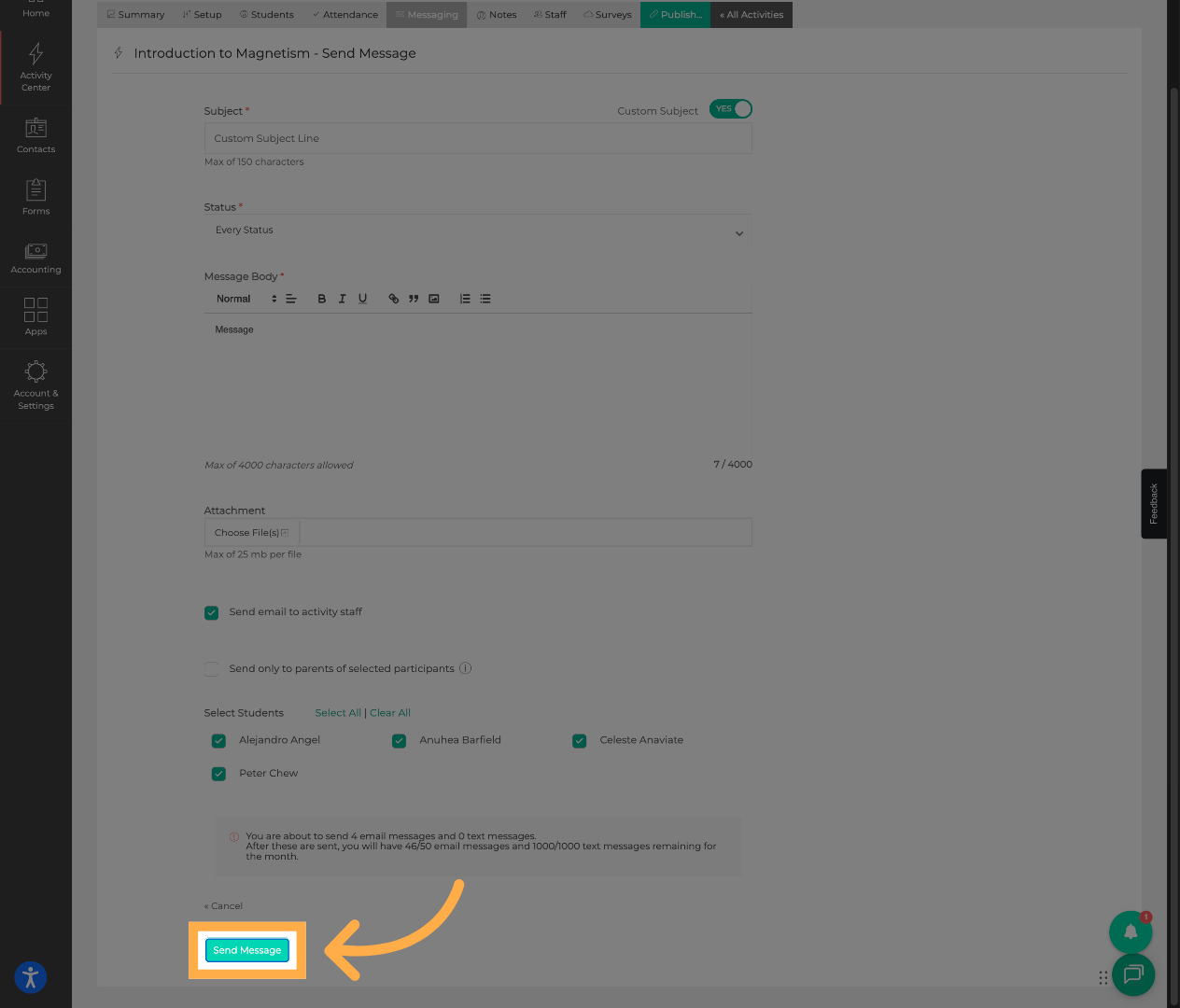
13. Send the Message
Click “Send Message” to deliver your message to the selected recipients.
14. Review Message Details
View the message summary to confirm the recipients, message content, attachments, and delivery settings.
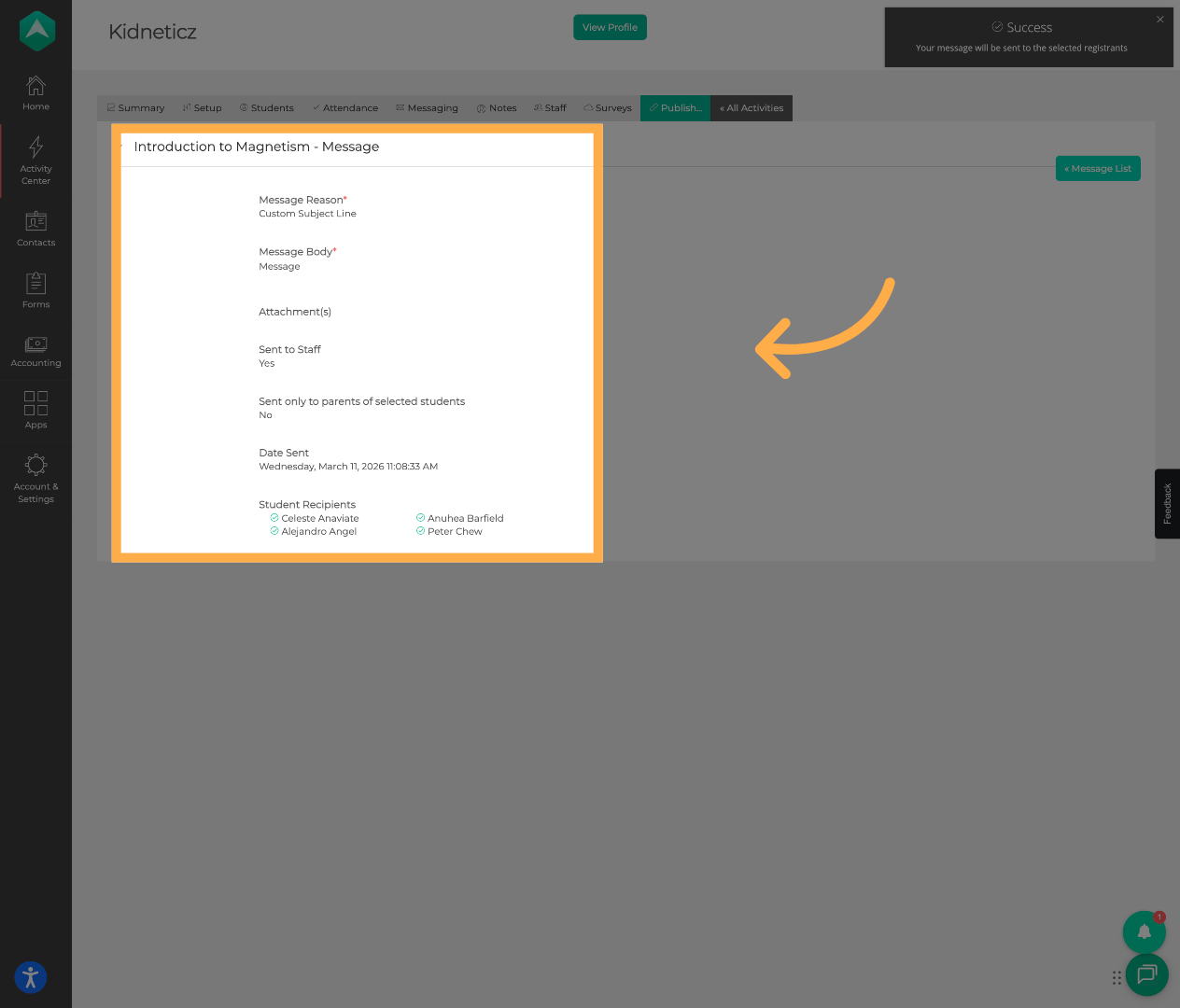
💡Tip: Once a message is sent, it cannot be undone. Always review the content and recipients before confirming.
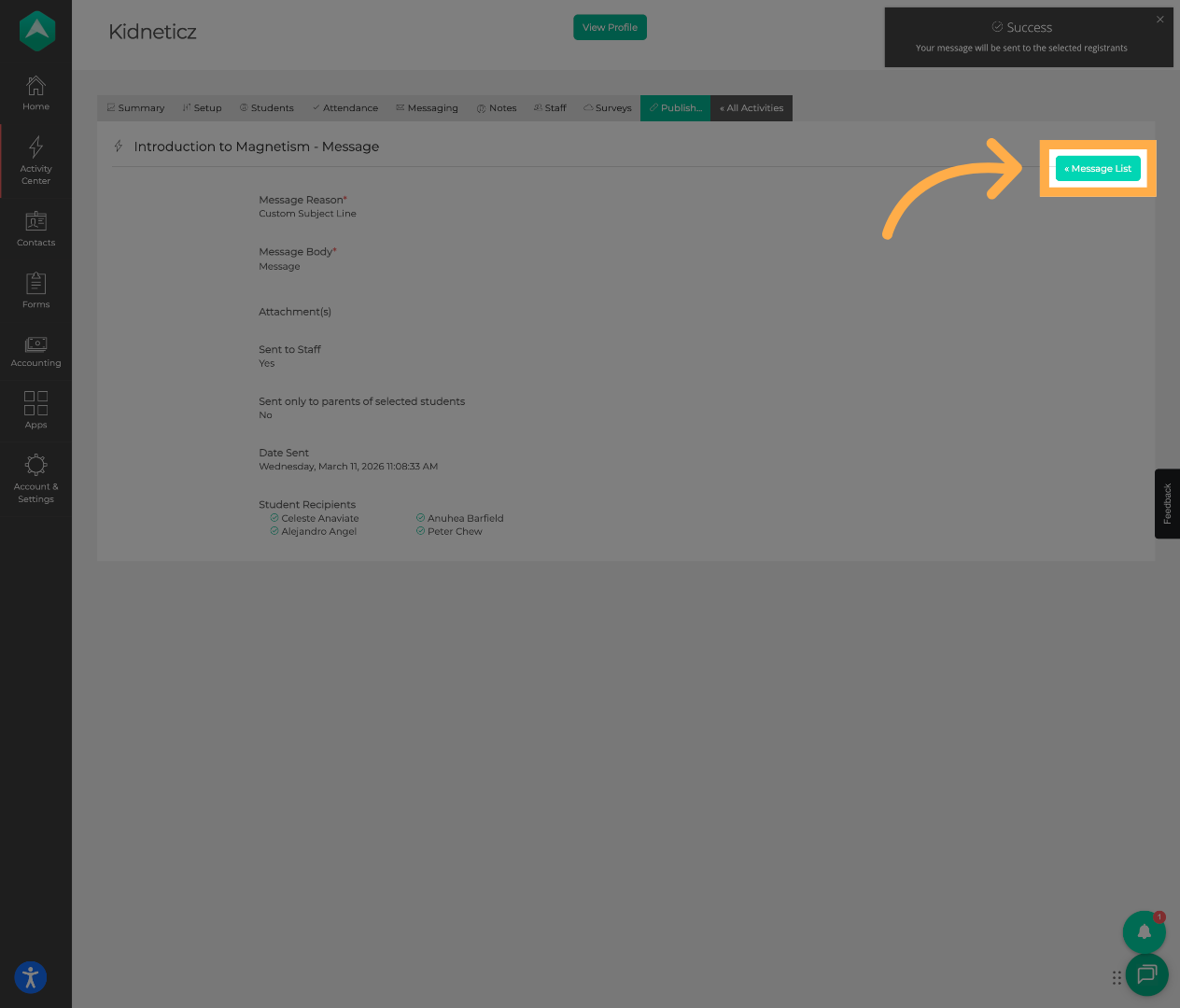
15. Return to the Message List
Click “Message List” to go back to the list of sent messages.
16. Send a Message to All Participants
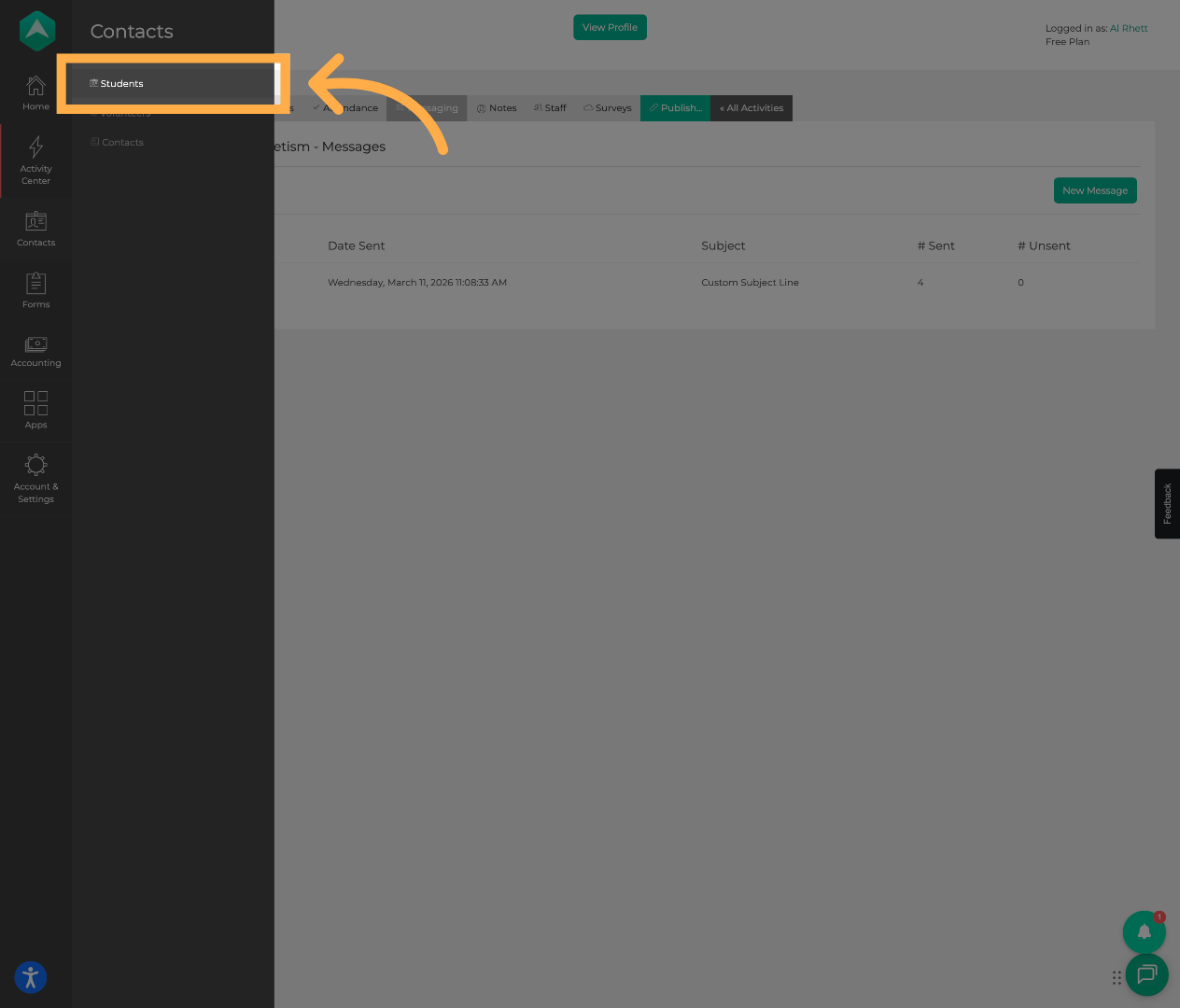
To send a message to everyone enrolled, click the “Students” tab.
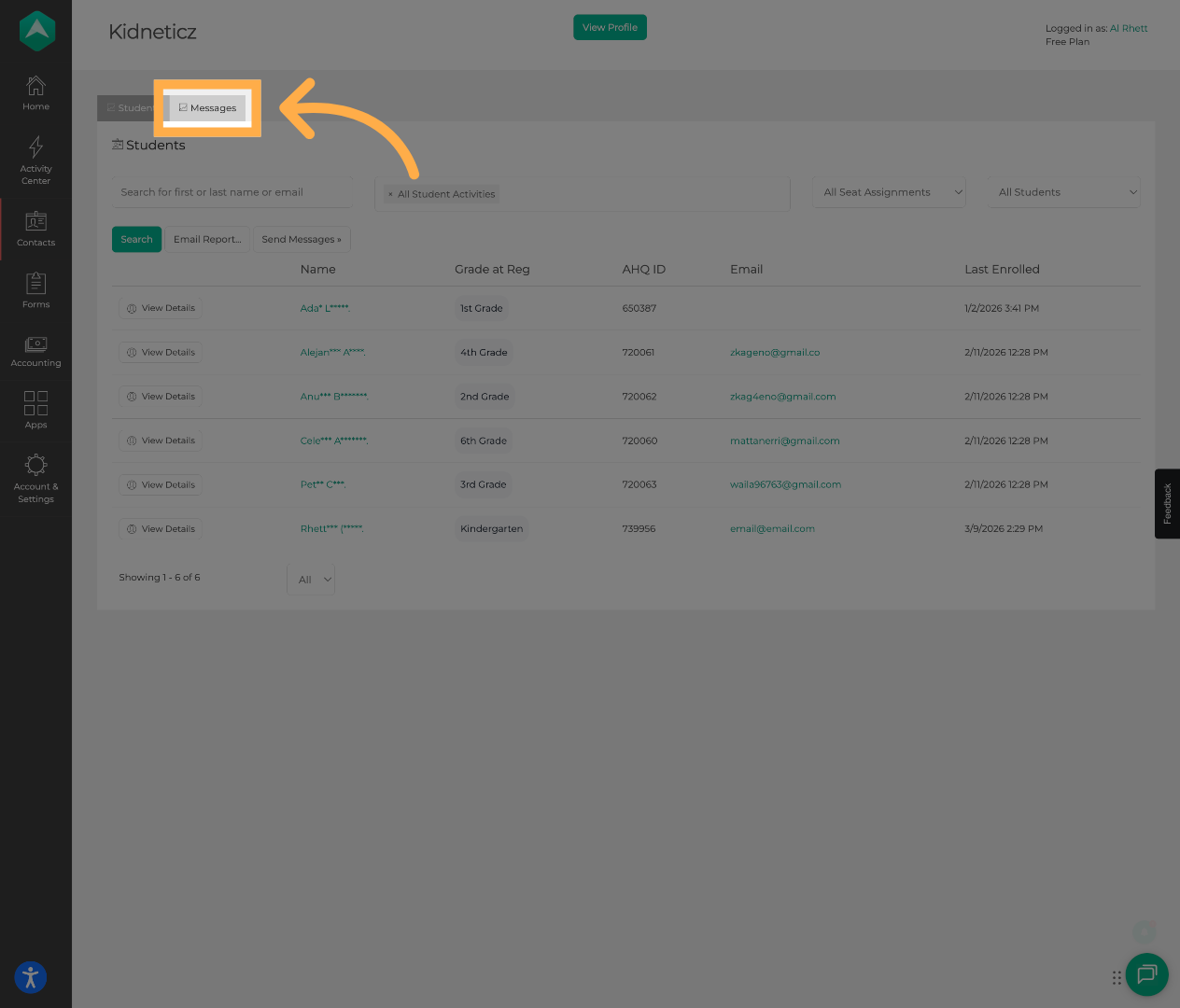
17. Open the Messages Section
Click “Messages” to manage communications.
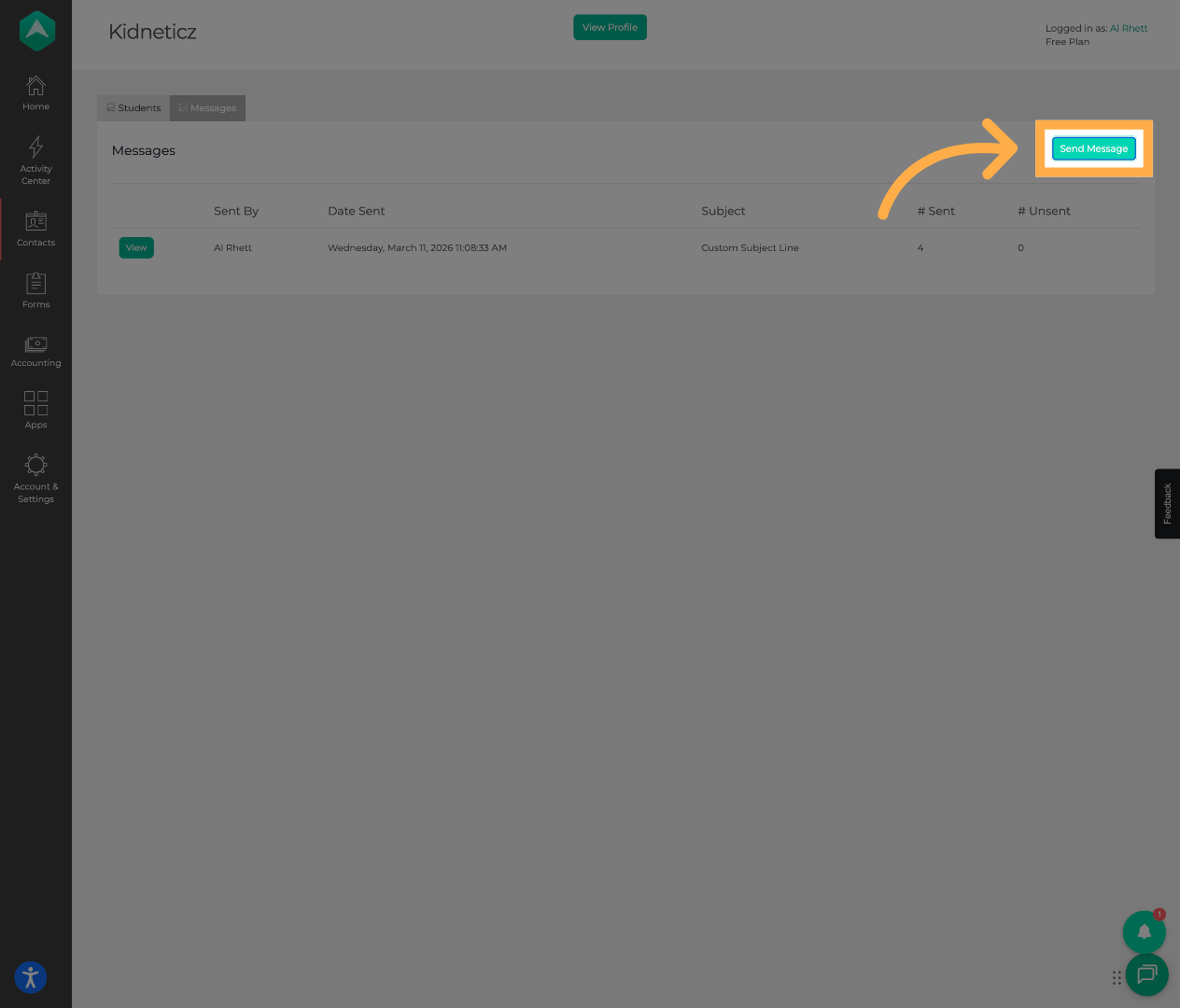
18. Start a New Message
Click “Send Message” to begin composing a new message.
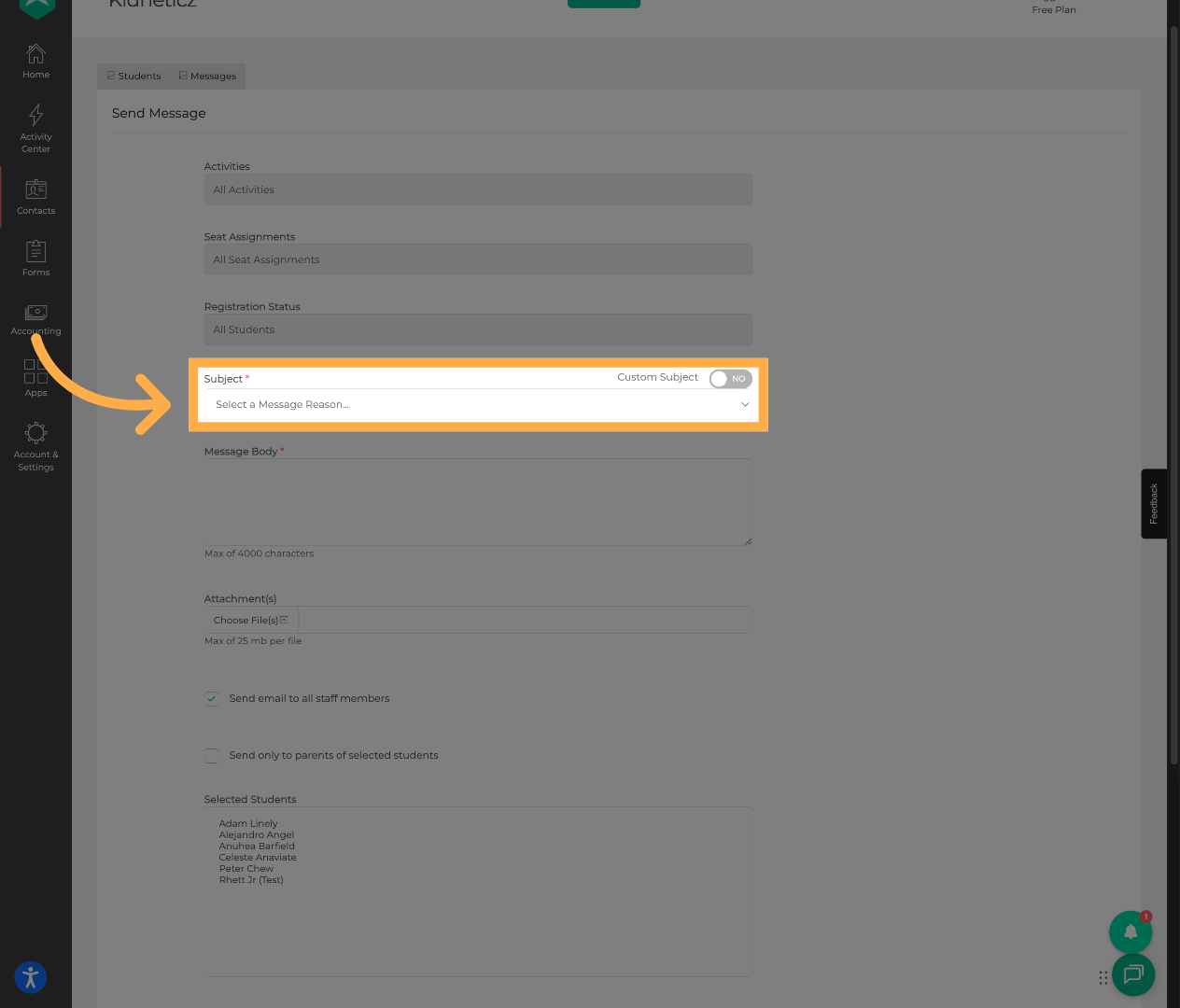
19. Select a Message Reason
Choose the appropriate Message Reason.
20. Write Your Message
Enter the content of your message in the message body field.
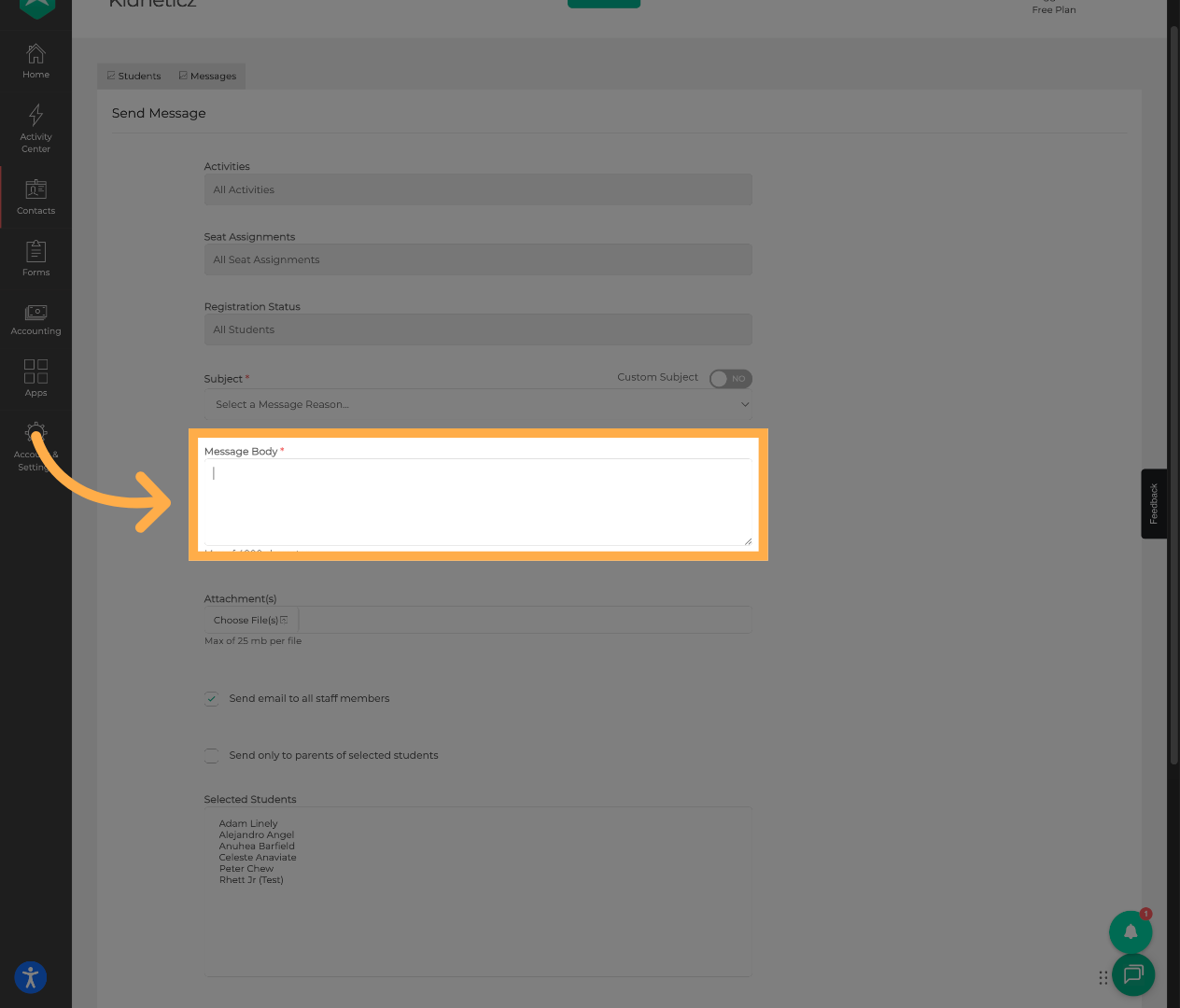
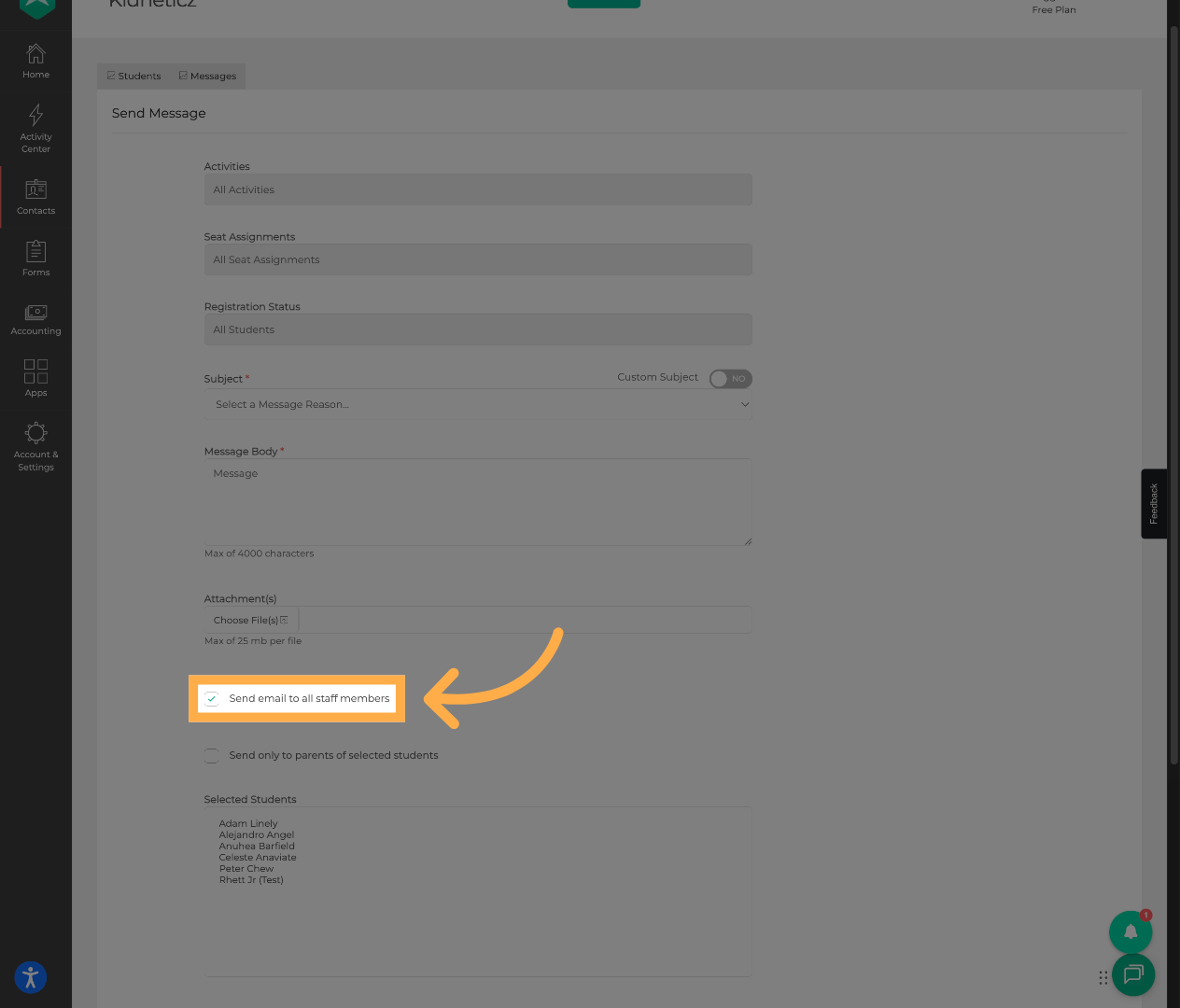
21. Send a Copy to All Staff (Optional)
Enable “Send email to all staff members” if you want staff to receive a copy.
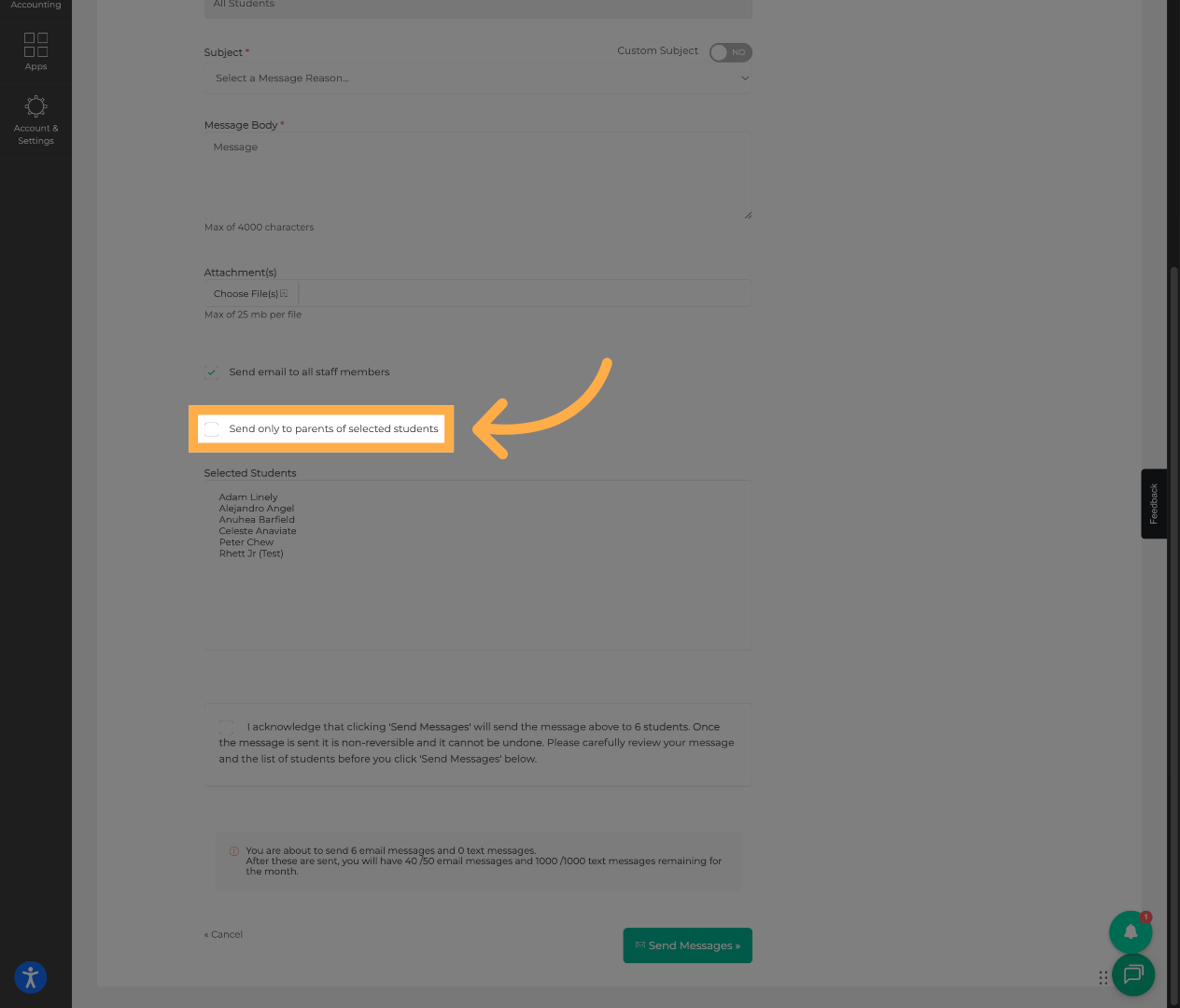
23. Restrict to Parents Only (Optional)
Select “Send only to parents of selected students” to limit recipients.
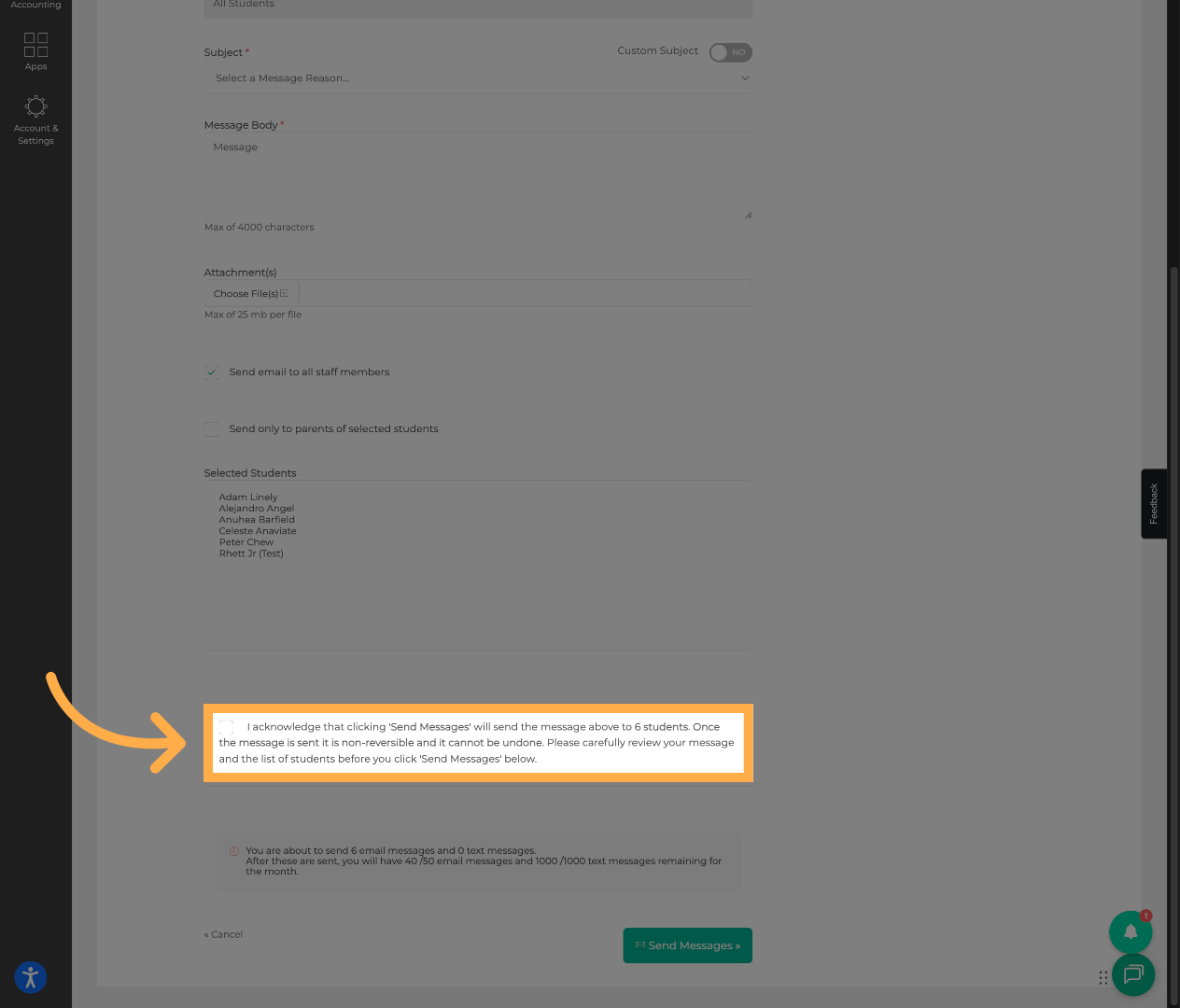
24. Confirm the Send Warning
Acknowledge the warning confirming that messages cannot be undone once sent.
25. Send the Message
Click “Send Messages” to deliver the message to the selected recipients.
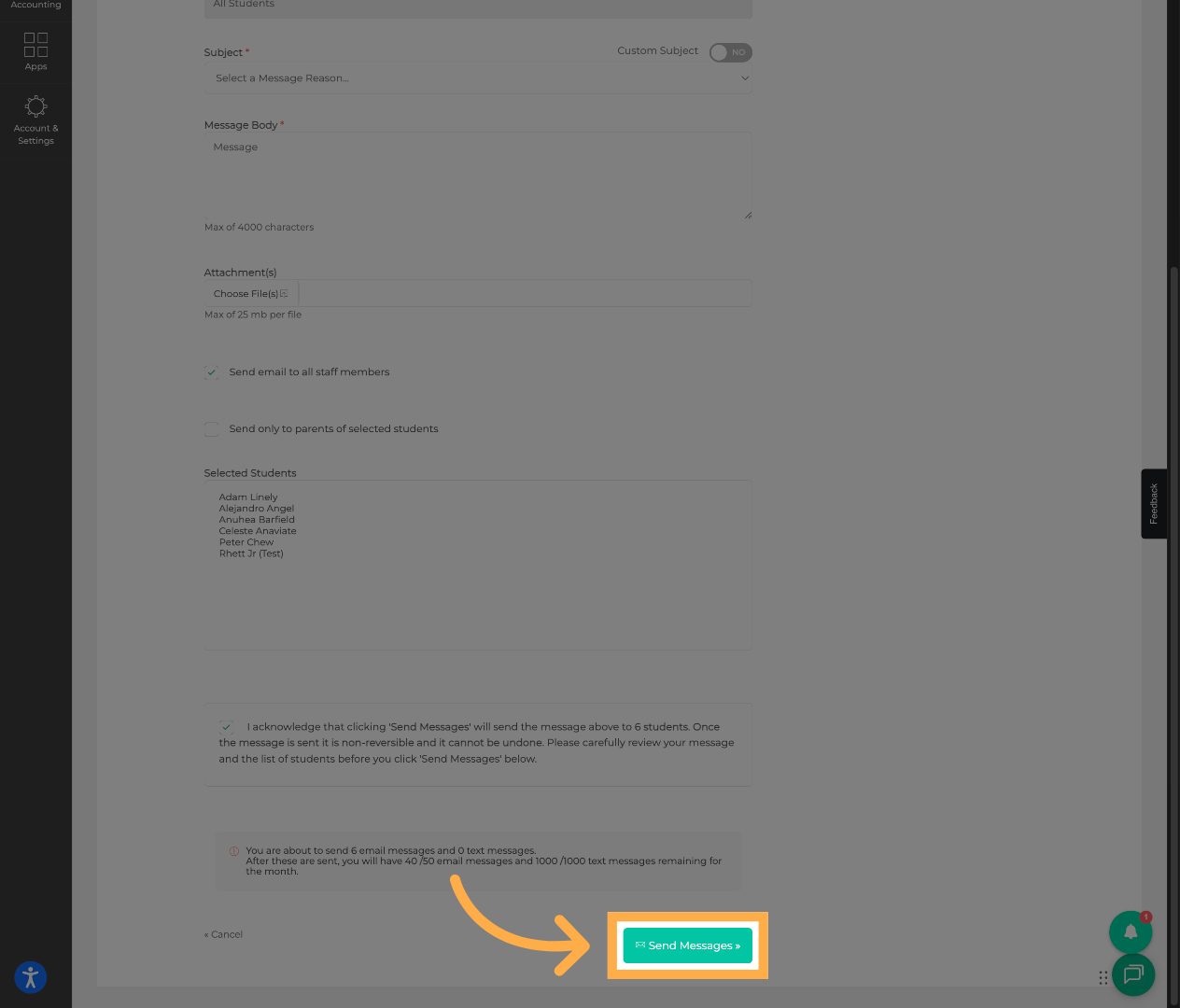
💡Tip: Messaging usage may vary depending on your plan. Before sending messages, you may see a notice showing how many email and text messages remain for the month.
Frequently Asked Questions
Q: Who receives the message when I send it?
A: Messages are sent to the selected participants and their parents or guardians based on the recipient filters you choose.
Q: Can I send a message to all participants at once?
A: Yes. You can send a message to all participants by opening the Students tab, selecting all students, and composing a new message.
Q: Can I send messages only to parents?
A: Yes. Enable the Additional parents of selected students option to restrict the message to parents or guardians only.
Q: Can staff members receive a copy of the message?
A: Yes. Enable Send email to activity staff if you want staff members to receive a copy of the message.
Q: Can I edit a message after sending it?
No. Messages cannot be edited or recalled after they are sent.
Q: Where can I see messages that were already sent?
A: You can review previously sent messages in the Message List inside the activity’s Messaging tab.
Q: Is there a limit to how many messages I can send?
A: Yes. Messaging limits may apply depending on your plan. You will see a notification below, showing how many email and text messages remain for the current month before sending.
Q: What happens if I reach my messaging limit?
A: If you reach your messaging limit, additional messages may not be sent until your monthly limit resets or your plan is updated.
💡If you have any questions or experience any technical difficulties with “How to Send a Message to Activity Participants & Parents”, don't hesitate to get in touch with our support team at support@afterschoolhq.com.