![ASHQ Logo Vert Flat.png]](https://support.afterschoolhq.com/hs-fs/hubfs/ASHQ%20Logo%20Vert%20Flat.png?height=40&name=ASHQ%20Logo%20Vert%20Flat.png)
Your Parent PIN and phone number are used to securely verify your identity during Check In/Out and when managing authorized pick-up access. This guide walks you through how to create, update, and verify both.
1. Sign in to Your Account
Go to afterschoolhq.com and log in to your account.
2. Open Your Profile
From the left-hand menu on your dashboard, click “Profile”.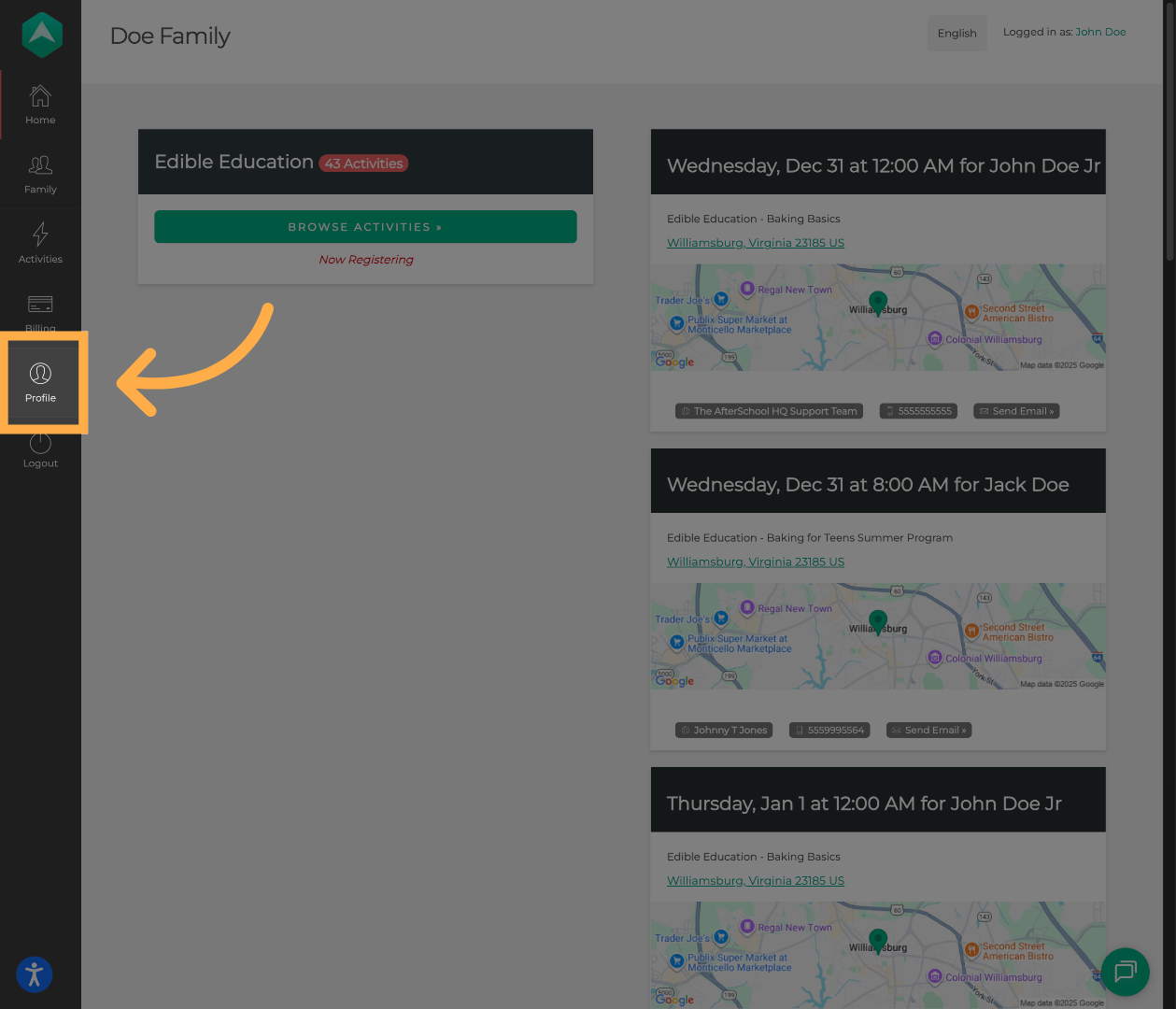
3. Go to Check In/Out
On your Profile page, click “Check In/Out”.
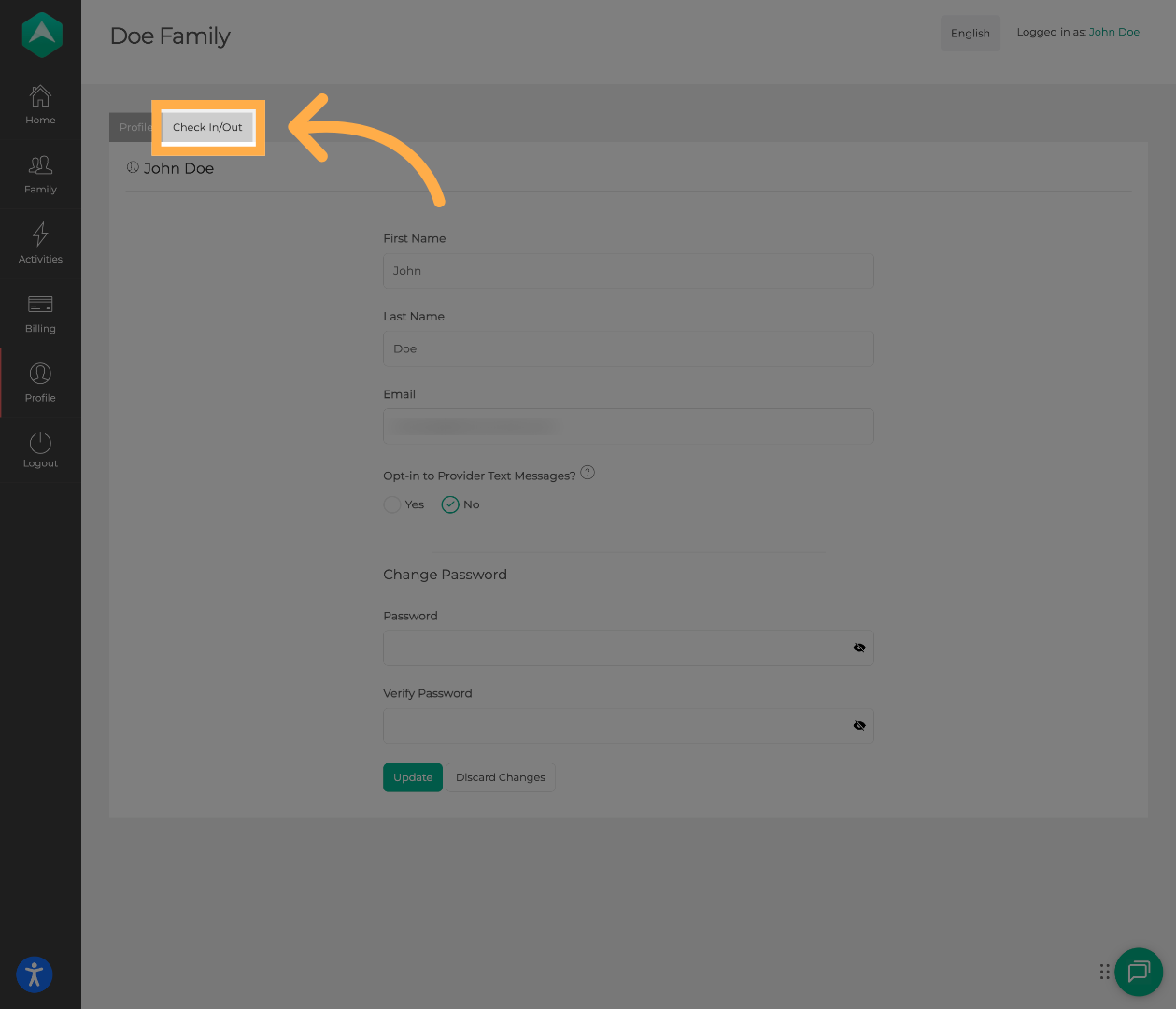
4. Verify or Update Your Phone Number
Add your phone number, confirm the number listed is correct, and click the check mark to verify it.
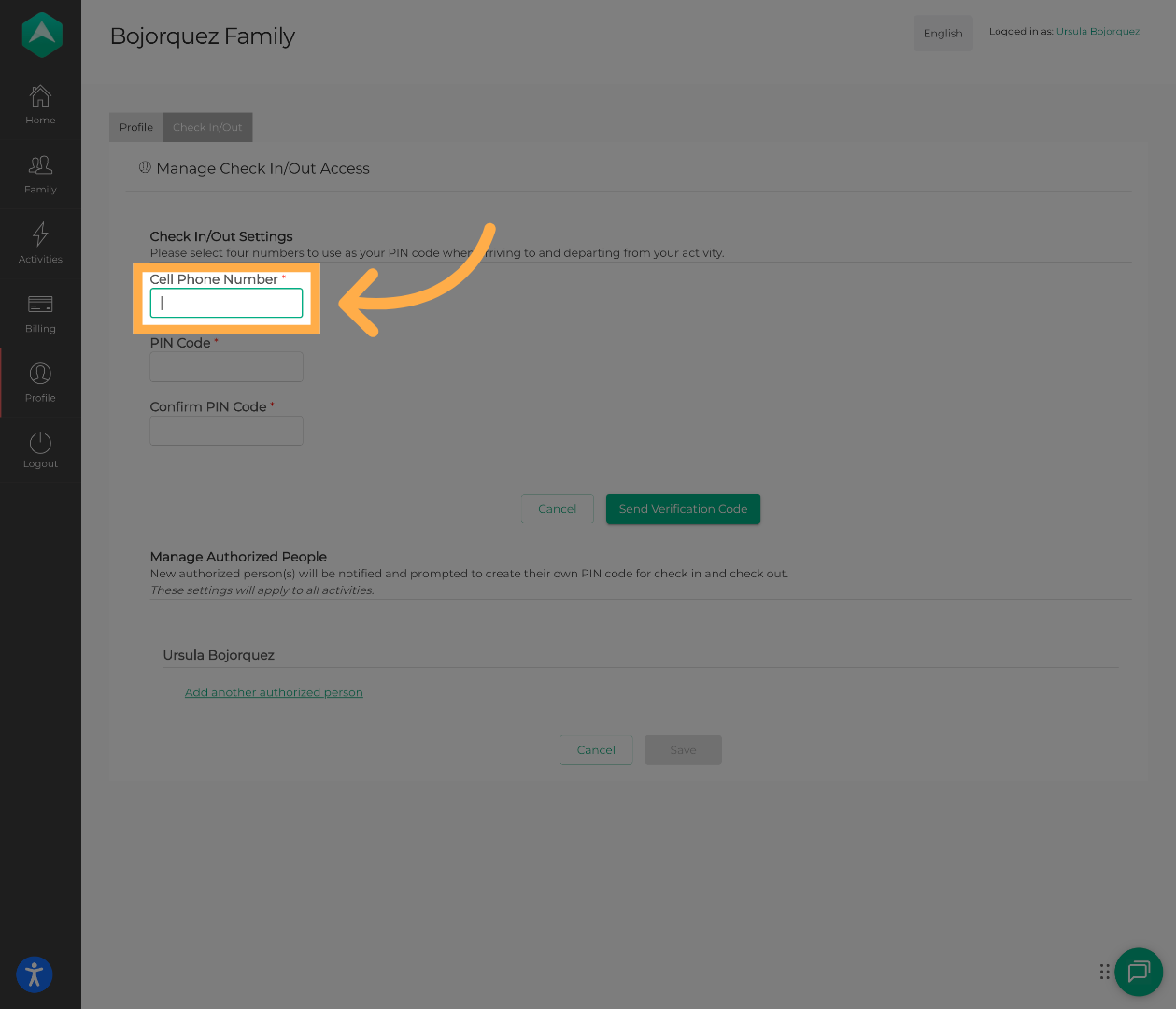
💡 Tip: The phone number you verify here will be used to confirm your identity during “Check In/Out”.
5. Create or Update Your Parent PIN
To update your PIN, enter your current PIN, then create and confirm a new PIN. Click “Save” to finish.
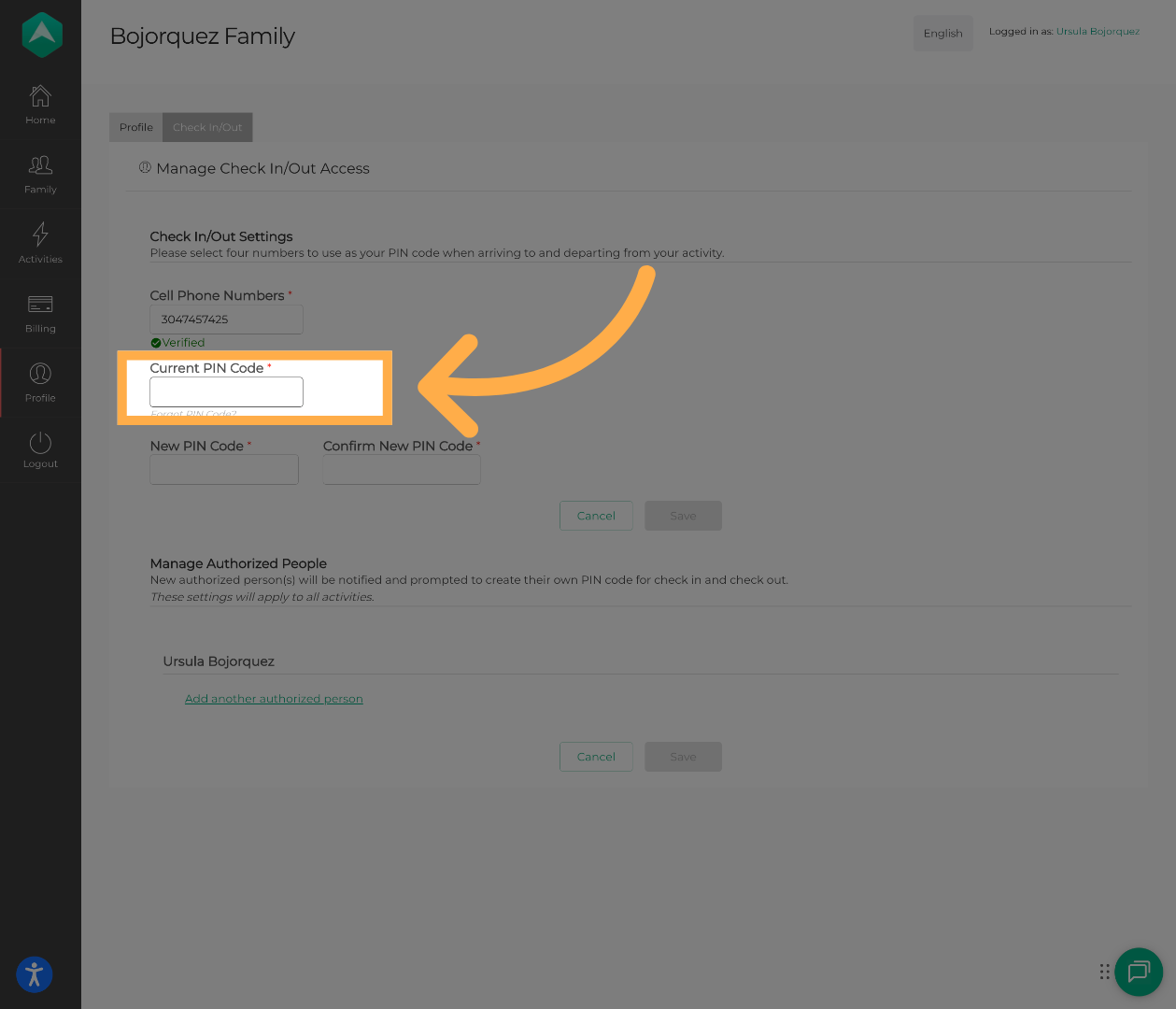
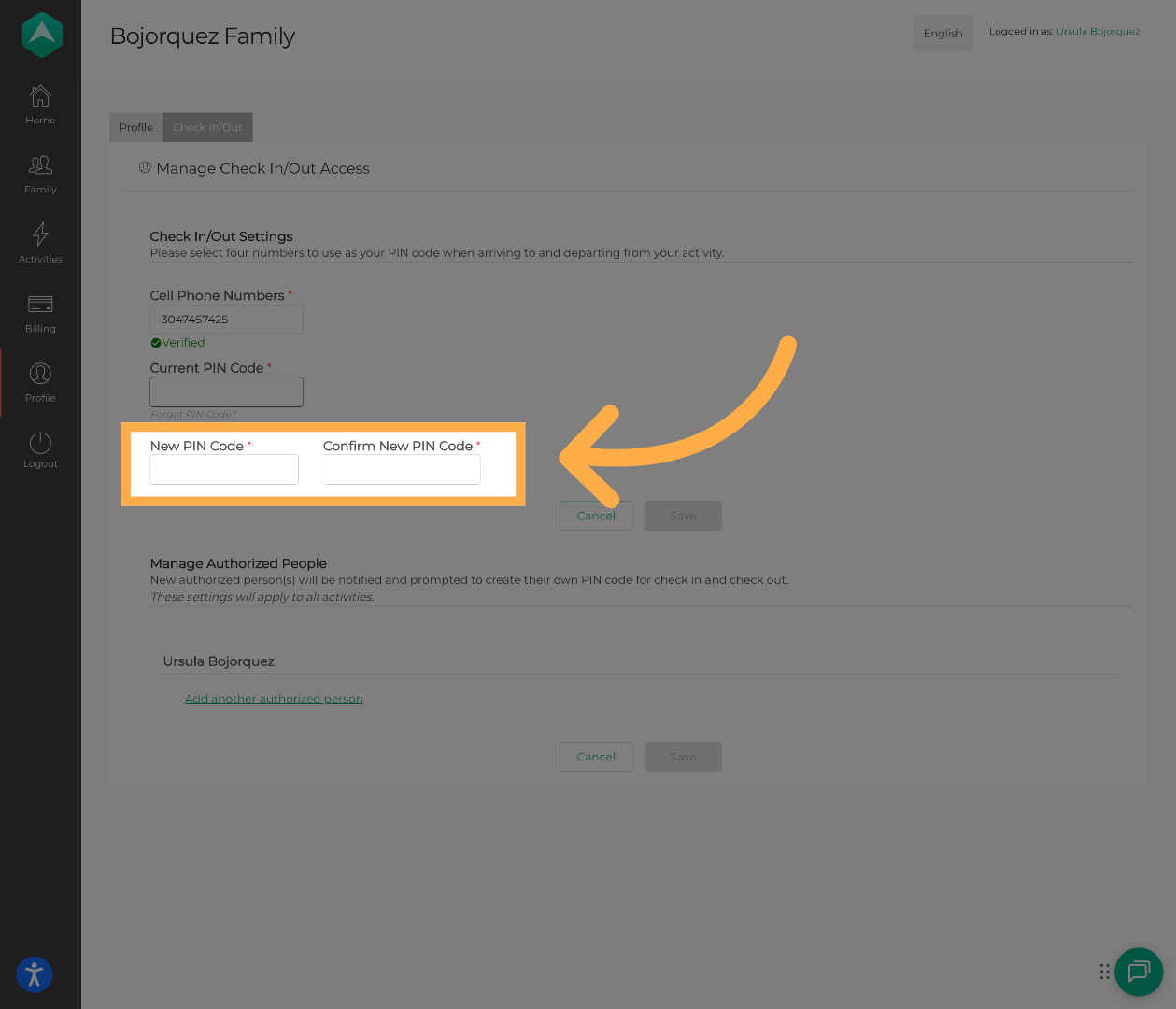
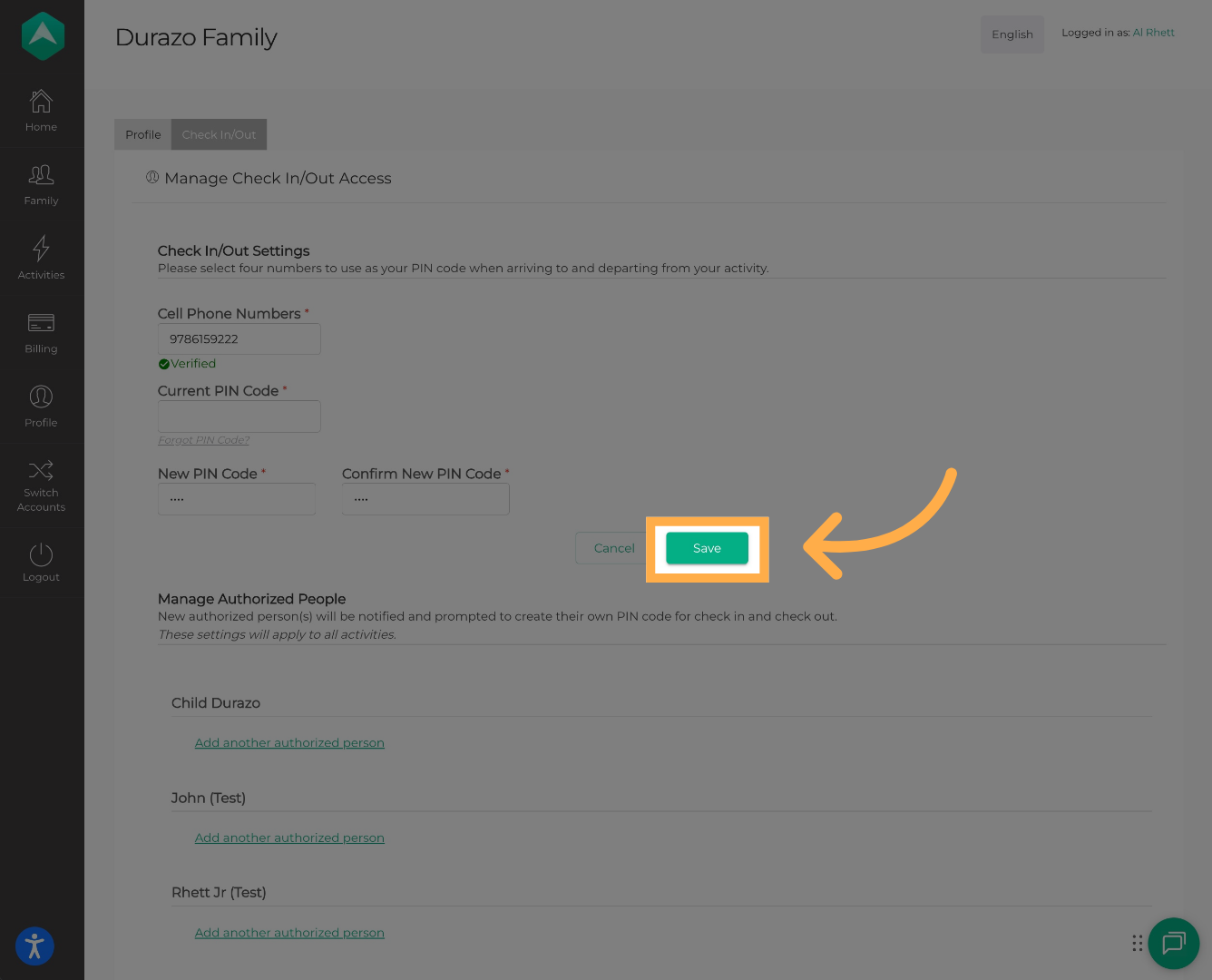
💡 Tip: This section is where you manage your Parent PIN, phone number, and authorized pick-up settings.
6. Confirm Your Updates
Once saved, your Parent PIN and phone number will be active and ready to use for “Check In/Out”
Frequently Asked Questions
Q: What is my Parent PIN used for?
A: Your Parent PIN is used to securely verify your identity during “Check In/Out” and when authorizing pick-ups for your child.
Q: Do I need a different PIN for each activity provider?
A: No. You only need one Parent PIN, even if your child participates in activities with multiple providers.
Q: Can I change my Parent PIN at any time?
A: Yes. You can update your Parent PIN anytime by going to Profile → Check In/Out in your account.
Q: What happens if I enter the wrong phone number?
A: If the phone number doesn’t match what’s on file, you may receive an authorization error when trying to use Check In/Out.
Q: I forgot my Parent PIN. What should I do?
A: You can reset your PIN from the “Check In/Out” section in your Profile, or contact our Support Team for assistance.
Q: Will updating my PIN affect my existing registrations?
A: No. Updating your PIN does not change past or current registrations — it only affects identity verification going forward.
Q: Why don’t I see the Check In/Out option in my account?
A: Not all providers use Check In/Out. If the option isn’t available, contact your activity provider for guidance.
💡If you experience any issues or have further questions with “How to Set Up or Manage Your PIN Code and Verify Your Phone Number”, don't hesitate to get in touch with our support team at support@afterschoolhq.com.