![ASHQ Logo Vert Flat.png]](https://support.afterschoolhq.com/hs-fs/hubfs/ASHQ%20Logo%20Vert%20Flat.png?height=40&name=ASHQ%20Logo%20Vert%20Flat.png)
Need to track student attendance while collecting additional information at arrival and departure? This guide will walk you through how to manage attendance using Check-In and Check-Out forms in AfterSchool HQ.
1. Access Check-In/Out Management
Click “Manage Check In/Out” to open the attendance management screen.
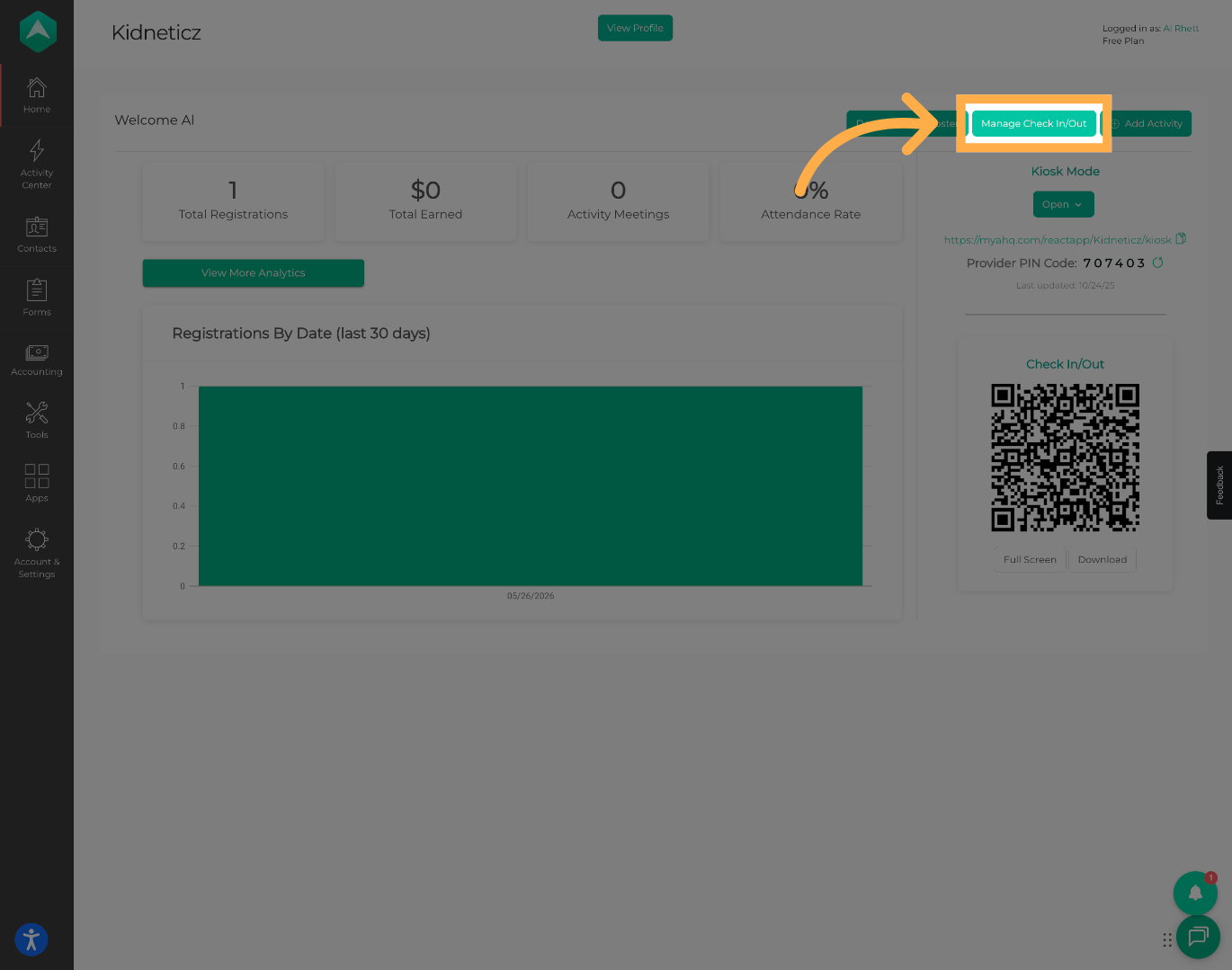
💡 Tip: Only activities configured with Check-In and Check-Out forms will display form questions during attendance management.
2. Select an Activity
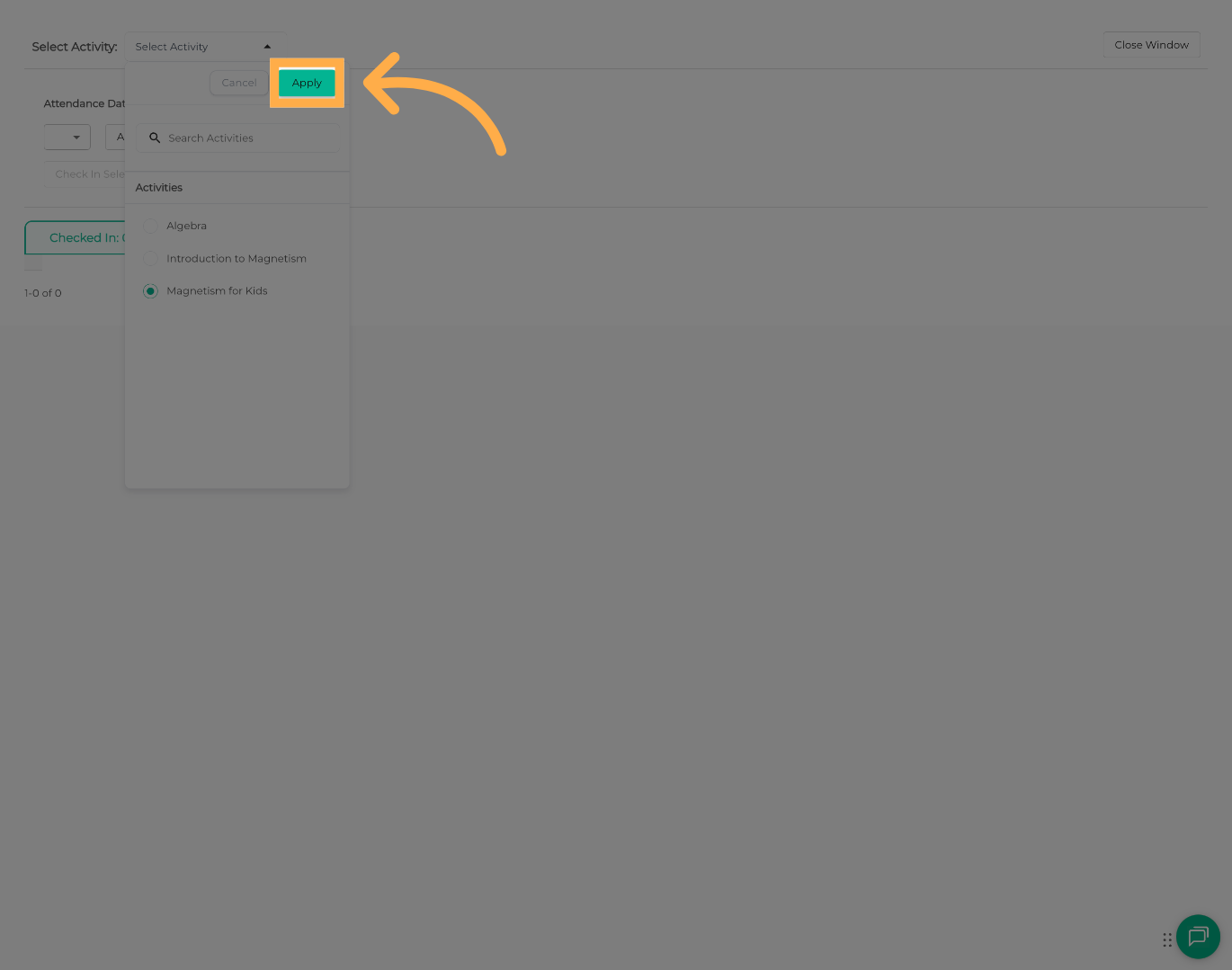
Choose the activity where you would like to manage student check-ins and check-outs.

3. Load the Activity
Click “Apply” to load the selected activity and begin managing attendance.
4. Review Form Questions
Any configured Check-In and Check-Out form questions will appear here. Responses can be added after a student has been checked in or checked out.
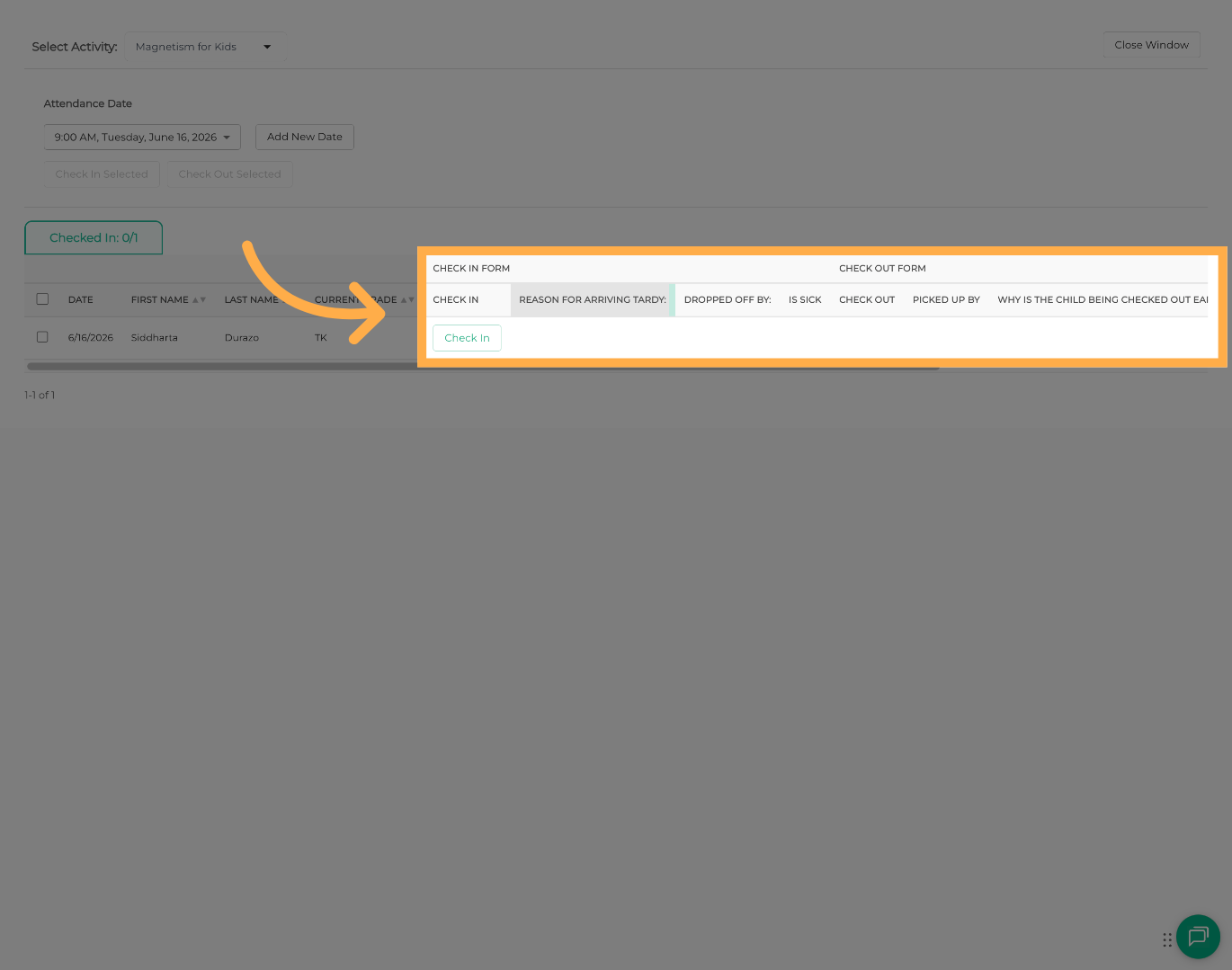
💡 Tip: Questions displayed here are determined by the forms assigned to the activity.
5. Check In a Student
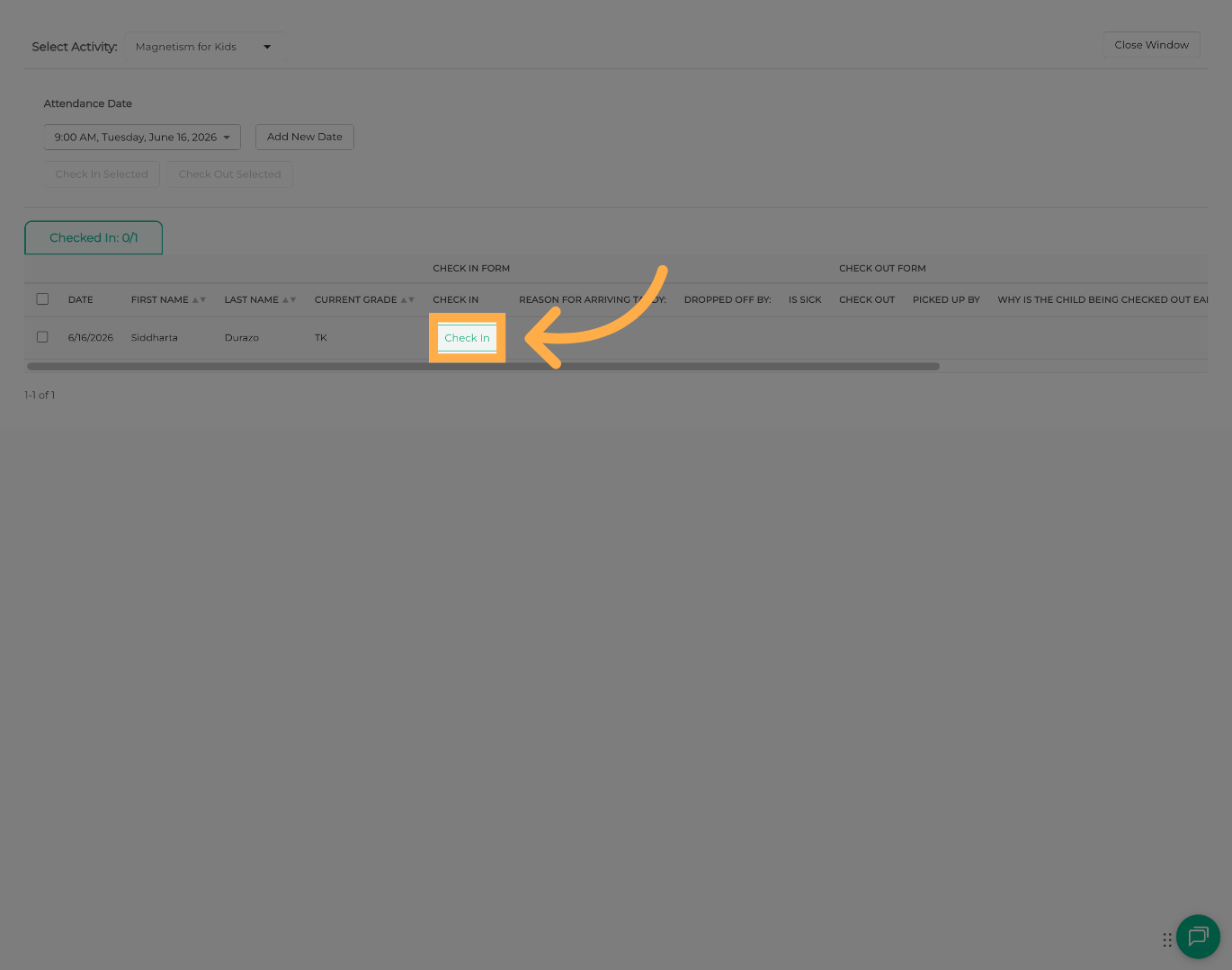
Click “Check In” to record the student's arrival and begin the attendance process.
6. Complete Check-In Form Responses
Enter responses to any Check-In form questions associated with the student's attendance record.
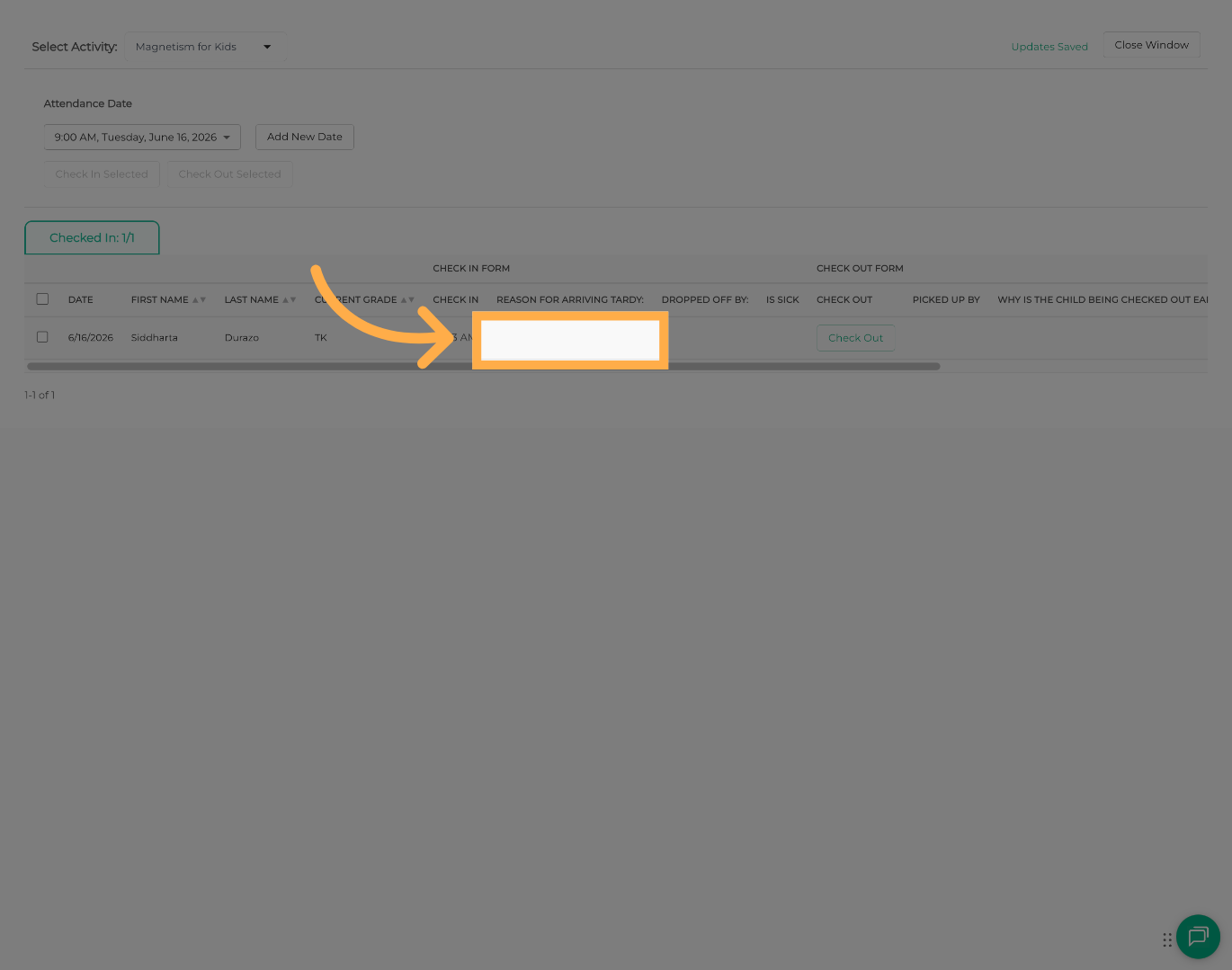
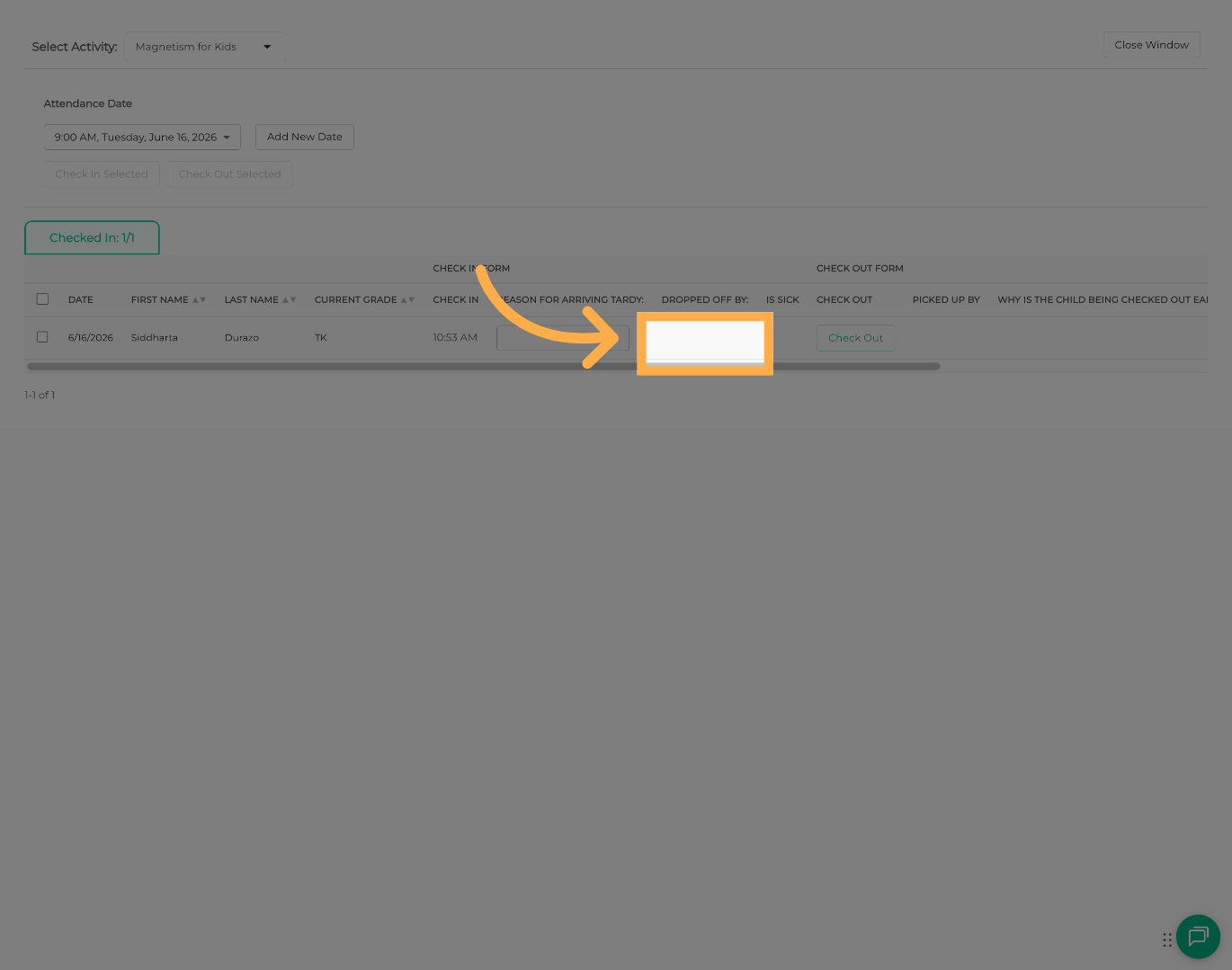
7. Complete Additional Check-In Questions
Continue answering any remaining Check-In form questions as needed.
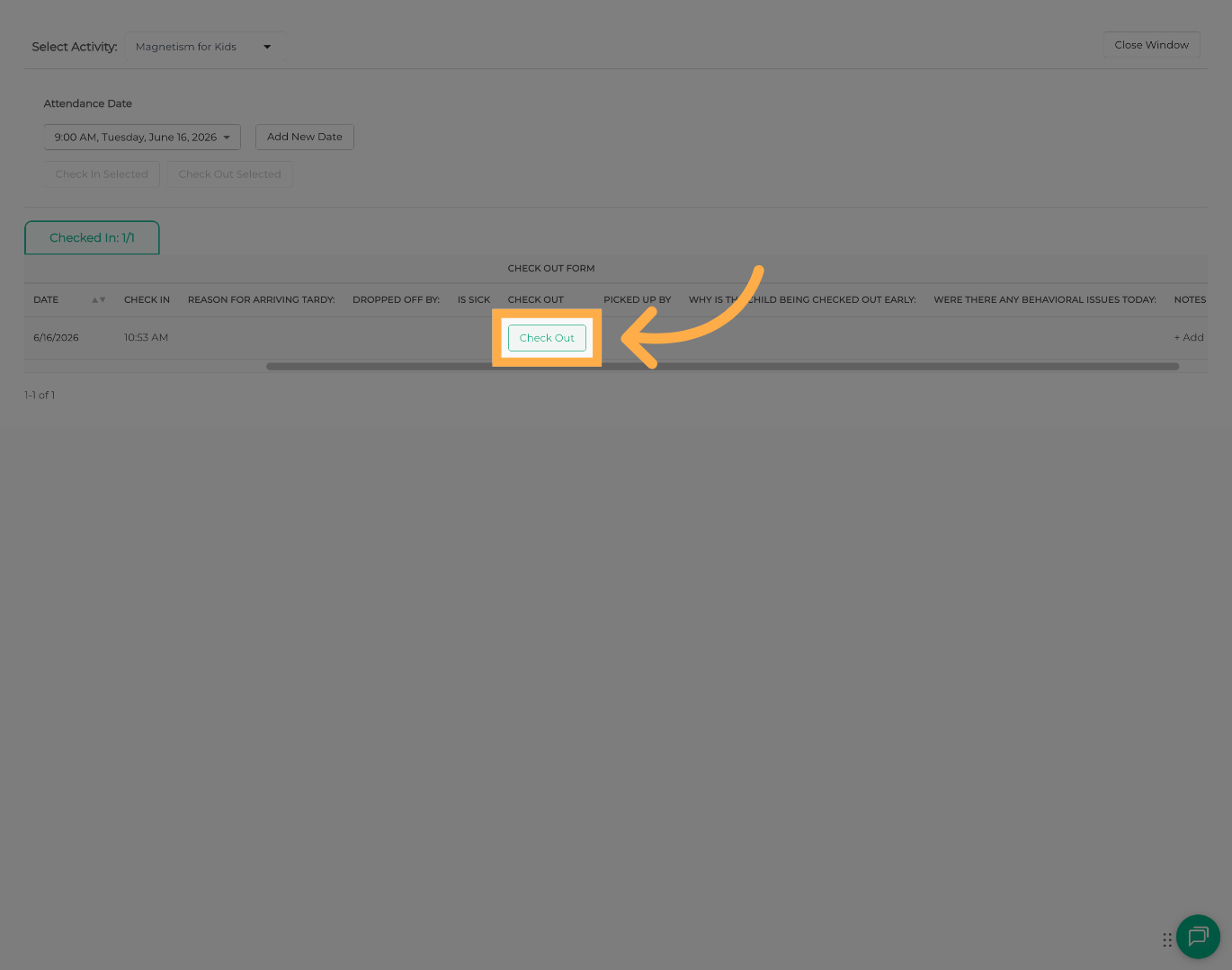
8. Check Out a Student
Click “Check Out” to record the student's departure from the activity.
9. Complete Check-Out Form Responses
Enter responses to any Check-Out form questions associated with the student's attendance record.
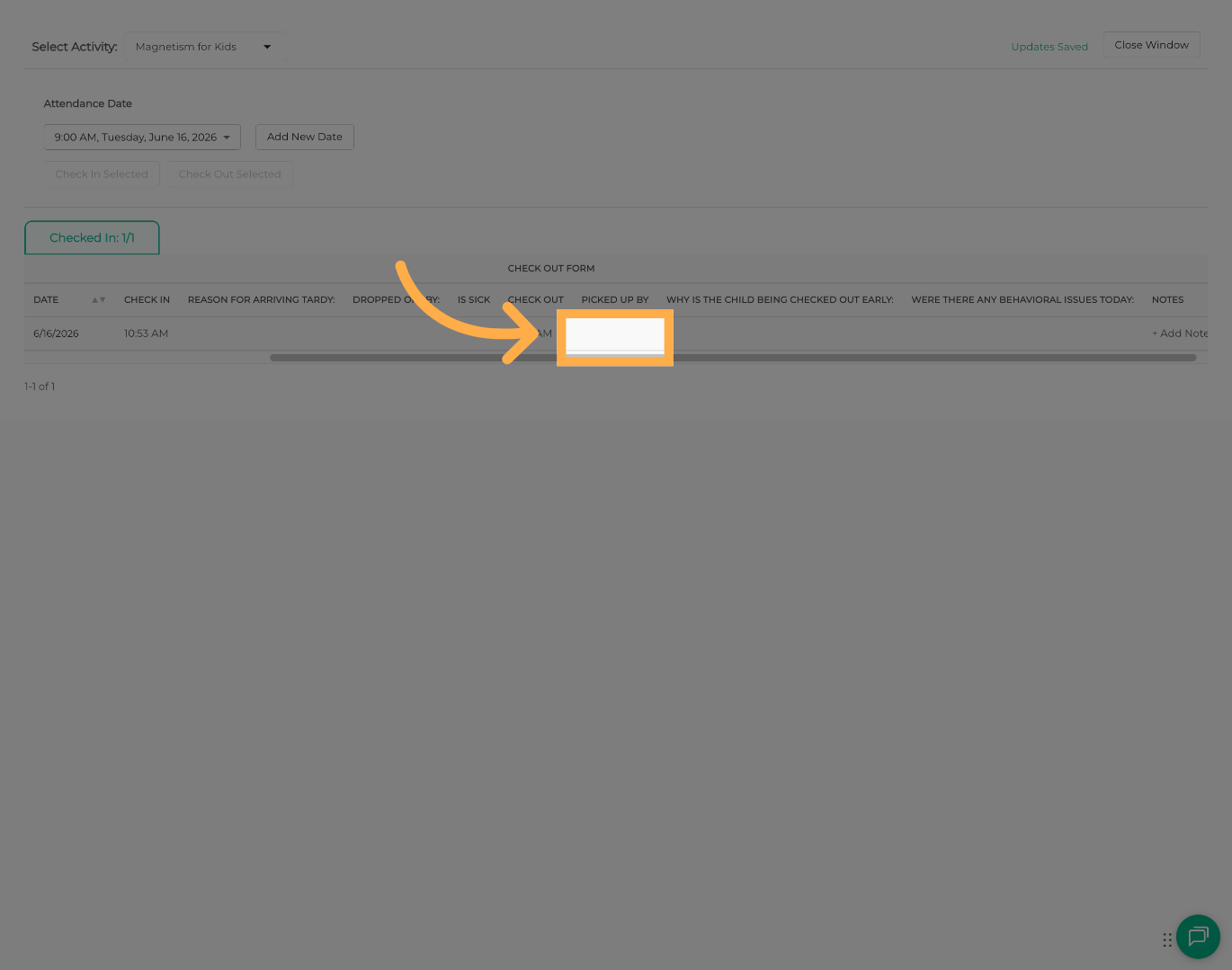
10. Complete Additional Check-Out Questions
Continue answering any remaining Check-Out form questions as needed.
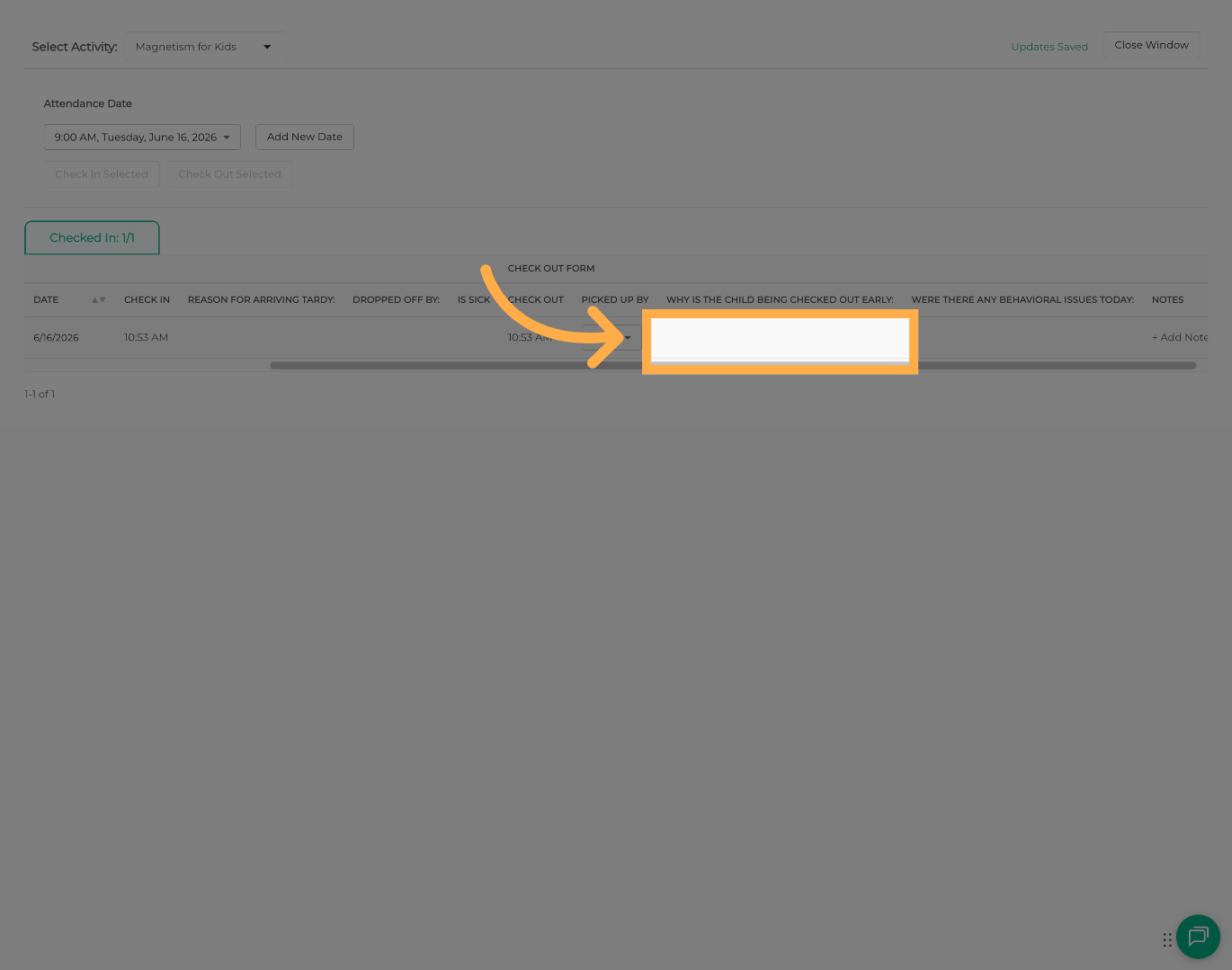
11. Add Attendance Notes (Optional)
Click “Add Note” to record any additional information related to the student's attendance record, if needed.
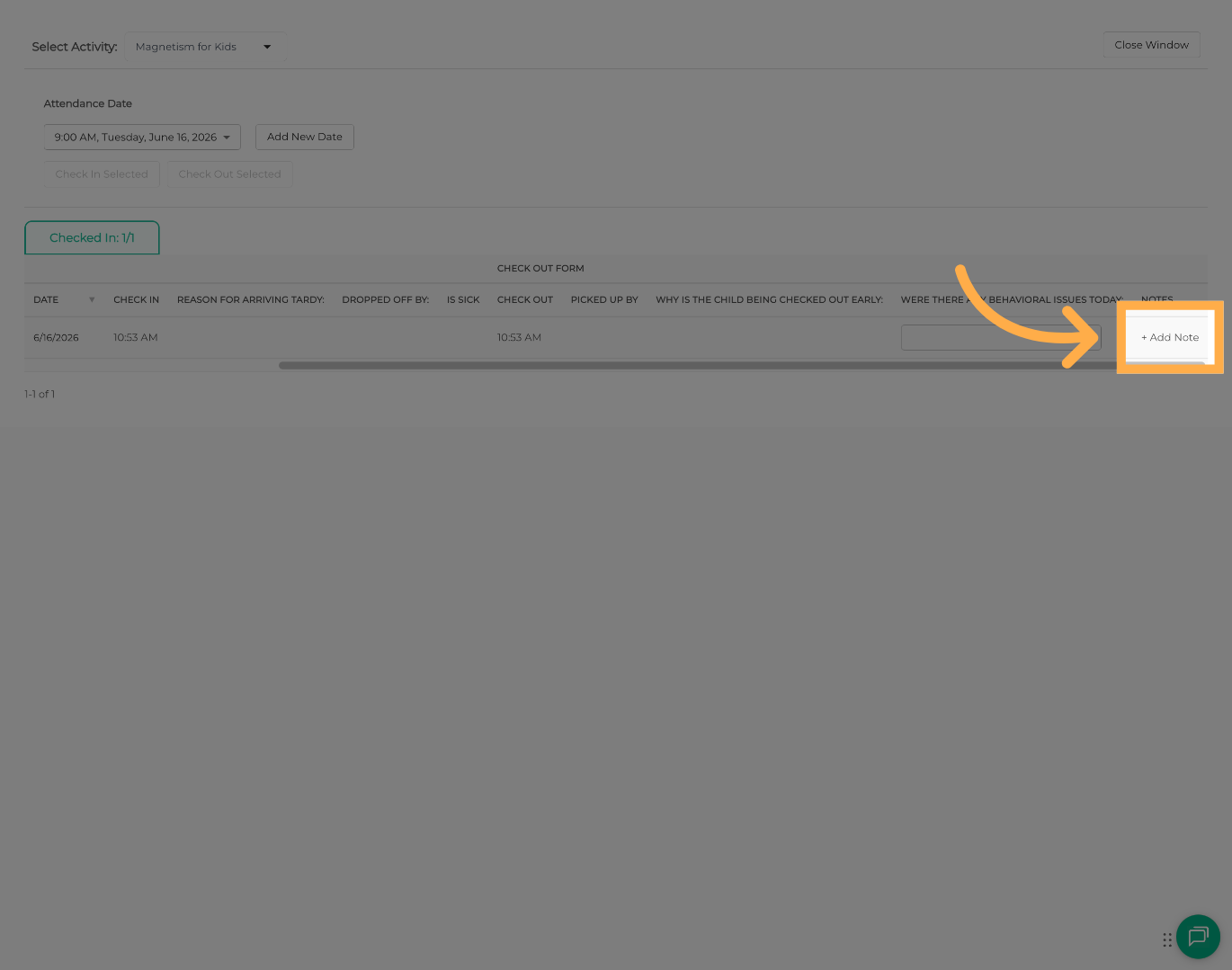
💡 Tip: Attendance notes can be used to document incidents, special circumstances, or other important attendance-related details.
Frequently Asked Questions
Q: What are Check-In and Check-Out forms used for?
A: Check-In and Check-Out forms allow organizations to collect additional attendance information when students arrive and leave an activity.
Q: Can I use attendance notes without Check-In or Check-Out forms?
A: Yes. Attendance notes can be added independently to provide additional context for a student's attendance record.
Q: Why don't I see any form questions?
A: Form questions will only appear if Check-In and/or Check-Out forms have been assigned to the activity.
Q: Can I require staff to answer form questions?
A: Required questions can be configured within the Check-In or Check-Out form setup.
Q: Where are form responses stored?
A: Responses are saved as part of the student's attendance record for that activity session.
💡If you experience any issues or have further questions with “How to Take Attendance with Check-In & Check-Out Forms”, don't hesitate to get in touch with our support team at support@afterschoolhq.com.