![ASHQ Logo Vert Flat.png]](https://support.afterschoolhq.com/hs-fs/hubfs/ASHQ%20Logo%20Vert%20Flat.png?height=40&name=ASHQ%20Logo%20Vert%20Flat.png)
Keeping your account password secure is an important part of protecting your personal information.
AfterSchool HQ allows you to change your password directly from your user profile settings whenever you need to.
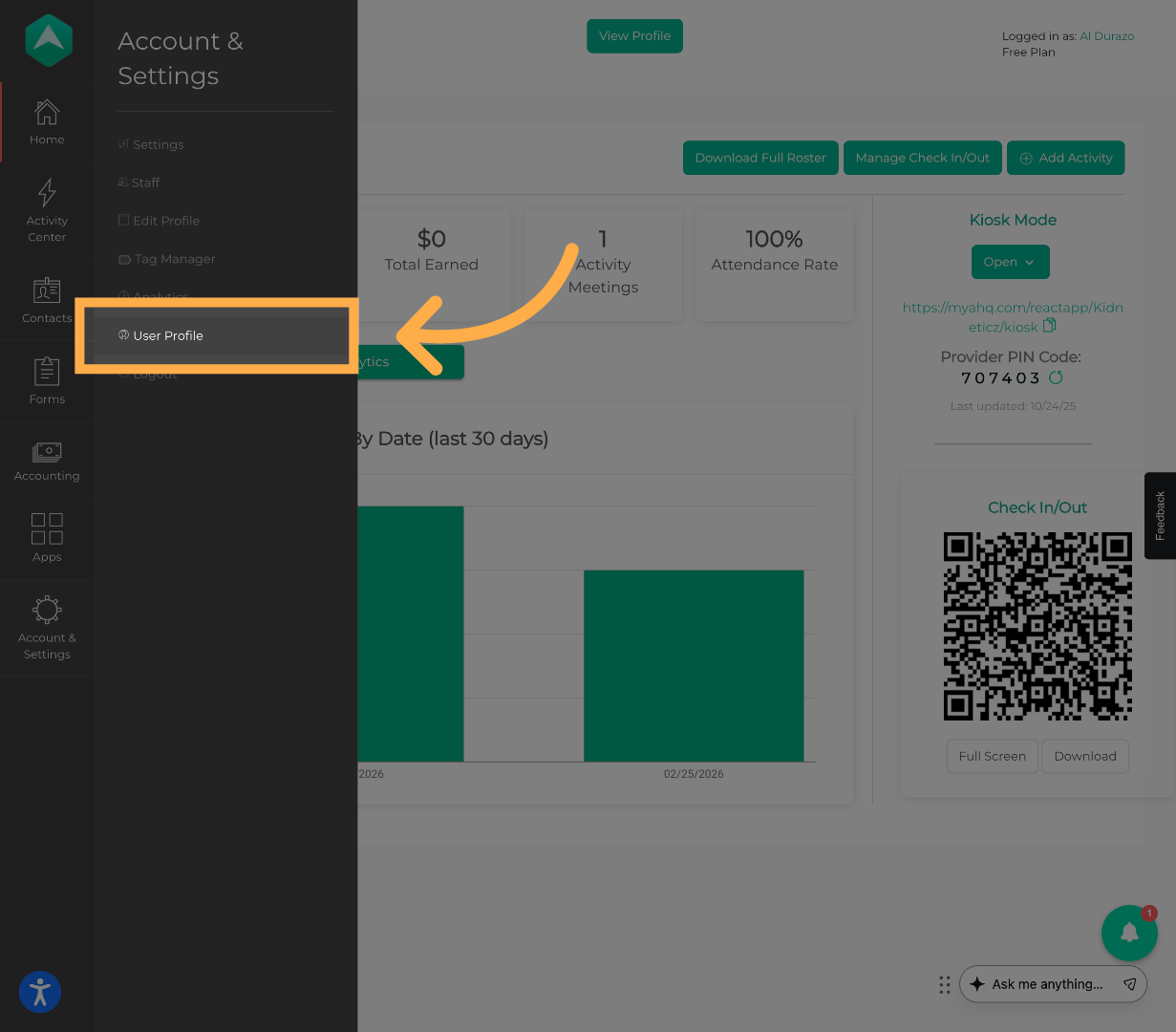
1. Open Your User Profile
Start by opening your “User Profile” to access your account settings.
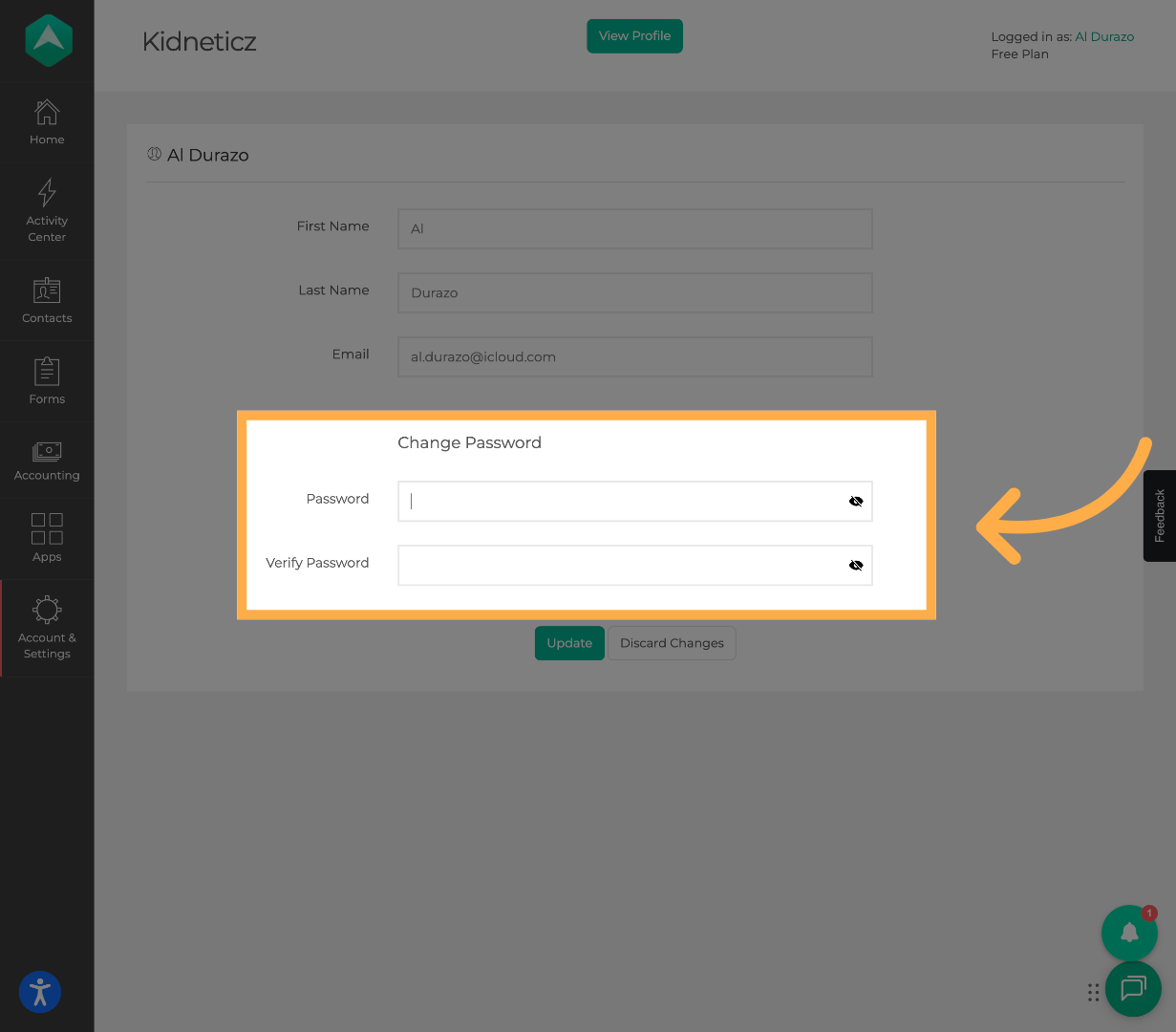
2. Access the “Change Password” Section
Within your profile settings, locate the Change Password section.
3. Enter Your New Password
In the New Password field, enter the password you'd like to use.
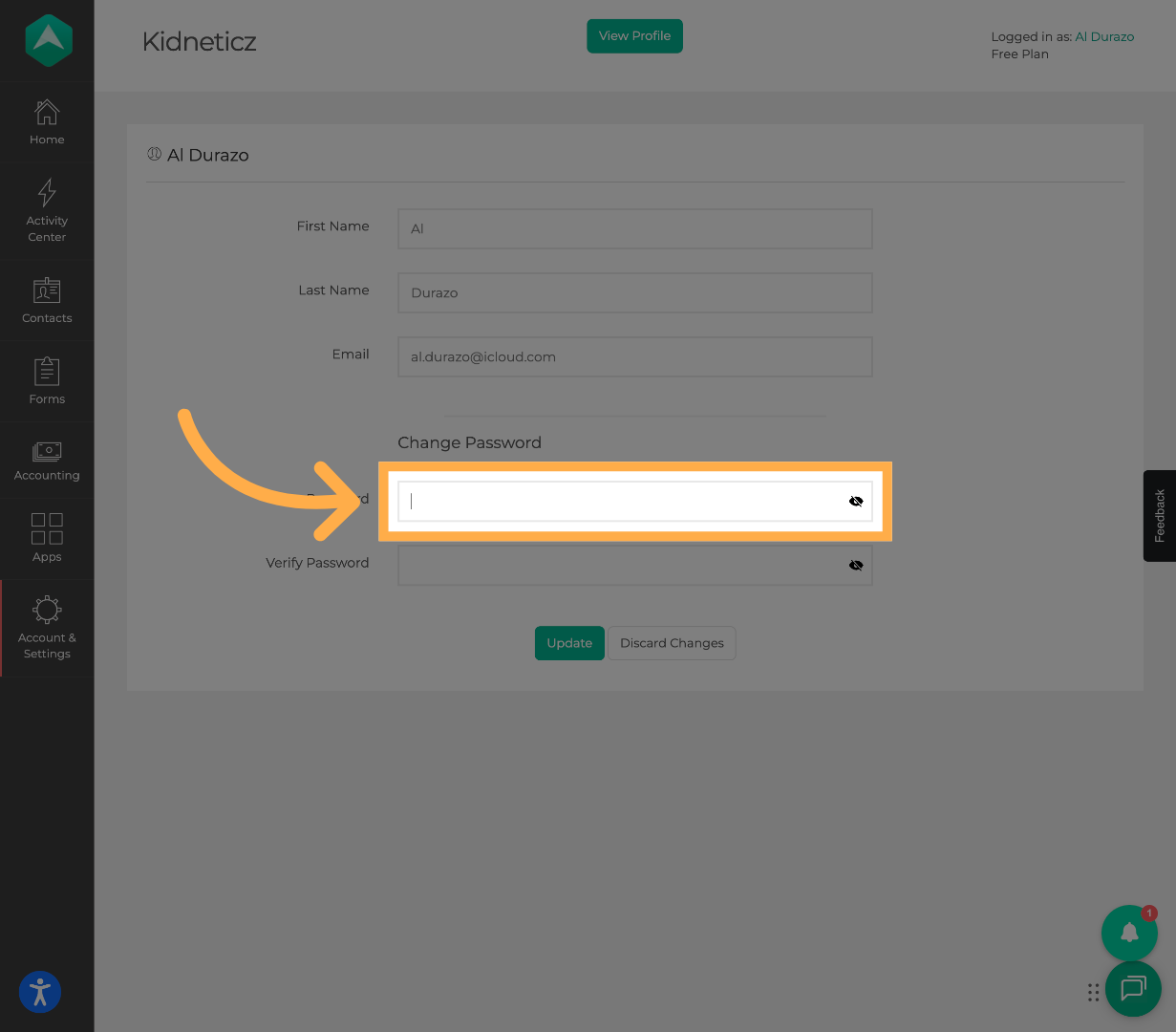
💡Tip: Consider using a combination of uppercase and lowercase letters, numbers, and symbols to create a stronger password. Avoid using easily guessed information, such as your name or birthday.
4. Confirm Your New Password
In the Confirm Password field, re-enter your new password.
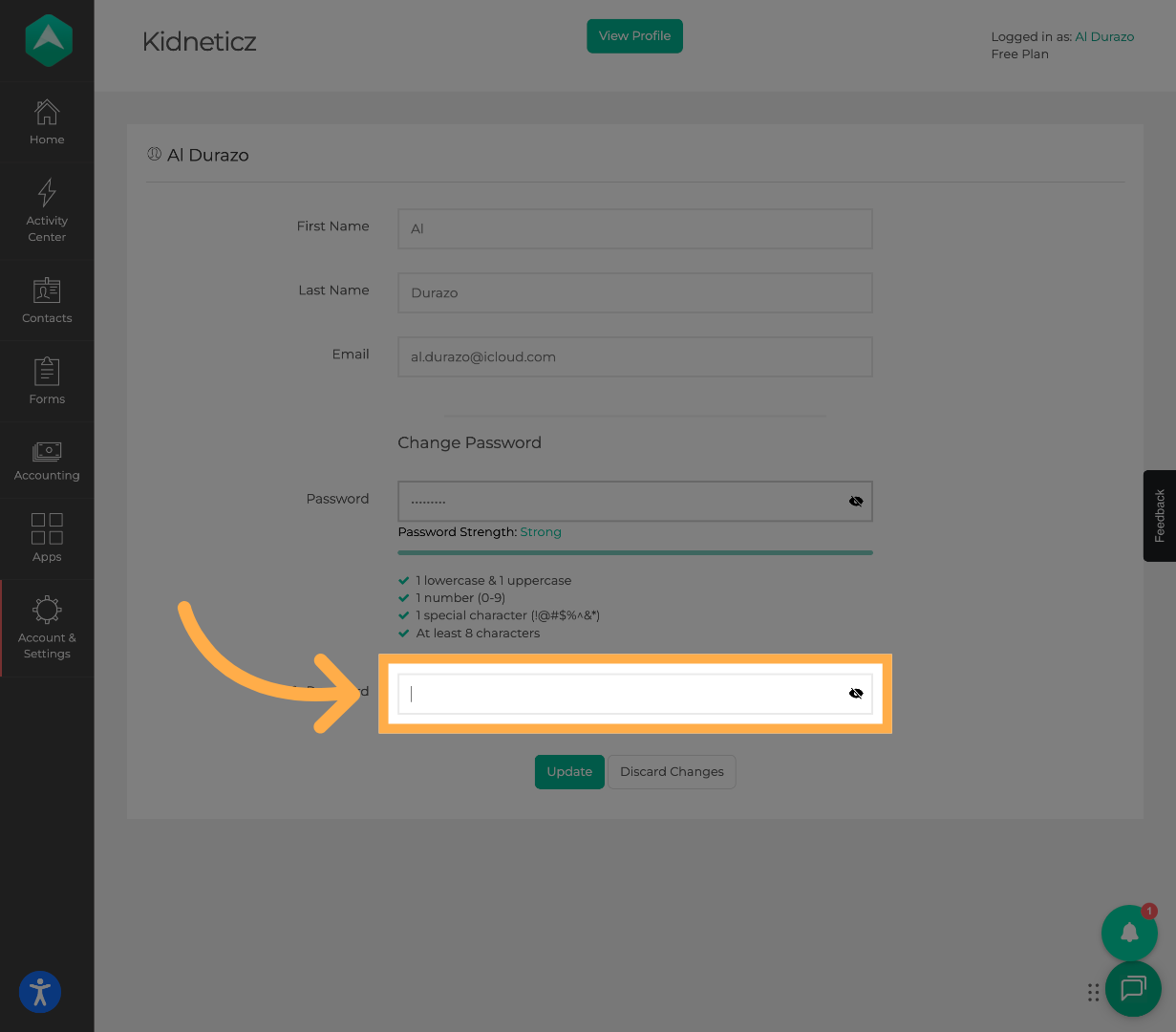
💡 Tip: If the passwords don't match, double-check both fields for typing errors before continuing.
5. Save Your Changes
Once you've entered and confirmed your new password, select “Update” to save your changes.
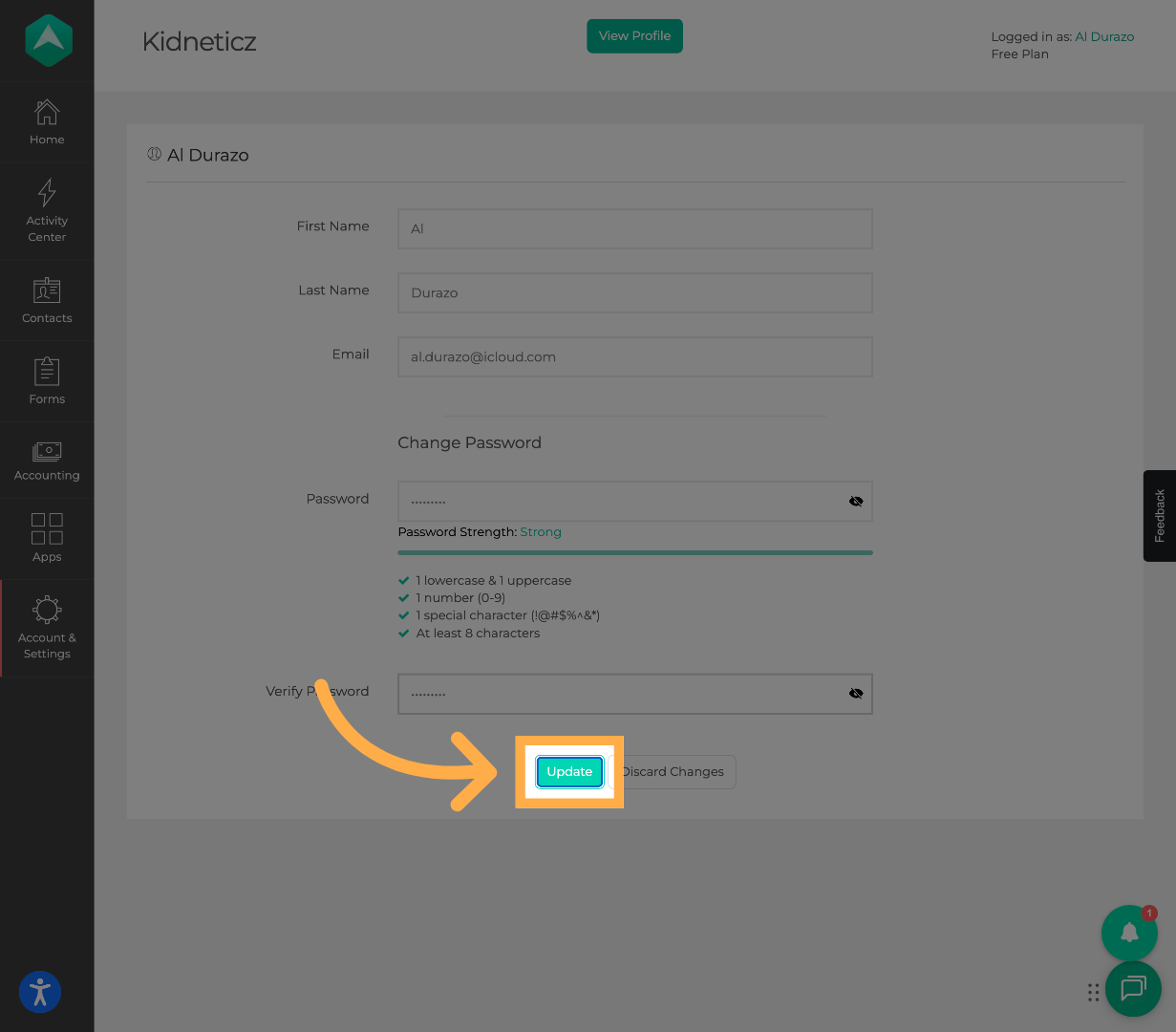
💡 Tip: If you use a password manager, remember to update your saved credentials so you can sign in easily the next time.
Frequently Asked Questions
Q: Where can I change my AfterSchool HQ password?
A: Open your “User Profile” and navigate to the Change Password section. From there, you can enter and confirm your new password.
Q: Do I need to contact support to change my password?
A: No. If you're already logged in to your AfterSchool HQ account, you can change your password directly from your user profile settings.
Q: What are the password requirements?
A: Your new password must meet the security requirements displayed in the Change Password section. Review these requirements before saving your changes.
Q: Why do I need to enter my new password twice?
A: The confirmation field helps prevent typing mistakes by making sure both password entries match.
Q: What should I do if my passwords don't match?
A: Review both password fields and make sure you've entered the same password in each one. Once they match, try updating your password again.
Q: What happens after I update my password?
A: Once your password has been successfully updated, you'll need to use your new password the next time you sign in to AfterSchool HQ.
Q: Will changing my password affect my registrations or account information?
A: No. Changing your password updates your login credentials without changing your existing registrations, account information, or organization access.
Q: Can I change my password more than once?
A: Yes. You can return to the Change Password section whenever you need to update your password.
Q: What if I forgot my password and can't log in?
A: If you can't access your account, visit the AfterSchool HQ login page and use the password recovery option to begin resetting your password.
Q: What should I do if I'm having trouble updating my password?
A: Make sure your new password meets the displayed security requirements and that both password fields match. If you're still having trouble, contact AfterSchool HQ Support for assistance.
💡If you experience any issues or have further questions with “How to Update or Reset Your Password”, don't hesitate to get in touch with our support team at support@afterschoolhq.com.