![ASHQ Logo Vert Flat.png]](https://support.afterschoolhq.com/hs-fs/hubfs/ASHQ%20Logo%20Vert%20Flat.png?height=40&name=ASHQ%20Logo%20Vert%20Flat.png)
Having trouble logging in or resetting your password? This quick video will walk you through the steps.
1. Go to the Login Page
Navigate to AfterSchool HQ and click Log In.
If you’re unable to log in, click this link to reset your password.
💡Tip: When requesting a reset link, ensure you’re using the exact email tied to your provider account.
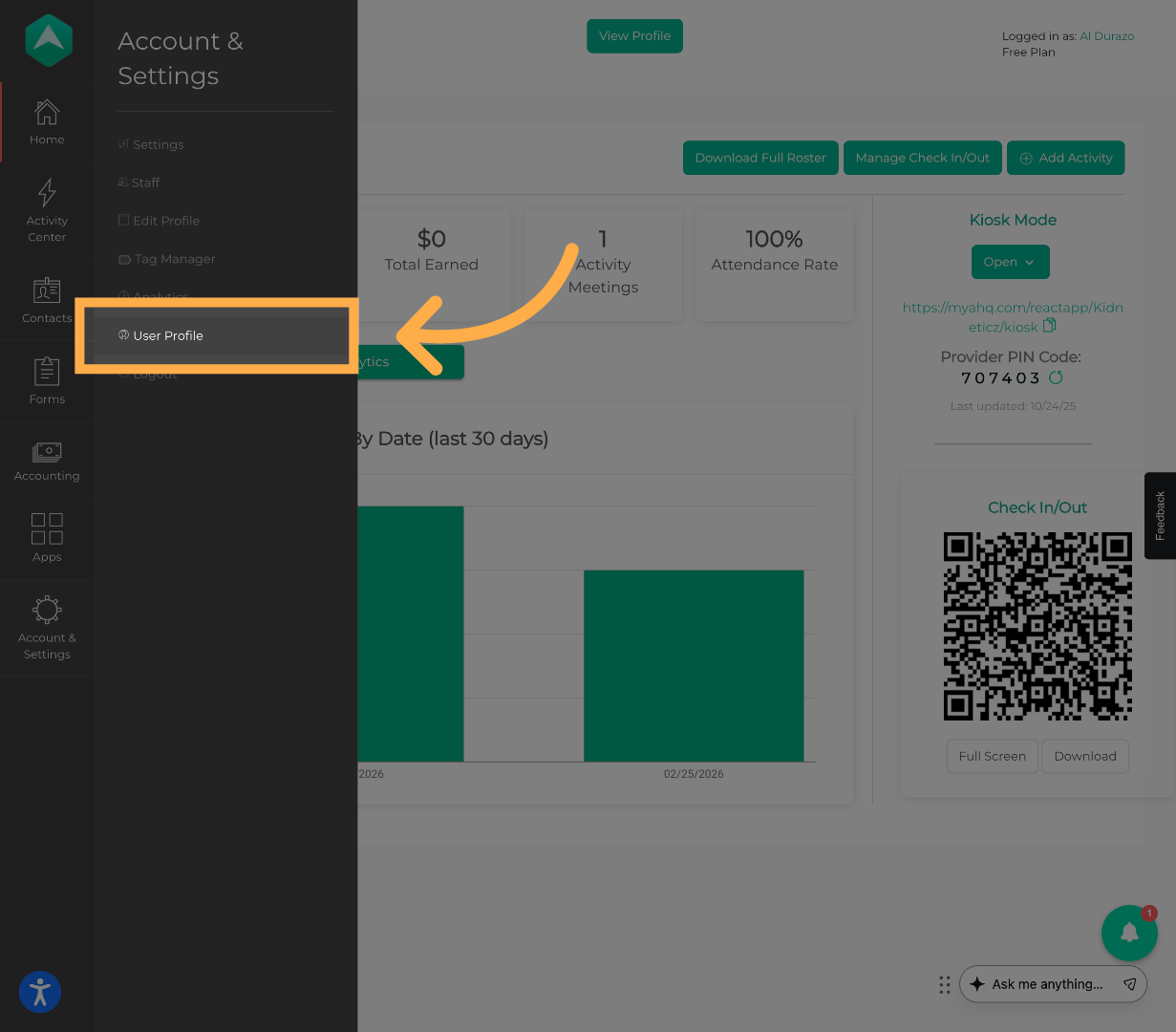
2. Open Your User Profile
Click your User Profile to access your account settings.
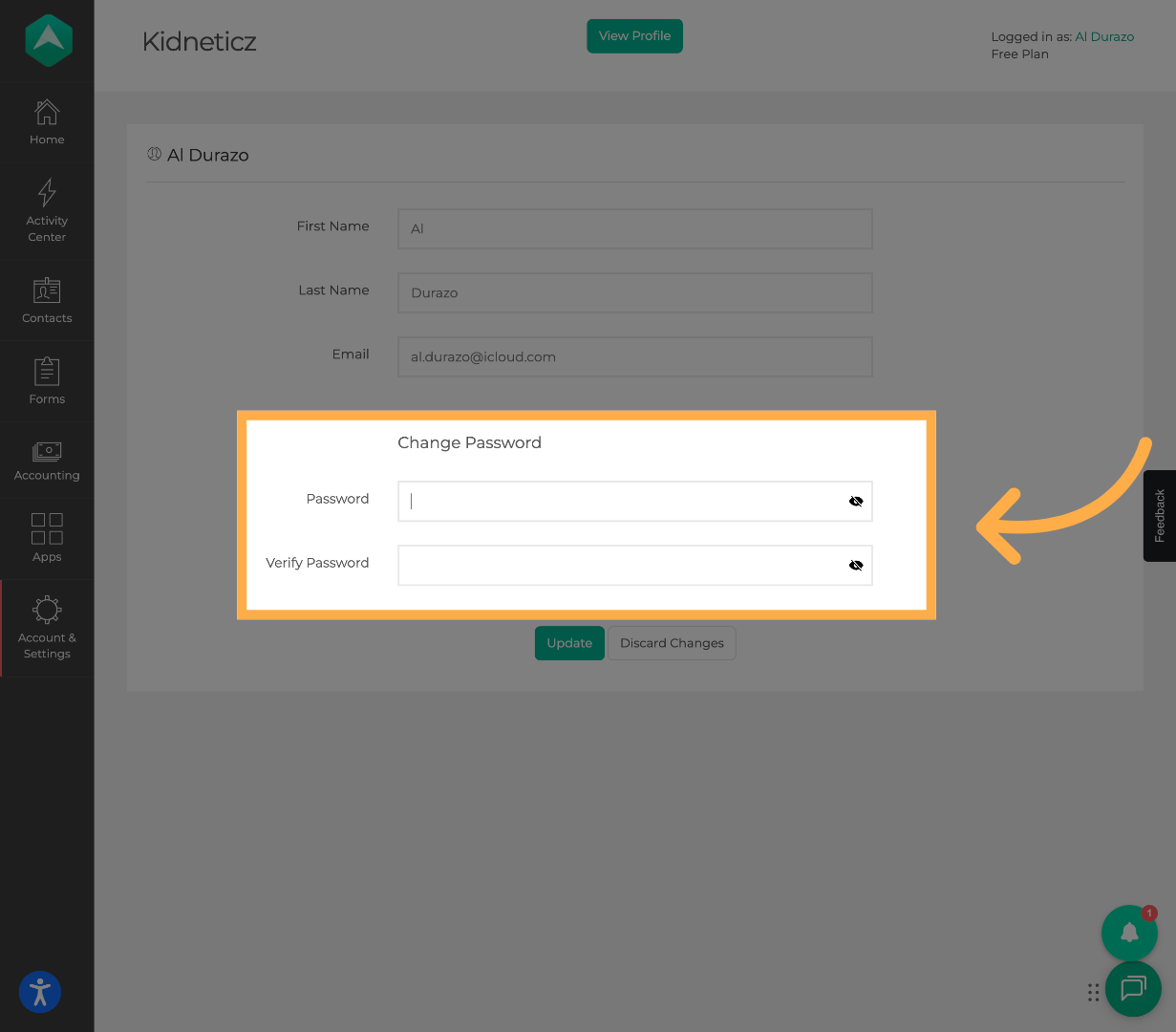
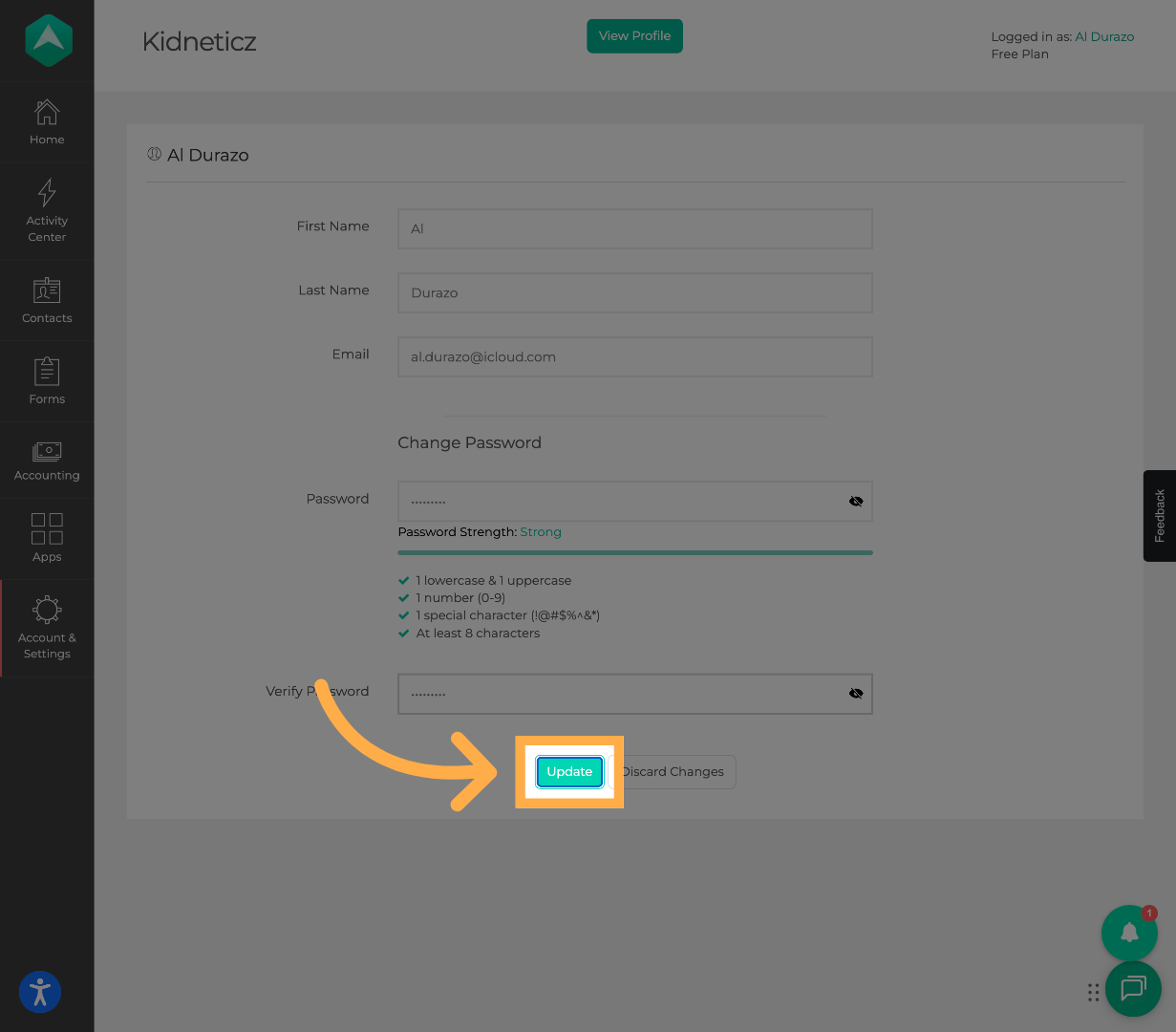
3. Access the “Change Password” Section
Scroll to and select the “Change Password” section.
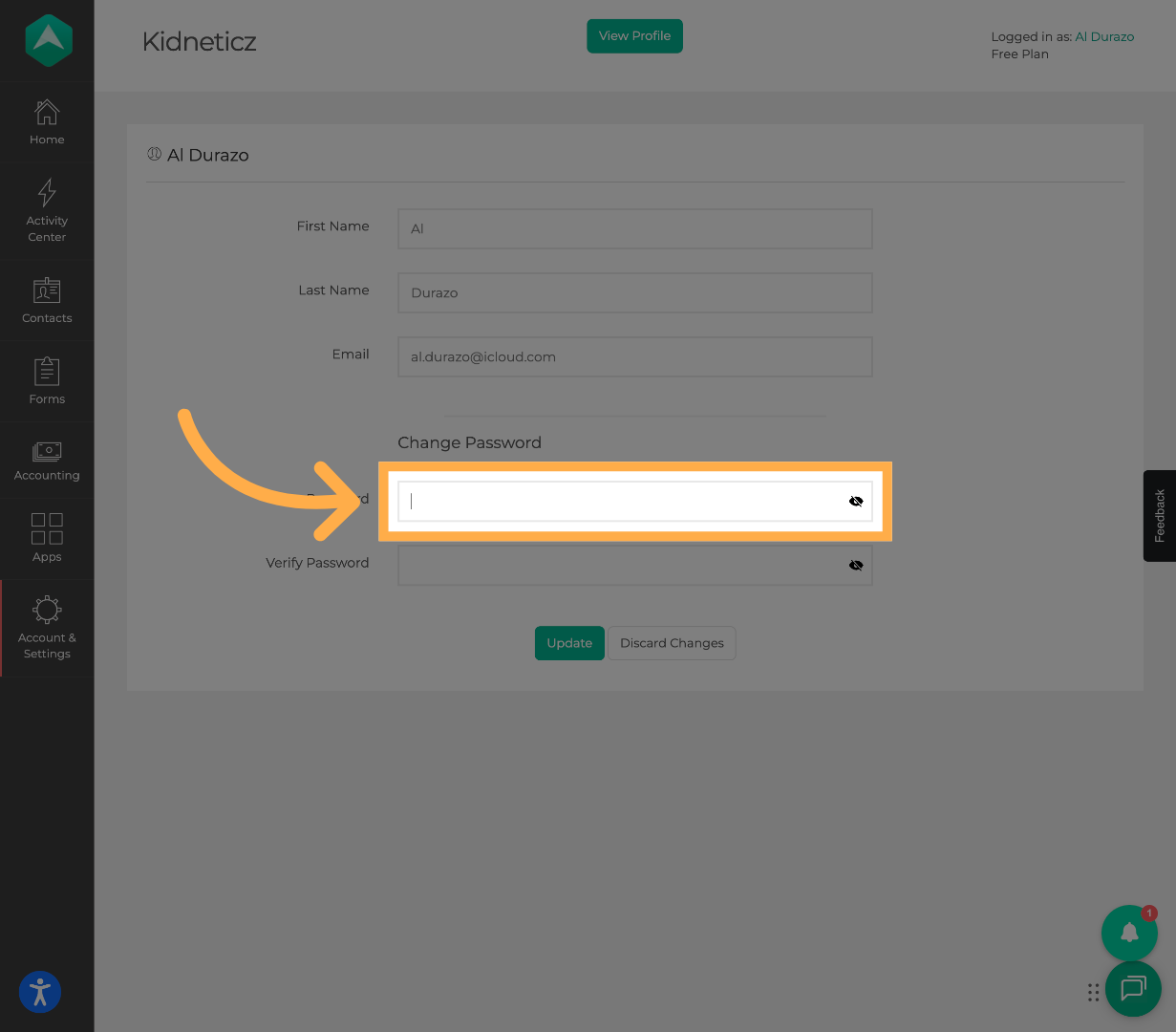
4. Enter Your New Password
Type your new password, making sure it meets the required security criteria.
💡Tip: Choose a password that includes a mix of uppercase letters, lowercase letters, numbers, and special characters.
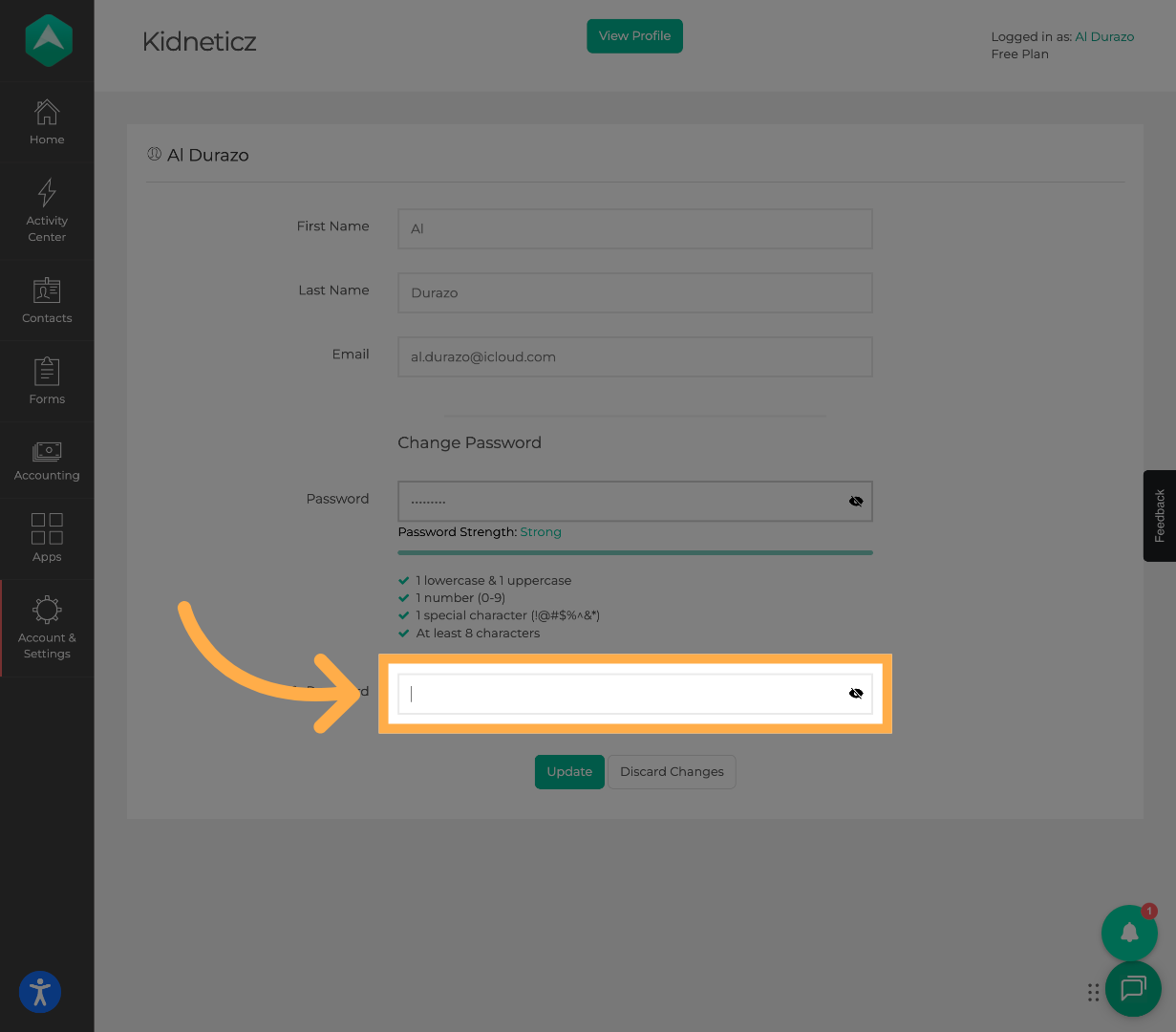
5. Confirm Your New Password
Re-enter your new password in the confirmation field to ensure both entries match.
6. Save Your Changes
Click “Update” to save your new password and complete the process.
💡Tip: Changing your password occasionally helps keep your account secure.
Frequently Asked Questions
Q: I didn’t receive the password reset email. What should I do?
A: First, check your spam or junk folder. Make sure you entered the correct email address associated with your provider account.
If you still don’t receive it, contact support@afterschoolhq.com for assistance.
Q: The reset link says it expired. What does that mean?
A: Password reset links expire for security reasons. Simply request a new reset link and try again.
Q: Why won’t my new password save?
A: Make sure:
-
Both password fields match exactly
-
There are no extra spaces before or after the password
-
The password meets the required security criteria
Q: Can I reuse an old password?
A: For security reasons, it’s recommended to create a new, unique password.
💡If you experience any issues or have further questions with “How to Update or Reset Your Password”, don't hesitate to get in touch with our support team at support@afterschoolhq.com.