![ASHQ Logo Vert Flat.png]](https://support.afterschoolhq.com/hs-fs/hubfs/ASHQ%20Logo%20Vert%20Flat.png?height=40&name=ASHQ%20Logo%20Vert%20Flat.png)
Need to make updates to a child’s profile? This guide walks you through how to update contact details and profile information for any participant in your AfterSchool HQ account.
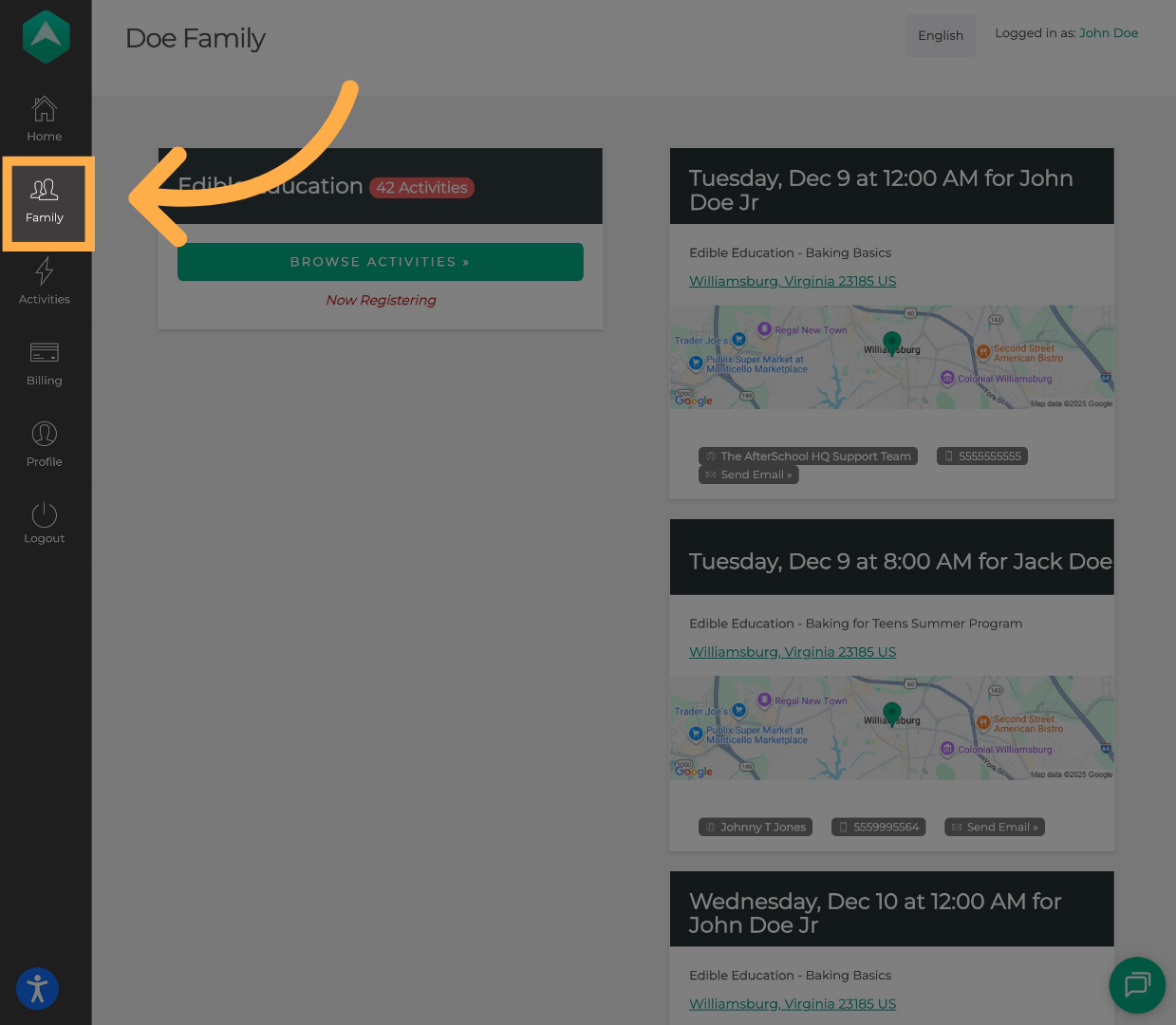
1. Click on “Family”.
From your dashboard, click “Family” to begin.
2. View Participant Profiles.
You’ll now see all participant profiles that were created when registering for activities.
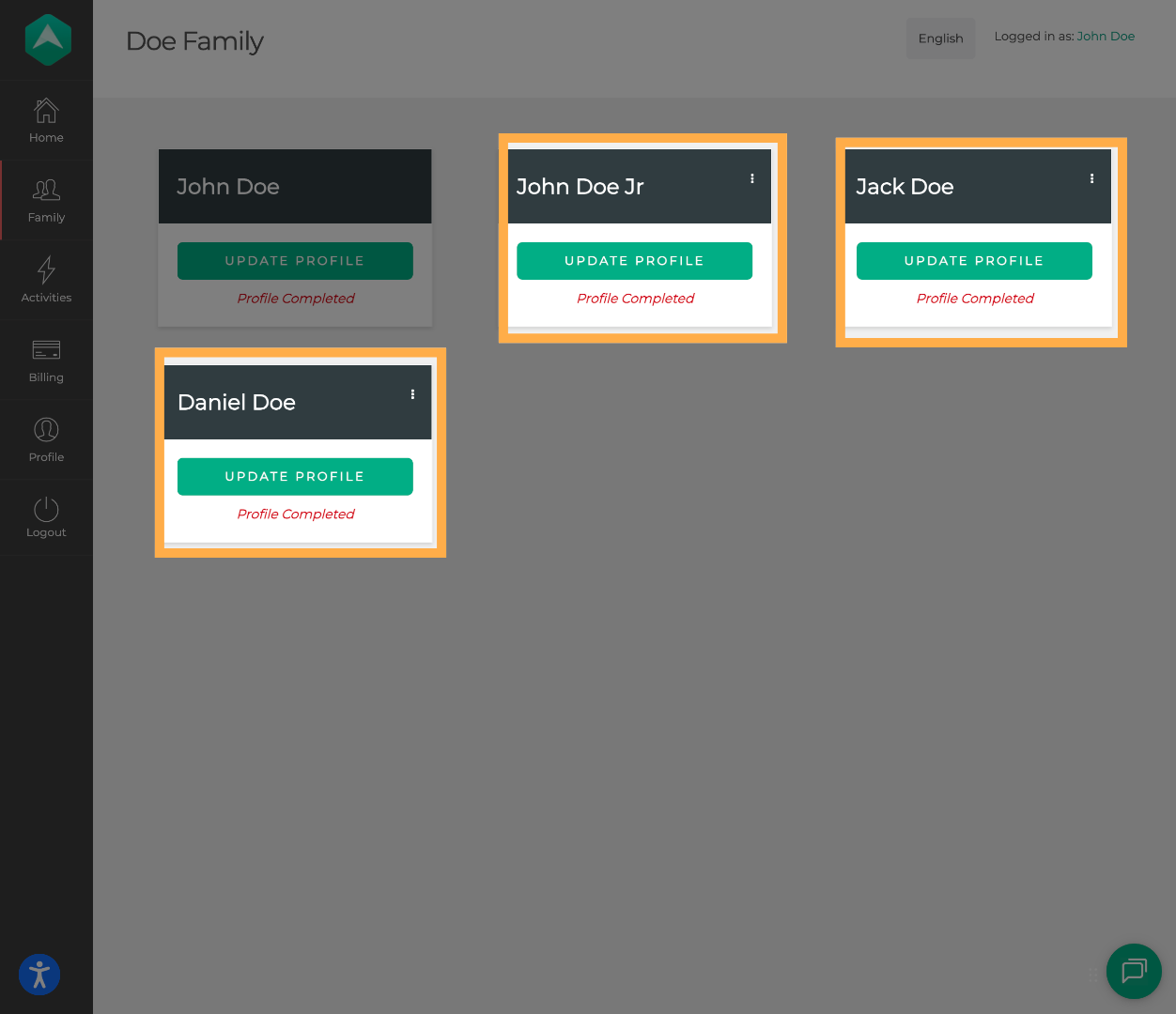
💡Tip: Participant profiles are created automatically when you register for an activity. Profiles are not created separately.
3. Click on “Update Profile”.
Find the participant you’d like to edit and click “Update Profile.”
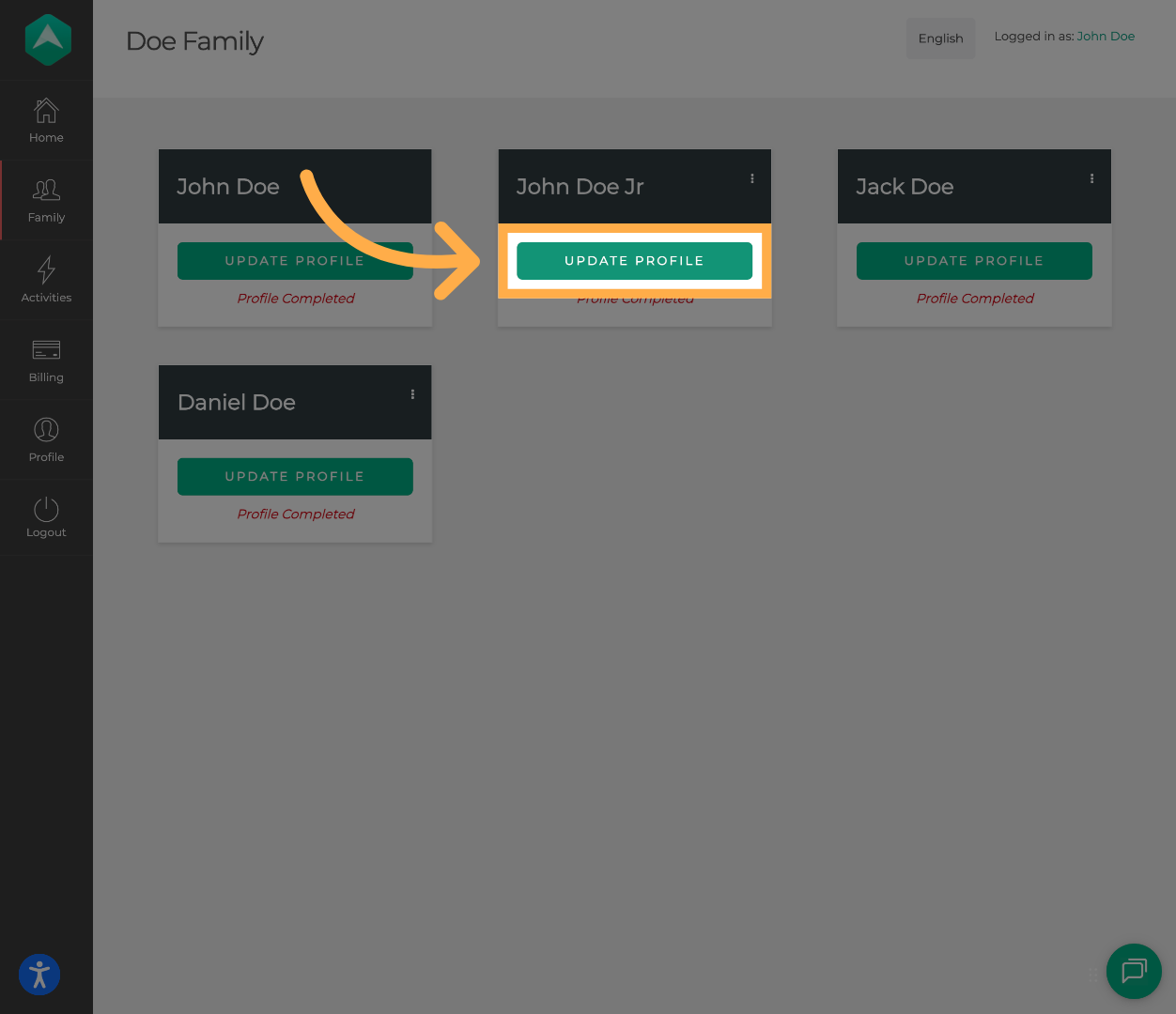
💡Tip: Make sure you select the correct participant if you manage multiple profiles under the same family account.
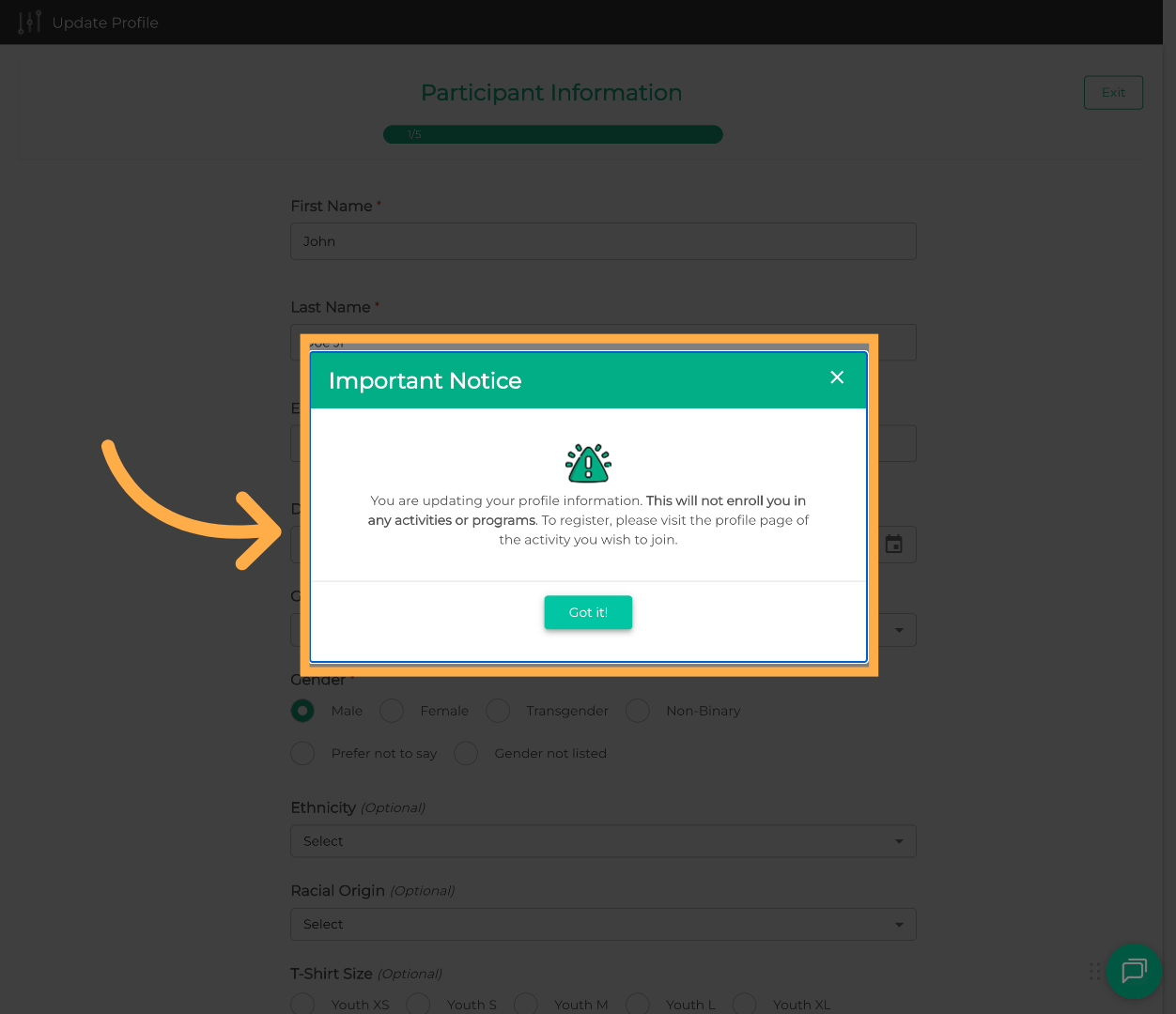
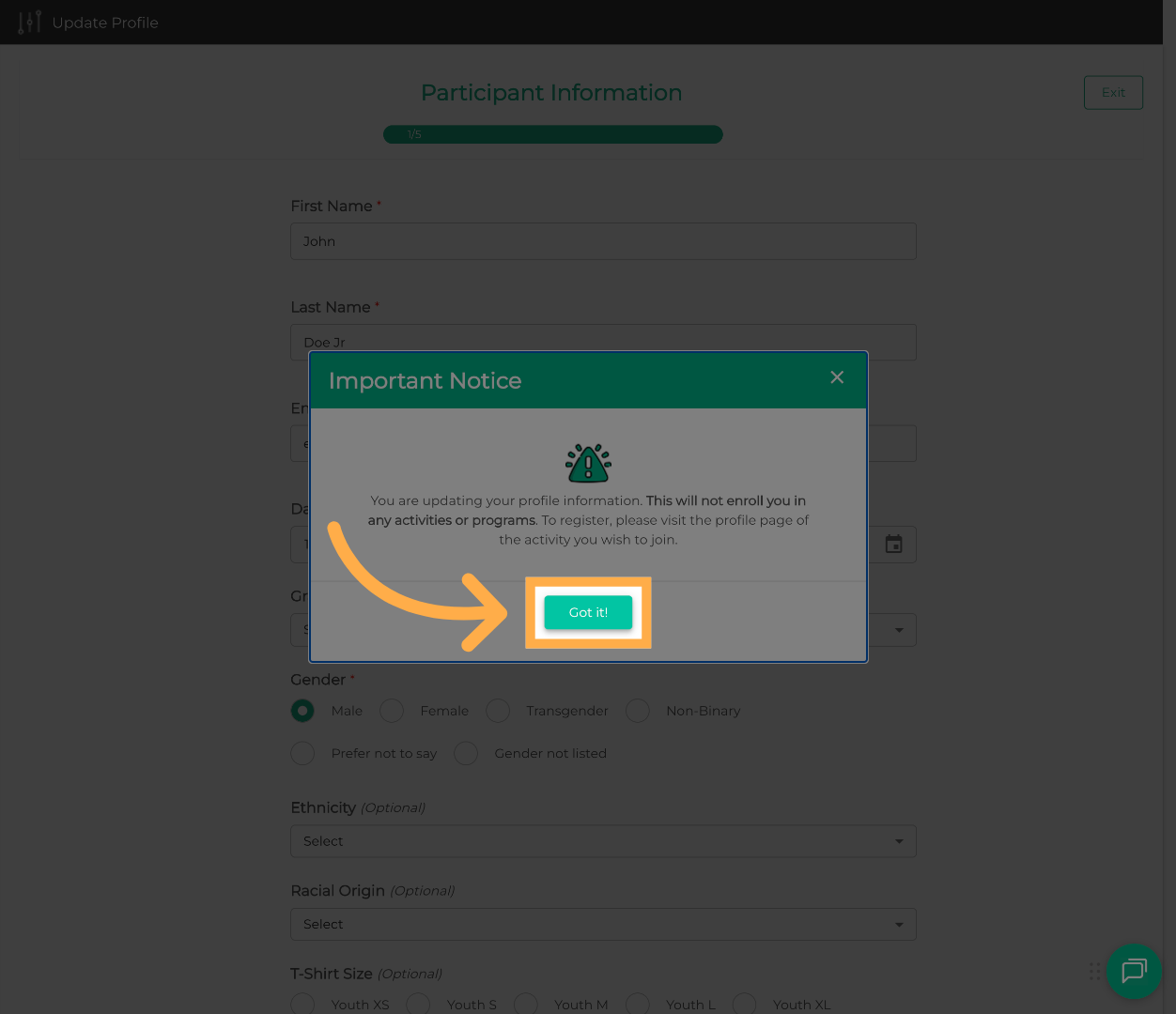
4. Acknowledge the Confirmation Notice.
An important notice will appear. Please review it and acknowledge to continue.
5. Make Changes to the Profile.
You can now update the participant’s information. Review each section and make any edits as needed.

💡 Tip: Keeping profile details up to date helps speed up future registrations since this information will auto-fill for new activities.
6. Save or Skip Changes.
If you make any changes, the button will appear as “Save.” If no updates are made, it will show “Skip.”
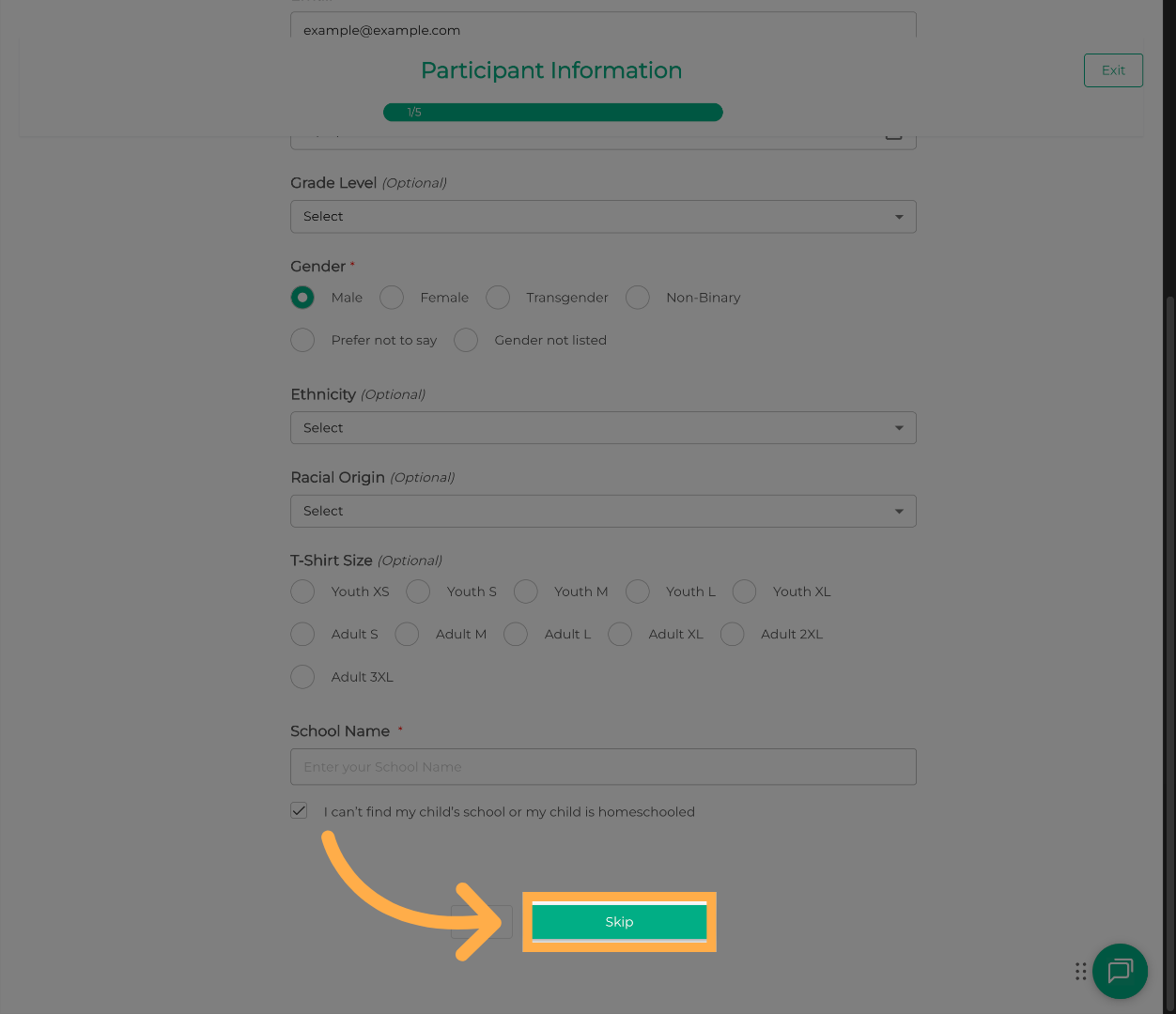
💡 Tip: If you don’t need to make updates in a section, you can safely click “Skip” and move on.
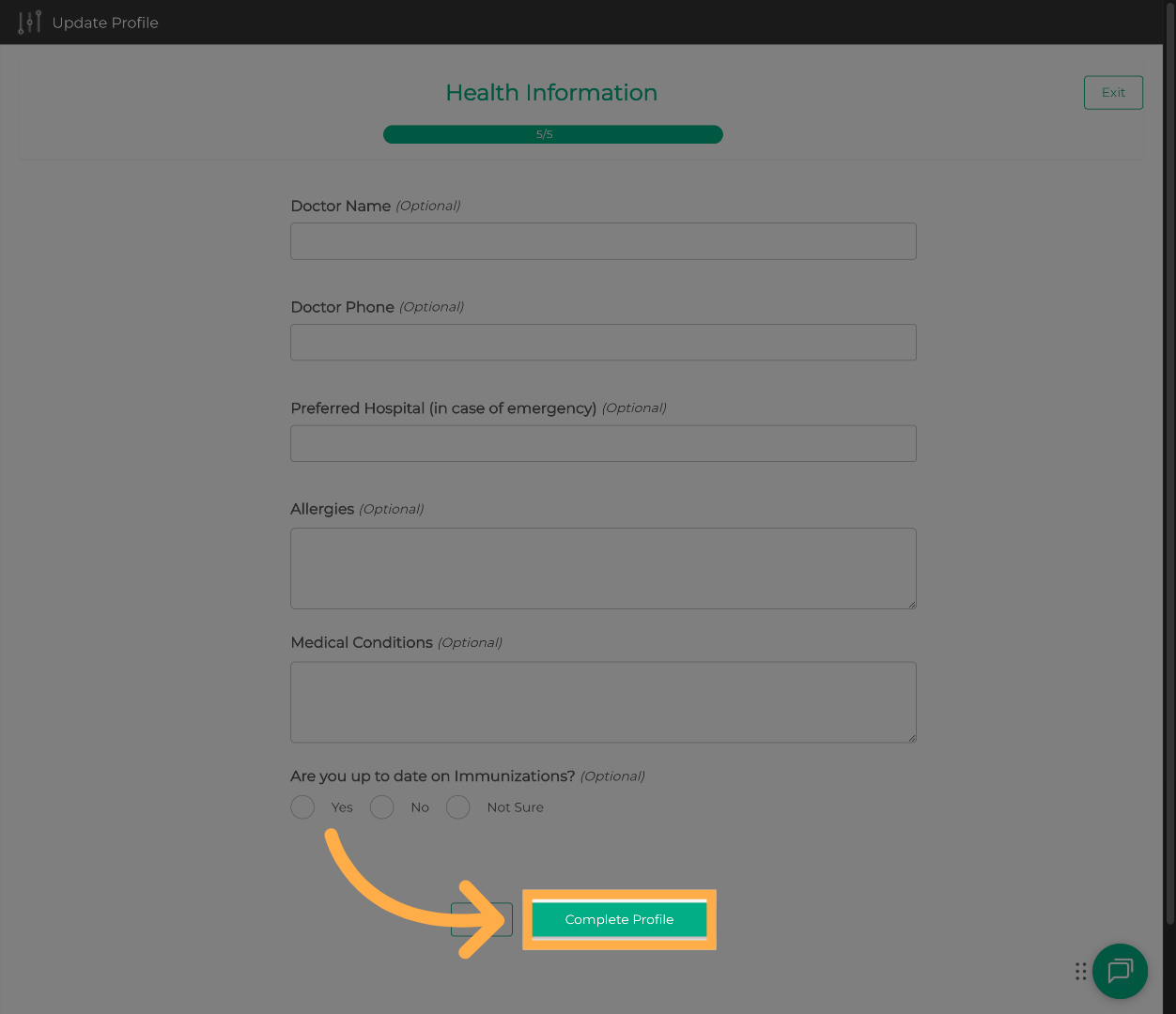
7. Complete the Profile Update.
After reviewing all sections, click “Complete Profile” to finalize your updates.
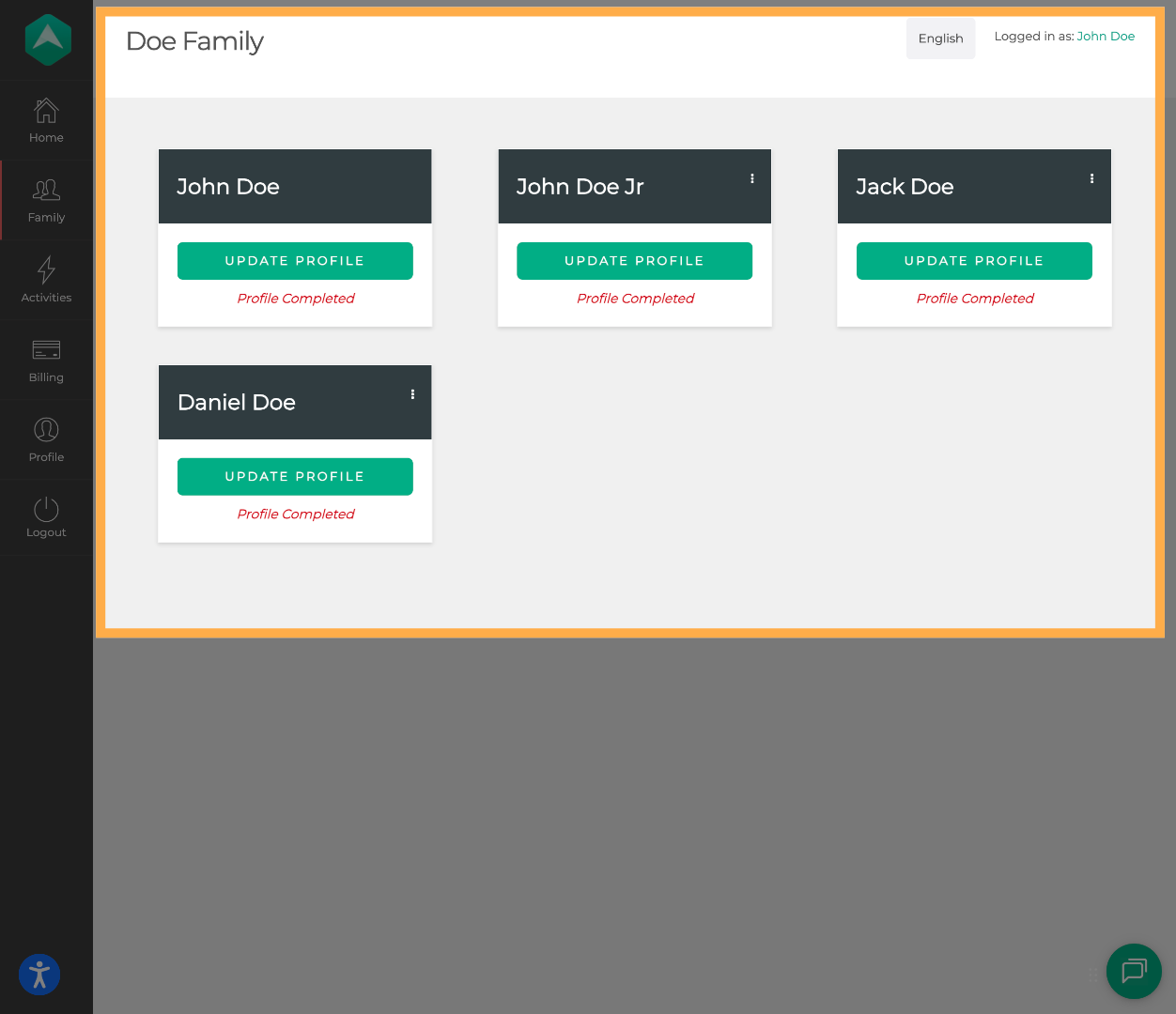
8. Confirm Profile Completion.
You’ll be taken back to the Family section of your account once the update is complete.
💡Tip: Updated profile information will be used for future registrations, which is especially helpful at the start of a new school year.
Frequently Asked Questions
Q: Will updating a participant’s profile change their existing registrations?
A: No. Updates made here only apply to the participant’s profile information. Previously submitted registrations will not be changed. If you need to make any changes, please reach out to the provider or contact our Support team.
Q: Why should I update a participant’s profile if it doesn’t change past registrations?
A: Updating the profile ensures the most current information is saved and auto-filled when you register for future activities, saving time and reducing errors.
Q: Is this helpful when my child moves to a new grade or school year?
A: Yes! Updating grade or other details in the participant profile helps keep information current for new school years and upcoming registrations.
Q: Can I update profiles for both children and adult participants?
A: Absolutely. This process works the same way for all participant profiles in your account.
Q: I updated the profile but the instructor doesn't see these changes. Is that expected?
A: Yes. Profile updates won’t retroactively change existing registrations, but they will apply to future enrollments.
💡If you experience any issues or have further questions with “How to Withdraw Your Child from an Activity”, don't hesitate to get in touch with our support team at support@afterschoolhq.com.