![ASHQ Logo Vert Flat.png]](https://support.afterschoolhq.com/hs-fs/hubfs/ASHQ%20Logo%20Vert%20Flat.png?height=40&name=ASHQ%20Logo%20Vert%20Flat.png)
Your provider profile helps families and visitors learn more about your organization, the services you offer, and how to contact you.
Keeping this information accurate and up to date helps ensure your profile reflects your organization's programs and offerings.
❗Before You Begin
- You have access to your organization's settings in AfterSchool HQ.
- You have the information you want to update, such as your organization's contact details, services, and description.
- You have any images, videos, or website links you want to include.
💡 Tip: You don't need to update every section. You can make changes to specific areas of your profile whenever needed.
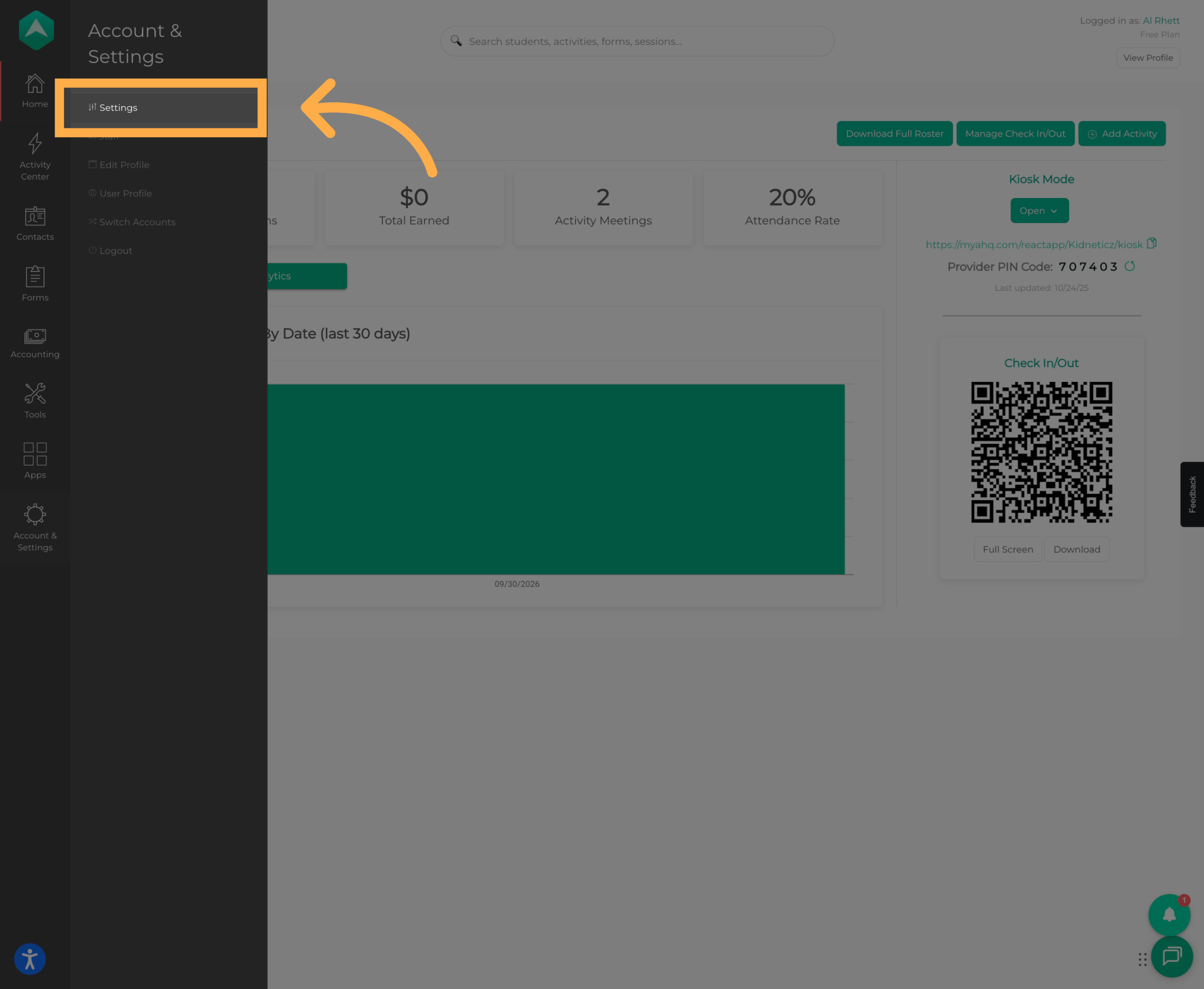
1. Open the Settings Menu
Start by opening “Settings” to access your organization's profile configuration options.
2. Update Your Organization's Contact Information
Within your organization's settings, you can update important information.
Including:
- Organization Name: The name associated with your organization.
- Contact Email: The email address used for organization-related communication.
- Phone Number: Your organization's contact number.
- Landing Page URL: The link families can use to access your organization's landing page.
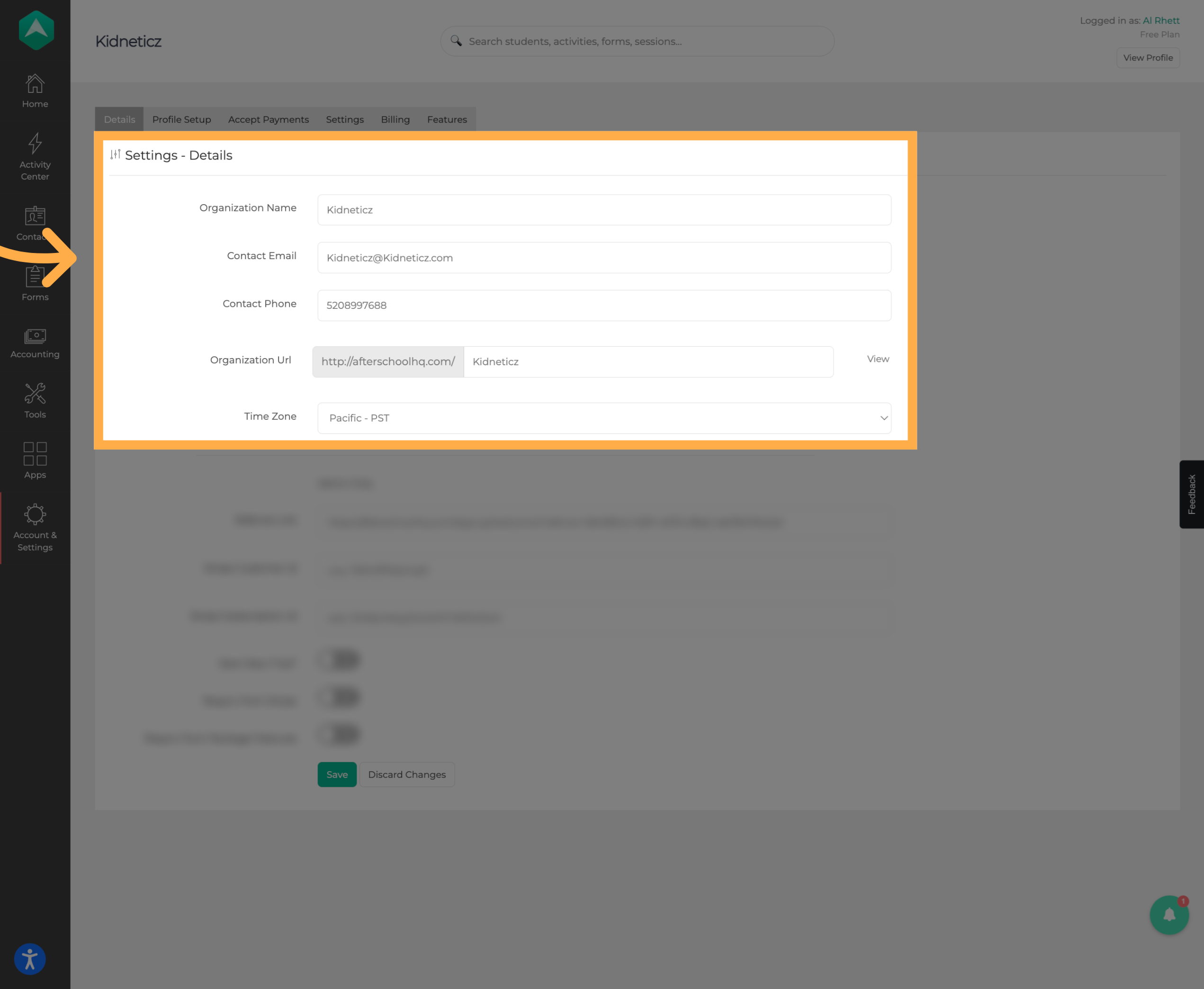
💡 Tip: Double-check your email address and phone number to make sure families and staff have the correct information.
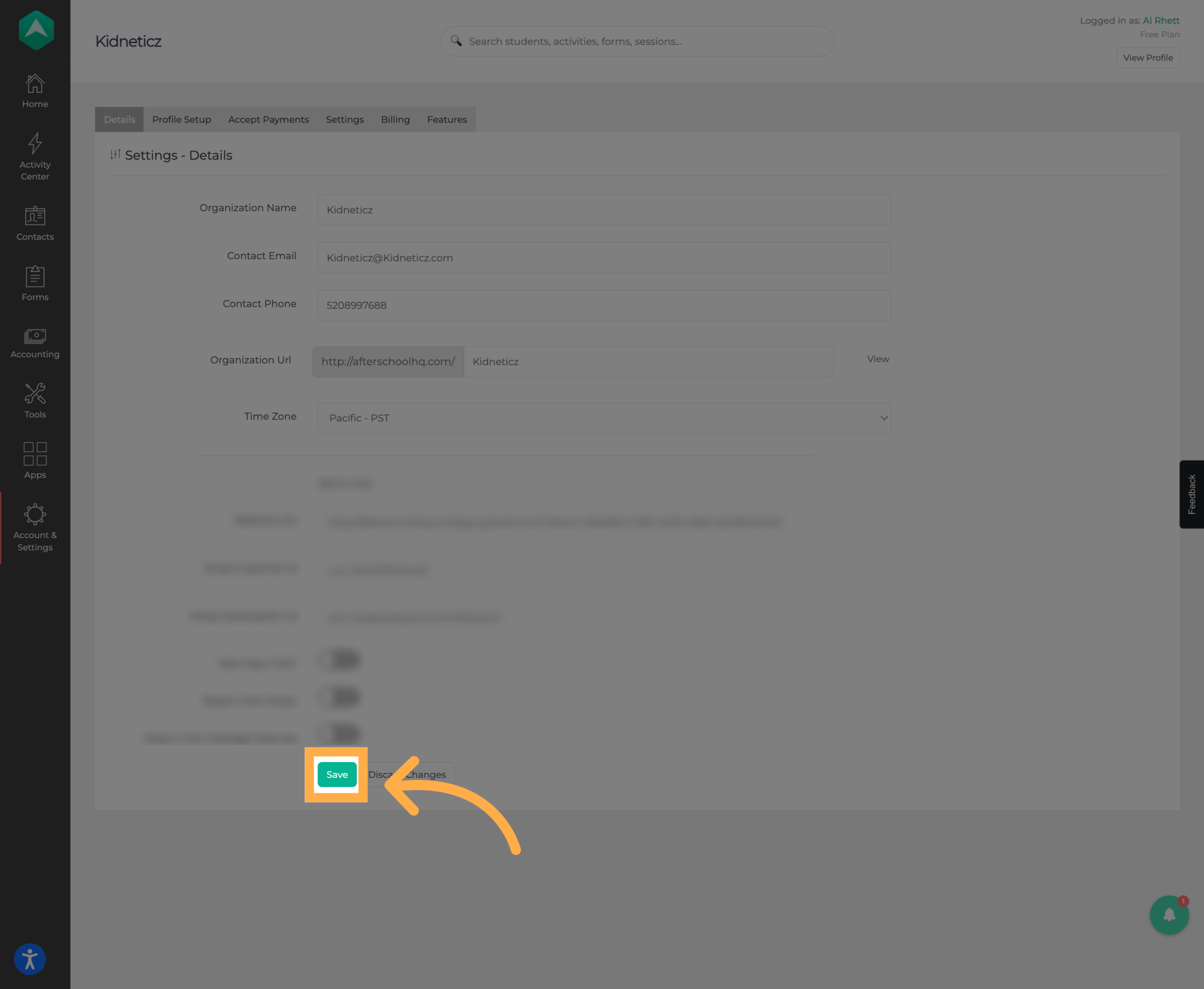
3. Save Your Contact Information
Once you've made your changes, select “Save” to update your organization's contact information.
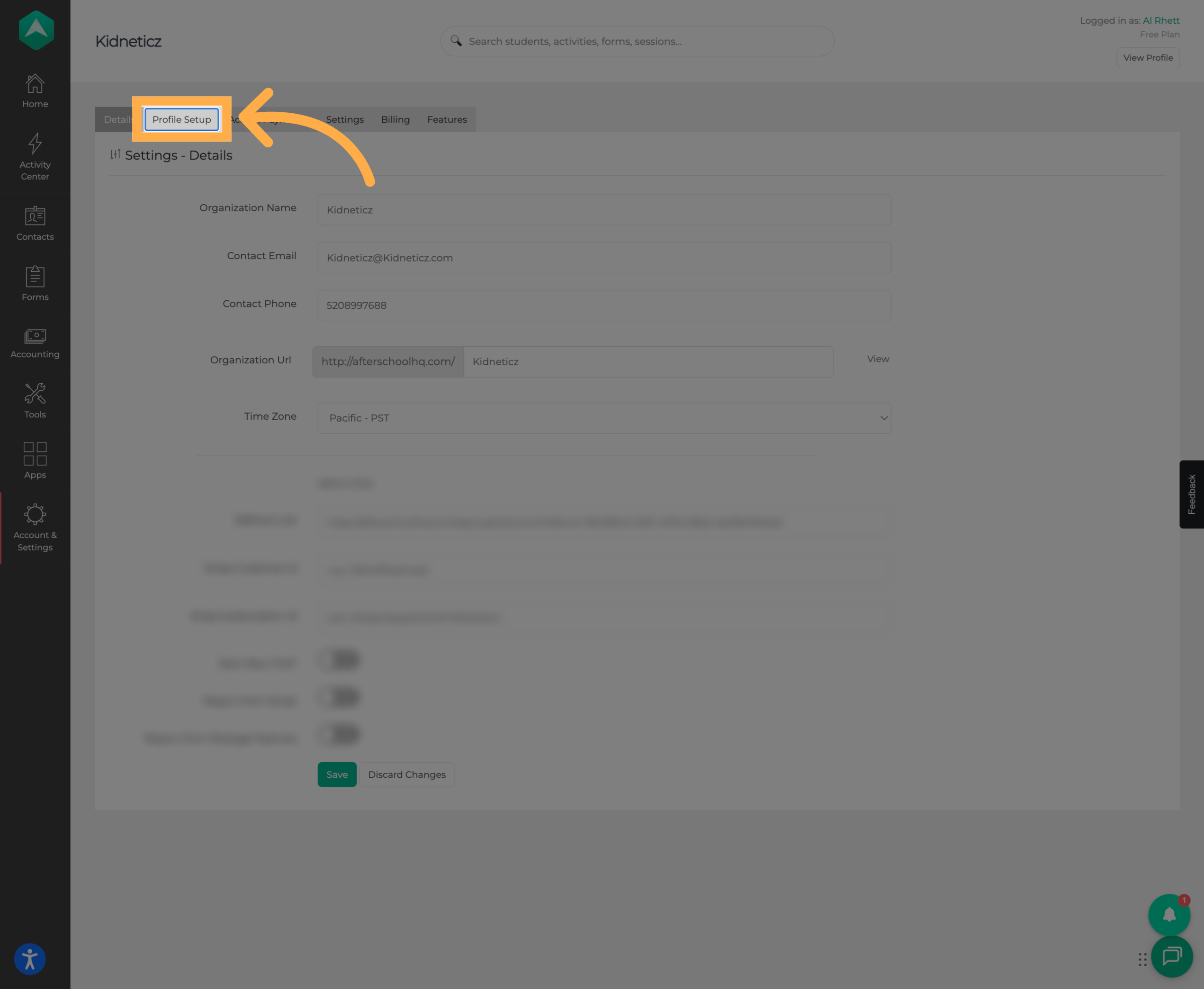
4. Open Your Provider Profile Settings
Next, navigate to the “Profile” section to customize how your organization appears to families and other visitors.
5. Customize Your Profile Header
Use the header settings to customize the appearance of your provider profile.
You can update:
- Logo: Your organization's logo.
- Header Image: An image displayed at the top of your profile.
- Title: The main heading displayed on your profile.
- Subtitle: A short description introducing your organization.
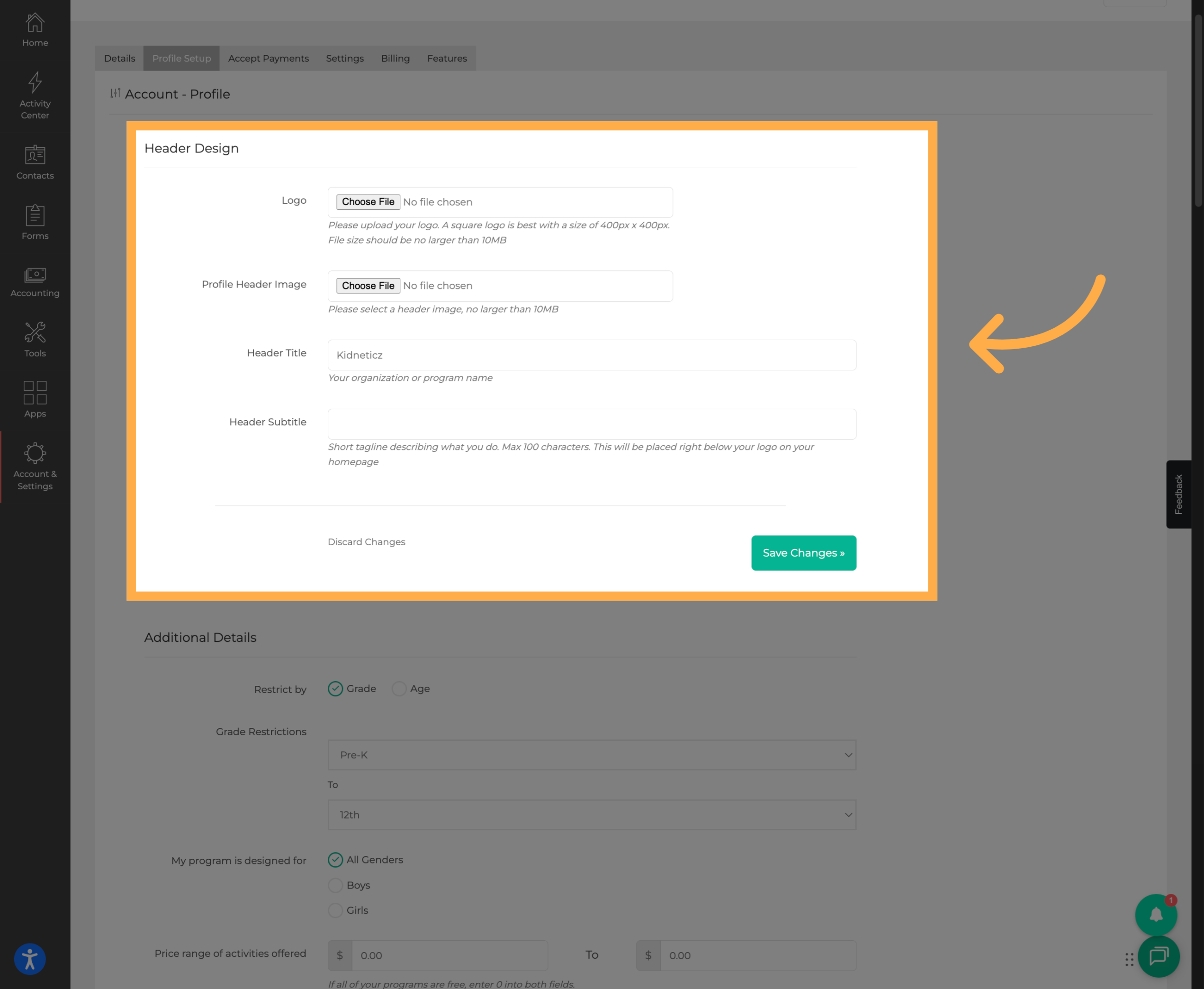

💡 Tip: Use a clear logo and a high-quality header image that represents your organization. A short, descriptive subtitle can help visitors quickly understand what you offer.
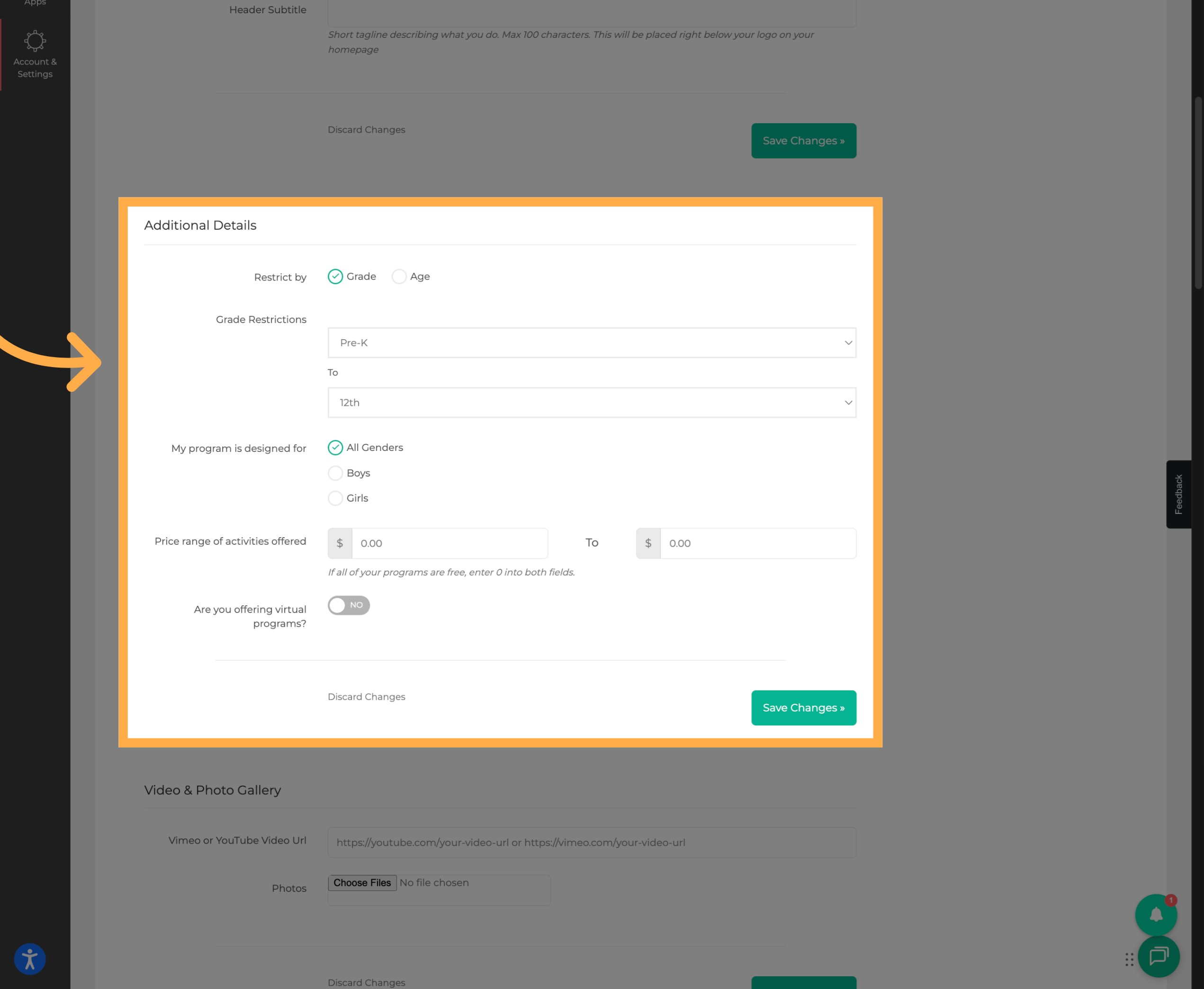
6. Configure Additional Profile Settings
Review the additional settings available for your provider profile.
Here, you can adjust contact restrictions for specific content or services and configure other program-related options.
7. Add Photos and Videos
Use the “Photo & Video Gallery” to showcase your organization and its programs.
You can:
- Upload photos of your programs, facilities, or activities.
- Add a YouTube video link to introduce your organization or highlight its services.
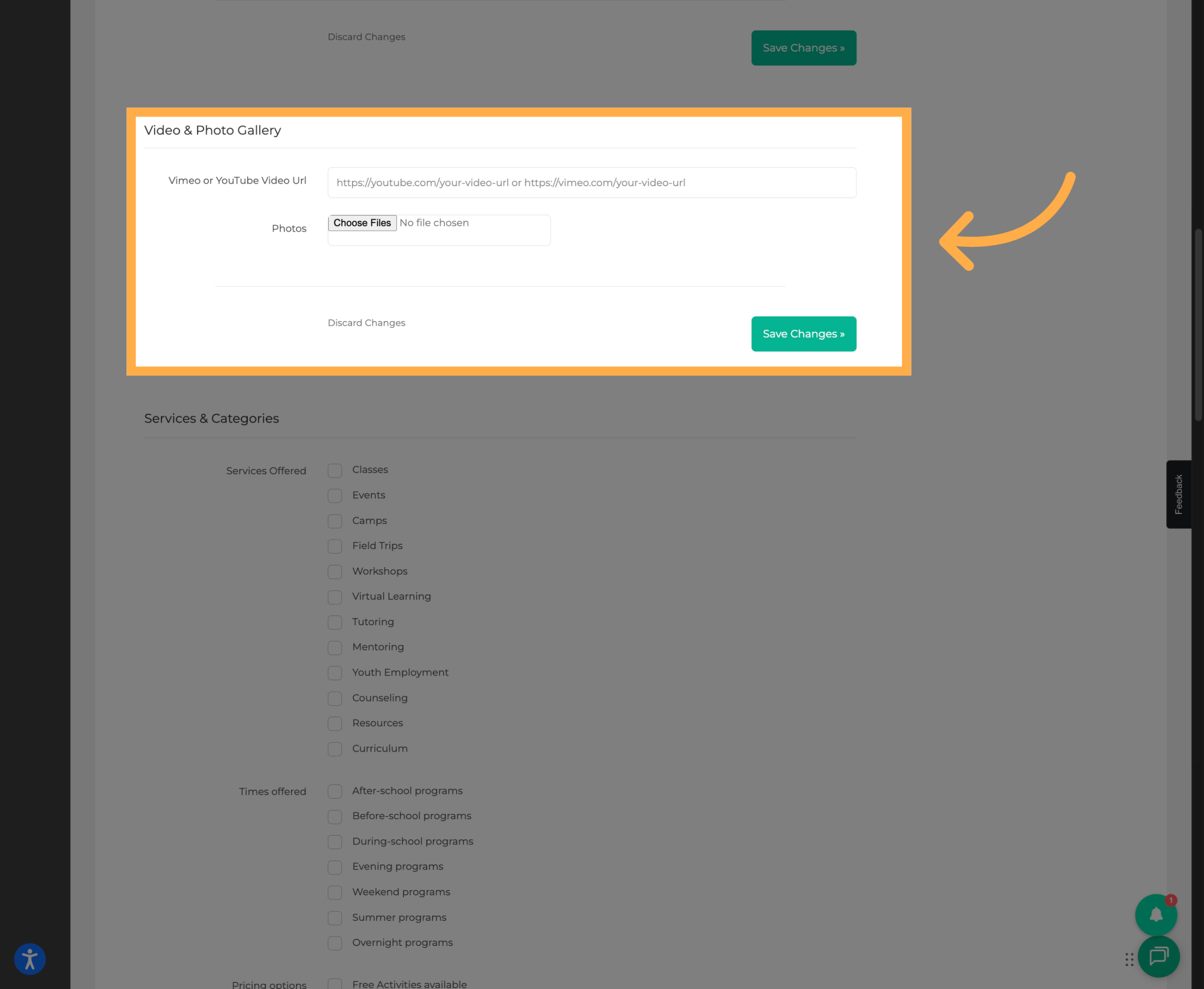
💡 Tip: Consider adding photos of your programs in action so families can get a better idea of what to expect. Make sure you have permission to share any images featuring participants.
8. Select Your Services Offered
Choose the classes or services your organization provides.
These selections help visitors understand the types of programs available through your organization.
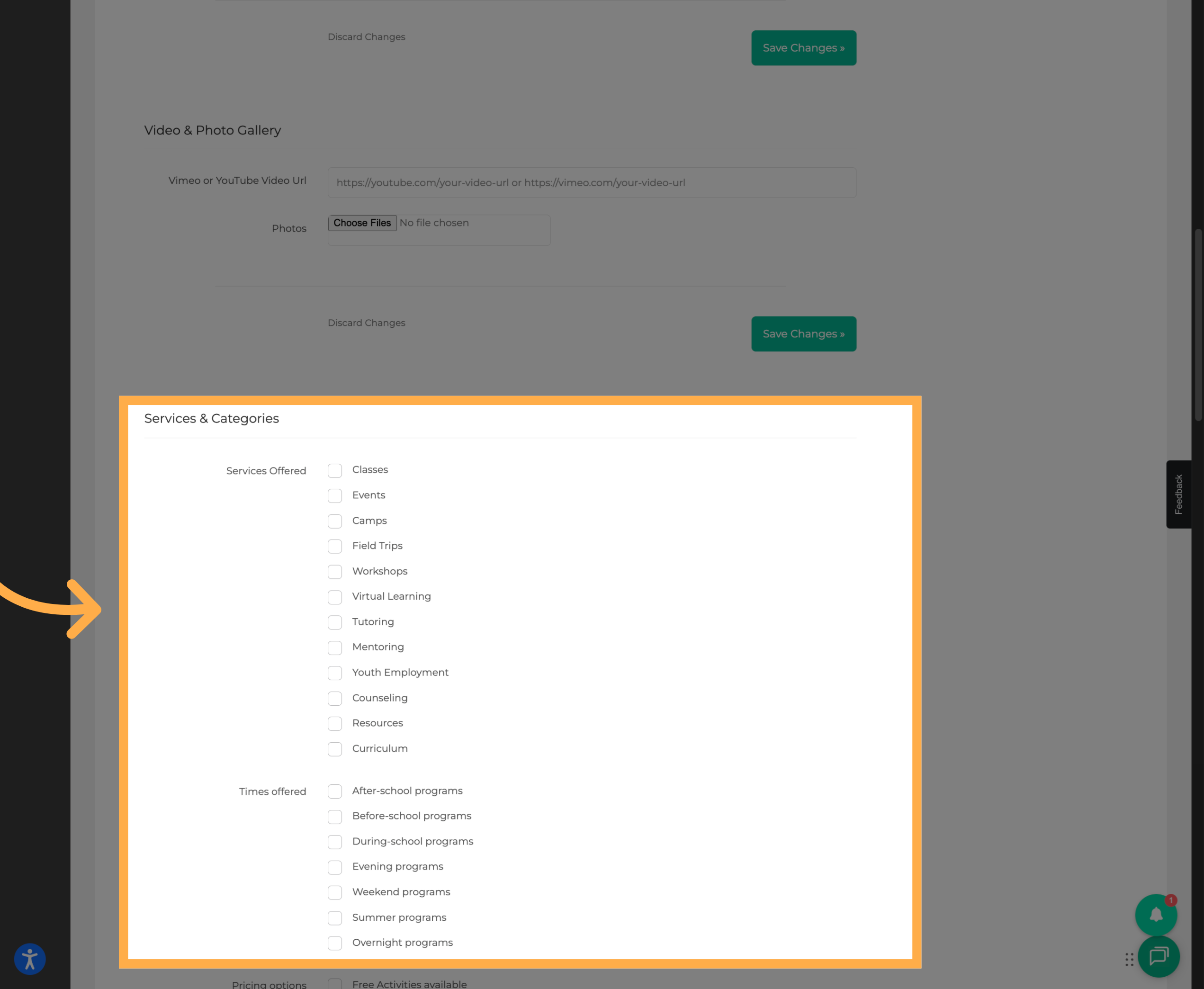
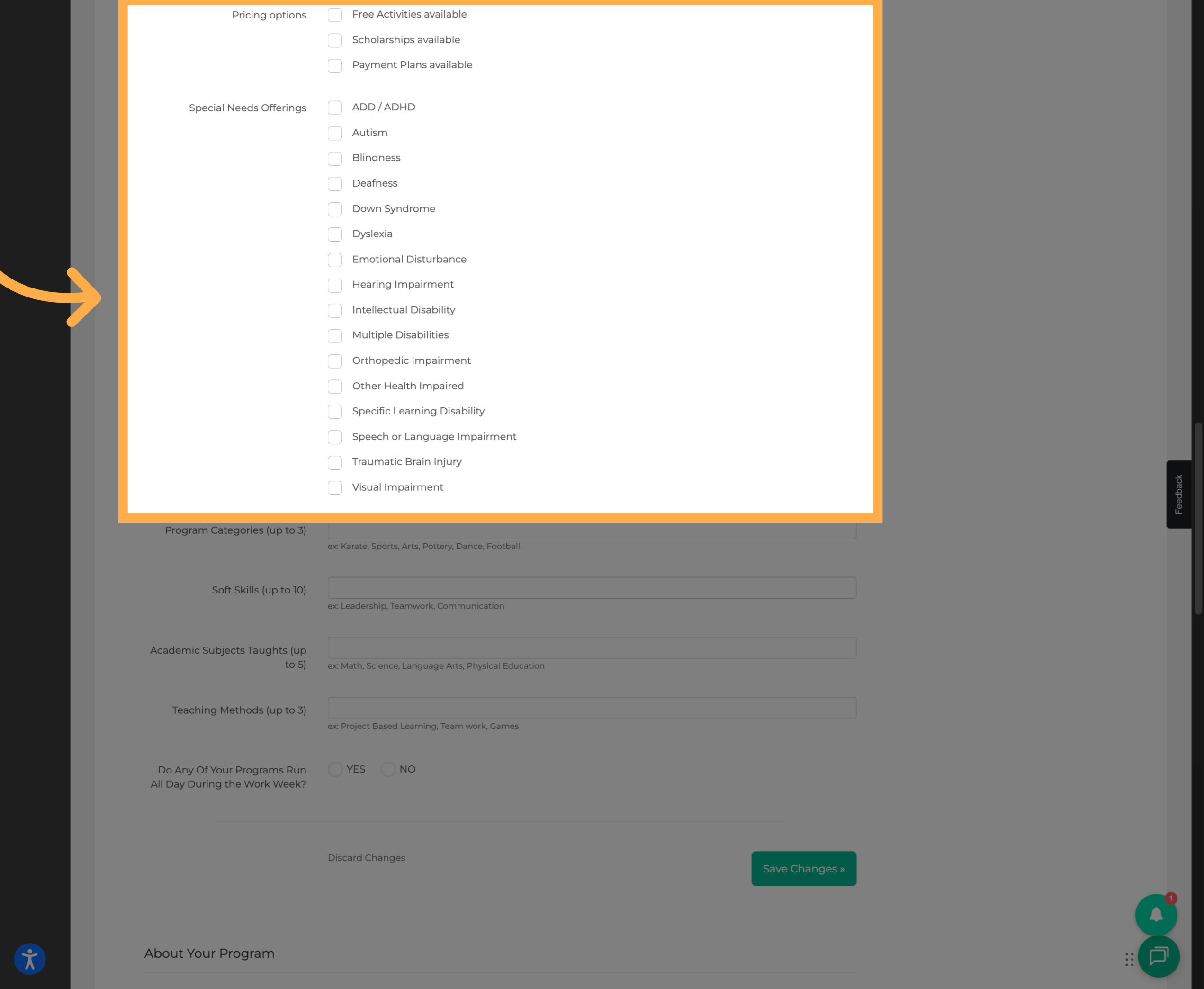
9. Configure Additional Service Options
Review the additional service settings, including options related to ADD or ADHD accommodations.
Select the options that accurately reflect the services and accommodations your organization provides.
10. Add Program and Teaching Details
Provide additional information about your organization's educational offerings and teaching approach.
Depending on your programs, you can specify:
- Skills offered
- Program categories
- Academic subjects
- Teaching methods
- Whether your programs operate throughout the day
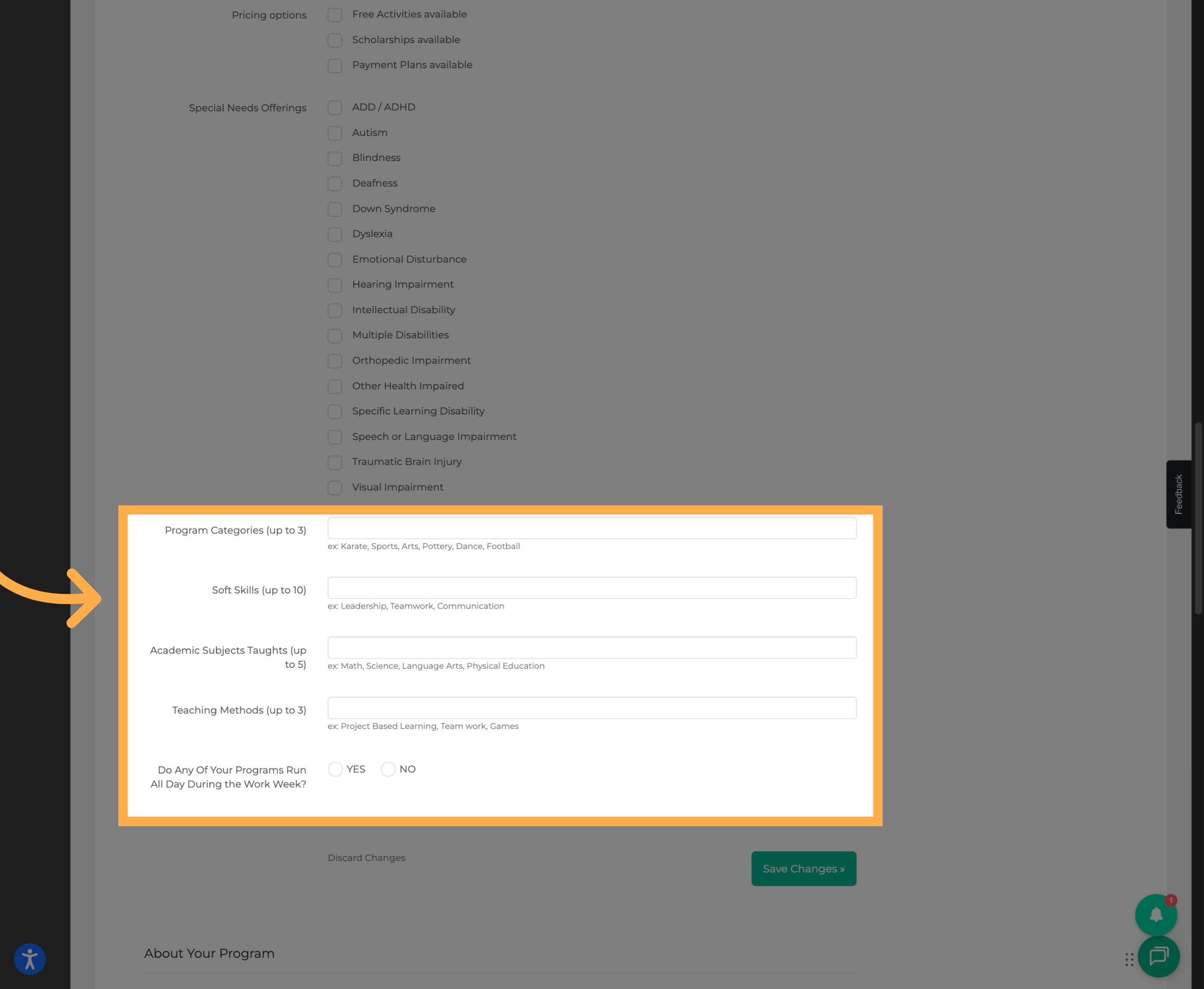
💡 Tip: Select only the subjects, services, and teaching methods your organization currently offers to keep your profile accurate.
11. Update Your About Section
Use the “About” section to introduce your organization and explain what makes your programs unique.
You can include information about your mission, the communities you serve, and the types of experiences participants can expect.
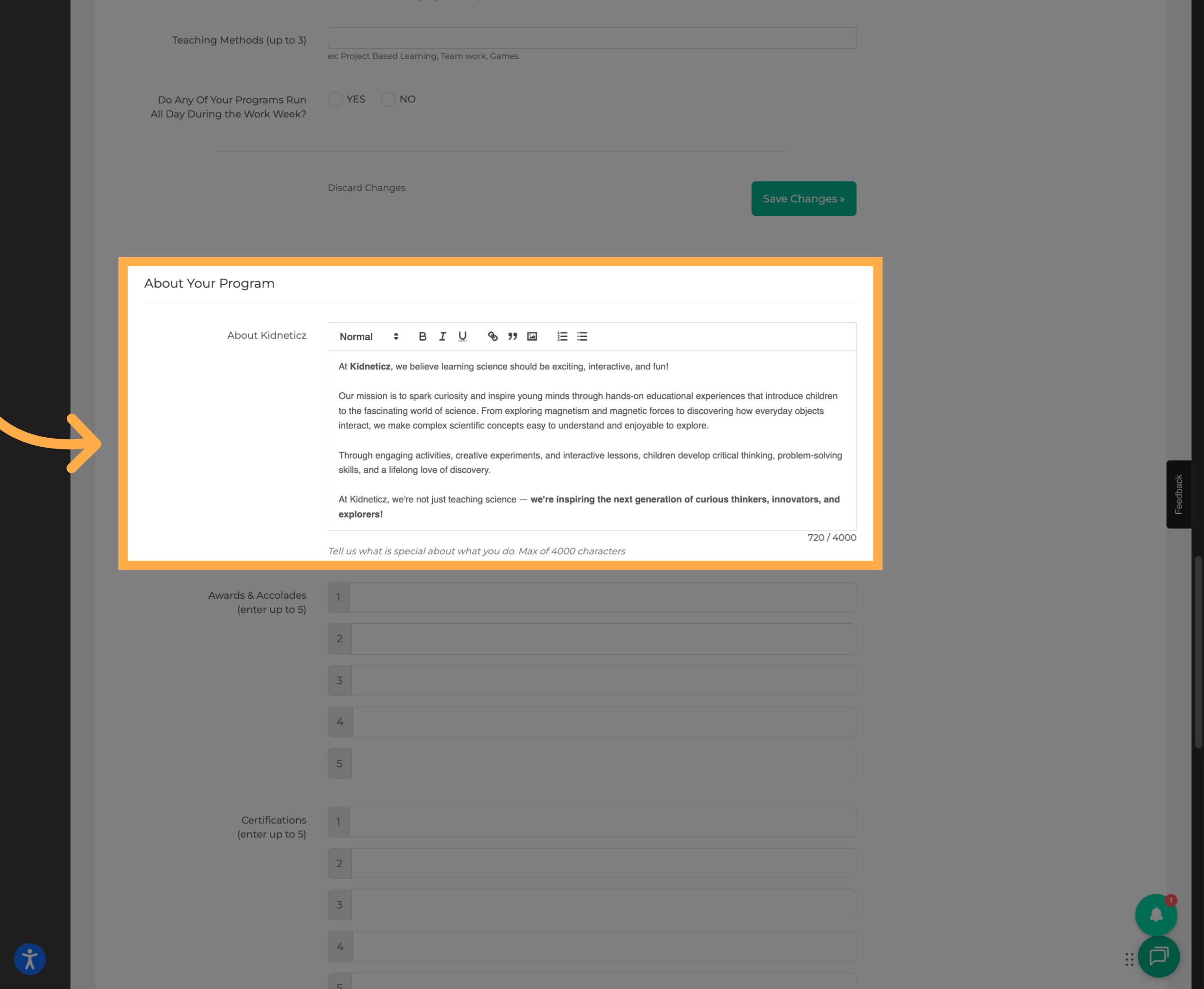
💡 Tip: Keep your description welcoming and informative. Focus on what families would want to know before exploring your programs.
12. Add Awards and Accolades
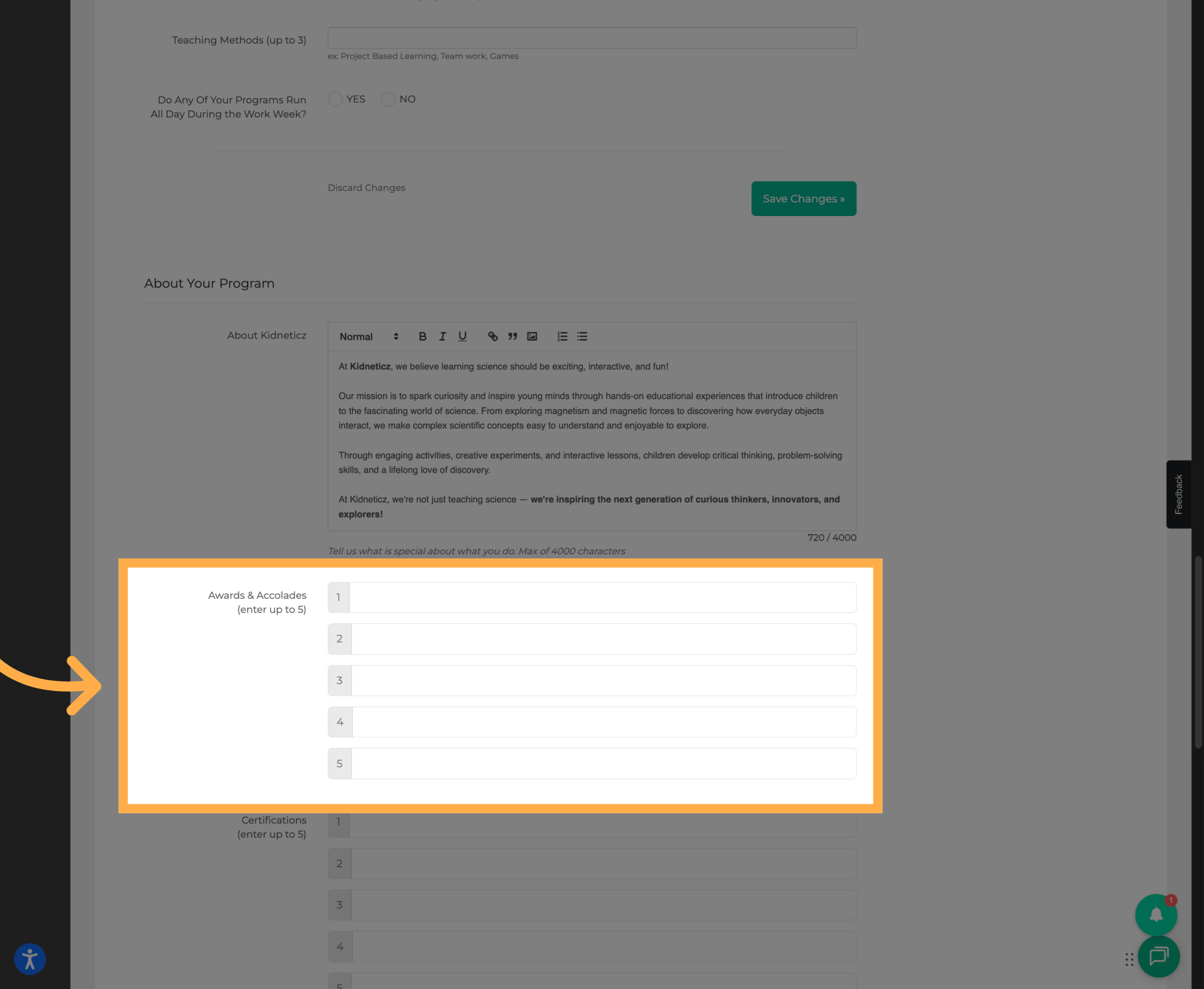
Highlight your organization's achievements by adding up to five awards or accolades to your provider profile.
These may include awards, recognitions, or other notable accomplishments.
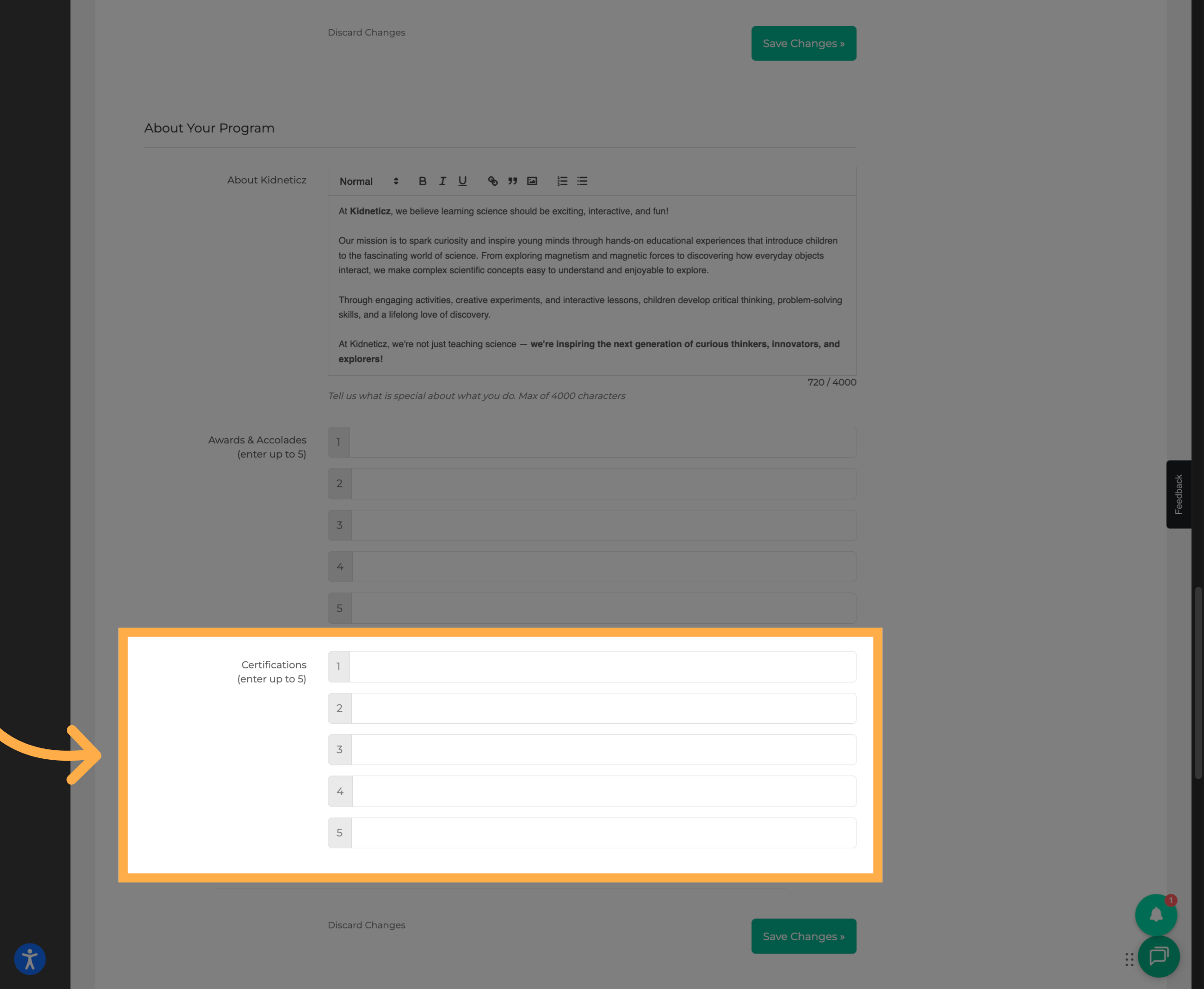
13. Add Your Certifications
Include up to five certifications to showcase relevant qualifications and expertise associated with your organization.
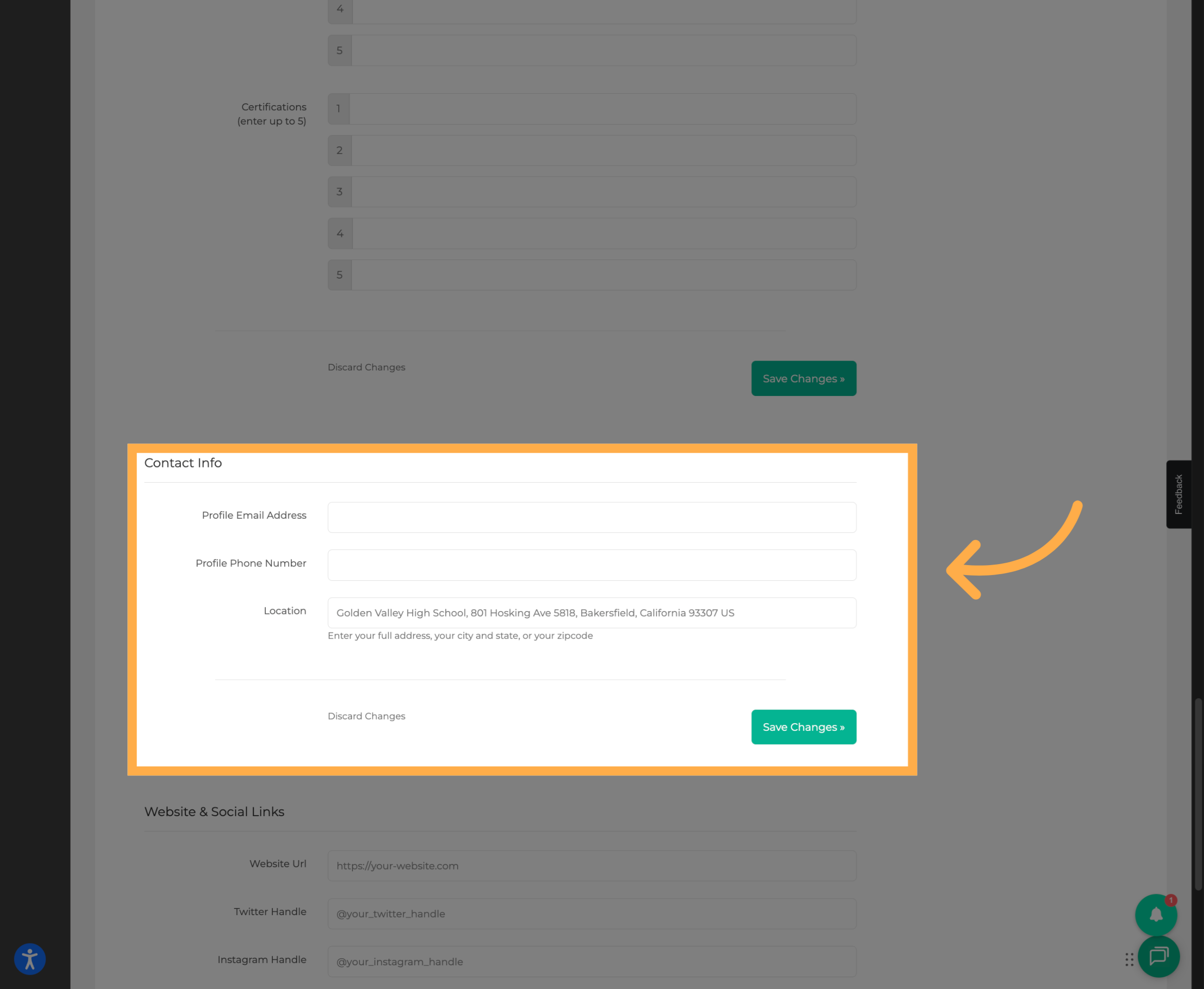
14. Update Your Public Contact Information
Add or update the contact information you want visitors to see on your public provider profile.
This may include:
- Email address
- Phone number
- Location
💡 Tip: Make sure the contact information you provide here is appropriate for public viewing and is regularly monitored by your organization.
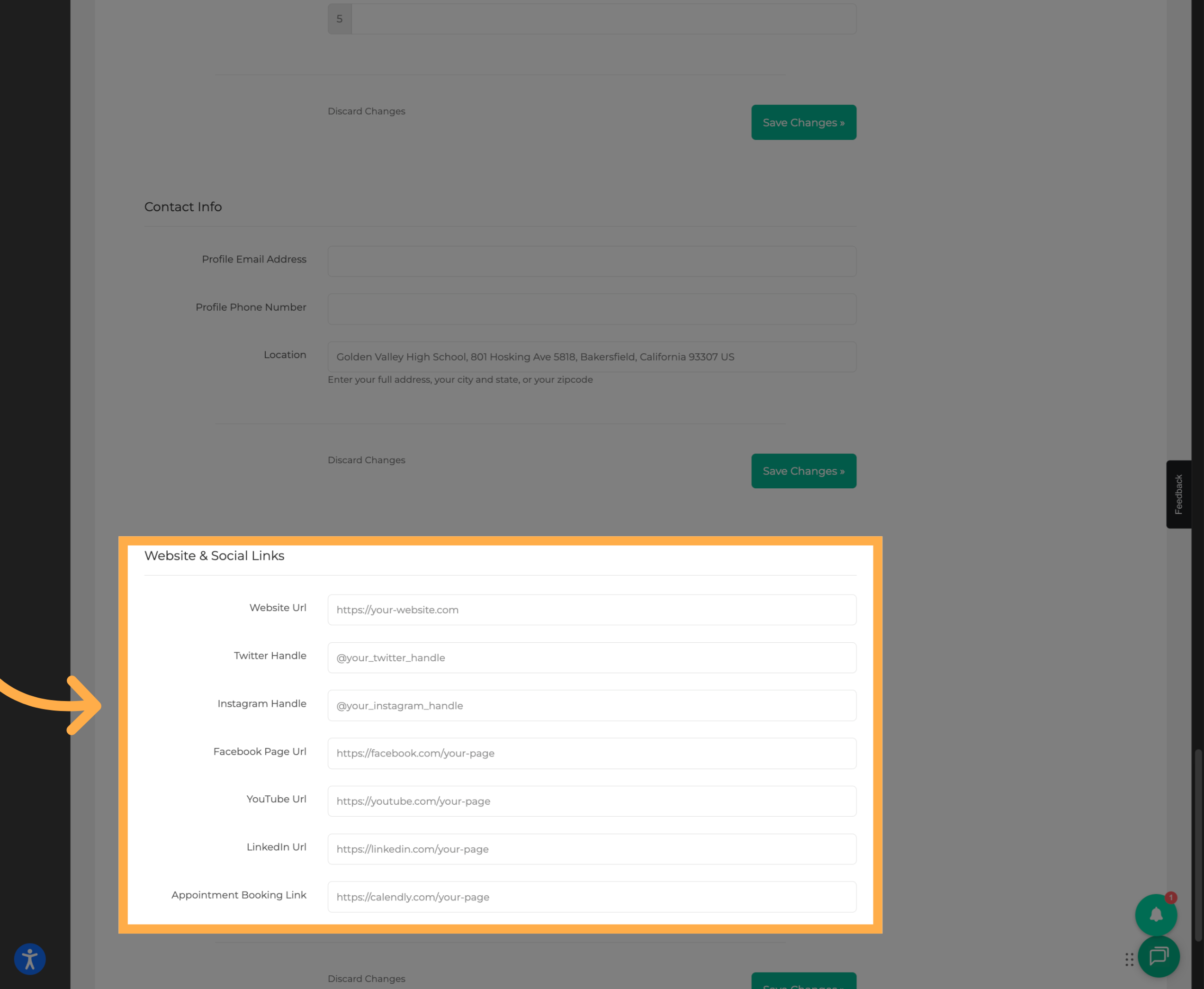
15. Add Your Website and Social Media Links
Include your organization's website and social media links to help families learn more about your programs and stay connected.
💡 Tip: Double-check your links to make sure they direct visitors to the correct pages.
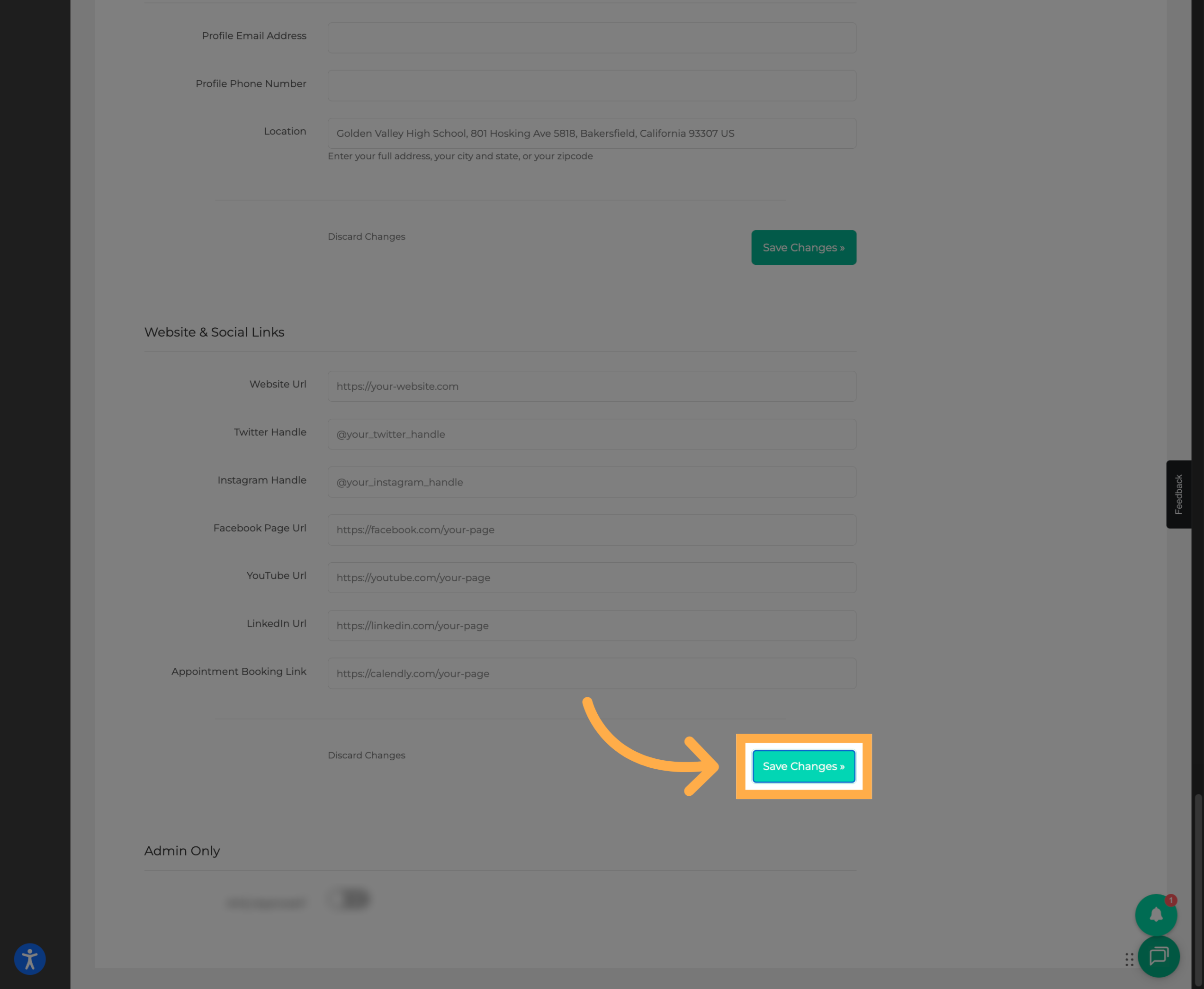
16. Save All Changes
Once you've finished customizing your provider profile, select “Save” to apply your changes.
Your updated information will then be reflected on your provider profile.
💡 Tip: Review your provider profile after saving to make sure your information, images, and links appear as expected.
Frequently Asked Questions
Q: What is a provider profile?
A: Your provider profile contains information about your organization, including its description, services, contact information, images, certifications, and other details that help families learn more about your programs.
Q: Where can I edit my provider profile?
A: Open Settings in AfterSchool HQ, then navigate to the Profile section to access your provider profile settings.
Q: Can I change my organization's name and contact information?
A: Yes. You can update your organization's name, contact email, phone number, and landing page URL through your organization's settings.
Q: Can I customize the appearance of my provider profile?
A: Yes. You can customize your logo, header image, title, and subtitle to better represent your organization.
Q: Can I upload photos and videos?
A: Yes. The Photo & Video Gallery allows you to upload images and add a YouTube video link to showcase your organization and its programs.
Q: Can I update the services my organization offers?
A: Yes. You can select the classes, services, skills, program categories, academic subjects, and teaching methods that best describe your organization.
Q: Can I include information about accommodations?
A: Yes. Additional service settings include options related to ADD or ADHD accommodations.
Q: Can I add awards and certifications to my profile?
A: Yes. You can add up to five awards or accolades and five certifications to highlight your organization's achievements and qualifications.
Q: Can I add my organization's website and social media accounts?
A: Yes. You can include website and social media links to help visitors connect with your organization.
Q: Is my public contact information different from my organization's general contact information?
A: The profile includes a separate section for public contact details, allowing you to specify the email address, phone number, and location you want visitors to see.
Q: Do I need to complete every section of my provider profile?
A: No. You can update the sections that are relevant to your organization and return to make additional changes as needed.
Q: How do I save my provider profile changes?
A: Once you've finished making changes, select Save to apply your updates.
💡If you experience any issues or have further questions with “How to Update Your Organization’s Profile”, don't hesitate to get in touch with our support team at support@afterschoolhq.com.