![ASHQ Logo Vert Flat.png]](https://support.afterschoolhq.com/hs-fs/hubfs/ASHQ%20Logo%20Vert%20Flat.png?height=40&name=ASHQ%20Logo%20Vert%20Flat.png)
Before You Start: What is Drop-In?
Before we jump in, it helps to understand what Drop-In is:
✅ Drop-In is for one-day attendance
❌ Drop-In does not replace registration
To allow Drop-Ins, you must:
-
-
Create a Drop-In form
-
Attach that form to the specific activities where Drop-Ins are allowed
-
If a student enjoys your activity and plans to keep attending, we recommend asking the parent or guardian to complete your normal registration process.
Step-by-Step: How to Set Up Drop-In
1. Create a New Drop-In Form
- Create a New Drop-In Form
-
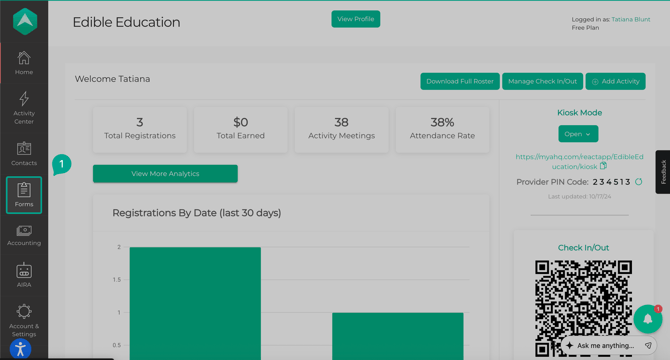
Click Forms from the left-hand menu.
-
Click Create New Form.
-
Enter a form name (example: 2026 Drop-In).
-
From the Form Type dropdown, select Drop-In.
-
Click Create Form.
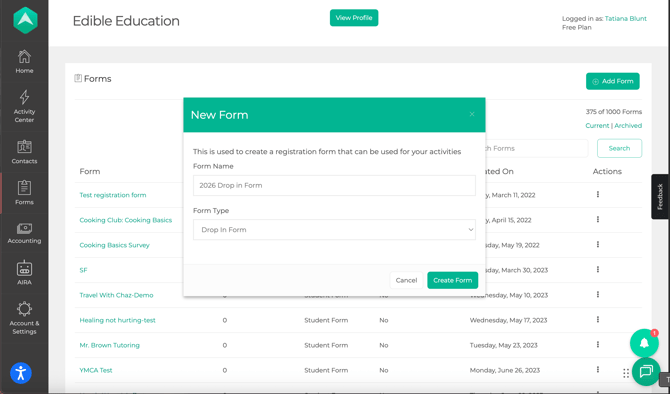
- Click continue on the settings page
-
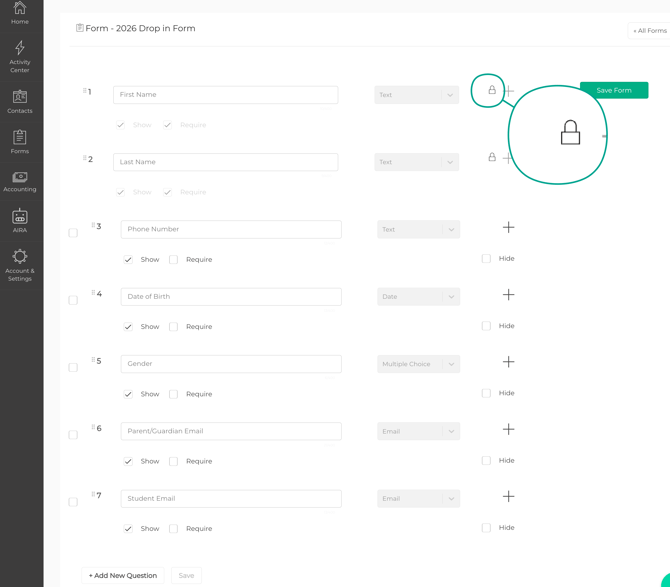
Review the standard drop-in form questions: Some questions are locked and cannot be removed. These are required to add a student to the roster:
-
First Name
-
Last Name
-
-
Edit the Form Questions
-
Remove or hide the optional fields and Add any extra questions you want to collect for that day.
-
Example: Did the student receive a snack?
-
-
Use simple formats like dropdowns (Yes / No) to make it fast for staff.
💡 Tip: The goal of Drop-In is speed. We recommend keeping the form short and simple.
-
- Once your form has the questions you need, you’re ready to attach it to an activity.
- Assign the Drop-In Form to an Activity: Drop-In is only available for activities that have a Drop-In form attached.
-
Click Activity Center > Extracurricular Activities from the left-hand menu.
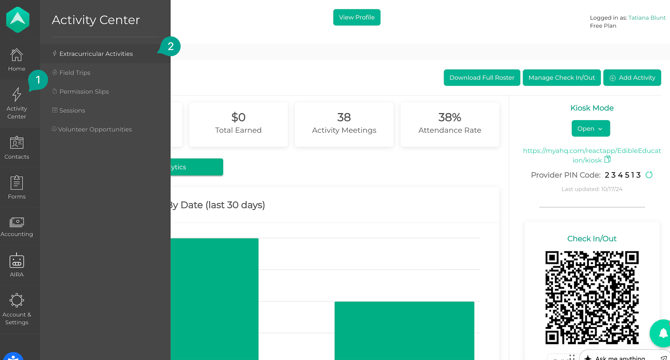
- Open an existing activity or create a new one.
-
-
-
Attach the Drop-In Form
-
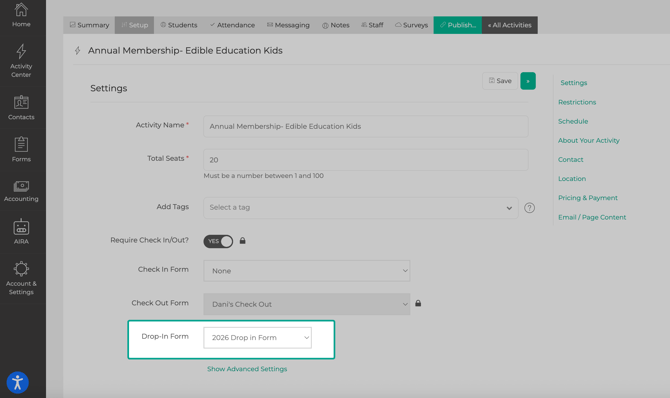
In the activity settings, you will need to enable Require Check In/Out?
- Then you will see different attendance form options appear
-
Select your Drop-In form
-
Save the activity.
✅ This activity is now ready to accept Drop-In students.
-
-
Use Drop-In During Attendance
-
Now that your form is set up and assigned, you can start using Drop-In when students arrive.
-
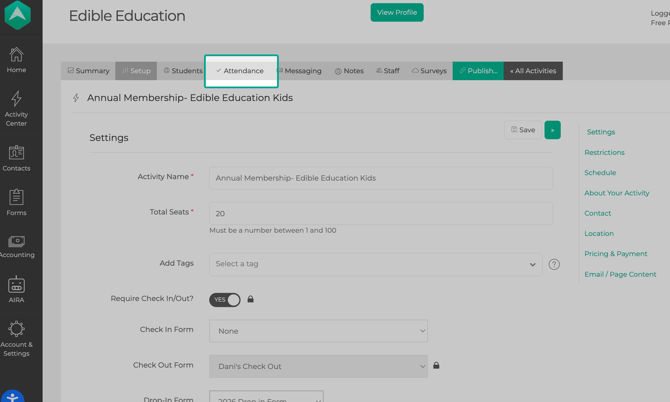
Open Attendance
-
-
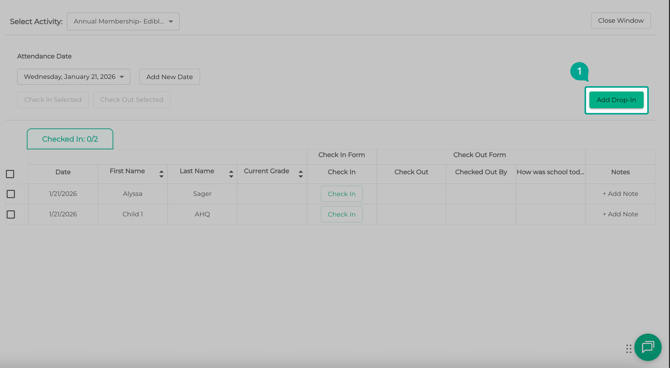
While taking attendance, click Add Drop-In.
-
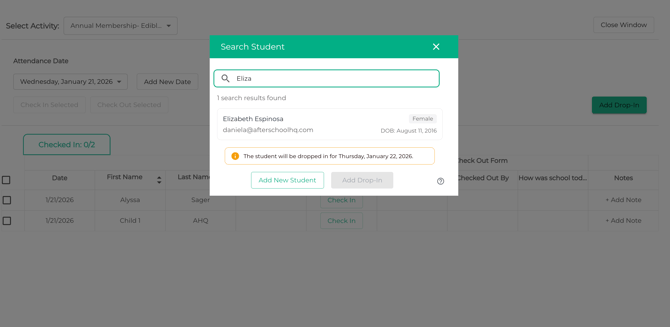
Every Drop-In starts with a search to help prevent duplicate student records.
-
If the student appears in the list, select their name and then click "Add Drop In"
-
If not, choose to add a new student.
-
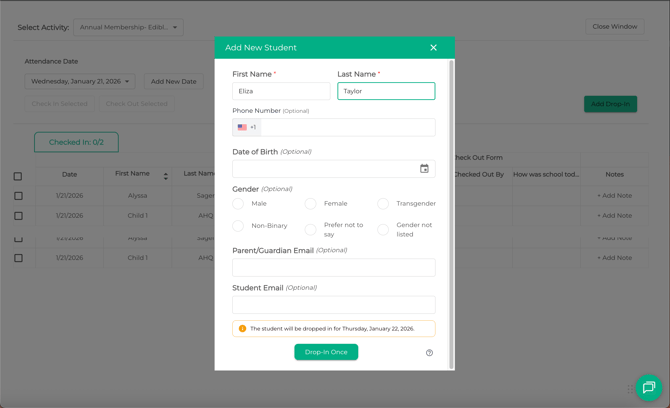
If adding a new student, complete the drop in form you created in step 1.
-
Click Drop-In Once to check the student in.
- The student will now appear on your attendance list for the day!
14. Check the Student Out
-
When the student leaves:
-
Locate them in the attendance list.
-
Check them out just like any other student.
-
Best Practices for Drop-In
-
Keep Drop-In Forms Short
-
Drop-In works best when forms are quick to complete. We recommend collecting only the information you need for that day, so staff can check students in without slowing down attendance.
-
- Use Drop-In for One-Time Attendance Only
- Drop-In is designed for unexpected or one-day attendance. If a student plans to return, ask the family to complete your normal registration process so their information stays accurate and complete.
Drop-In FAQs
-
Why don’t I see the “Add Drop-In” button?
- The Add Drop-In button will only appear if:
-
A Drop-In form has been created, and that form is attached to the activity you’re taking attendance for
-
- The Add Drop-In button will only appear if:
-
If you do not see the Drop-In option in your account, please reach out to support@afterschoolhq.com, or your Program Specialist, if you are already working with one.
2. Can Drop-In students be charged or billed?
-
Drop-In is for attendance tracking only. It does not replace registration or payment flows. If you need to collect payment, the student should complete your normal registration process.
💡 Need Help?
If you have any questions or experience any technical difficulties with customizing your Drop-In form, don't hesitate to get in touch with our support team at support@afterschoolhq.com.