![ASHQ Logo Vert Flat.png]](https://support.afterschoolhq.com/hs-fs/hubfs/ASHQ%20Logo%20Vert%20Flat.png?height=40&name=ASHQ%20Logo%20Vert%20Flat.png)
The search feature makes it easy to find the information you need without navigating through multiple sections of your account. Enter a name or keyword to quickly find matching records and access them directly from your search results.
1. Access Search
Locate the Search bar at the top of your AfterSchool HQ provider page.
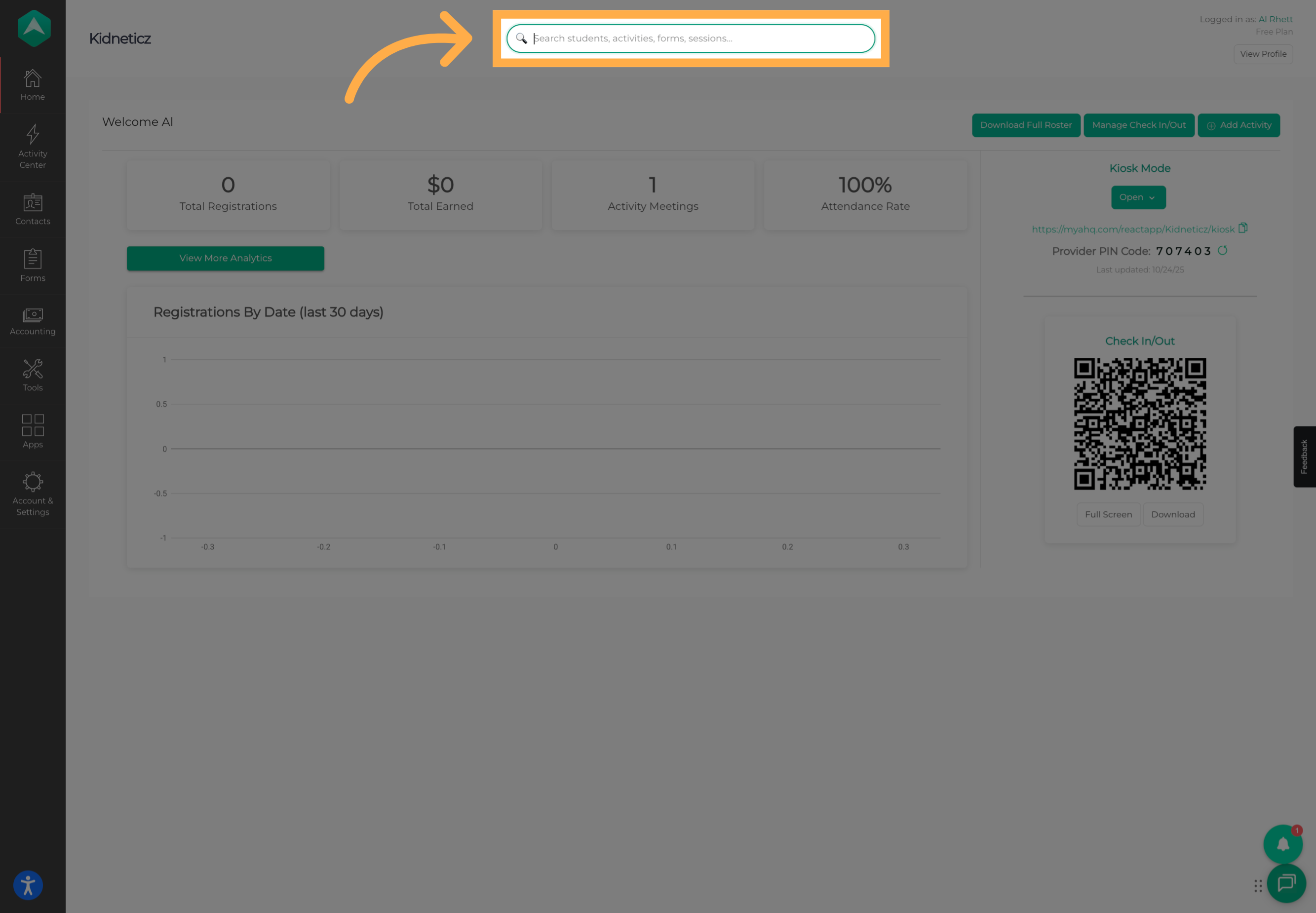
The search bar is available throughout supported areas of AfterSchool HQ, allowing you to quickly find information while working in different sections of your account.
💡 Tip: You don't need to navigate to Activity Center, Contacts, or Forms before searching. Search can return matching records from multiple areas of AfterSchool HQ.
2. Enter a Search
Enter at least two characters from the name or keyword you're looking for.
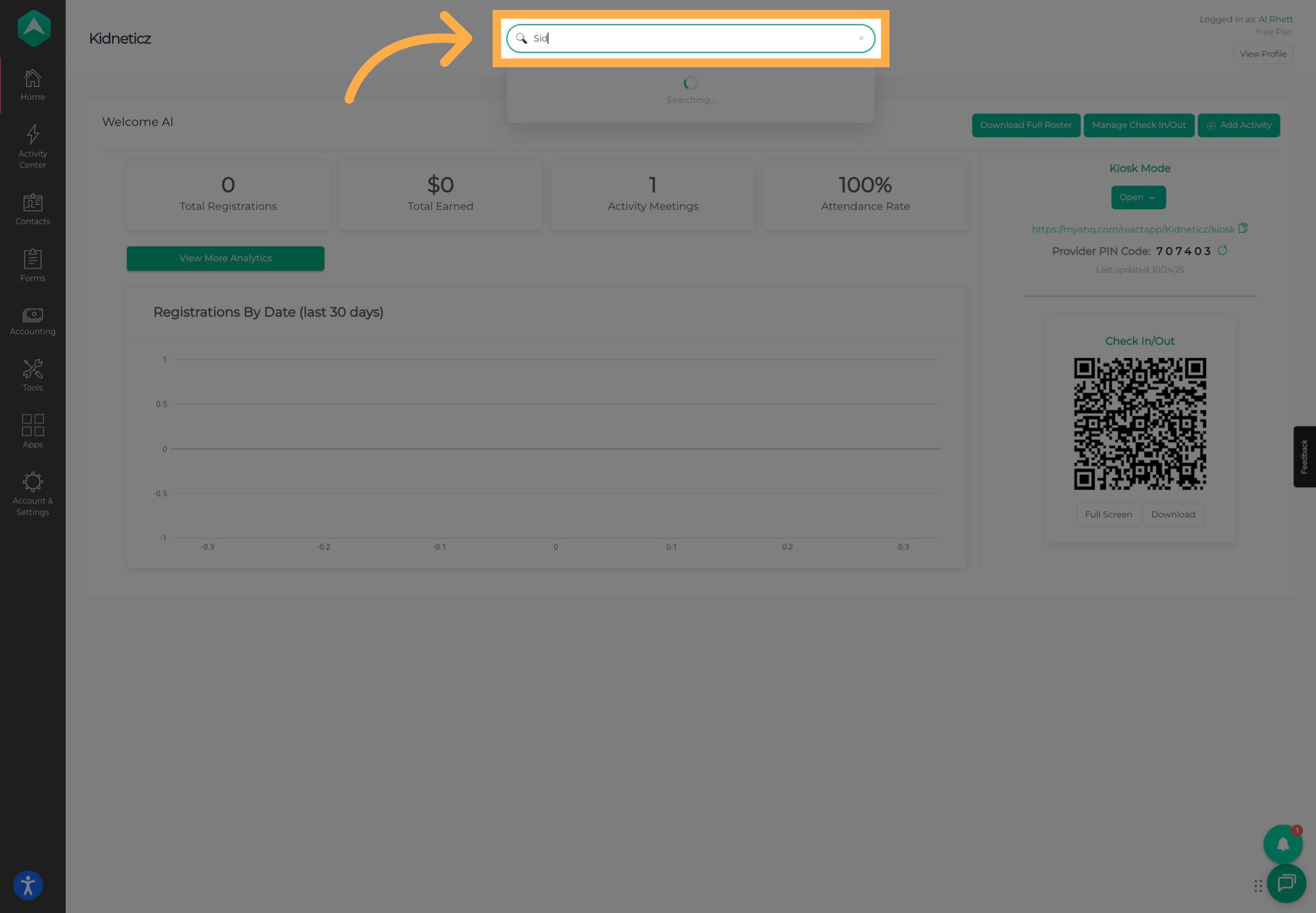
As you type, AfterSchool HQ will automatically search for matching:
- Students
- Volunteers
- Activities
- Field Trips
- Permission Slips
- Volunteer Opportunities
- Sessions
- Forms
You can enter a full name or just part of a name to begin searching.
💡 Tip: You don't need to know the complete name of a record. Entering a few characters can help you quickly locate what you're looking for.
3. Review Search Results
Matching results will appear in a dropdown and are grouped by type, making it easy to identify what each result represents.
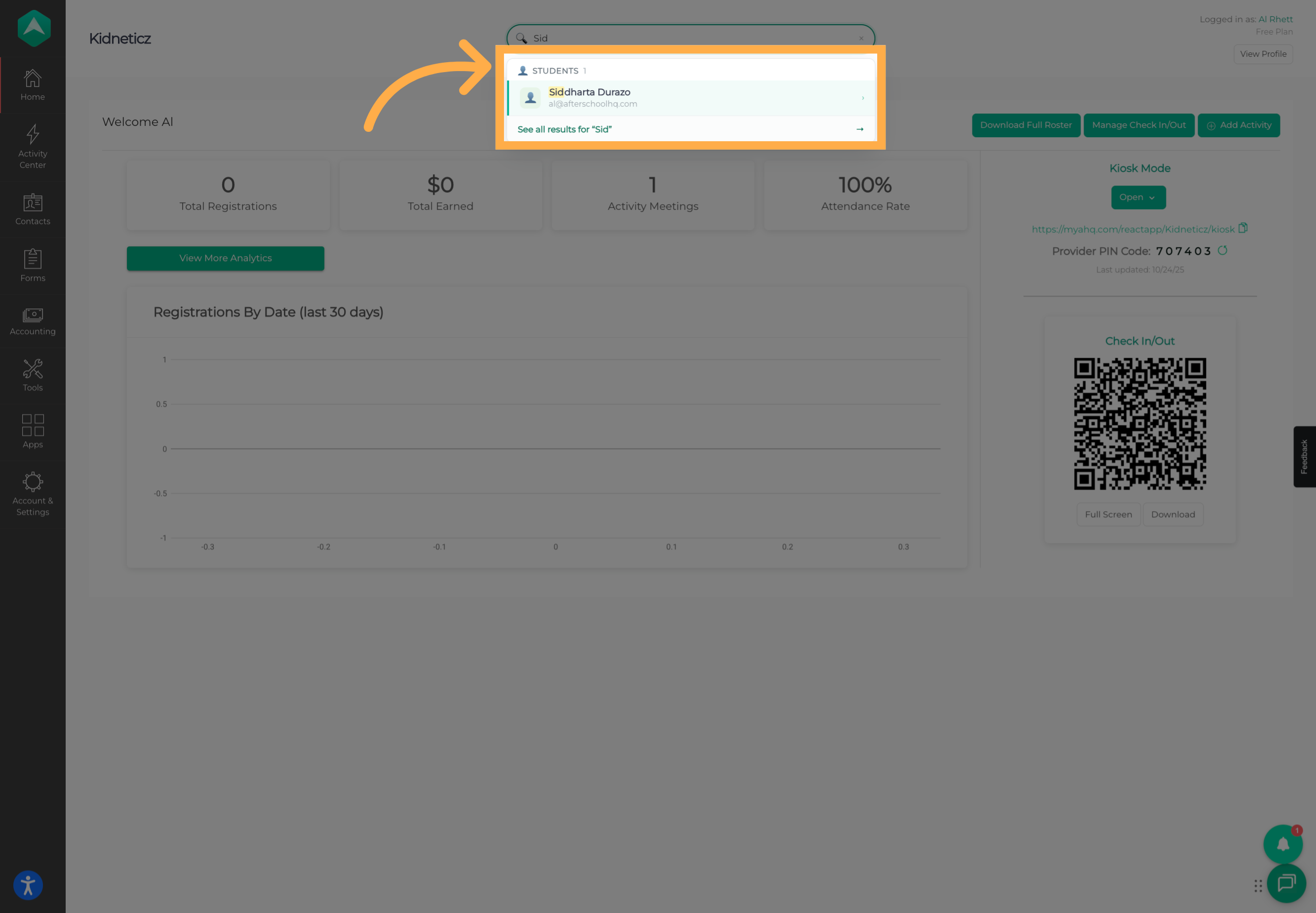
Only categories containing matching results will appear. For example, if your search matches students and activities but does not match any forms, the Forms category will not be displayed.
Depending on the result you select, you'll be taken to the appropriate area, such as a student's profile, an activity's summary, or the Form Editor.
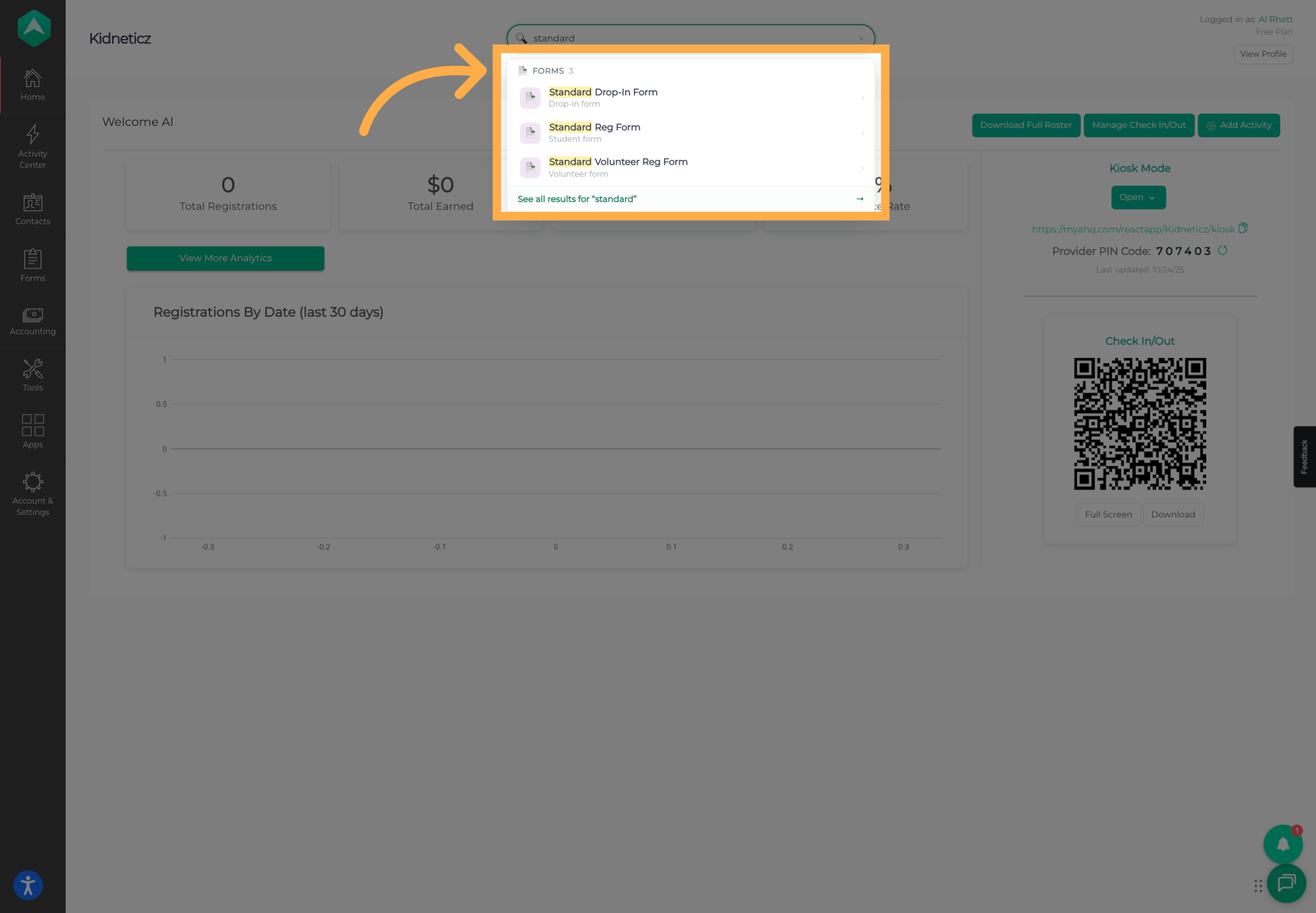
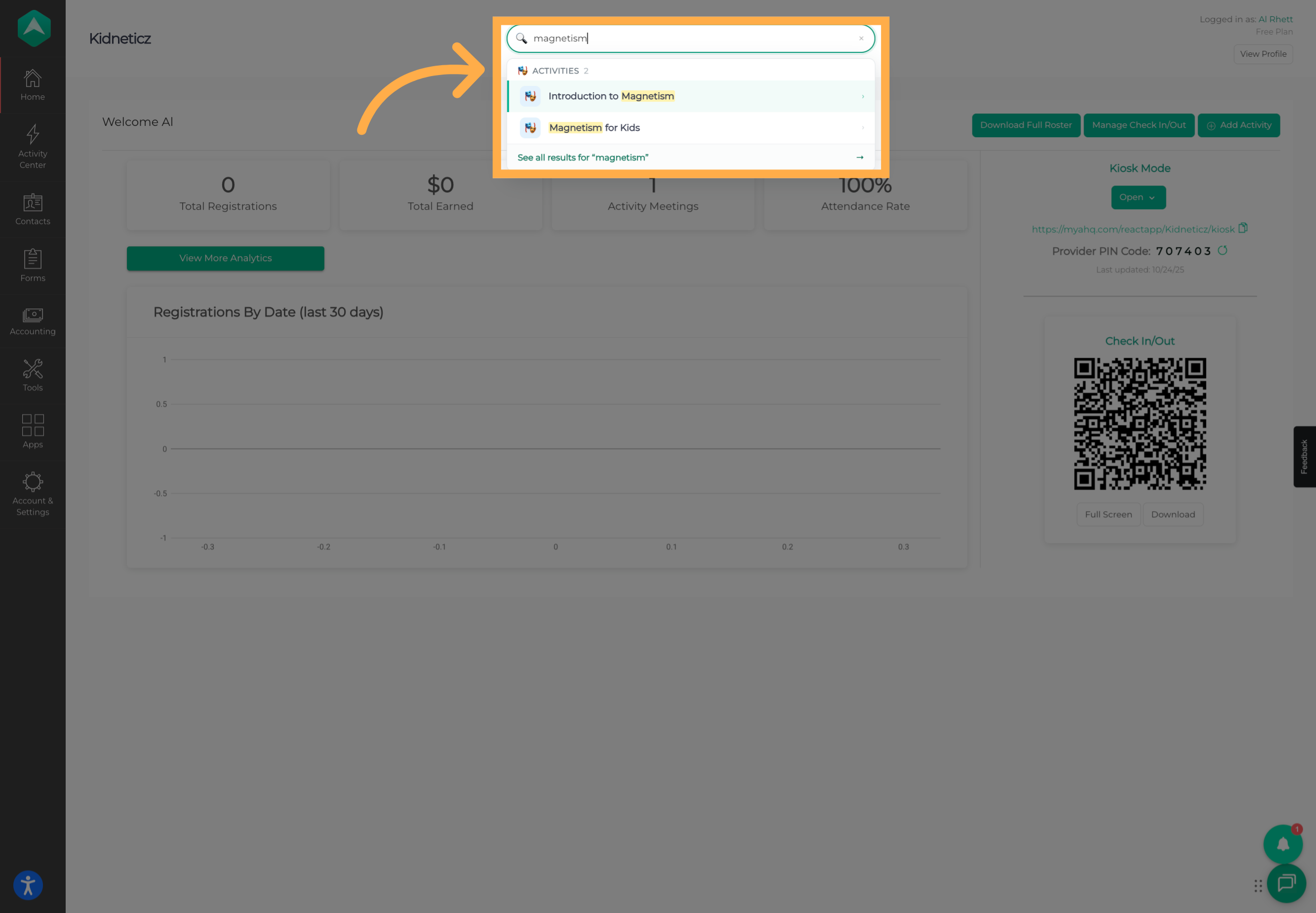
💡 Tip: Pay attention to the category above each result when similar names appear in multiple areas of your account.
4. View All Search Results
The initial search dropdown displays the top matching results from each applicable category. If you need to see additional matches, select “See All Results”.
This opens a complete results page where you can review all matches from your search, organized by type.
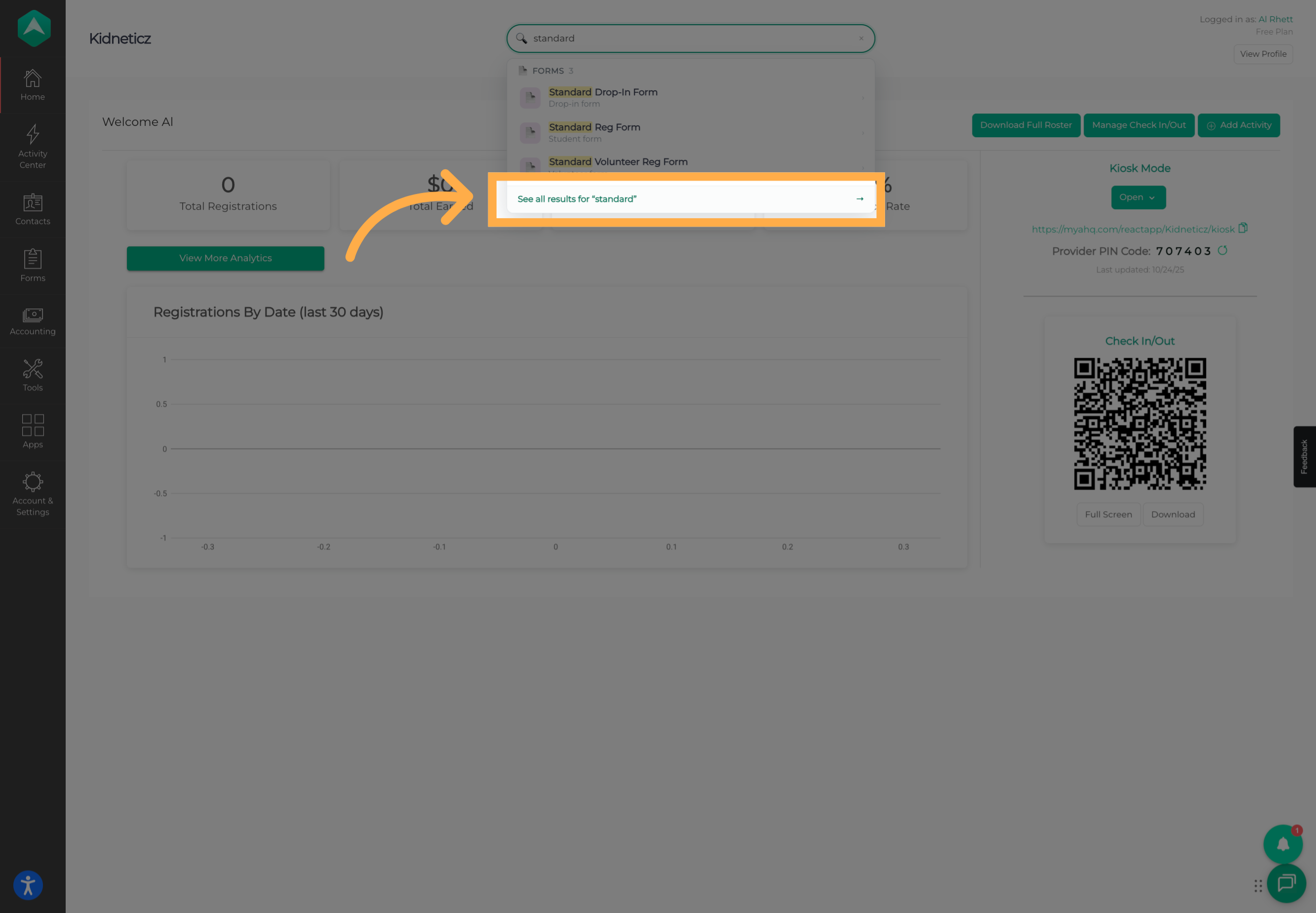
💡 Tip: “See All Results” can be especially helpful when searching for a common or short name that returns several matches.
Search results respect your AfterSchool HQ permissions. You will only see records that your account is authorized to access.
7. Clear Search Filters
When you're finished, clear your search or filters to return to the default view.
You can then enter another name or keyword to begin a new search.
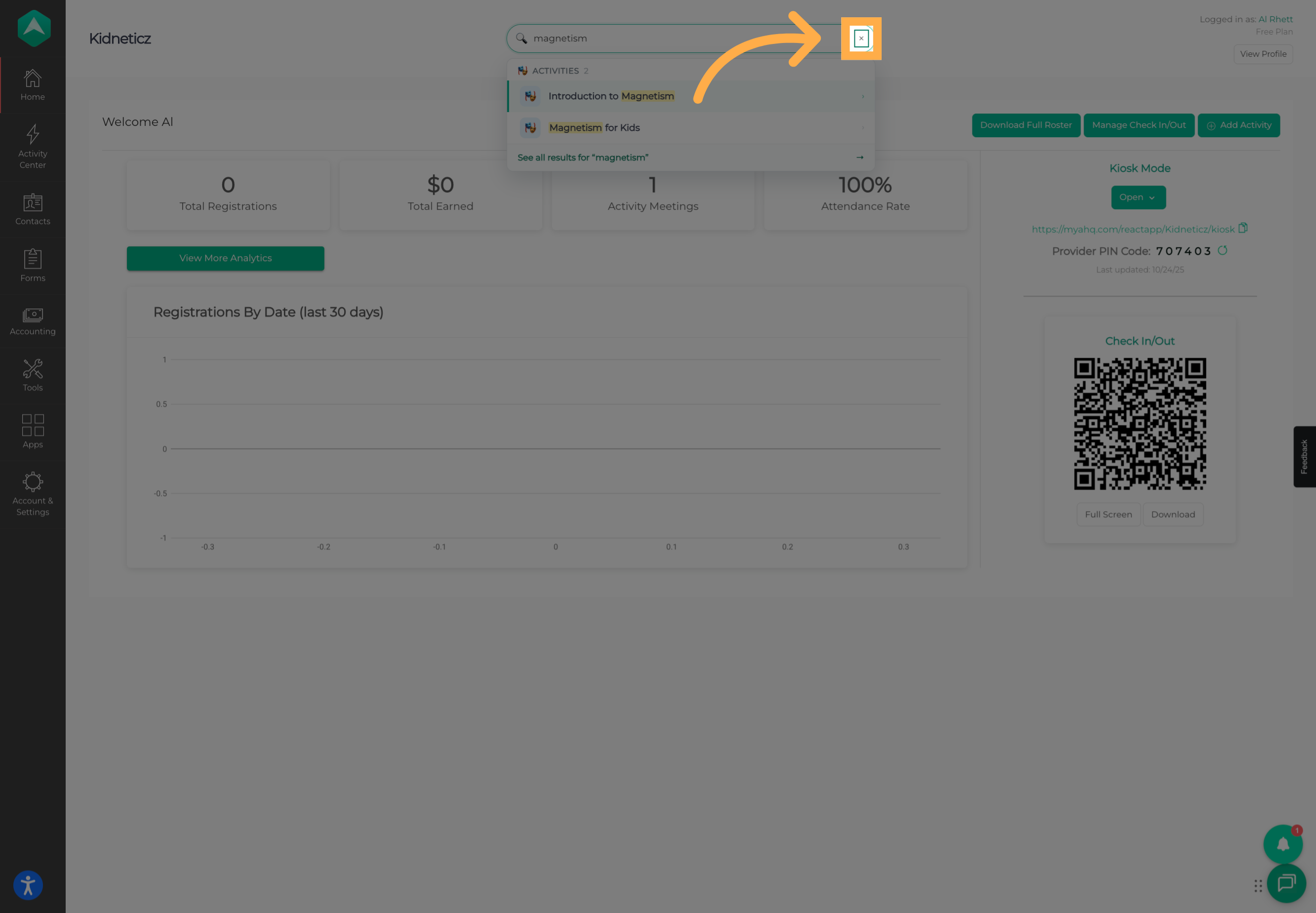
💡 Tip: If you're having trouble finding something after applying a filter, clear the filter and review the complete search results again.
🔎 Search Access and Permissions
Search automatically respects the permissions associated with your AfterSchool HQ account.
Admins and Owners can search across the information available throughout their organization.
Staff members with more limited access will only see records they're authorized to view. For example, an Instructor will only see students and activities they have access to.
⚠️ Important: Forms do not appear in search results for Instructors. Access to search results does not provide additional permissions to records a staff member would not otherwise be able to access.
⌨️ Using Search with Your Keyboard
Search also supports keyboard navigation for greater accessibility.
When search results are open, use the Up and Down Arrow keys to move through the results. Press Enter to open the highlighted result, or press Esc to close the search results.
Search is designed to work across desktop, tablet, and mobile devices.
Frequently Asked Questions
Q: What can I search for?
A: You can search across eight types of records in AfterSchool HQ: Students, Volunteers, Activities, Field Trips, Permission Slips, Volunteer Opportunities, Sessions, and Forms.
Q: How many characters do I need to enter before results appear?
A: Enter at least two characters to begin searching.
Q: Do I need to enter the complete name?
A: No. You can search using part of a name or keyword. AfterSchool HQ will display matching records based on what you enter.
Q: Why don't I see every category in my search results?
A: Categories without matching records are automatically hidden. For example, if your search doesn't match any Forms, the Forms category will not appear.
Your permissions can also determine which categories and records are available to you.
Q: How do I see more search results?
A: Select “See All Results” to open the full search results page. This page displays all available matches for your search, grouped by type.
Q: Are search results different for different staff members?
A: Yes. Search respects each staff member's existing permissions. Users only see records they are authorized to access.
Q: Can Instructors search for Forms?
A: No. Forms are not included in search results for users with Instructor-level access.
Q: Can an Instructor search for every student or activity?
A: No. Instructors will only see students, activities, and other supported records that they have permission to access.
Q: Can Admins and Owners search across the entire organization?
A: Admins and Owners can search across the records available to them throughout the organization, including all supported search categories.
Q: Can I search for names with accents or non-English characters?
A: Yes. Search supports names containing accents and non-English characters.
Q: What happens if my search doesn't match anything?
A: If no matching records are found, AfterSchool HQ will display a friendly message letting you know that there are no matches. Invalid or unusual search terms should not cause an error.
Q: Are search results current?
A: Yes. Search retrieves current information rather than relying on stale browser-cached results. Updates to records should be reflected in search results.
Q: Can I use Search on a phone or tablet?
A: Yes. Search is designed to work across desktop, tablet, and mobile devices.
Q: Can I navigate search results without a mouse?
A: Yes. With the results open, use the Up and Down Arrow keys to navigate, Enter to open the highlighted result, and Esc to close the results.
💡If you experience any issues or have further questions with “How to Use the Global Search in AfterSchool HQ”, don't hesitate to get in touch with our support team at support@afterschoolhq.com.