![ASHQ Logo Vert Flat.png]](https://support.afterschoolhq.com/hs-fs/hubfs/ASHQ%20Logo%20Vert%20Flat.png?height=40&name=ASHQ%20Logo%20Vert%20Flat.png)
The Registration Log gives you visibility into both completed and pending registrations across your organization.
Follow the instructions below to learn how to review registration metrics, apply filters, identify incomplete registrations, and send reminder notifications to participants who still need to complete the registration process.
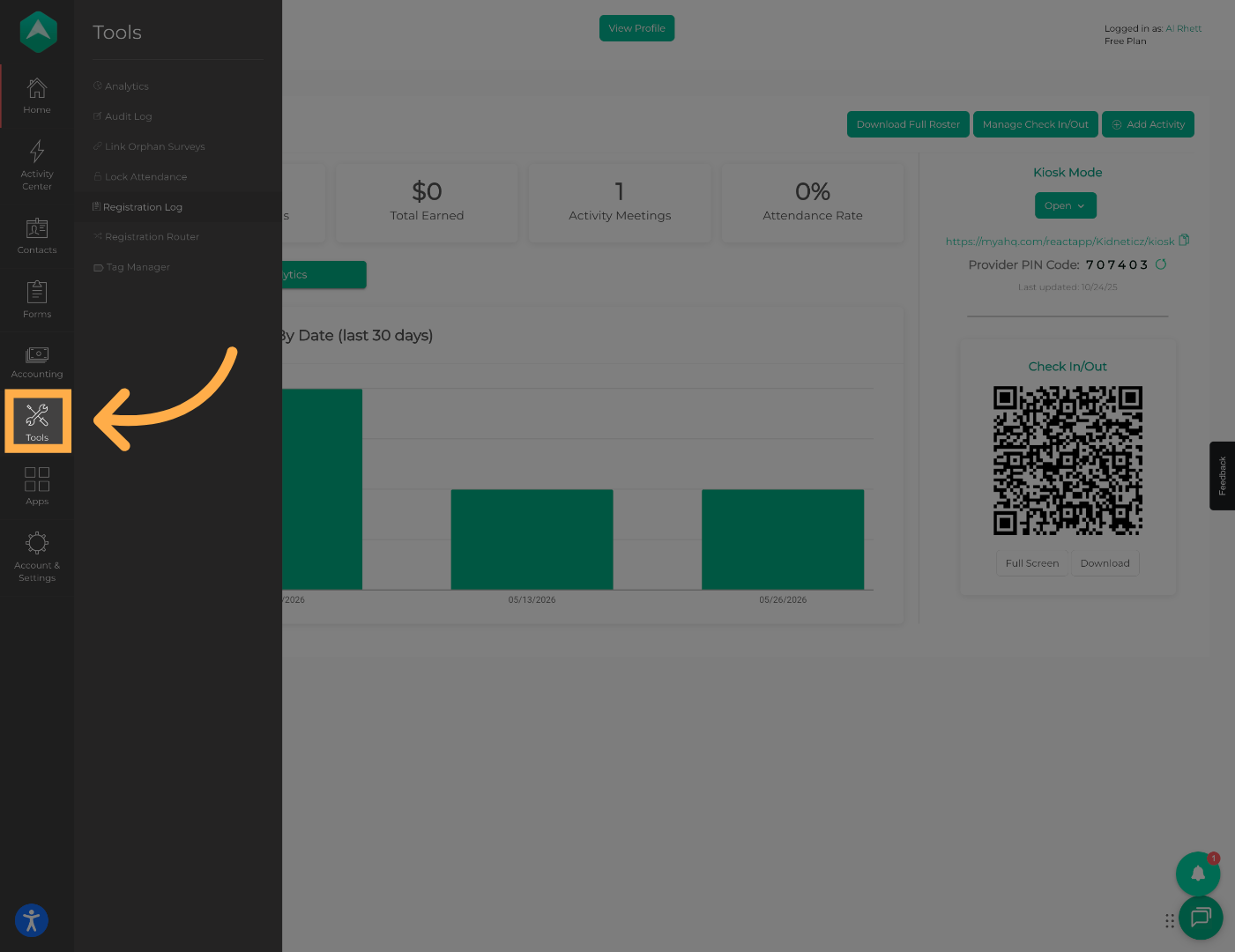
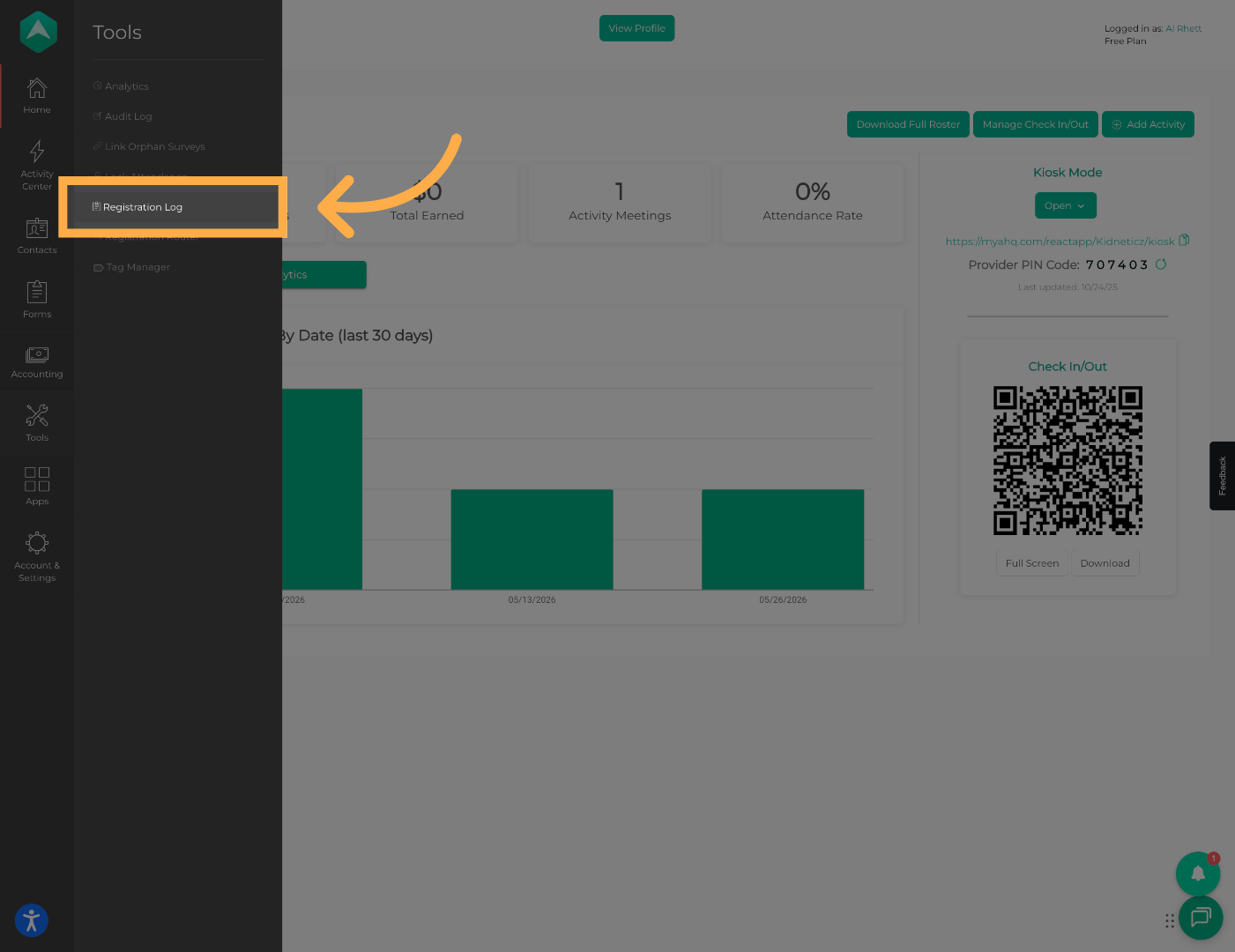
1. Access Registration Log
Hover over the Tools menu to view the available options.
2. Review Registration Overview
At the top of the page, you can review the total number of registrations submitted.
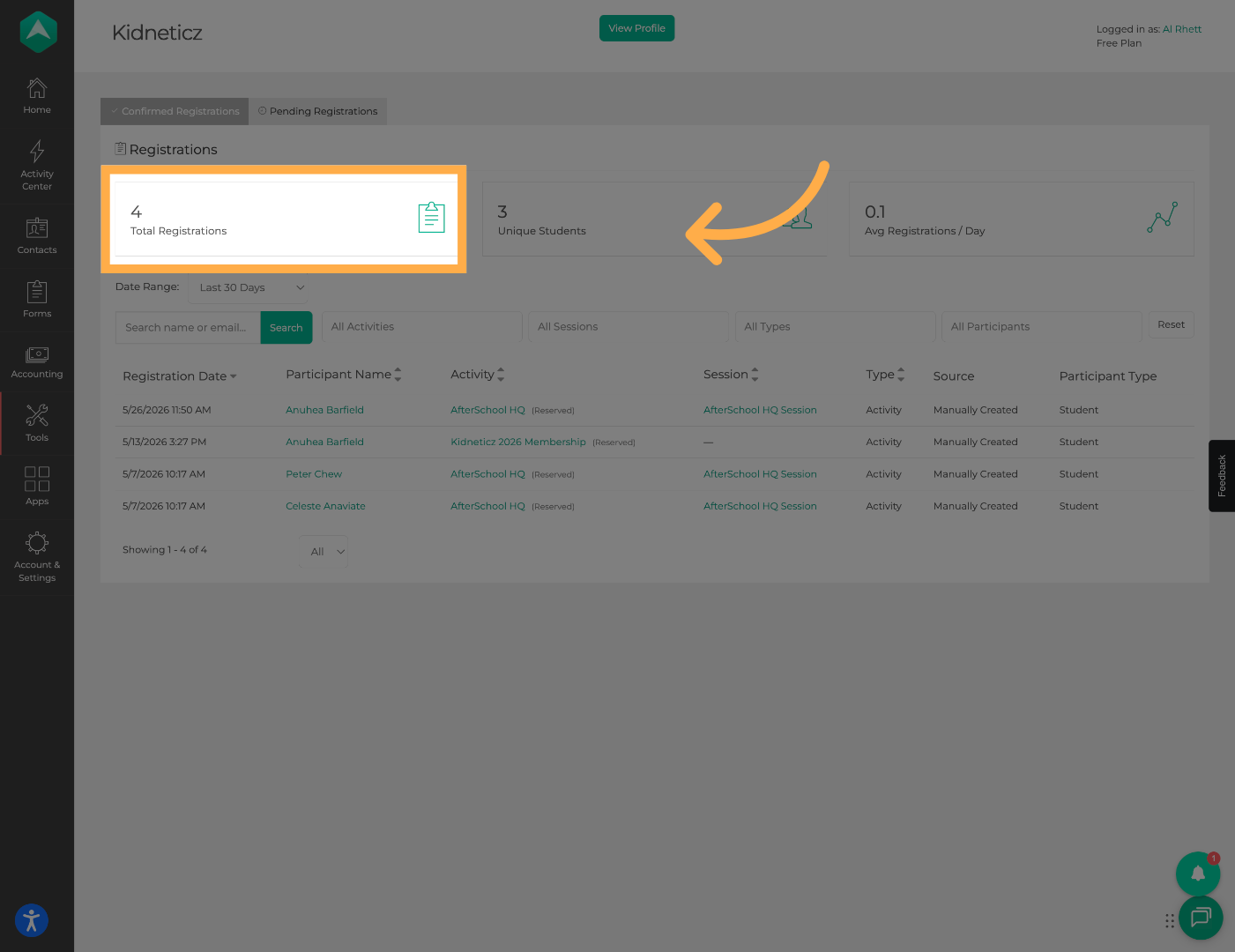
💡 Tip: This count includes all registrations submitted during the selected timeframe, regardless of status.
3. Review Unique Student Count
You can also view the total number of unique students represented across all registrations.
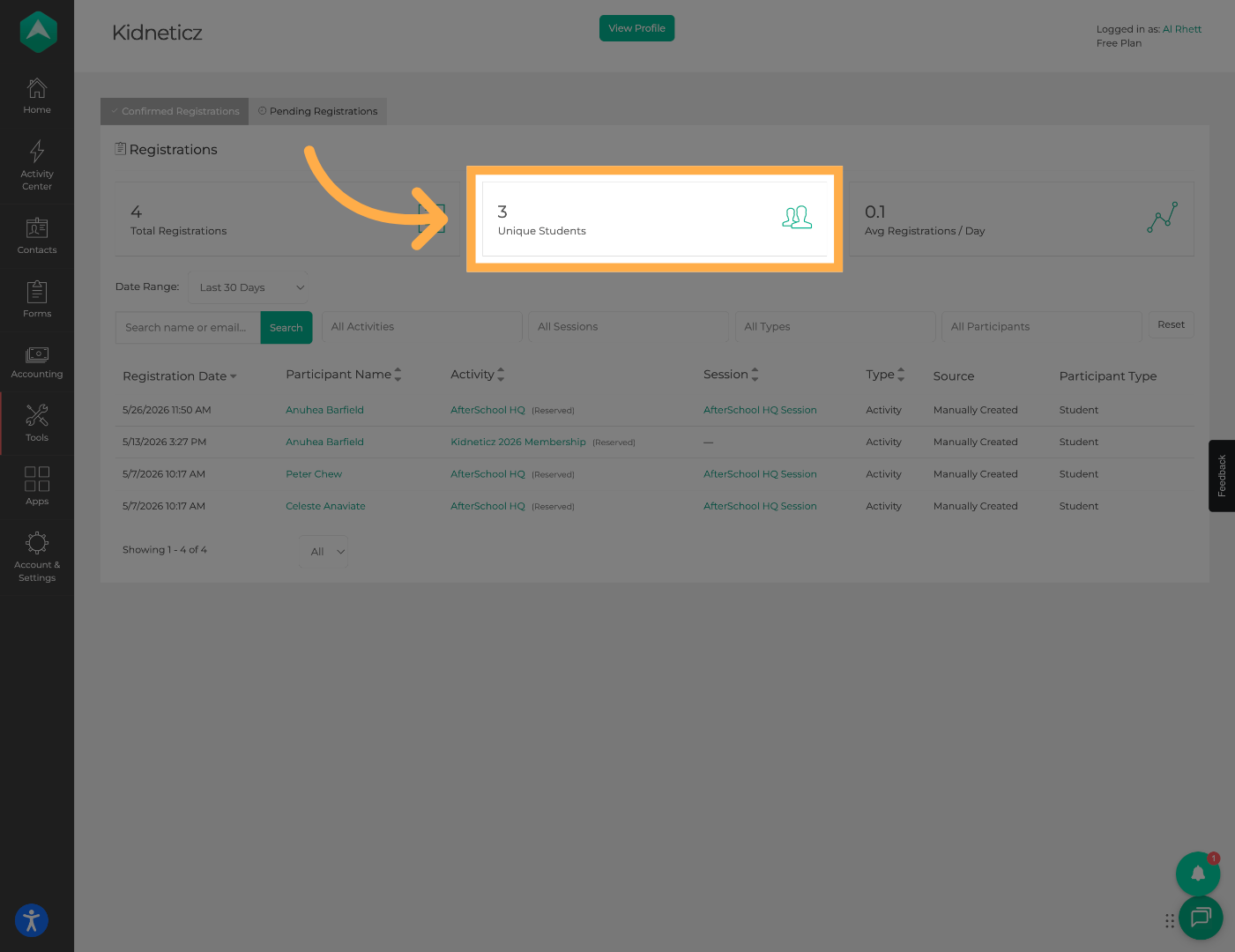
💡 Tip: A student may have multiple registrations, so the Unique Student Count may differ from the total registration count.
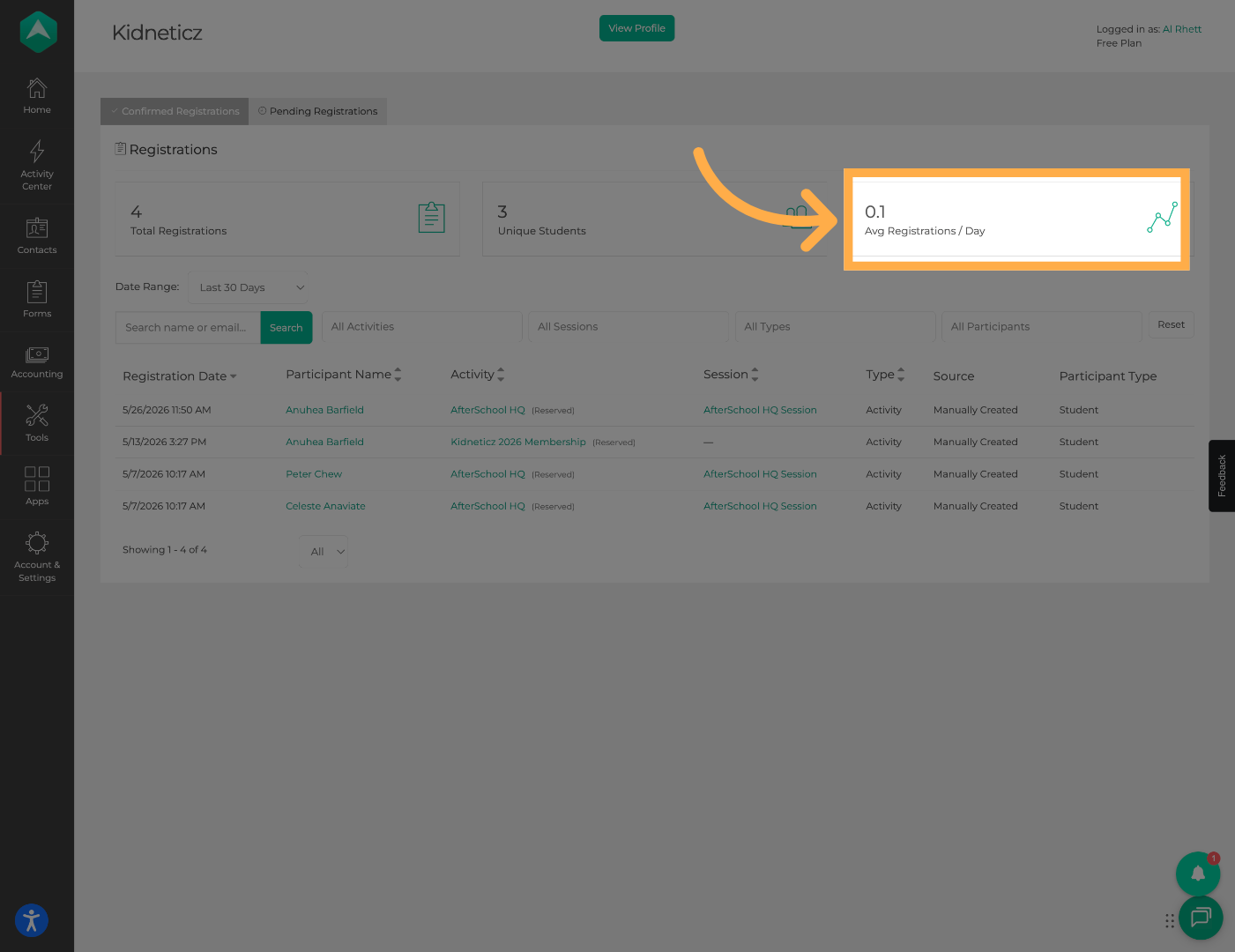
4. Review Registration Metrics
Additional metrics are available, including the average number of registrations submitted per day.
5. Filter by Date Range
Use the date range filter to narrow registration data to a specific timeframe.
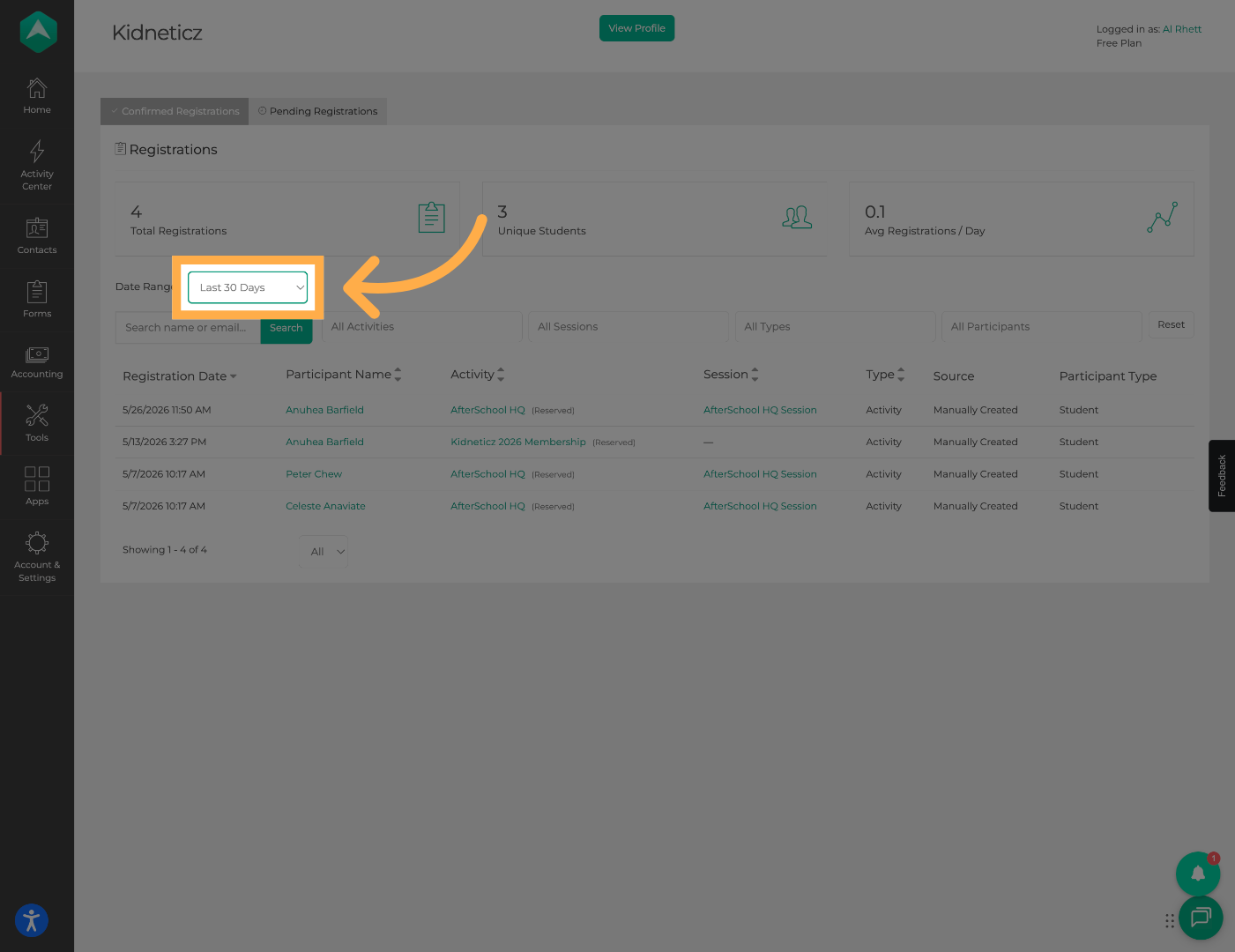
💡 Tip: Date filters are helpful when reviewing registration activity for specific enrollment periods or reporting requirements.
6. Search Registrations
Search for registrations using a participant's name or email address.
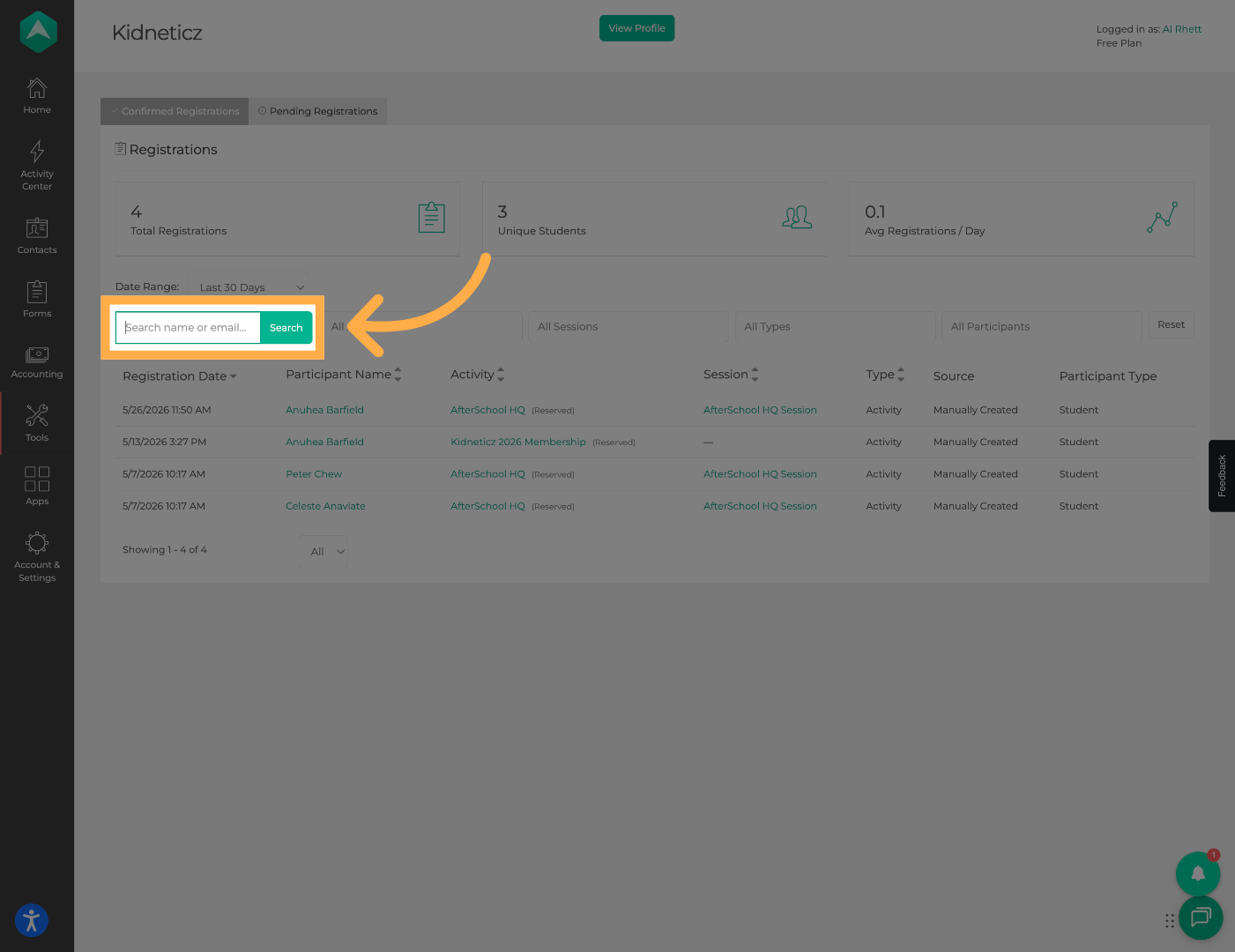
💡 Tip: Search results can be narrowed using either a participant's name or email address.
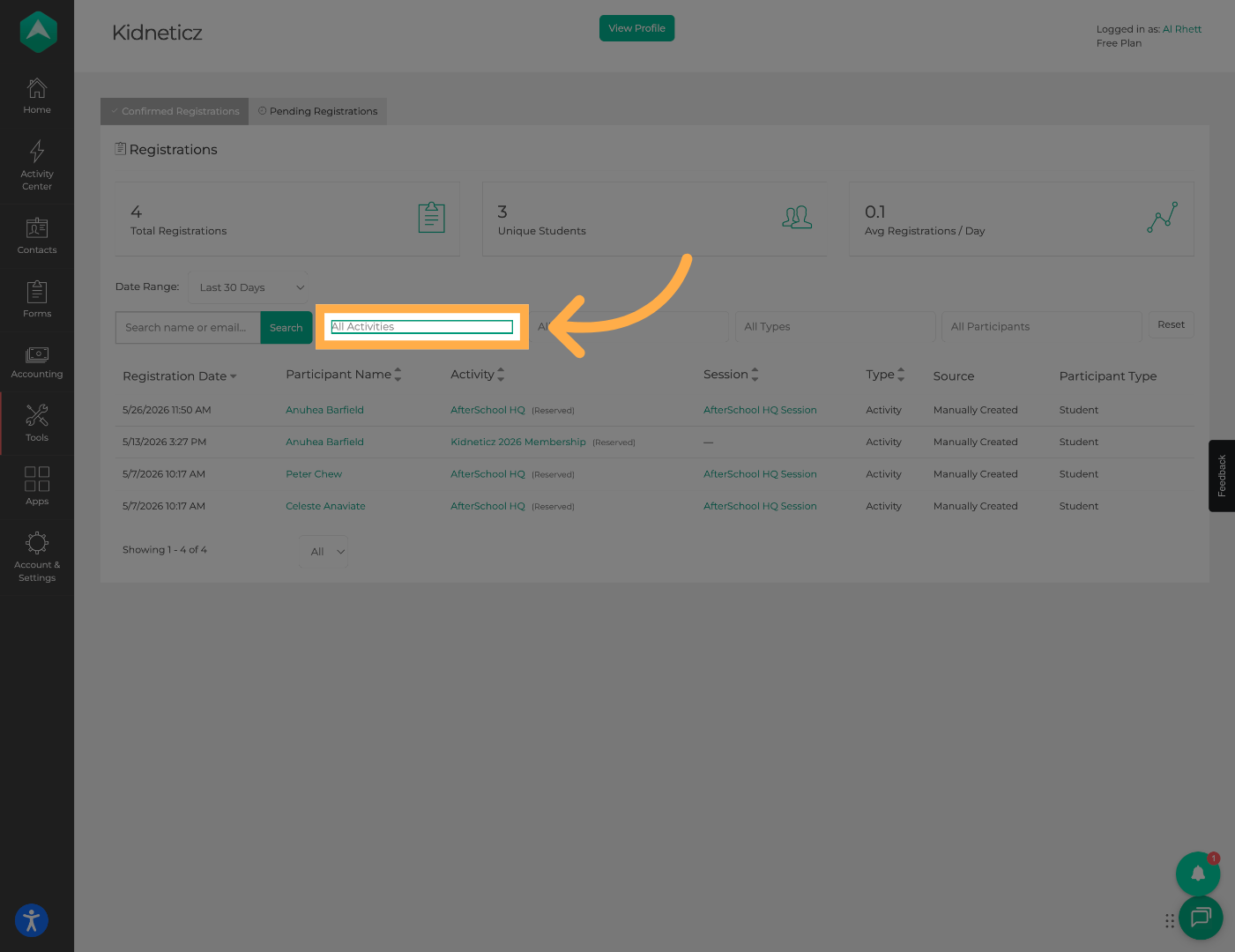
7. Filter by Activity Type
Narrow your results by selecting a specific activity type.
8. Filter by Session
Select a session to focus on registrations associated with a particular program period.
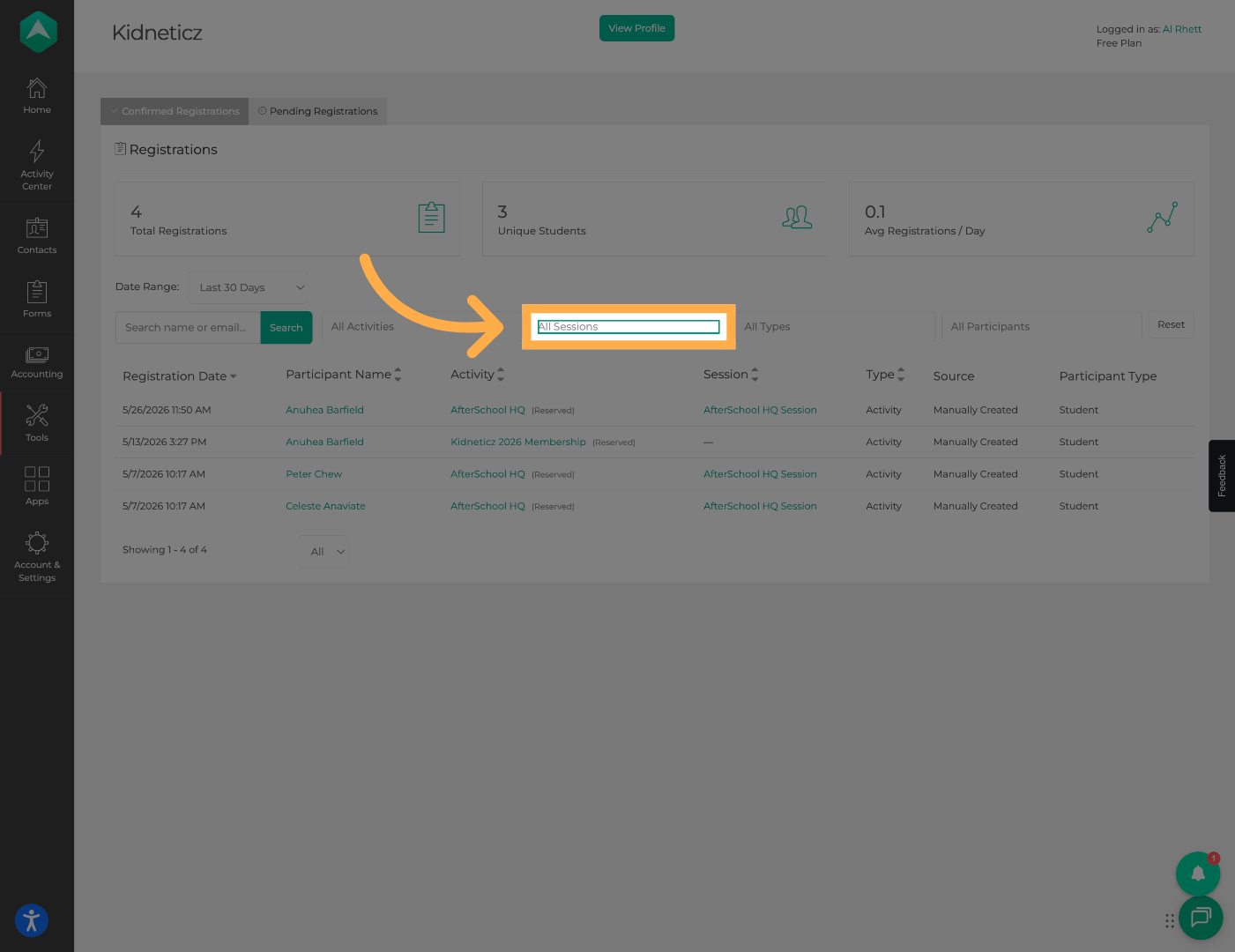
9. Access Additional Filters
Click “All Types” to filter by activity type.
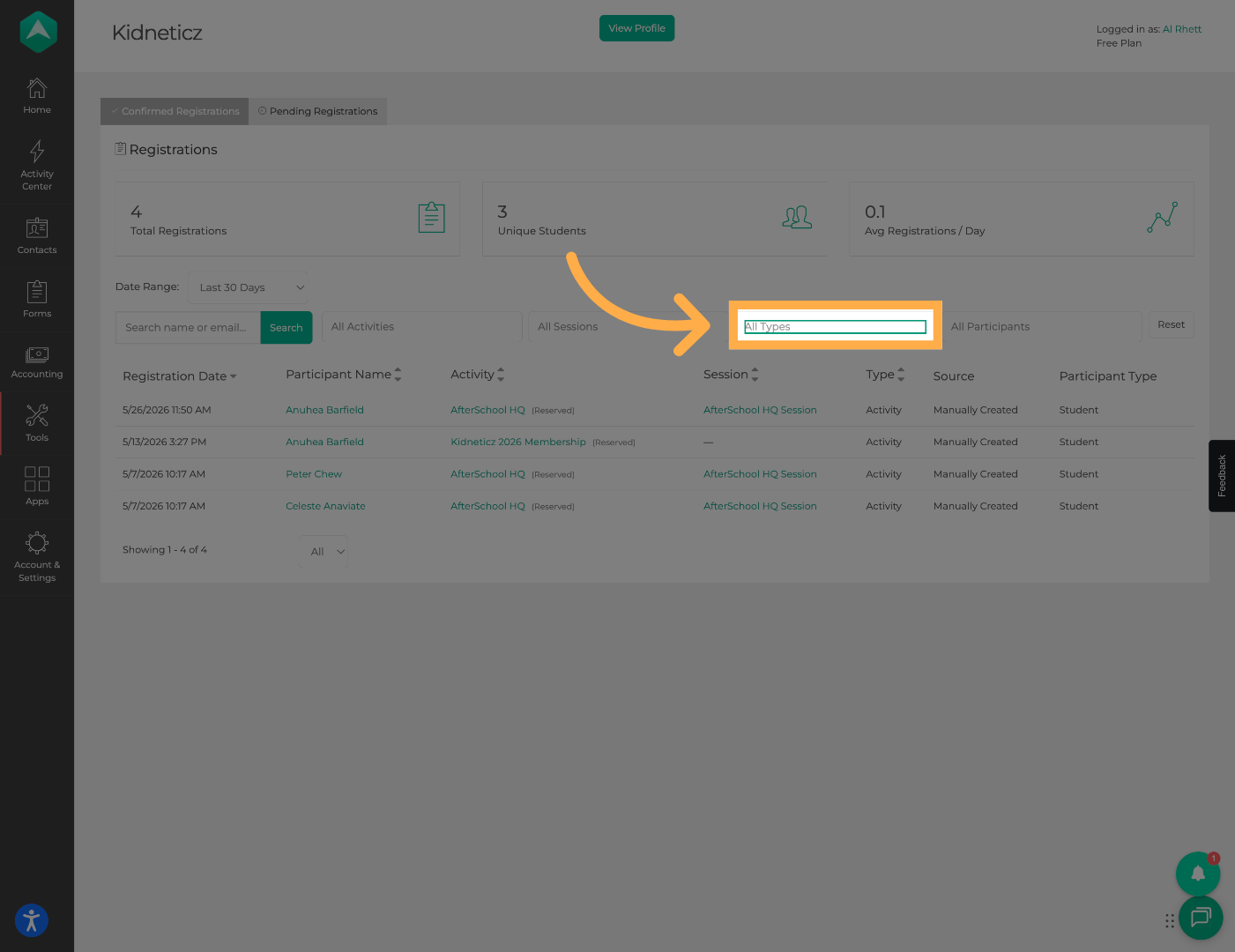
💡 Tip: Combining multiple filters can help you quickly locate specific registration records.
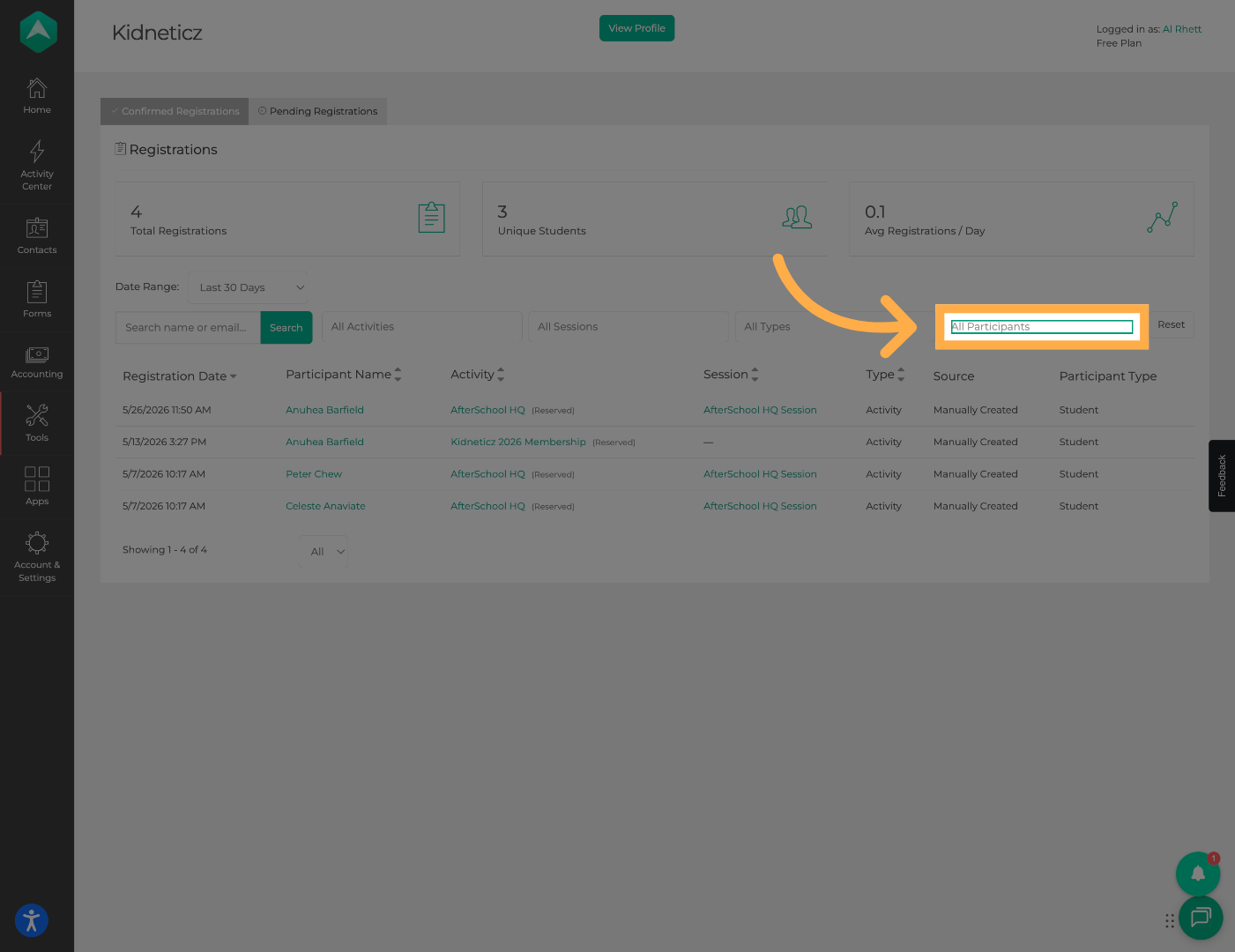
10. Filter by Participant Type
Use participant type filters to focus on specific participant groups.
11. Reset All Filters (Optional)
Click “Reset” to clear all filters and return to the default registration view.
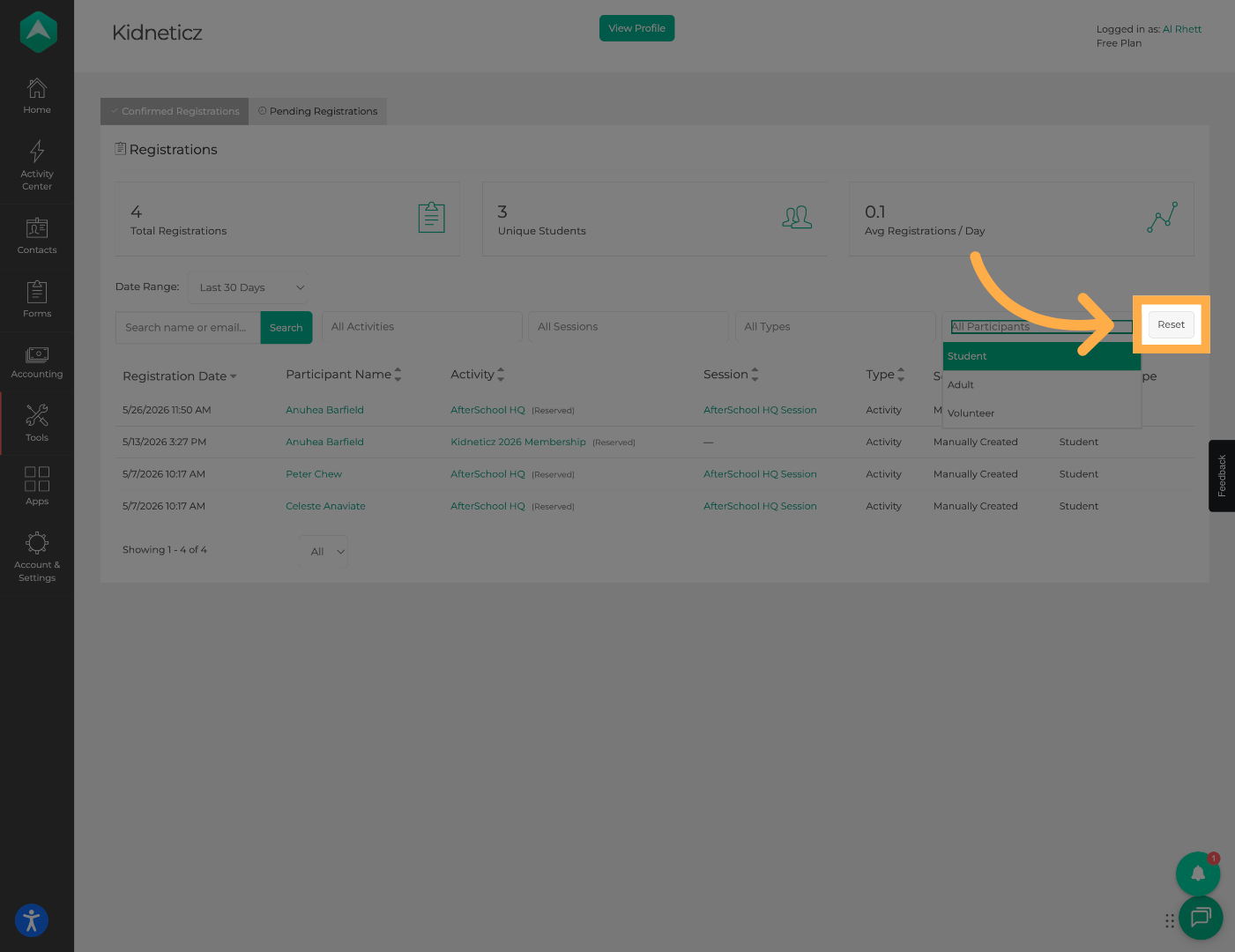
💡 Tip: If expected registrations are not appearing, try resetting all filters before starting a new search.
12. Access Registration Filters
Use additional filters to further refine your registration results.
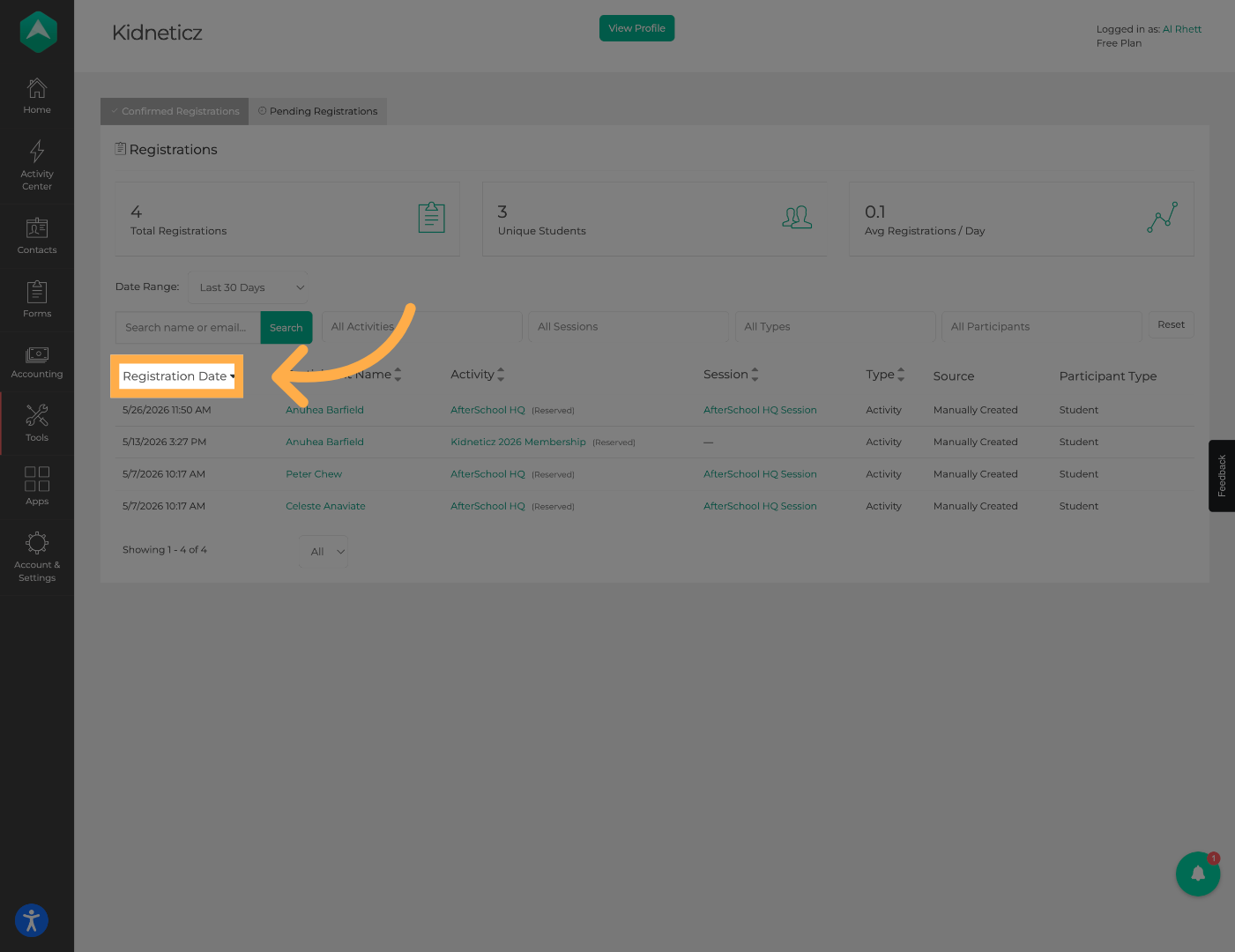
13. Sort by Participant Name
Organize registrations alphabetically by participant name.
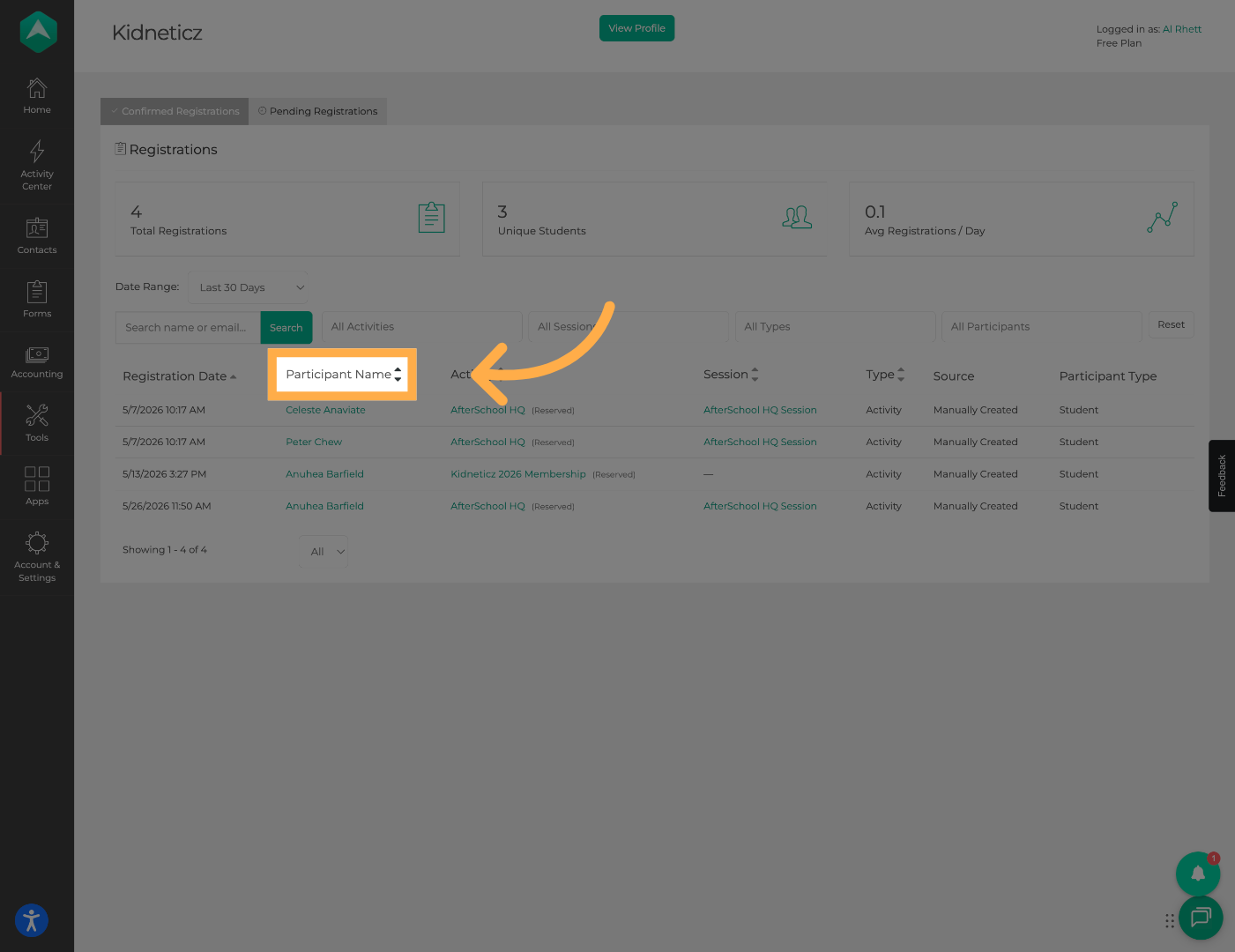
14. Sort by Activity Name
Sort registrations based on the activity associated with each registration.
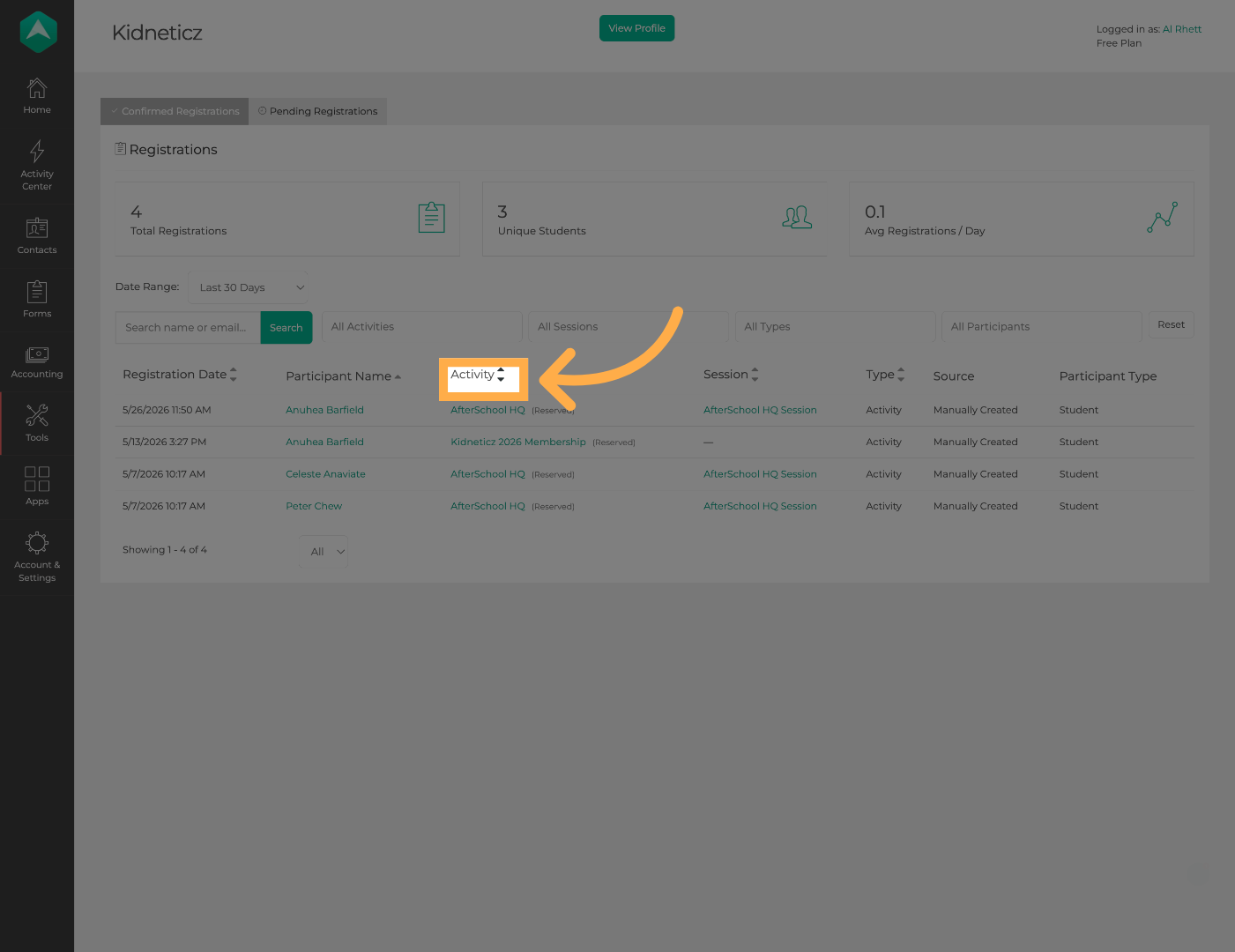
15. Sort by Session
Organize registrations according to their assigned session.
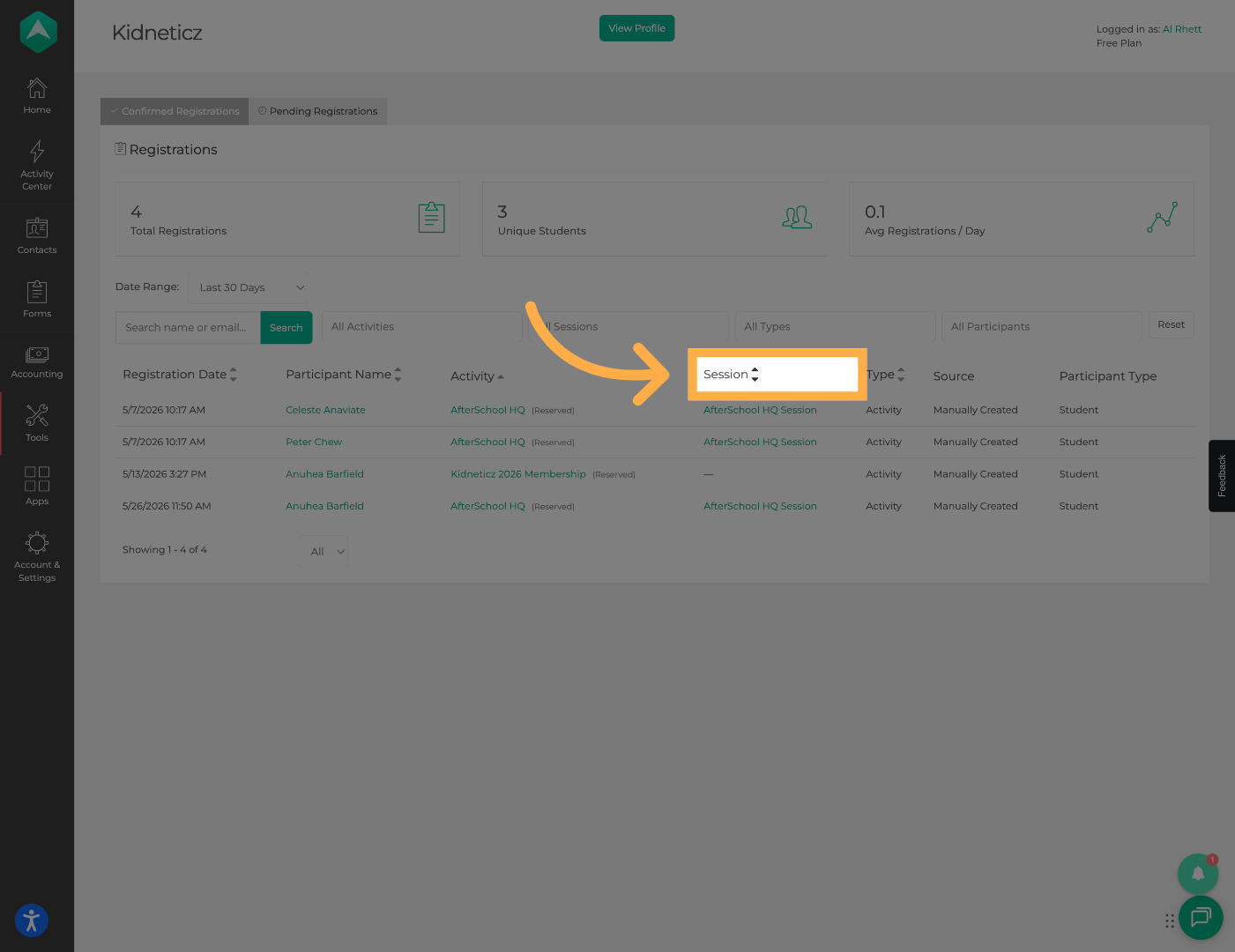
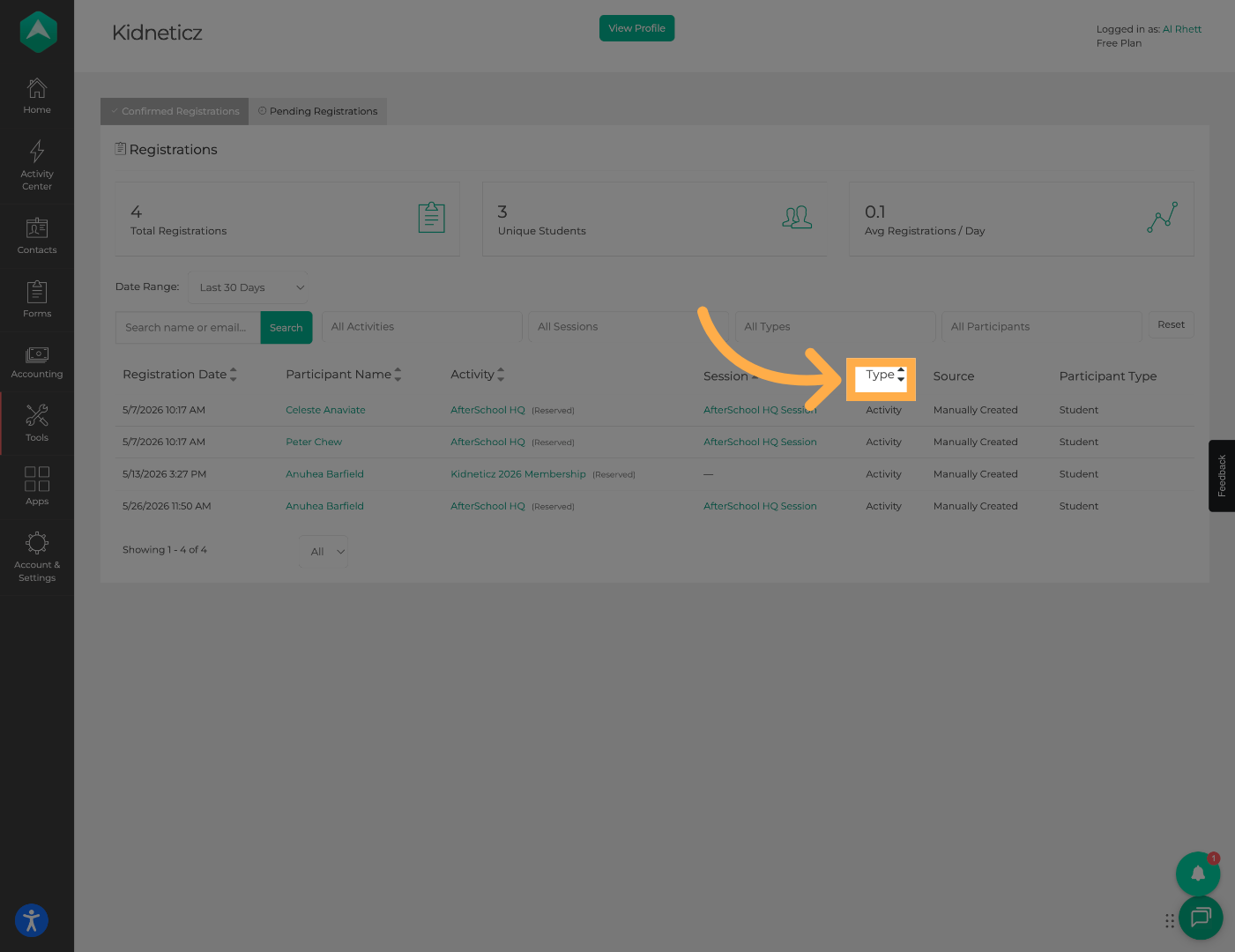
16. Sort by Activity Type
Group registrations by activity category.
17. Filter by Registration Source
View registrations based on how participants entered the registration process.
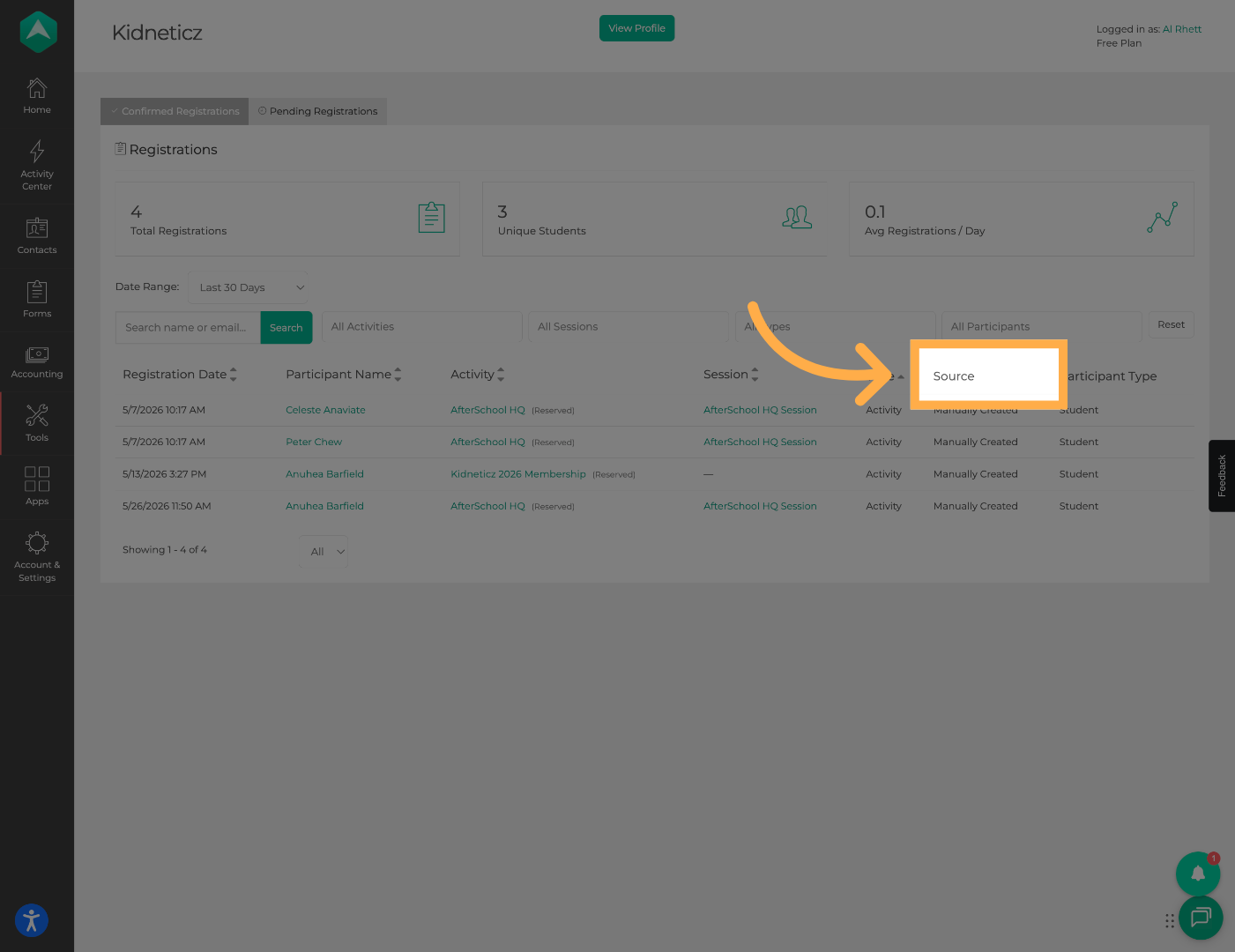
💡 Tip: Registration source data can help you understand where participants are finding and accessing your programs.
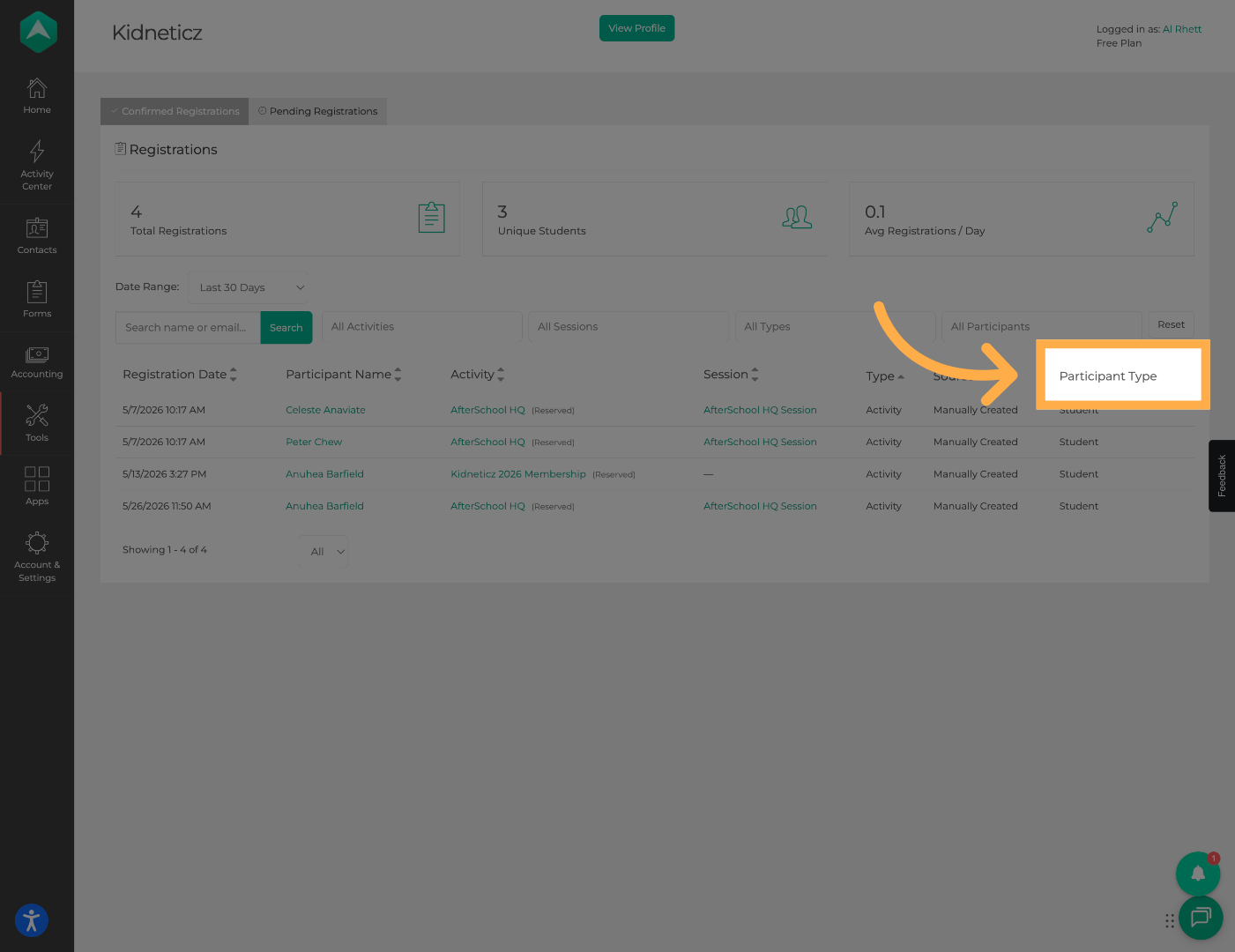
18. Filter by Participant Type
Further refine your results using participant type filters.
19. View Pending Registrations
Click “Pending Registrations” to review registrations that have not yet been completed.
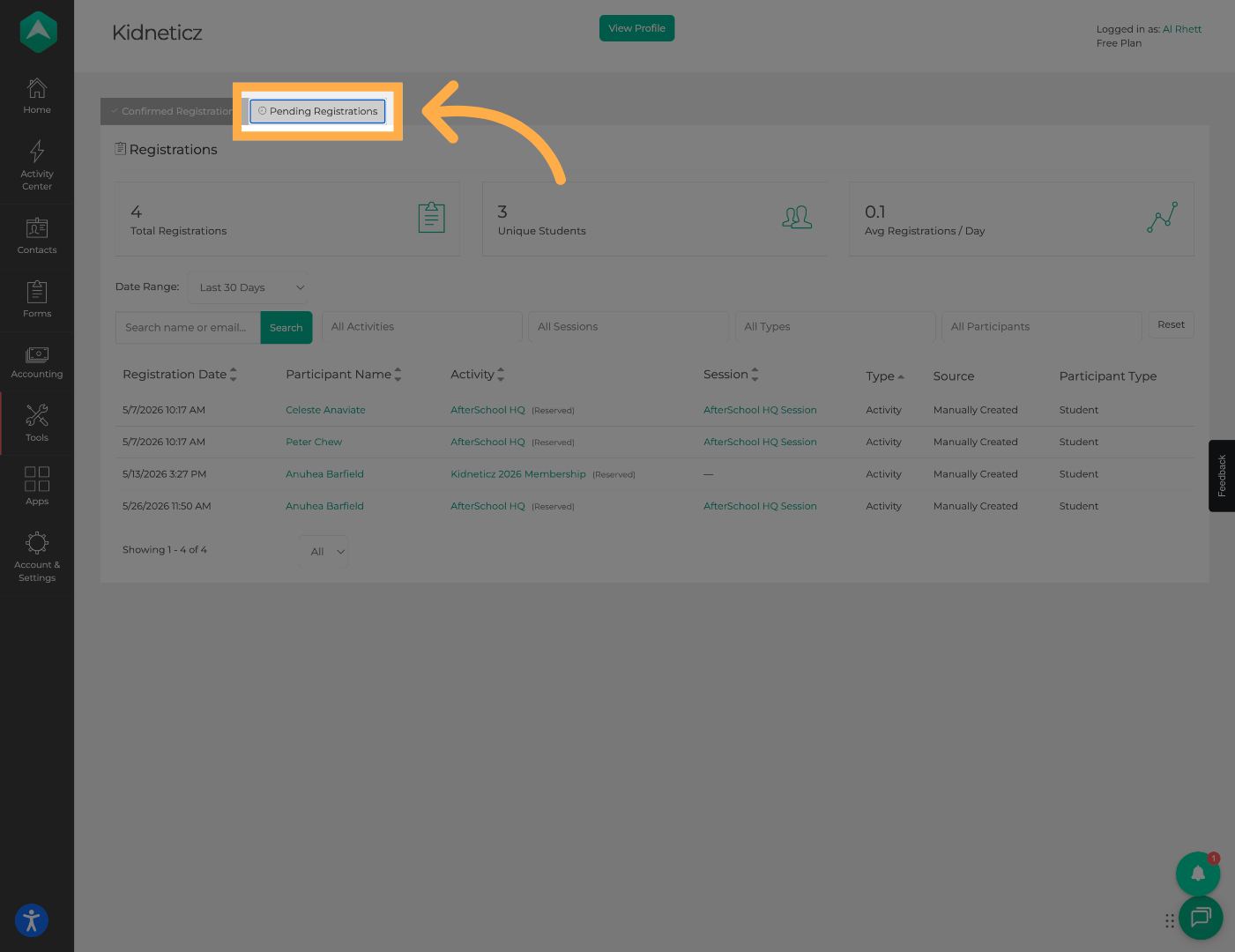
💡Tip: Reviewing pending registrations regularly can help increase enrollment completion rates.
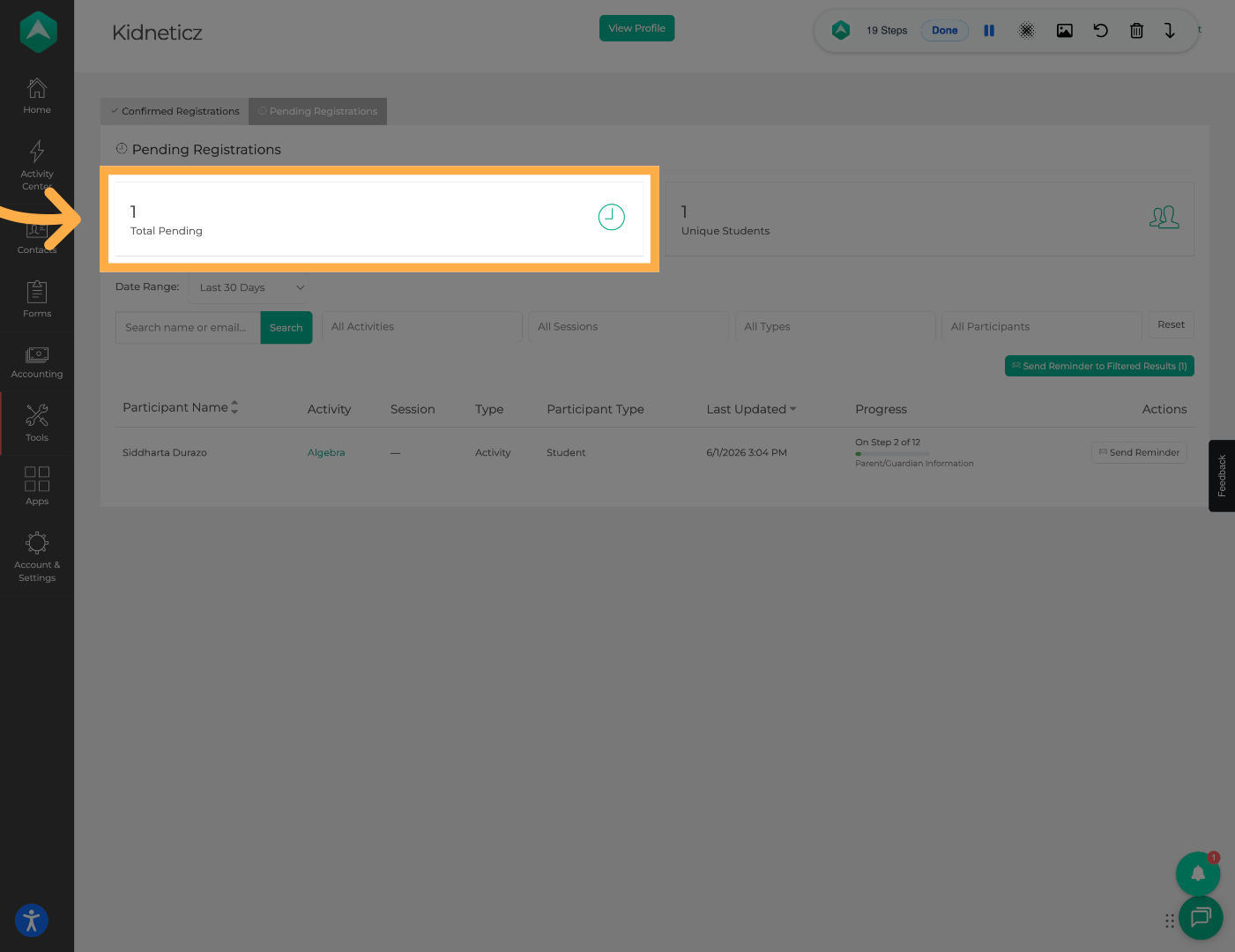
20. Review Pending Registration Totals
At the top of the page, you can review the total number of pending registrations.
21. Review Pending Student Count
You can also view the total number of unique students represented within pending registrations.
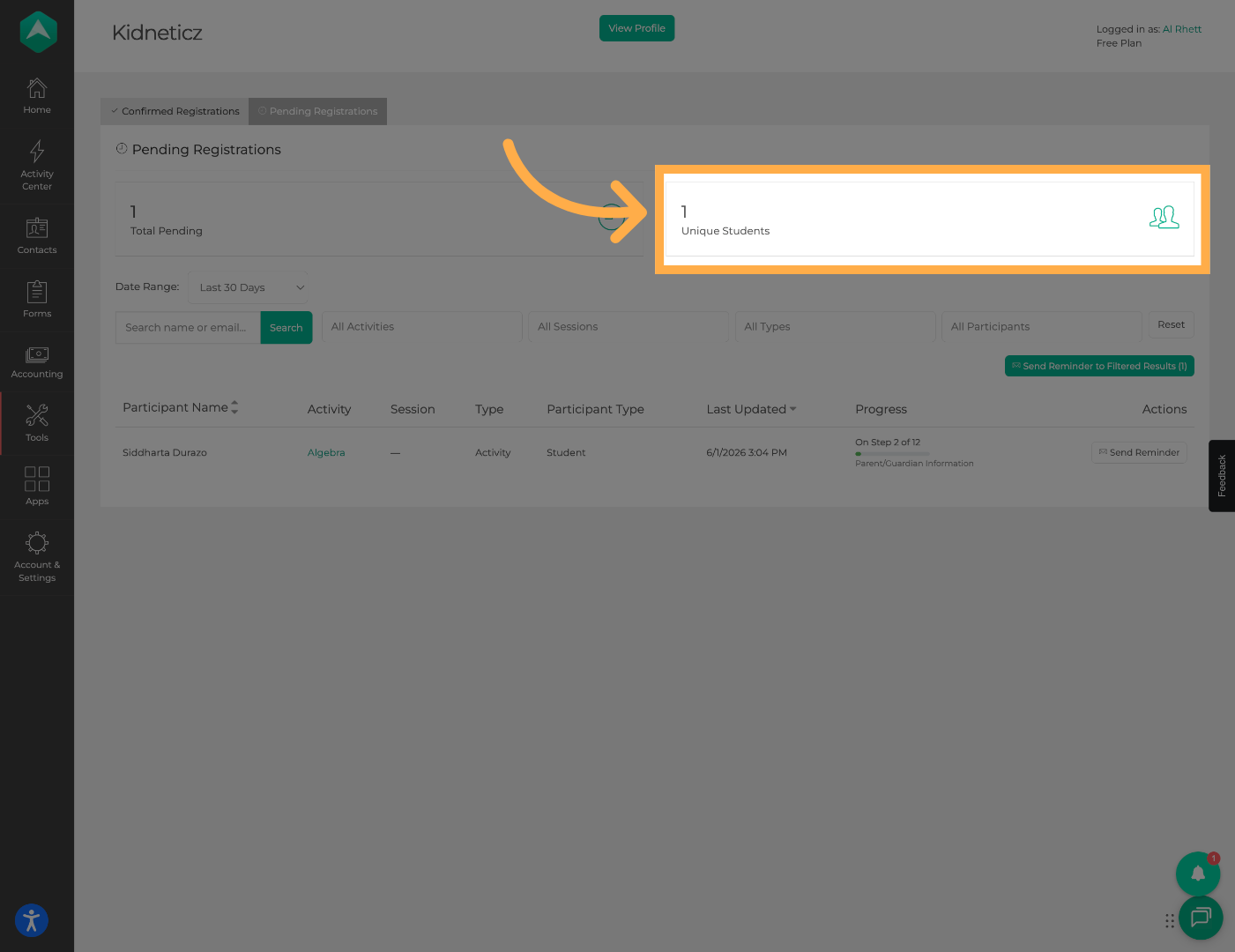
💡 Tip: Multiple pending registrations may belong to the same student, which is why this number may differ from the total pending registration count.
22. Filter Pending Registrations by Date
Use the date range filter to narrow pending registrations to a specific timeframe.

💡 Tip: Date filters can help identify recent registration attempts that may require follow-up.
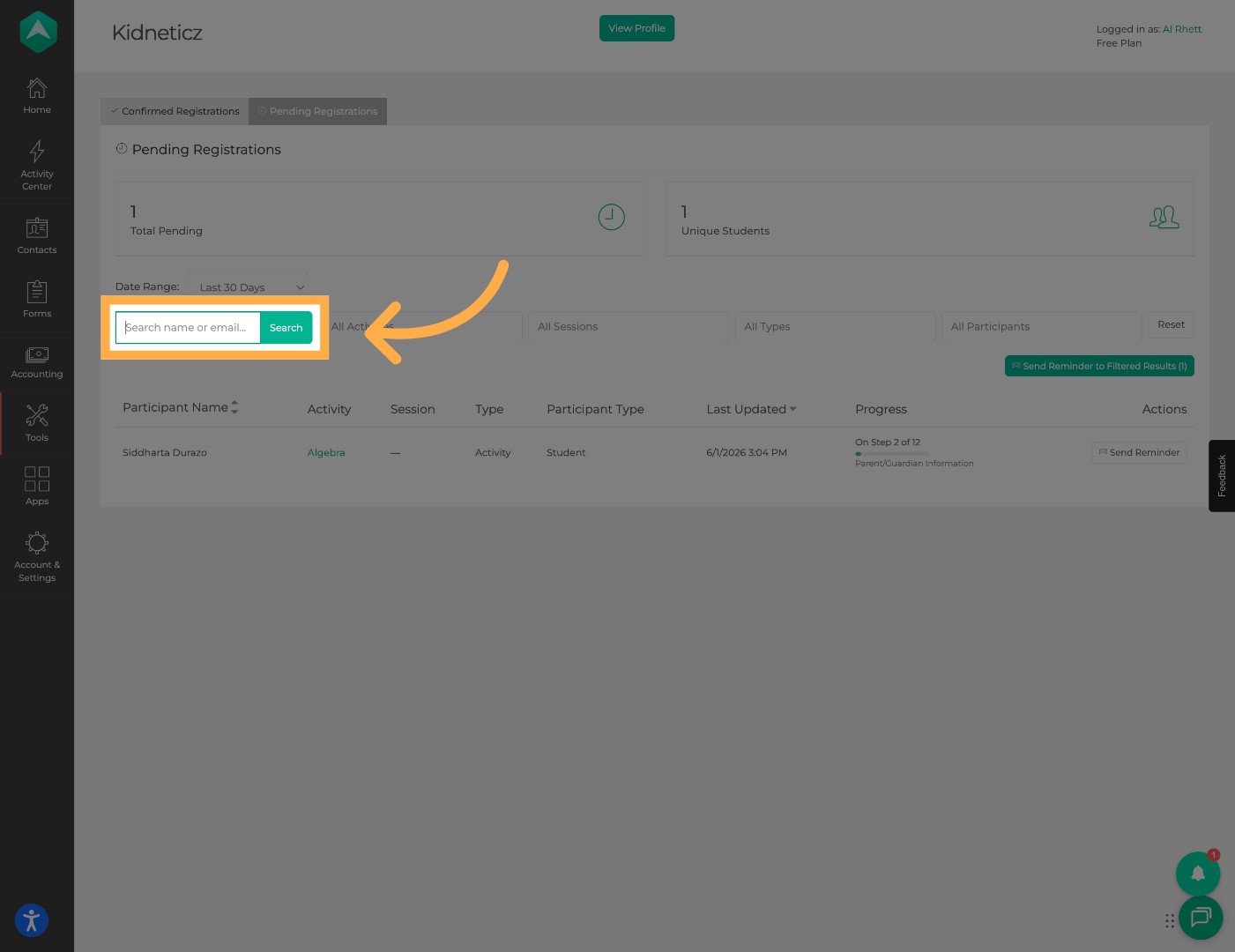
23. Search Pending Registrations
Search for specific pending registrations by participant name or email address.
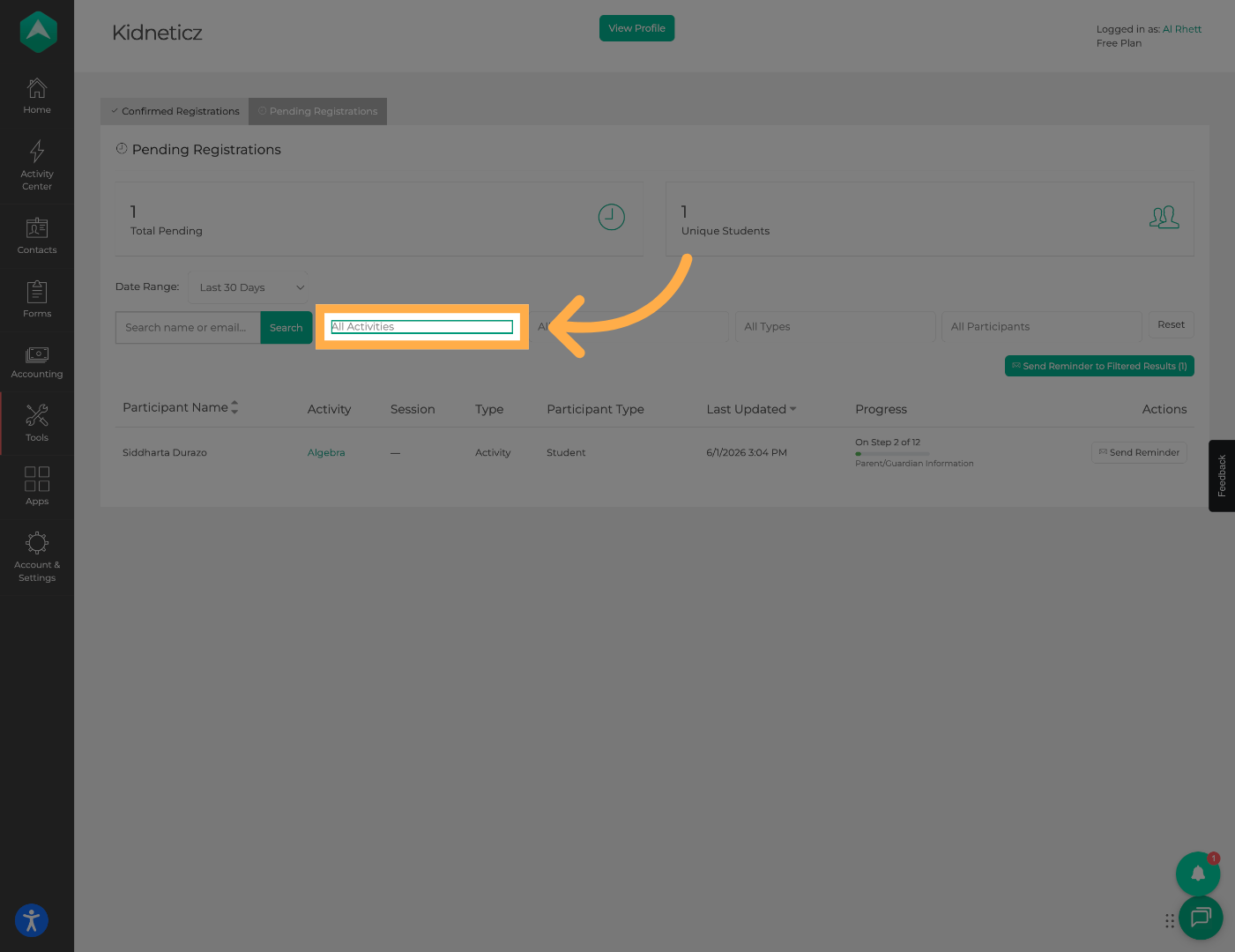
24. Filter Pending Registrations by Activity
Use the activity filter to focus on pending registrations for a specific program.
25. Filter Pending Registrations by Session
Select a session to view pending registrations associated with that session.
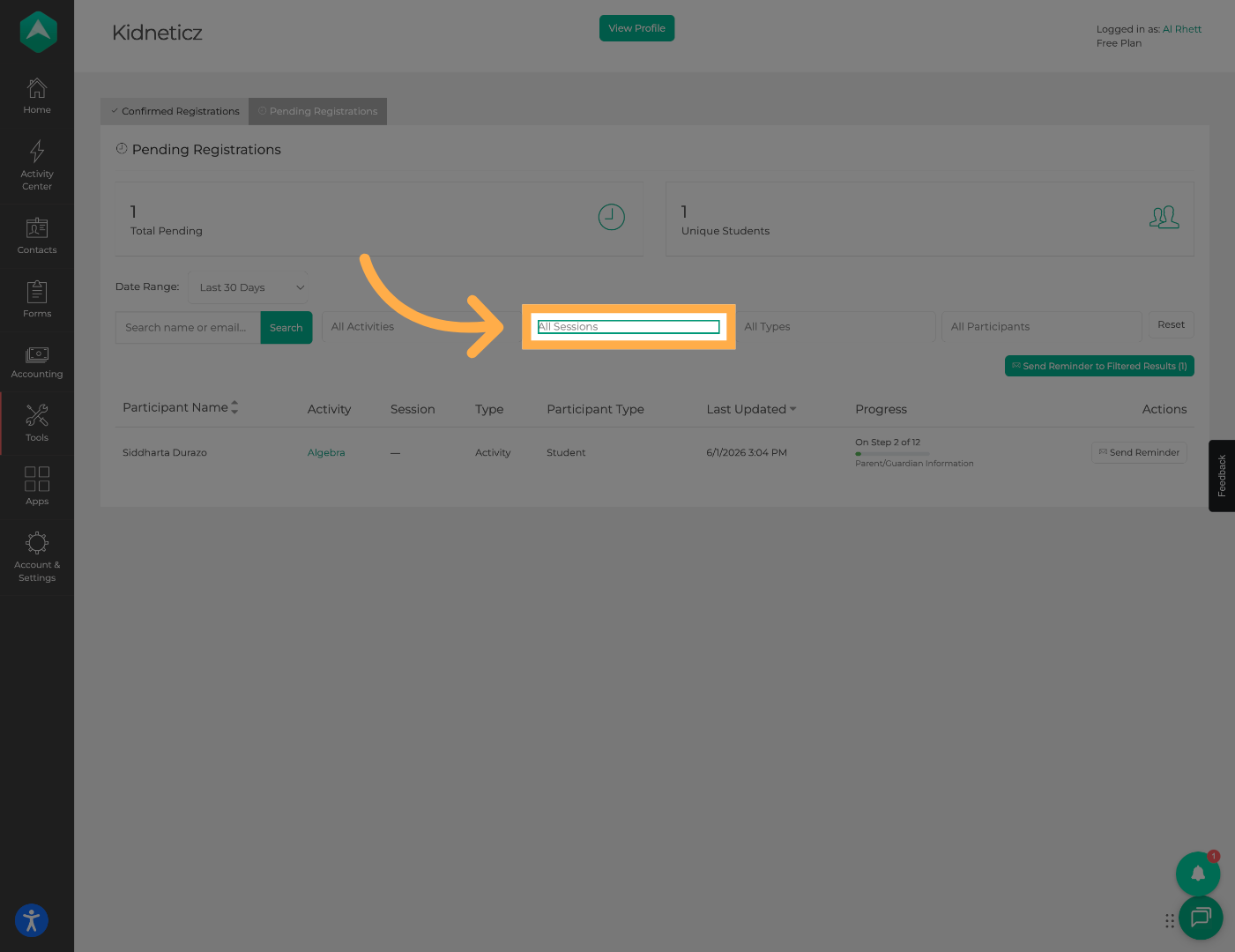
26. Filter Pending Registrations by Activity Type
Use activity type filters to further refine pending registration results.
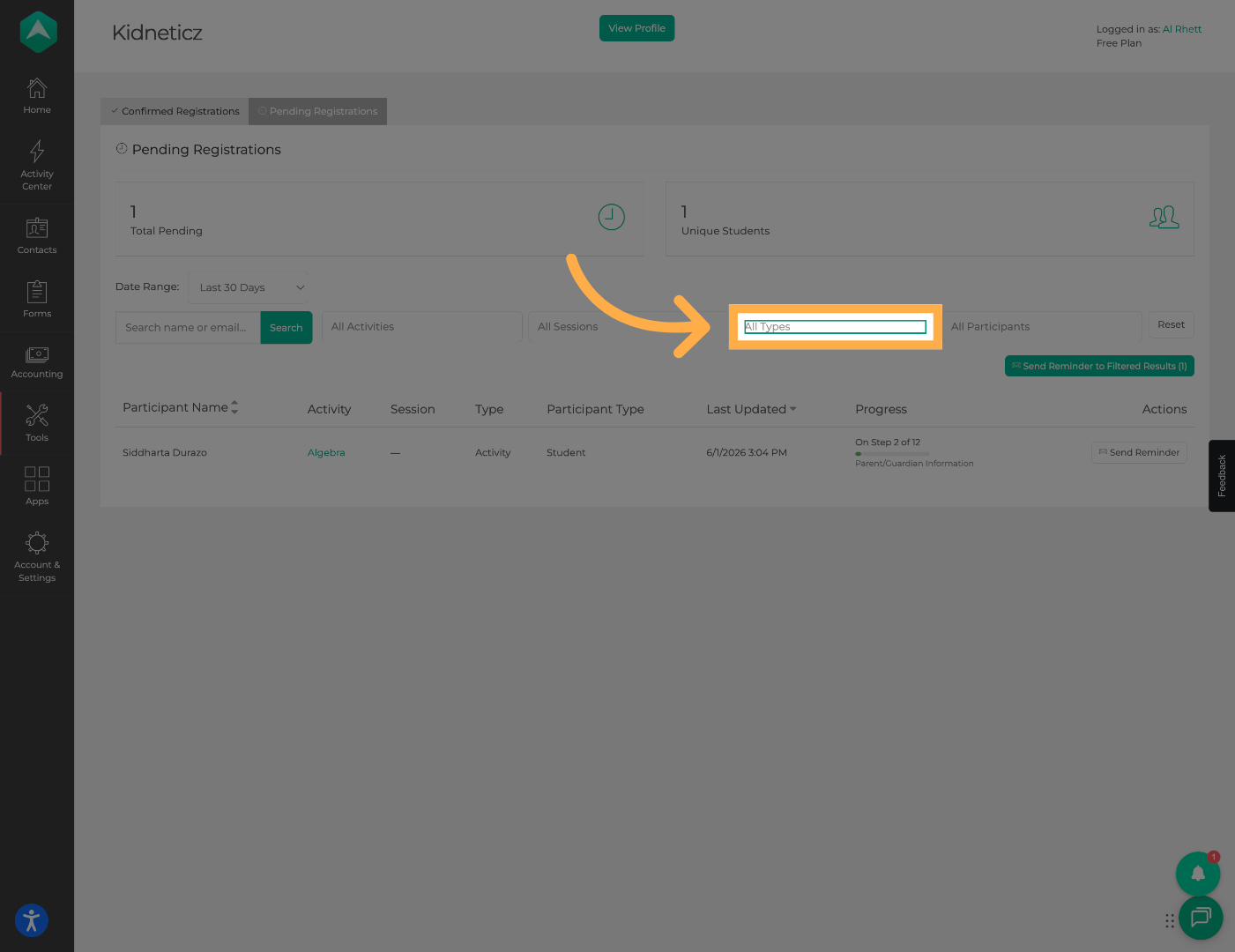
27. Filter Pending Registrations by Participant Type
Narrow pending registrations based on participant type.
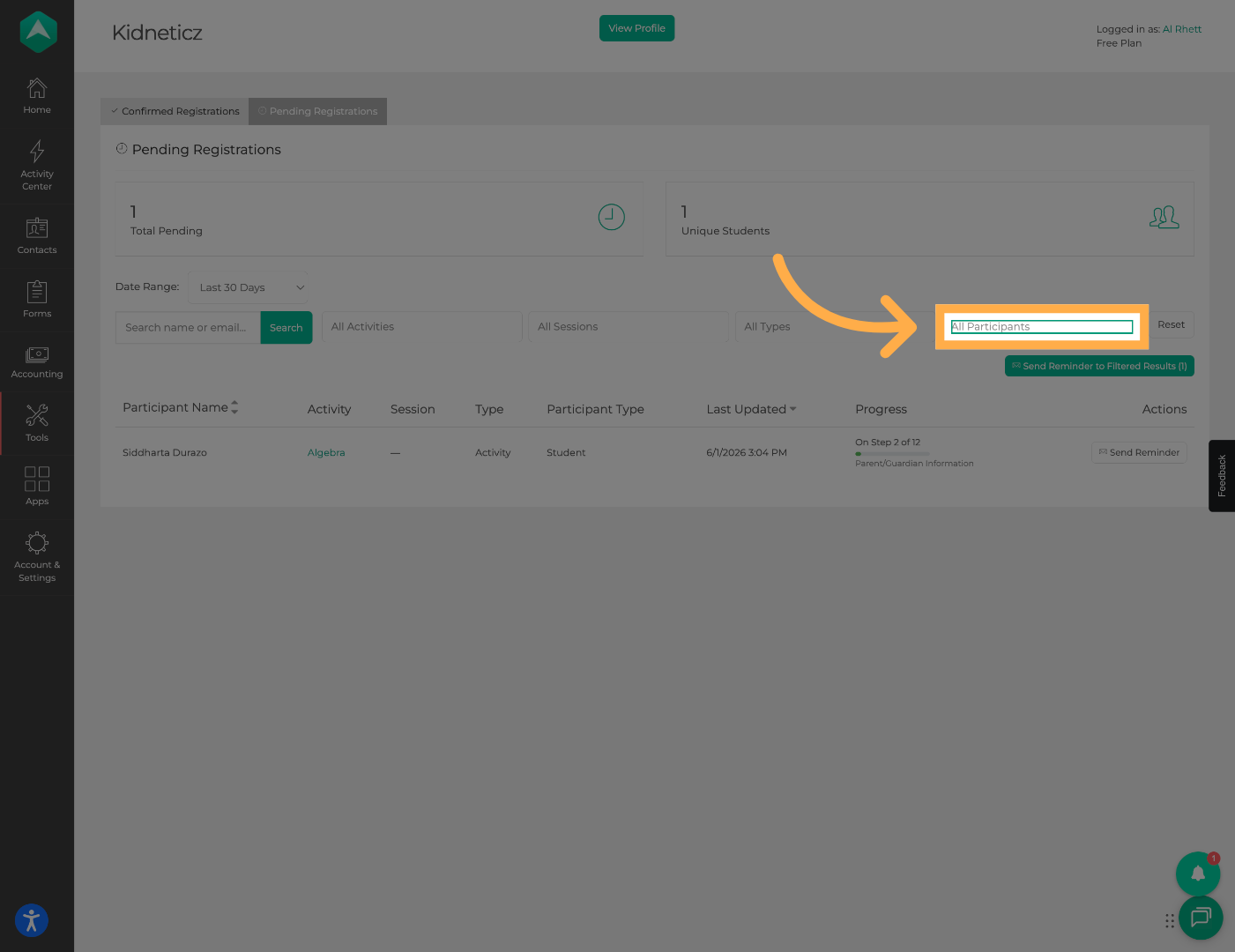
28. Select a Date Range
Choose a date range to focus on pending registrations from a specific period.
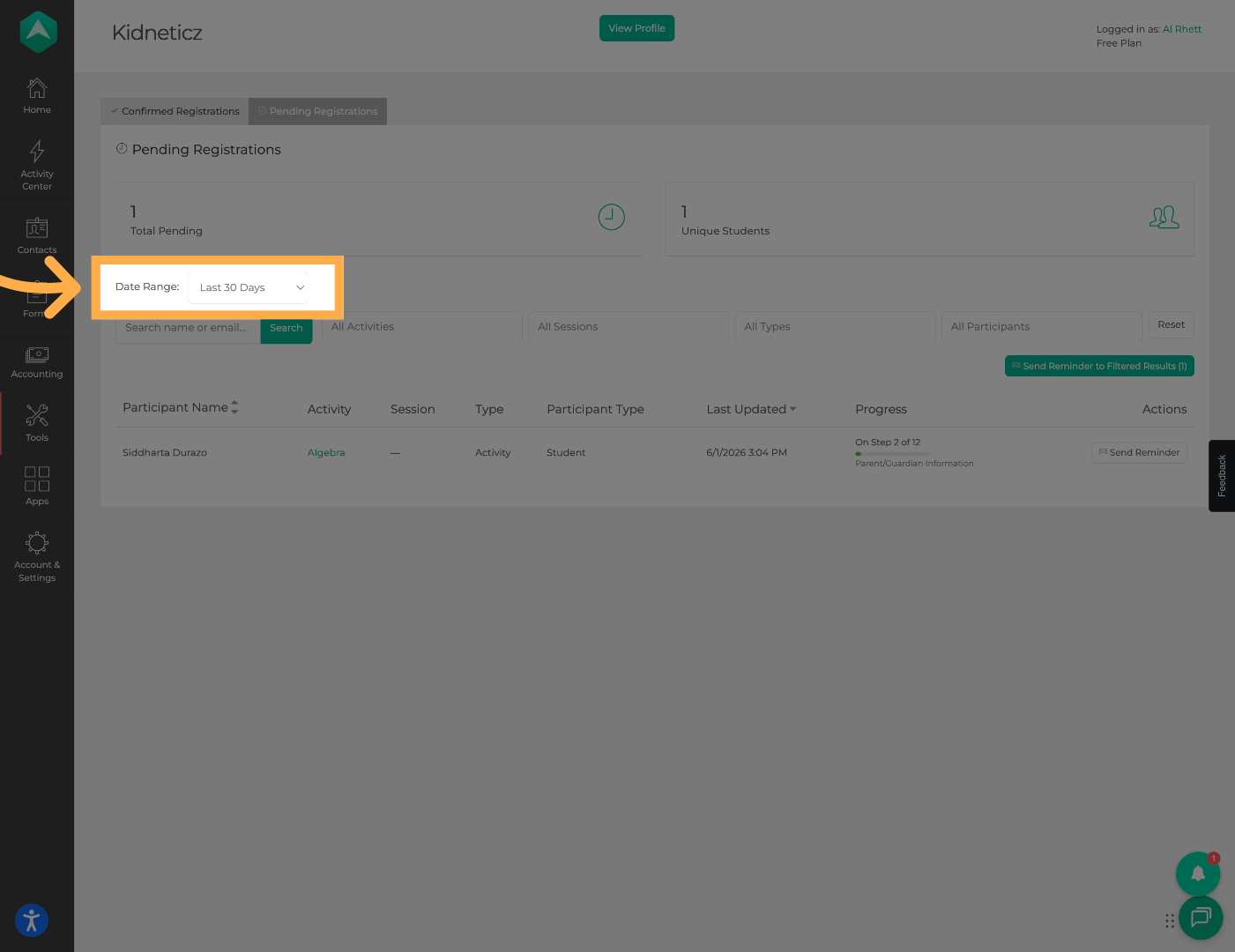
29. Review Pending Registration Details
Select a registration to review participant information, activity details, and registration progress.
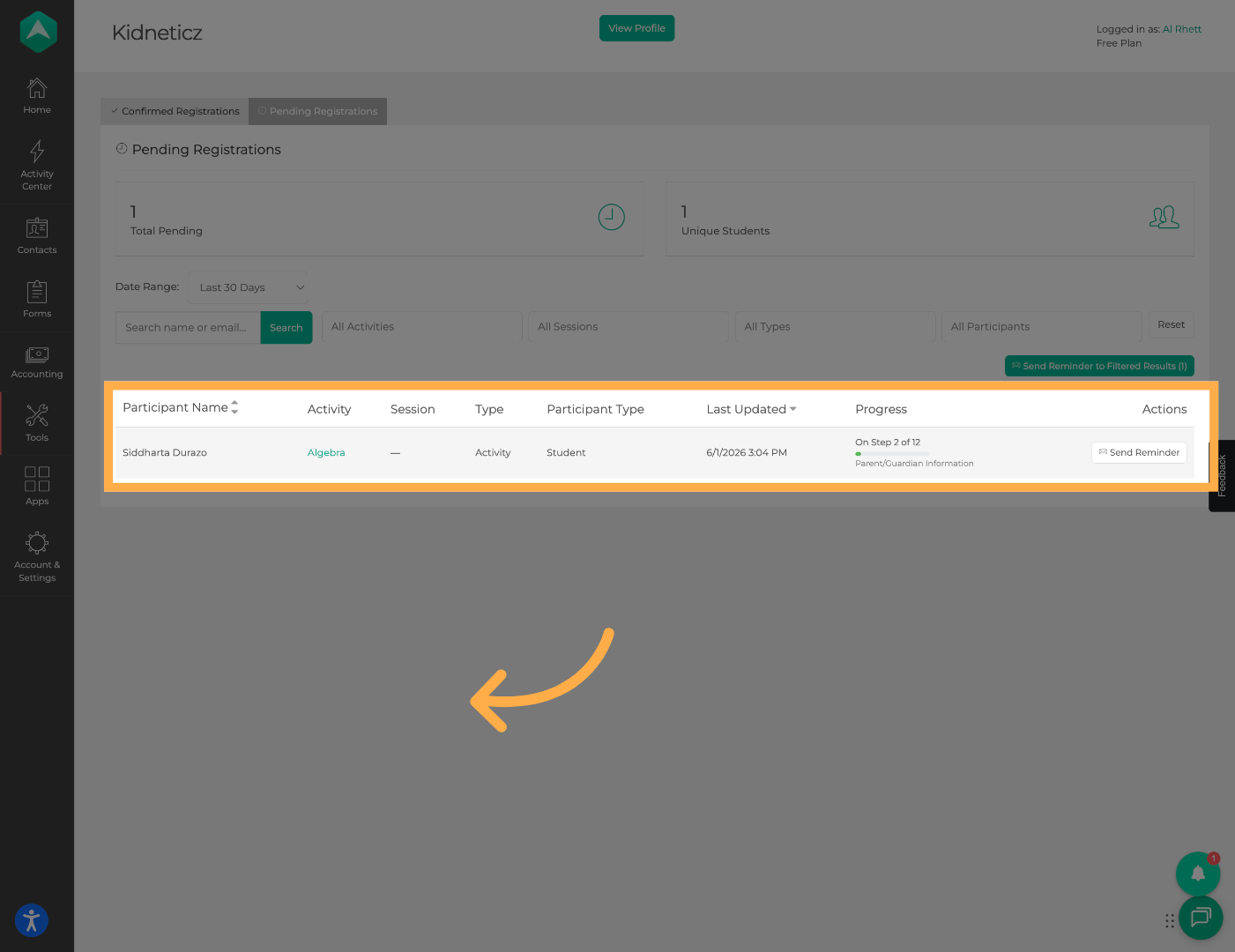
💡 Tip: Opening the registration details can help you understand what information has already been submitted.
30. View Registration Progress
Review the registration step where the participant stopped to identify what remains incomplete.
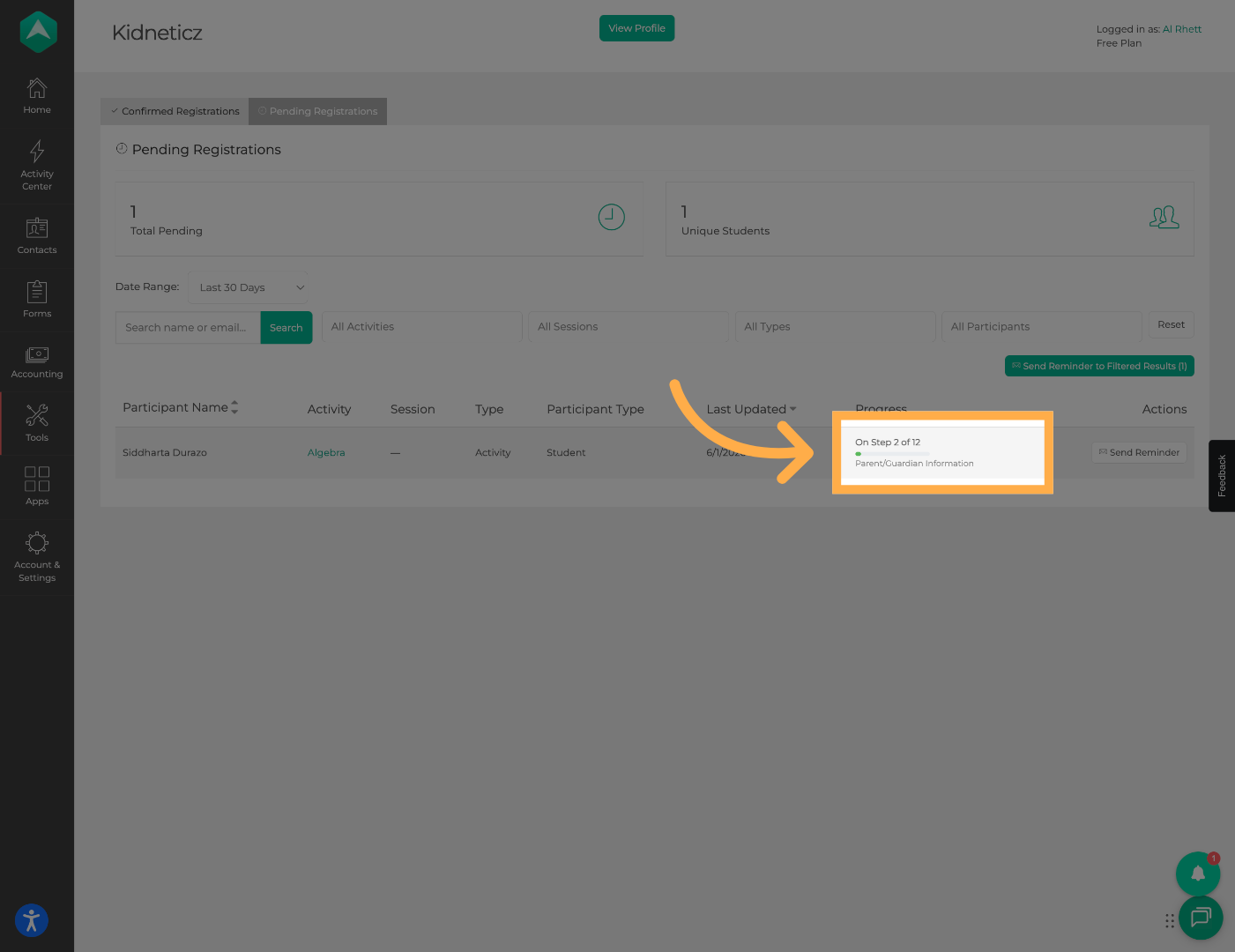
💡 Tip: Reviewing the last completed step can help determine where participants may be encountering difficulties during registration.
31. Send a Reminder
Click “Send Reminder” to notify the participant that their registration still needs to be completed.
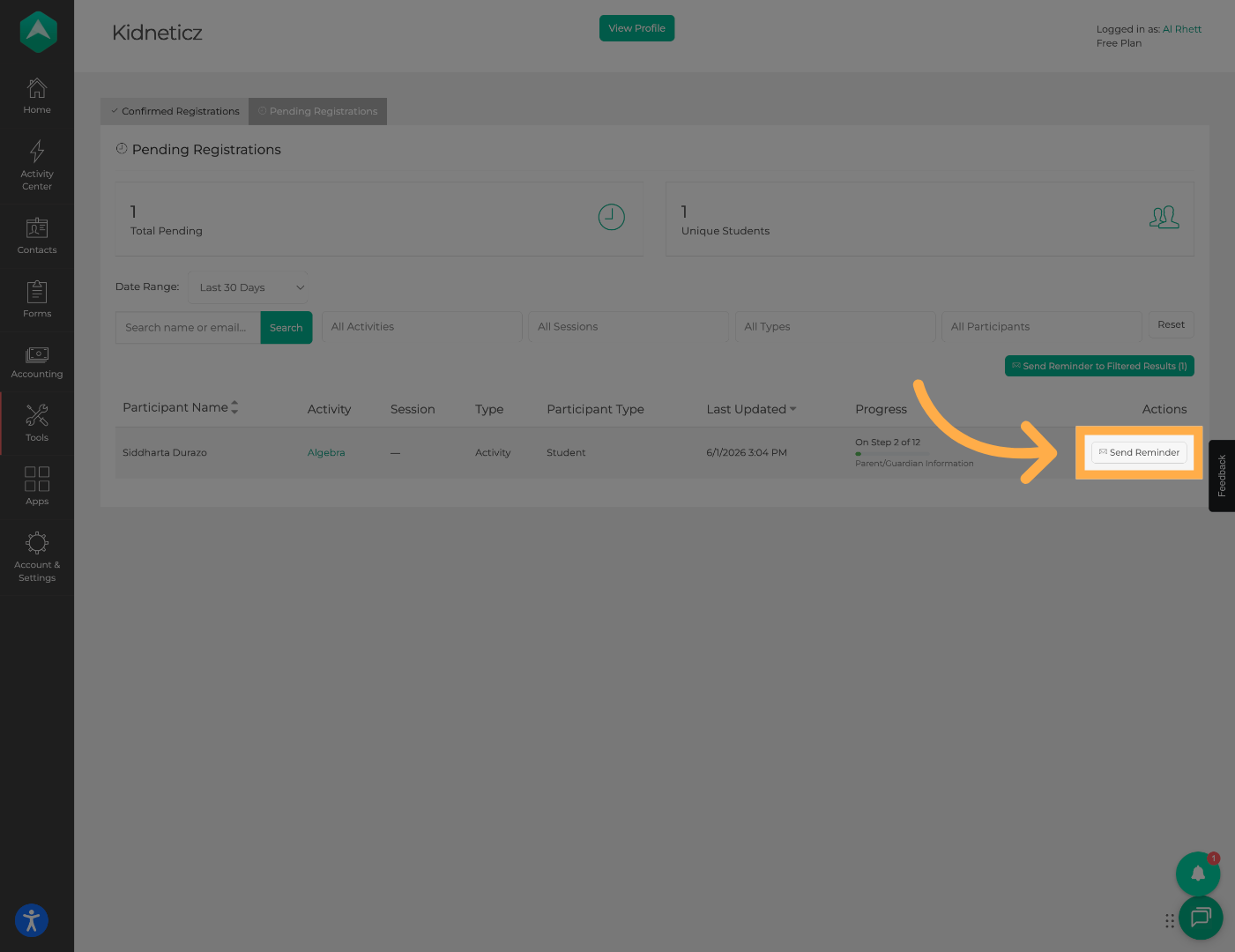
💡 Tip: Reminder notifications can help encourage families to return and complete unfinished registrations.
32. Enable SMS Notifications
Optionally include a text message reminder when a valid phone number is available.
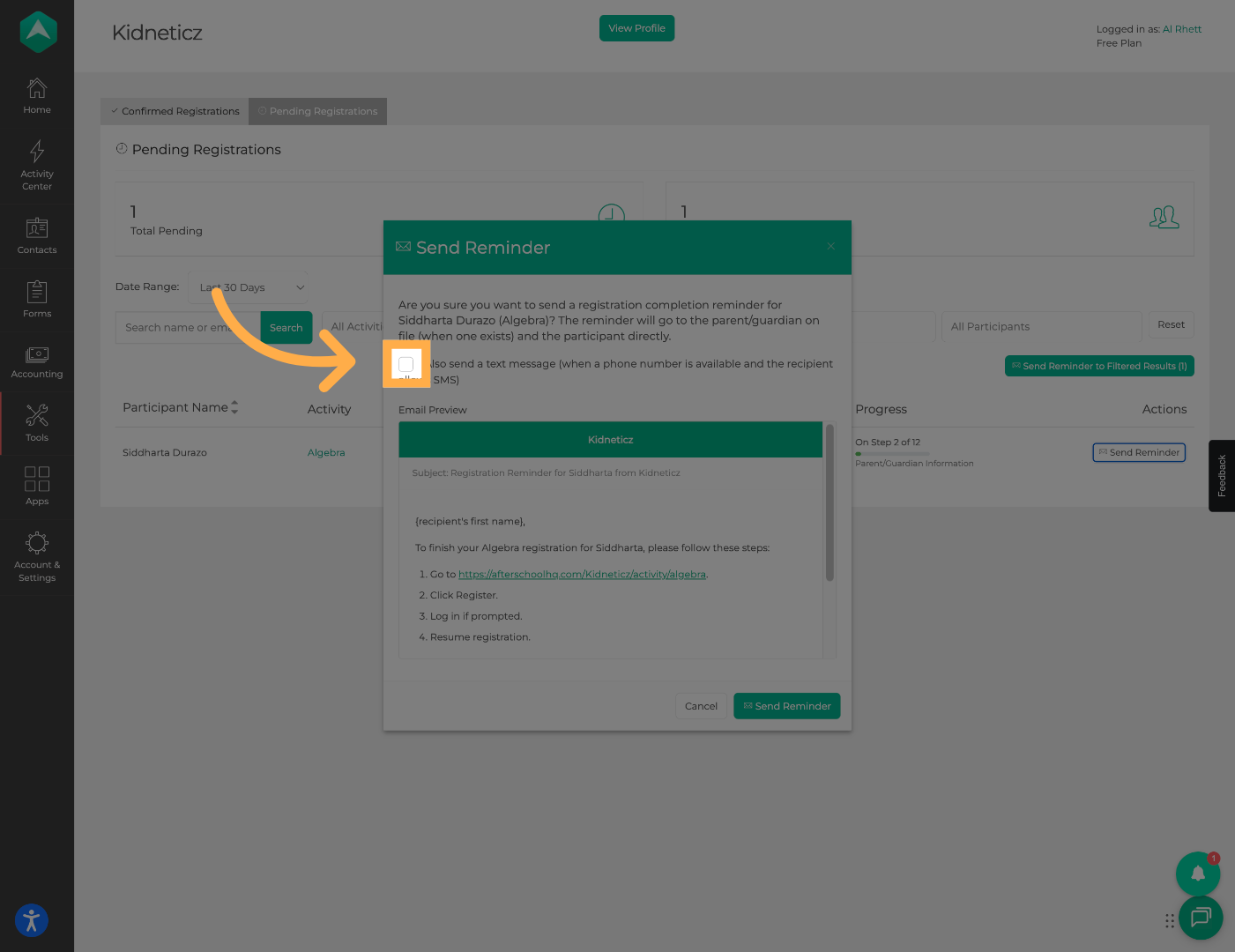
💡 Tip: SMS reminders are often seen more quickly than emails and may improve completion rates.
33. Personalize the Reminder Message
Customize the reminder message before sending it to the participant.
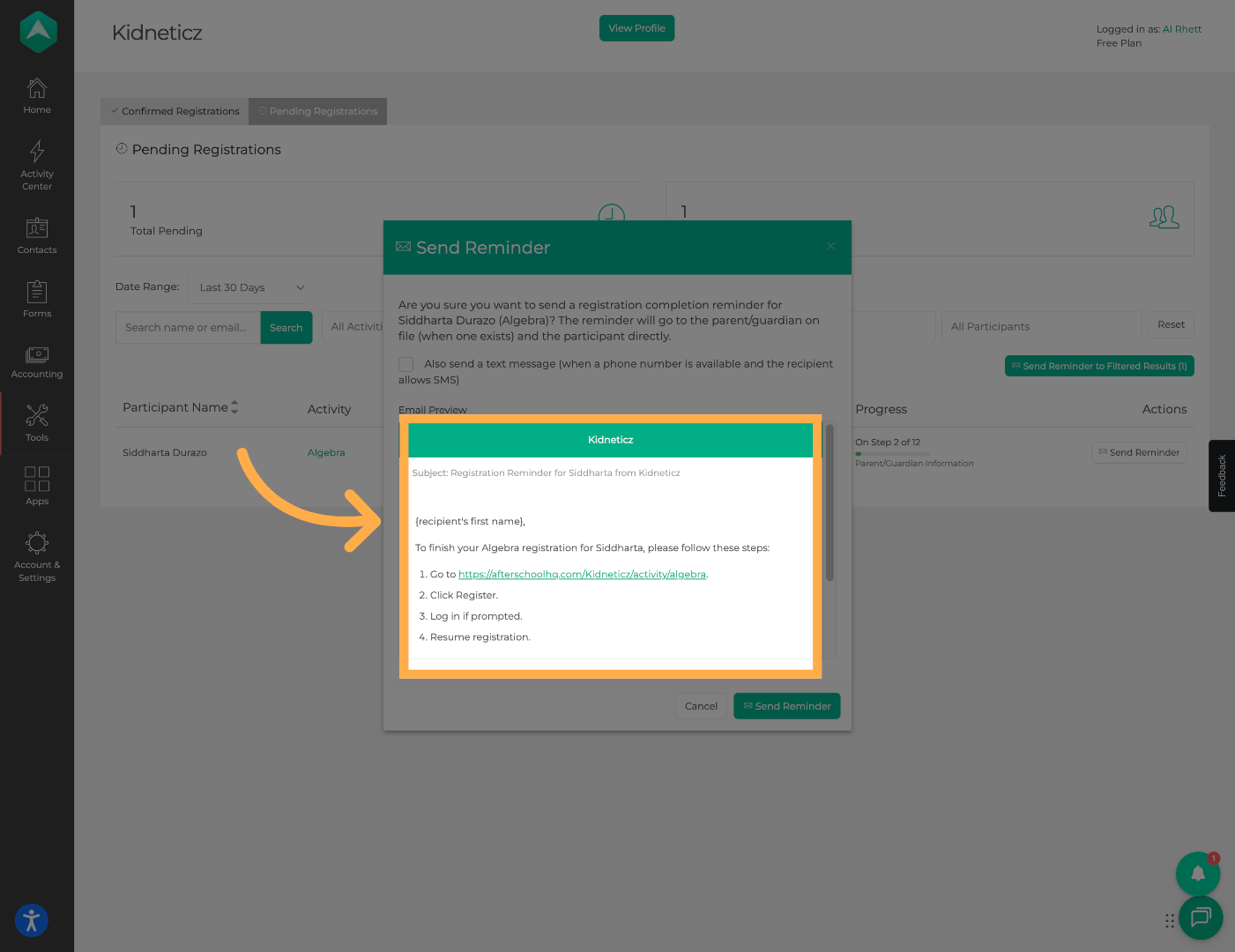
💡 Tip: Adding a personalized message can provide additional context and encourage participants to complete their registration.
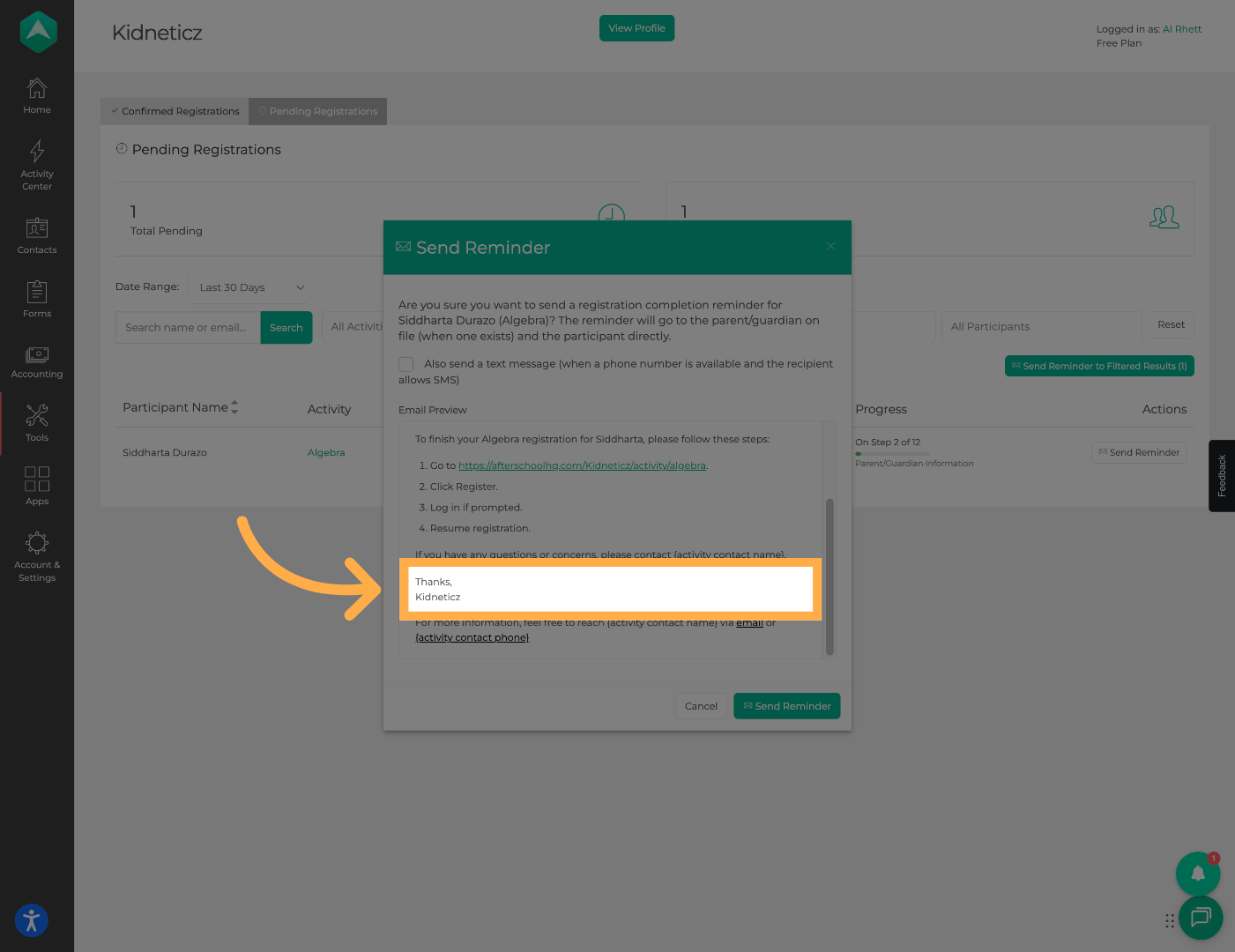
34. Review the Reminder Signature
Edit or confirm the message signature that will be included with the reminder.
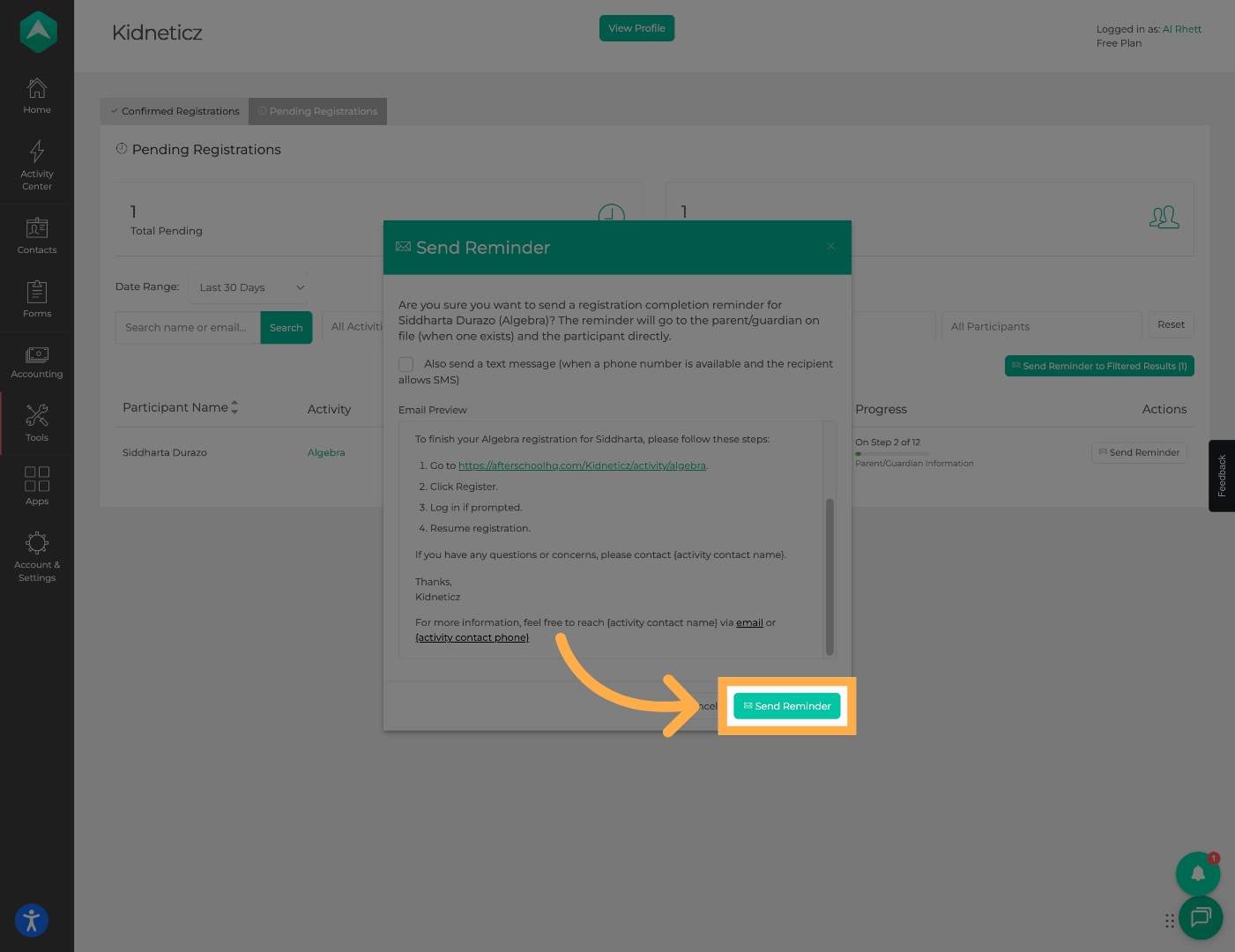
35. Send the Reminder Notification
Click “Send Reminder” to deliver the notification.
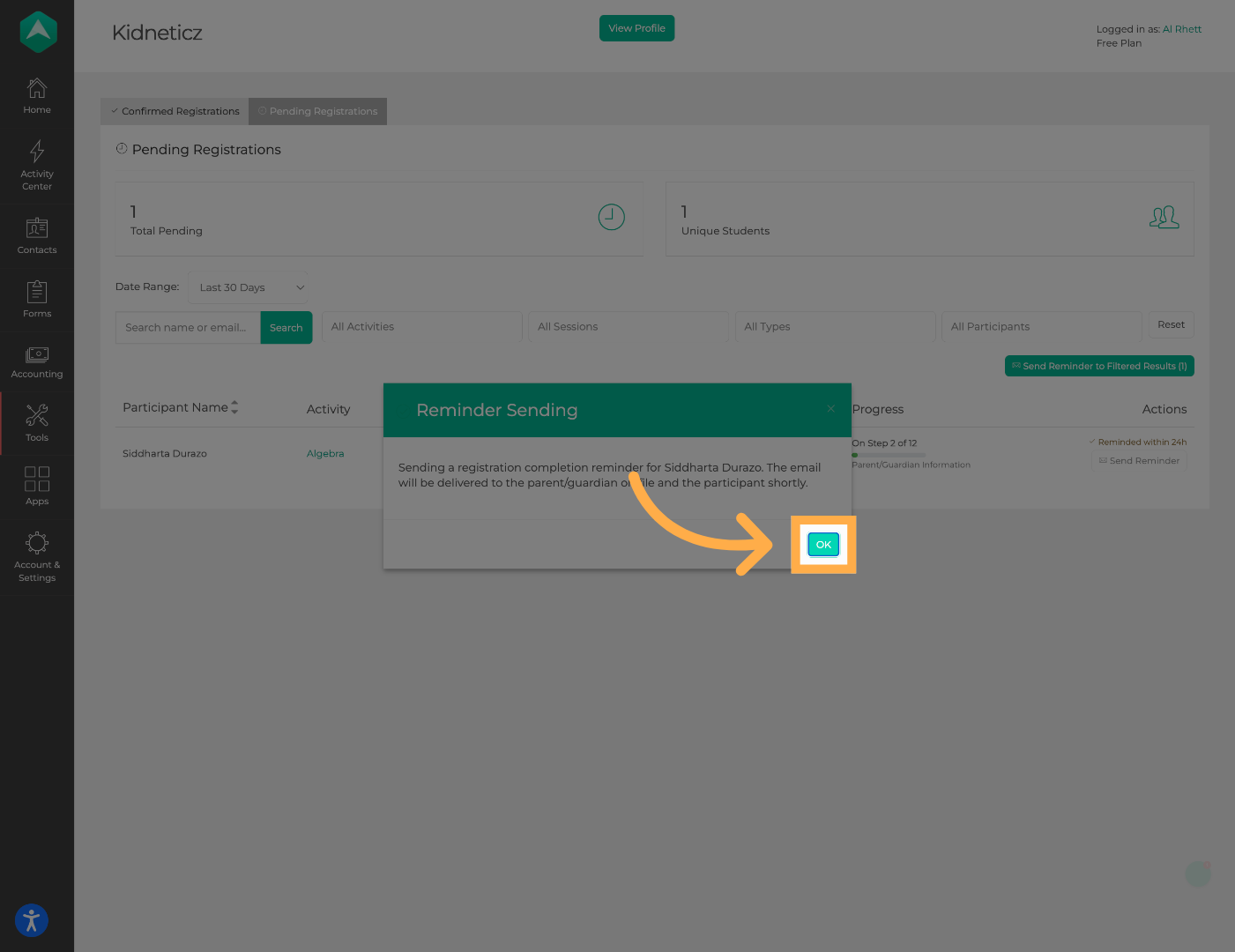
36. Confirm Reminder Delivery
Click “OK” to confirm that the reminder was sent successfully.
Frequently Asked Questions
Q: Why do I see more registrations than unique students?
A: A single student may have multiple registrations across different activities or sessions. The Unique Student Count removes duplicate students and shows the actual number of participants.
Q: What is a pending registration?
A: A pending registration is a registration that was started but not fully completed by the participant or guardian.
Q: Can I send reminders to incomplete registrations?
A: Yes. The Registration Log allows you to send reminder emails and optional SMS messages to participants with pending registrations.
Q: Can I filter registrations by date?
A: Yes. Date range filters are available for both completed and pending registrations to help narrow your results.
Q: Can I see where a participant stopped during registration?
A: Yes. You can open a pending registration and review the last completed step to determine what information is still missing.
Q: Can I customize reminder messages?
A: Yes. Before sending a reminder, you can edit the message content and signature to match your organization's communication style.
Q: Does SMS messaging cost anything additional?
A: SMS availability depends on your organization's configuration and messaging settings. Contact your administrator if you have questions about SMS capabilities.
Q: What happens when I reset filters?
A: Resetting filters clears all currently applied search criteria and returns the Registration Log to its default view.
💡If you experience any issues or have further questions with “How to Use the Registration Log”, don't hesitate to get in touch with our support team at support@afterschoolhq.com.