![ASHQ Logo Vert Flat.png]](https://support.afterschoolhq.com/hs-fs/hubfs/ASHQ%20Logo%20Vert%20Flat.png?height=40&name=ASHQ%20Logo%20Vert%20Flat.png)
The History feature in AfterSchool HQ provides a clear record of changes made to activities and individual registrations.
Use this guide to learn how to review previous updates, search and filter history records, and view details about specific changes.
📝 Note: History is available to Admins and Owners. If you do not see the History tab, your account permissions may not include access to this feature.
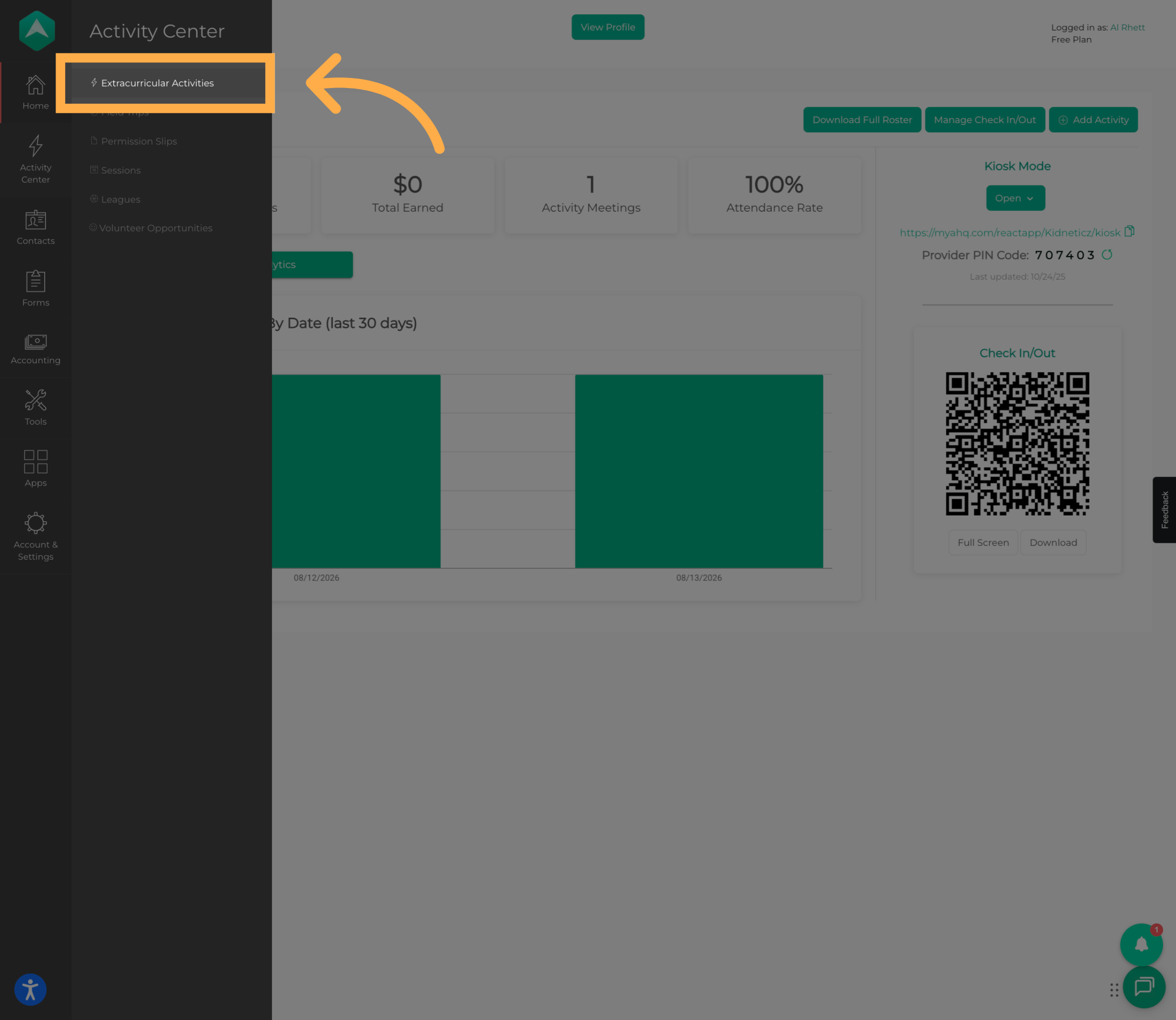
1. Access Extracurricular Activities
From the main menu, click “Extracurricular Activities”.
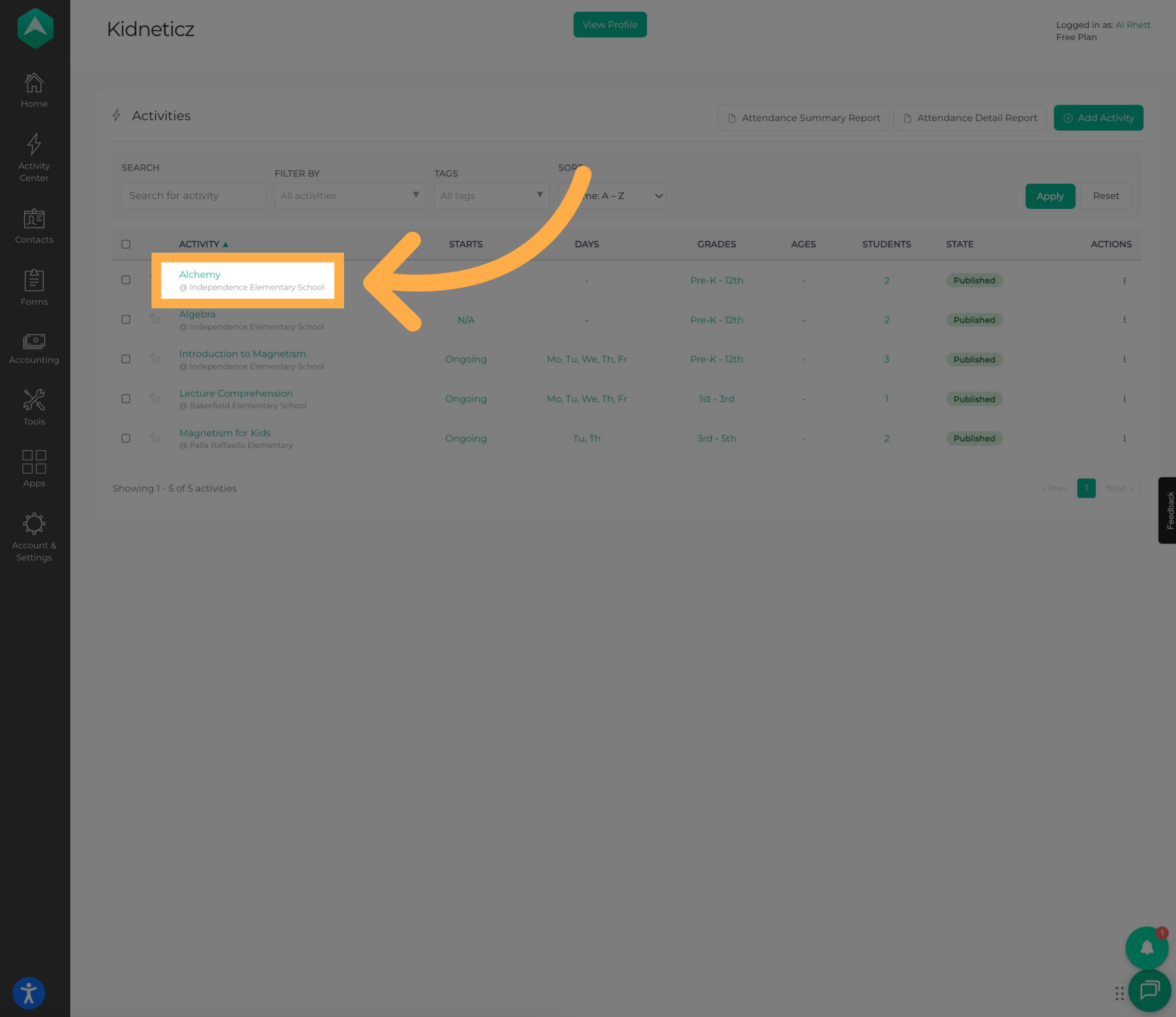
2. Select an Activity
Select the activity where you'd like to review the history of changes.
3. Open Activity History
Click “History” to view the changes that have been recorded for the activity.
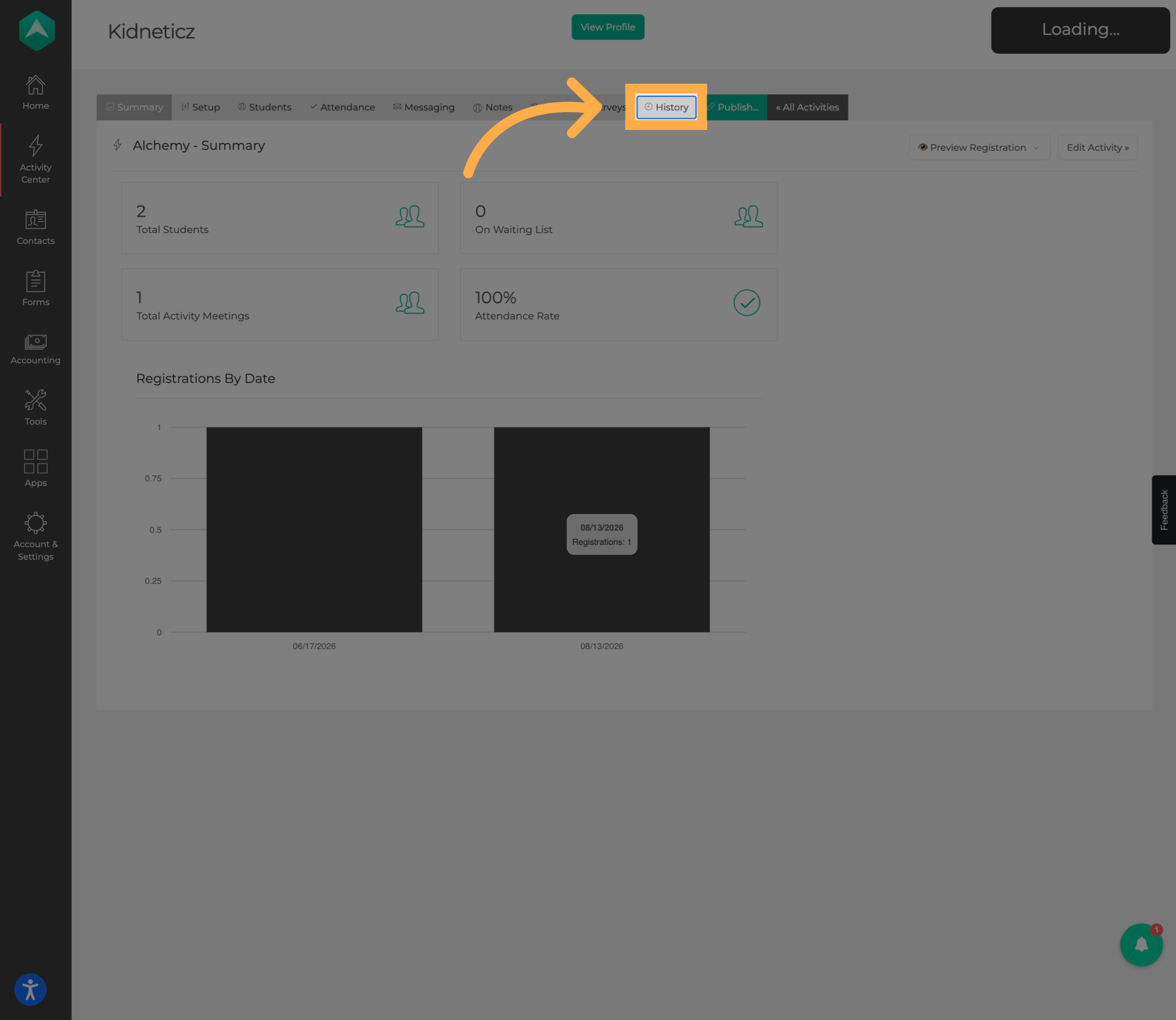
💡 Tip: Activity History is designed to show changes to the activity itself. Individual student registration changes are available separately within the registrant's History.
4. Search Activity History
Use the “Search” field to quickly find a specific change or activity history record.
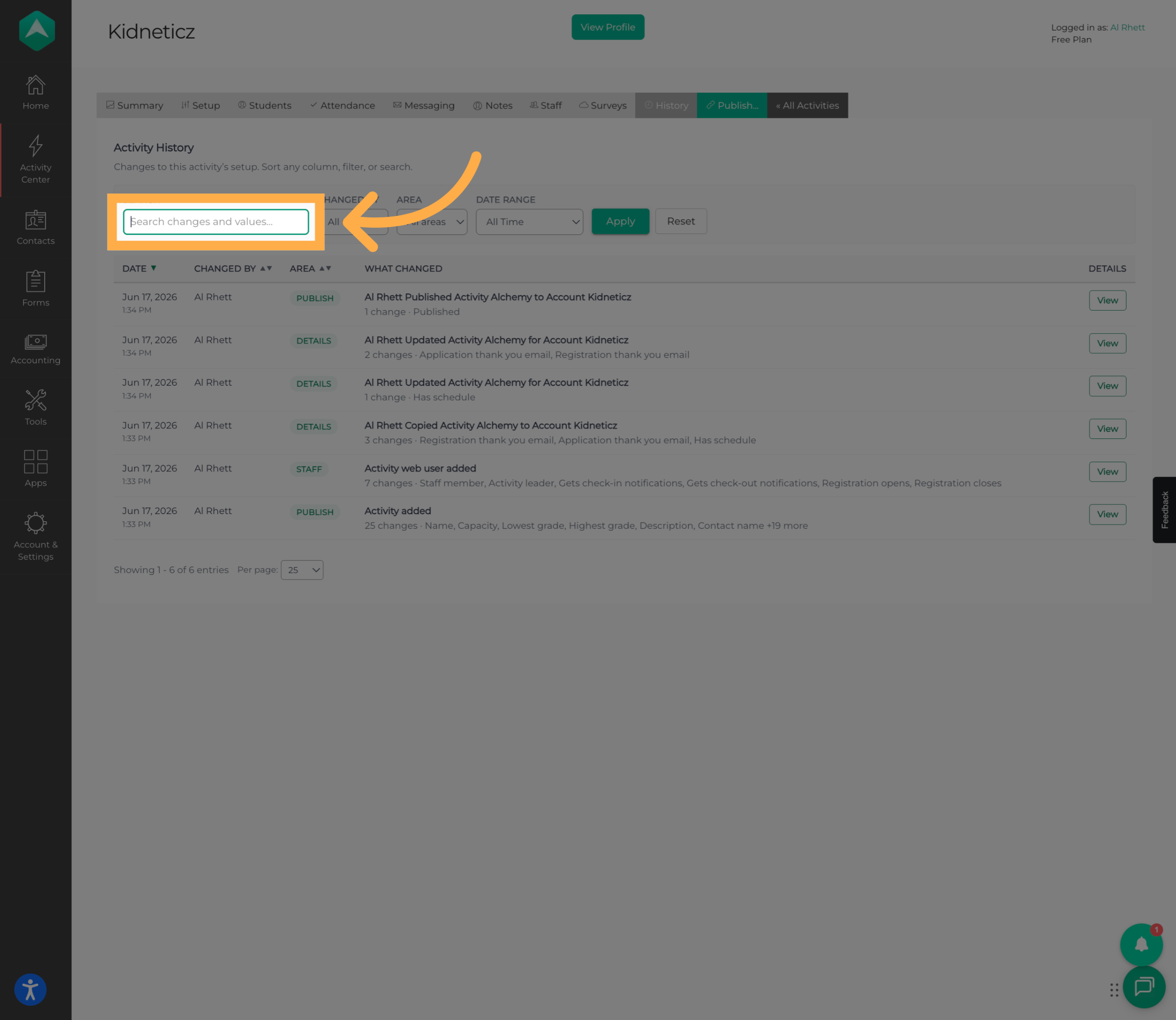
💡 Tip: Search is especially helpful for activities that have been active for a long time and have a larger number of recorded changes.
5. Filter Activity History
Use the available filters to narrow down the history you're reviewing.
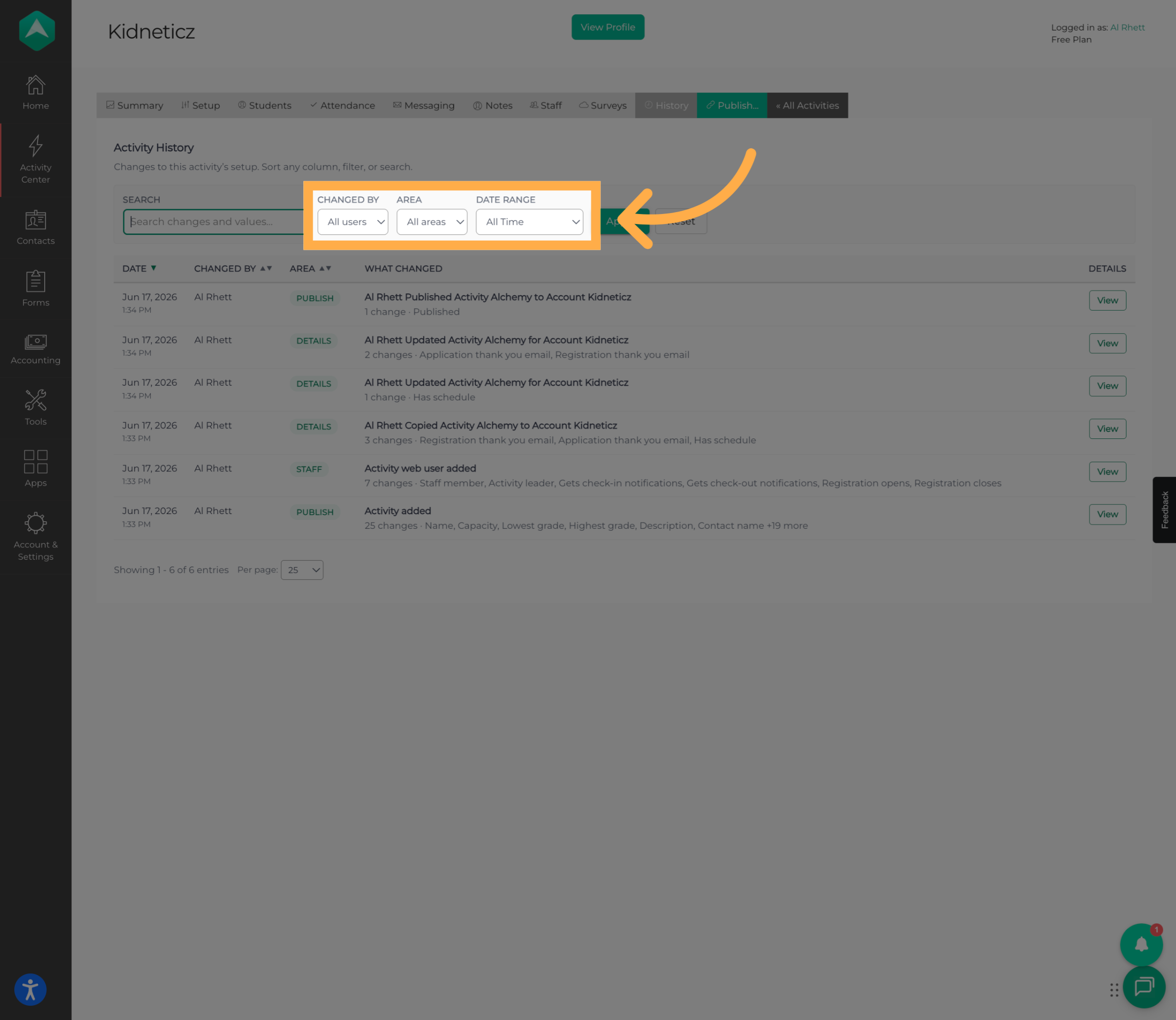
💡 Tip: Use Changed By when you need to determine who made an update, or Area when you're looking for changes to a specific part of the activity.
6. Review Activity Changes
Review the results to see what was changed, when the change occurred, and who made the update. Each change appears as its own history entry.
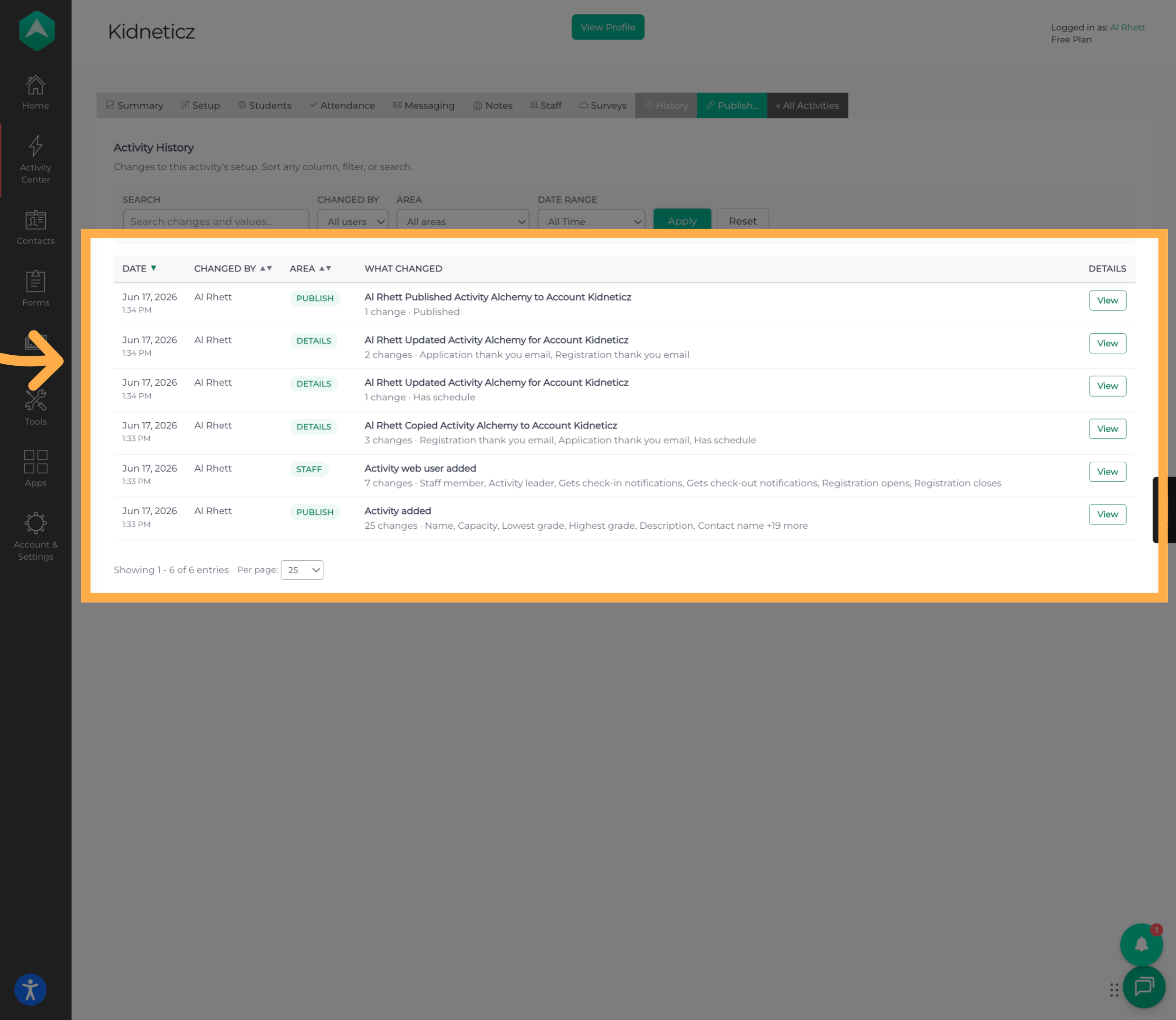
💡 Tip: History can include changes that were recorded before the History tab became available, so you may see previous activity updates when first opening the feature.
7. View Change Details
Click “View” next to a history entry to see additional details about the change.
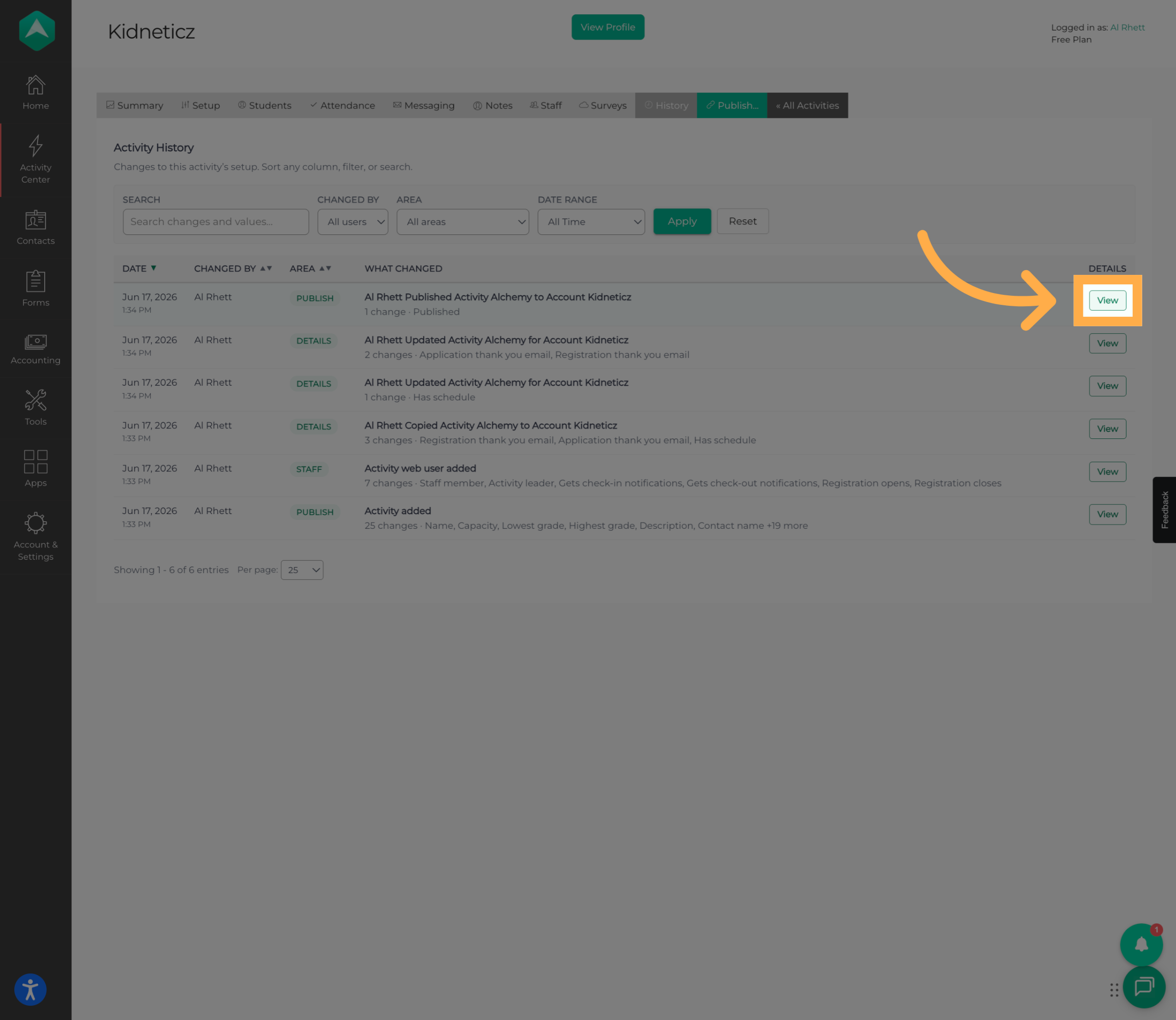
💡 Tip: If you know that something changed but aren't sure what the previous setting was, open the history entry to compare the previous and updated values.
8. Return to Activity History
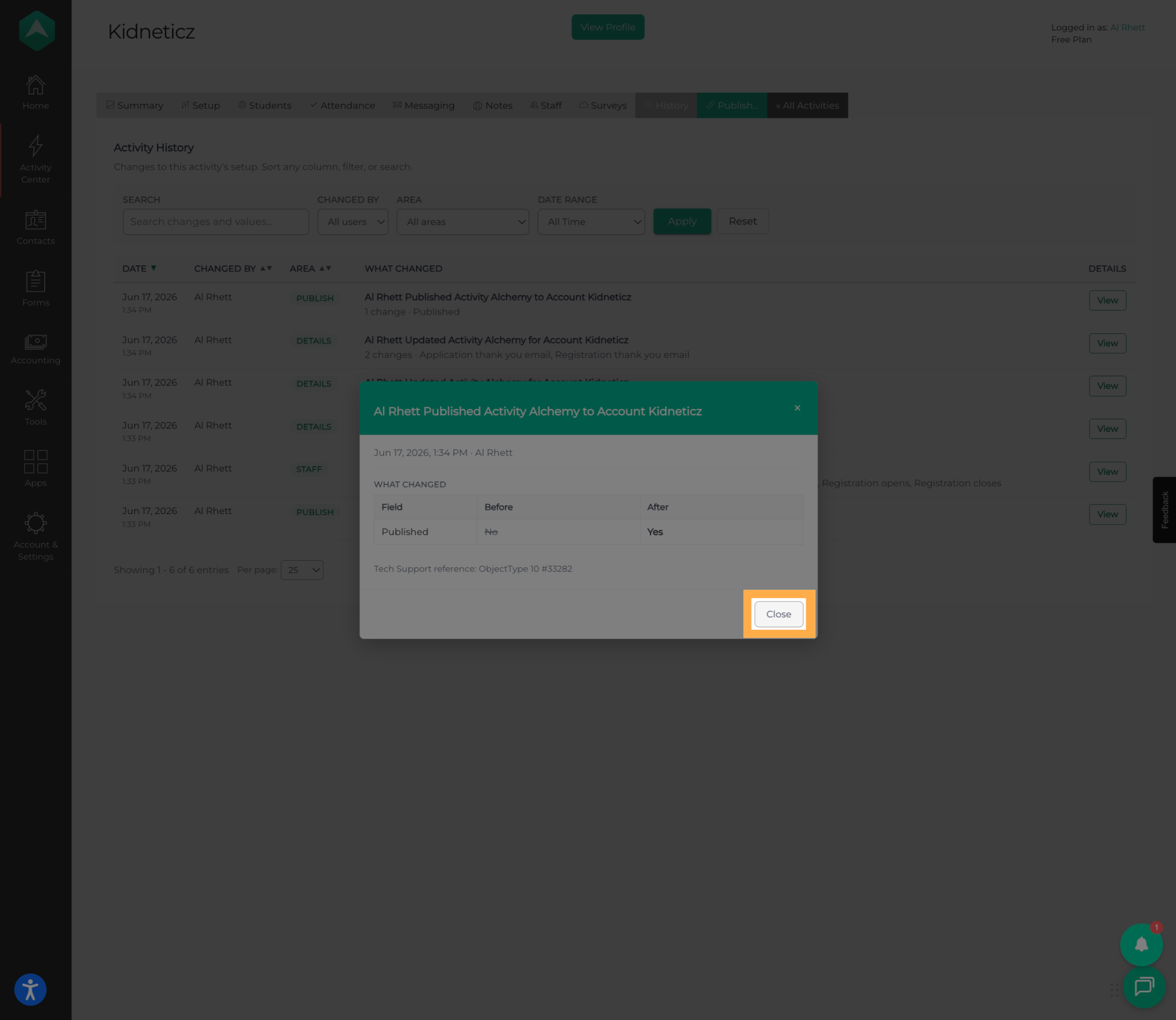
Once you've finished reviewing the details, close the window to return to the complete Activity History.
Reviewing Registrant History
In addition to activity-level changes, AfterSchool HQ allows you to review the history associated with an individual student's registration.
This is useful when you need to answer questions such as:
- Was this student's registration status changed?
- Was the student moved to another activity?
- Were registration answers updated?
- Were changes made to guardians or pickup information?
- Were payment or refund updates made?
9. View Registrant History
From the “Students” section of the activity, select the student whose registration you want to review and open their “History”.
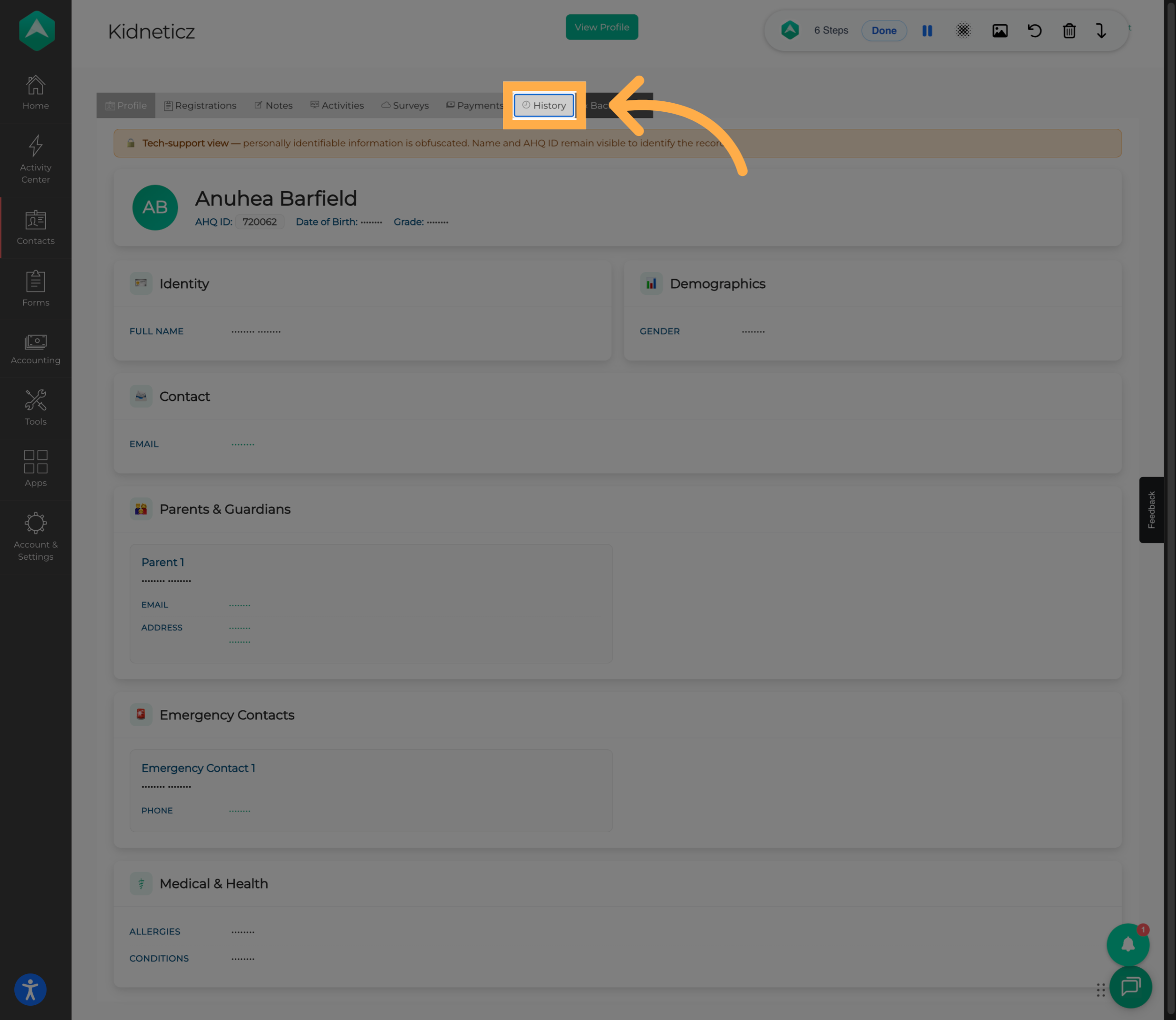
💡 Tip: Registrant History follows the individual registration. Use Activity History when you want to investigate the activity's setup instead.
10. Filter Registration History
Use the available filters to narrow down the registration history and quickly find the changes you're looking for.
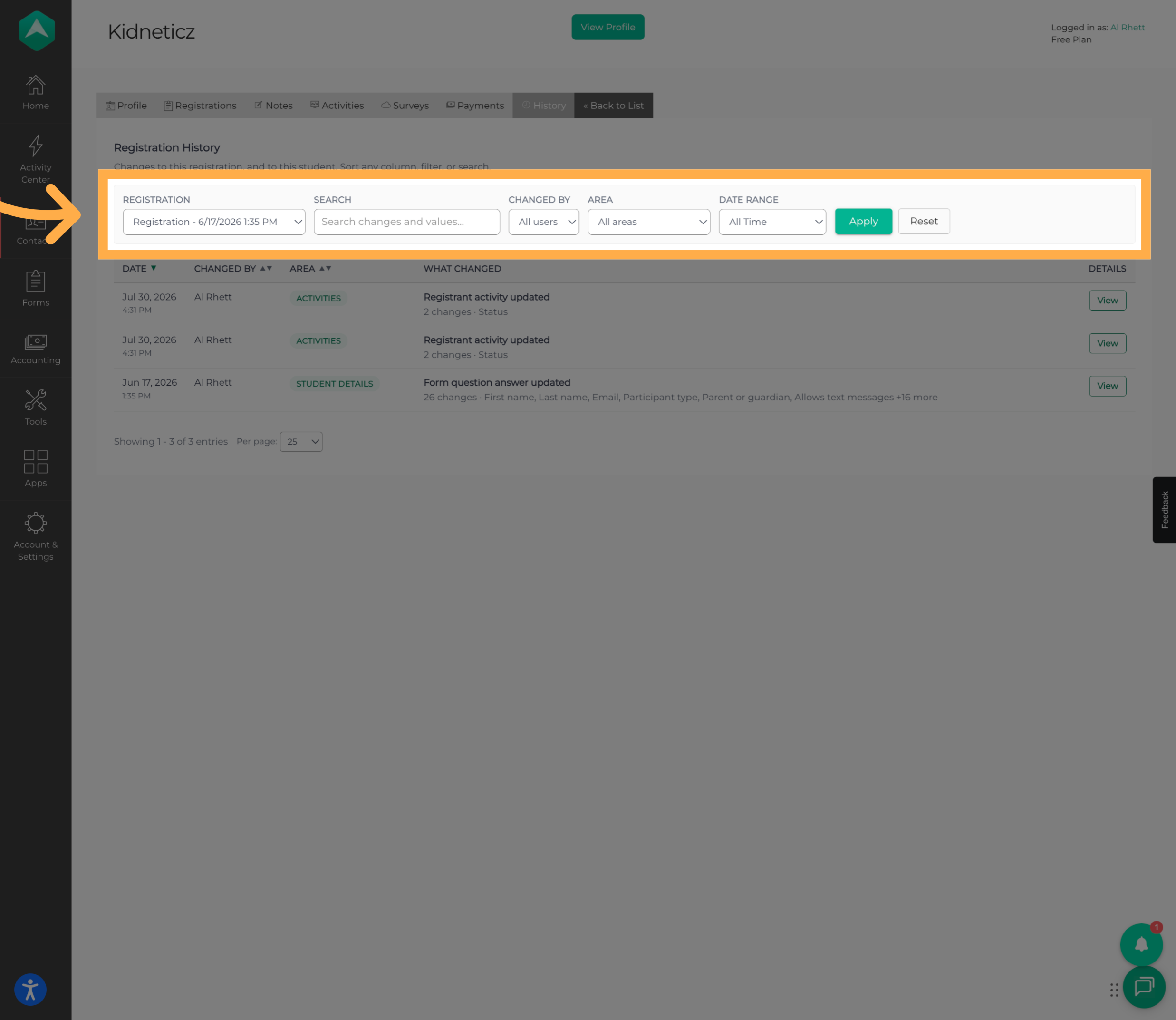
You can search and filter the history to help identify specific updates, users, or areas.
💡 Tip: If a student's registration has many updates, filtering can make it much easier to locate the change you're investigating.
11. Review Registration History
Review the results to see when registration changes were made and who made each update.
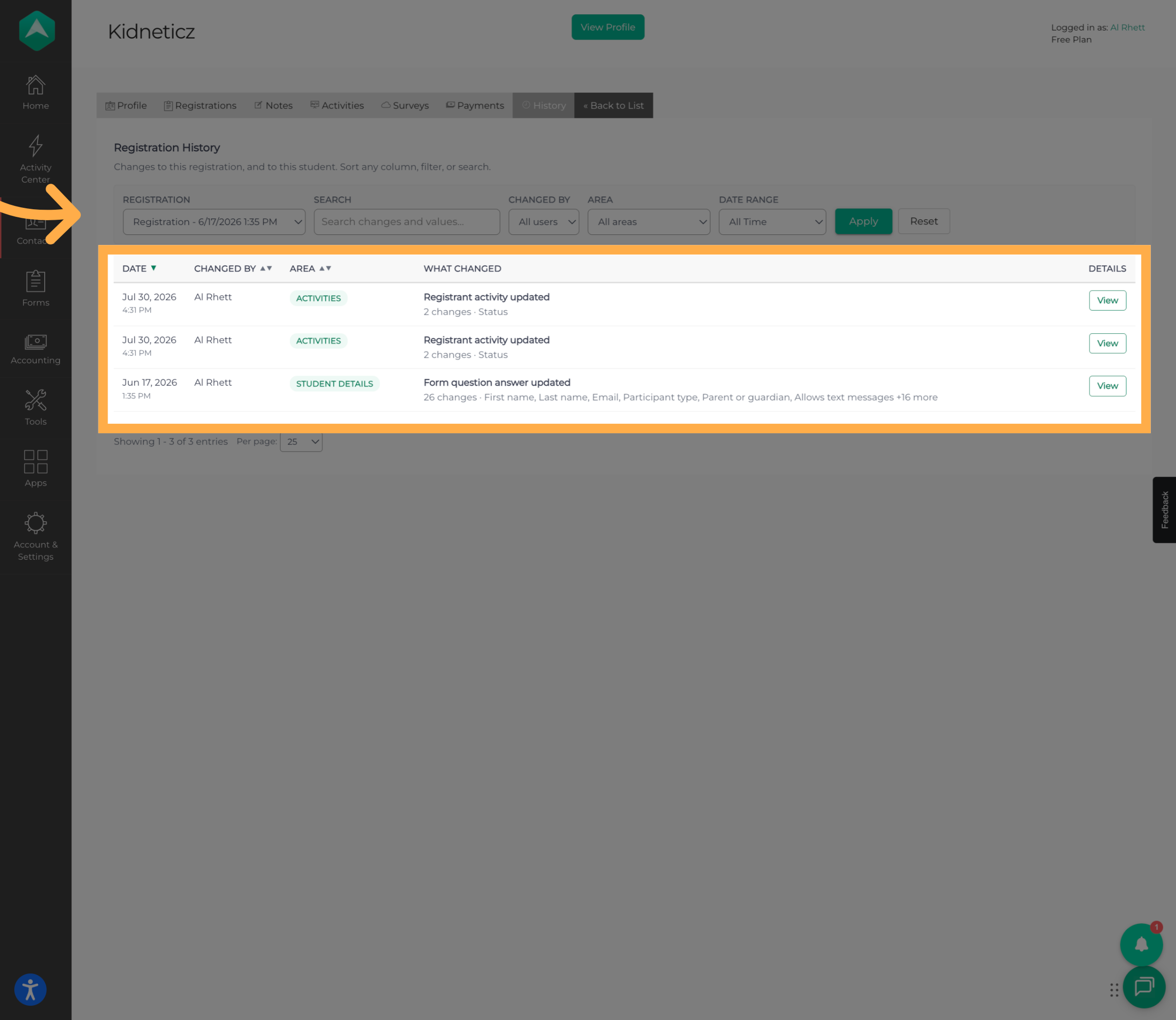
Registration History may include changes such as:
- Moving the registrant from one activity to another
- Registration status changes
- Registration answer edits
- Payment or refund updates
- Guardian or pickup changes
For example, if a student was moved between activities, the history can show that the student was moved from one activity to another.
12. Select a History Entry
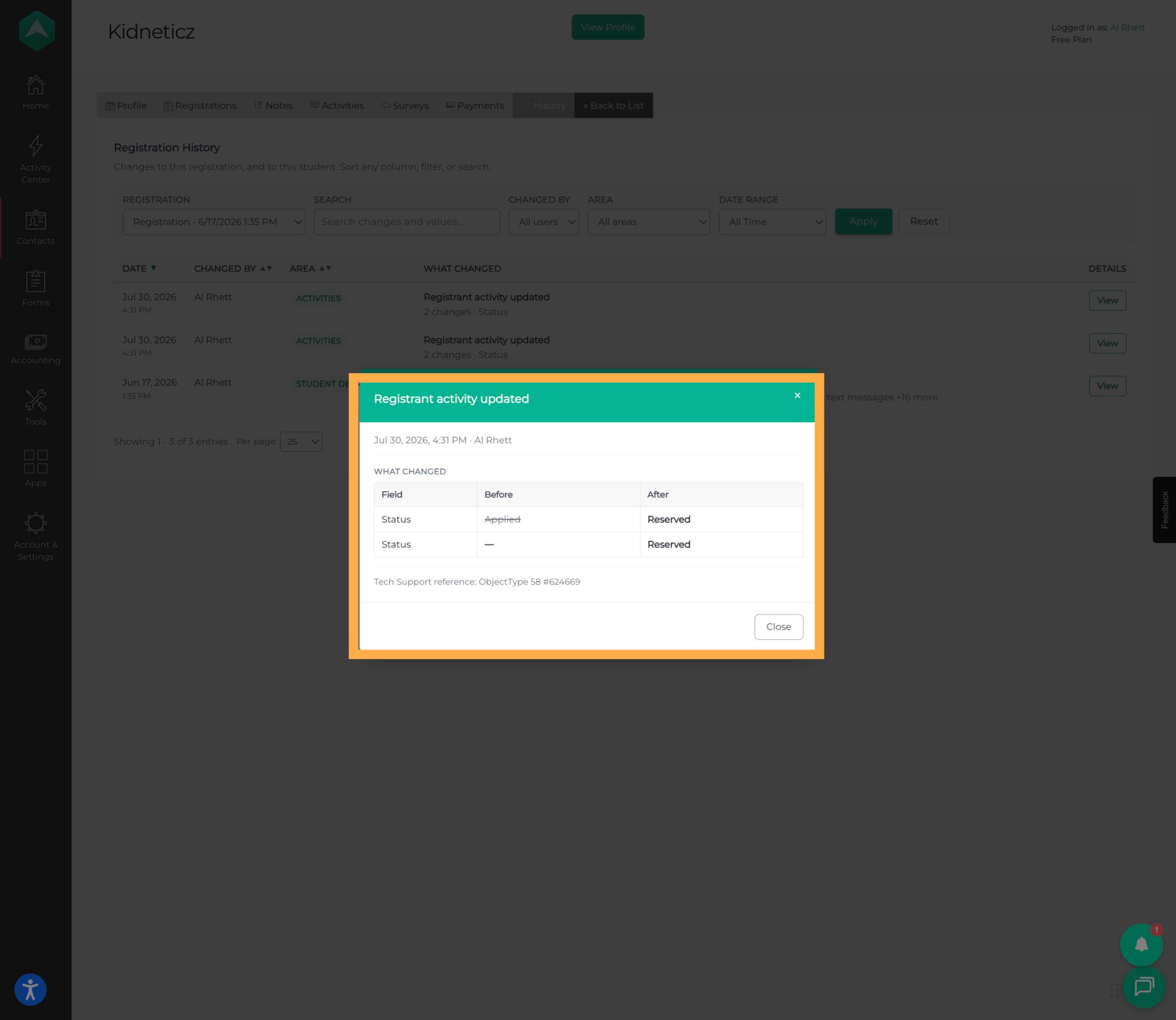
Click “View” next to an entry to see additional information about that specific registration update.
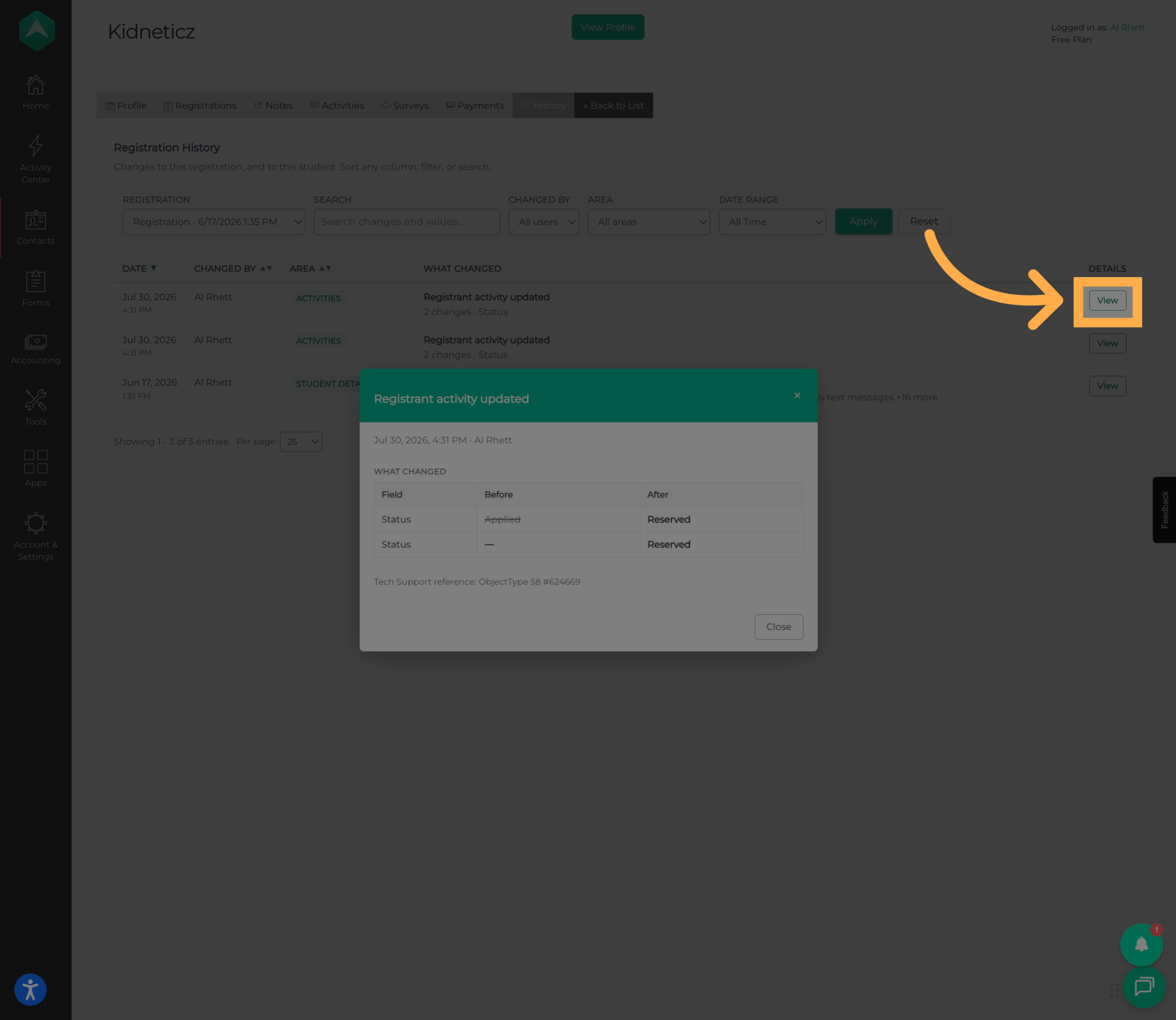
13. Review Registrant Updates
Review the details to see exactly what changed on the student's registration.
When applicable, you'll be able to compare the previous information with the updated information.
💡 Tip: Registration History can be particularly helpful when several staff members manage the same students because each entry identifies who made the change and when.
14. Return to Registrant History
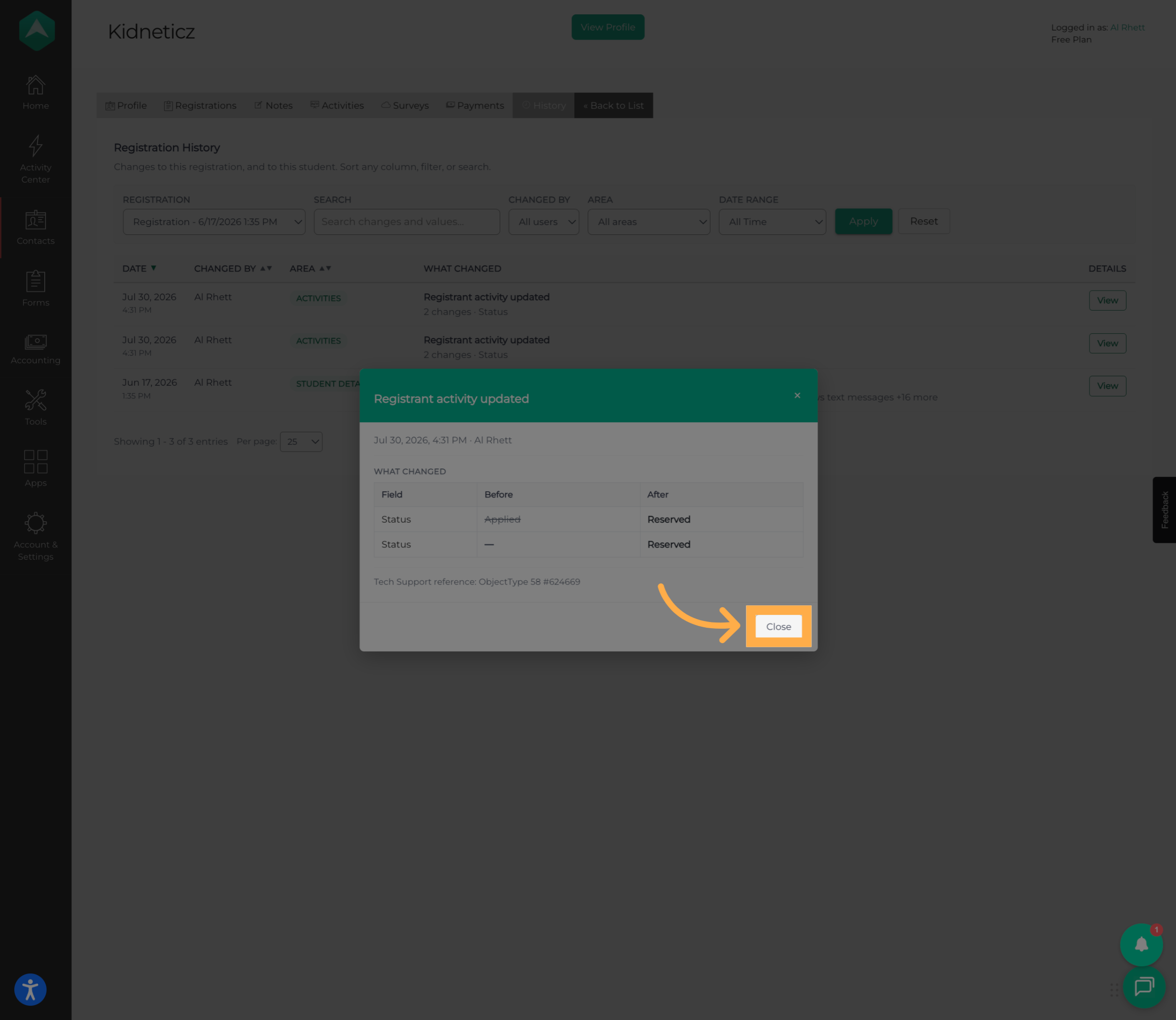
Once you've finished reviewing the update, close the details to return to the registrant's complete History.
Frequently Asked Questions
Q: What is the History feature?
A: The History feature provides a plain-language record of changes made to an activity or an individual participant’s registration. It helps you understand what changed, when it changed, and who made the change.
Q: What’s the difference between Activity History and Registrant History?
A: Activity History tracks changes made to the activity itself, such as updates to its schedule, location, capacity, eligibility, forms, payment options, publishing status, and assigned staff.
Registrant History tracks changes associated with an individual registration, such as registration status updates, activity moves, edited answers, payments or refunds, and guardian or pickup changes.
Q: Can I see who made a change?
A: Yes. History entries show who made the change and when it occurred.
Q: Can I see exactly what changed?
A: Yes. Select “View” next to a history entry to see additional details. When available, AfterSchool HQ displays the previous and updated values so you can compare what changed.
Q: Can I search History?
A: Yes. Use the Search field to find specific information within the available history.
Q: Can I filter History?
A: Yes. Available filters may include options such as Changed By, Area, and date range, allowing you to narrow the history entries displayed.
Q: Can I see changes that happened before the History feature was available?
A: Yes. History uses change information that AfterSchool HQ previously recorded, so existing activities and registrations may already contain historical entries when you first access the feature.
Q: Why does an older activity have less information in its History?
A: Detailed information may be more limited for older changes. When historical information is available, AfterSchool HQ displays the information that was recorded at the time.
Q: Why does my activity say “No history yet”?
A: If no changes have been recorded for the activity or registration, the History area may display No history yet. This does not necessarily indicate an error.
Q: Why don’t I see participant changes in Activity History?
A: Activity History focuses on changes made to the activity’s setup. To review changes associated with an individual participant’s registration, open that participant’s Registrant History.
Q: Who can access History?
A: The History feature is available to authorized account roles, including Admins and Owners.
💡If you experience any issues or have further questions with “How to View Activity and Registrant History”, don't hesitate to get in touch with our support team at support@afterschoolhq.com.