![ASHQ Logo Vert Flat.png]](https://support.afterschoolhq.com/hs-fs/hubfs/ASHQ%20Logo%20Vert%20Flat.png?height=40&name=ASHQ%20Logo%20Vert%20Flat.png)
Need to keep track of important activity updates, reminders, or communications?
This guide will walk you through how to create and manage activity notes within AfterSchool HQ.
1. Access Extracurricular Activities
Open the Extracurricular Activities” section to view and manage available activities.
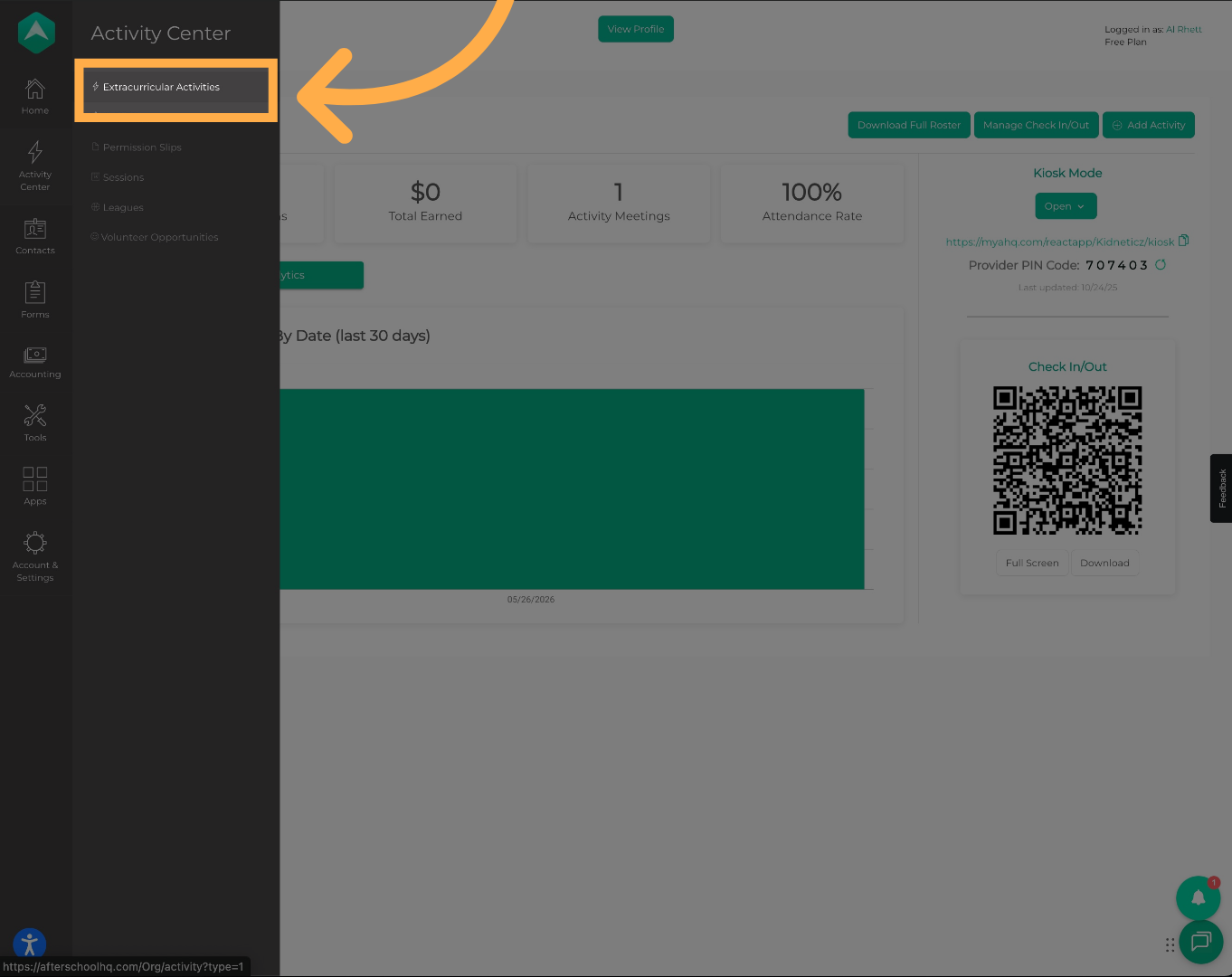
💡 Tip: Activity notes are managed at the individual activity level.
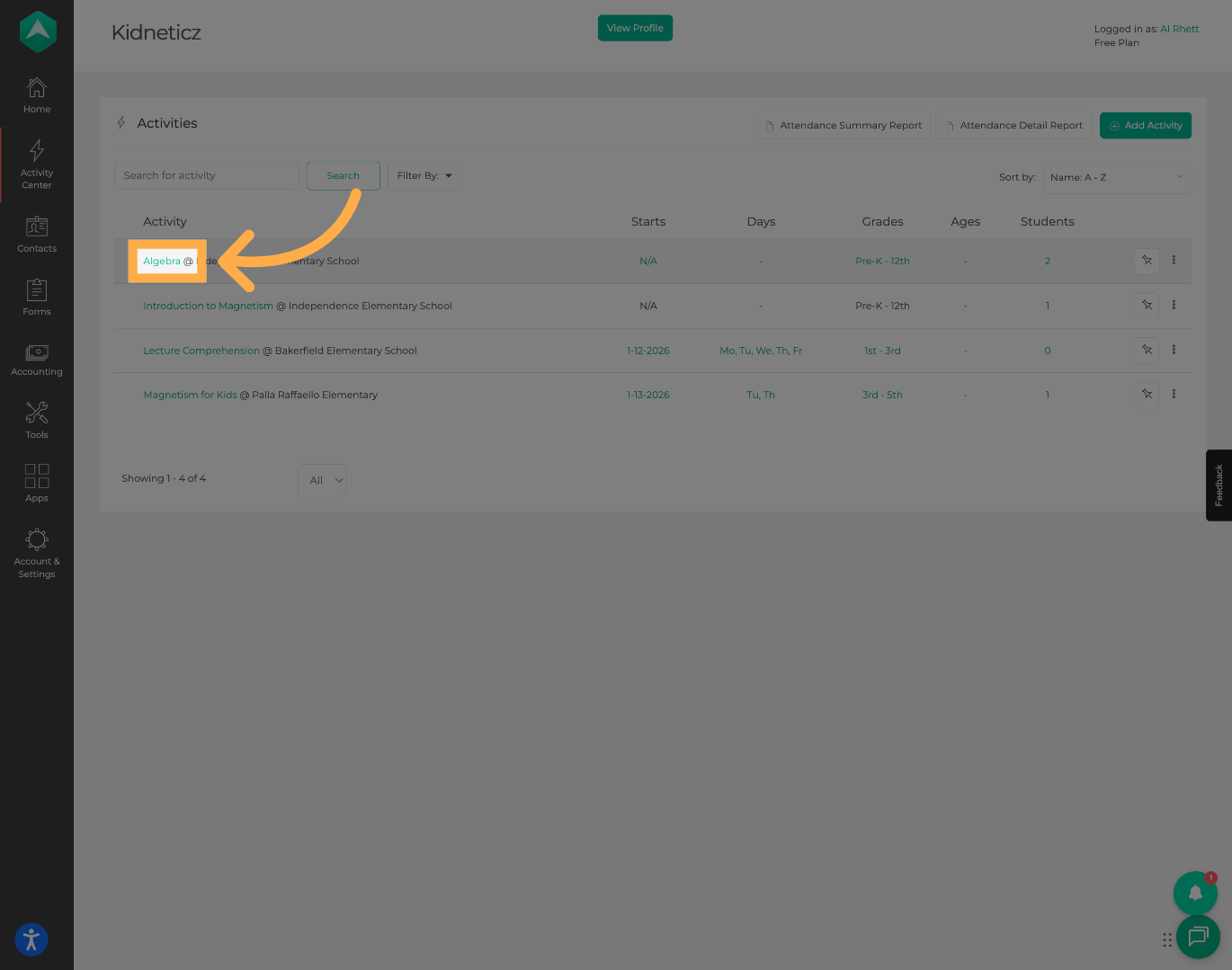
2. Open an Activity
Select the activity you would like to manage notes for.
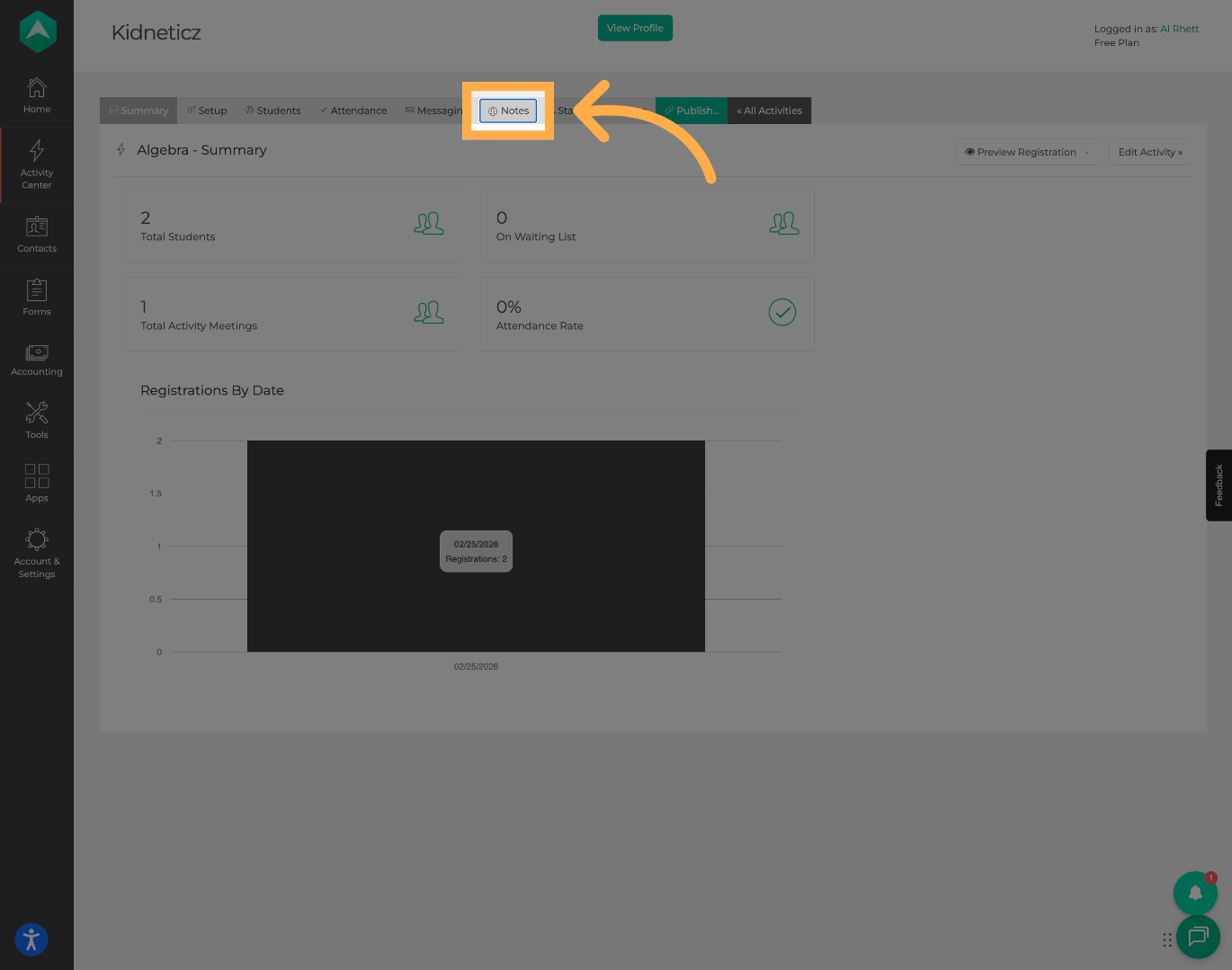
3. Open the Notes Section
Click “Notes” to access the activity notes area.
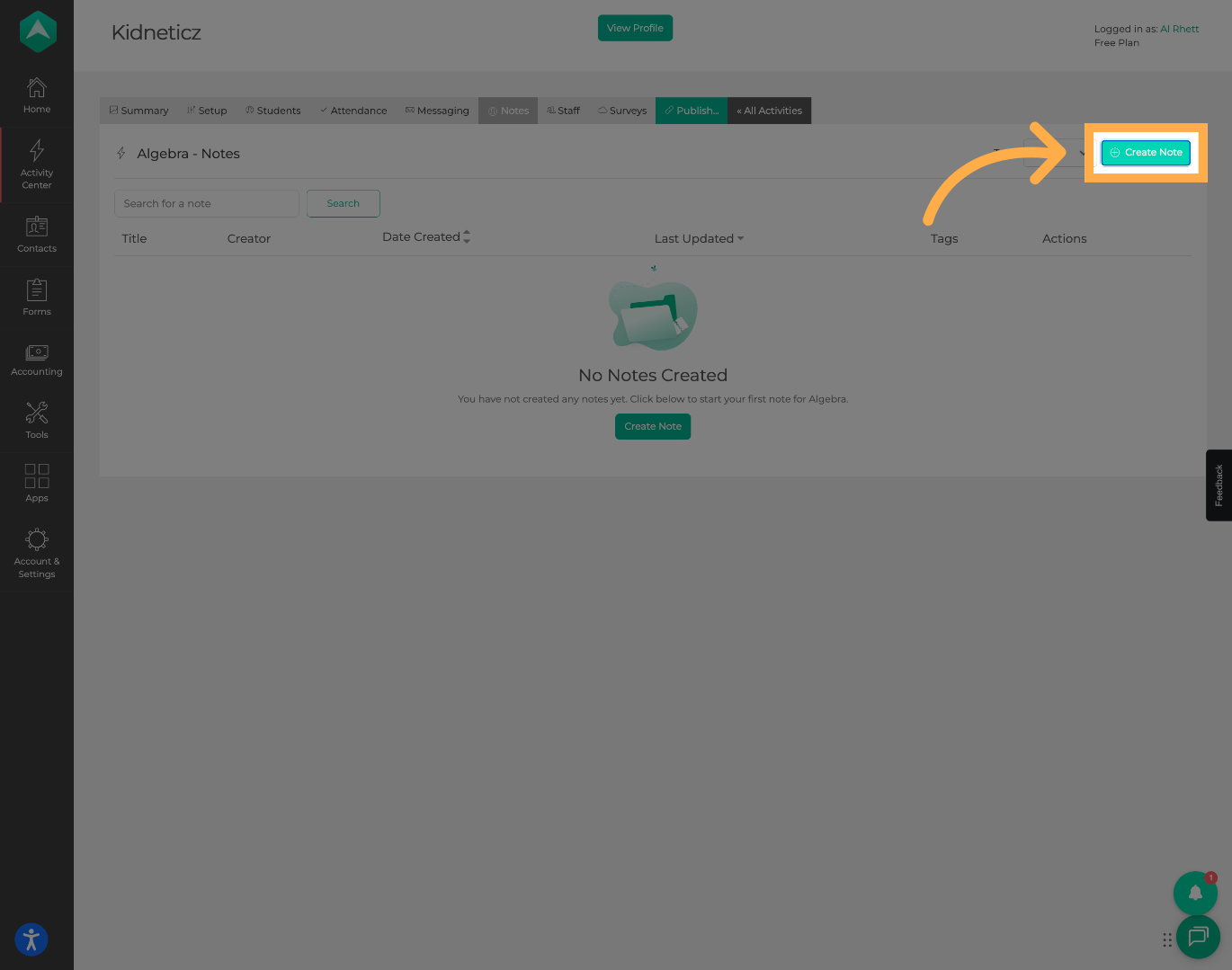
4. Create a New Note
Click “Create Note” to add a new note to the activity.
5. Enter a Note Title
Add a title to help identify the purpose of the note.
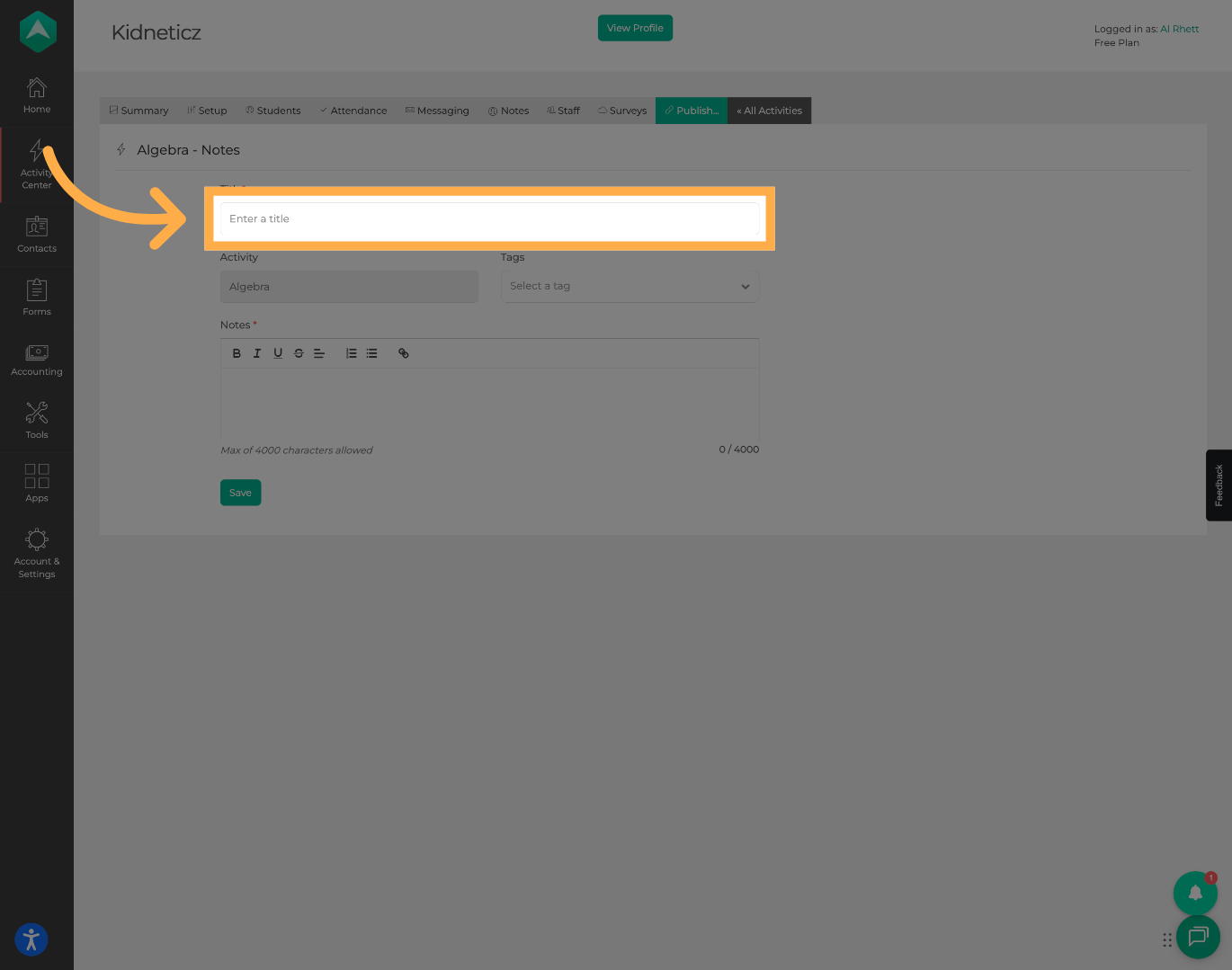
💡 Tip: Use descriptive titles such as "Schedule Update," "Parent Communication," or "Staff Reminder."
6. Select a Note Tag
Choose a tag to help categorize and organize the note.
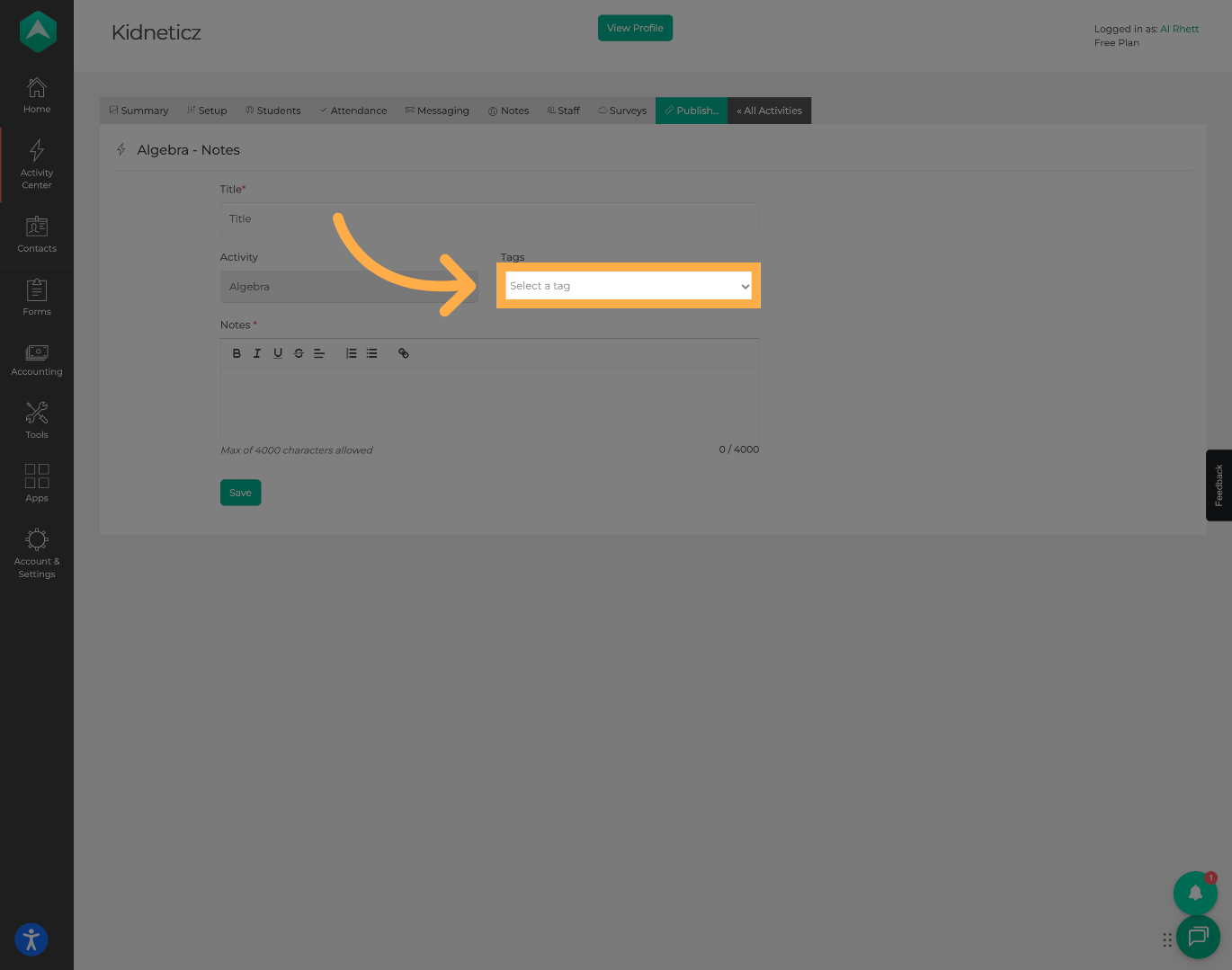
💡 Tip: Tags make it easier to filter, search, and organize notes later.
7. Add Note Details
Enter the content of your note in the “Notes” field.
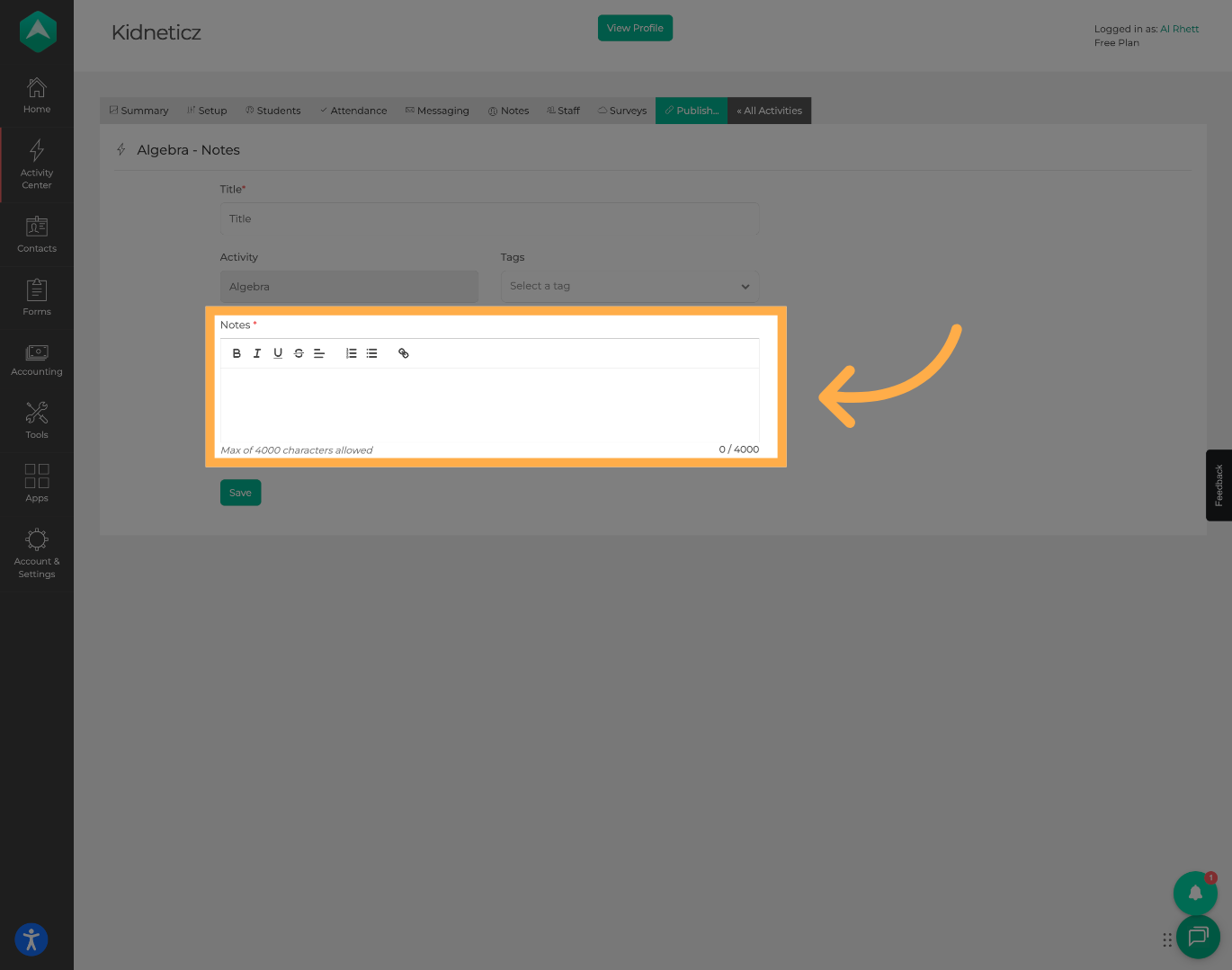
💡 Tip: Include clear and concise information so staff can quickly understand the purpose of the note.
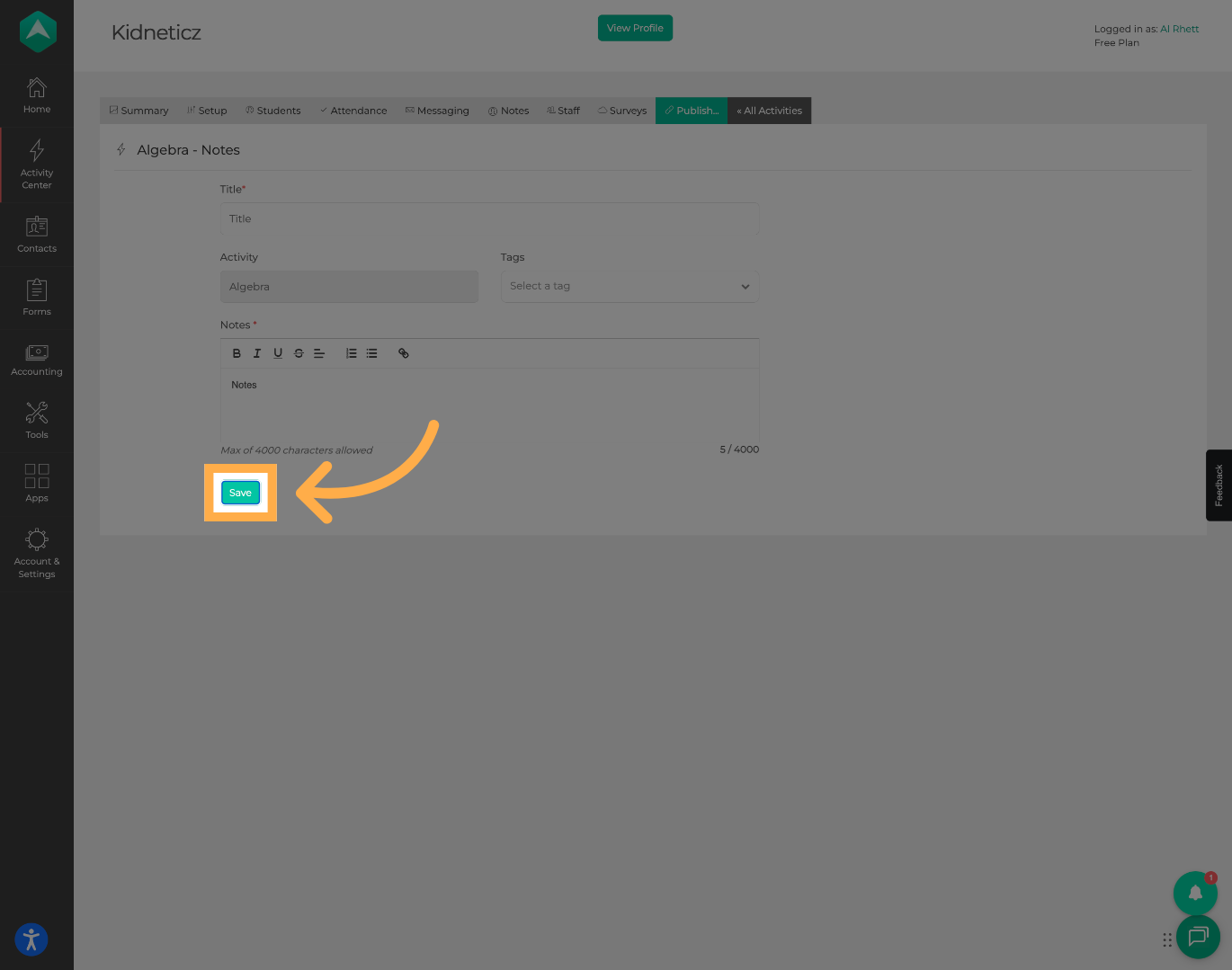
8. Save the Note
Click “Save” to add the note to the activity.
Once saved, the note will appear in the activity notes list along with the creation date, last updated date, and assigned tags.
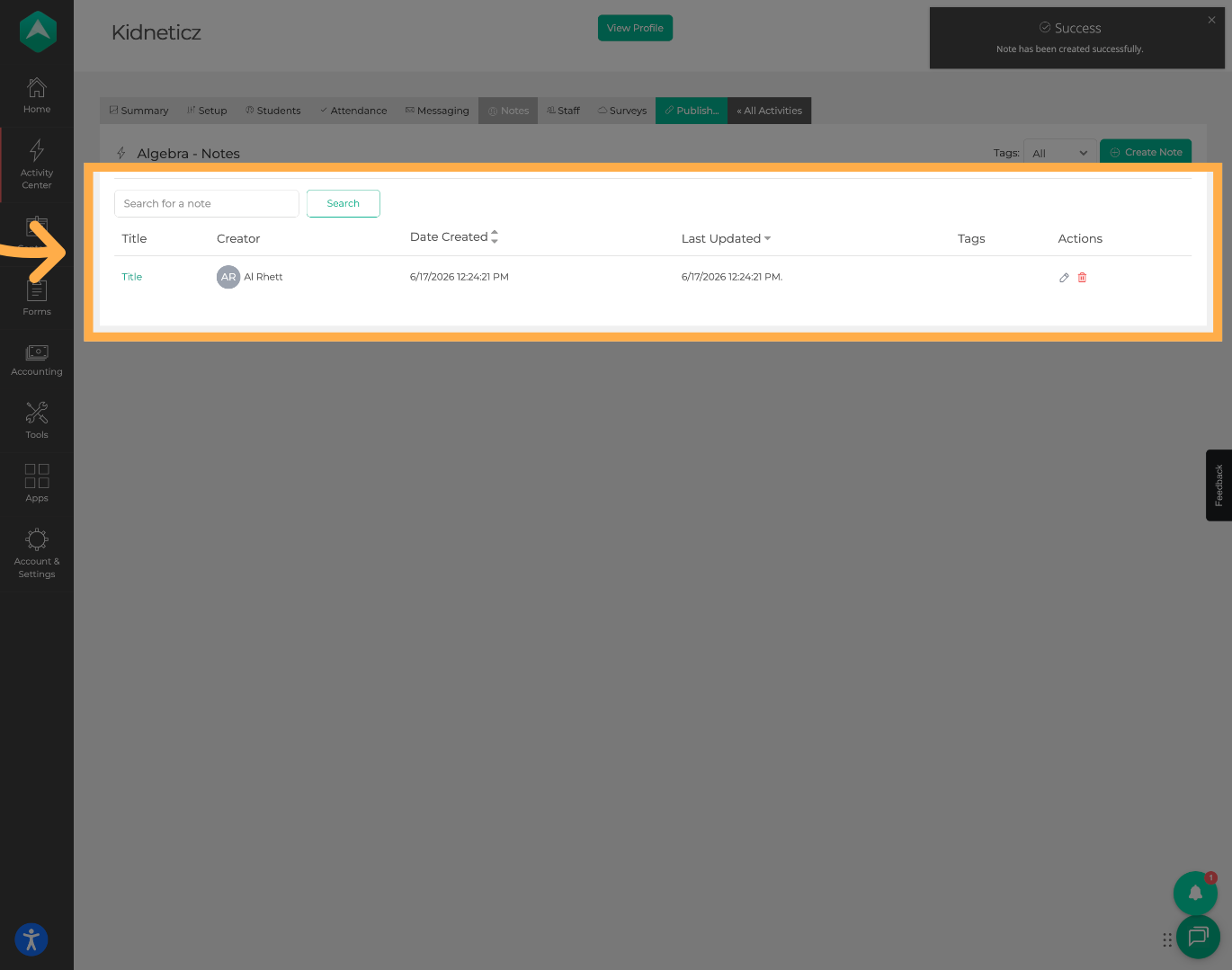
10. Edit a Note
Click the “Pencil” icon to modify an existing note.
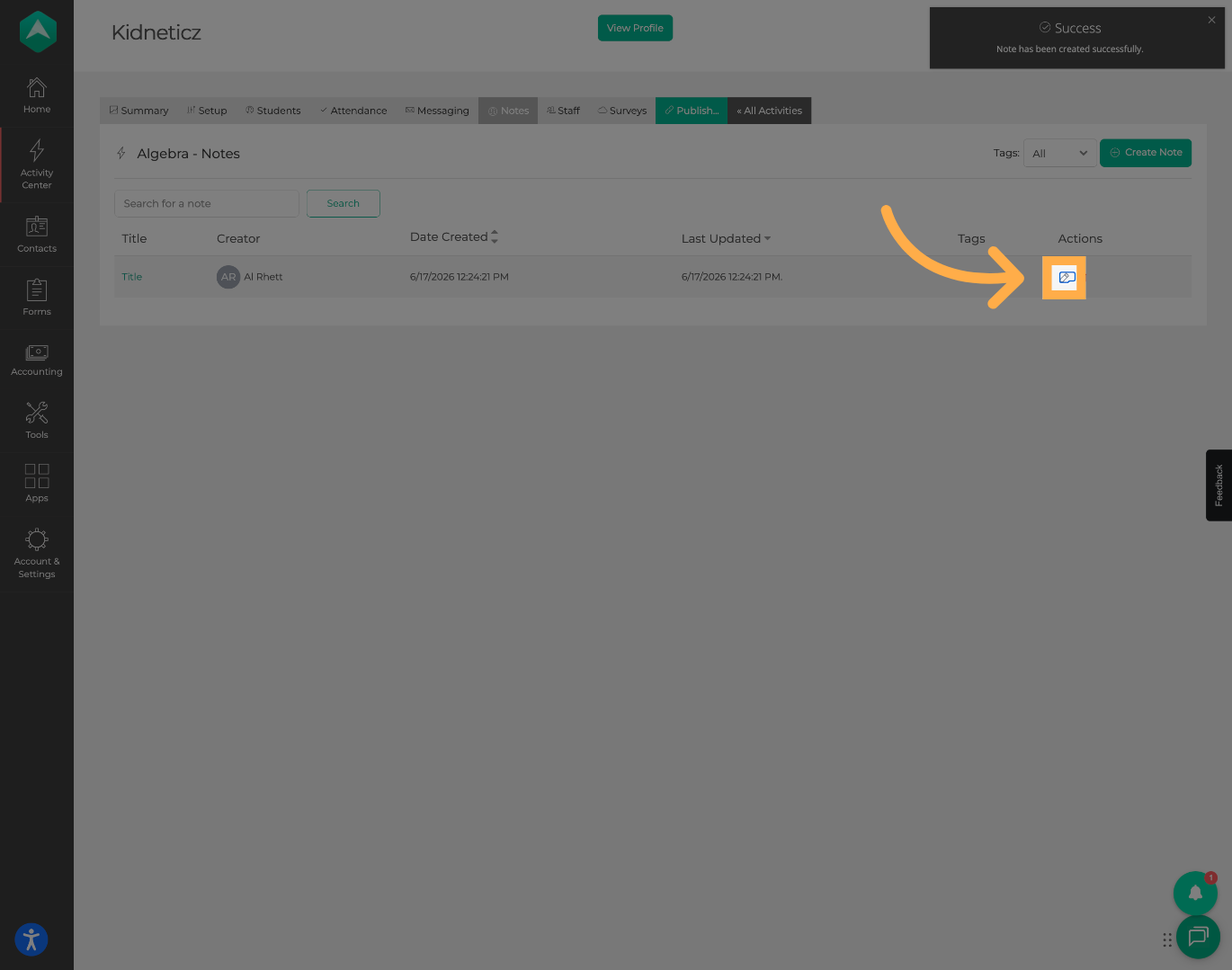
💡 Tip: Notes can be updated whenever new information becomes available.
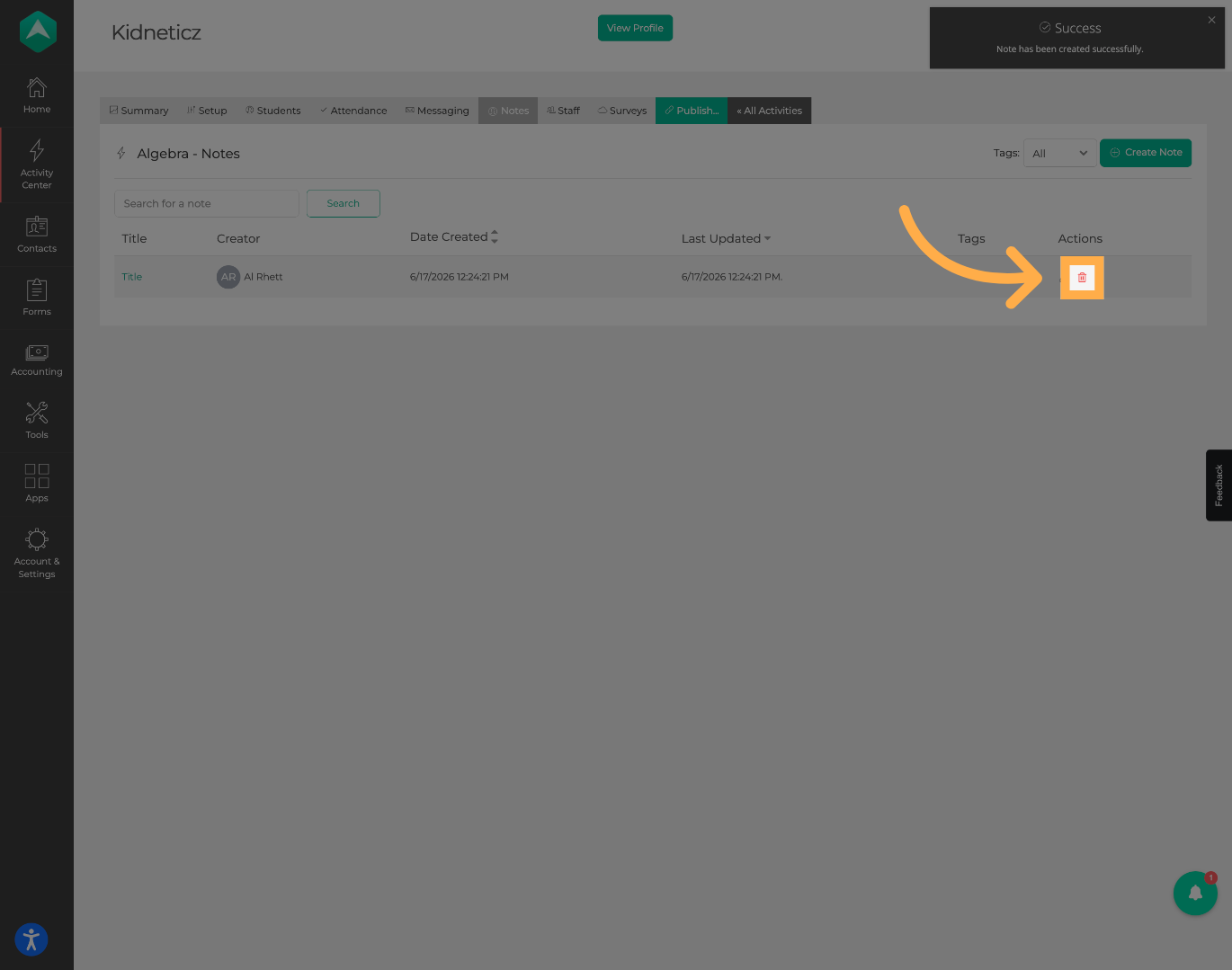
11. Open Delete Options
Click the “Trashcan” icon to begin removing a note.
12. Confirm Note Deletion
Confirm the deletion to permanently remove the selected note.
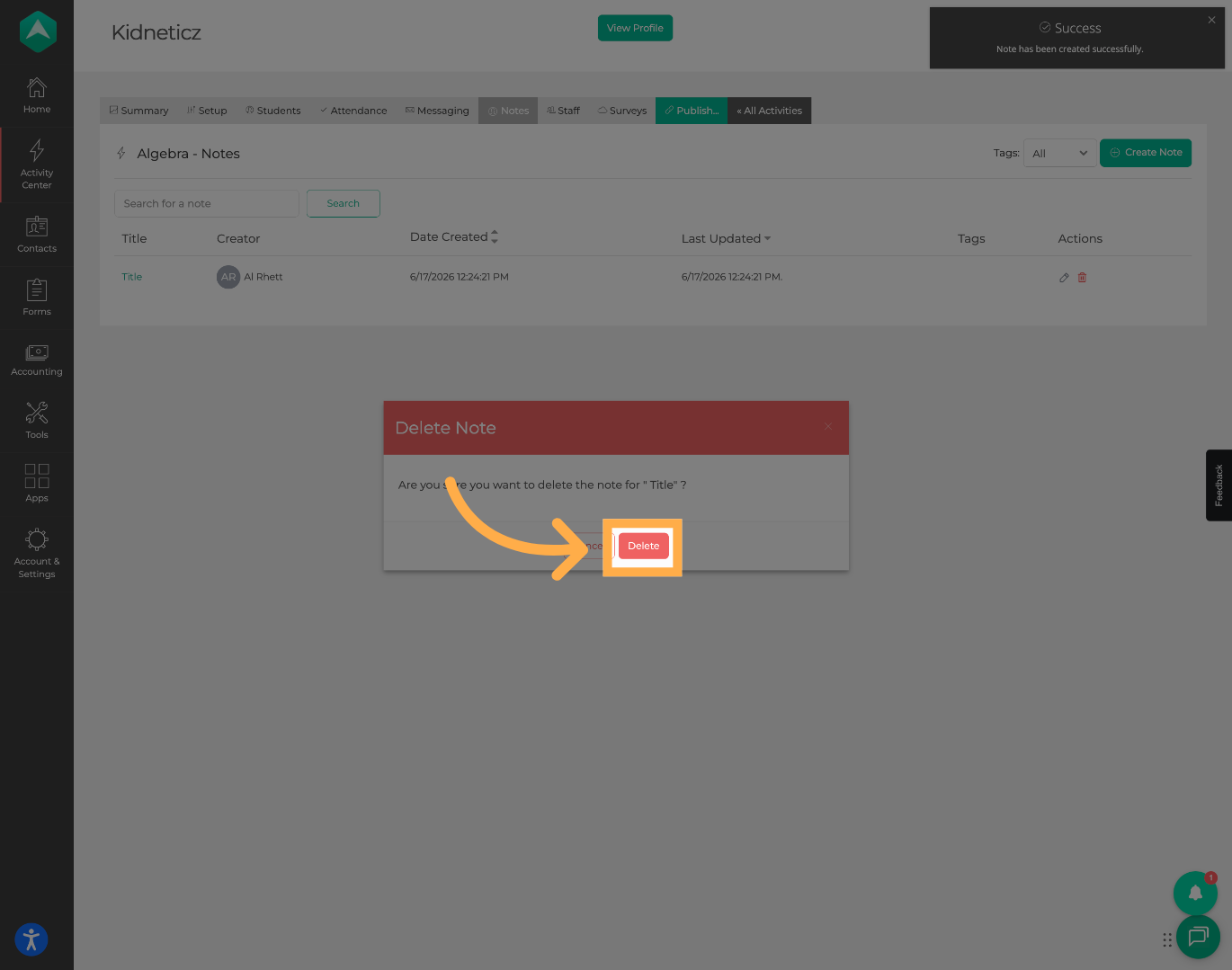
⚠️ Important: Deleted notes cannot be recovered, so be sure the note is no longer needed before confirming.
Frequently Asked Questions
Q: What are activity notes used for?
A: Activity notes help staff document important information, reminders, updates, and communications related to a specific activity.
Q: Can activity notes be edited after they are saved?
A: Yes. Existing notes can be modified by selecting the Edit option.
Q: What are note tags used for?
A: Tags help categorize notes and make them easier to search, filter, and organize.
Q: Can deleted notes be recovered?
A: No. Once a note is deleted, it cannot be restored.
Q: Who can view activity notes?
A: Visibility depends on your organization's permissions and staff access settings.
Q: Can multiple notes be created for the same activity?
A: Yes. Activities can have multiple notes to help track ongoing updates and communications.
💡If you experience any issues or have further questions with “How to Create and Manage Activity Notes”, don't hesitate to get in touch with our support team at support@afterschoolhq.com.