![ASHQ Logo Vert Flat.png]](https://support.afterschoolhq.com/hs-fs/hubfs/ASHQ%20Logo%20Vert%20Flat.png?height=40&name=ASHQ%20Logo%20Vert%20Flat.png)
In this guide, we’ll show you how to view parent payments in AfterSchool HQ and download them to a file if you need to review them later.
This is helpful if you want to:
-
See what parents paid
-
Review payments from a specific year (like 2025)
-
Share payment information with your team or accountant
Step-by-Step: View Parent Payments
-
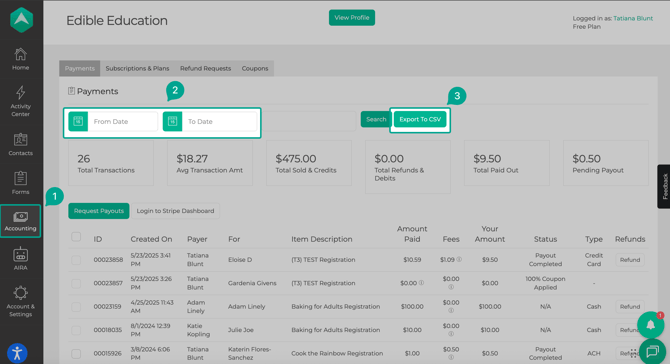
Click Accounting from the left-hand menu. This is where all payment activity lives. You will be taken to the Payments tab where you’ll see a list of payments made by parents. Each row shows one payment.
-
Pick a Date Range (Optional but Helpful)
If you want to look at payments from a specific time period:
-
Find the From Date box.
-
Choose a start date (example: January 1, 2025).
-
Find the To Date box.
-
Choose an end date (example: December 31, 2025).
-
Click Search.
Now you’re only seeing payments from that time range.
-
Review Payment Details
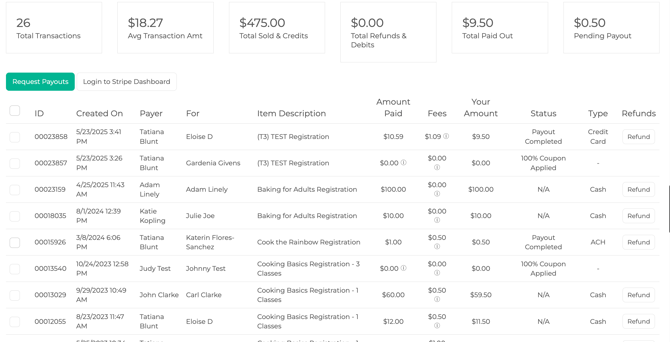
On this page, you can see:
-
Who paid
-
Which student the payment was for
-
What the payment was for
-
How much was paid
-
Any fees taken out
-
The final amount you received
-
Whether it was paid by card, bank transfer, cash, and if a coupon was used
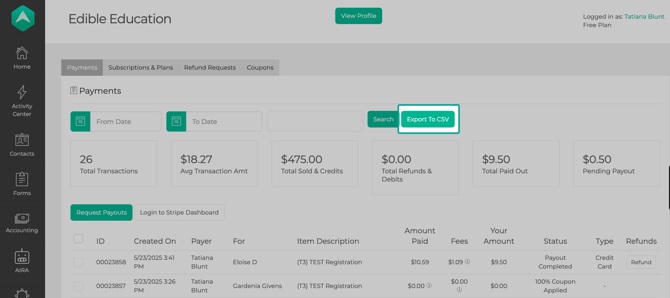
If you want a copy of these payments:
-
Make sure your date range is set the way you want.
-
Click Export to CSV.
-
The file will download to your computer.
-
Open it in Excel or Google Sheets.
You can now sort, add totals, or save the file for your records.
💡 Need Help?
If you have any questions or run into issues while viewing or downloading payments, don’t hesitate to contact support@afterschoolhq.com. We’re happy to help.