![ASHQ Logo Vert Flat.png]](https://support.afterschoolhq.com/hs-fs/hubfs/ASHQ%20Logo%20Vert%20Flat.png?height=40&name=ASHQ%20Logo%20Vert%20Flat.png)
AfterSchool HQ now makes it easier to review student attendance records by providing additional visibility into who checked a student in or out.
From the “Manage Check-In/Out” section, staff can review attendance information, identify who completed each check-in or check-out, and access the student's authorized pick-up information.
❗Before You Begin
-
Make sure you're logged in to your organization's AfterSchool HQ account.
- Identify the activity containing the student whose attendance you want to review.
- Make sure you have the appropriate permissions to access attendance information.
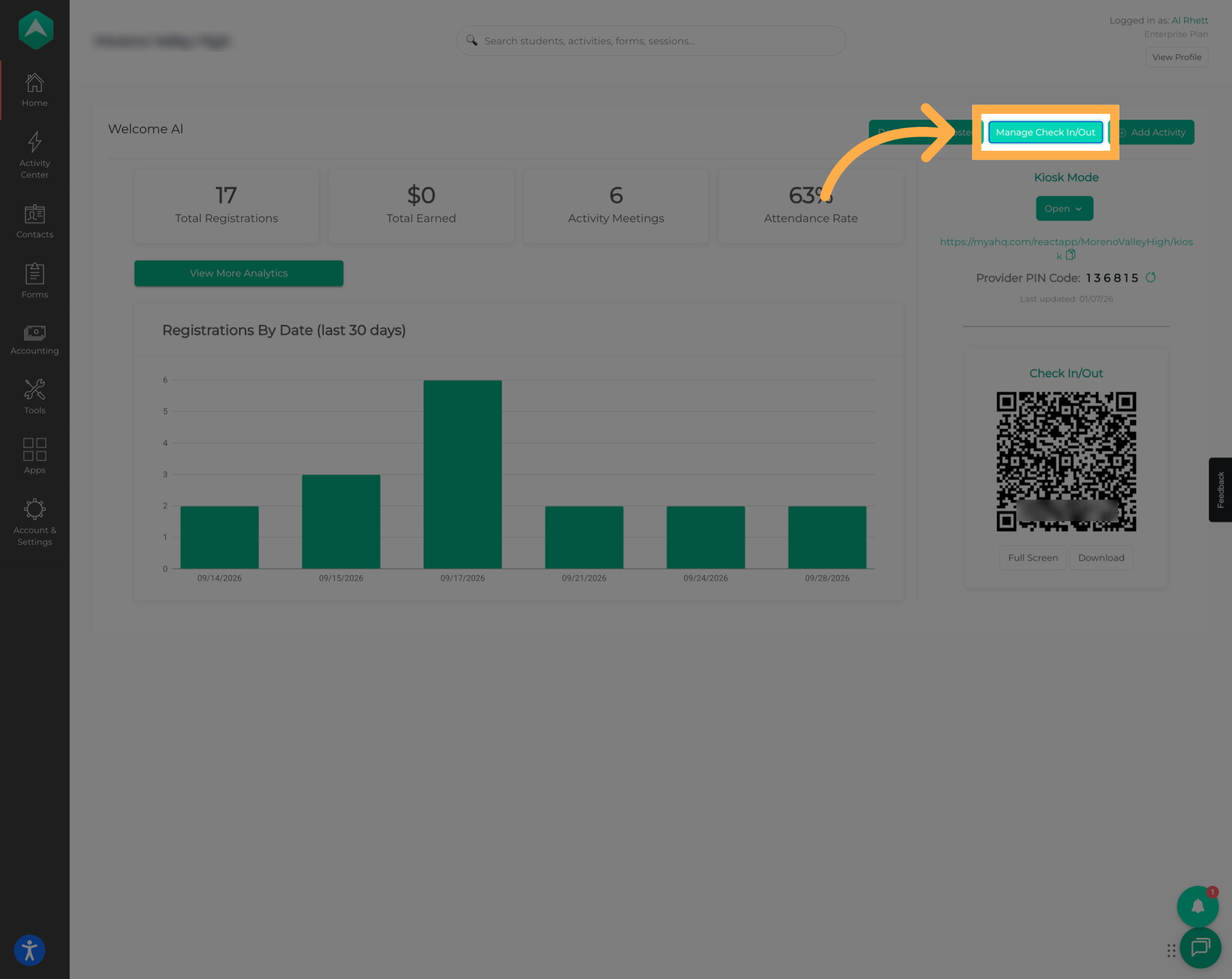
1. Open Manage Check-In/Out
From your AfterSchool HQ account, open “Manage Check-In/Out” to access your organization's student attendance records.
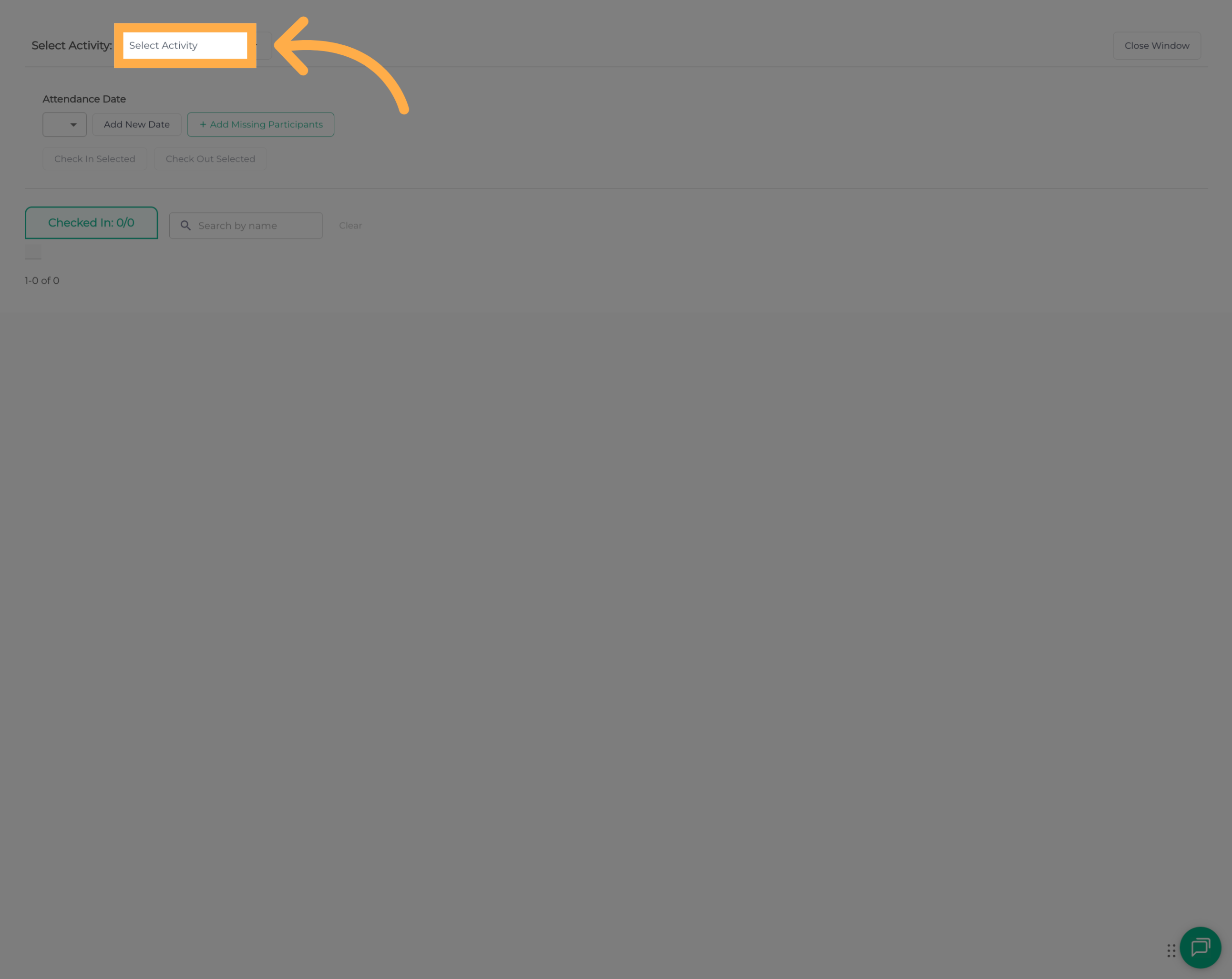
2. Open the Activity Selector
Open the activity dropdown to view the available activities.
This allows you to locate the activity containing the attendance records you want to review.
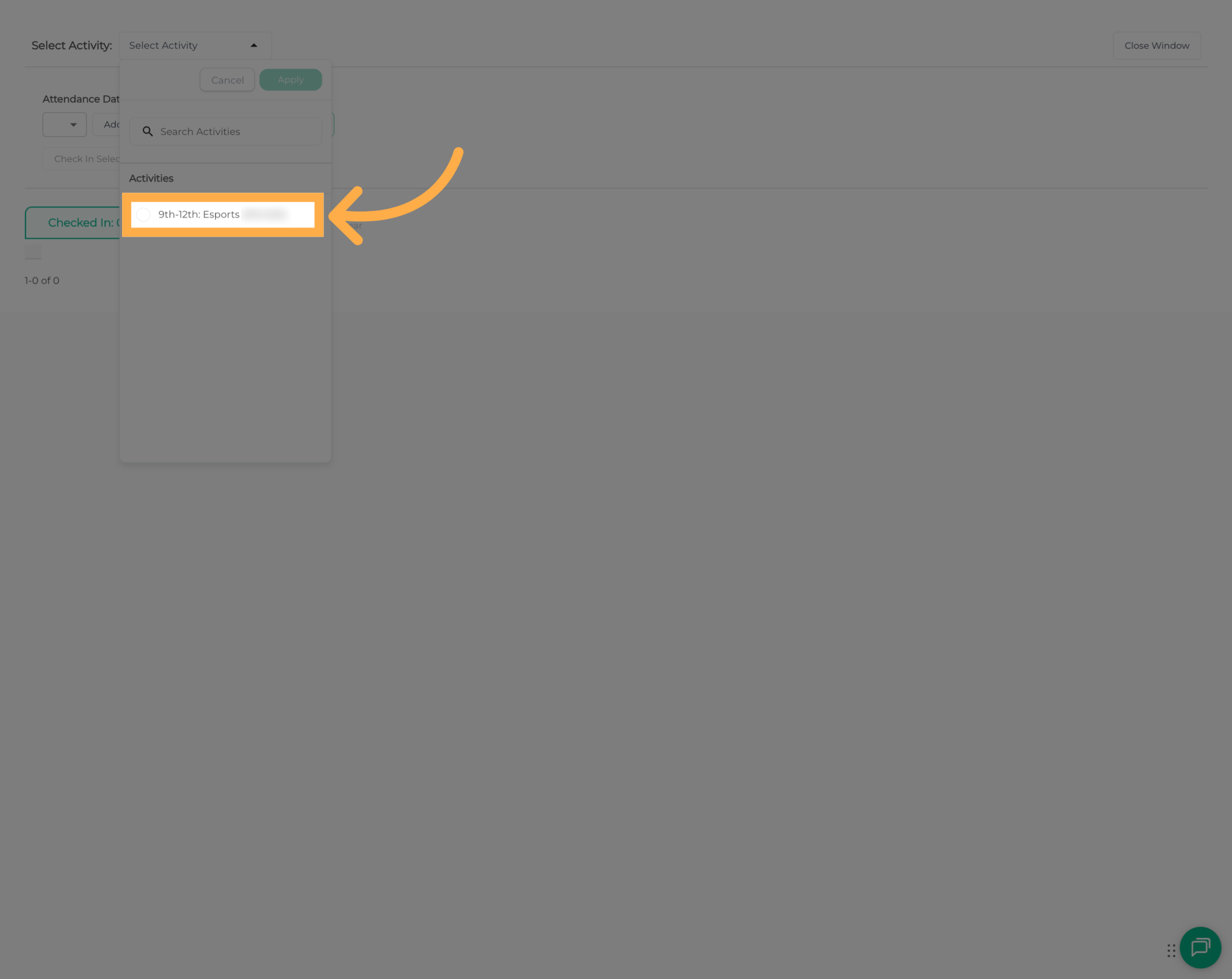
3. Select an Activity
Choose the activity you want to review from the available options.
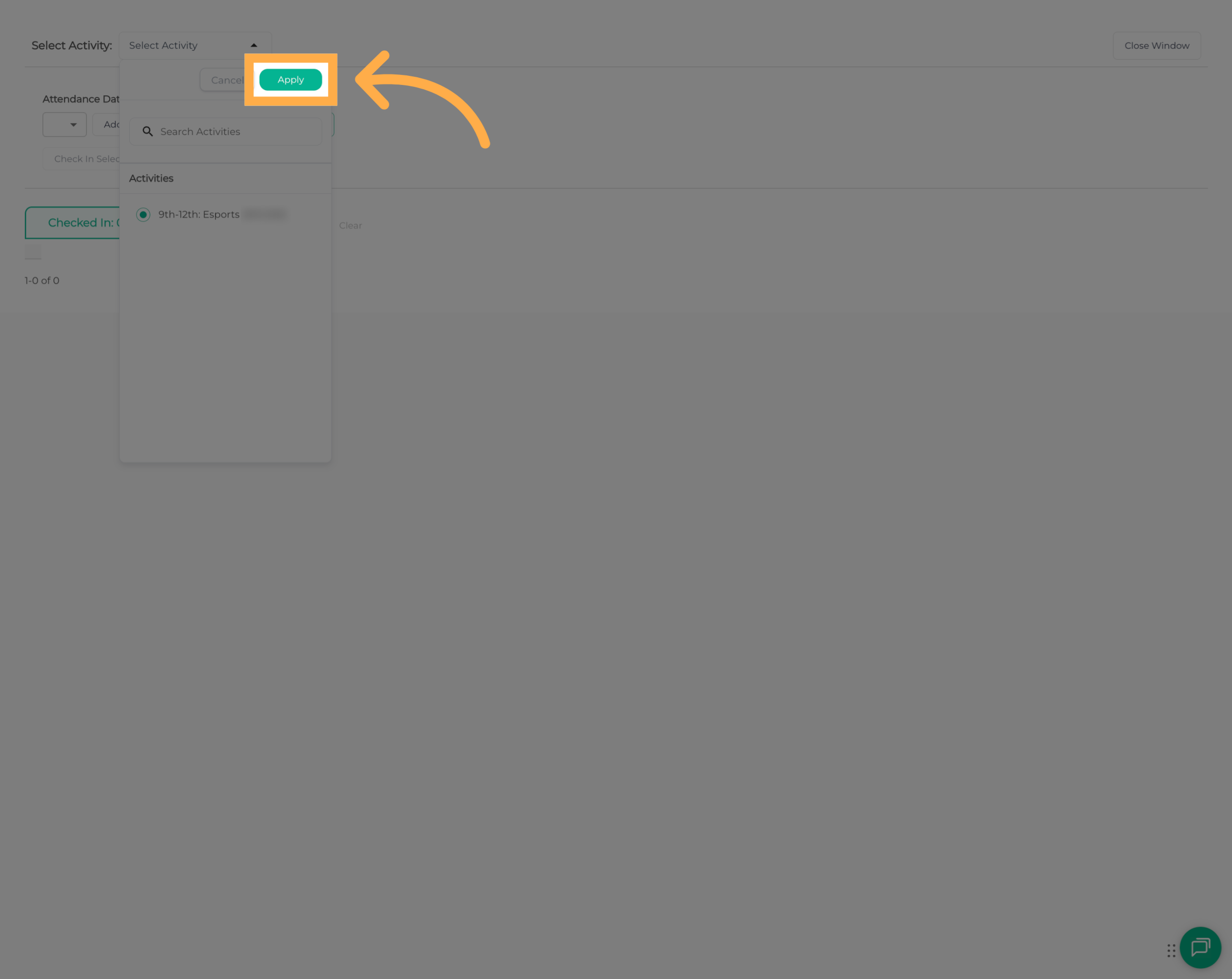
4. Apply the Activity Selection
Apply your selection to display the check-in and check-out records associated with the selected activity.
💡 Tip: If you're managing attendance for multiple programs, make sure you've selected the correct activity before reviewing individual student records.
5. Review Student Attendance Records
Locate the student whose attendance information you want to review.
Depending on the available attendance records, you can review or update the information associated with the student.
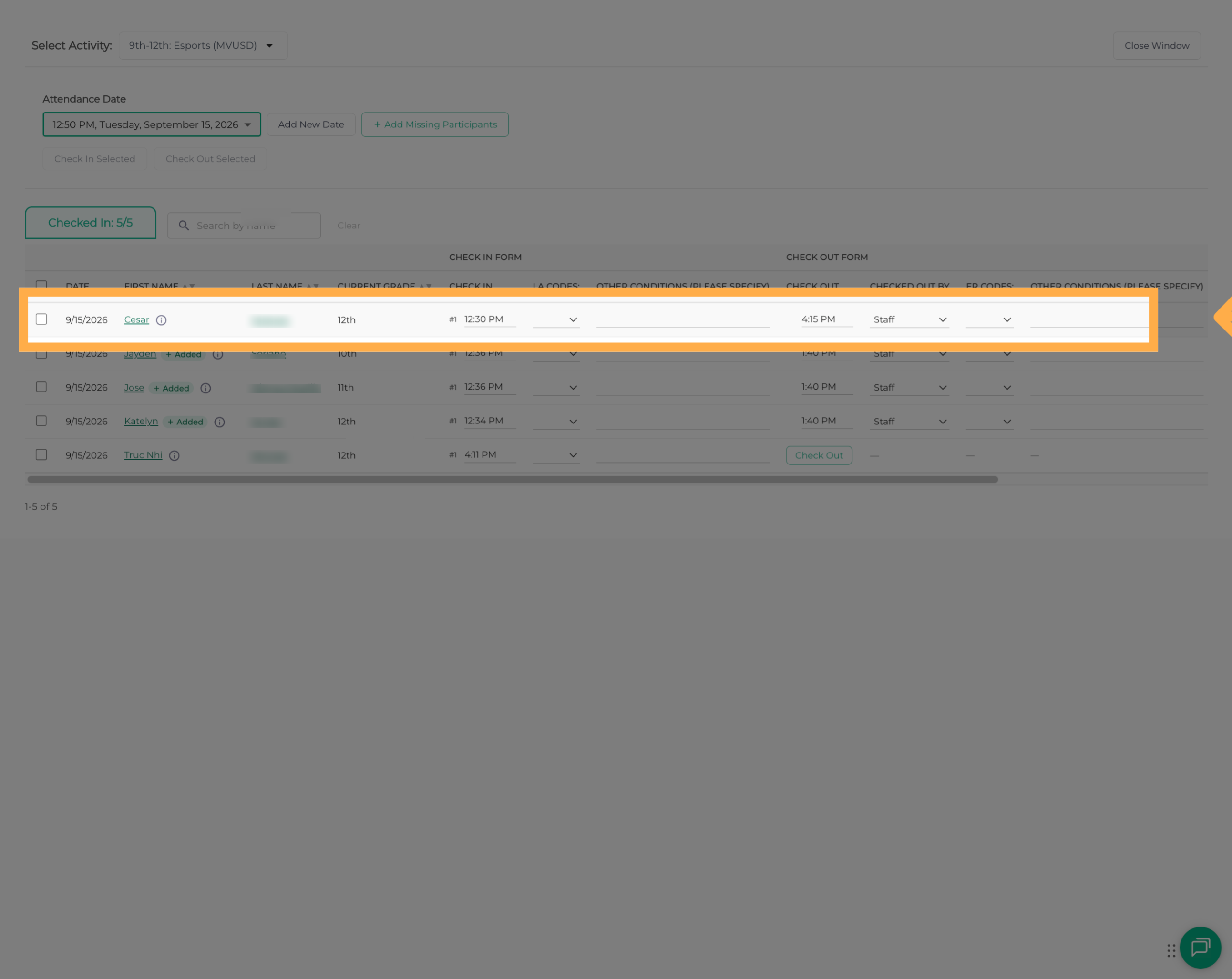
6. View Who Checked the Student In or Out
Within the student's attendance information, you can now review who completed the check-in or check-out.
You can also review the student's authorized pick-up persons and access options for modifying attendance information when needed.
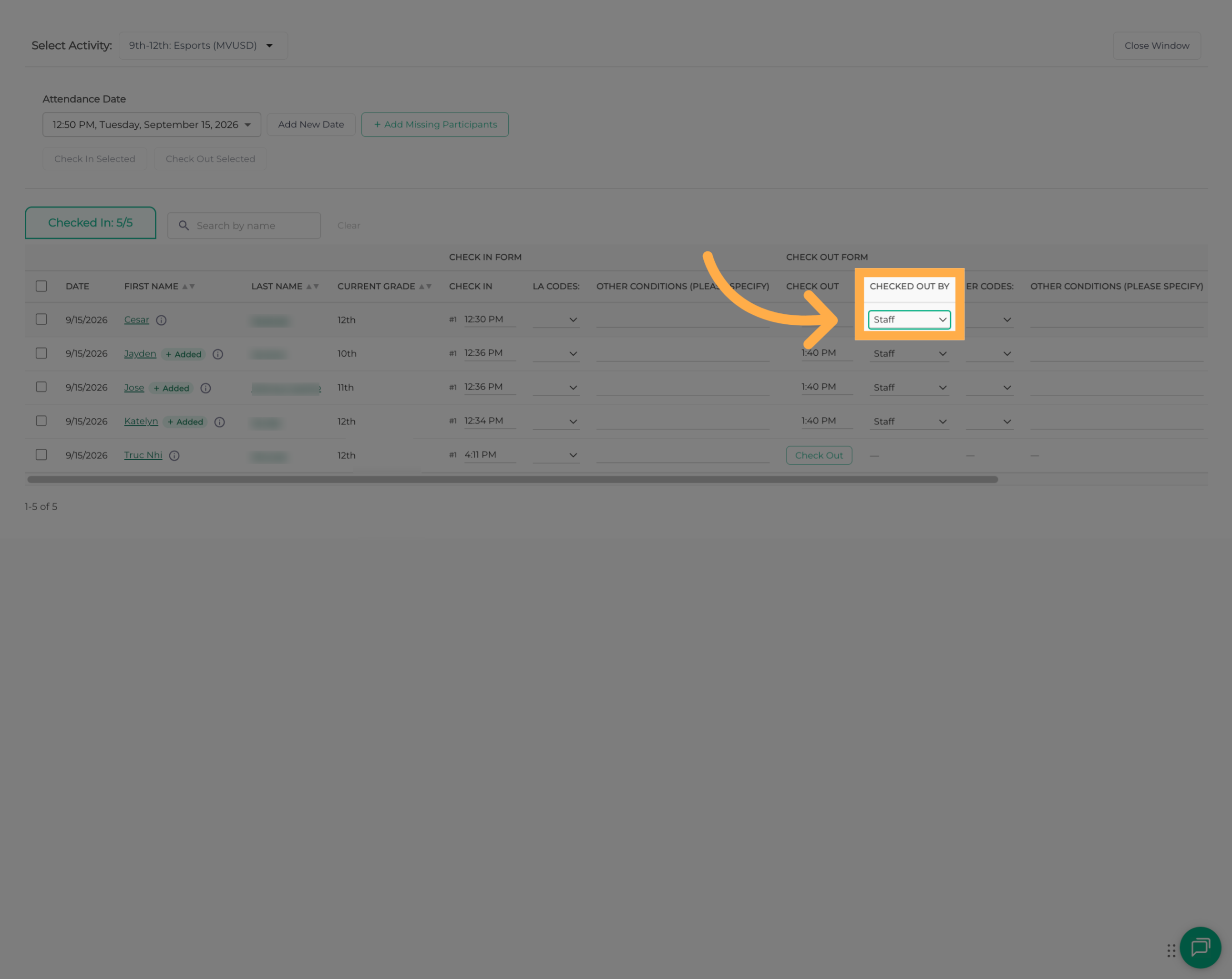
💡 Tip: Use this information when reviewing attendance discrepancies or confirming who completed a student's check-in or check-out.
7. Review Authorized Pick-Up Information
Review the available details associated with the student's attendance record.
You can identify:
- Check-In Information: Who completed the student's check-in.
- Check-Out Information: Who completed the student's check-out.
- Authorized Pick-Up Persons: The individuals listed as authorized to pick up the student.
- Attendance Details: The recorded check-in and check-out information associated with the student.
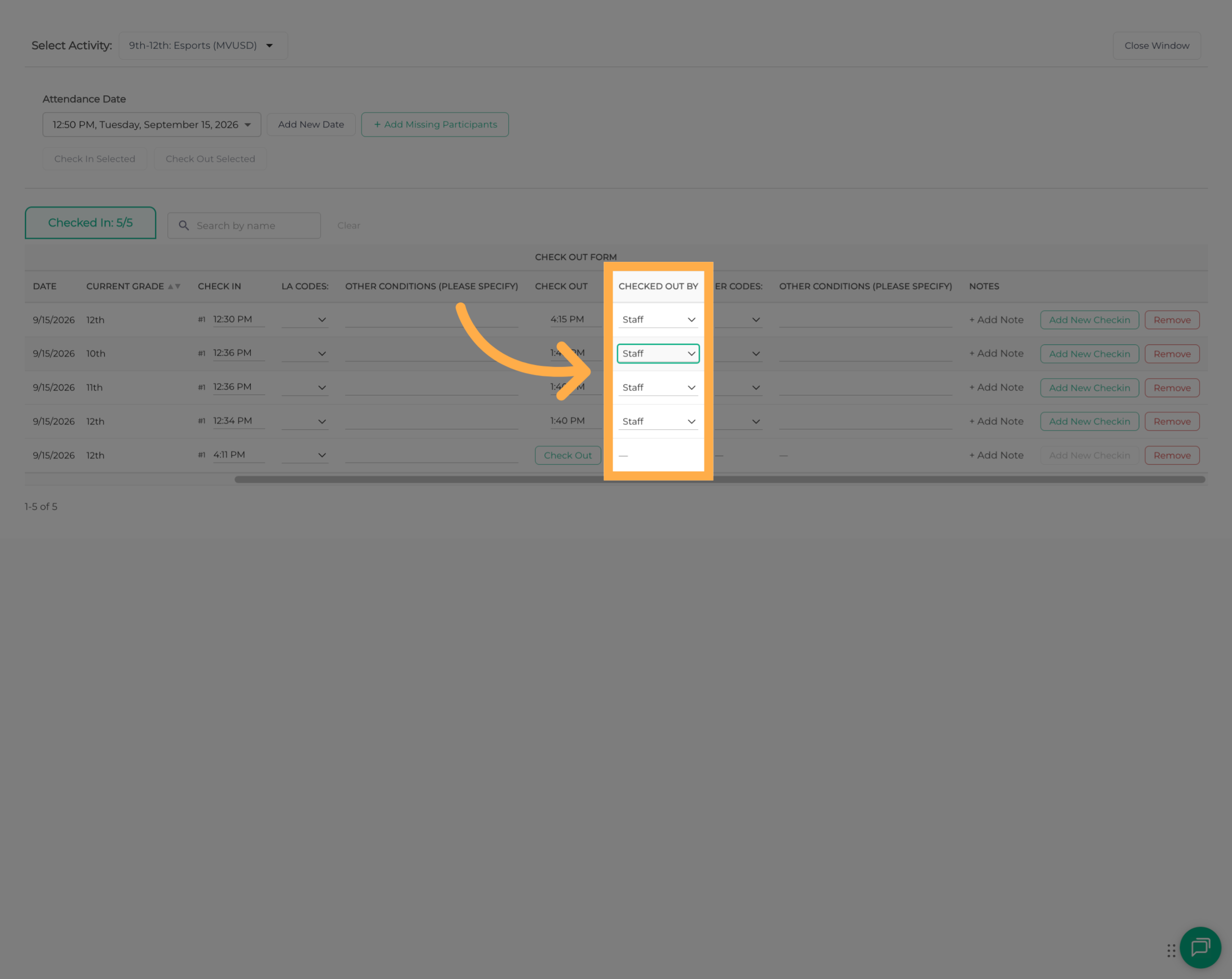
⚠️ Important: Authorized pick-up information and attendance records should only be accessed or shared with individuals who have the appropriate authorization.
Frequently Asked Questions
Q: Where can I see who checked a student in or out?
A: Open “Manage Check-In/Out”, select the activity, and locate the student's attendance record. You can then review the available check-in and check-out details.
Q: Can I see both who checked a student in and who checked them out?
A: Yes. When the information is available in the attendance record, you can review who completed each action.
Q: Can I review authorized pick-up persons from the same section?
A: Yes. You can also review the student's authorized pick-up persons while viewing their attendance information.
Q: Can I view this information for different activities?
A: Yes. Use the activity selector in “Manage Check-In/Out” to choose the activity whose attendance records you want to review.
Q: Can I review attendance information for a specific student?
A: Yes. After selecting an activity, locate the student in the attendance records to review their available check-in and check-out information.
Q: Can I modify a student's check-in or check-out information?
A: Yes. The attendance management area includes options to modify recorded attendance information when needed, depending on your access permissions.
Q: Does viewing who checked a student in or out change their attendance record?
A: No. Simply reviewing this information does not modify the student's attendance record.
Q: Why is it useful to see who checked a student in or out?
A: This information helps organizations review attendance activity, investigate discrepancies, and maintain better visibility into student arrivals and departures.
Q: What if a student doesn't have check-in or check-out information recorded?
A: If a check-in or check-out has not been recorded, the corresponding information may not be available for that attendance entry.
Q: Who can access check-in and check-out details?
A: Access depends on the permissions assigned to your AfterSchool HQ account and your organization's attendance management settings.
💡If you experience any issues or have further questions with “How to View Who Checked a Student In or Out”, don't hesitate to get in touch with our support team at support@afterschoolhq.com.