![ASHQ Logo Vert Flat.png]](https://support.afterschoolhq.com/hs-fs/hubfs/ASHQ%20Logo%20Vert%20Flat.png?height=40&name=ASHQ%20Logo%20Vert%20Flat.png)
Need to double-check a payment or see what plan you’re on? This guide will show you how to view all your billing information directly from your AfterSchool HQ account.
1. Sign in to Your Account
Go to afterschoolhq.com.
Click “Sign In” in the top-right corner and log in to your account.
2. Open the “Billing” Tab
Once you’re on your dashboard, look at the menu on the left side and click “Billing.”
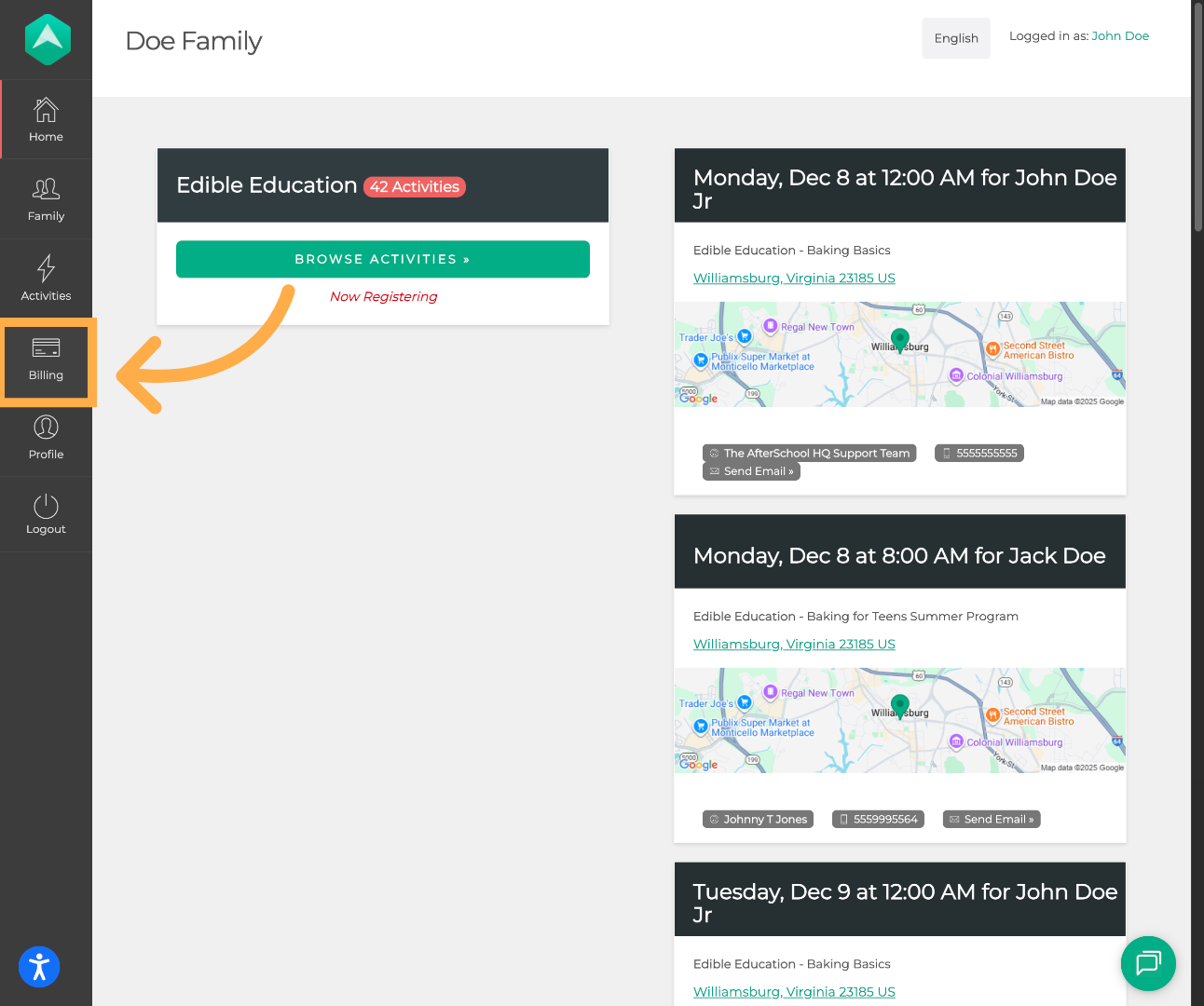
3. Review Transactions and Plans
You’ll land on the “Transactions” tab, where you can view a list of all past payments.
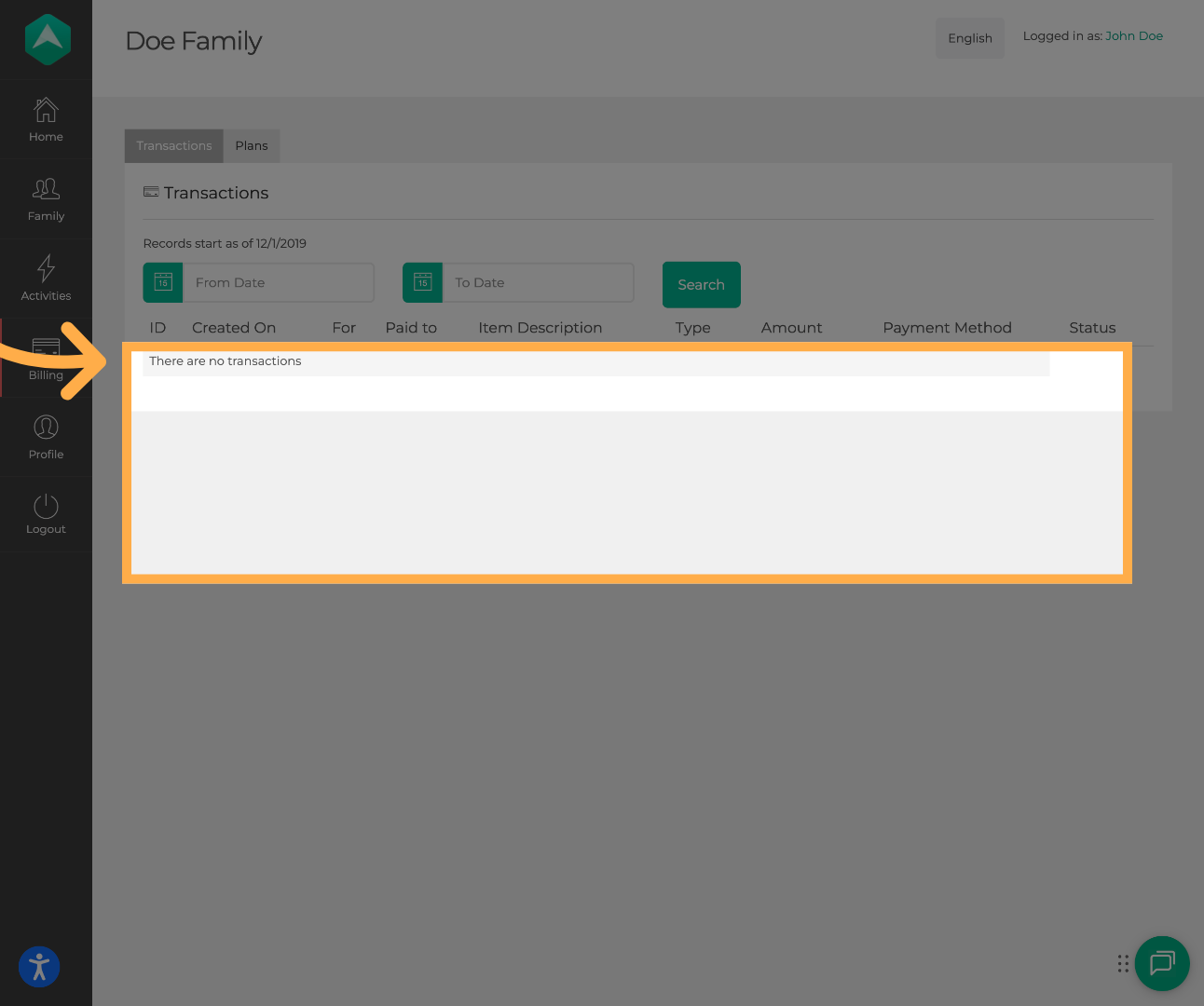
💡 Tip: You can also filter your payments by date to quickly find what you need.
To check your current subscription or billing plan, click the “Plans” tab near the top of the page.
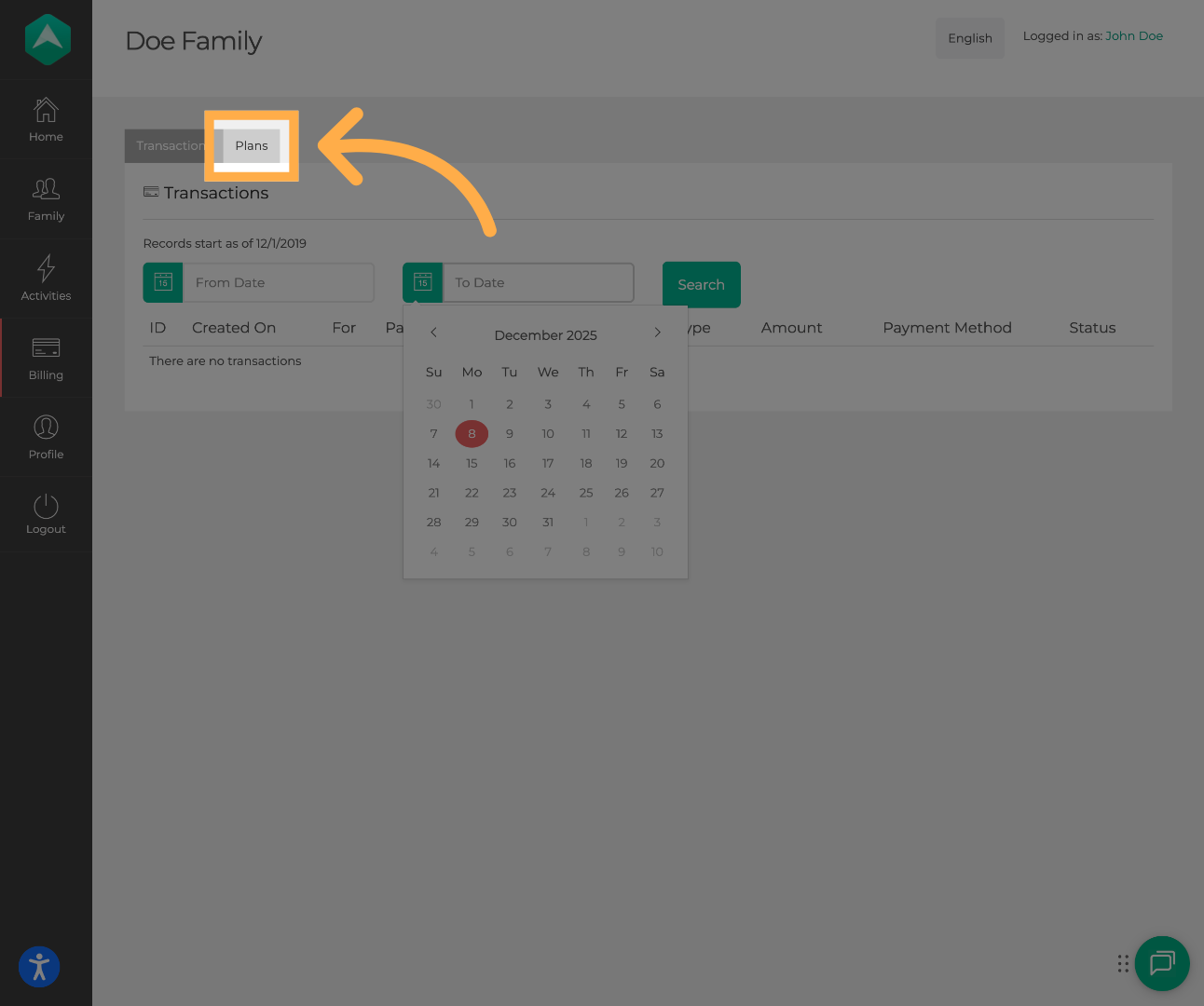
This section shows the program you're paying for, the student it's linked to, when payments started, how many you've made, and how many are left.
💡 Tip: Review your Plans tab regularly to stay up to date on your billing status and avoid missed payments.
Frequently Asked Questions
Q:Can I download or print my payment history?
A: While there’s no built-in print feature, you can take a screenshot or copy and paste your transactions into a document for your records.
Q: What does “Plans” mean?
A: This shows the billing package or subscription you’ve selected with a provider. If you're unsure what it includes, contact the provider directly through your AfterSchool HQ account.
💡If you have any questions or experience any technical difficulties with “How to View Your Payment Details”, don't hesitate to get in touch with our support team at support@afterschoolhq.com.