![ASHQ Logo Vert Flat.png]](https://support.afterschoolhq.com/hs-fs/hubfs/ASHQ%20Logo%20Vert%20Flat.png?height=40&name=ASHQ%20Logo%20Vert%20Flat.png)
Need to remove a participant from an activity?
Follow the instructions below to learn how to withdraw individual or multiple participants from an activity roster in AfterSchool HQ.
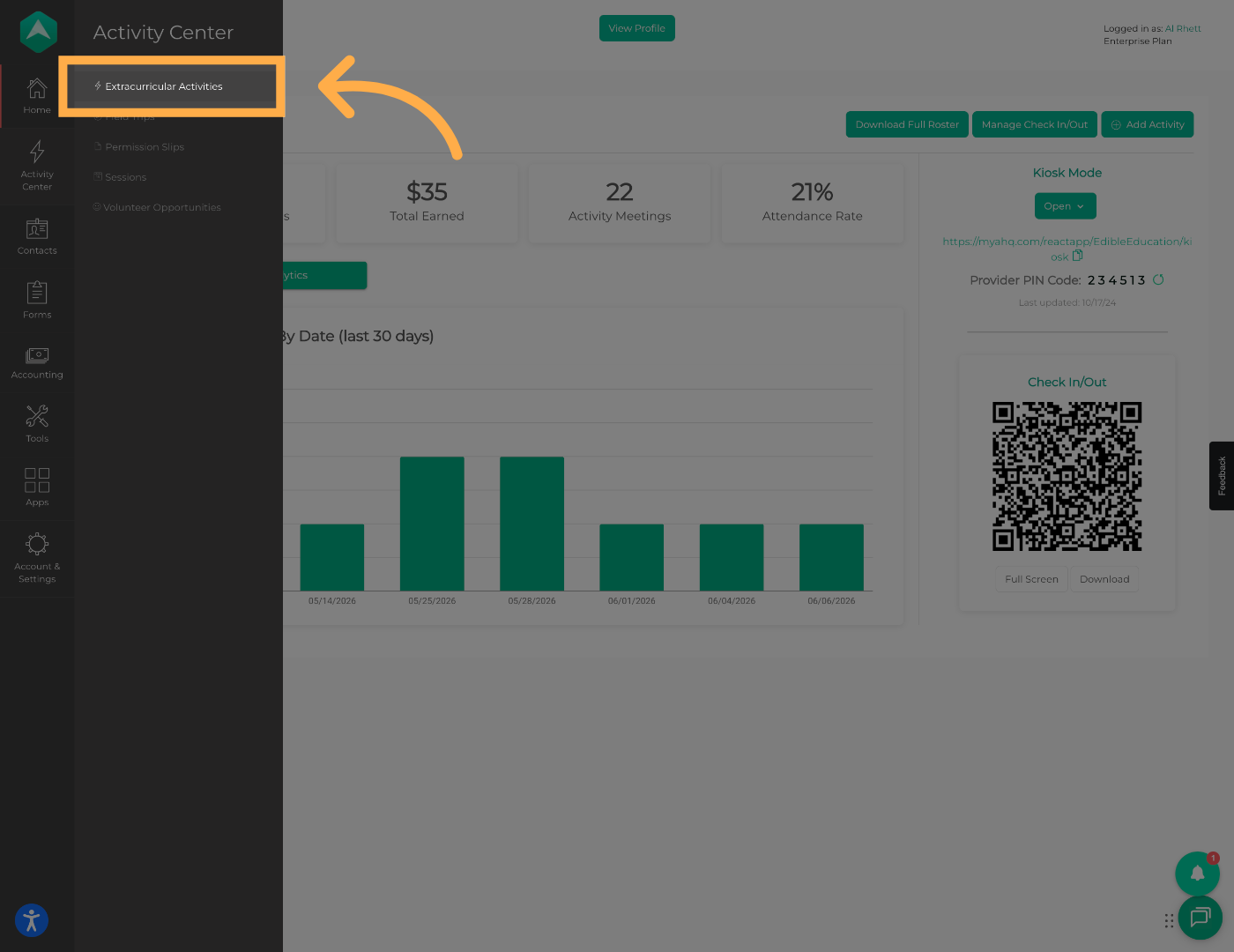
1. Access Extracurricular Activities
Start by opening “Extracurricular Activities” from the main navigation menu.
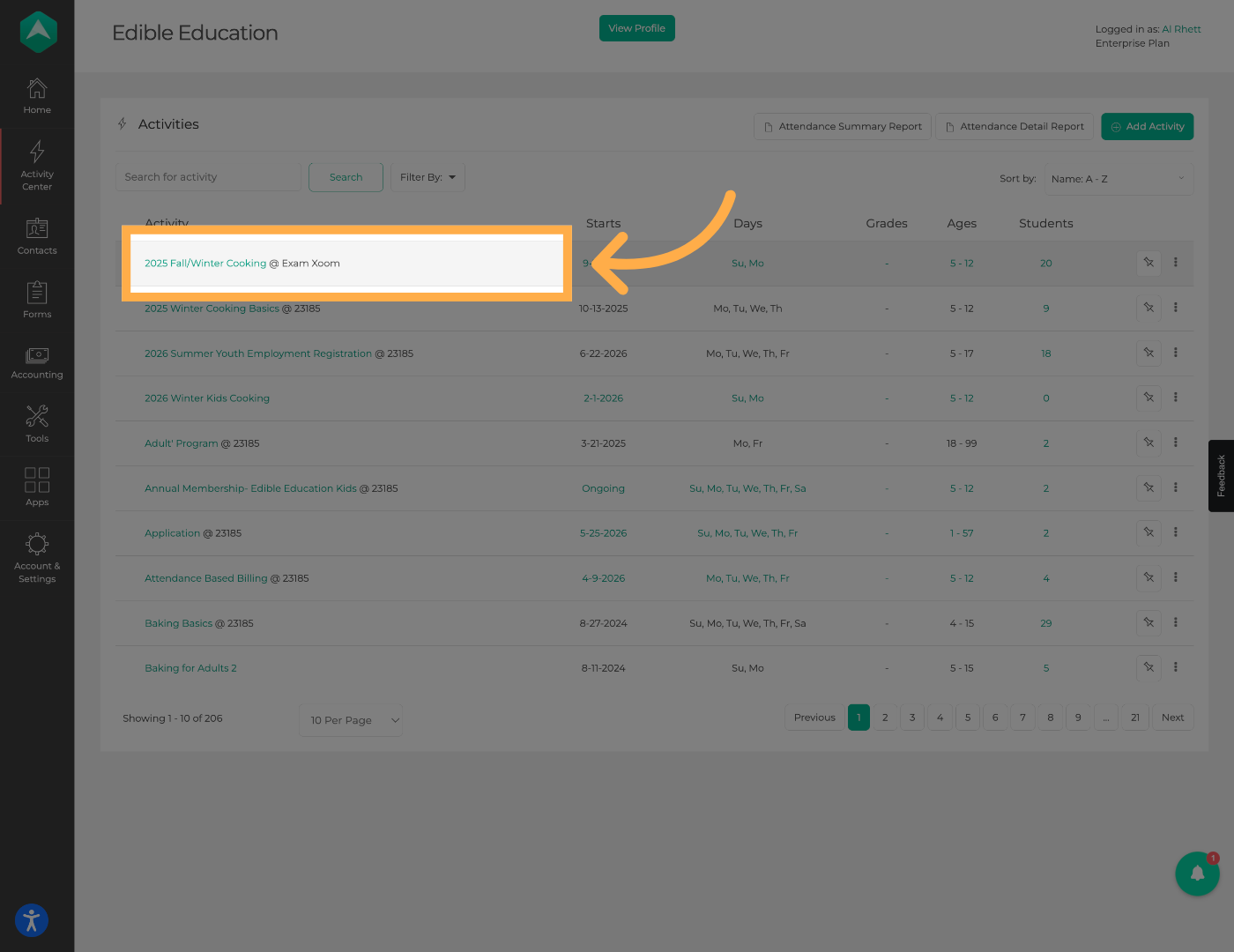
2. Open Specific Activity
Next, open the specific activity you would like to manage.
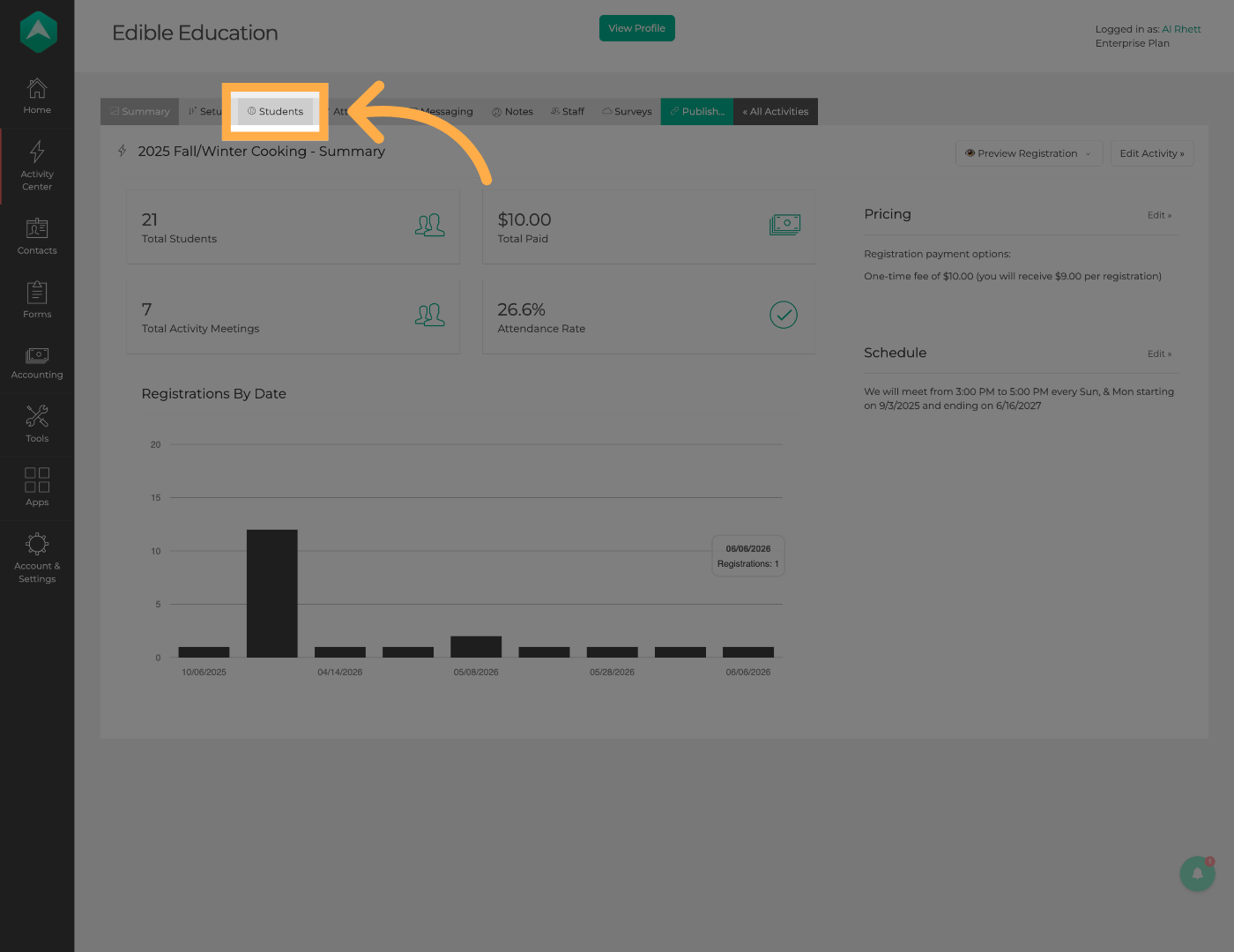
3. Open the Students Section
Open the “Students” tab to access the activity roster.
4. Locate the Student
Locate the participant you would like to remove from the activity.
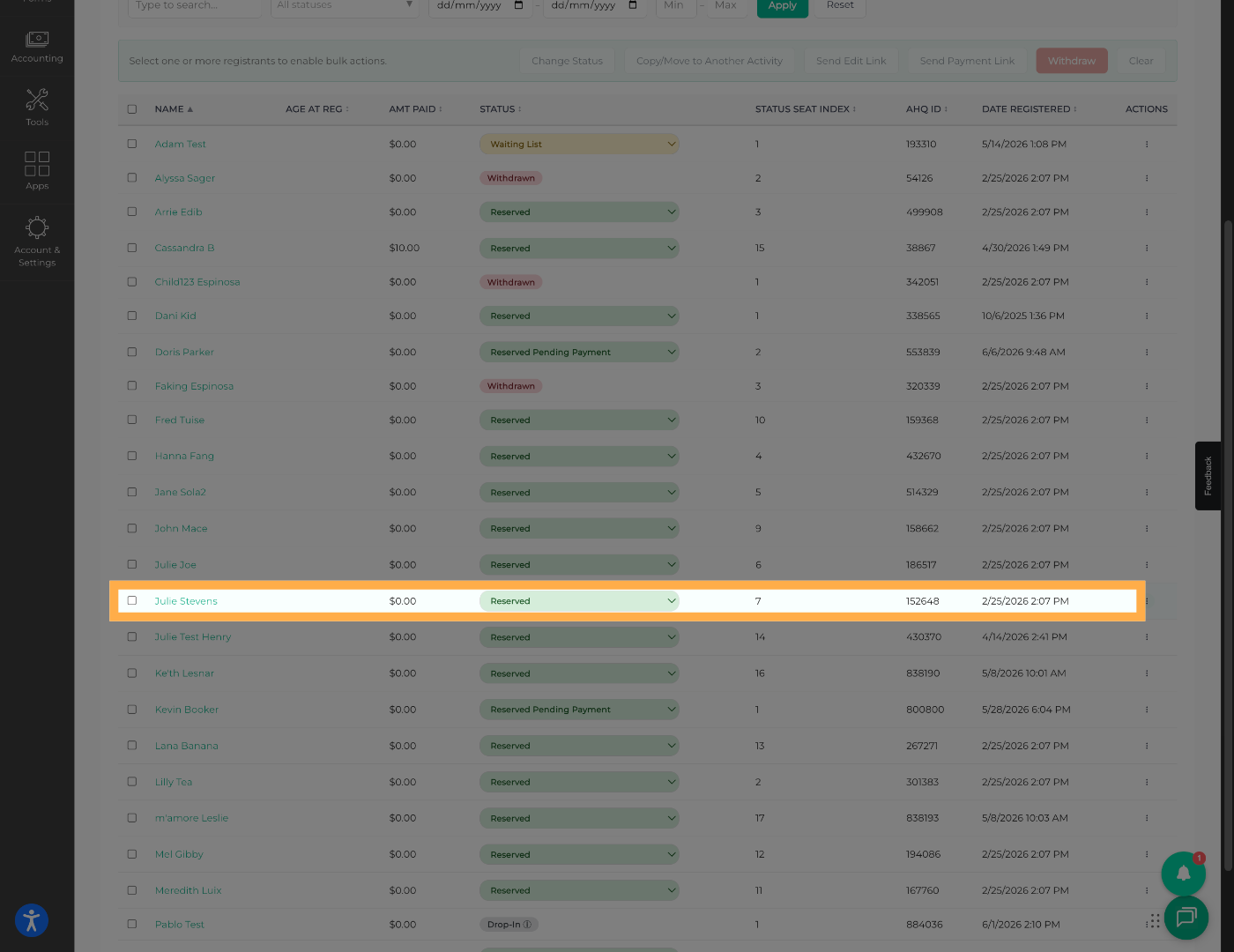
💡 Tip: You can use search or roster filters to quickly find students in larger activities.
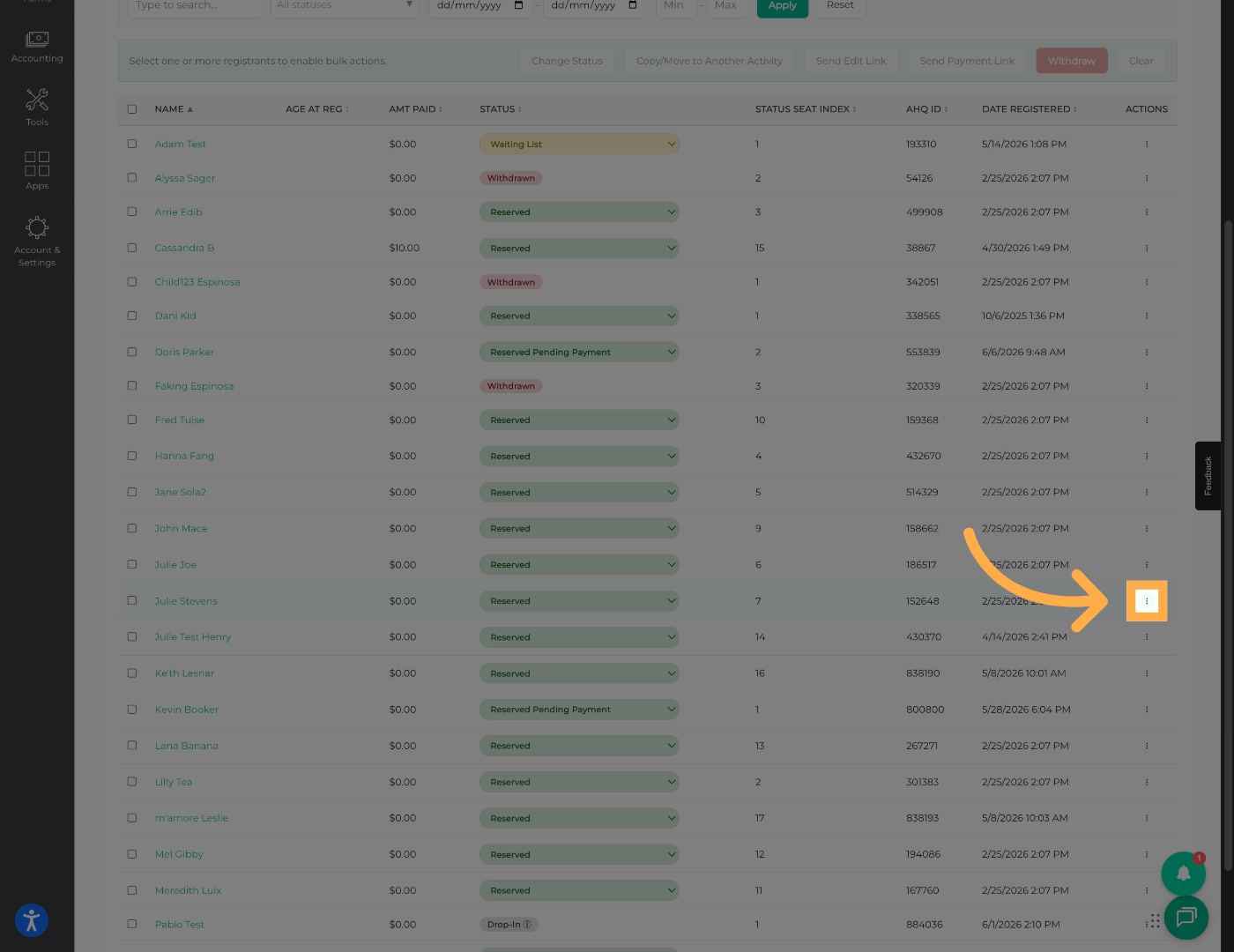
5. Open Student Options
Open the student options menu to access additional actions.
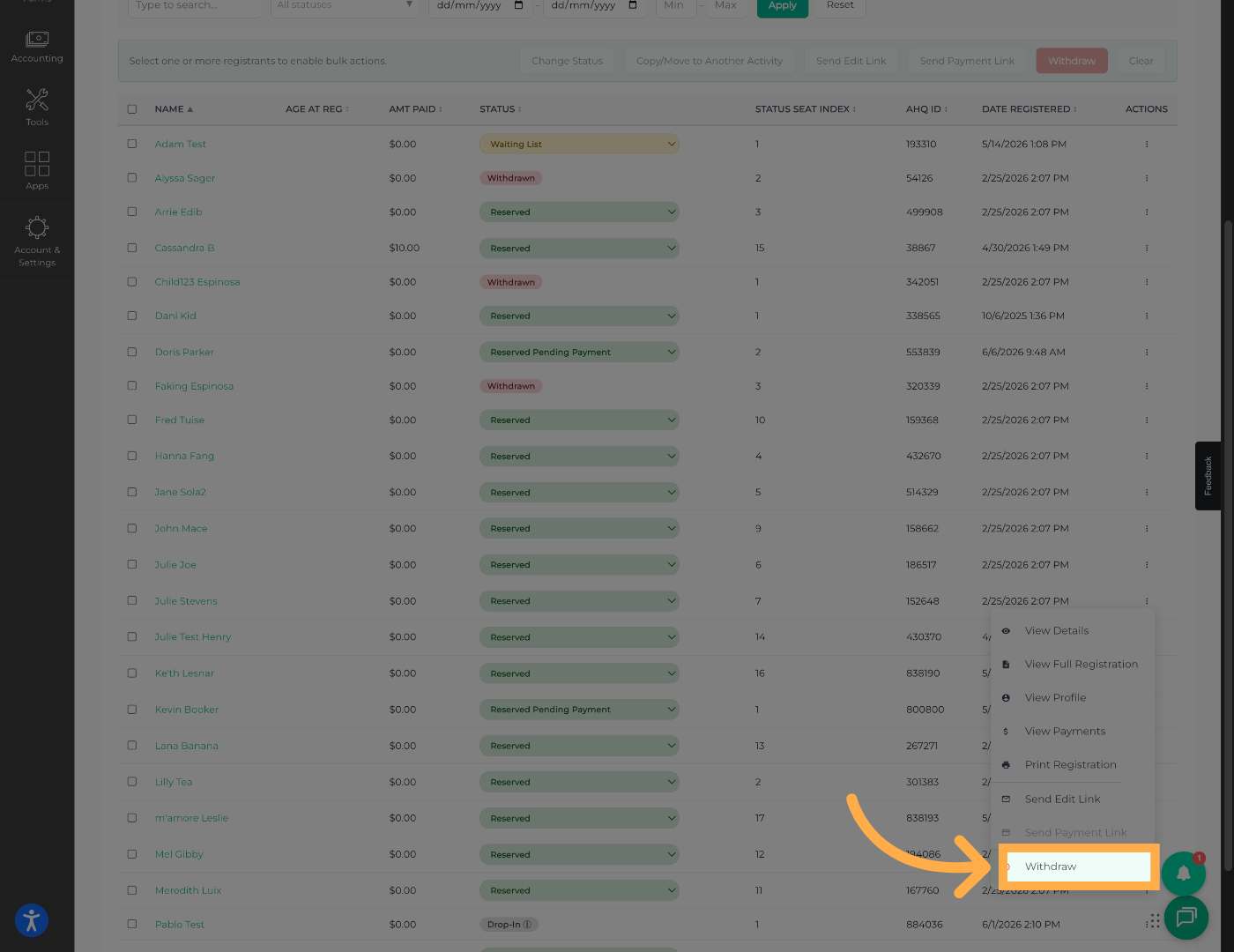
6. Begin the Withdrawal Process
Select “Withdraw” to begin removing the student from the activity.
7. Confirm the Withdrawal
Confirm the withdrawal to remove the student from the roster.
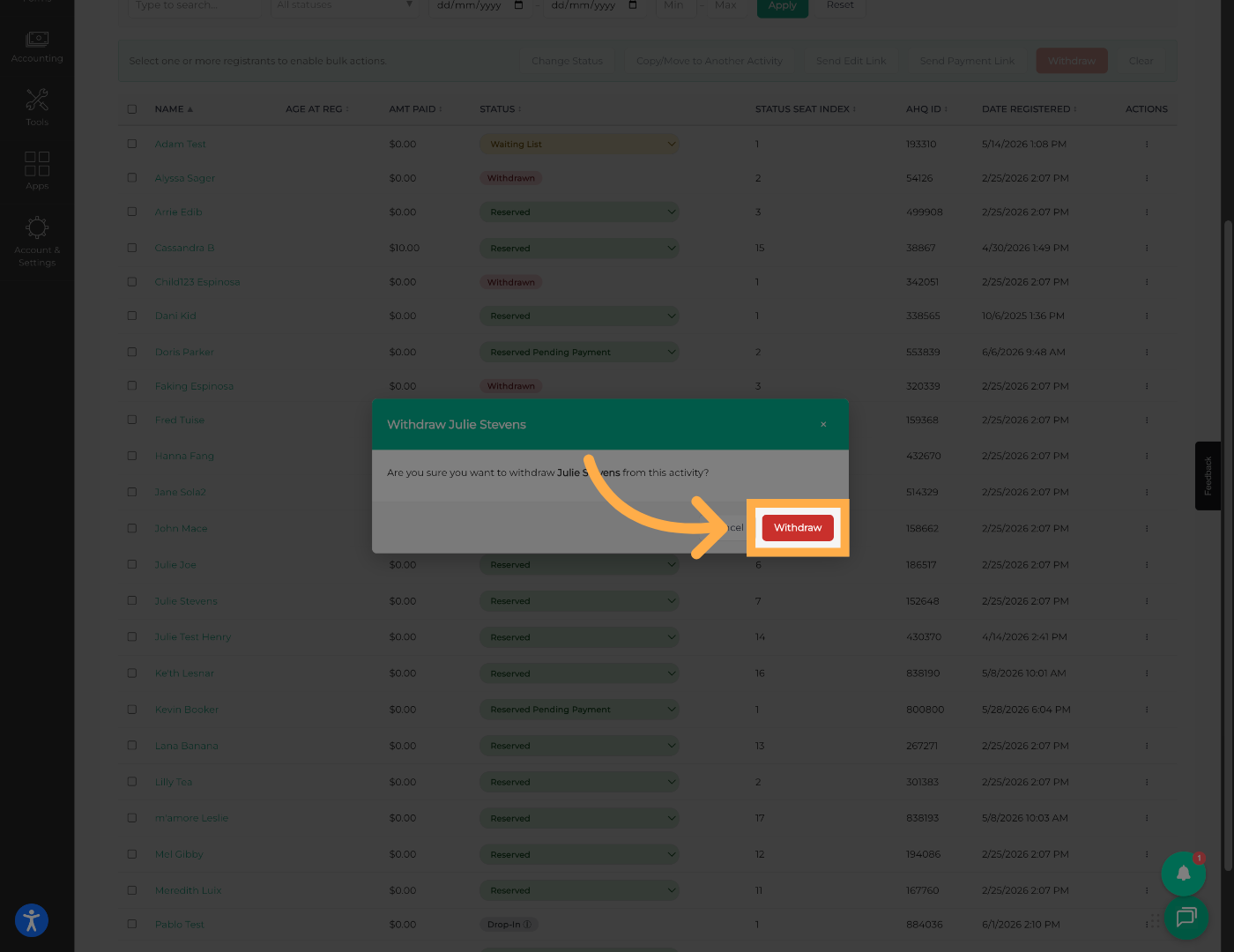
💡 Tip: Always double-check the correct student before finalizing the withdrawal.
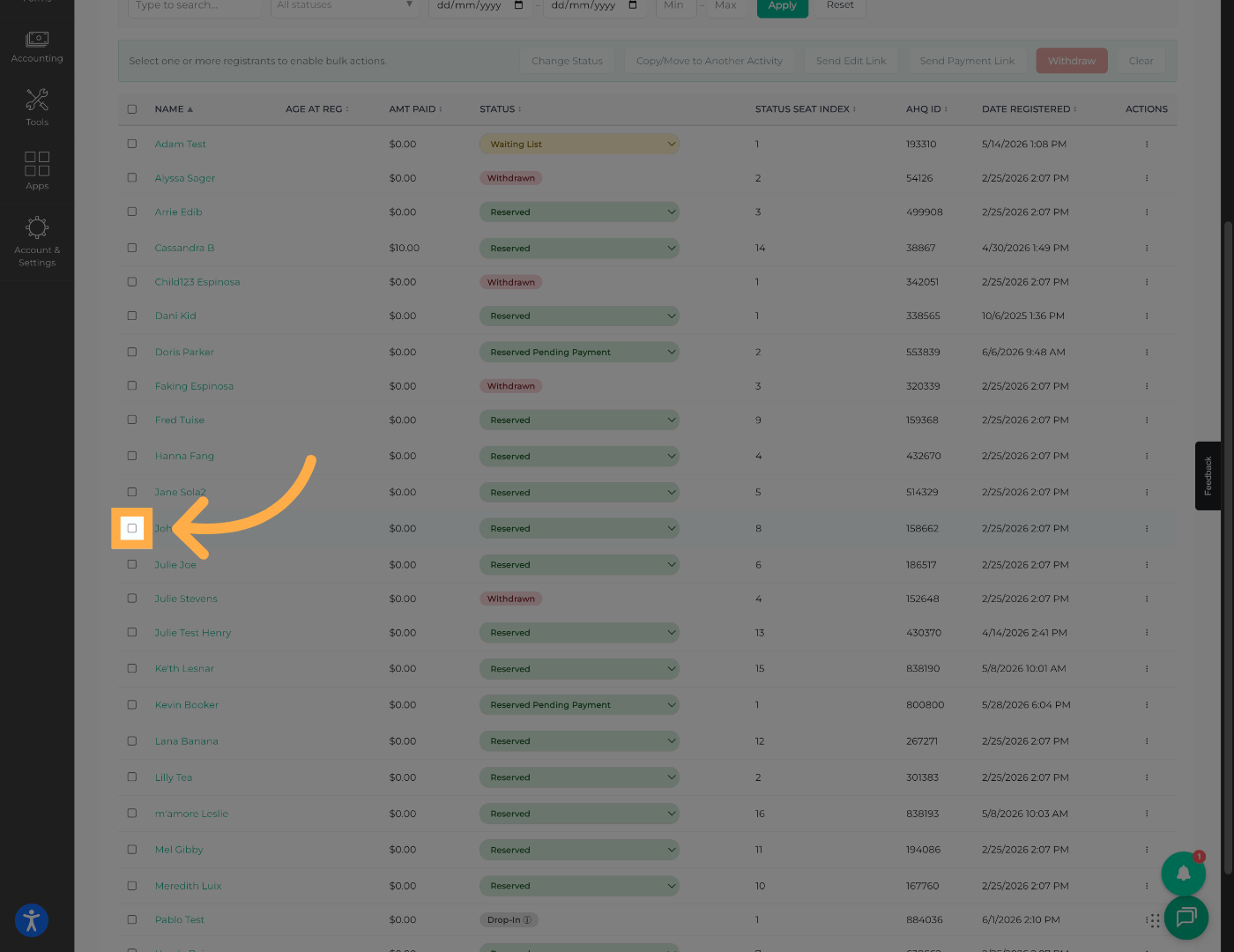
8. Select Multiple Students (Optional)
You can also select multiple students if you need to process bulk withdrawals.
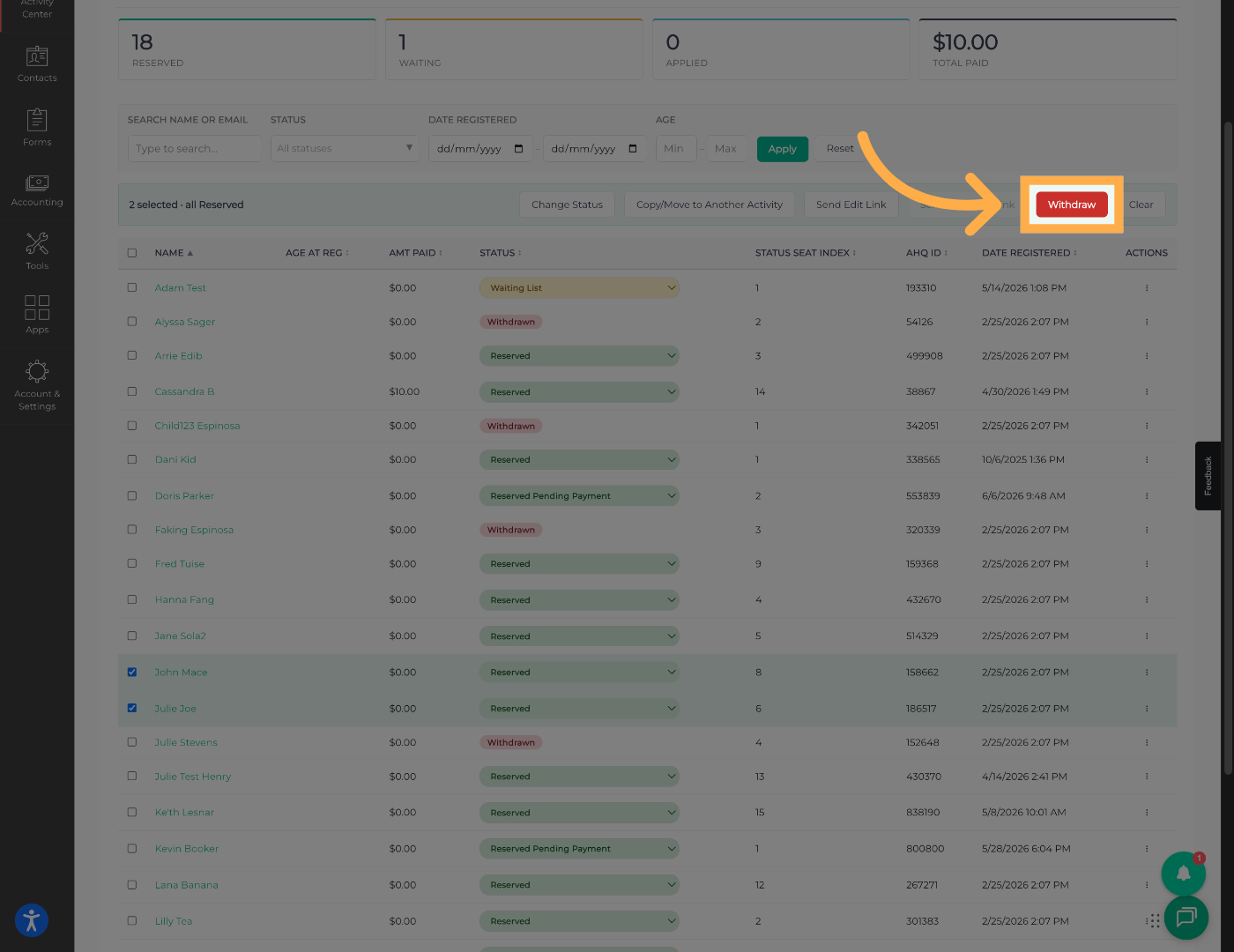
9. Proceed with Bulk Withdrawal
Click “Withdraw” to continue the bulk withdrawal process.
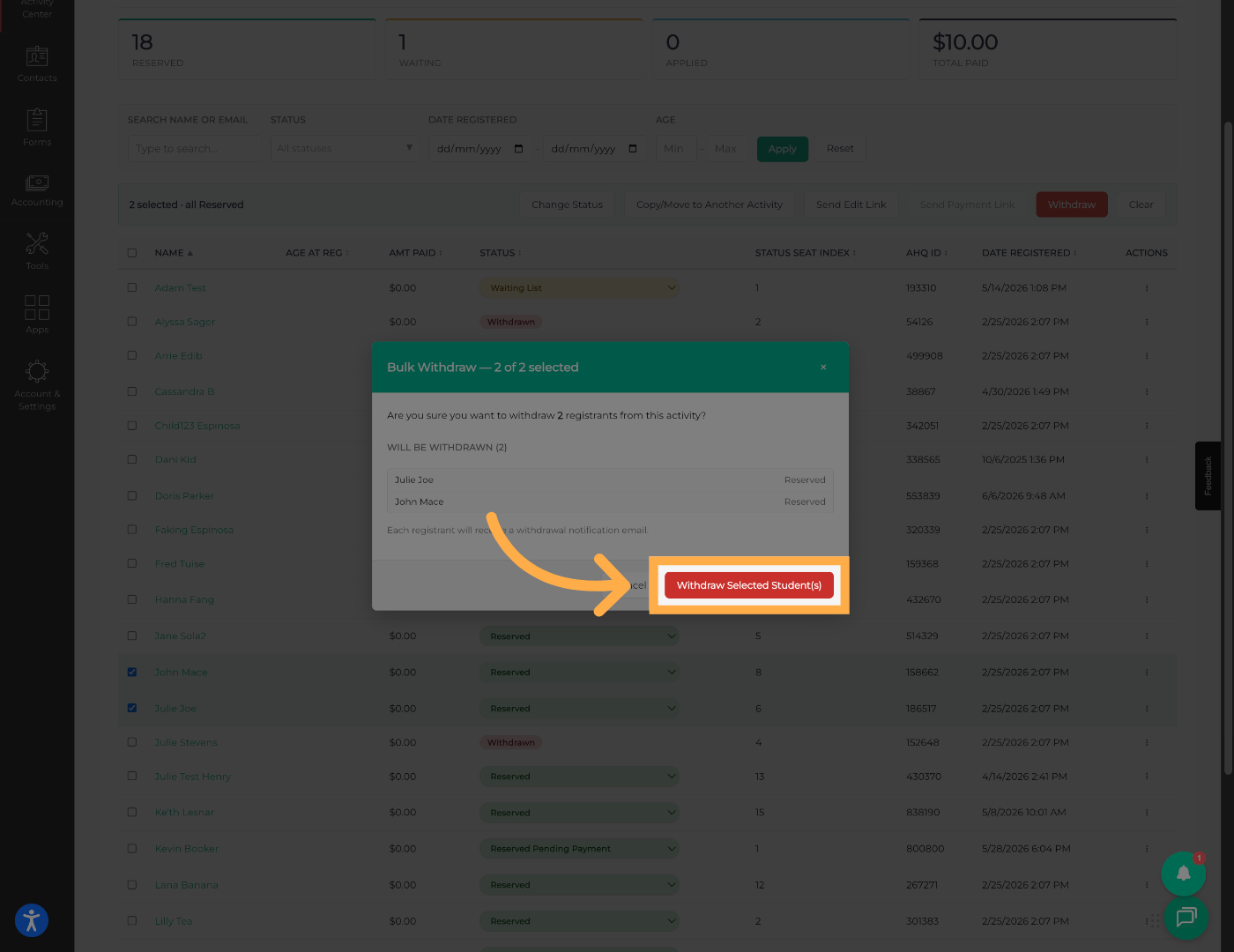
10. Withdraw Selected Students
Finalize the process by selecting “Withdraw Selected Student(s).”
💡 Tip: Bulk withdrawal is useful for transfers, schedule changes, or end-of-session roster cleanup.
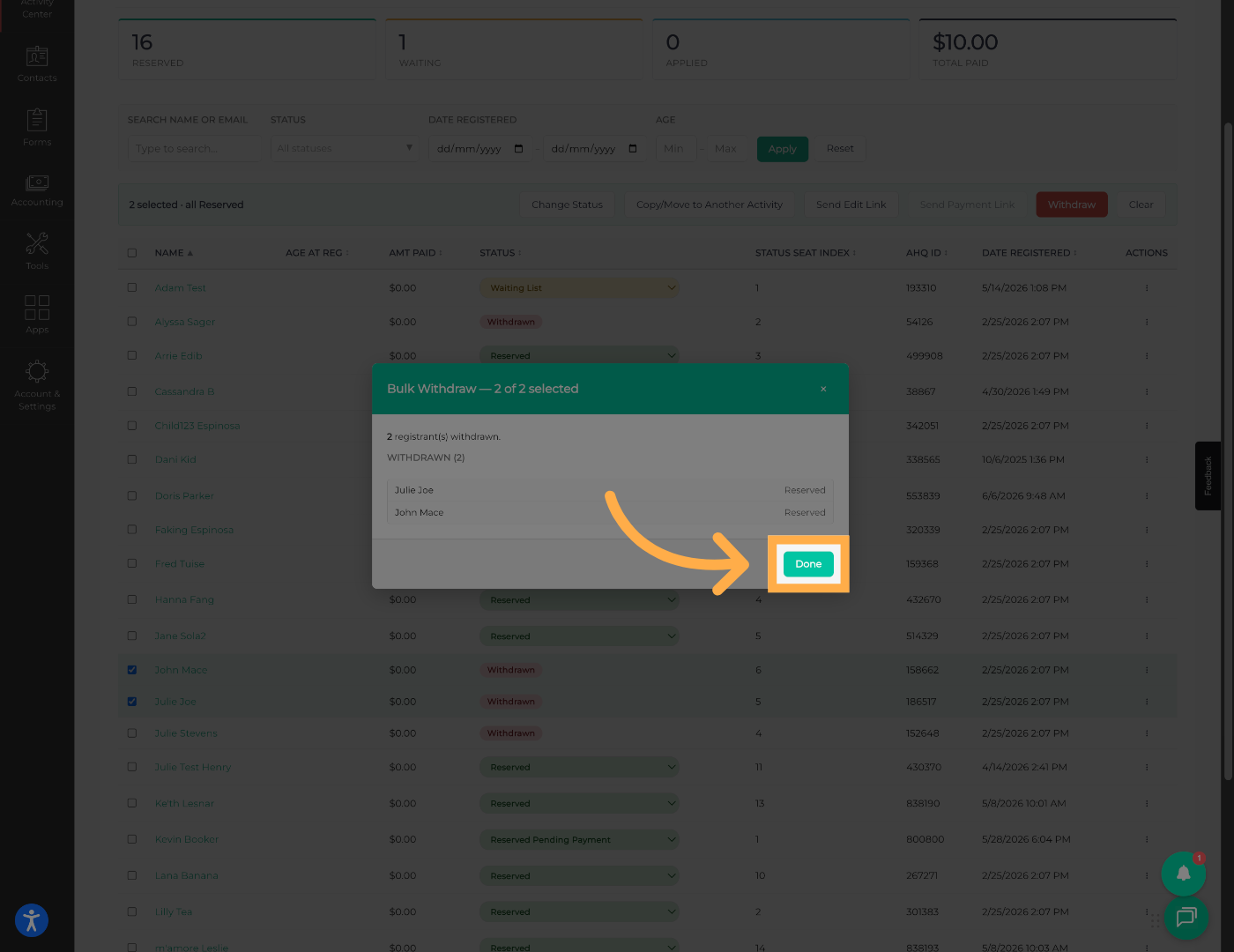
11. Complete the Withdrawal Process
Once completed, click “Done” to return to the activity roster.
Frequently Asked Questions
Q: Does withdrawing a student delete their profile?
A: No. The student profile and registration history remain in the system. Withdrawal only removes them from the activity roster.
Q: Can I withdraw multiple students at once?
A: Yes. You can use the bulk withdrawal option to remove multiple students simultaneously.
Q: Will withdrawn students still appear in attendance?
A: No. Once withdrawn, students will no longer appear on the active attendance roster for that activity.
Q: Can a withdrawn student be re-added later?
A: Yes. Students can be re-registered or manually added back into an activity if needed.
Q: Does withdrawing a student automatically cancel payments?
A: Not always. Depending on your organization’s billing setup, subscription or payment cancellation may require additional steps.
💡If you experience any issues or have further questions with “How to Withdraw a Participant from an Activity”, don't hesitate to get in touch with our support team at support@afterschoolhq.com.