![ASHQ Logo Vert Flat.png]](https://support.afterschoolhq.com/hs-fs/hubfs/ASHQ%20Logo%20Vert%20Flat.png?height=40&name=ASHQ%20Logo%20Vert%20Flat.png)
Need to update your email address or change your password? Follow the steps below to make updates directly from your AfterSchool HQ account.
1. Log in to AfterSchool HQ
Go to afterschoolhq.com and sign in using your current email and password.
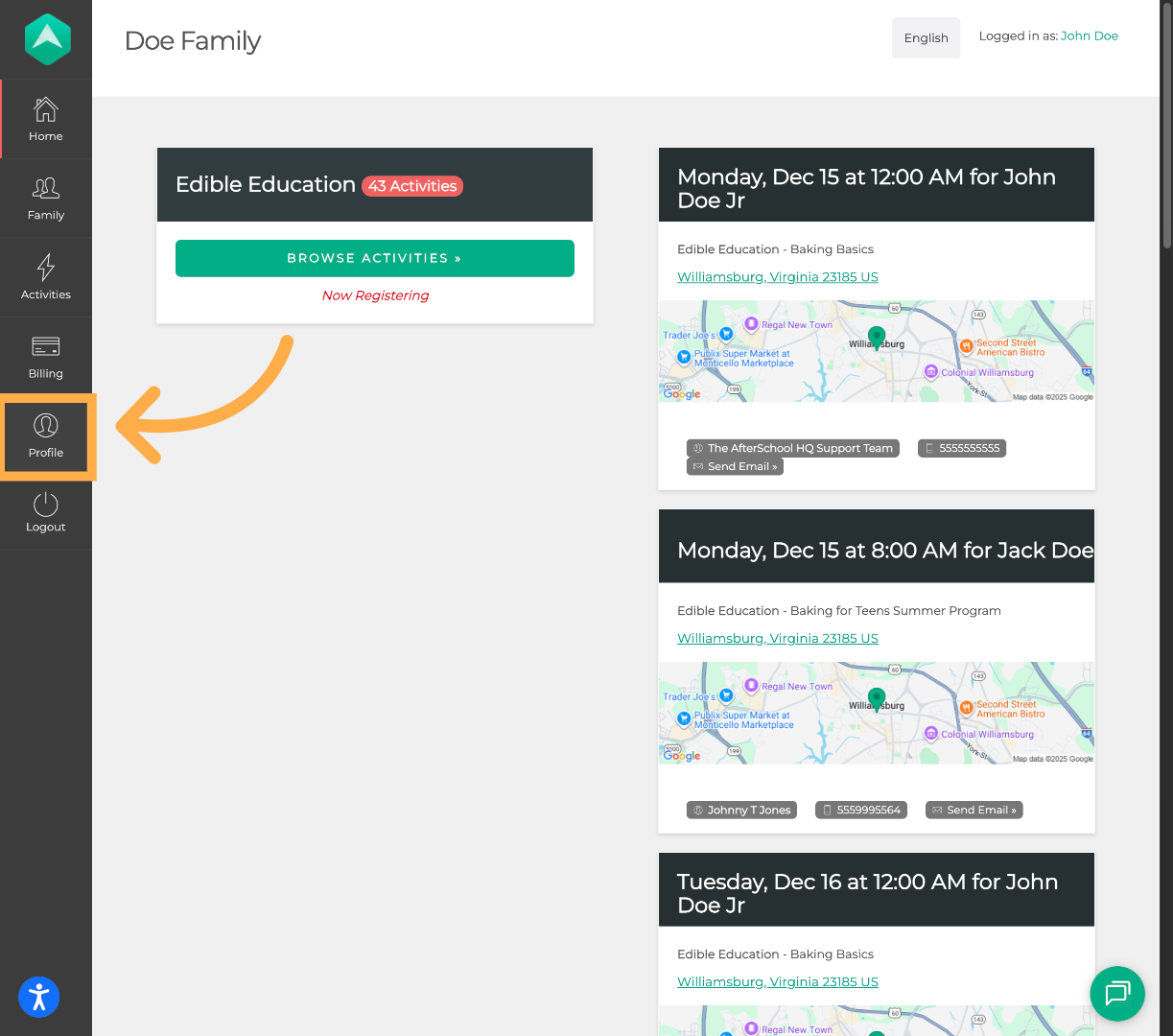
2. Click on “Profile”.
From the left-side menu of your dashboard, click “Profile”.
3. Update Your Email Address
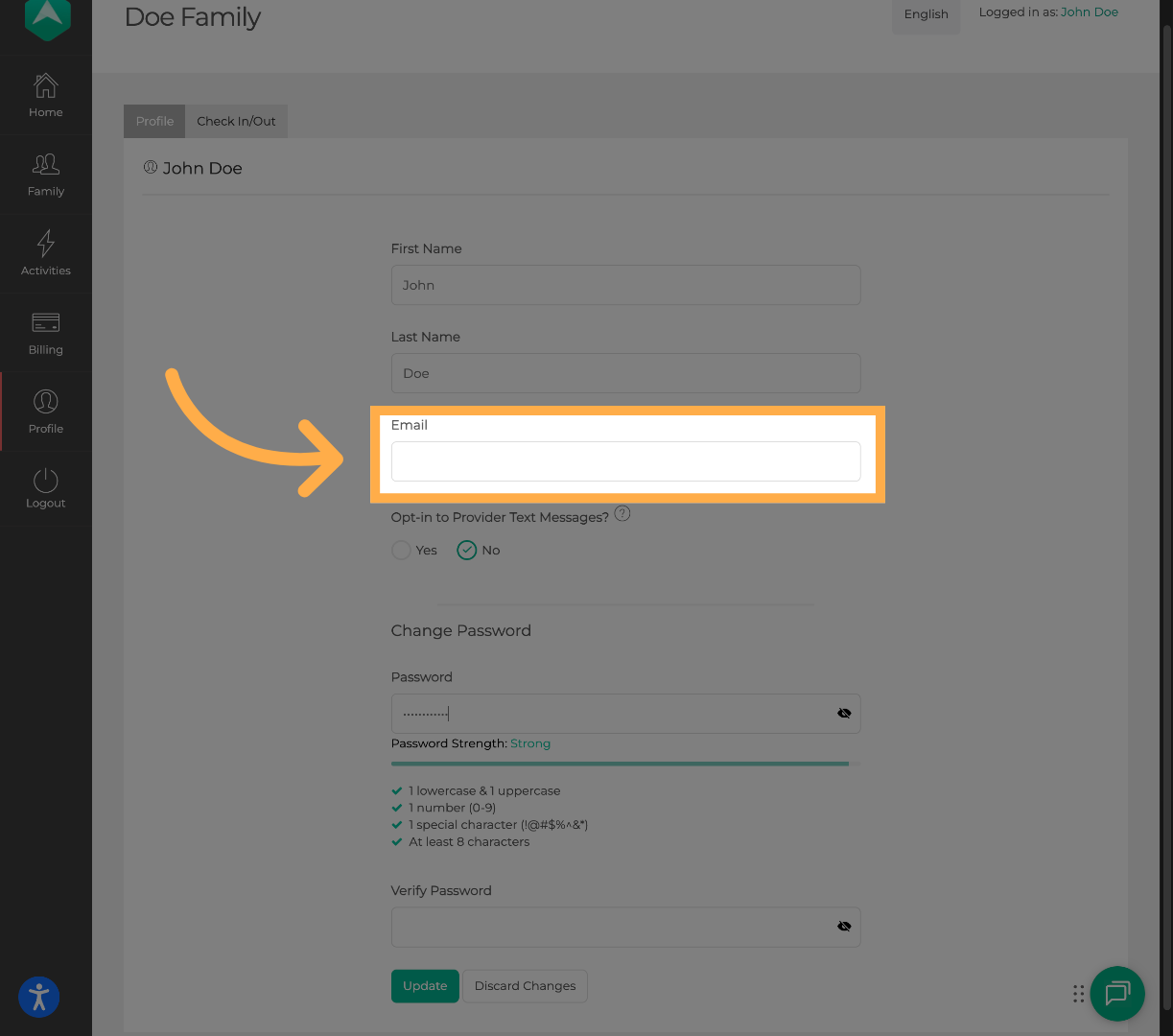
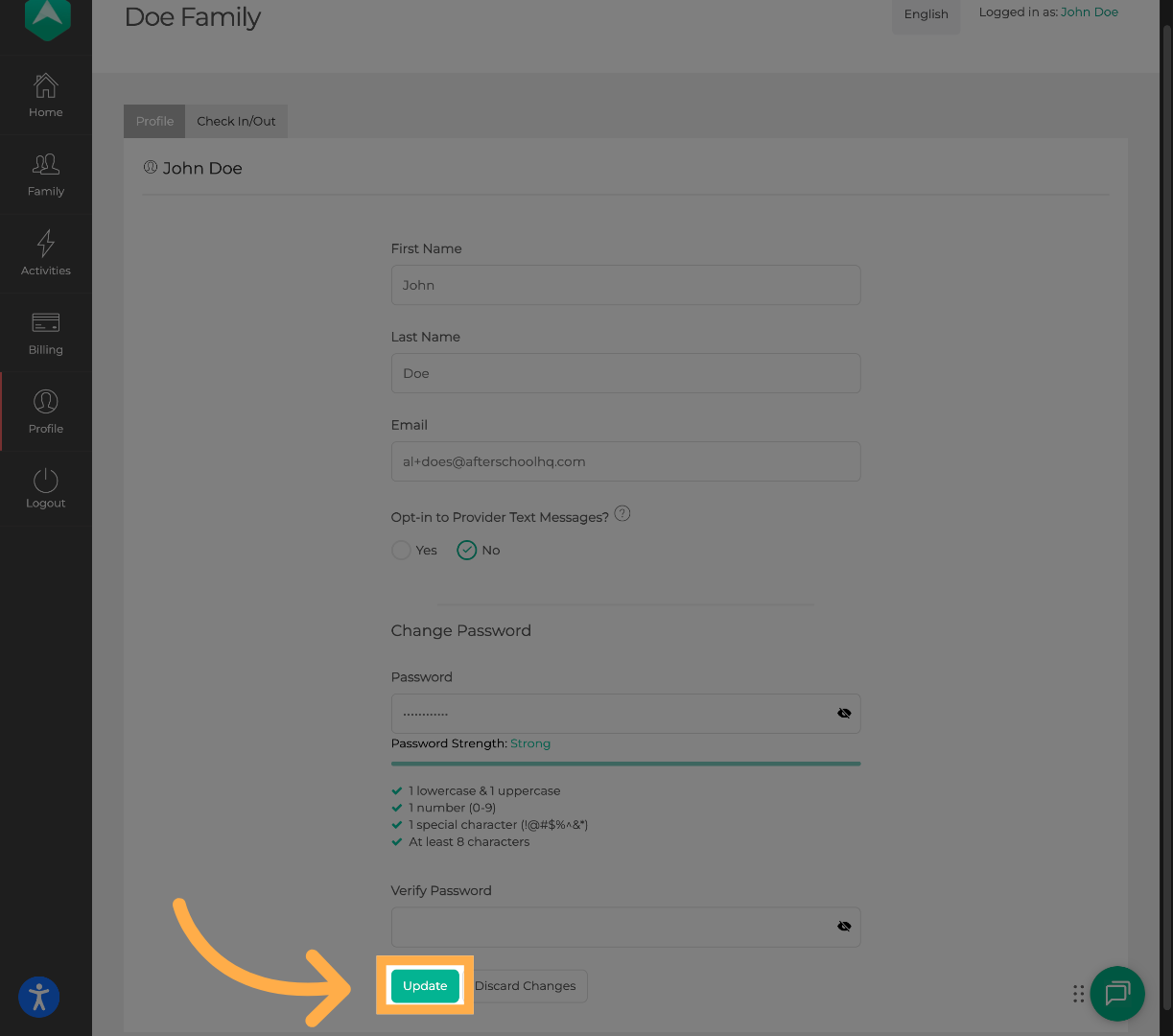
Enter your new email address to replace the current one on file. Next, click “Update” to save the changes.
💡Tip: Be sure to remember this email, as it will be used to log in going forward.
4. Change Your Password
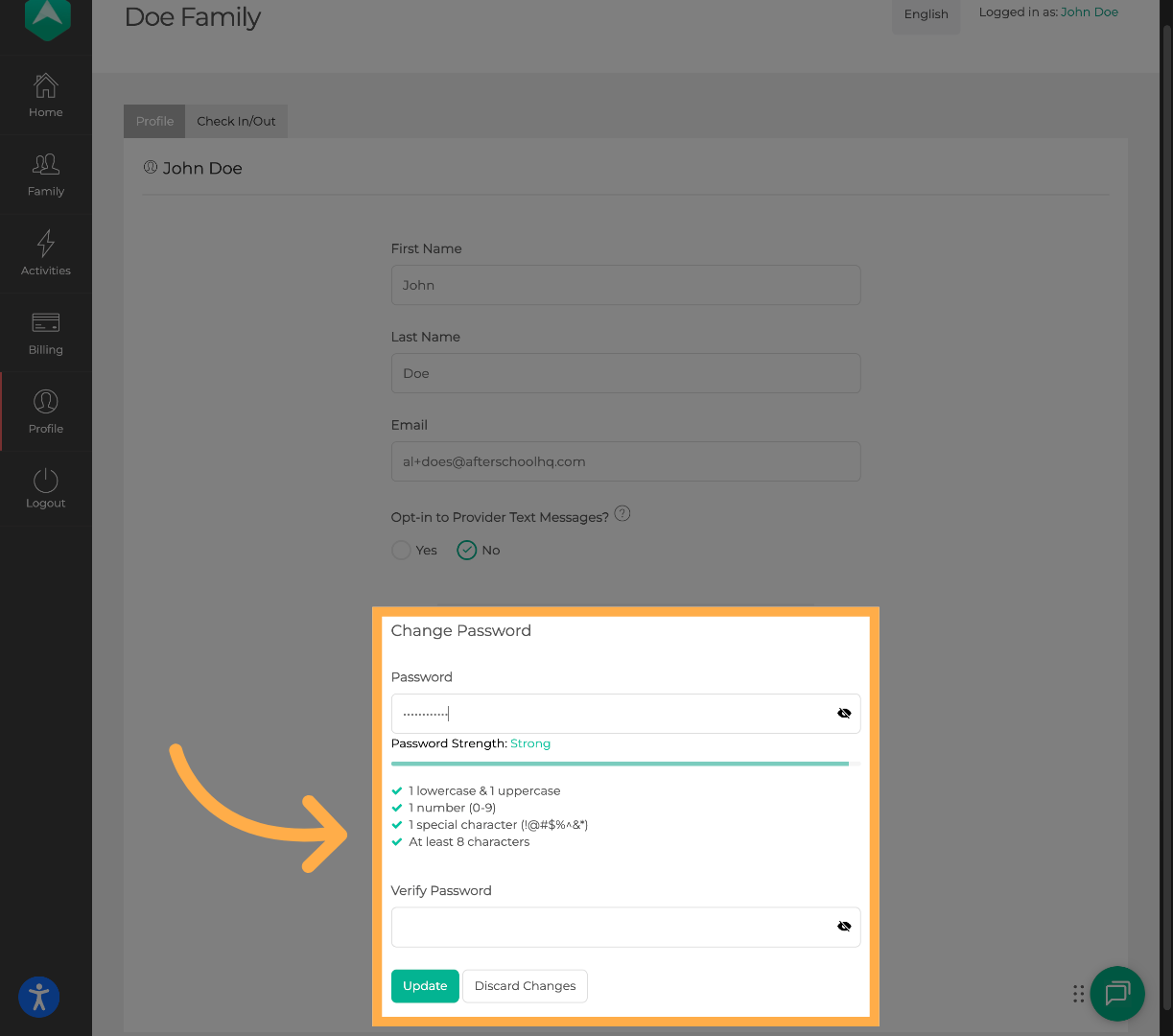
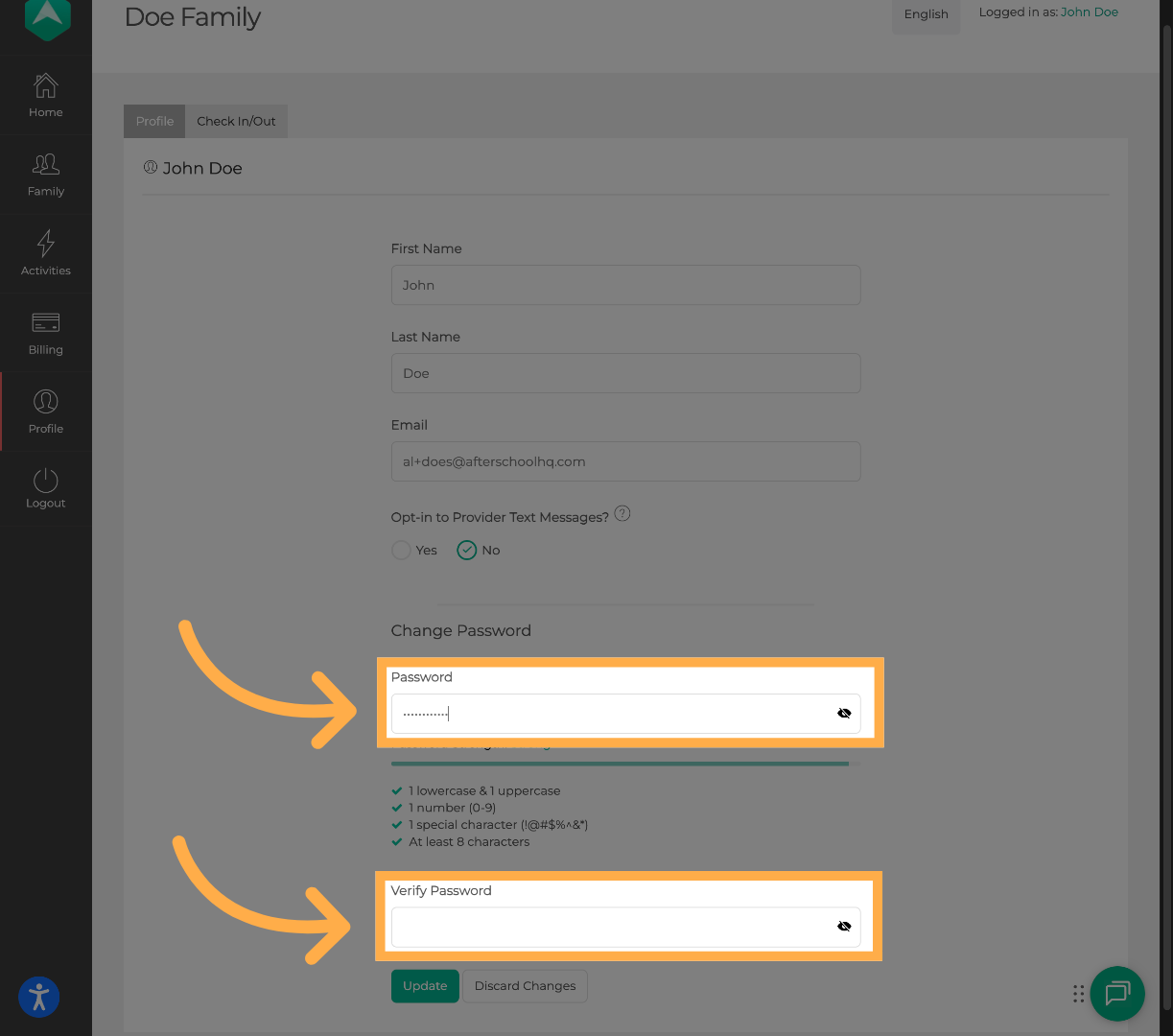
Scroll further down until you see Change Password. Enter your new password, then re-enter it to confirm the change.
Once both fields are filled, click “Update” to save your new password.
Forgot Your Password?
If you can’t remember your password, you can reset it by following these steps:
-
Use this link or click “Forgot Password?” on the AfterSchool HQ login page.
-
Enter the email address associated with your account.
-
Click Reset Password.
-
Check your inbox for the password reset email.
-
Click the link in the email and create a new password.
💡Tip: Password reset links are valid for 3 days from the time they are sent.
Frequently Asked Questions
Q: I forgot my current password. Can I still update my email or password?
A: If you can’t log in, you won’t be able to access your account settings. Use the “Forgot Password?” link on the login page to reset your password first. Once logged in, you can update your email or password from your profile.
Q: Will I lose any data or access if I change my email address?
A: Not at all! Changing your email address only updates your login credentials. All your data and activities will remain the same.
Q: What if I don’t receive the password reset or email change confirmation email?
A: Check your spam or junk folder first. If it’s not there, make sure you entered the correct email address. If the issue persists, contact us at support@afterschoolhq.com and we’ll be happy to help.
💡If you experience any issues or have further questions with “How to Update Your Email Address or Password in AfterSchool HQ”, don't hesitate to get in touch with our support team at support@afterschoolhq.com.