![ASHQ Logo Vert Flat.png]](https://support.afterschoolhq.com/hs-fs/hubfs/ASHQ%20Logo%20Vert%20Flat.png?height=40&name=ASHQ%20Logo%20Vert%20Flat.png)
AfterSchool HQ allows you to configure when your activity takes place and how often it repeats.
You can use Weekly (Simple) scheduling for activities that follow a consistent weekly schedule or Advanced scheduling when you need more flexibility with recurrence.
Follow the steps below to configure the schedule that works best for your activity. The schedule settings are available from the activity’s Setup area.
❗Before You Begin
- Make sure your activity has already been created in AfterSchool HQ.
- Know the dates and times when your activity will take place.
- Determine whether your activity has a defined end date or will be ongoing.
- Consider whether your activity follows a straightforward weekly schedule or requires more advanced recurrence options.
💡 Tip: Use Weekly (Simple) when an activity meets consistently on selected days each week. Use Advanced schedule when you need additional recurrence options.
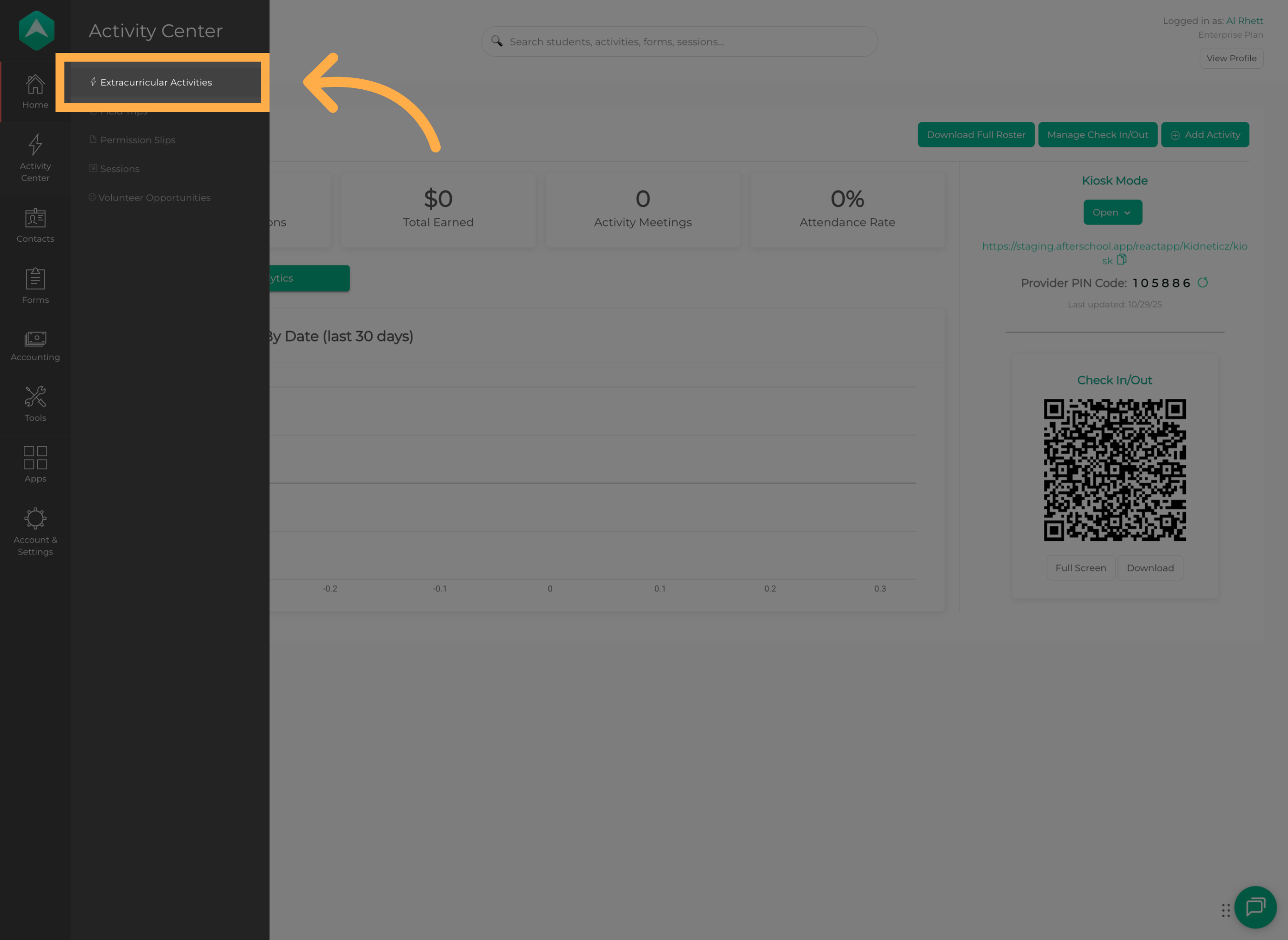
1. Open Extracurricular Activities
From the “Activity Center”, open “Extracurricular Activities”.
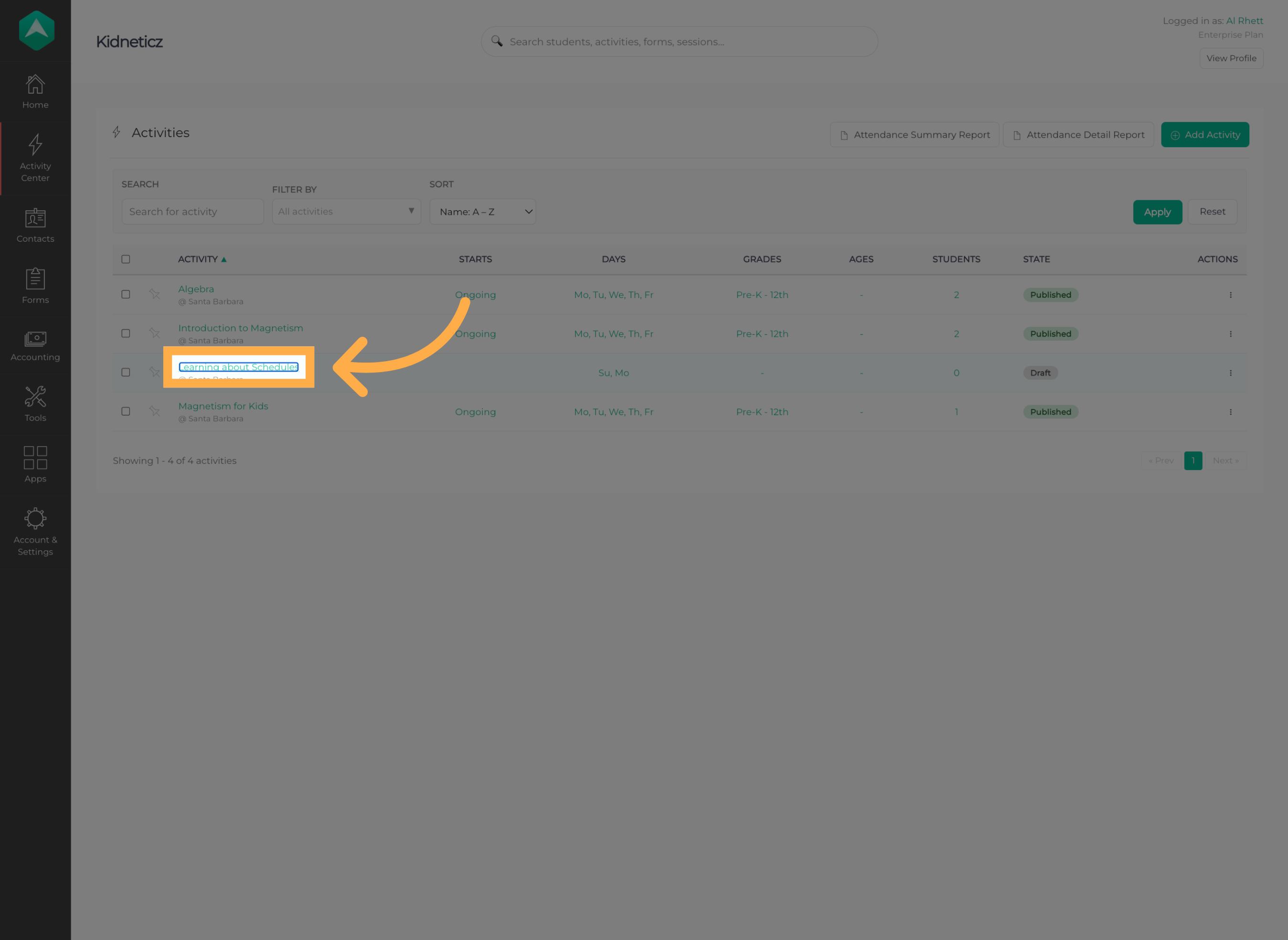
2. Select an Activity
Select the activity whose schedule you want to configure.
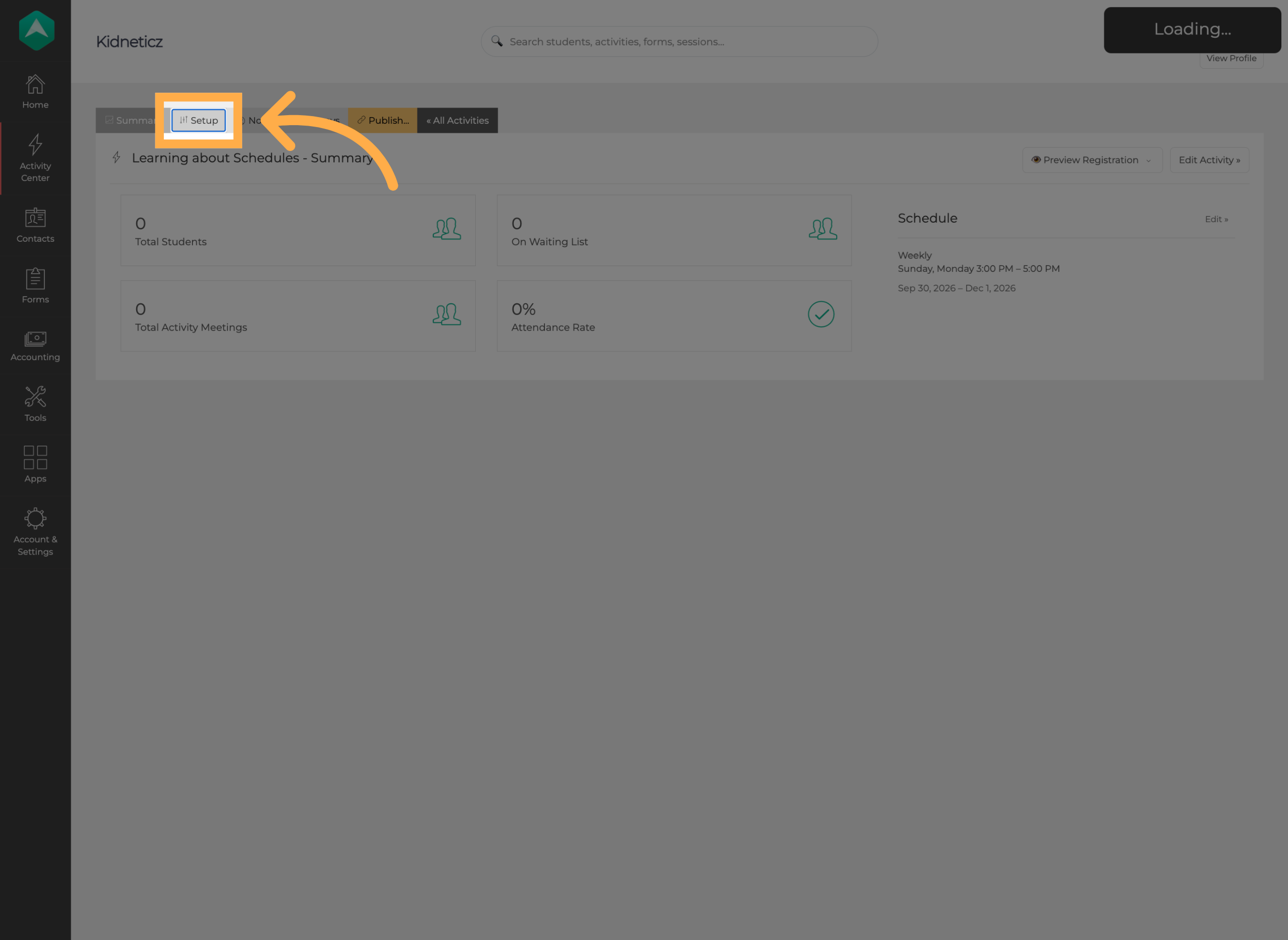
3. Open Activity Setup
Open “Setup” to access the activity's configuration options.
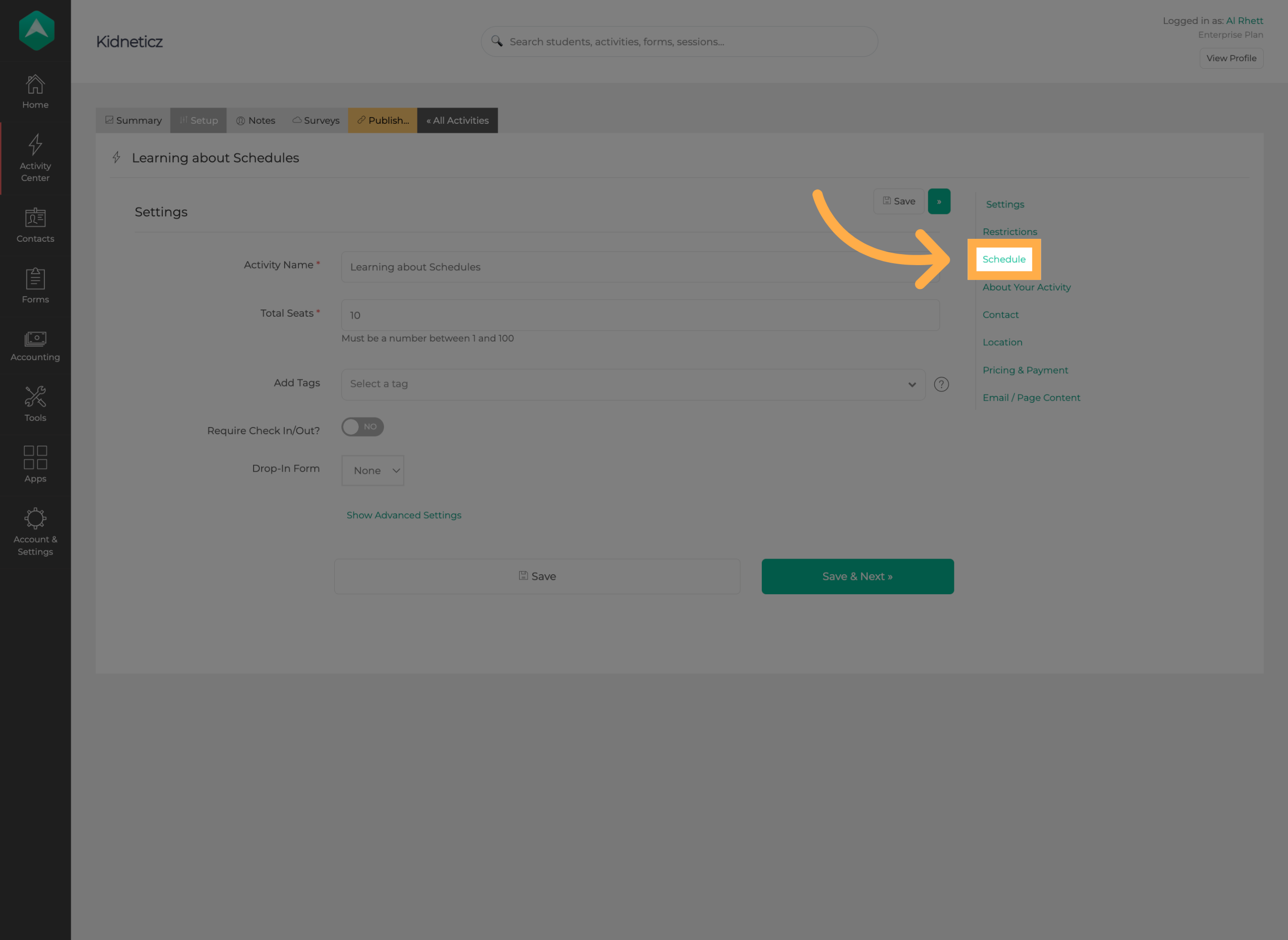
4. Open Schedule Settings
Navigate to the “Schedule” section to begin configuring when your activity will take place.
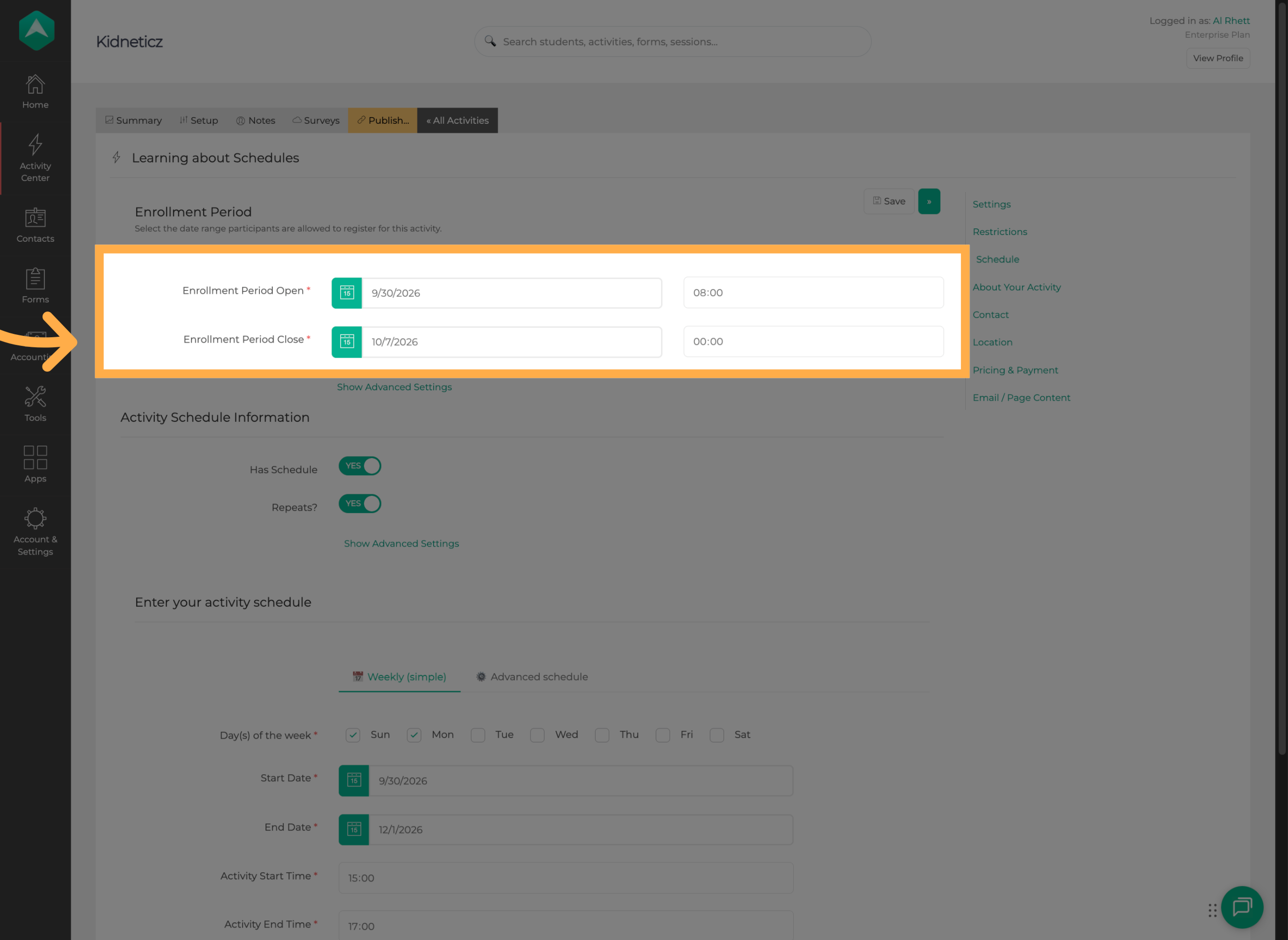
5. Review the Enrollment Period
Before configuring the activity schedule, review the Enrollment Period.
The enrollment period determines when participants can register for the activity.
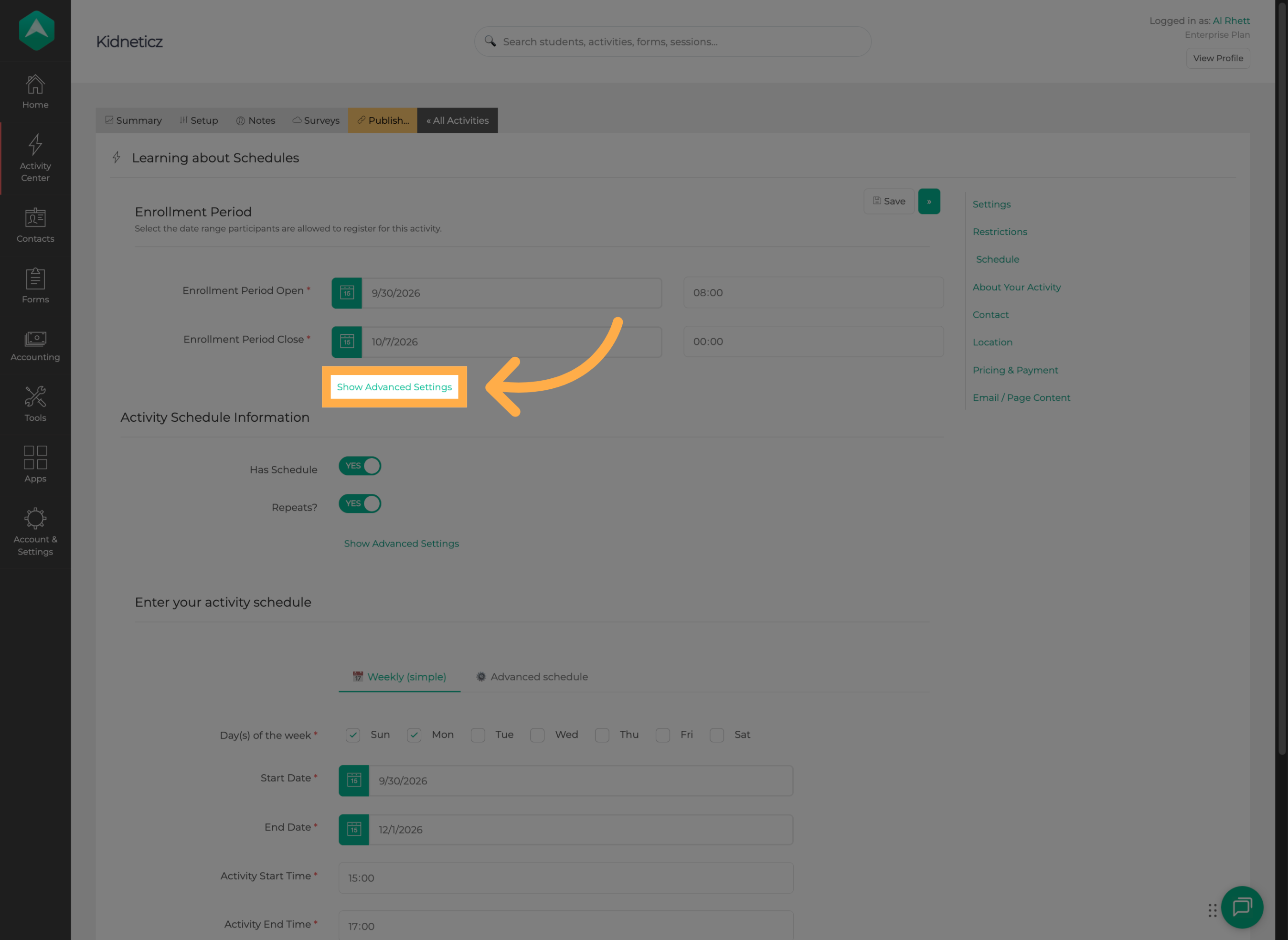
6. Open Advanced Options
Expand the advanced settings to access additional options for customizing the enrollment period.
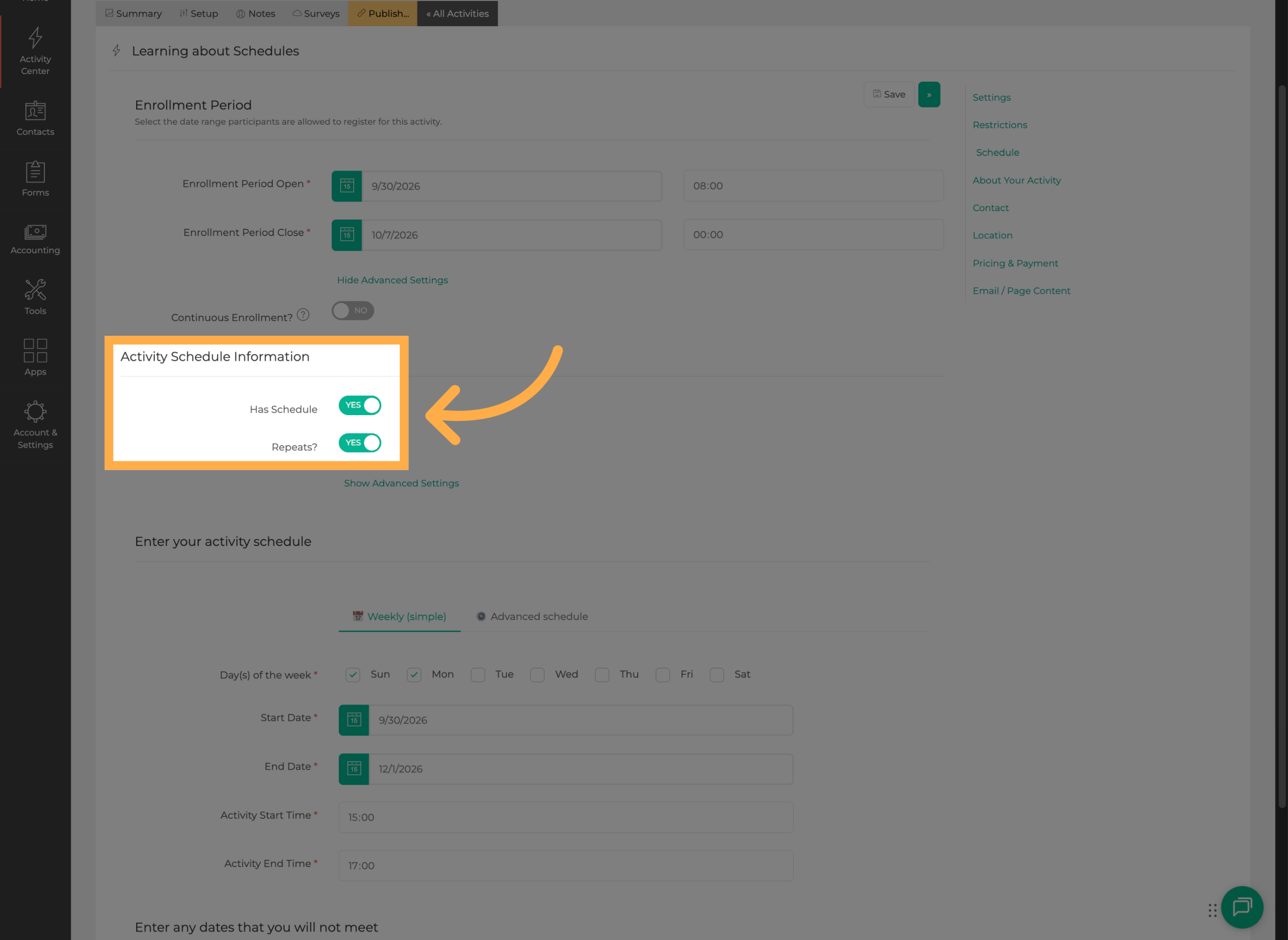
7. Enable the Schedule
Enable “Has Schedule” if the activity takes place on a defined schedule.
Once enabled, you can configure how often the activity repeats.
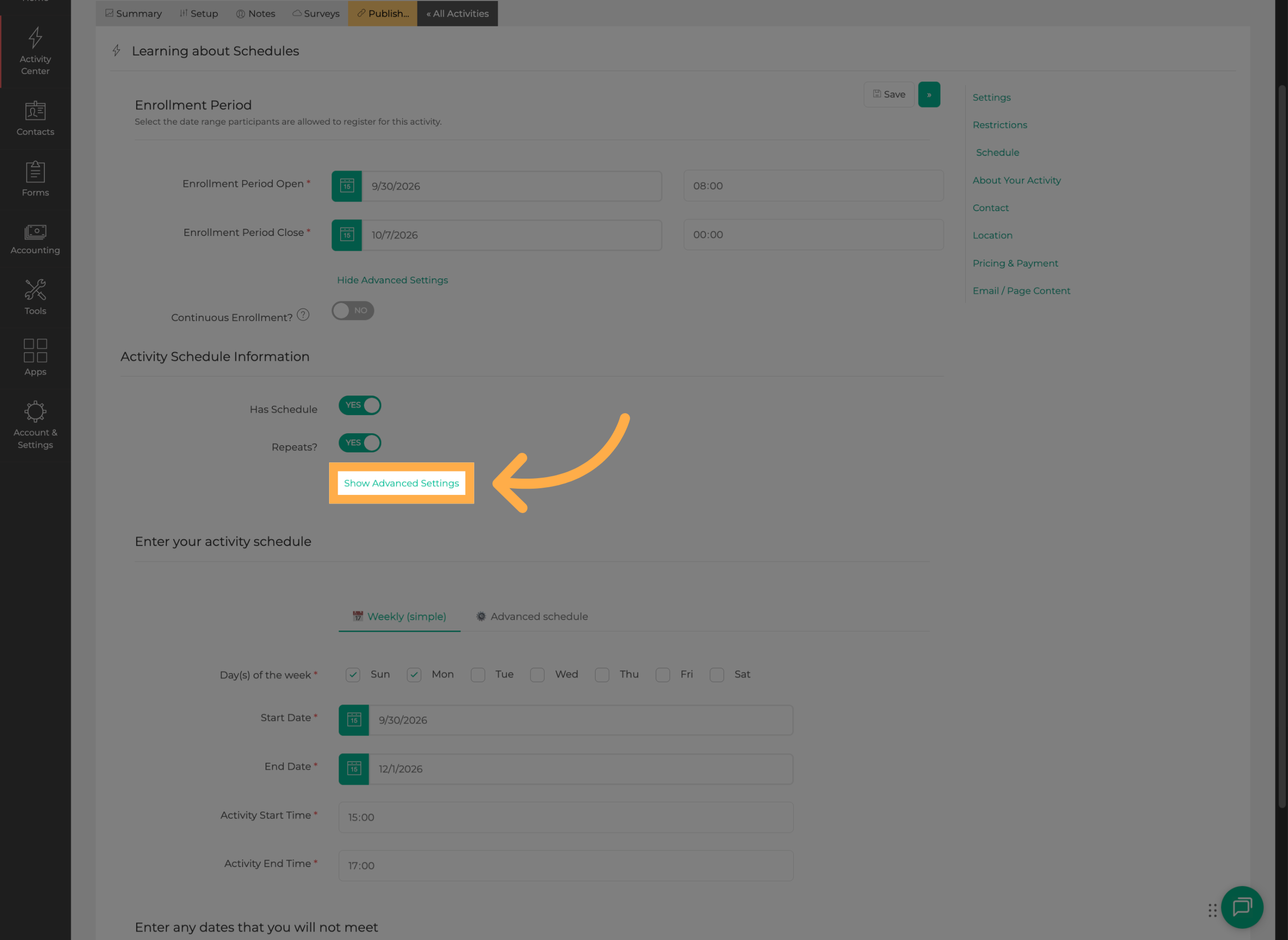
8. View Additional Schedule Settings
Open the additional schedule settings to configure the activity's recurrence and scheduling details.
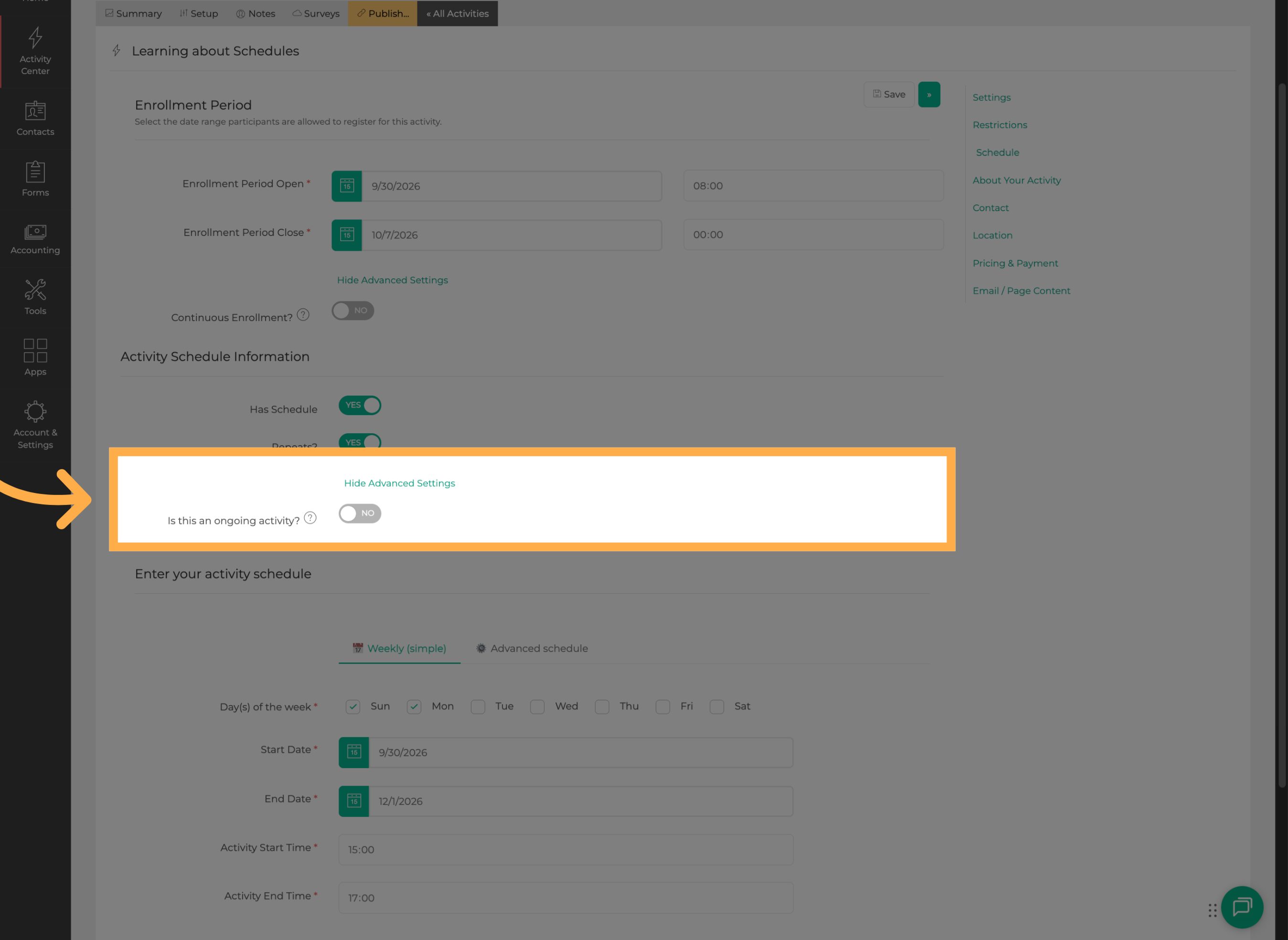
9. Choose Whether the Activity Is Ongoing
If the activity does not have a defined end date, you can mark it as Ongoing.
Enable or disable this option based on how your activity is scheduled.
📅 Choose a Scheduling Method
After enabling the schedule, choose the scheduling method that best matches how your activity operates.
Weekly (Simple) Scheduling
Choose Weekly (Simple) when your activity follows a consistent weekly schedule on selected days.
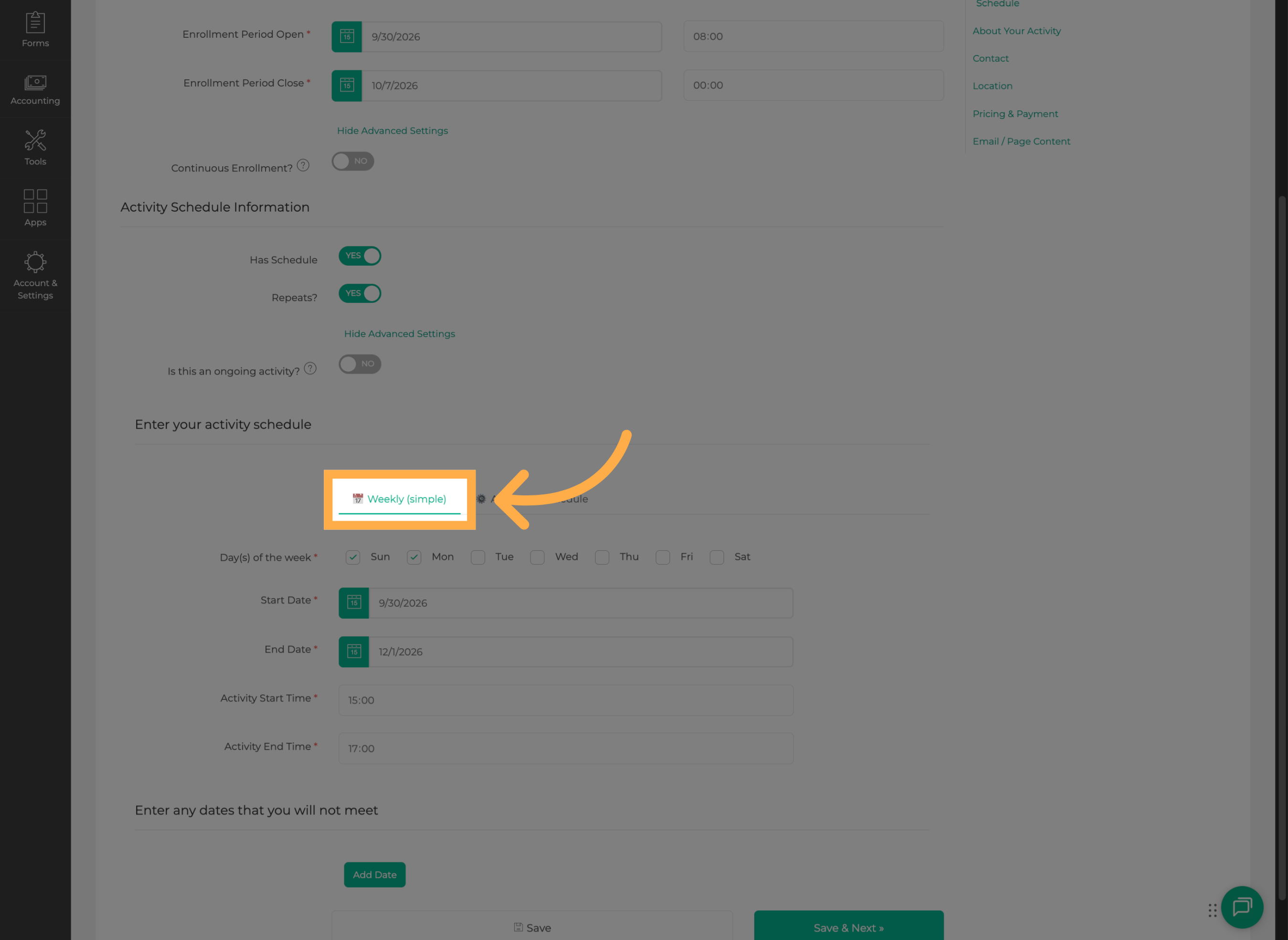
With Weekly (Simple), you can configure the recurring days, activity dates, and start and end times.
Advanced Scheduling
Choose “Advanced” when your schedule requires additional flexibility or recurrence options.
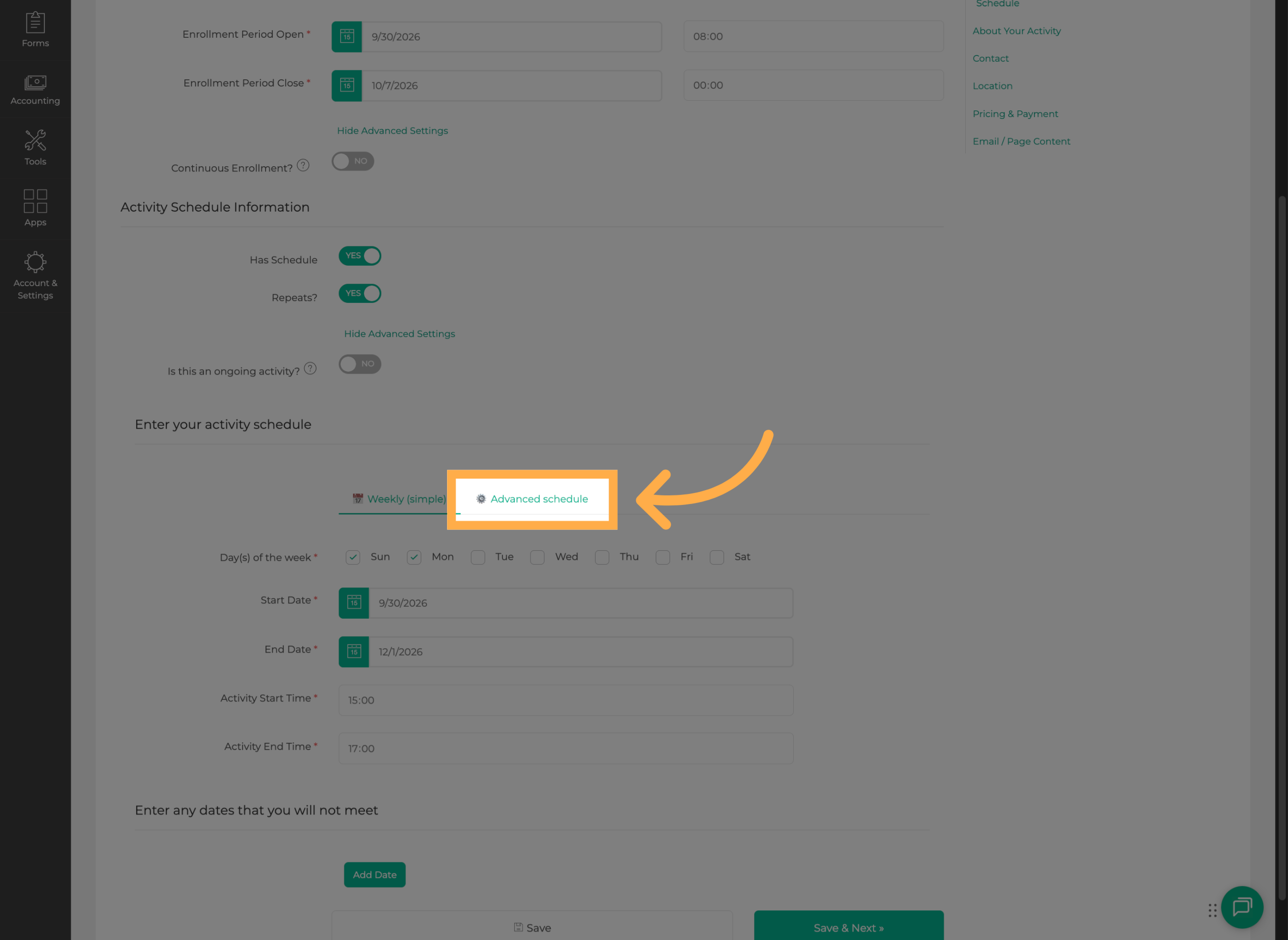
💡 Tip: You can switch back to Weekly (Simple) if you determine that your activity only needs a straightforward weekly schedule.
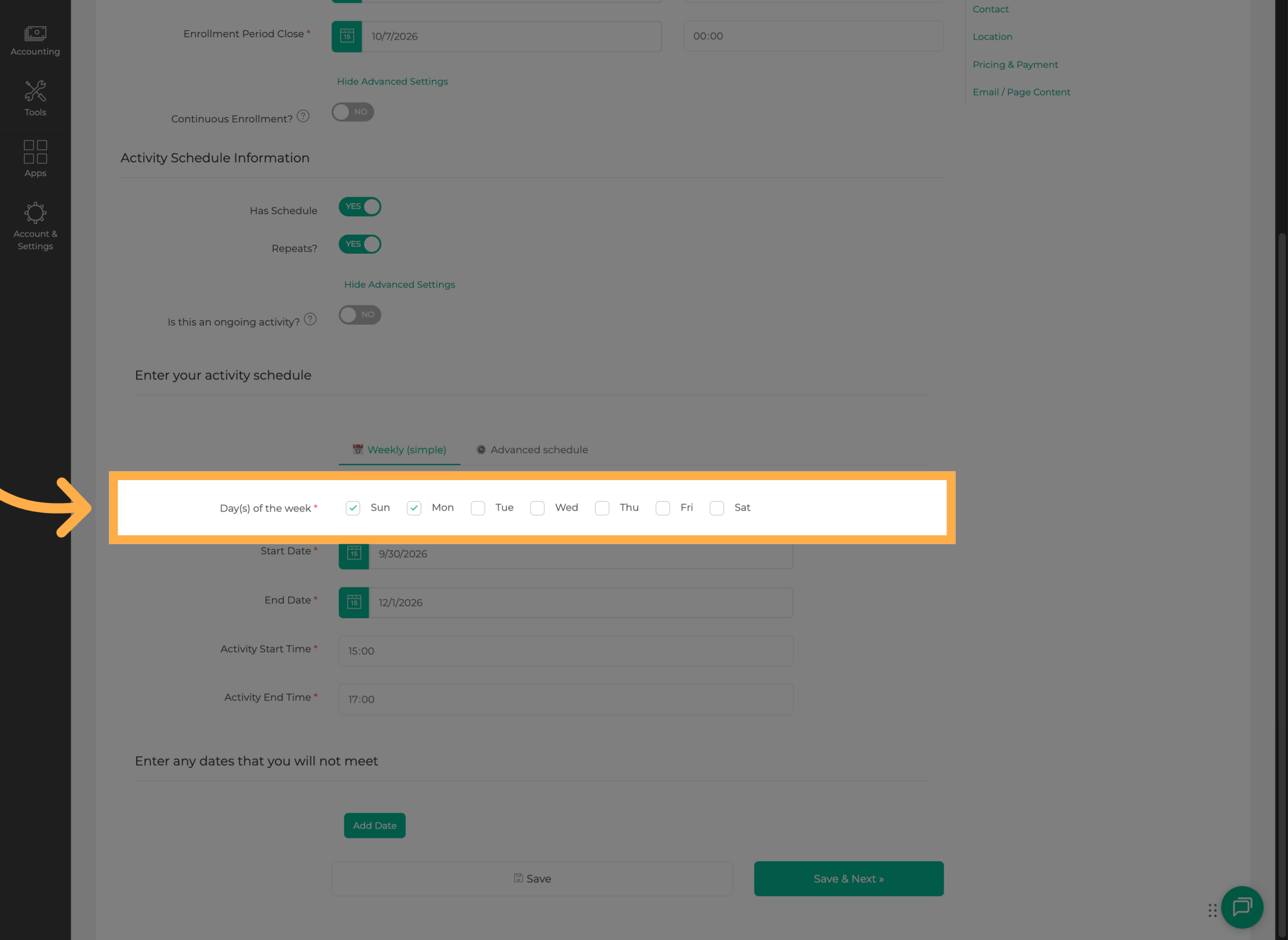
10. Select the Days of the Week
Select each day of the week when the activity will take place.
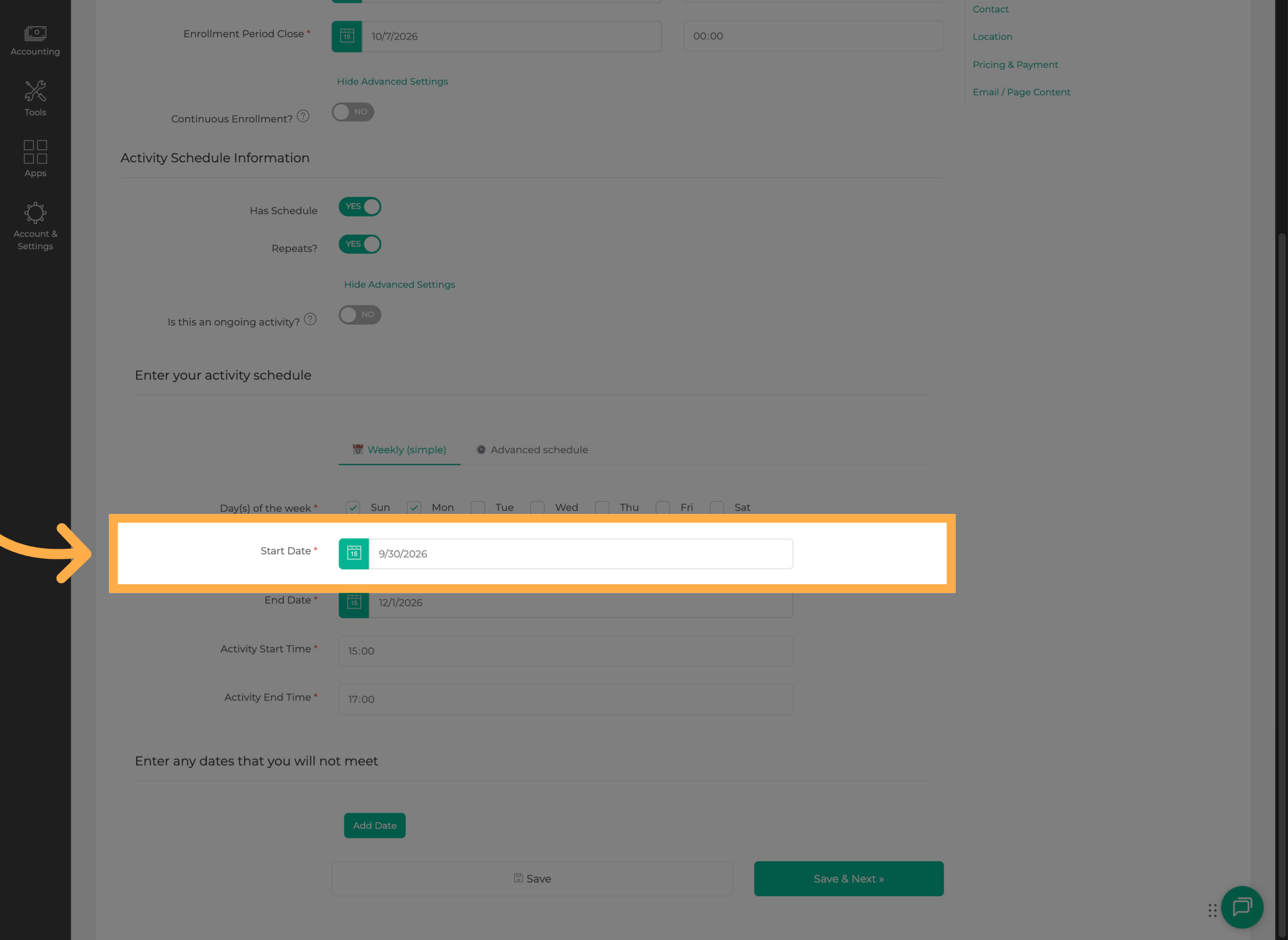
11. Set the Activity Start Date
Select the date when the activity schedule should begin.
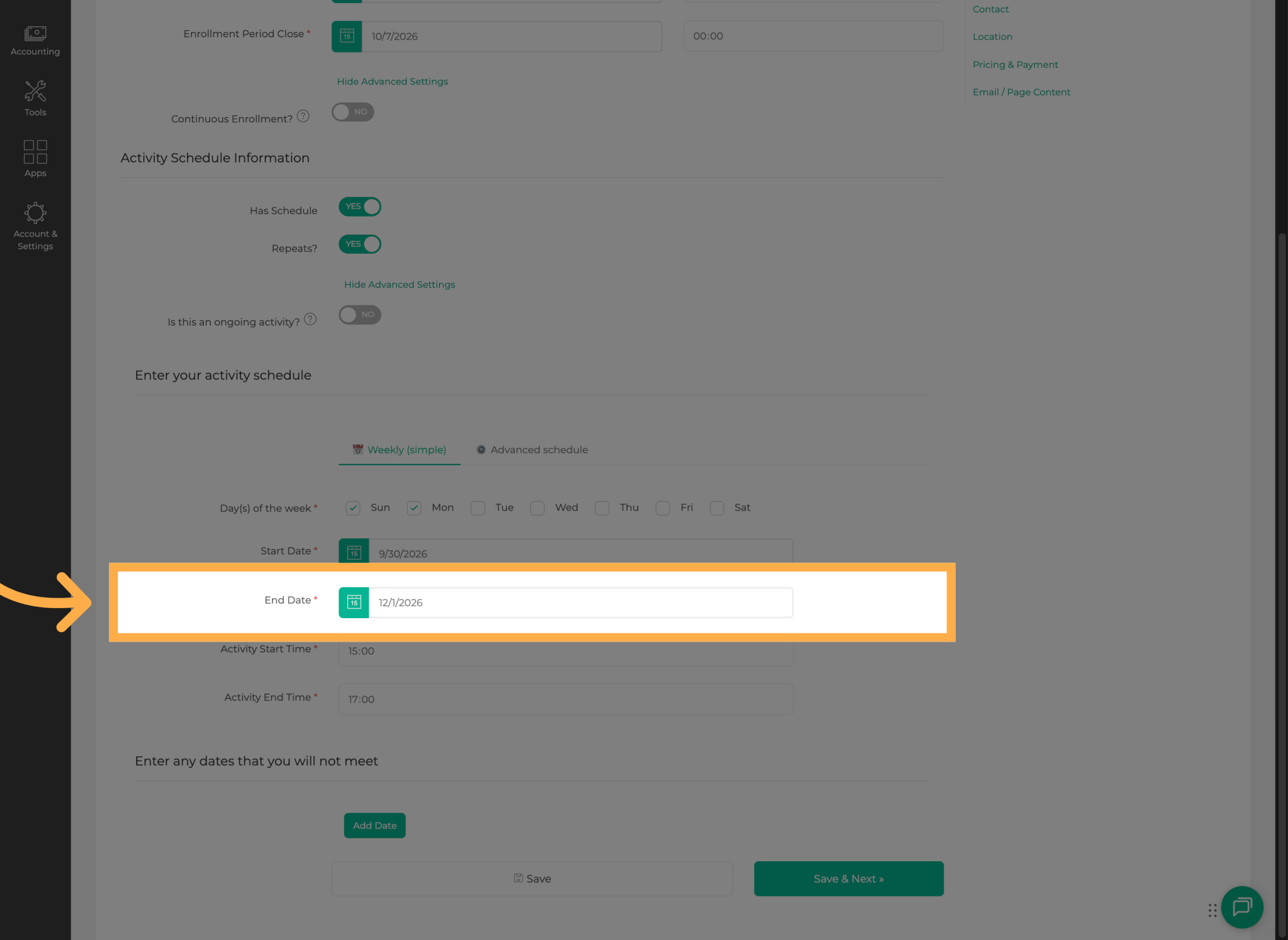
12. Set the Activity End Date
If the activity has a defined end date, select when the schedule should conclude.
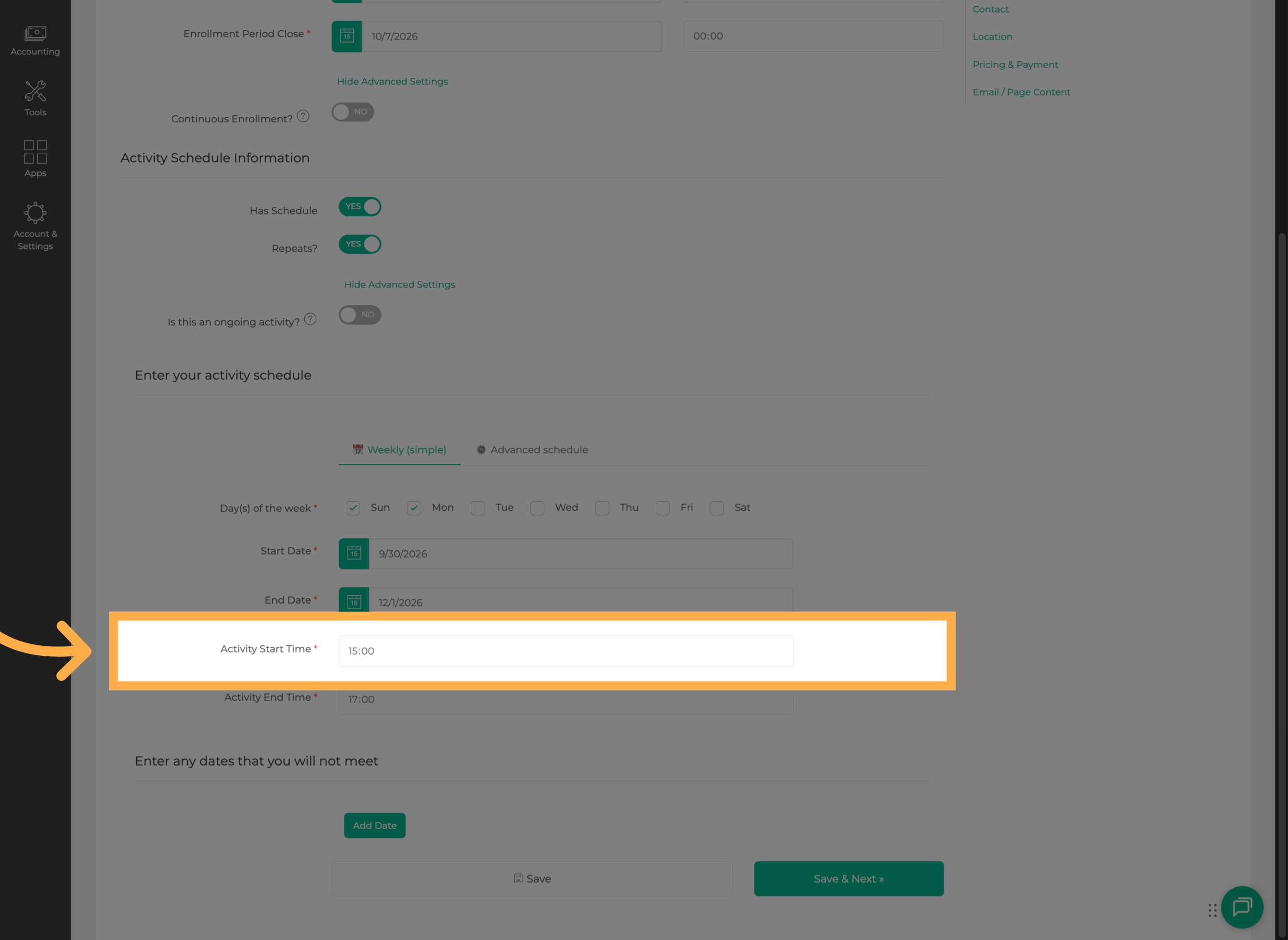
13. Set the Start Time
Enter the time when each activity session will begin.
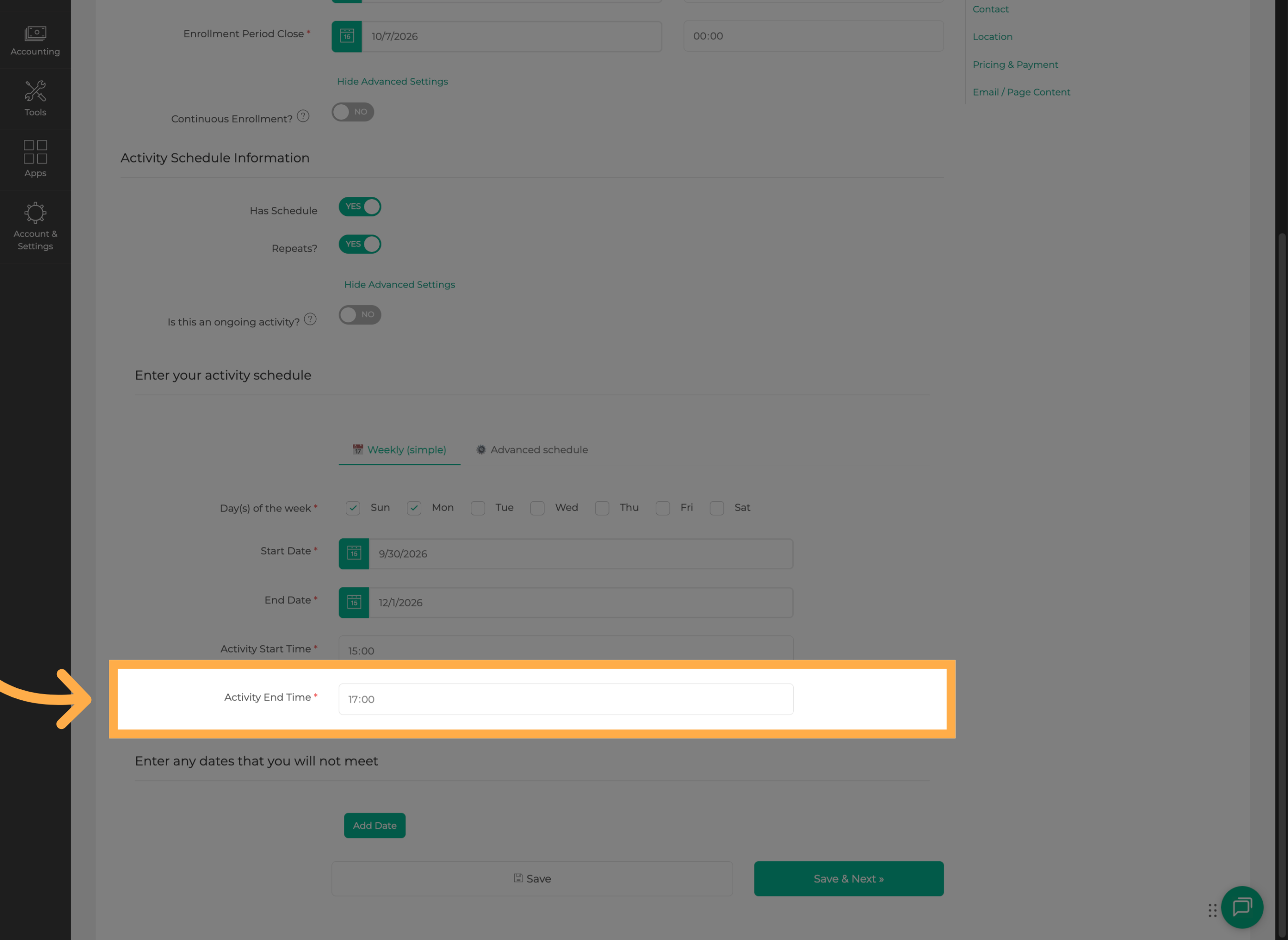
14. Set the End Time
Enter the time when each activity session will end.
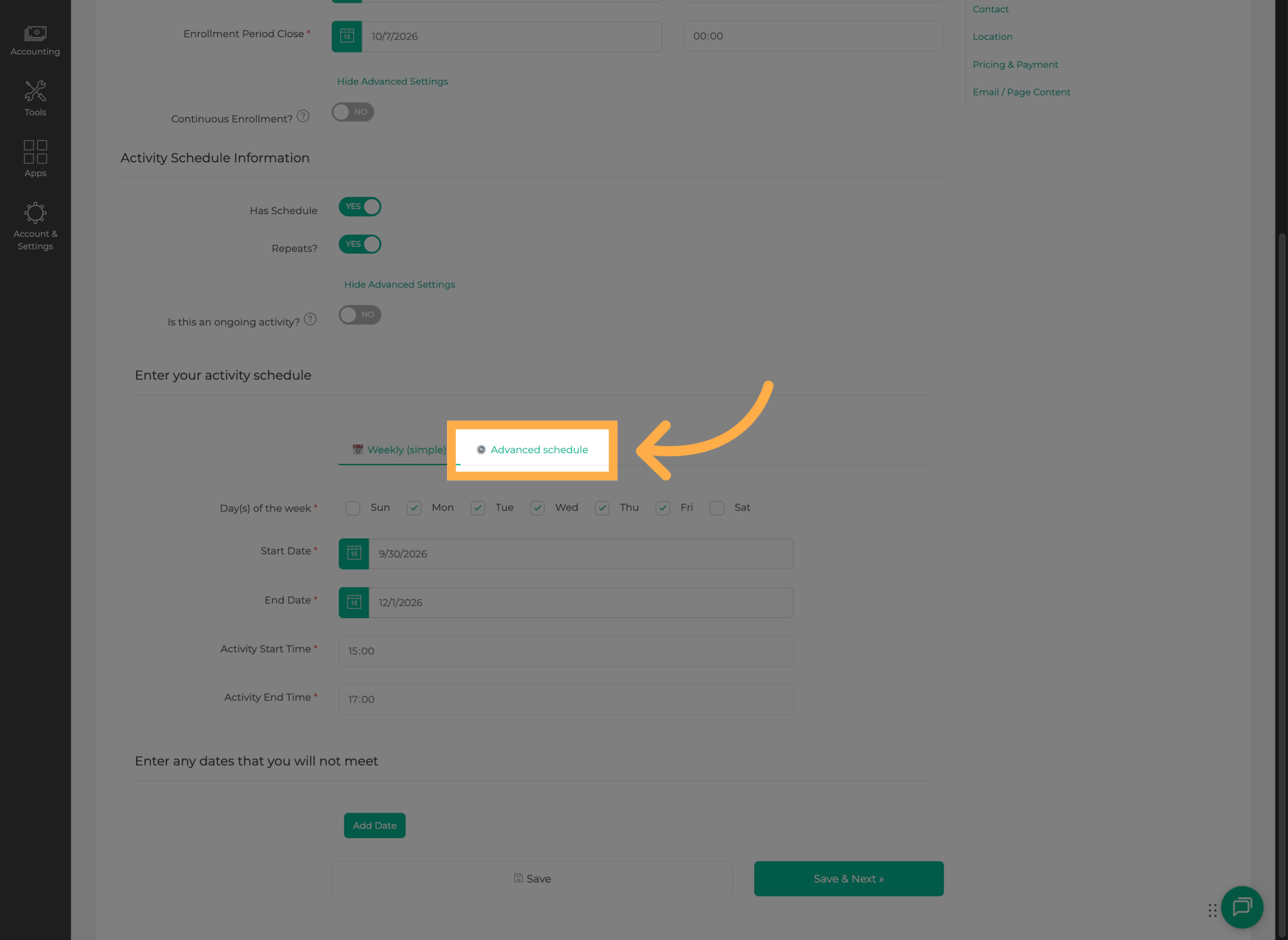
15. Open Advanced Schedule Settings
Switch to “Advanced scheduling” and open the advanced schedule settings to access the additional configuration options.
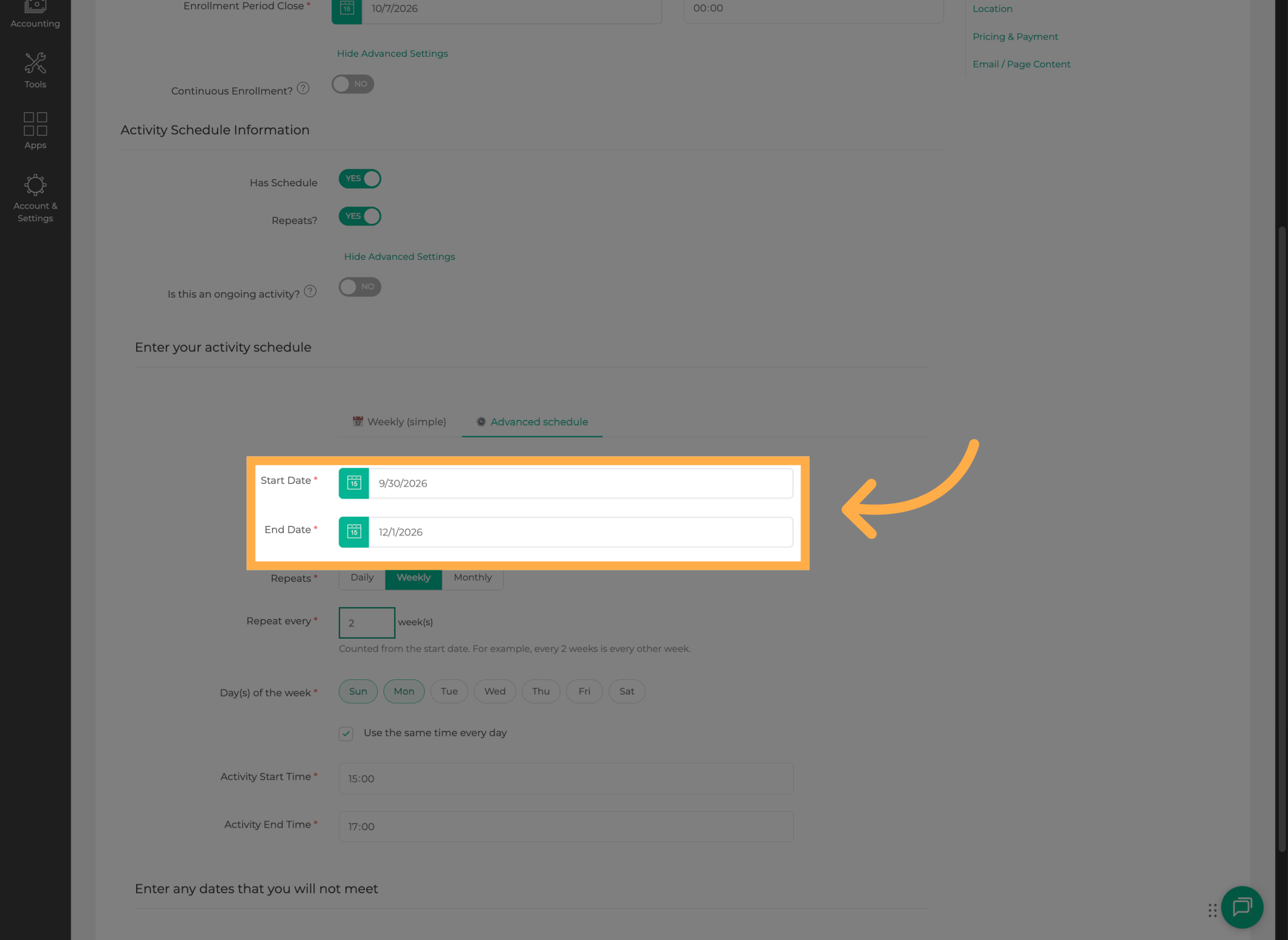
16. Set the Schedule Date Range
Enter the start and end dates for the advanced schedule. This defines the period during which the activity will take place.
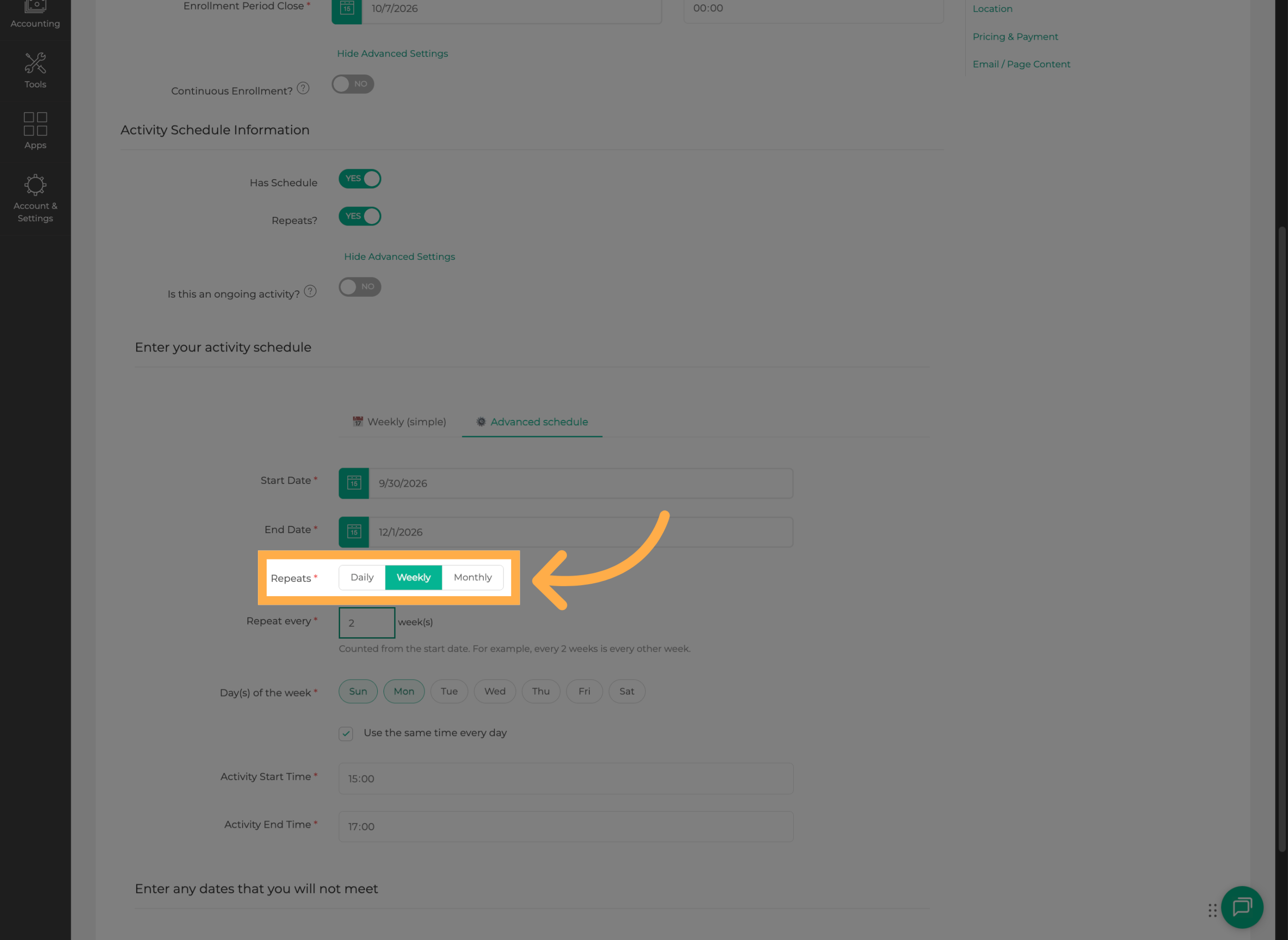
17. Choose How Often the Schedule Repeats
Choose how frequently the activity should repeat, such as daily, weekly, or monthly.
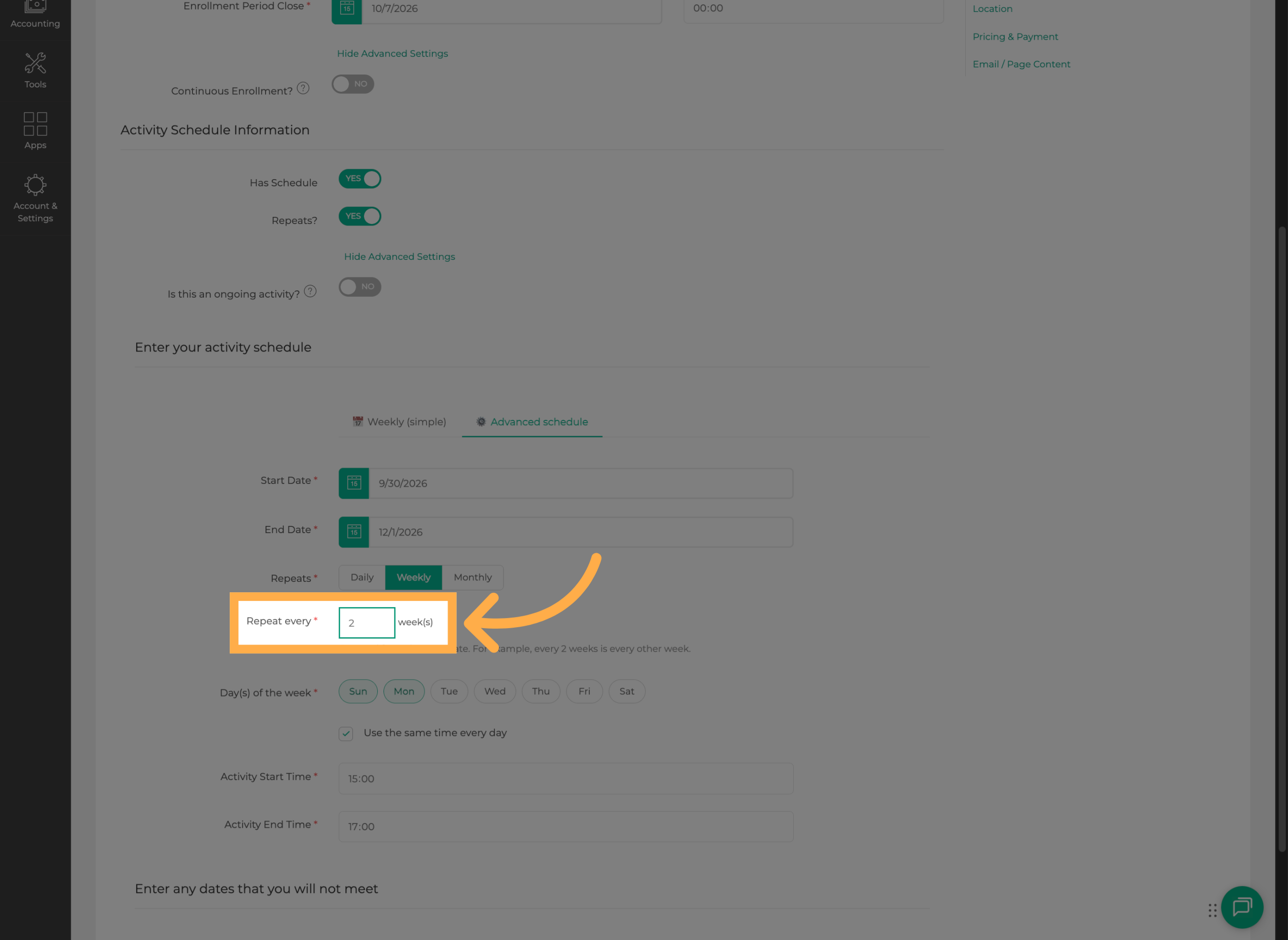
18. Set the Recurrence Frequency
Enter how often the schedule should repeat based on the recurrence option you selected.
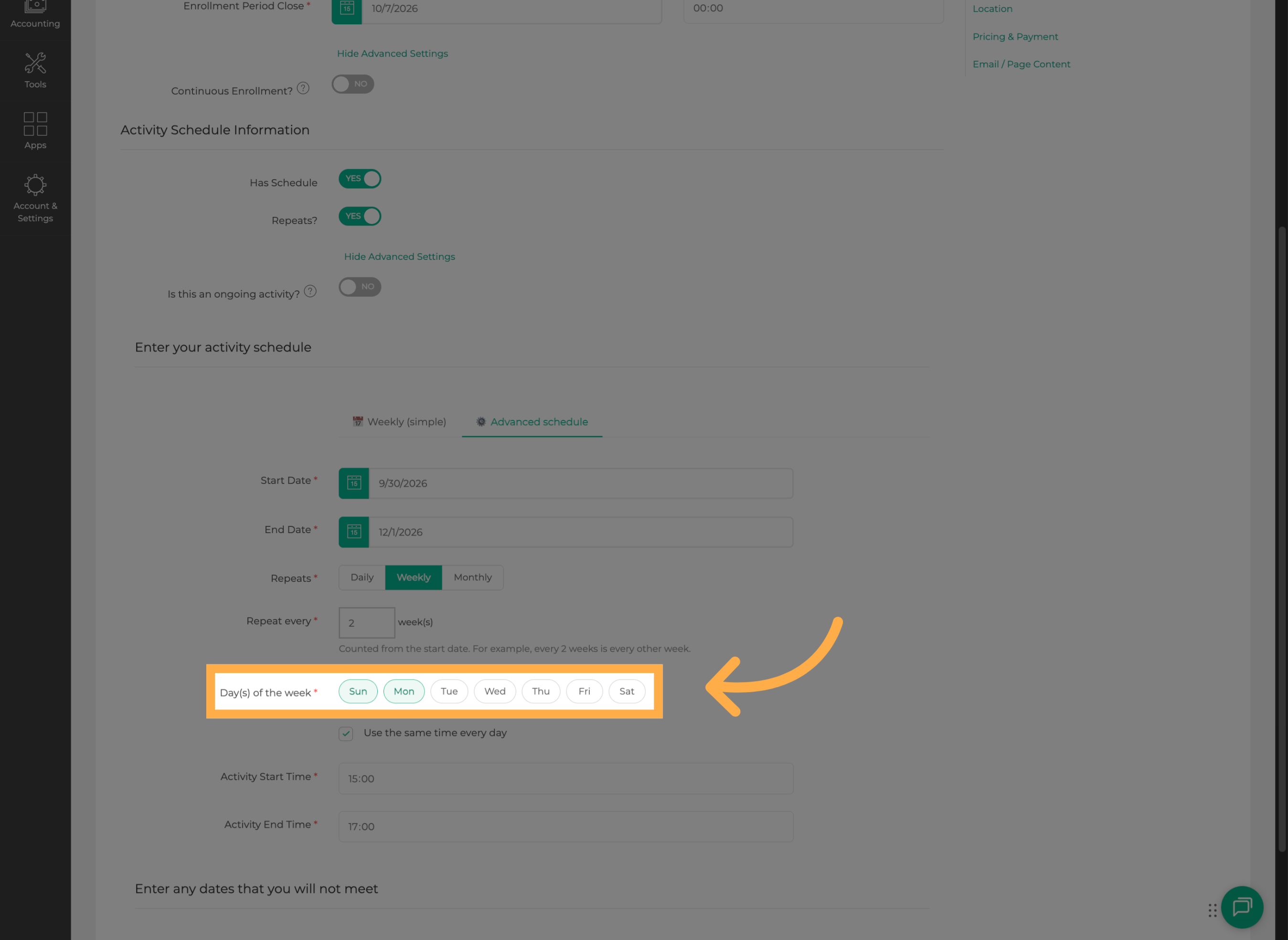
19. Select Recurring Days
For a weekly recurrence, select the days of the week when the activity should take place.
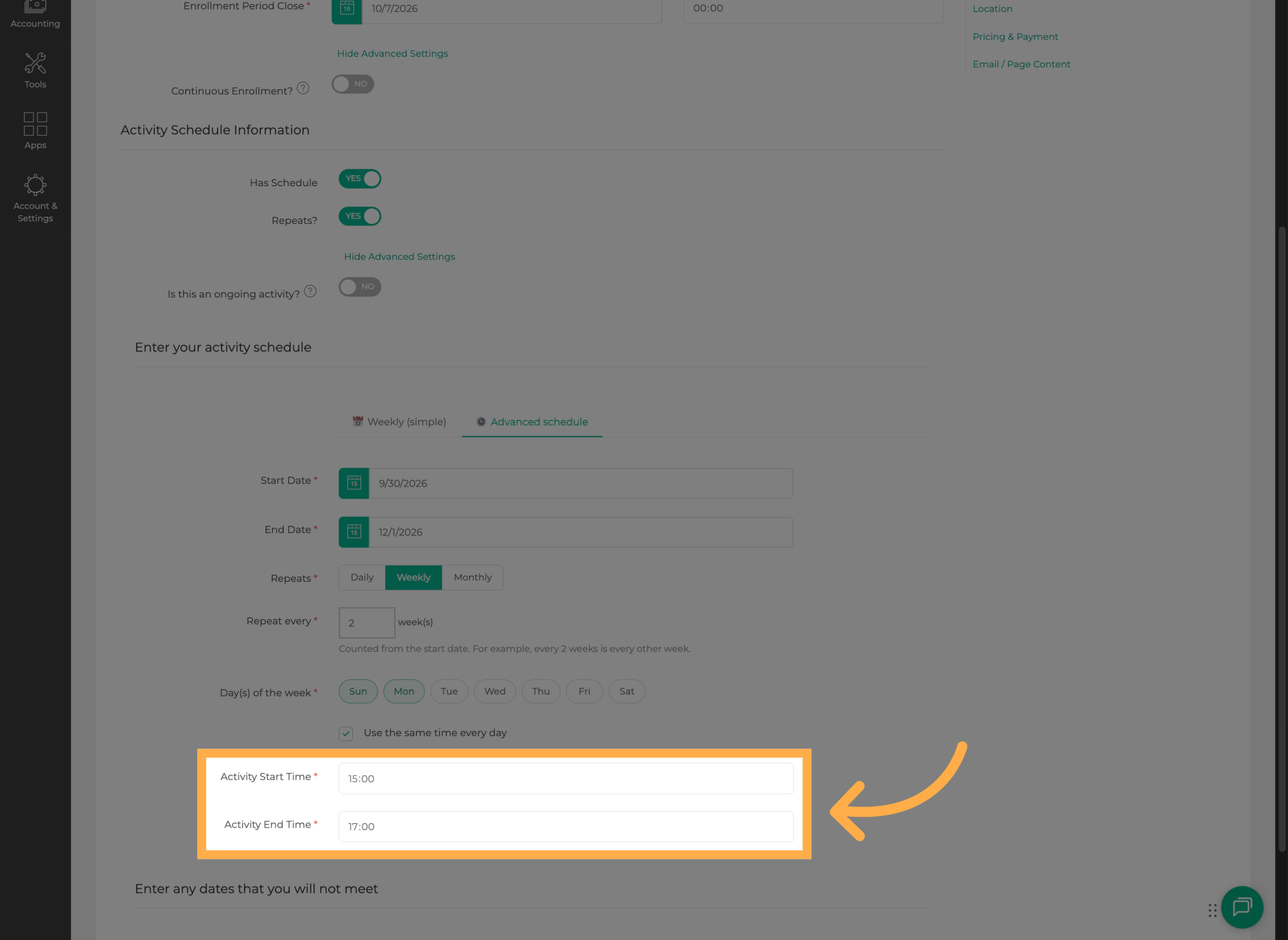
20. Set the Activity Time
Enter the start and end times for the activity included in the advanced schedule.
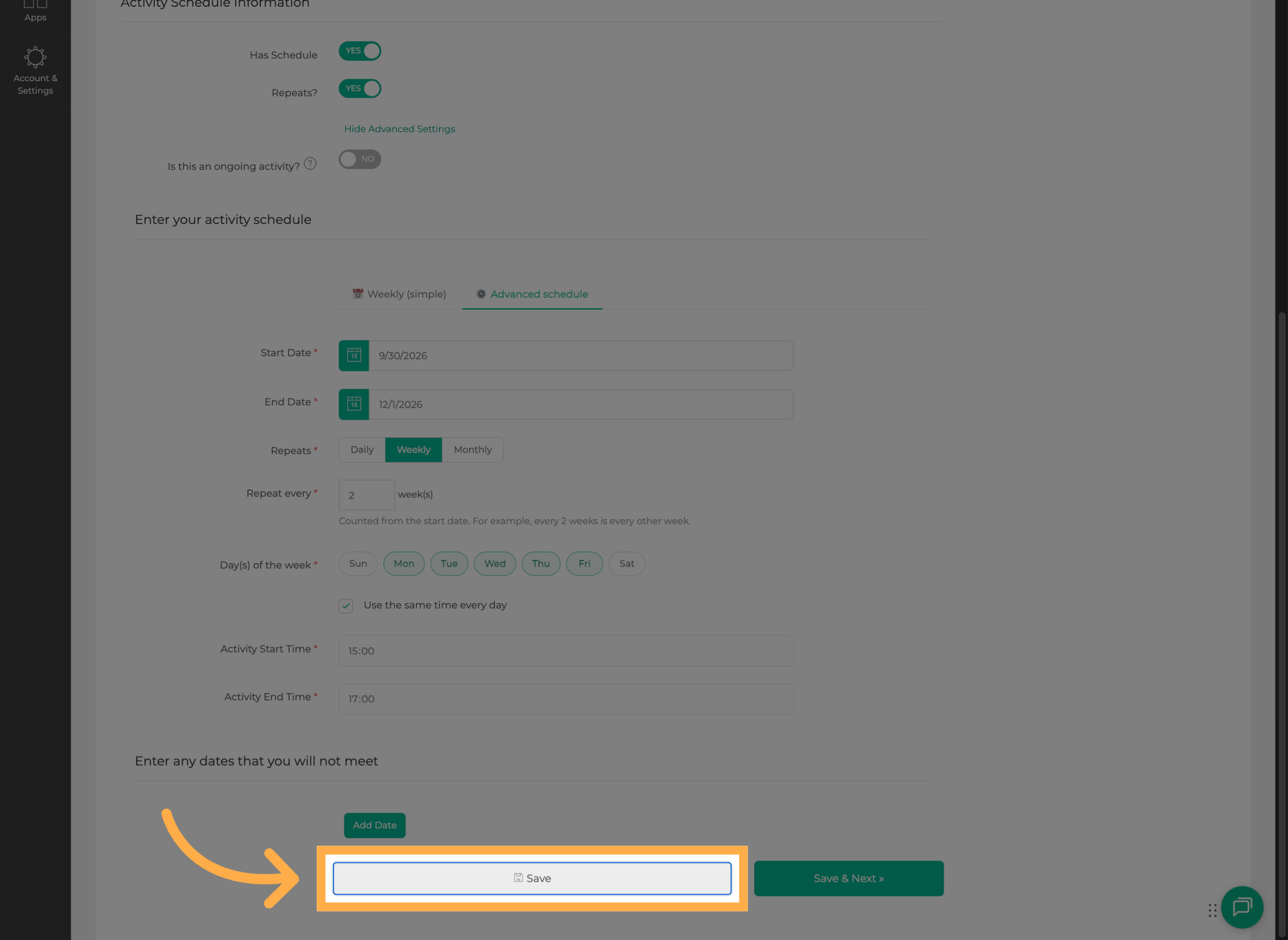
21. Save the Schedule Settings
Once you've configured the advanced schedule, select “Save” to apply your changes.
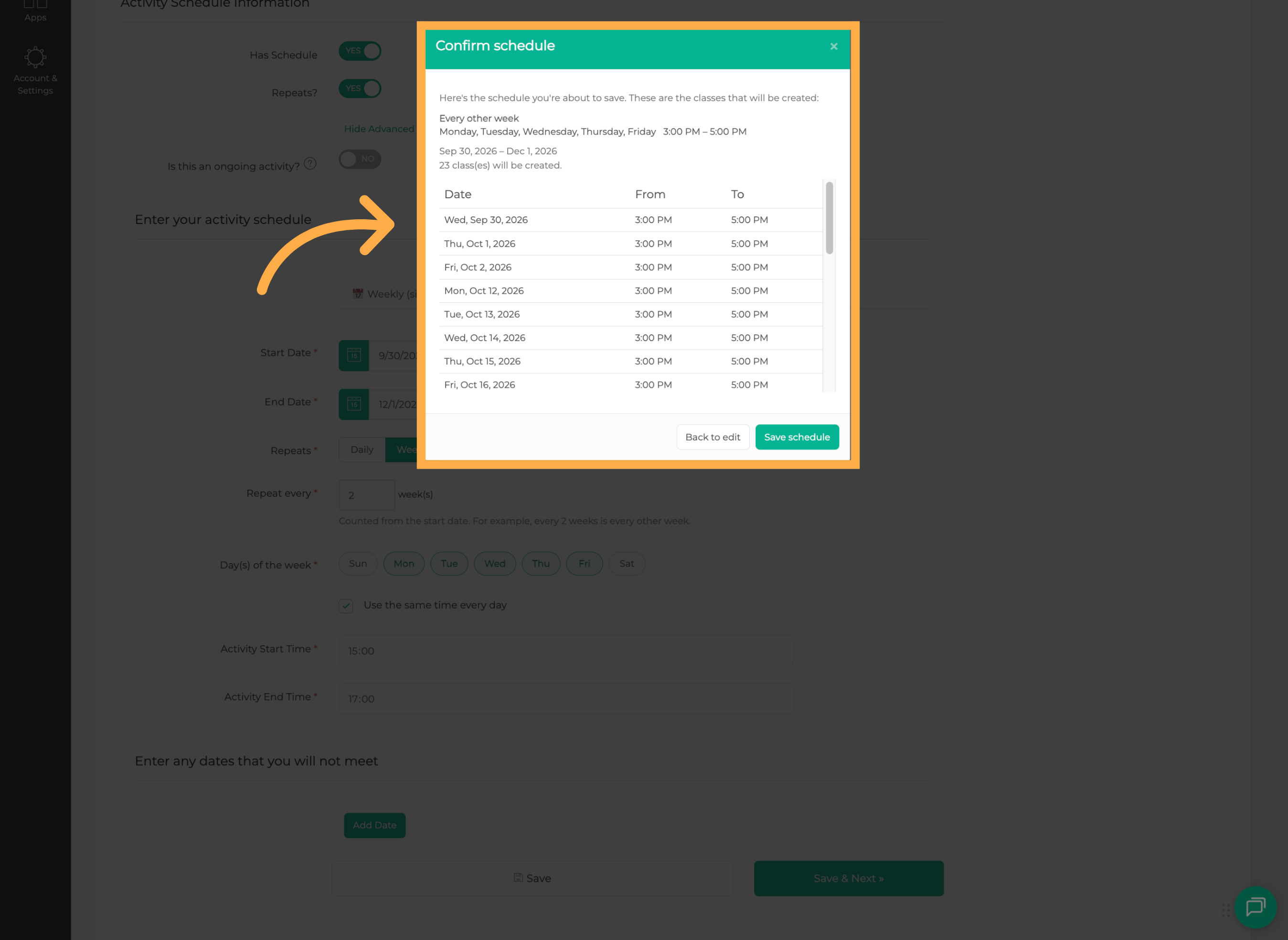
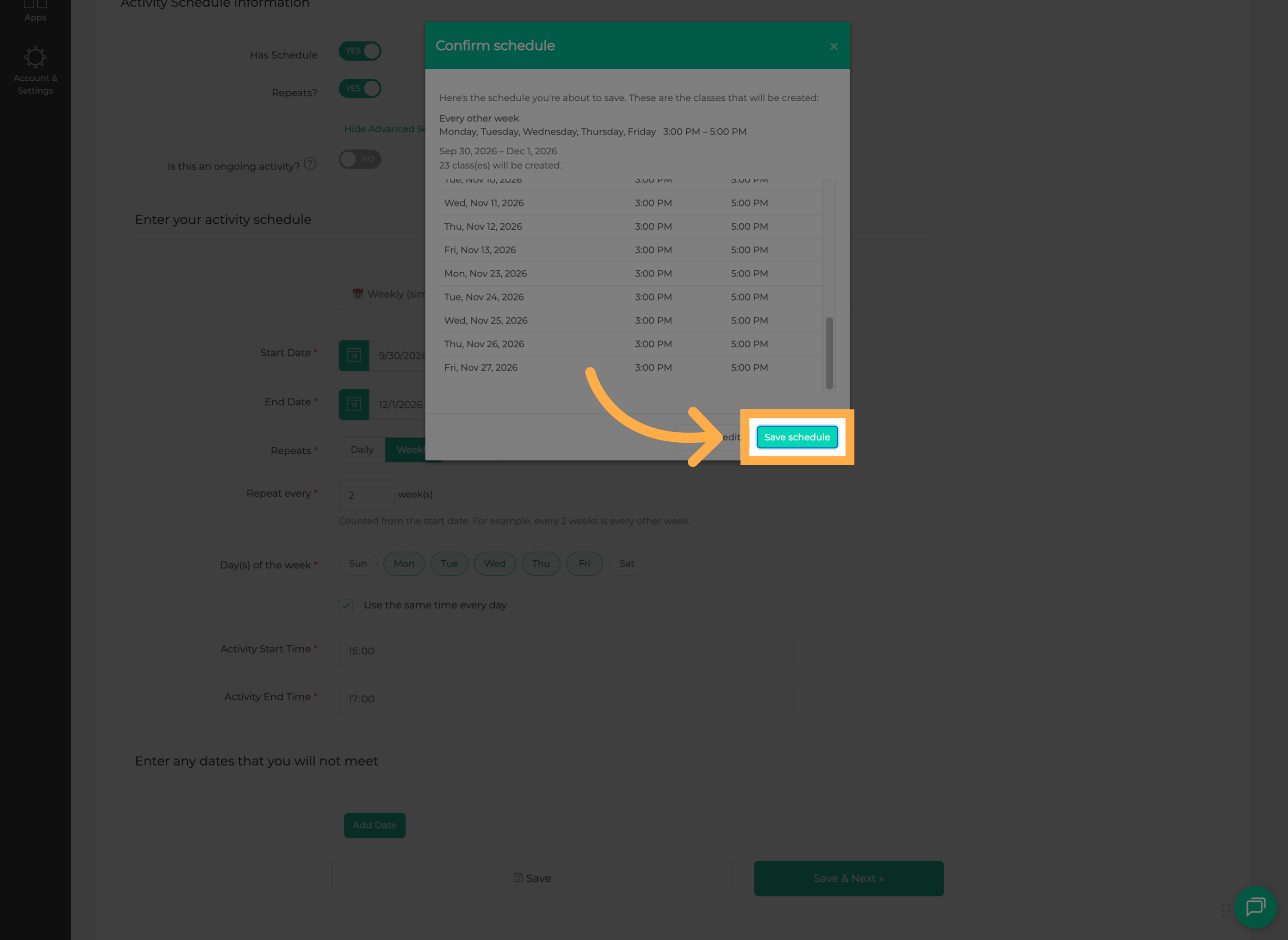
22. Review the Schedule
Review the generated schedule and make sure the dates, times, and recurrence are configured correctly.
23. Save the Activity Schedule
When everything looks correct, save your changes to finalize the activity schedule.
Frequently Asked Questions
Q: What is the difference between Weekly (Simple) and Advanced scheduling?
A: Weekly (Simple) is designed for activities that follow a consistent weekly schedule on selected days. Advanced scheduling provides additional recurrence options for activities that require more flexibility.
Q: Can I choose more than one day with Weekly (Simple) scheduling?
A: Yes. You can select the days of the week when your activity will take place.
Q: What if my activity doesn't have an end date?
A: You can use the Ongoing option when your activity does not have a defined end date.
Q: Can I switch between Weekly (Simple) and Advanced scheduling?
A: Yes. The schedule settings allow you to switch between the two scheduling modes.
Q: What recurrence options are available with Advanced scheduling?
A: The guide shows recurrence options such as daily, weekly, and monthly, along with controls for how often the schedule repeats.
Q: Can I choose specific days when using a weekly Advanced schedule?
A: Yes. When using a weekly recurrence, you can select the specific days of the week when the activity should take place.
Q: Should I review the schedule before saving the activity?
A: Yes. Review the schedule to make sure the dates, times, and recurrence are correct before saving your final changes.
💡If you experience any issues or have further questions with “How to Set Up a Schedule for Your Activity”, don't hesitate to get in touch with our support team at support@afterschoolhq.com.